
One fact shapes everything else, so it goes first: Instagram does not offer a feed embed. There is no Instagram equivalent of Facebook's Page Plugin — no official product that renders your recent posts on your own site. What Instagram gives you is a way to embed one post at a time. I proved that four different ways in the native-methods section, with screenshots. So the practical choice is between pasting individual posts by hand and using a widget that talks to Instagram's Graph API — and if you want the widget route, here it is. If you are comparing tools first, we tested 8 Instagram feed widgets on the same page.
How to Embed an Instagram Feed on Your Website (5 Steps)
This is the CollectSocials path, screenshotted end to end in the same July 2026 session — five steps, and none of them involves code beyond pasting one snippet. If you are evaluating other tools, the shape of the process is similar everywhere; the specifics below are ours.
Step 1: Create a feed and choose Instagram
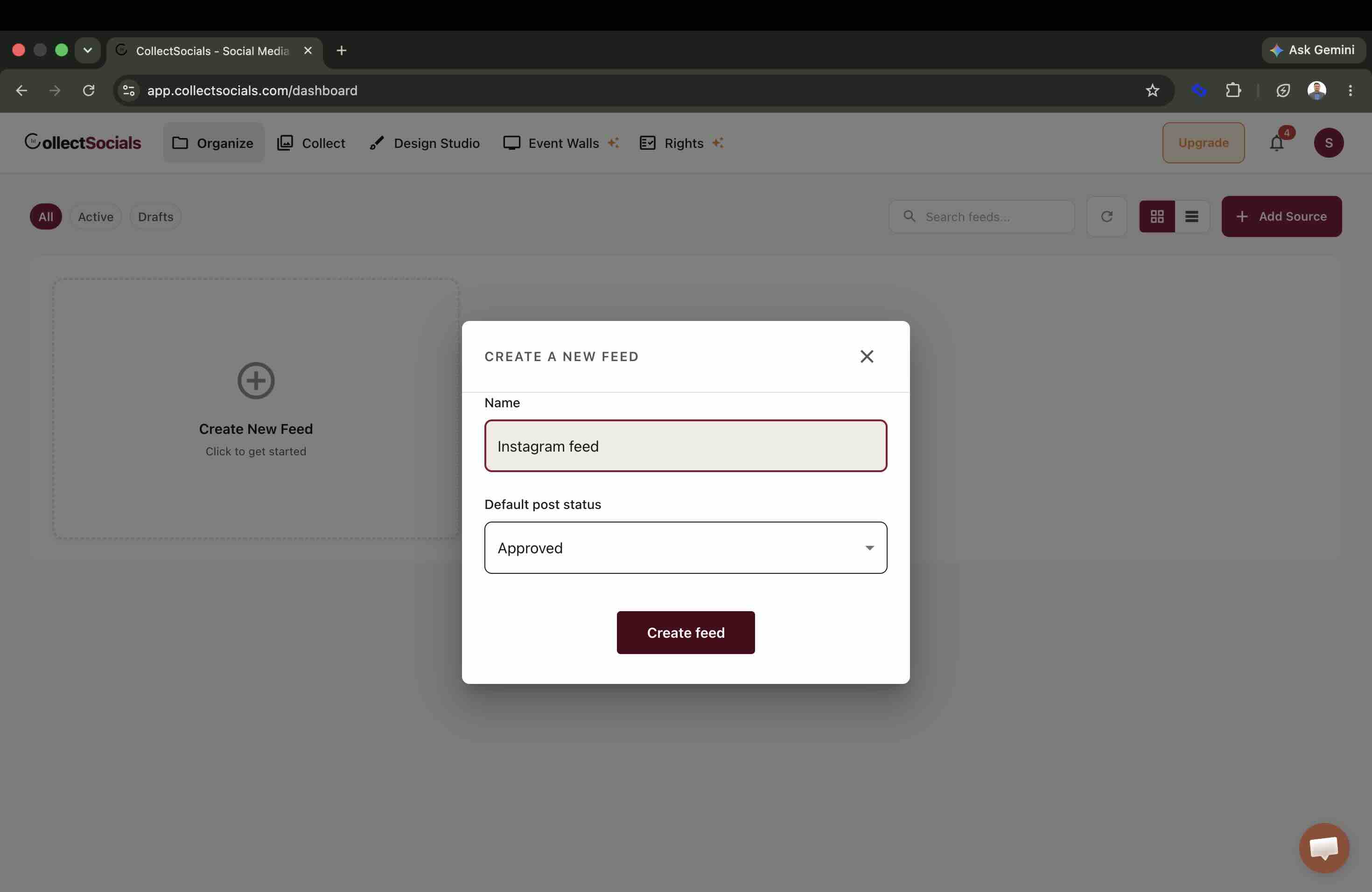
Everything hangs off a feed, so that is the first object you make. Create a free CollectSocials account, open New Feed, name it, and set the default post status while you are there — Approved lets posts appear automatically, or you can hold everything for review.
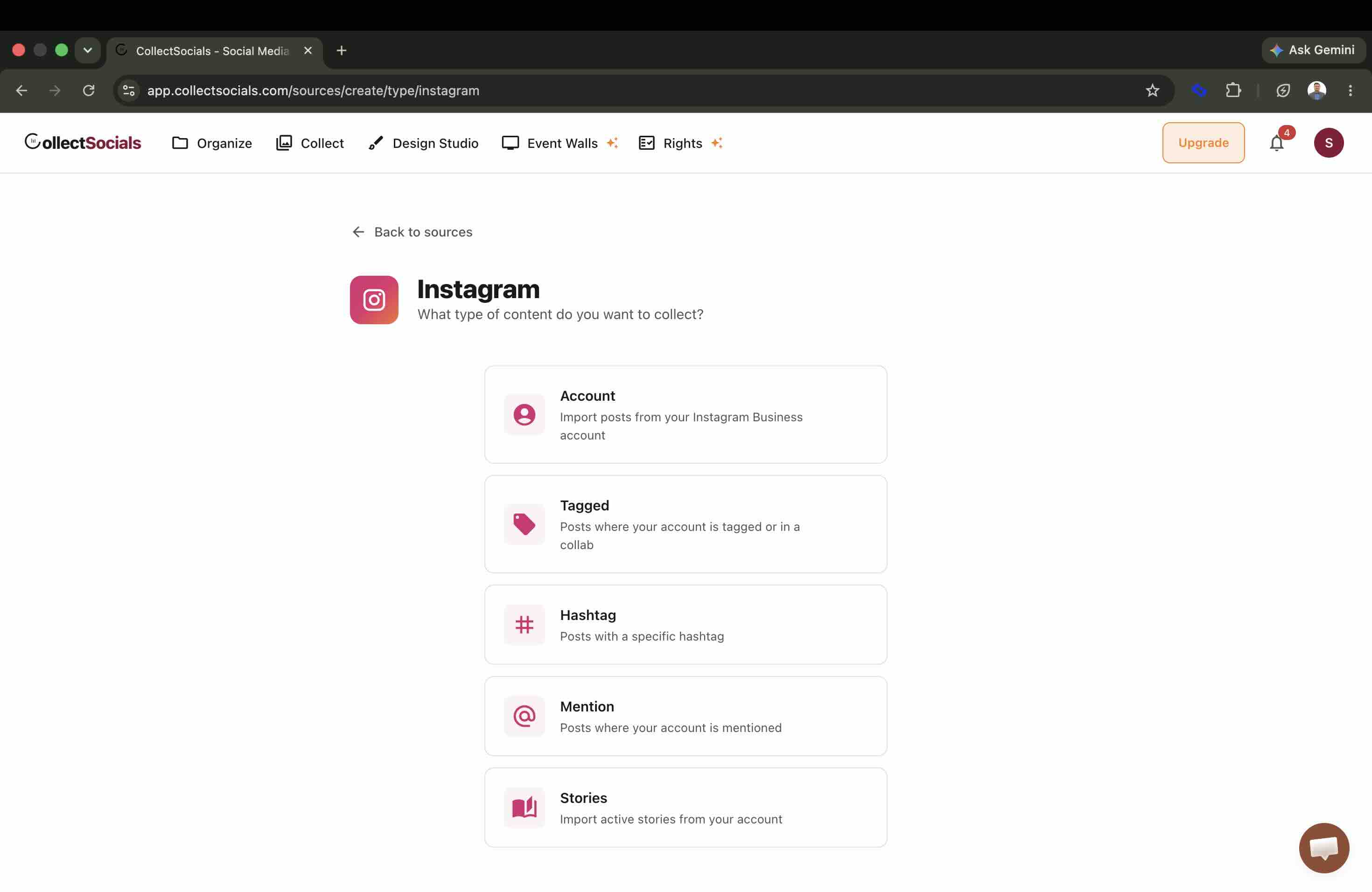
Instagram then offers five source types: Account, Tagged, Hashtag, Mention and Stories. All five are on the free plan. For a first feed pick Account — your own posts, in order — and read the feed-types section before you commit to one of the others, because two of them carry conditions set by Meta.
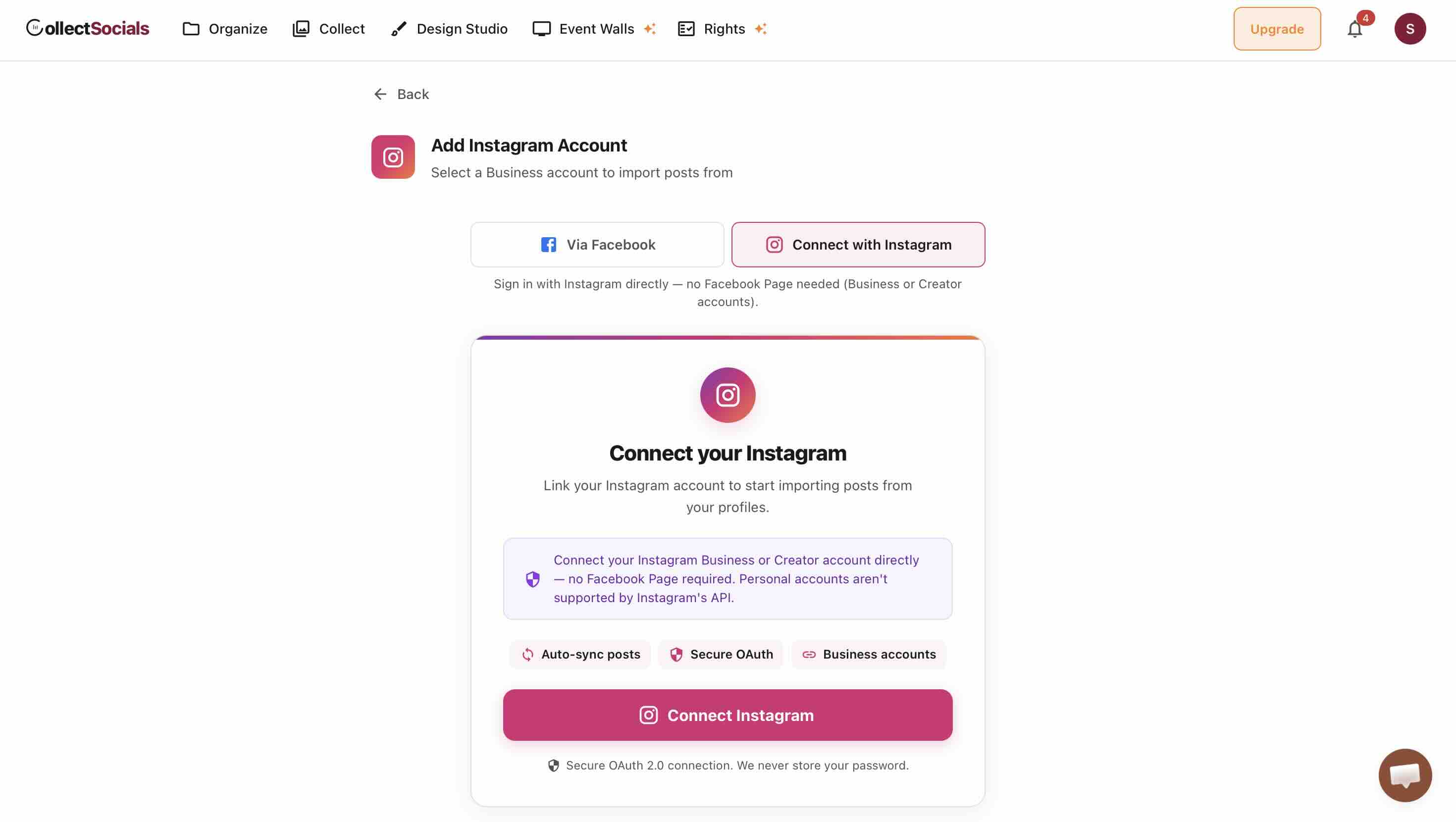
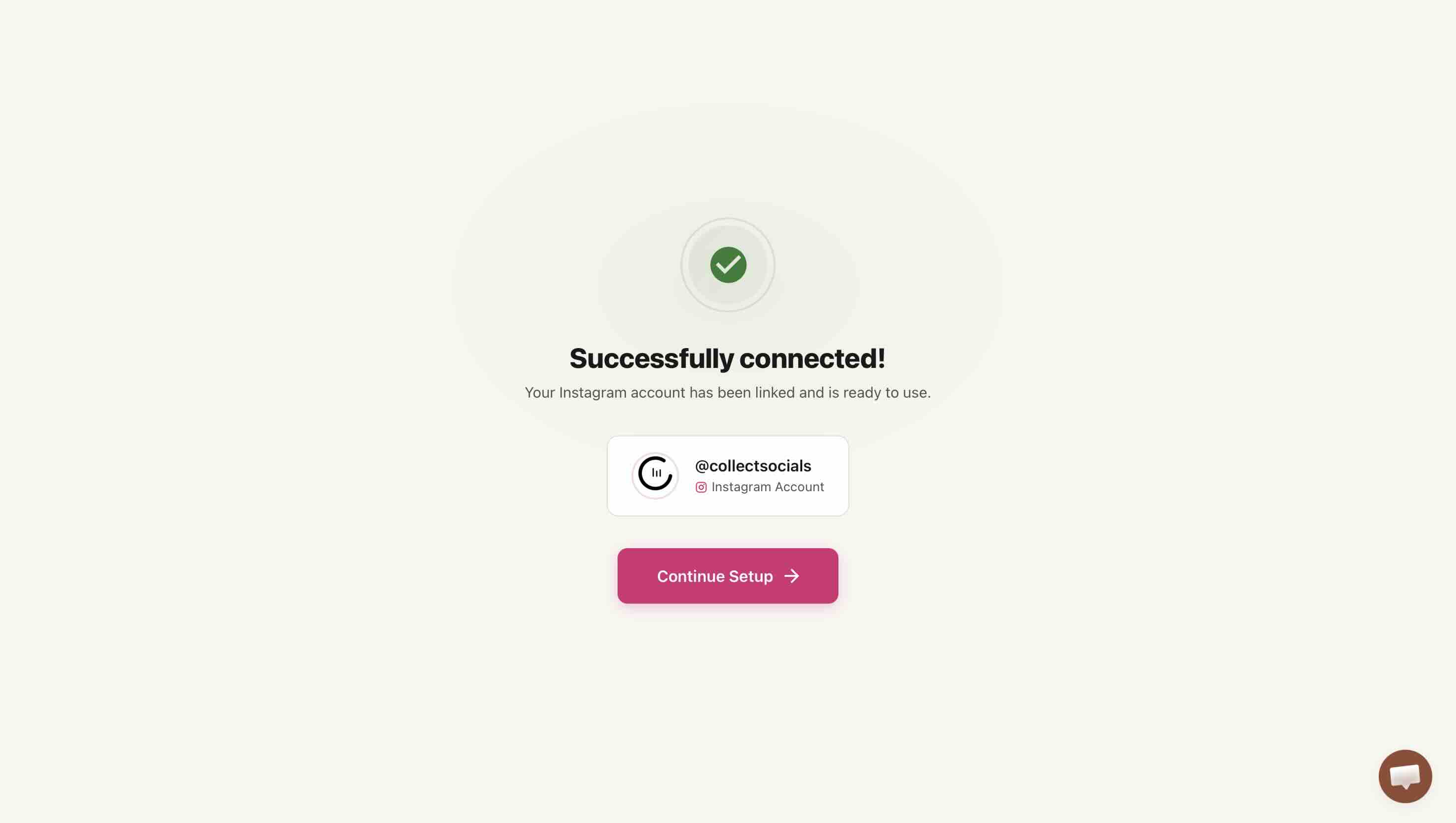
Step 2: Connect the account — start with Via Facebook
There are two connection routes, and the order matters. Via Facebook is the one to use. It is the long-standing path, it works for every Business and Creator account, and it is what hashtag search requires later anyway.
The direct Instagram login is the newer route and asks for a single permission — view profile and access media — with no Facebook Page involved.
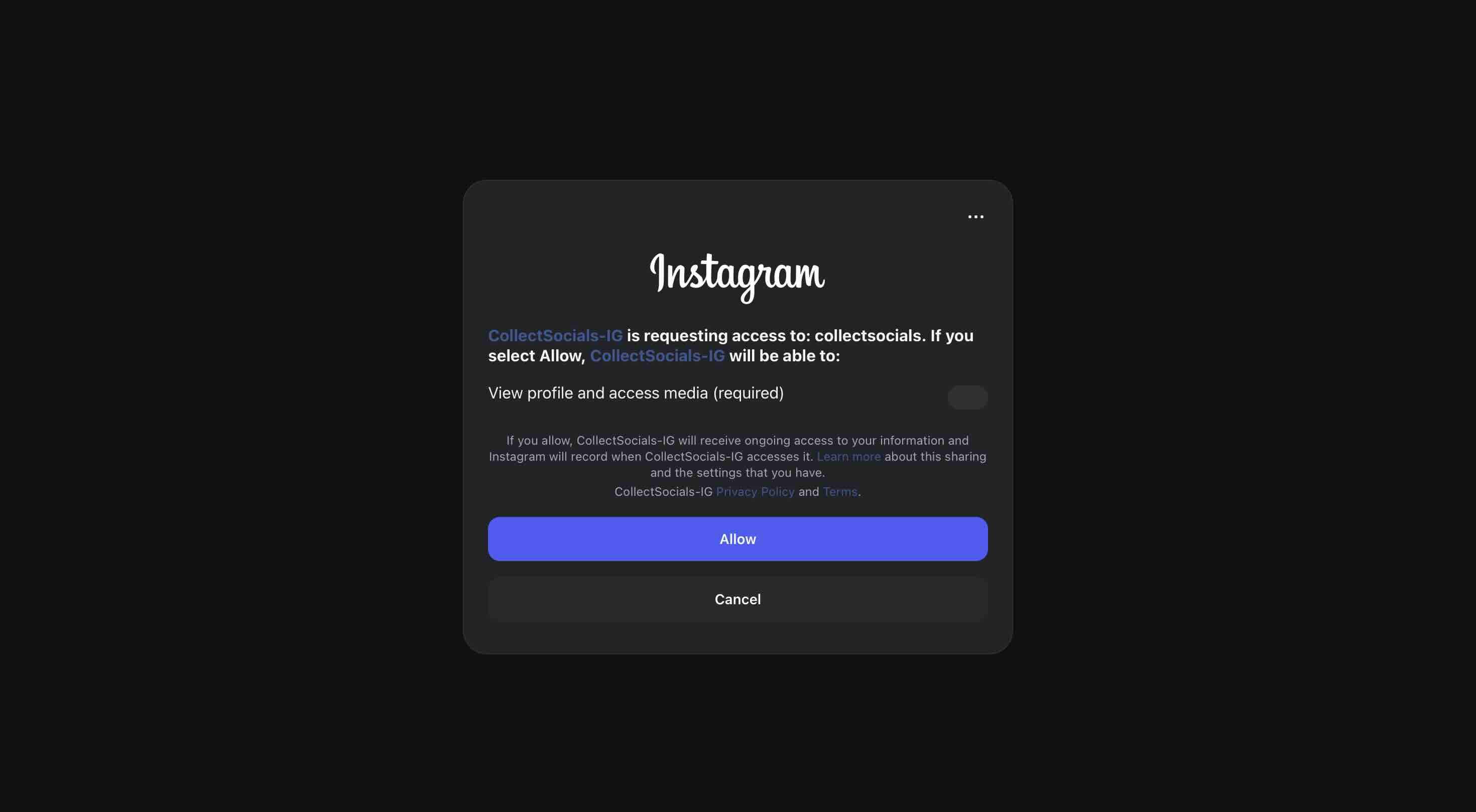
It is genuinely simpler, and it is the newer of the two routes. If it does not complete for your account, use Via Facebook instead — the result is the same feed, and hashtag search needs that route anyway.
Step 3: Choose which posts appear
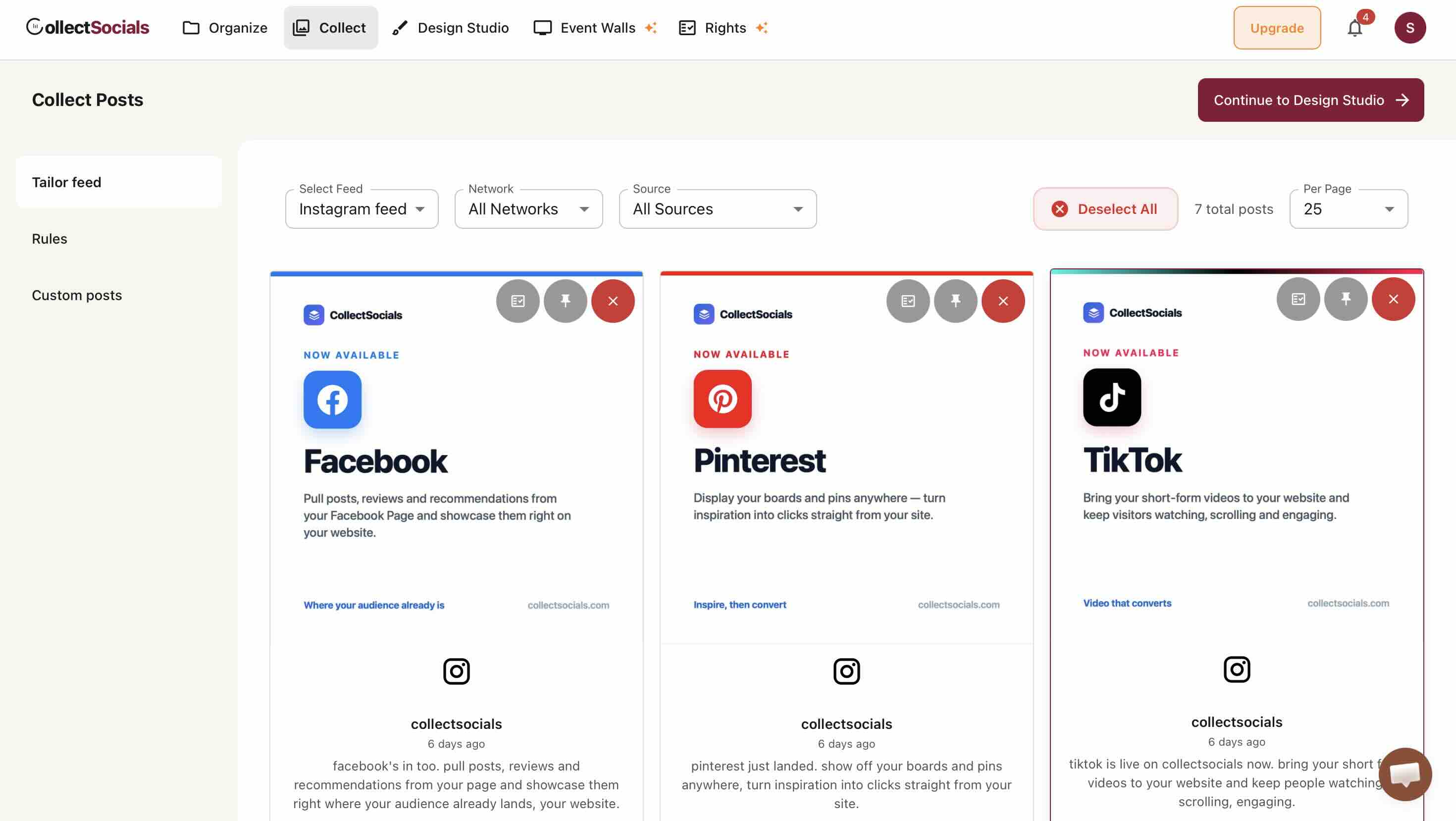
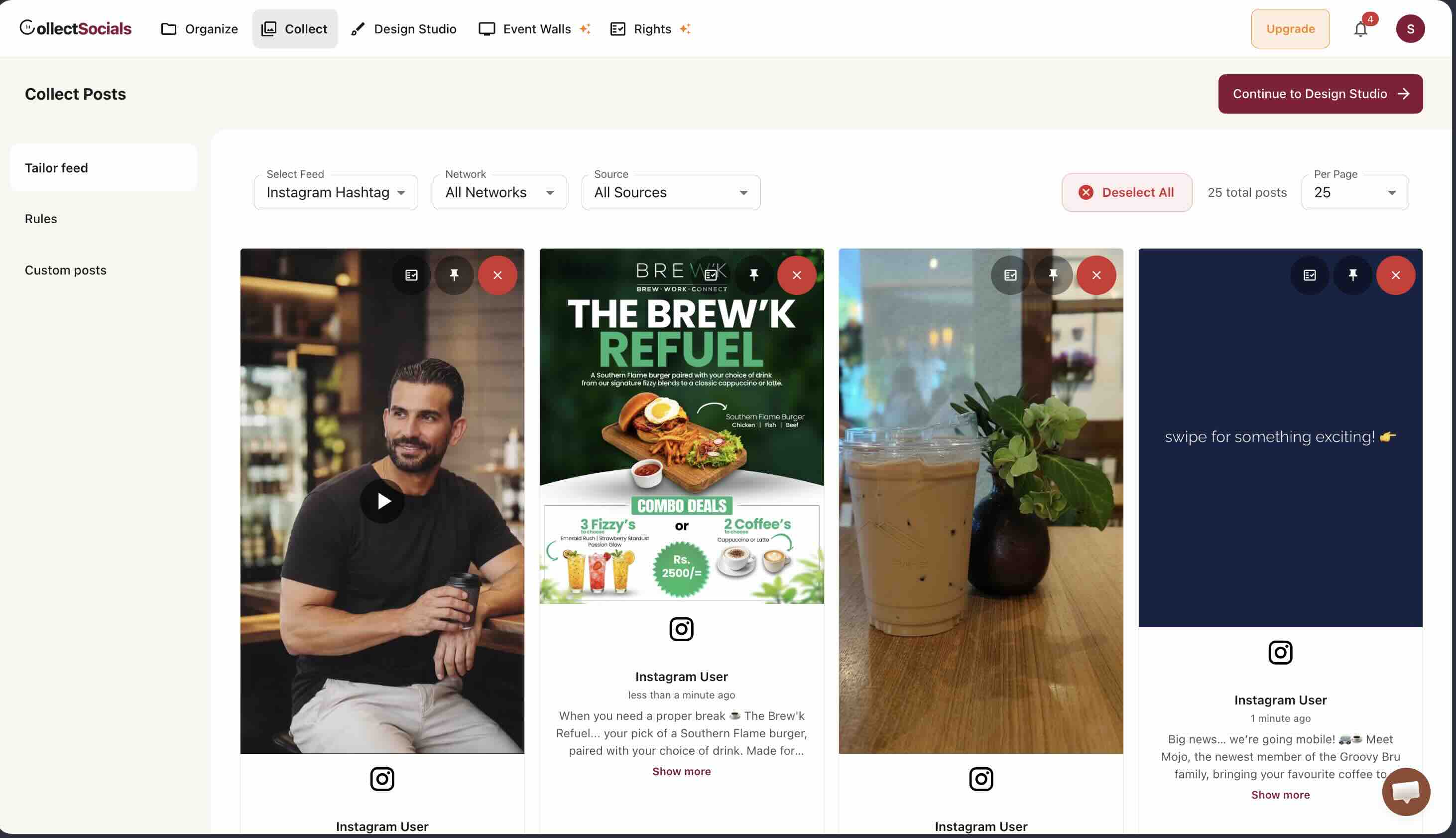
Posts land in a review queue rather than going straight to your site. Each one can be approved, pinned to the top, or removed.
Step 4: Design the feed
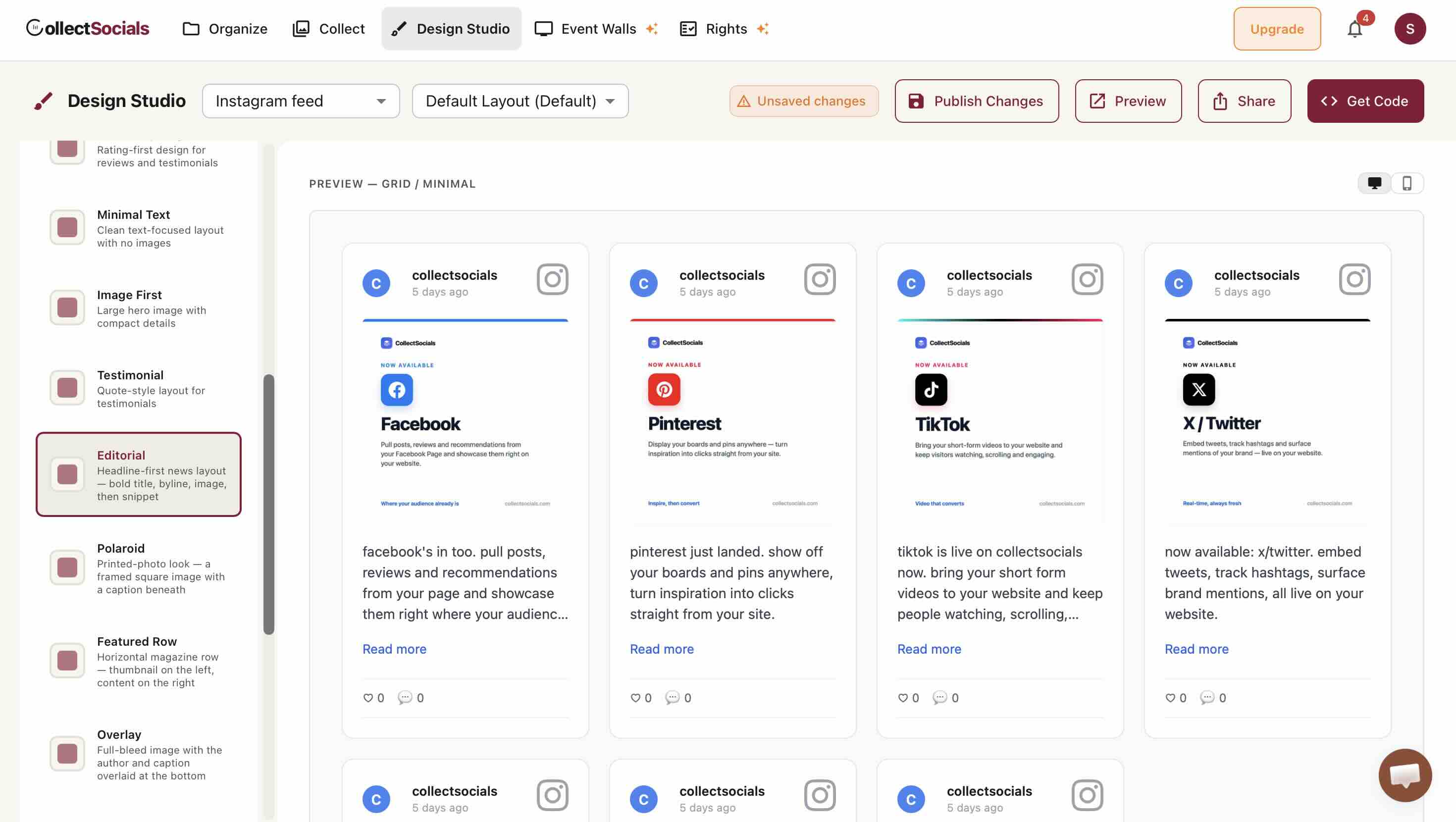
Layout and theme are picked in the Design Studio, on a live preview of your real posts rather than a mockup.
Step 5: Copy one line of HTML into your page
Get Code asks where the feed is going and hands you the snippet for that target.
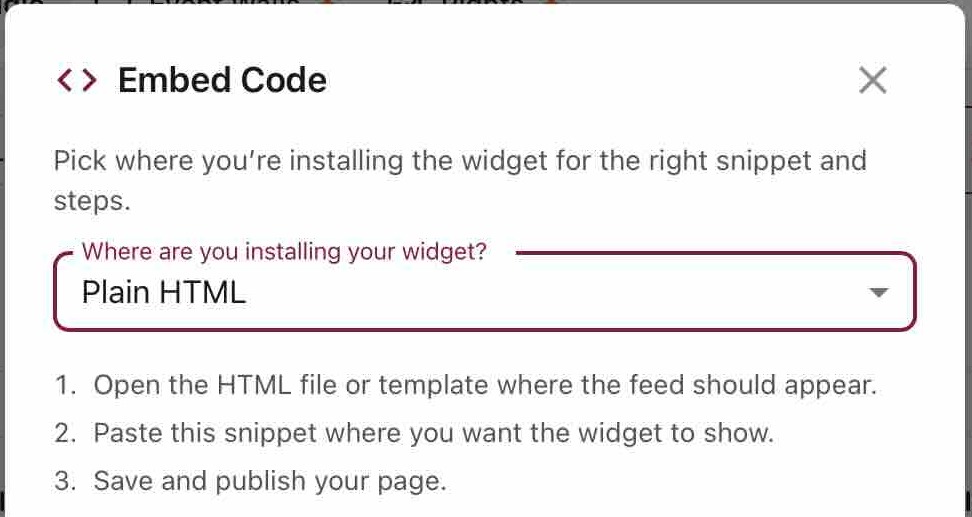
The snippet itself is a single <script> tag plus a container element. That is the whole install. The feed renders inside a Shadow DOM, so your site's CSS cannot leak into the widget and the widget's CSS cannot leak out into your page — worth checking on any tool you evaluate, because most script embeds do not isolate at all, and you can confirm it in a second by inspecting the feed and looking for a shadow root.
That is the entire sequence, and it is the same five steps whether the feed ends up on WordPress, Shopify or a hand-written HTML page. Run it yourself and compare the result against the native-embed screenshots further down.
Instagram Feed Types: Account, Hashtag, Tagged, Mentions and Stories
Once you are using the API, you get choices Instagram's own embed never offered. Picking the wrong one is the most common setup mistake.
Where the feed-type choice sits in the setup
The animation walks the six-step flow this article follows: define the goal, choose the feed type, connect the account, set moderation rules, customize the layout, then embed and test. The feed types compared below are that second step, and picking the wrong one there is the most common setup mistake.
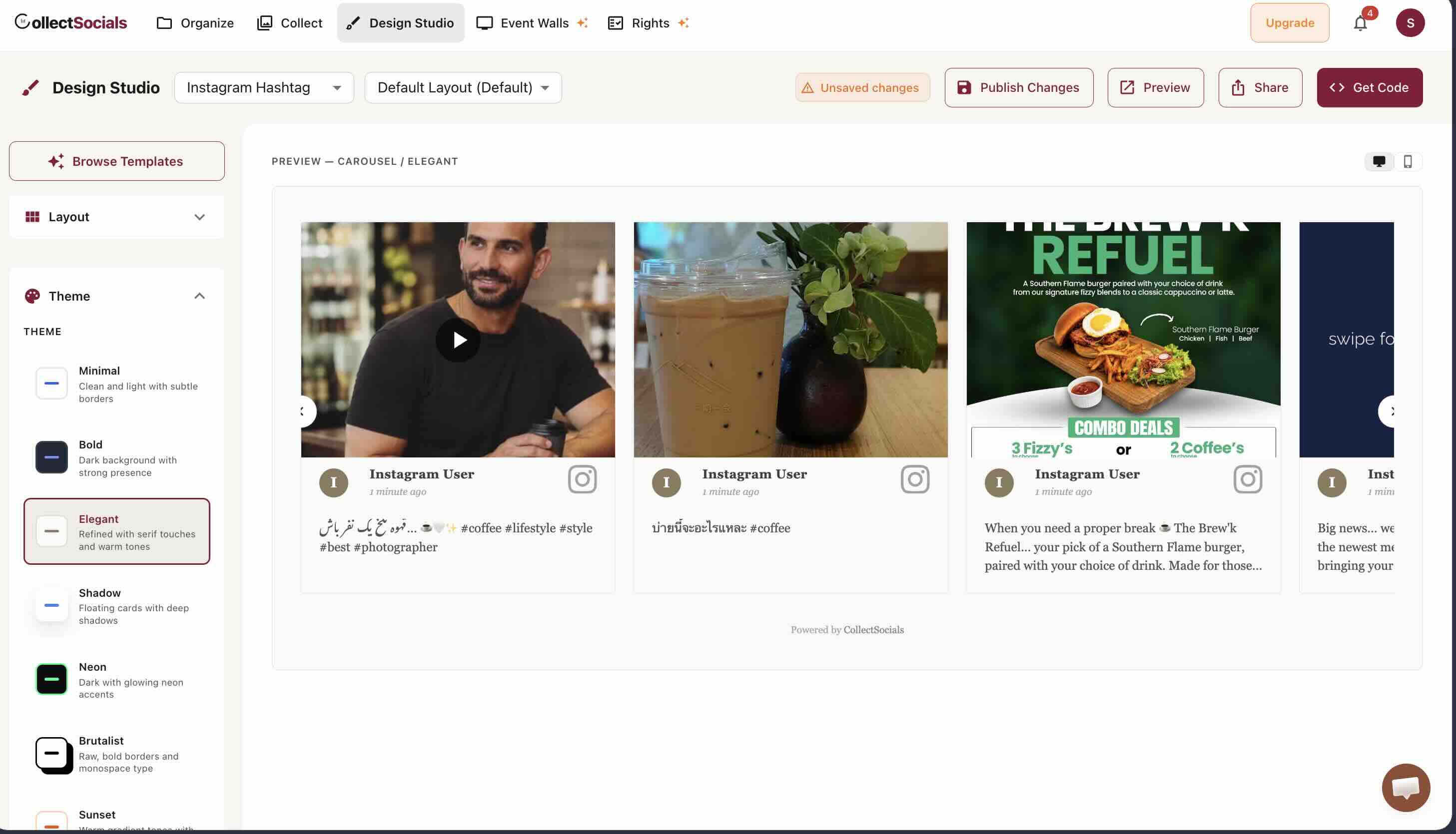
Account shows your own posts in order — the closest thing to what people picture when they say "Instagram feed". Hashtag collects public posts using a tag, which is how UGC campaigns are built. Tagged surfaces posts other accounts tagged you in. Mention catches posts and comments that @-mention you. Stories reads your active Stories through the API — the only route that exists, since the embed menu has no Story entry.
All five are available on the CollectSocials free plan. Two of them carry conditions set by Meta rather than by us, and both are covered honestly below: hashtag search needs a linked Facebook Page, and mentions only arrive going forward.
Hashtag feeds: the Facebook Page requirement is real
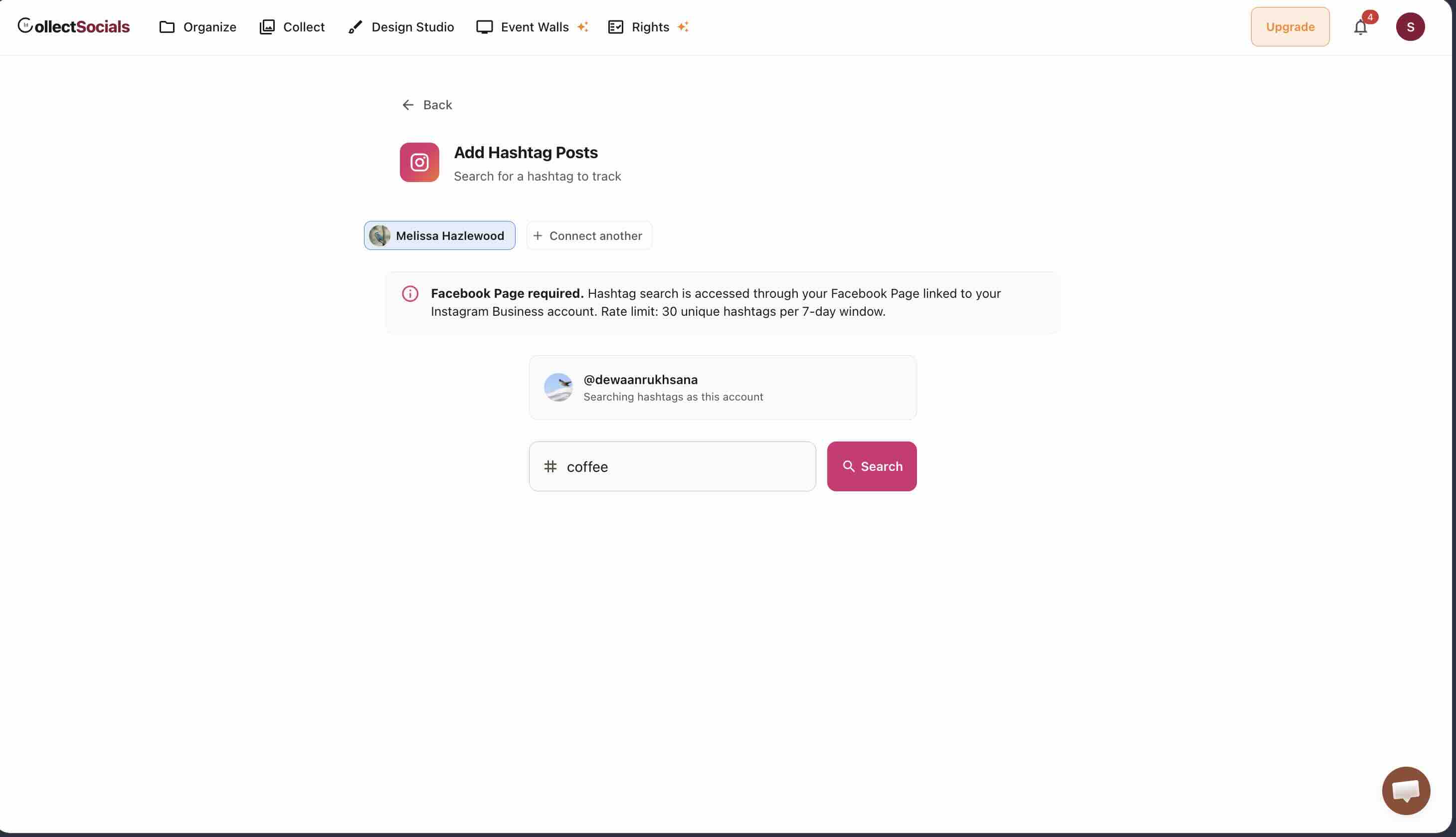
If you want a hashtag feed, Meta routes hashtag search through a Facebook Page linked to your Instagram Business account. This is Meta's architecture, not a packaging decision on our side — no tool can offer Instagram hashtag search without it.
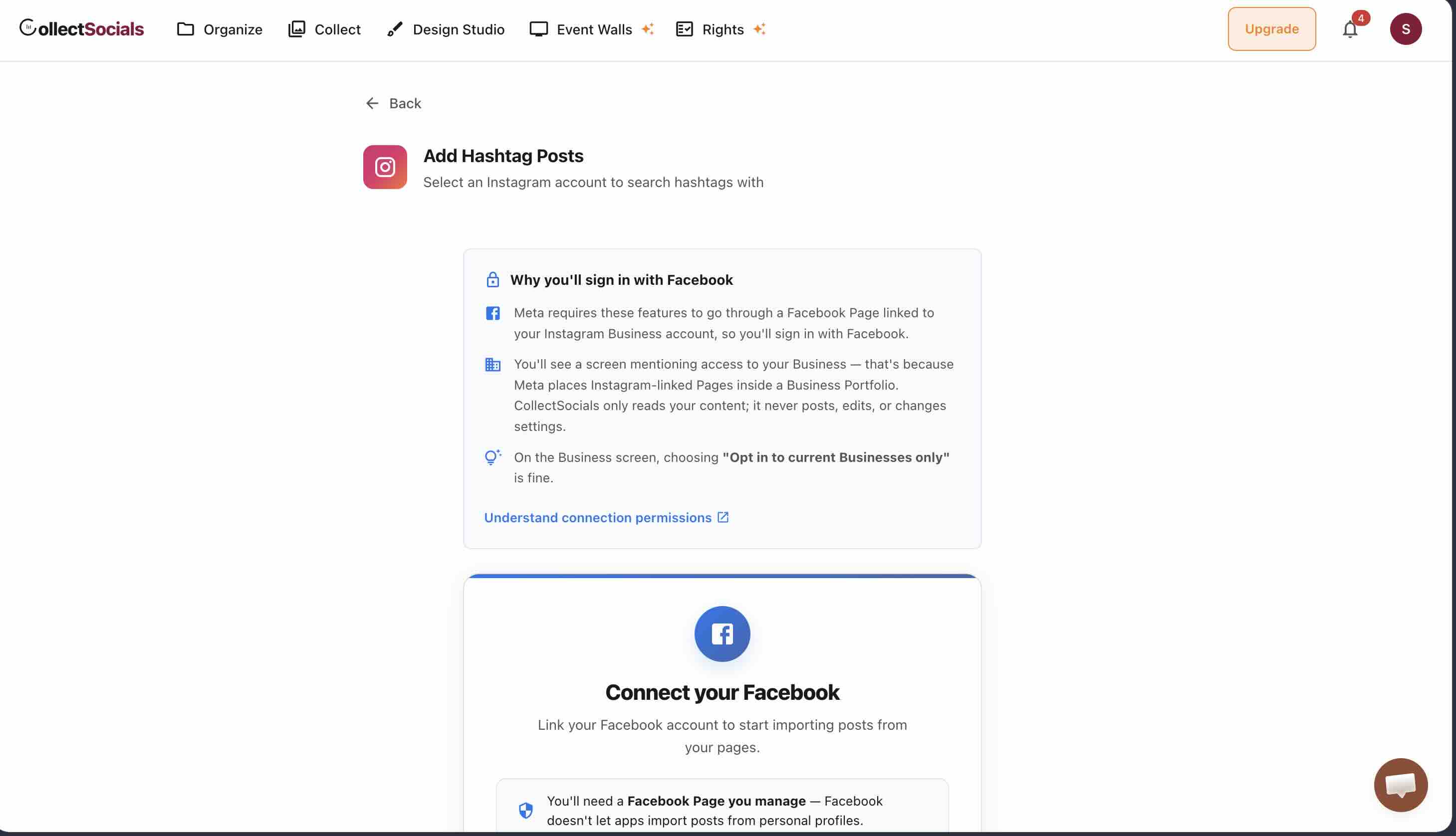
There is a second limit worth knowing before you plan a campaign: Meta caps hashtag search at 30 unique hashtags per rolling 7-day window per account. Fine for a branded tag; a constraint if you planned to rotate through dozens. It is stated on the account-selection step, not buried in documentation.
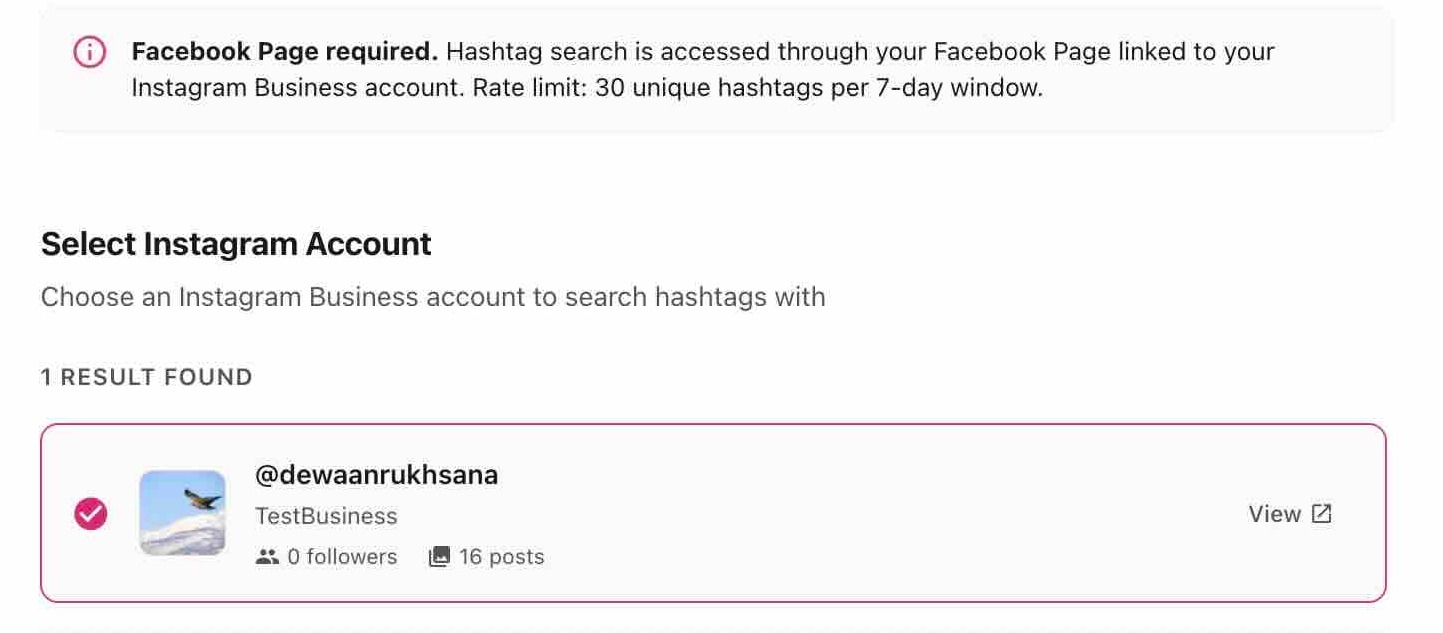
Note the account requirement here too: hashtag search runs from an Instagram Business account. A personal account is not eligible, which is a Meta rule rather than a plan restriction.
Mentions arrive going forward only
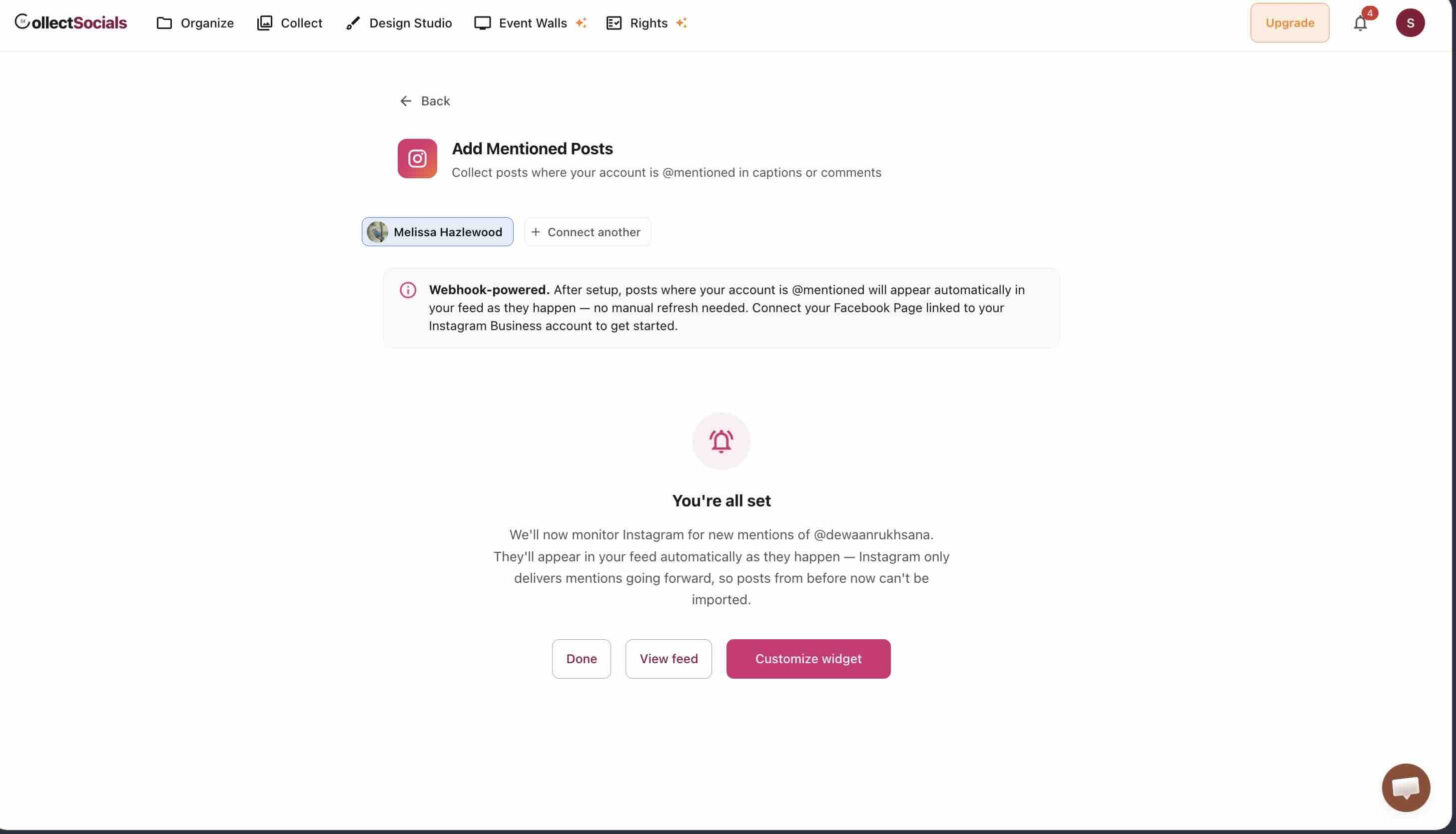
This one catches people out, so it is worth stating plainly: Instagram delivers mentions by webhook from the moment the connection is authorised. Posts that mentioned you before setup cannot be imported. There is no backfill, from us or from anyone — the API does not offer one.
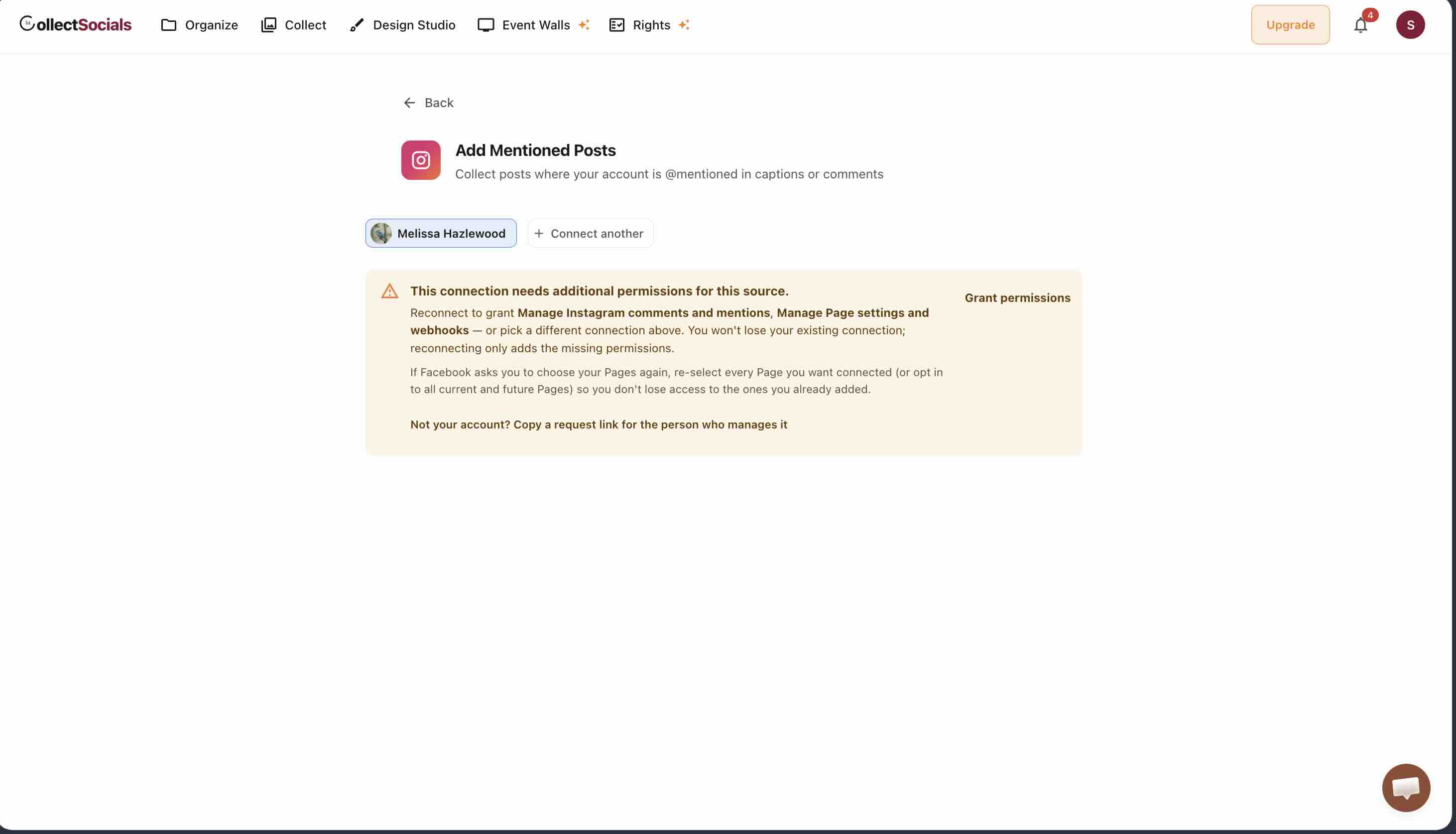
Mentions also need two extra permissions on the connection, which the setup screen requests explicitly.
Tagged posts do backfill
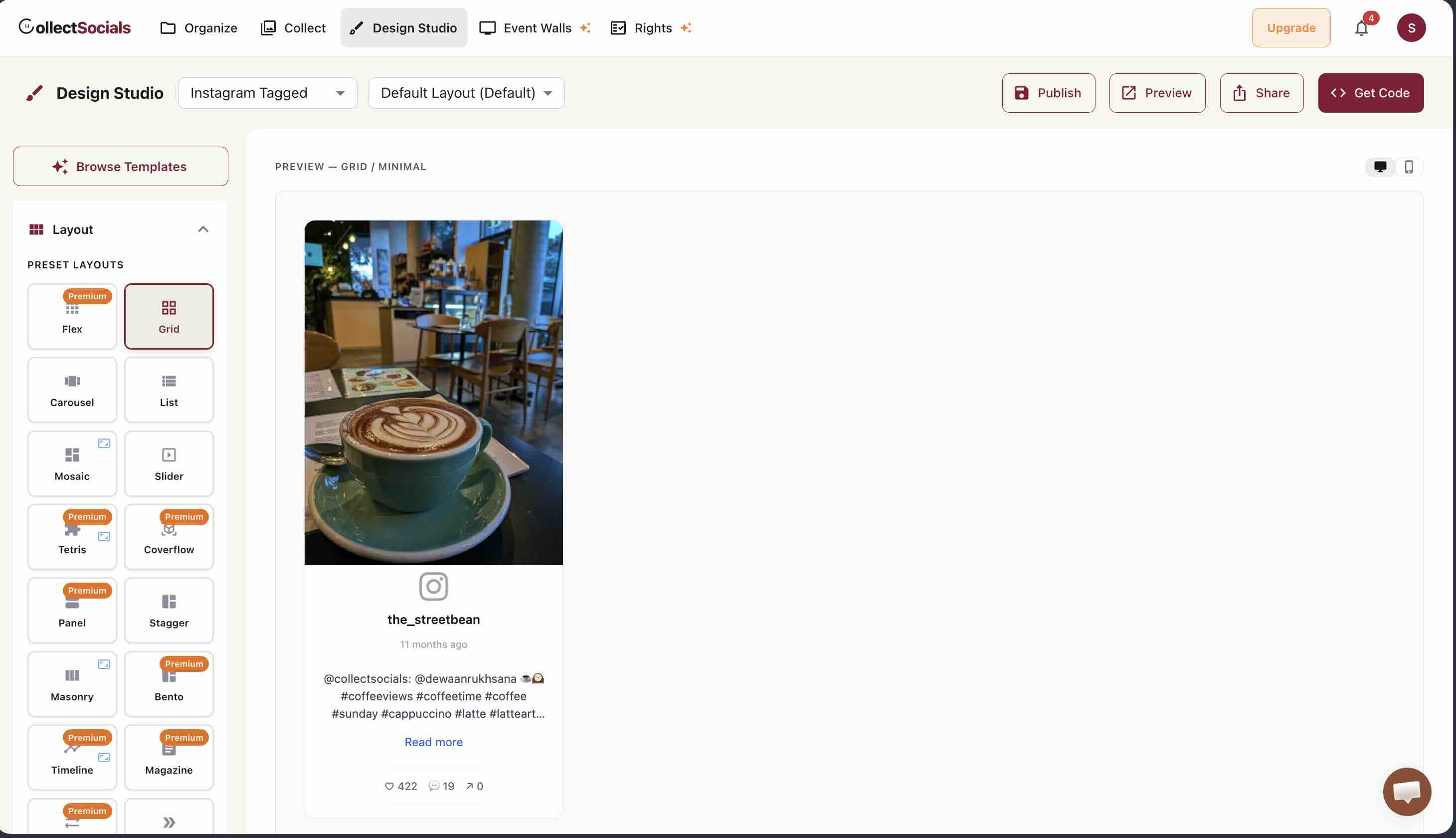
Tagged posts behave differently to mentions and do backfill — the test feed picked up a tagged post from eleven months earlier.
Can You Embed an Instagram Feed Without a Third-Party Tool? I Tested Every Native Method
This is the part no comparison article seems to run. Four methods, four results.
Method 1 — The post embed exists, but only for single posts
Open a post, click the three-dot menu, and there is an Embed option that hands you a <blockquote> plus a script tag. It works, and it is the only officially supported embed Instagram has.
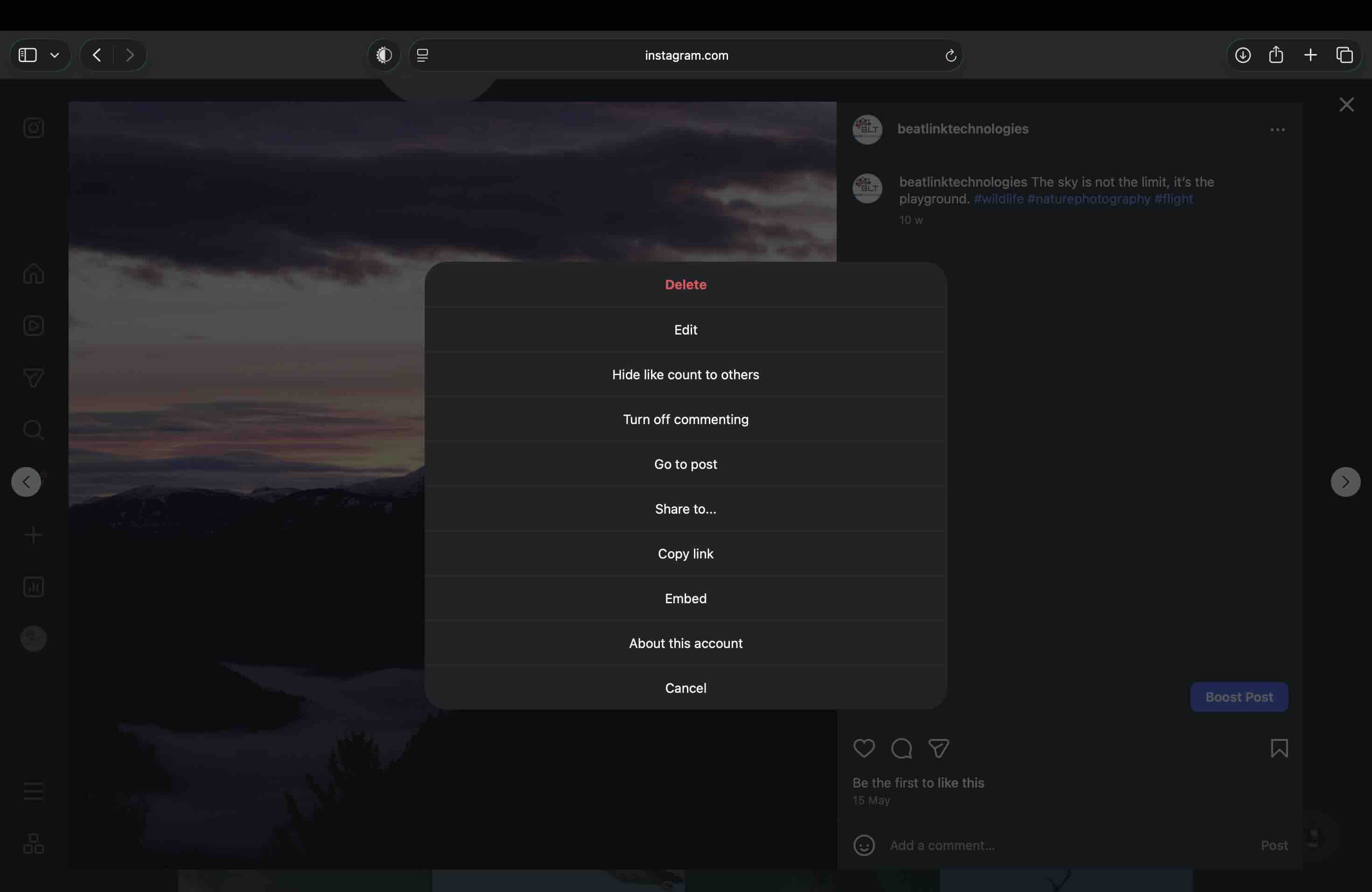
The ceiling is the important part. This is a per-post embed. A feed of your last twelve posts means pasting twelve blocks of code and editing the page again every time you post. There is no profile embed, no "latest posts" widget, and nothing that updates itself.
Method 2 — Stories cannot be embedded at all
Open the same overflow menu on a Story and the Embed entry is simply not there. The menu offers Report as inappropriate, About this account, and Cancel. Nothing else.
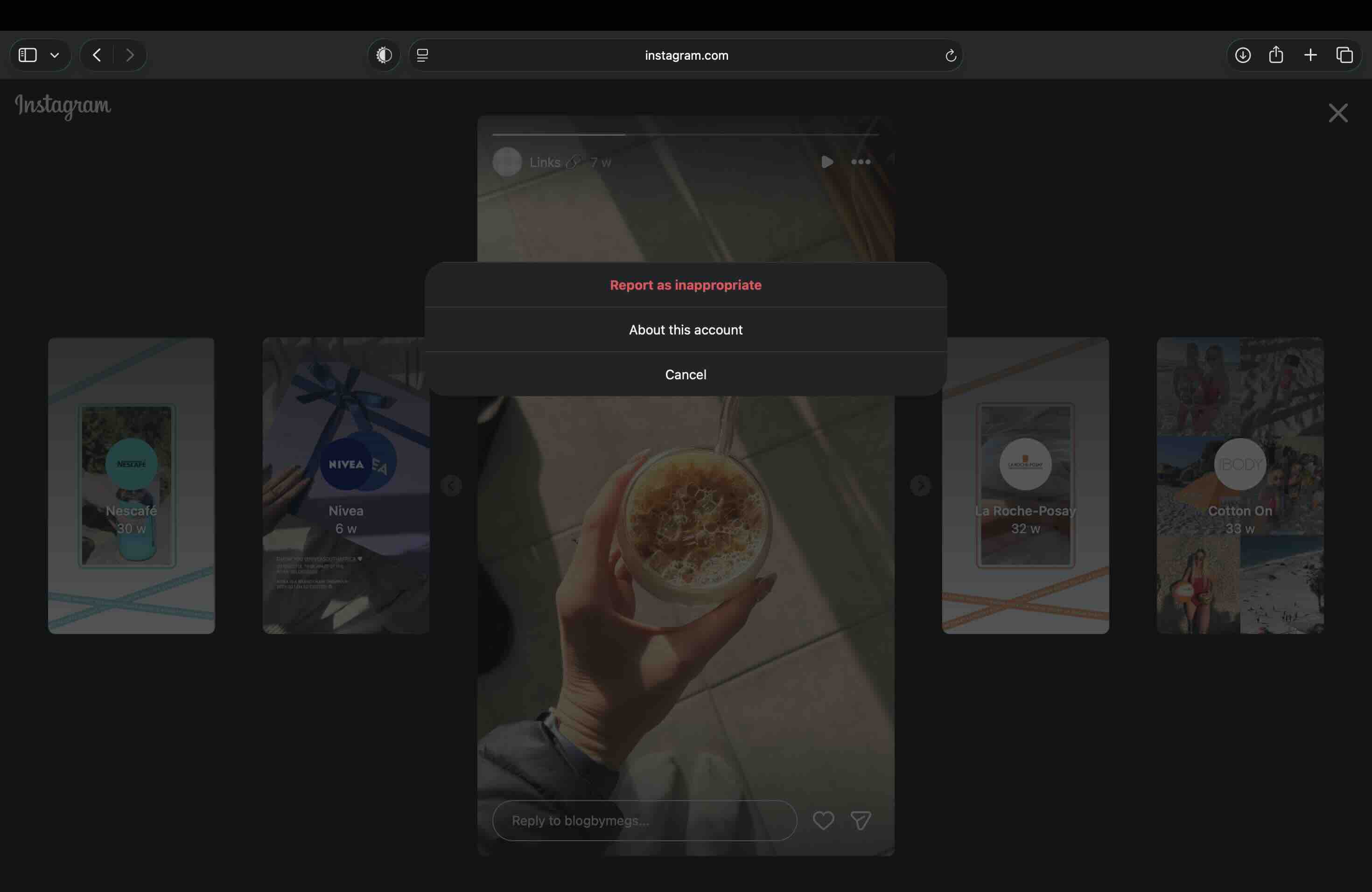
Reels do have the Embed option, so the gap is specific to Stories. If a vendor advertises Instagram Stories on your website, they are not using an embed — they are reading Stories through the Graph API with your permission, which is a different mechanism entirely.
We followed that mechanism all the way through in August 2026 and wrote it up separately: how to display Instagram Stories on your website covers the API route step by step, the direct Instagram connection with no Facebook Page, and what happens to a Story on your site once its 24 hours are up.
Method 3 — What the official embed code actually renders
Here is the result that changed how I think about this. I pasted Instagram's own embed code into a Custom HTML block, published the page, and opened it in incognito. The post did not render. What appeared were two plain text links — "View this post on Instagram" and the account attribution — with no image, no video, and no caption.
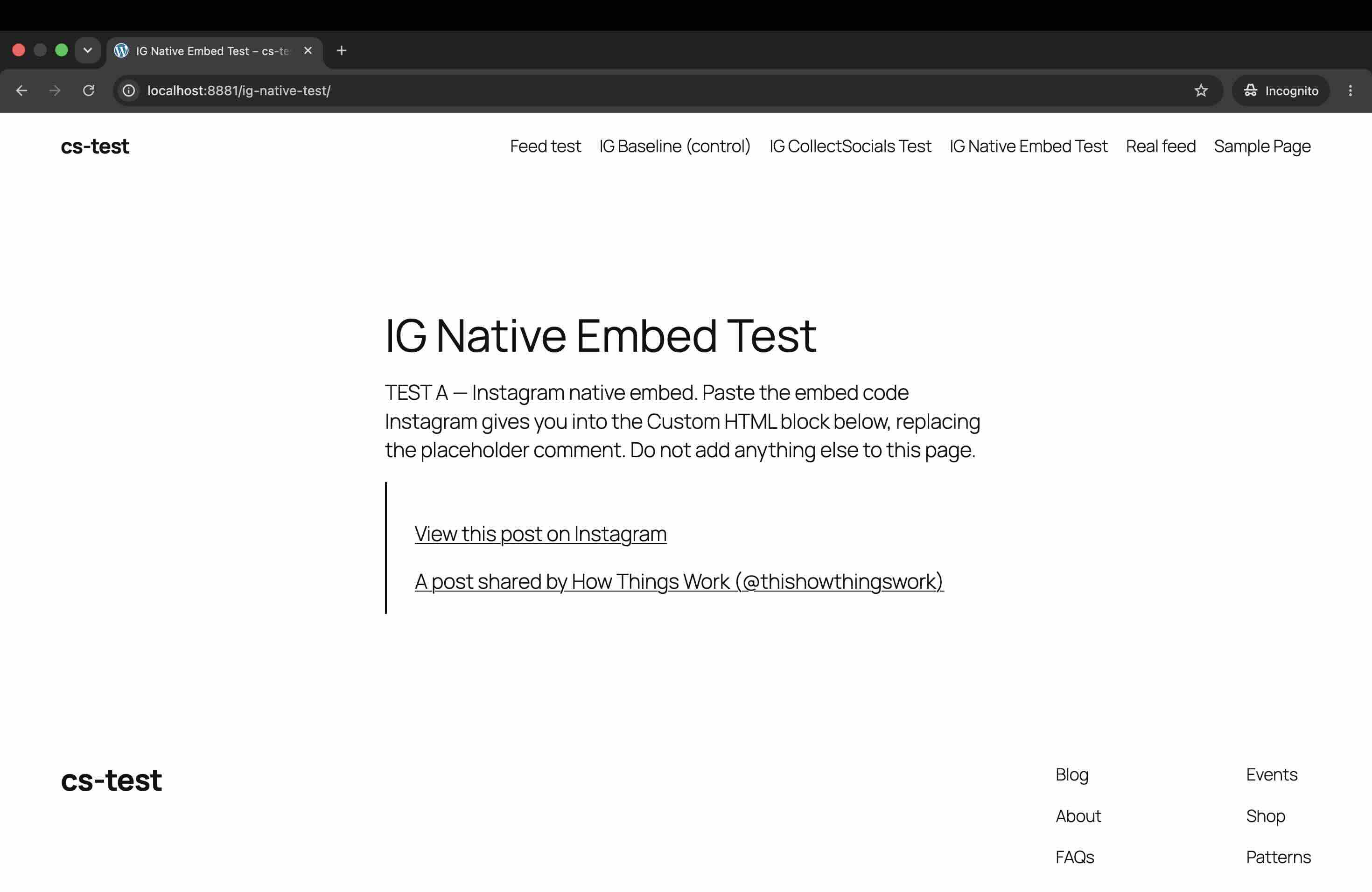
The same thing happened on mobile, and it is visible in the editor before you even publish.
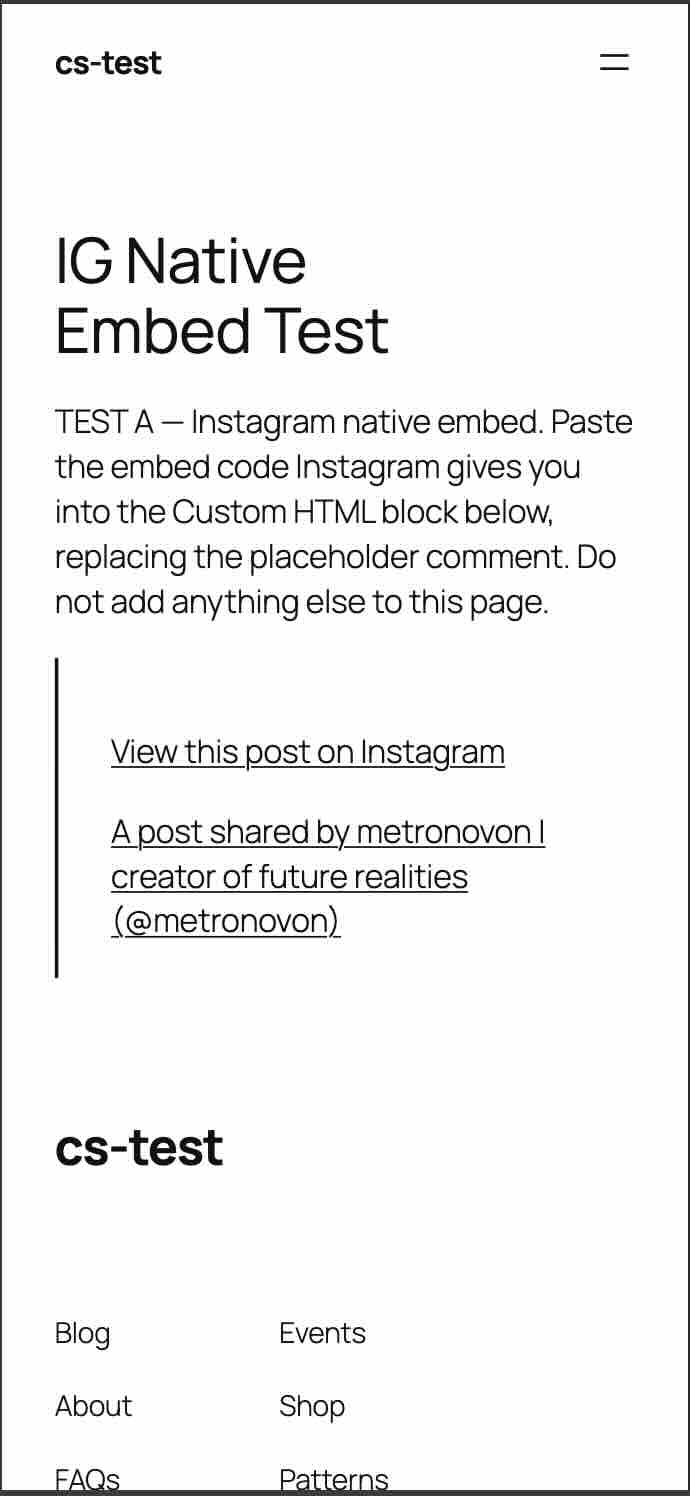
Be precise about what this proves. Instagram's embed is a <blockquote> that a script from instagram.com is supposed to upgrade into the real post. What you see above is the un-upgraded fallback — the state the embed sits in whenever that script does not run or finish. It is not a claim that the embed never works for anyone; when the script loads normally you get the post card.
The reason it matters anyway is that the fallback is not a rare edge case. A script fetched from instagram.com is exactly the kind of request blocked by ad blockers, tracker blockers, strict browser privacy modes, and any consent banner that withholds third-party scripts until the visitor accepts. Every one of those visitors gets the screenshot above. The failure mode is silent, it is invisible in your own logged-in browser, and the fallback Instagram ships degrades to two links rather than to anything useful.
Method 4 — WordPress's own Instagram block is gone
WordPress used to have a dedicated Instagram embed block that relied on the old oEmbed endpoint. On WordPress 7.0.2 it is no longer in the inserter. Pasting a bare Instagram URL on its own line — the auto-embed path that works for YouTube and X — produces a failure notice.
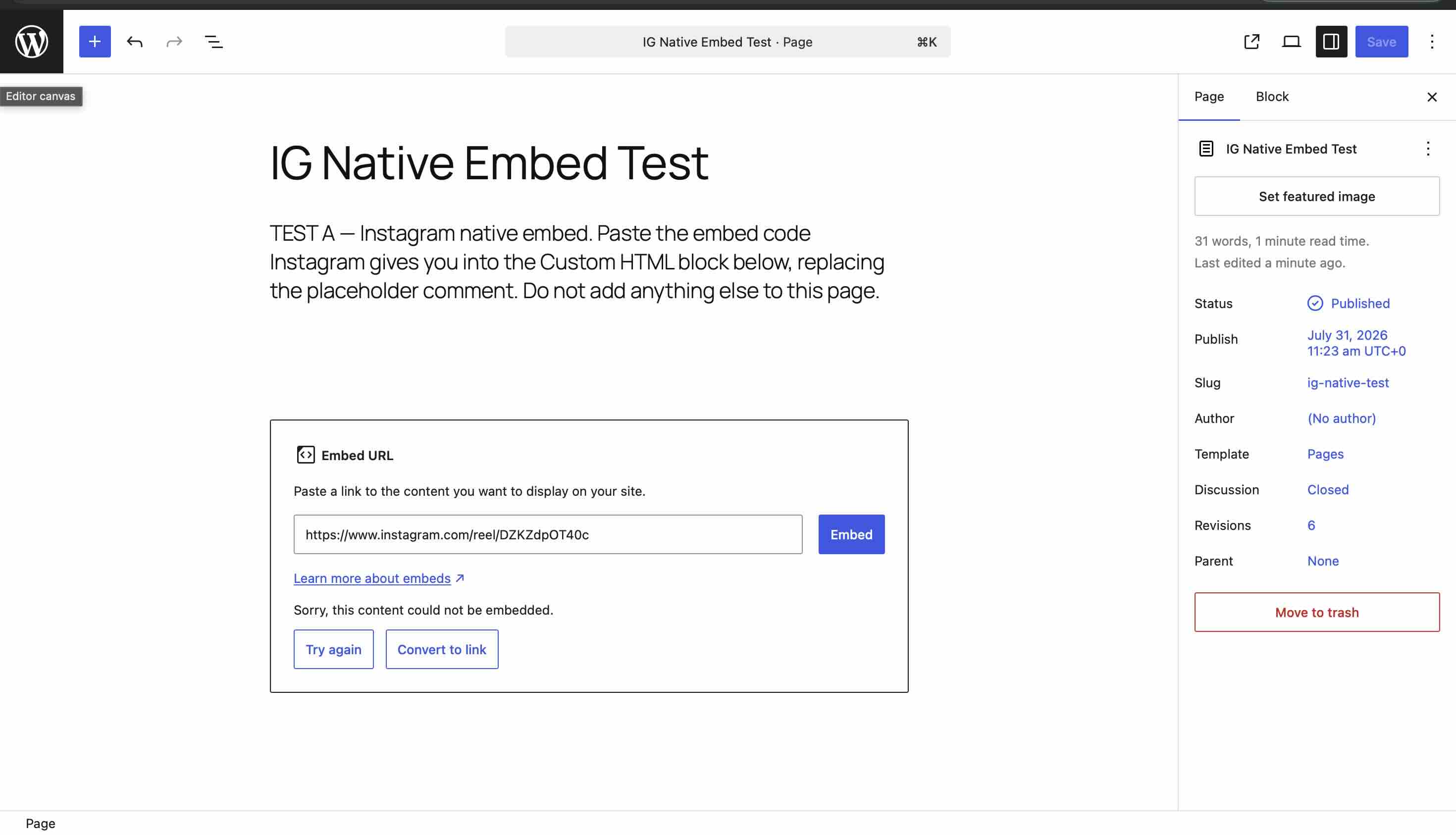
If you have been searching for why your Instagram feed is not showing on WordPress, this is often the whole answer: the block you remember was removed, and the URL paste quietly converts to a link.
The oEmbed endpoints — where our expectation was wrong
This is the test that did not go the way I assumed, so it gets written up the way it actually happened.
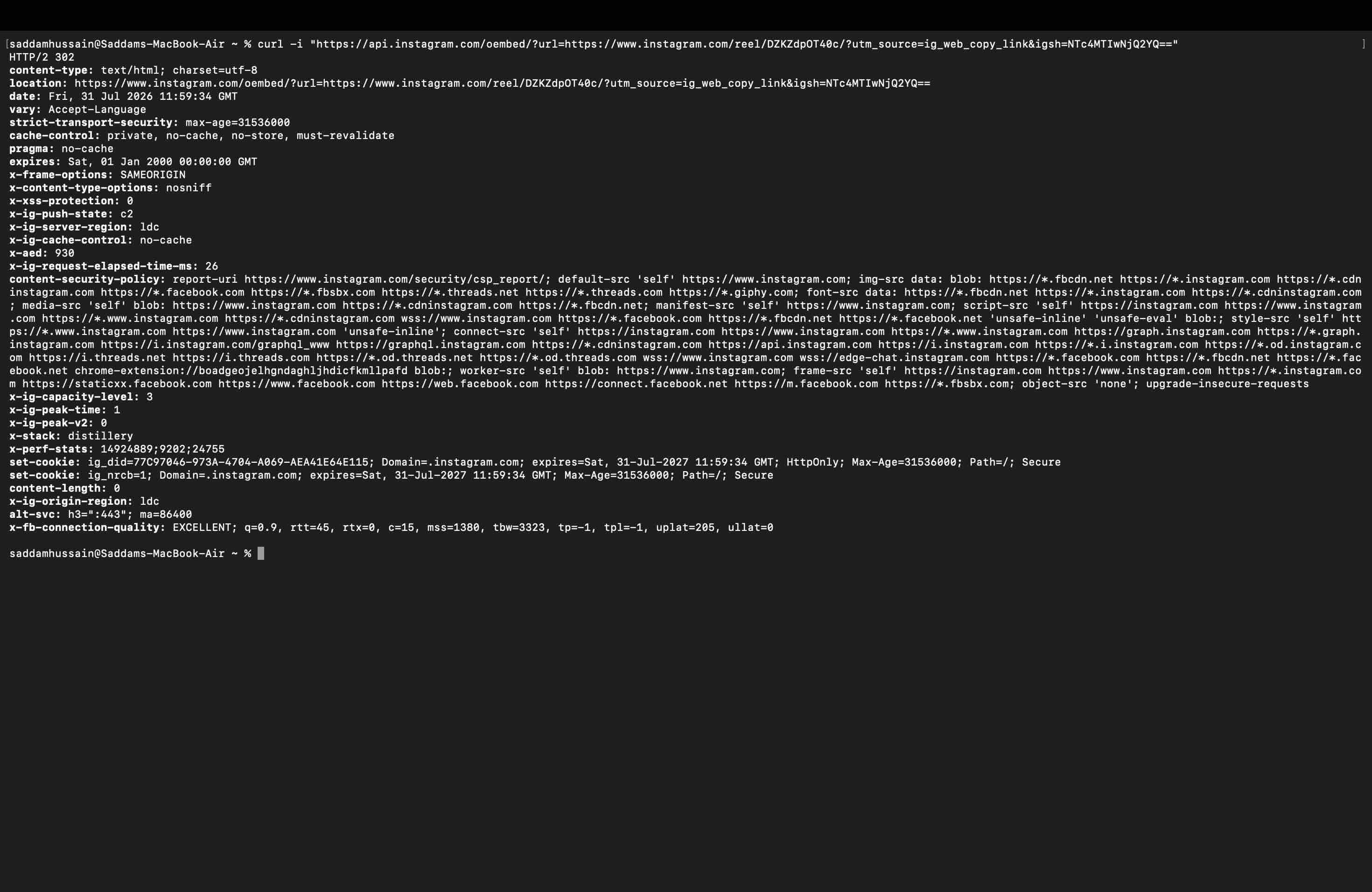
The legacy endpoint is dead, as expected. Calling api.instagram.com/oembed/ returns an HTTP 302 with content-length: 0 — a redirect to an empty response, no payload.
I expected the replacement to demand an app and an access token. It did not. Calling graph.facebook.com/v23.0/instagram_oembed with no access token at all returned HTTP 200 and the full blockquote JSON.
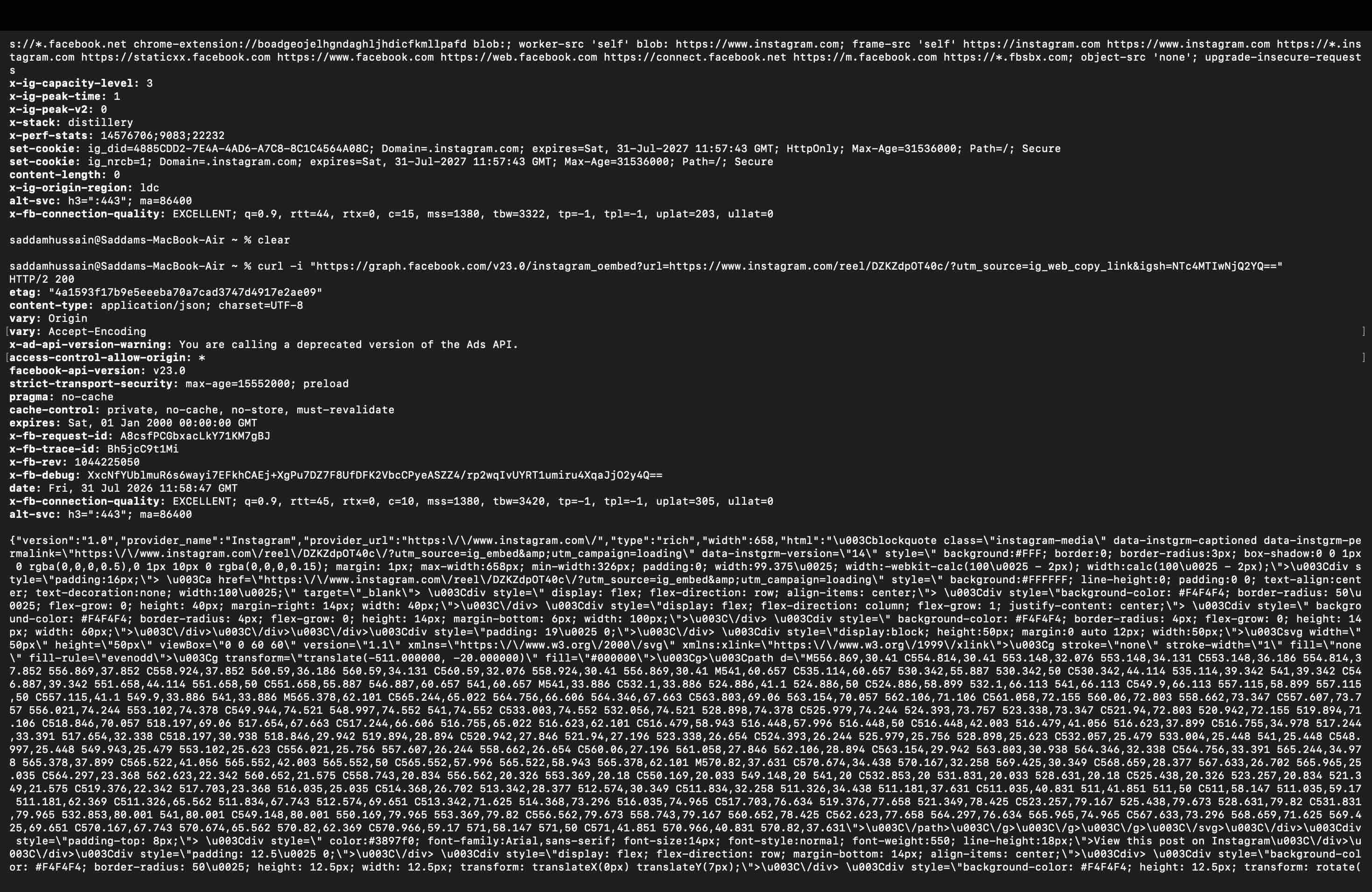
So the common claim that Instagram oEmbed now sits behind an app and a token did not hold on the day I tested it, and we are not going to repeat it. Two caveats that are fair to state: the response arrived with an x-ad-api-version-warning header saying the call is to a deprecated API version, and an undocumented, unauthenticated, deprecation-flagged endpoint is not something to build a website feature on. But "requires a token" is not what we measured, so we are not writing it.
Instagram Embed vs a Graph API Feed Widget
Every row below is something I checked in the session above, and every row is something you can check yourself. There are deliberately no page-speed numbers here — we explain why we stopped publishing those, and the short version is that they depend on where you put the widget and what your feed contains, so they say more about the test than the tool.
| Instagram's own embed | A Graph API widget | |
|---|---|---|
| A feed of recent posts | ✗ — one post per embed | ✓ |
| Updates without editing the page | ✗ | ✓ |
| Stories | ✗ — no Embed option exists | ✓ (via API) |
| Hashtag feeds | ✗ | ✓ (Facebook Page required by Meta) |
| Tagged posts | ✗ | ✓ |
| Mentions | ✗ | ✓ (forward-only, no backfill) |
| Choose which posts show | ✓ — you pick each one by hand | ✓ — moderation queue |
| If the third-party script is blocked | Two text links, no content | Depends on the vendor — test it |
| Cost | Free | Free tier upward |
The honest summary: if you want one specific post on a page and you are happy editing HTML when it changes, Instagram's embed is free and fine. The moment you want something that keeps itself current, or Stories, or a hashtag, there is no native option to compare against. If a widget is what you need, the Instagram feed widget overview covers ours: the five source types, and the layouts and themes.
How to Add an Instagram Feed to WordPress, Wix, Squarespace, Shopify or Webflow
The five steps above are identical everywhere; only the final paste differs per platform. We have walked each of these on the real product:
- Add an Instagram feed to WordPress — including the official plugin, installed and screenshotted below.
- Instagram feed on Wix
- Instagram widget for Squarespace
- Embed an Instagram feed on Webflow
- Connect Instagram to Shopify
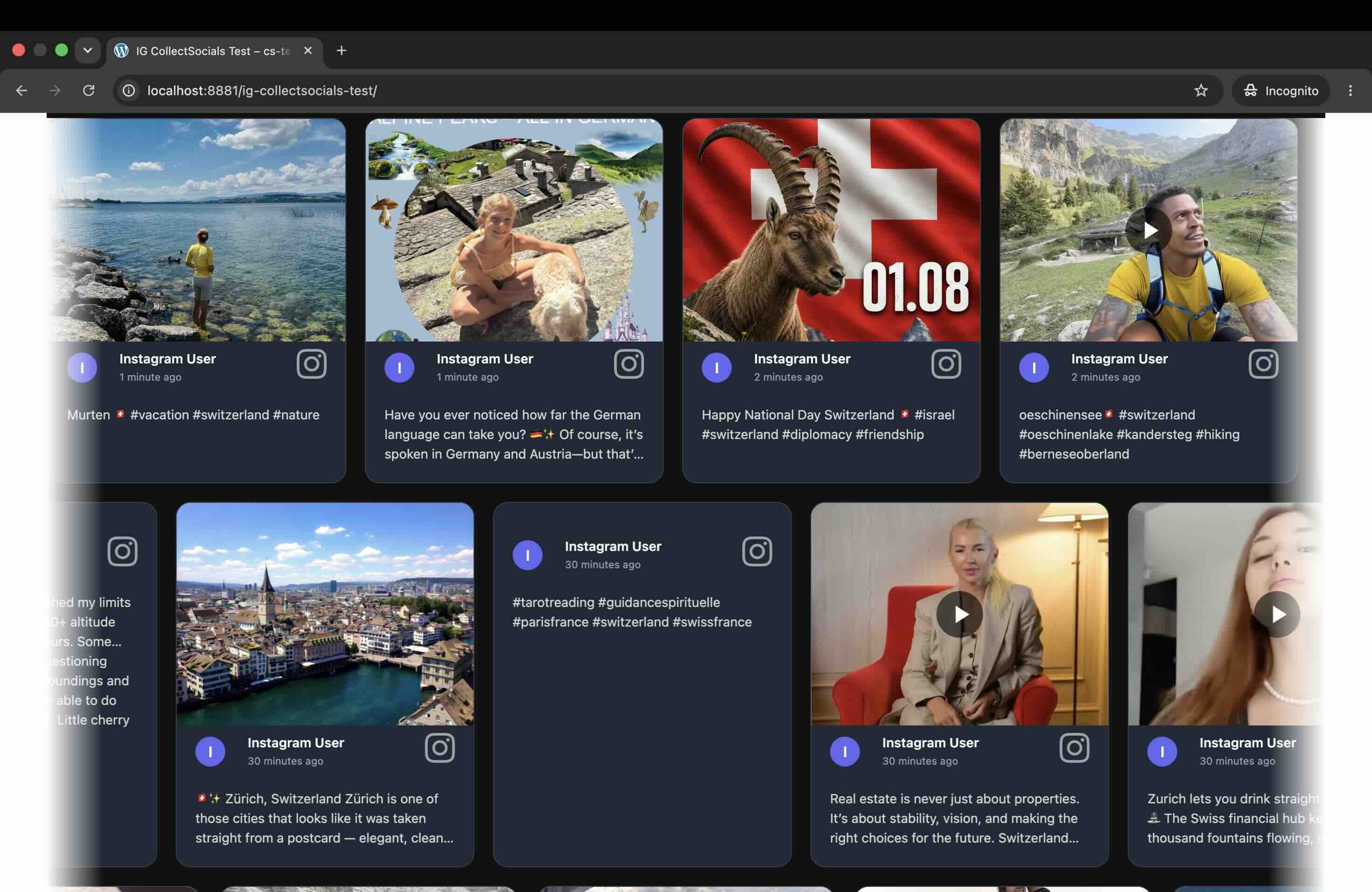
On WordPress there is a plugin, so you do not have to paste code into a Custom HTML block at all — the feed becomes a block in the editor.
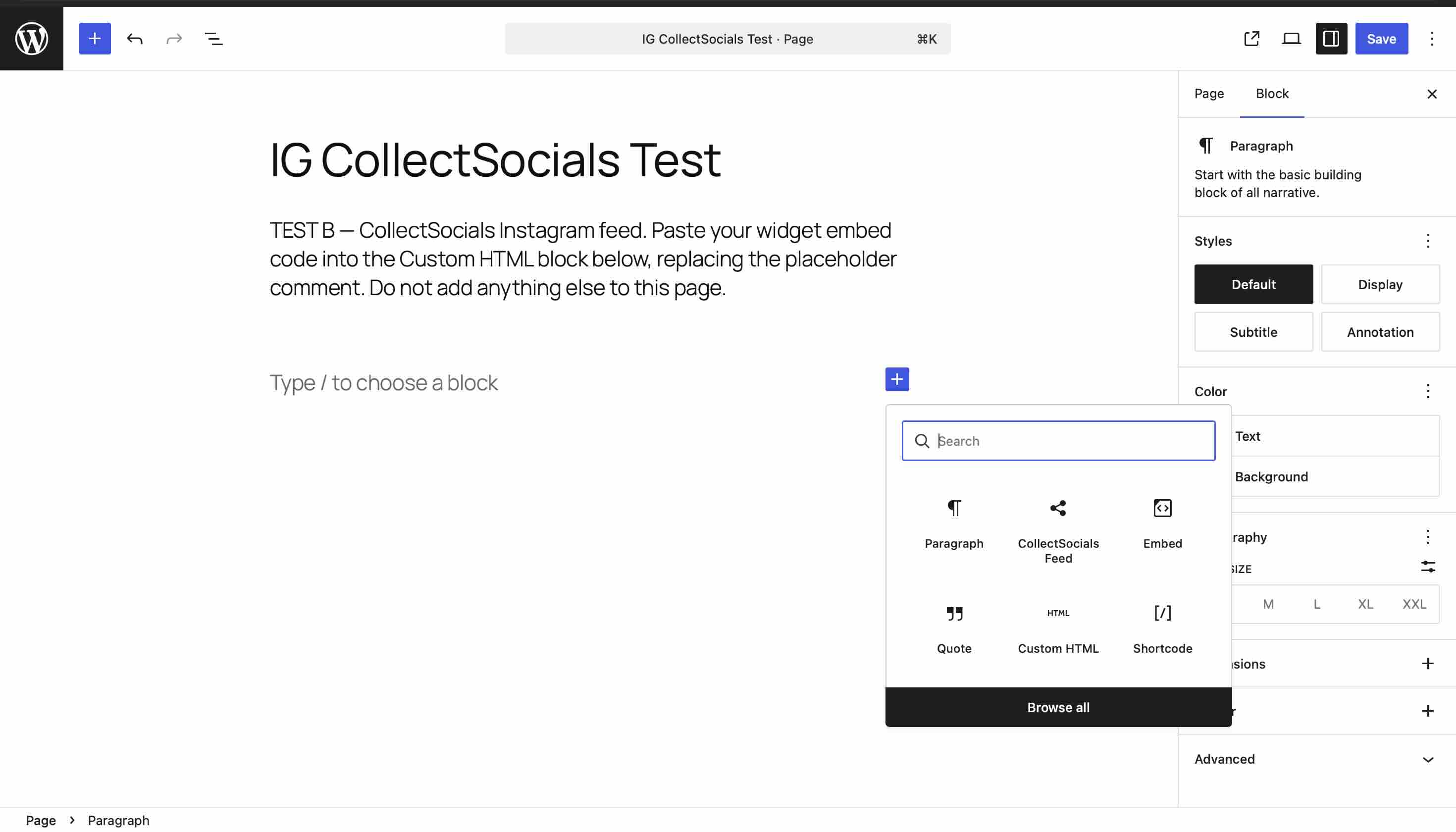
Where the Feed Goes on Your Page
Placement changes what the feed is worth more than the layout does.
Where an Instagram feed earns its place
The animation maps a page into zones and shows which ones an Instagram feed actually helps. The pattern it illustrates: a feed below the fold on a homepage supports a value proposition the visitor has already read, a feed on a product page answers "do people like me use this?", and a feed on a high-intent landing page competes with the conversion action you built the page around.
On a homepage, put it below the fold — after the page has said what you do. On a product page, a feed of customers using that product answers the question every buyer is silently asking. On a landing page, be careful: a feed gives a visitor somewhere else to look, and somewhere else to click.
We go through this page by page in where to place your Instagram feed.
Instagram Feed Embed FAQ
Can I embed my whole Instagram profile on my website?
Not with anything Instagram provides. There is no profile or feed embed — only the per-post embed. A feed requires a tool using the Graph API.
Is it free to embed an Instagram feed?
Instagram's own per-post embed is free, and it stays a per-post embed. For a real feed, CollectSocials has a free plan that includes all five Instagram source types — account, hashtag, tagged, mentions and Stories — so you can put a live feed on a page and test the whole thing on a free account before deciding whether it is worth paying for anything.
Why does my Instagram embed show only a link?
That is the blockquote fallback, shown when the script from instagram.com does not run. Ad blockers, privacy modes and consent banners all cause it, and you will not see it in your own browser if the script loads for you.
Can I embed Instagram Stories?
Not by embed — there is no Embed option in the Story menu. Stories on a website come through the API.
Do I need a Facebook Page?
For an account feed, no. For hashtag search, yes — Meta routes it through a Page linked to your Instagram Business account, for every tool.
Do I need a Business account?
For API-based feeds, yes — Business or Creator. Personal accounts are not eligible.
Can I get mentions from before I set this up?
No. Instagram delivers mentions by webhook from the moment you authorise the connection, and the API offers no backfill.
Do I need to know how to code?
No. The install is one <script> tag and a container element pasted where you want the feed, and on WordPress not even that — the feed is a block in the editor.
Sources and Test Conditions
Tested July 2026 on WordPress 7.0.2 / PHP 8.4, Chrome incognito with extensions disabled, on three identical pages including a no-embed control. Endpoints were called with curl from a clean shell. Instagram's oEmbed documentation is published by Meta at developers.facebook.com. Product behaviour described here reflects CollectSocials as of August 2026; Meta changes Instagram's API surface regularly, so re-check anything load-bearing before you build on it.
Start Using CollectSocials Today
One curated feed from 10+ platforms: on your website in a single line of code, or up on the big screen at your event.