
Short answer: a Facebook feed widget is a tool that embeds your public Facebook Page posts (text, photos, and videos) directly on your website and keeps them updated automatically. You can do it two ways. Method 1 is Facebook's free, native Page Plugin: paste your Page URL into Meta's configurator, copy the generated HTML, and embed it. Method 2 is a third-party widget like CollectSocials, which connects your Page and gives you a full-width, branded, responsive feed with one snippet. Method 1 is fastest to reach for; Method 2 is the one that actually performs. Below I test both.
Quick summary of what I measured in June 2026, in an incognito window with no extensions: on an identical blank page, the native Page Plugin dropped six Facebook tracking cookies before anyone clicked anything, pulled in the Facebook SDK plus a cascade of obfuscated scripts, and couldn't even be scored by Lighthouse: every metric returned NO_FCP. The CollectSocials feed, on the same setup: zero Facebook cookies, and Lighthouse ran normally. The full teardown is below.
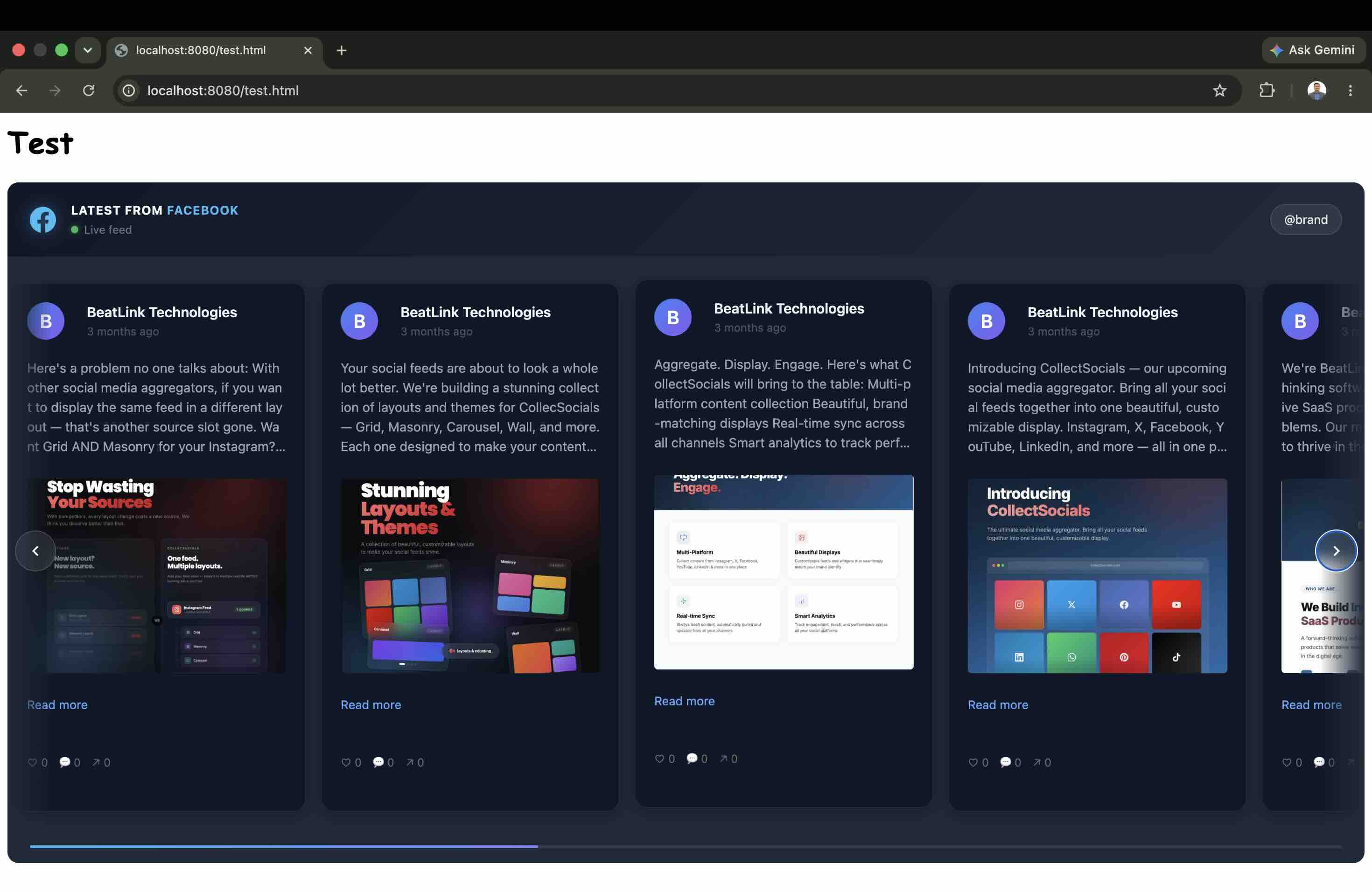
How to Embed a Facebook Feed on Your Website
The fastest reliable way to add your Facebook Page to your website, in six steps:
- Go to CollectSocials and create a new feed from the dashboard.
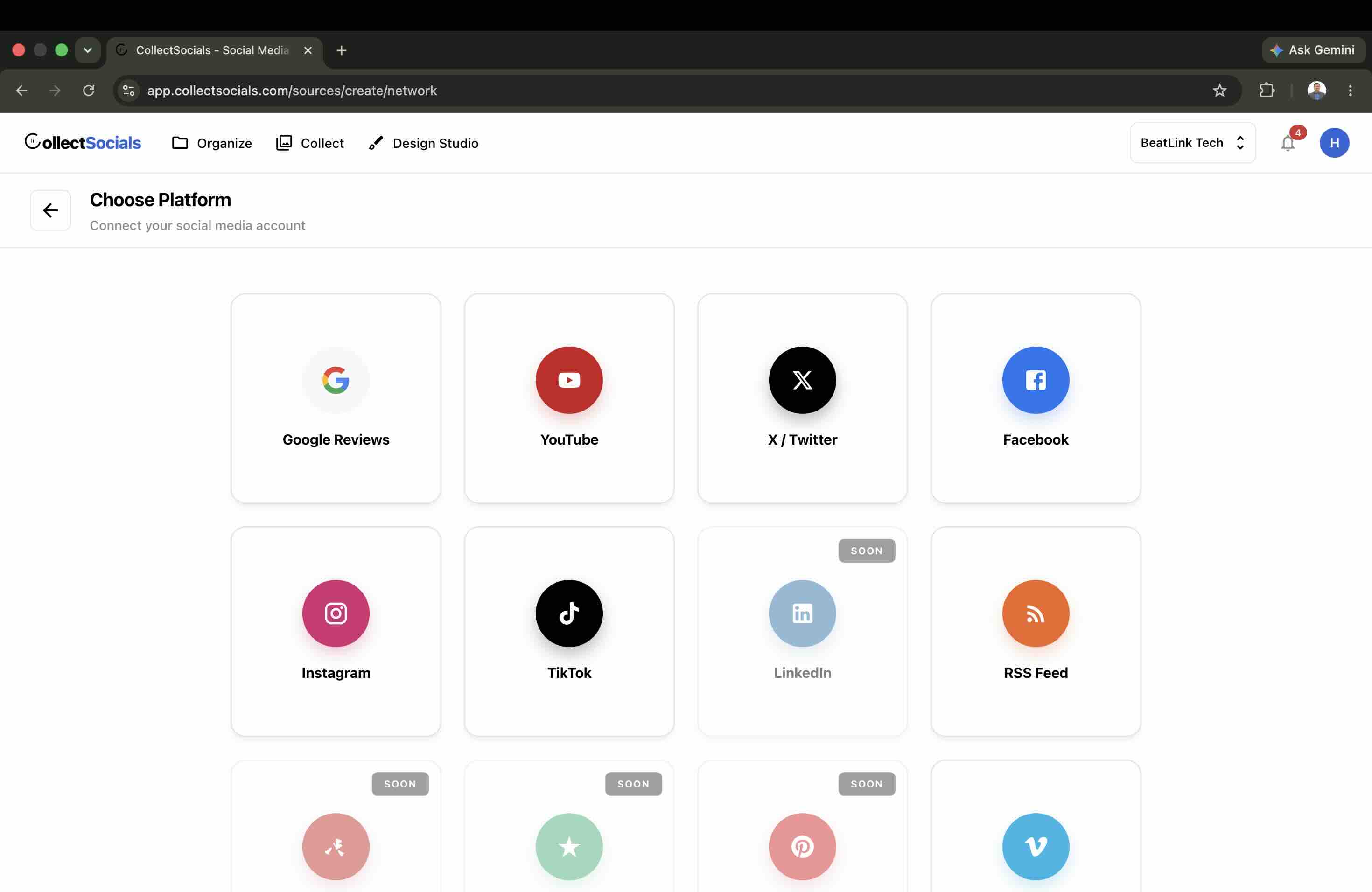
- Click "Add Source" and select Facebook from the platform list.
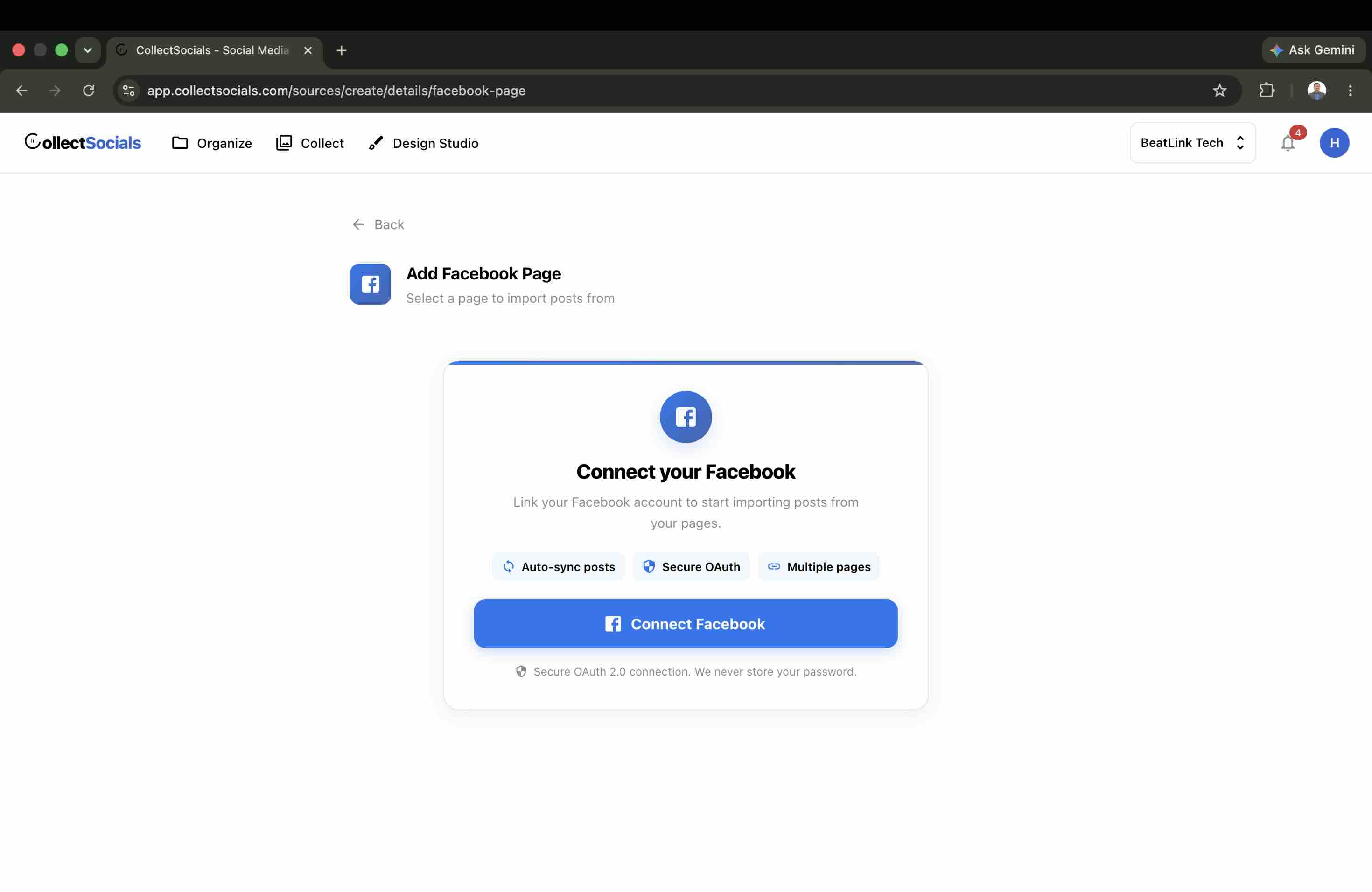
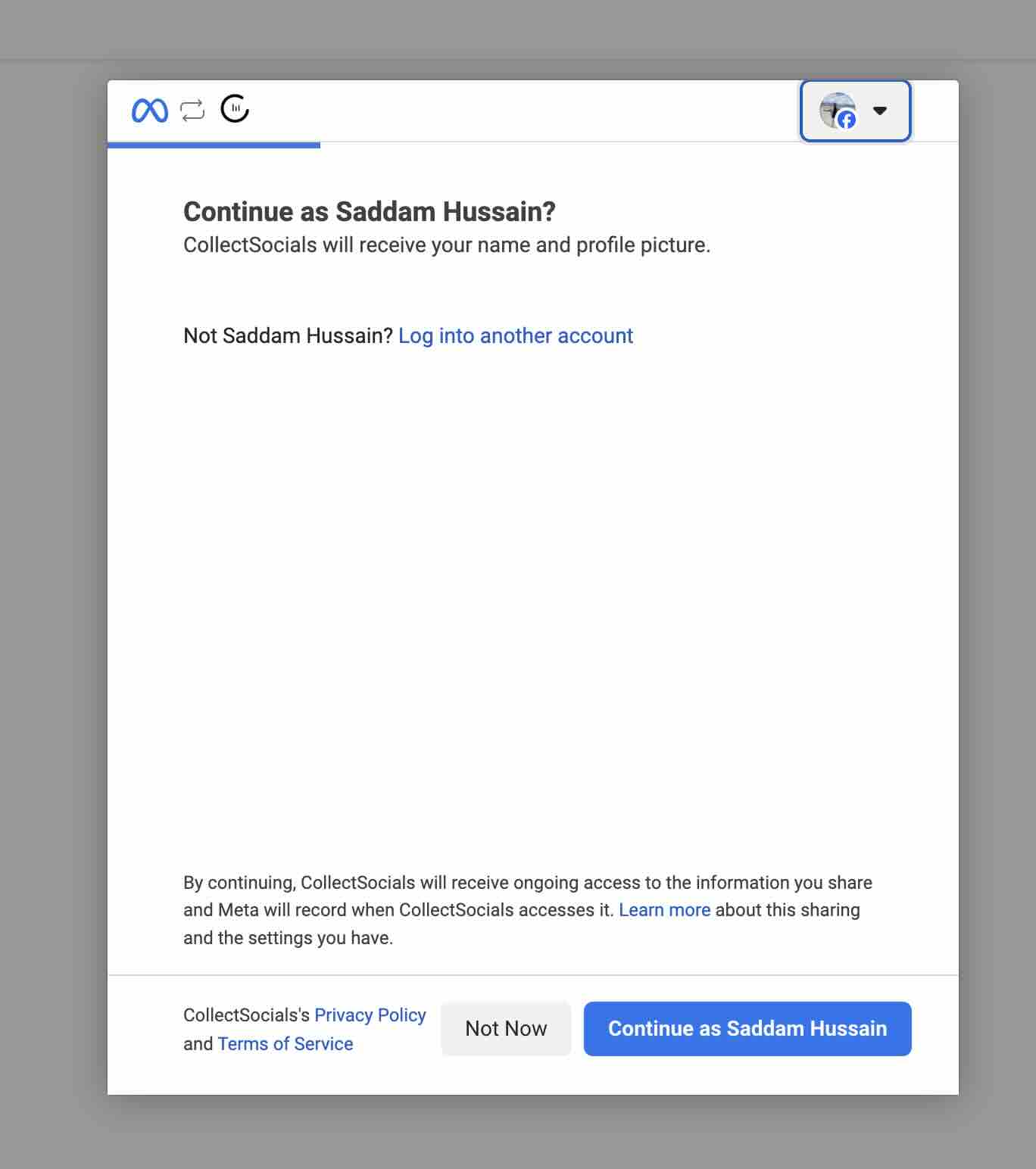
- Connect your Facebook account through Meta's OAuth flow and pick the Page you want to display.
- Moderate your posts on the Collect page: pin, hide, edit, or filter. New posts appear by default, so hiding is the working verb; switch on Pre-approve posts if you would rather nothing appear until someone approves it.
- Open the Design Studio, pick a layout, and style it with a ready-made template or your own custom theme.
- Click "Get Code," paste the embed snippet into your site's HTML, and test on mobile.
That's the short version, and unlike the native plugin it took me one snippet and worked on the first try. The full walkthrough with screenshots is further down, but first, the teardown that explains why I stopped using the Page Plugin.
Why a Facebook Feed Still Matters in 2026
Facebook is still where a huge share of businesses post updates, run promotions, and answer customers. An embedded Facebook feed pulls that activity onto your site, so visitors see you're active right now, not last quarter. It works for social proof (real posts with real likes and comments), local presence, and keeping pages fresh without writing new web copy. Pair it with reviews or other networks and it becomes a unified feed that builds trust from one widget.
What this shows
The animation shows post cards leaving a Facebook Page card, crossing a sync bridge, and settling into a widget grid on your website, ending on a live indicator. That is the model: new Facebook posts appear on your site automatically, without you copying anything across by hand.
I Tested Facebook's Native Page Plugin: Here's What It Actually Does in 2026
I ran this entire test in June 2026. I installed the Page Plugin on a blank HTML page, inspected what it loads in DevTools, measured the network weight and cookies, ran Lighthouse, and then put a CollectSocials Facebook feed through the exact same setup. Here's everything I found, step by step.
Getting the Code Was the First Problem
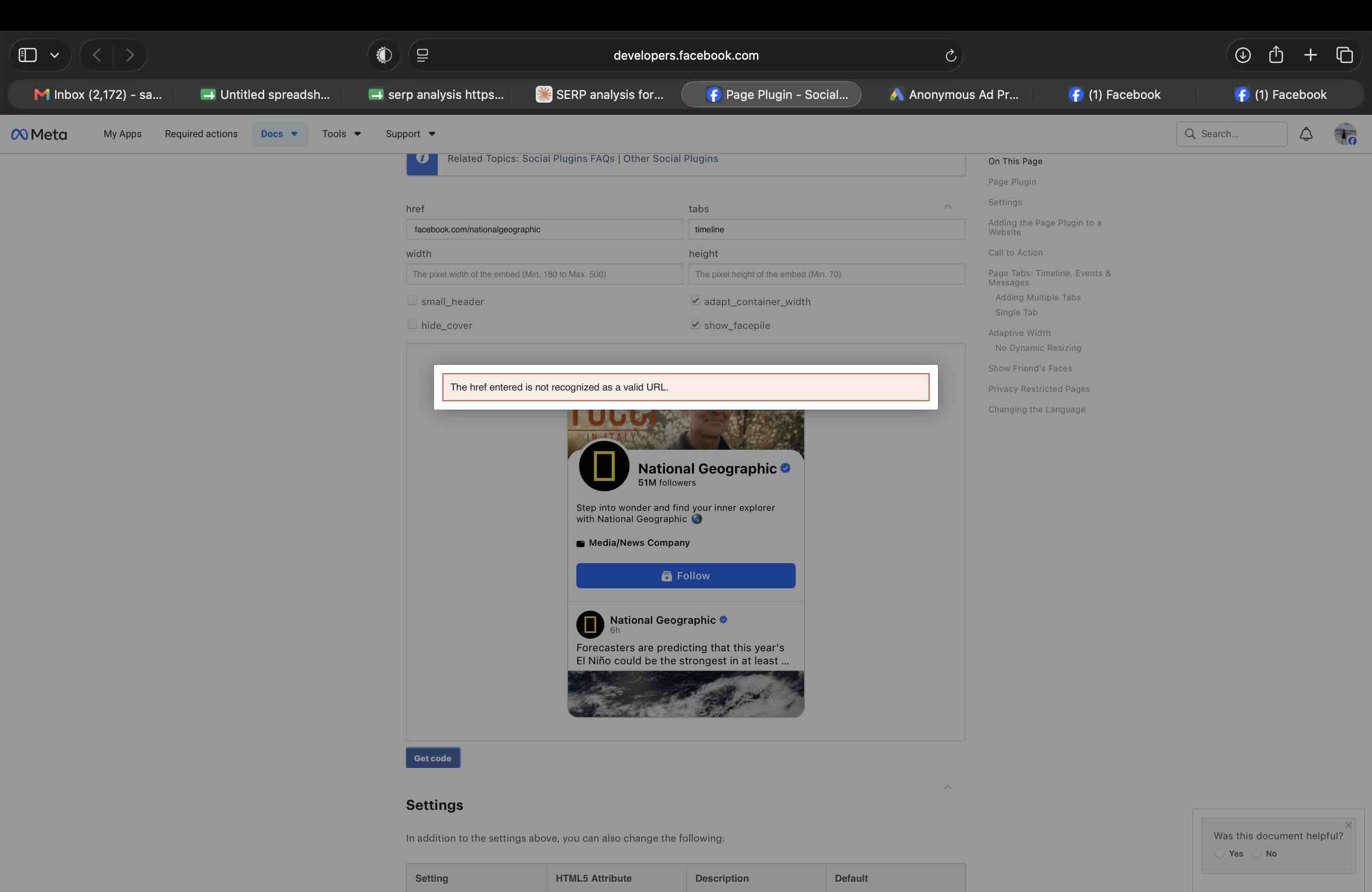
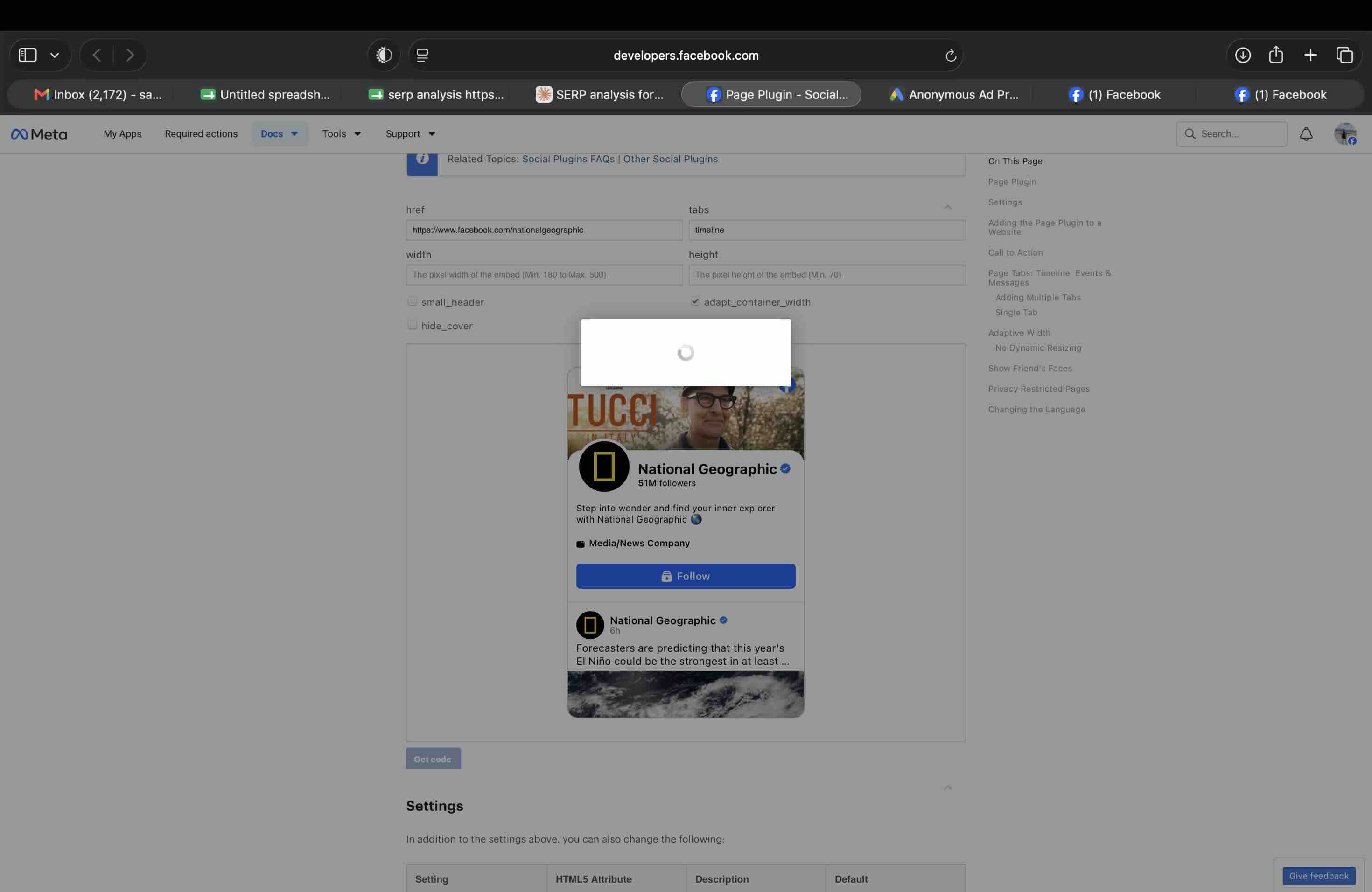
I went to Facebook's Page Plugin configurator on the Meta developer site and started entering Page URLs. When I entered a personal profile URL, the Get Code button just wobbled and did nothing: no error, no explanation. When I entered a verified Meta Business Suite page that had app-level permission restrictions, same silent failure. When I typed a Page URL without the https:// prefix (just facebook.com/...), it threw "The href entered is not recognized as a valid URL" even though the live preview rendered the Page correctly right below the error. And once I finally had a valid full URL in place and clicked Get Code, a modal opened with a spinner that spun indefinitely and never delivered any code at all. The native tool's code generation was simply broken during my testing.
I Had to Build the Embed Manually
Since the configurator wouldn't hand over code, I wrote the standard SDK loader and fb-page div myself and pointed it at a public Page. Loading it from a local file:// did nothing, because Facebook's SDK refuses to run from file:// for security reasons, so I served it over a local server at localhost:8080. This is the exact HTML the Page Plugin needs (the SDK loader plus the fb-page div) if you want to embed a Facebook feed in raw HTML yourself:
<!-- 1. Load the Facebook JavaScript SDK once, near <body> top -->
<div id="fb-root"></div>
<script async defer crossorigin="anonymous"
  src="https://connect.facebook.net/en_US/sdk.js#xfbml=1&version=v23.0">
</script>

<!-- 2. Drop this where you want the feed to appear -->
<div class="fb-page"
  data-href="https://www.facebook.com/YourPage"
  data-tabs="timeline"
  data-width="500"
  data-height="700"
  data-small-header="false"
  data-hide-cover="false"
  data-show-facepile="true">
</div>
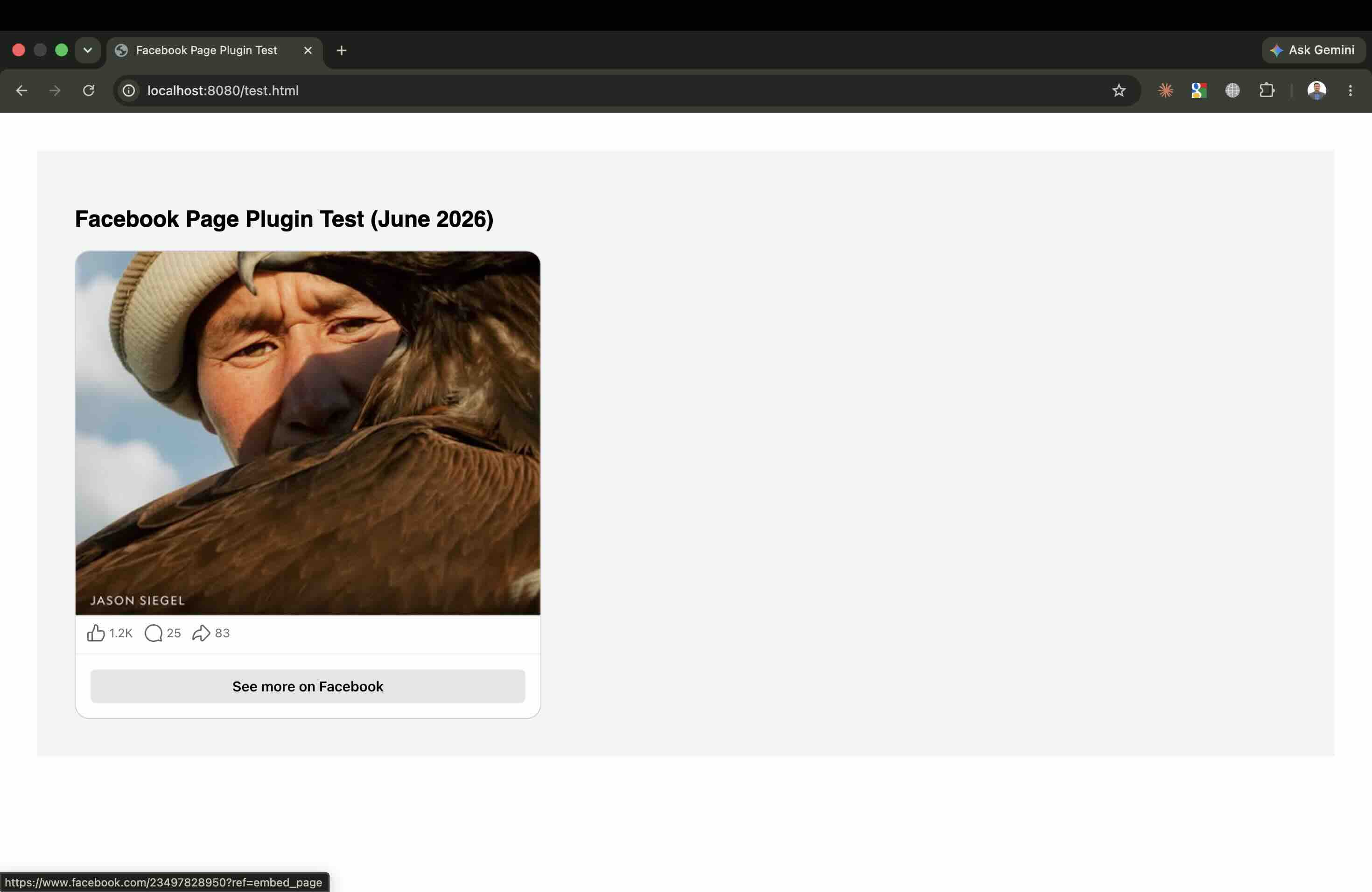
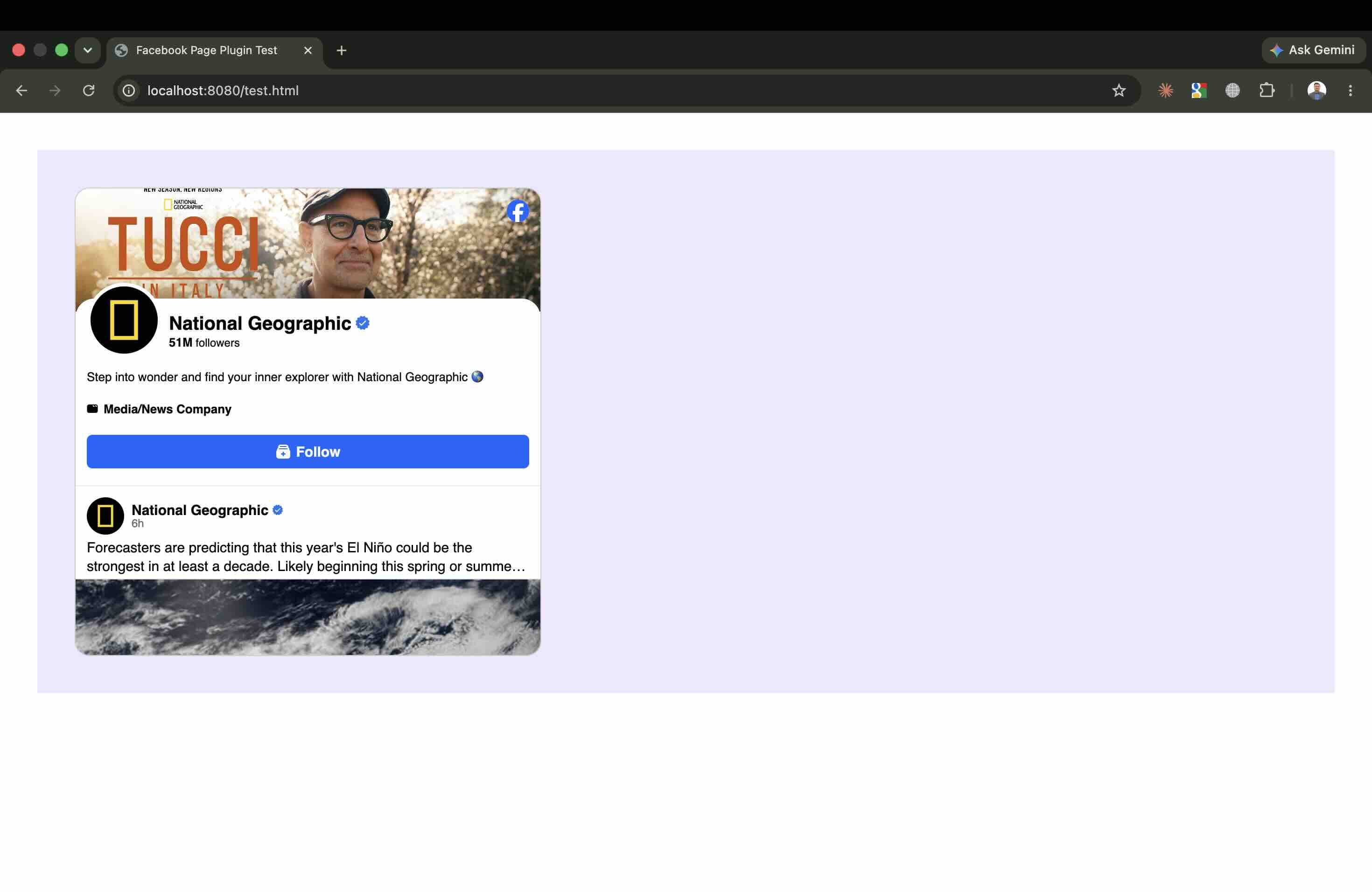
Note the data-width="500": that's the hard maximum. Once live, the plugin rendered as a narrow scrollable box: it loaded only five posts, captions were truncated with "…", clicking a post just bounced me out to Facebook, videos couldn't play inline, and the whole thing ended with a "See more on Facebook" button. Its entire job is to pull visitors off your site and back to Facebook.
The Width Trap: 180px Minimum, 500px Maximum
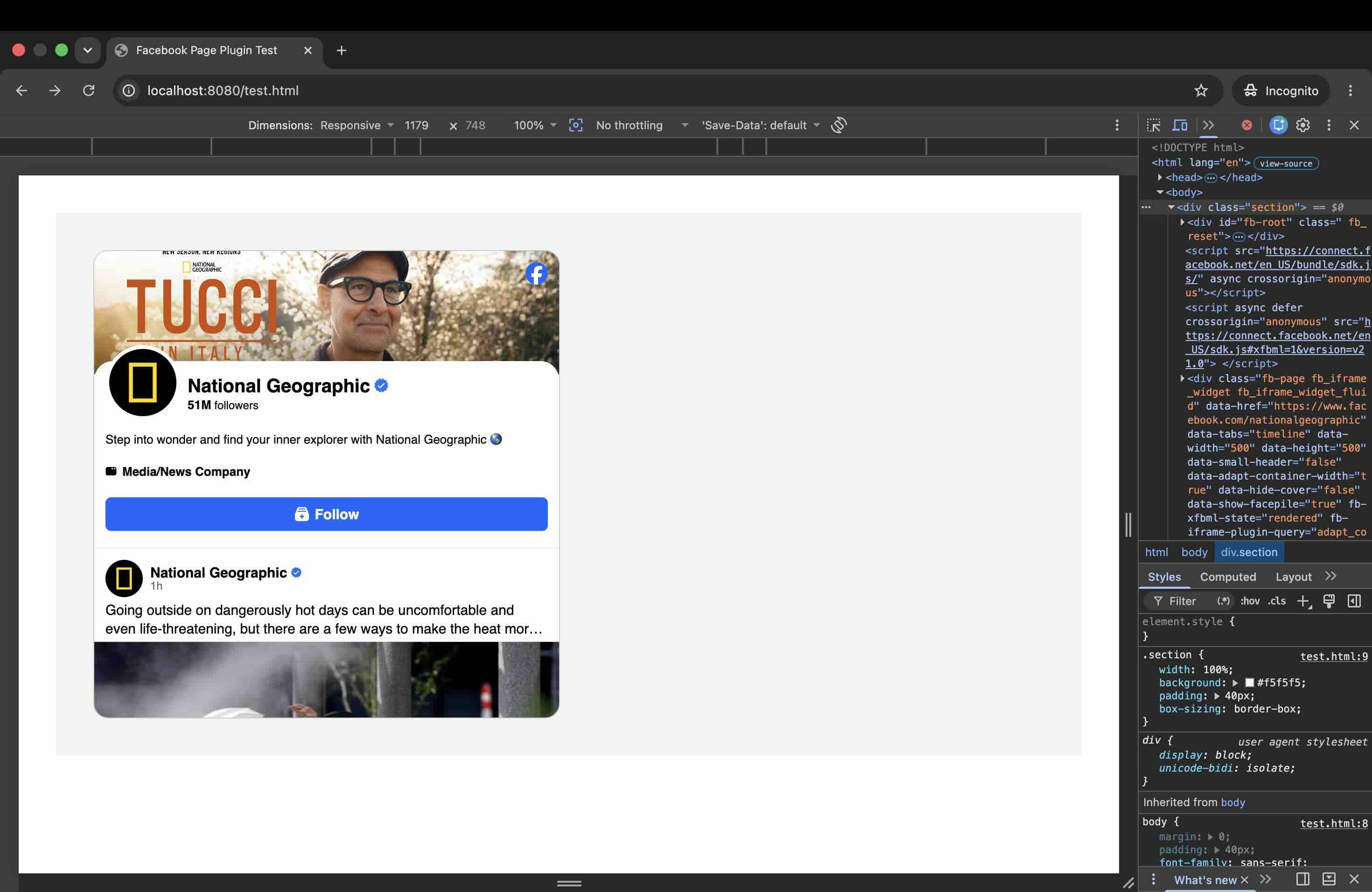
Meta's own docs state the plugin's width is locked between a minimum of 180px and a maximum of 500px, defaulting to 340px. I confirmed it. I set data-width to 500, dropped the widget into a full-width section, and maximized the browser to 1179px wide. The plugin sat as a narrow box on the left with roughly 680px of dead grey space to the right (1179 − 500 = 679). There is no setting to make it fill a wide container: it simply refuses to grow past 500px.
The Resize Failure
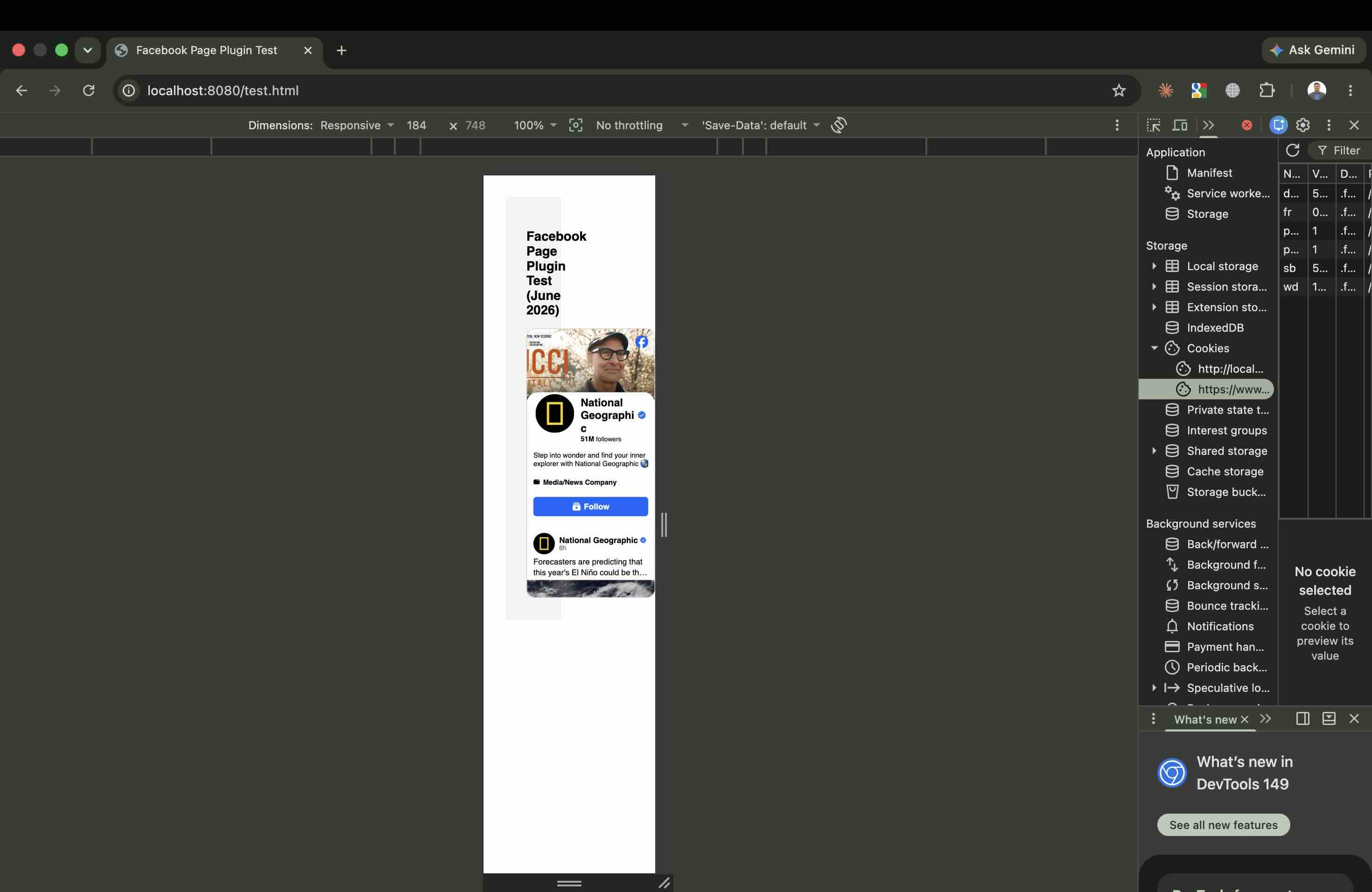
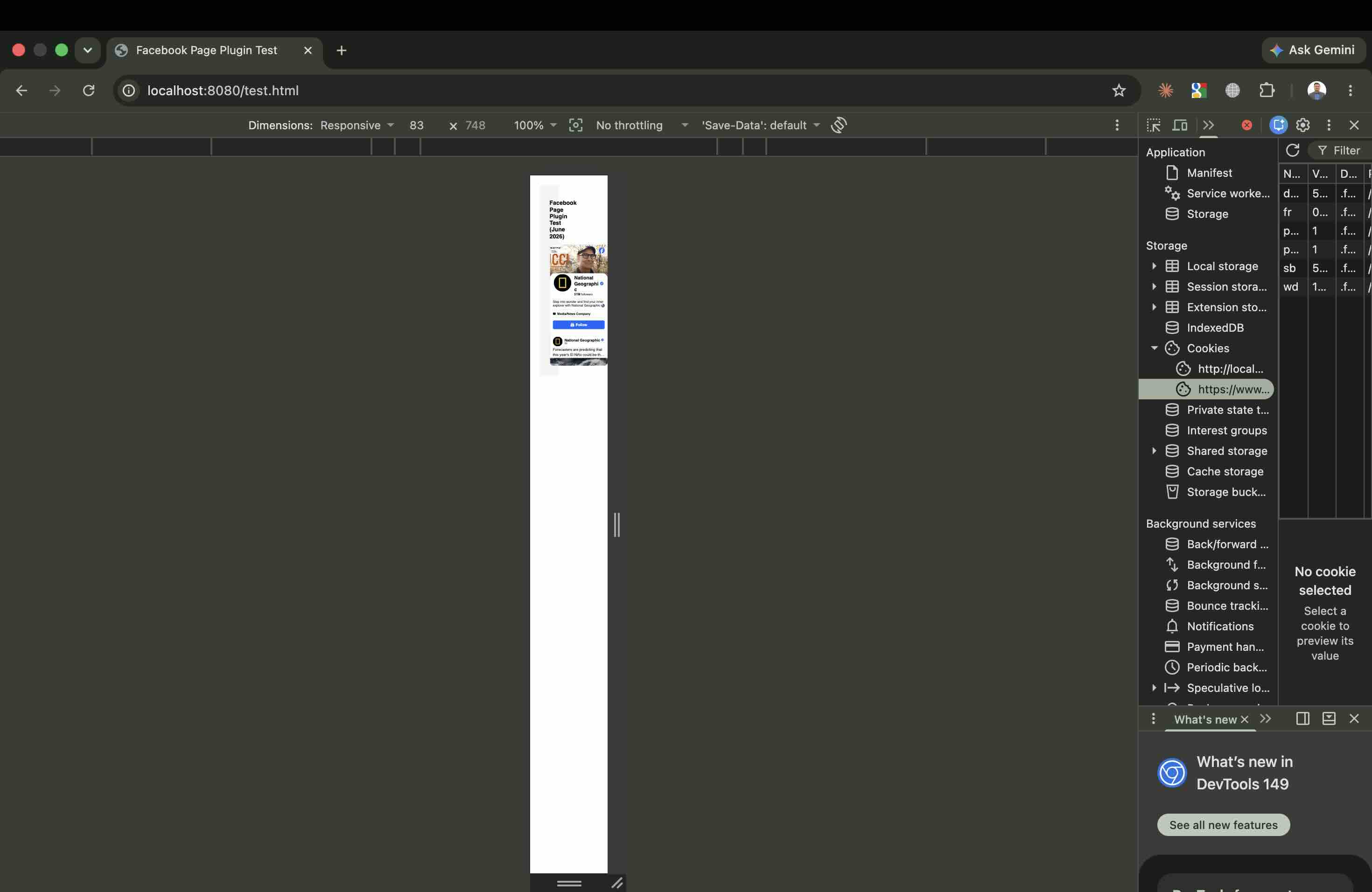
Meta's docs also admit the plugin "will determine its width on page load" and "will not react to changes to the box model after page load." I tested this in responsive mode. At 1179px wide it stayed frozen at its initial narrow render and never expanded. At 184px it squished down to its 180px minimum. At 83px it broke entirely: text stacked vertically and the whole widget became unusable. This is exactly why people report the plugin looking broken on mobile or after an orientation change: it measures once and never adjusts.
The Cookies: This Is the One That Matters Most
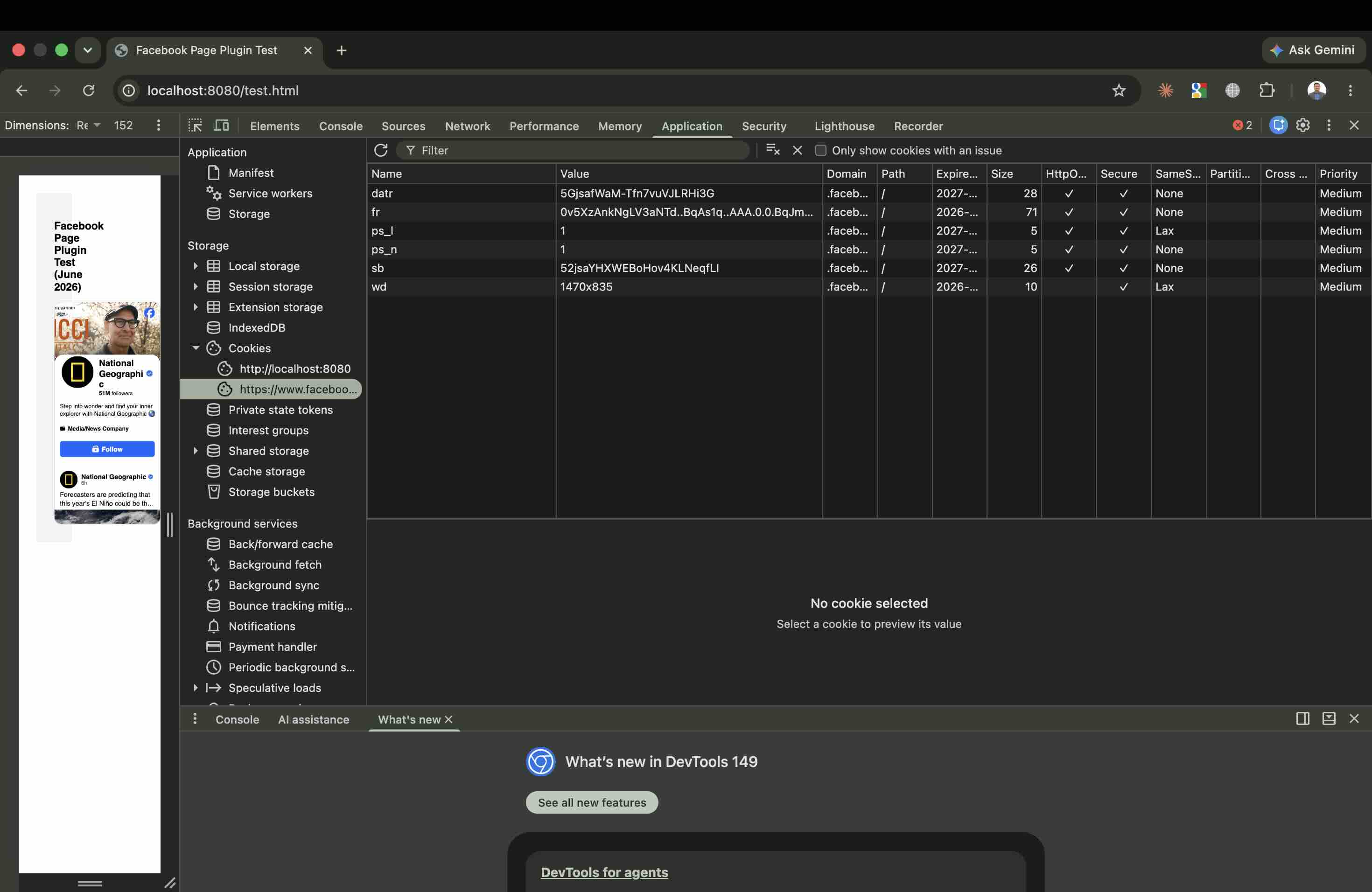
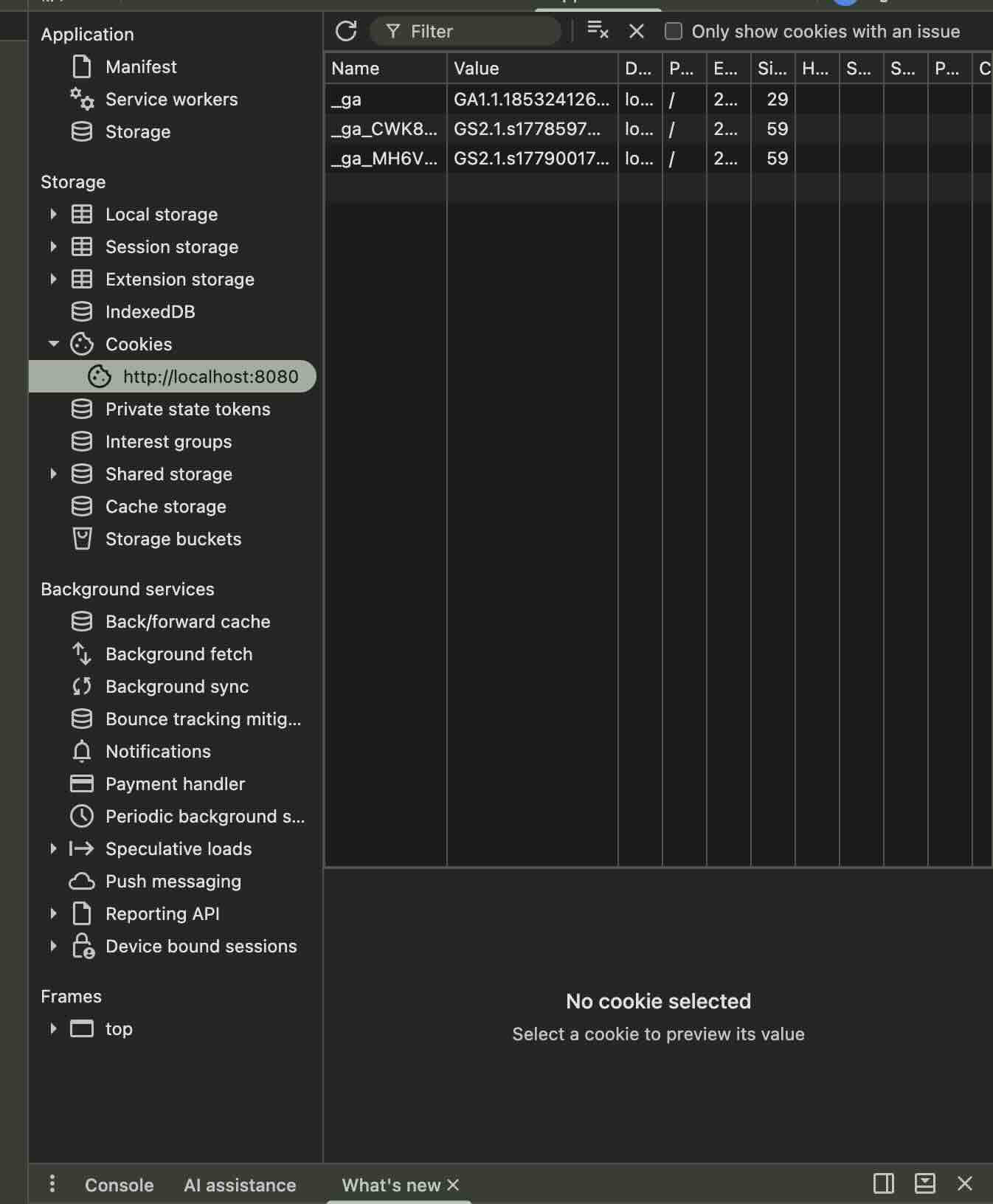
I opened DevTools → Application → Cookies. The localhost domain only had my own Google Analytics cookies (_ga and two _ga_ variants), which are mine, not Facebook's. But under the .facebook.com domain, loaded purely by the plugin, with zero interaction from me, I found six Facebook cookies:
datr: browser identification, expires 2027fr: Facebook's primary advertising cookie, expires 2026ps_landps_n: login/session state detectionsb: browser security, expires 2027wd: which literally recorded my screen dimensions (1470×835) and sends them back to Facebook
All six were set on page load, before any visitor clicks anything. Under the GDPR and similar rules, that's exactly the kind of third-party tracking that's supposed to sit behind a consent banner. The "free" plugin can quietly turn into a compliance problem on any European-facing site. Use of the plugin is also governed by the Meta Platform Terms.
The Network Weight
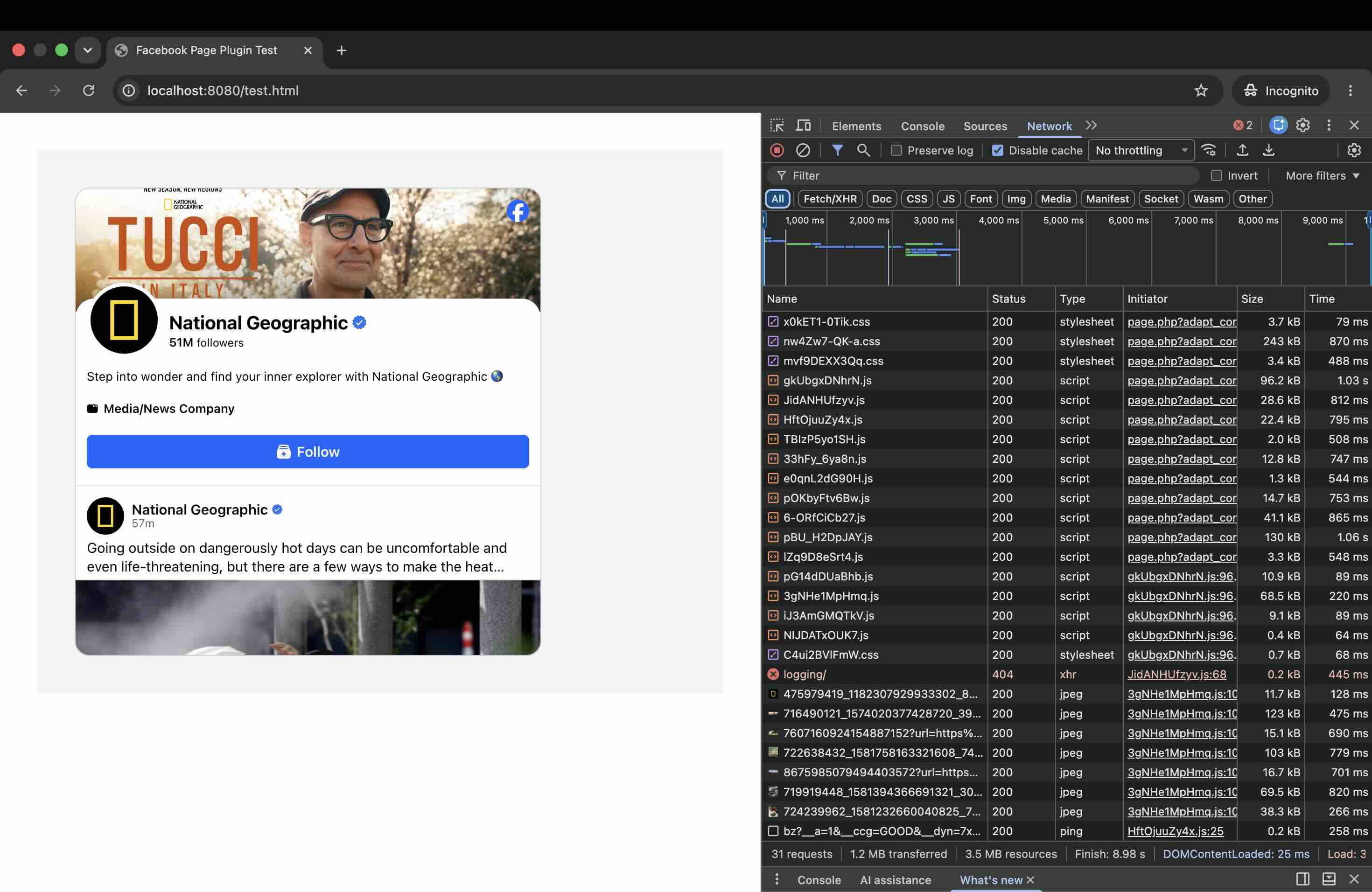
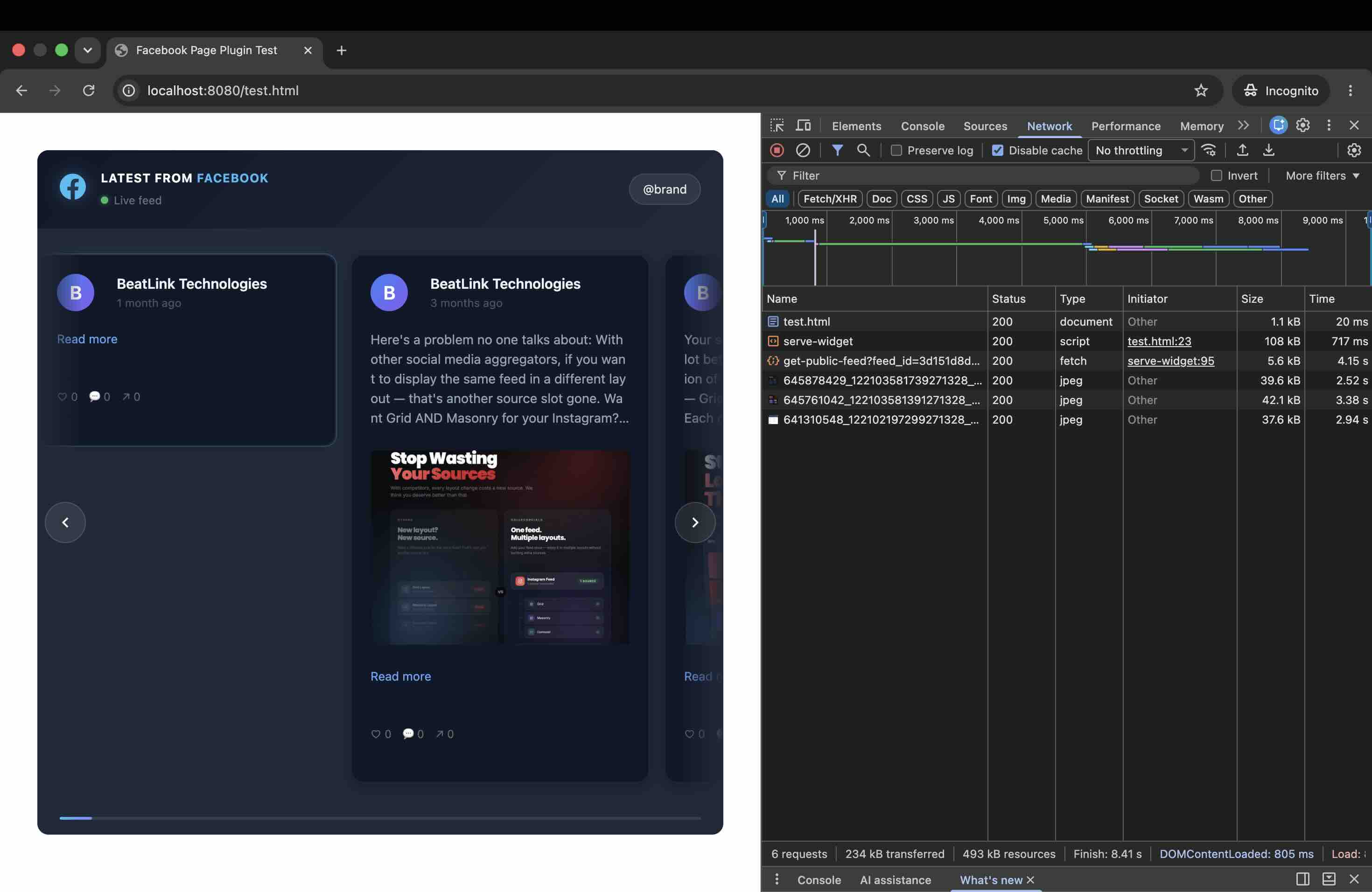
I ran the Network tab in an incognito window (no extensions) with cache disabled, on a blank page carrying nothing but the Page Plugin. The Facebook SDK loads in two parts, a small loader plus the main sdk.js, and then pulls in a cascade of obfuscated Facebook scripts (one was 130 kB, another 96.2 kB, another 68.5 kB) and a request to a Facebook logging endpoint that returned a 404. My page's own HTML was ready in 25ms; everything after that was Facebook.
One honest caveat: the transfer total varies by Page and session. Whatever images a Page is currently serving get pulled in unoptimized, so a Page with heavy cover or post images moves far more data than a sparse one, which is exactly why no single number here would survive contact with your Page. The SDK and script overhead is the constant, no matter which Page you embed, and that overhead is the part that sets the tracking cookies and breaks Lighthouse.
Lighthouse Couldn't Even Score It
I tried to run Lighthouse on both mobile and desktop. Both failed with NO_FCP errors: "the page did not paint any content." The SDK loads so asynchronously that Chrome's own performance tool can't capture a First Contentful Paint. The native plugin is literally unmeasurable by Google's standard performance tool. (When I removed the plugin and tested just my heading, Lighthouse scored fine, confirming it's the plugin, not my page, breaking measurement.) The CollectSocials feed, on the same page in the same incognito window, was fully measurable.
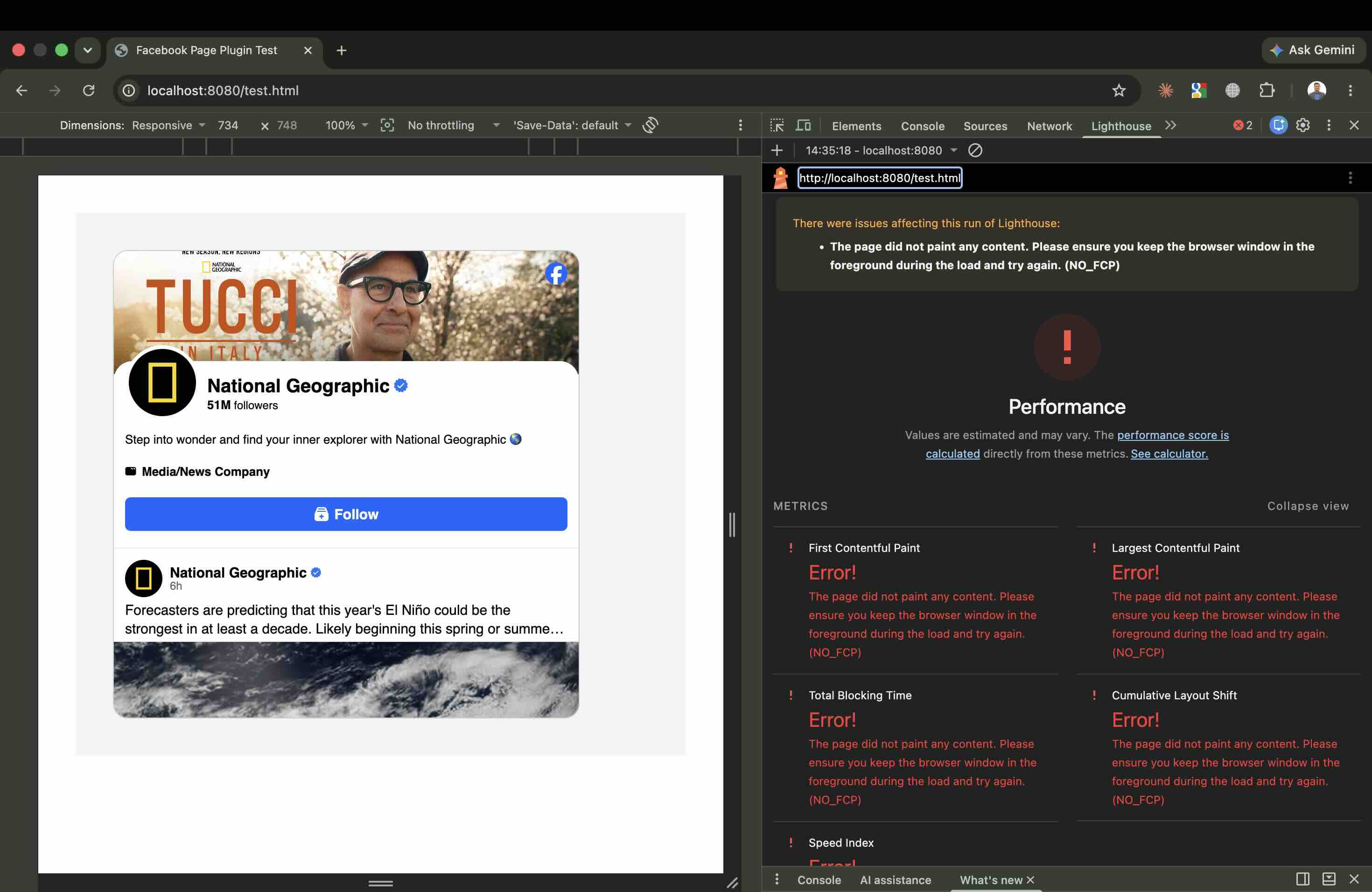
I recorded the whole thing so you don't have to take my word for it. In this video you can watch Facebook's configurator fail to generate code, the plugin render at its 500px cap, Lighthouse fail with a NO_FCP error live, and then a CollectSocials Facebook feed go full-width and stay fully measurable, where the plugin returned no score at all, on the same page in the same browser session:
The Styling Test: Zero Design Control
I injected aggressive CSS into my page: forced fonts to red Georgia serif, set a purple background, killed all border radius and shadows. The page around the plugin changed completely; the plugin itself stayed pixel-for-pixel identical, because it renders inside an iframe my CSS can't reach. To be fair, that iframe isolation is intentional and it does protect the plugin from being broken by your stylesheet. But the flip side is the real story: you get zero design control. Whatever Facebook decides the widget looks like is what your visitors see: no colors, no fonts, no layout, no card styling.
Mobile
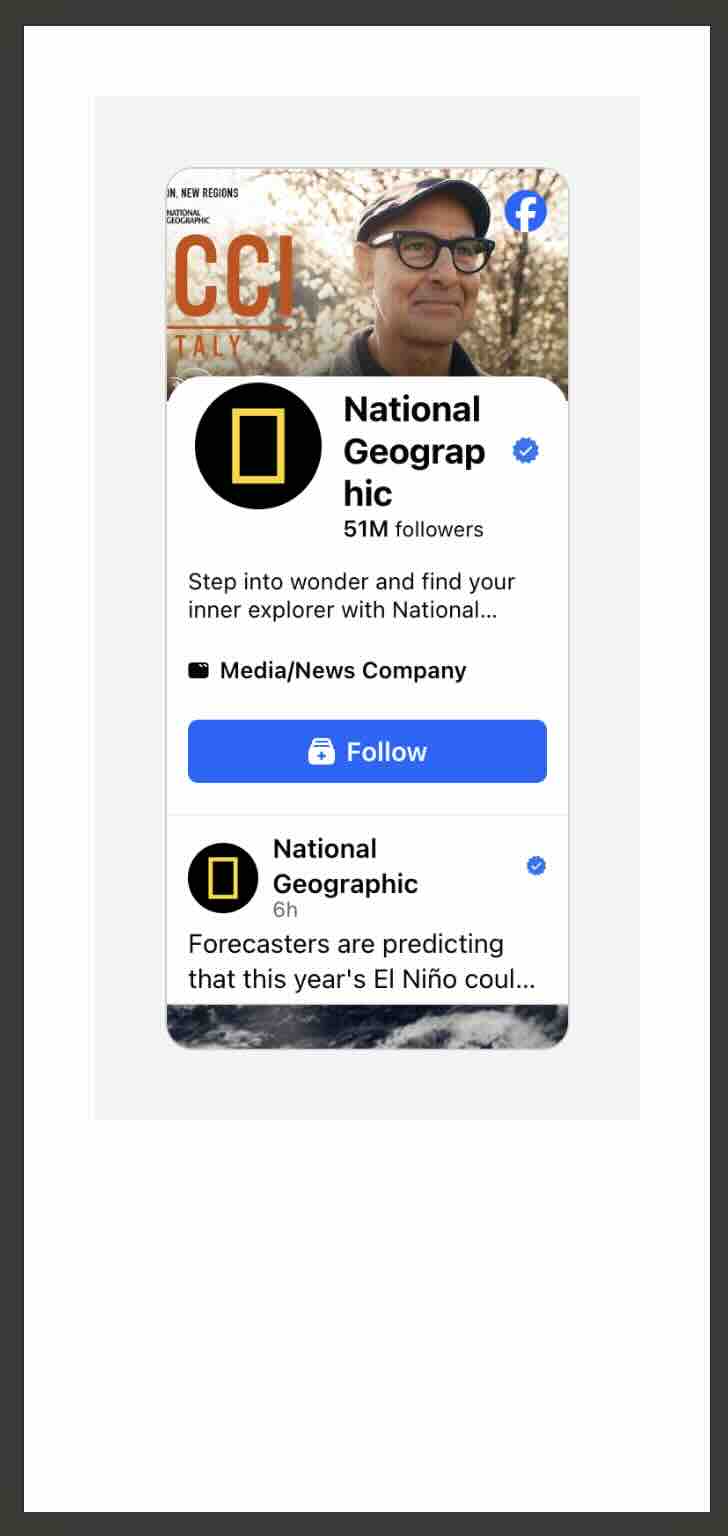
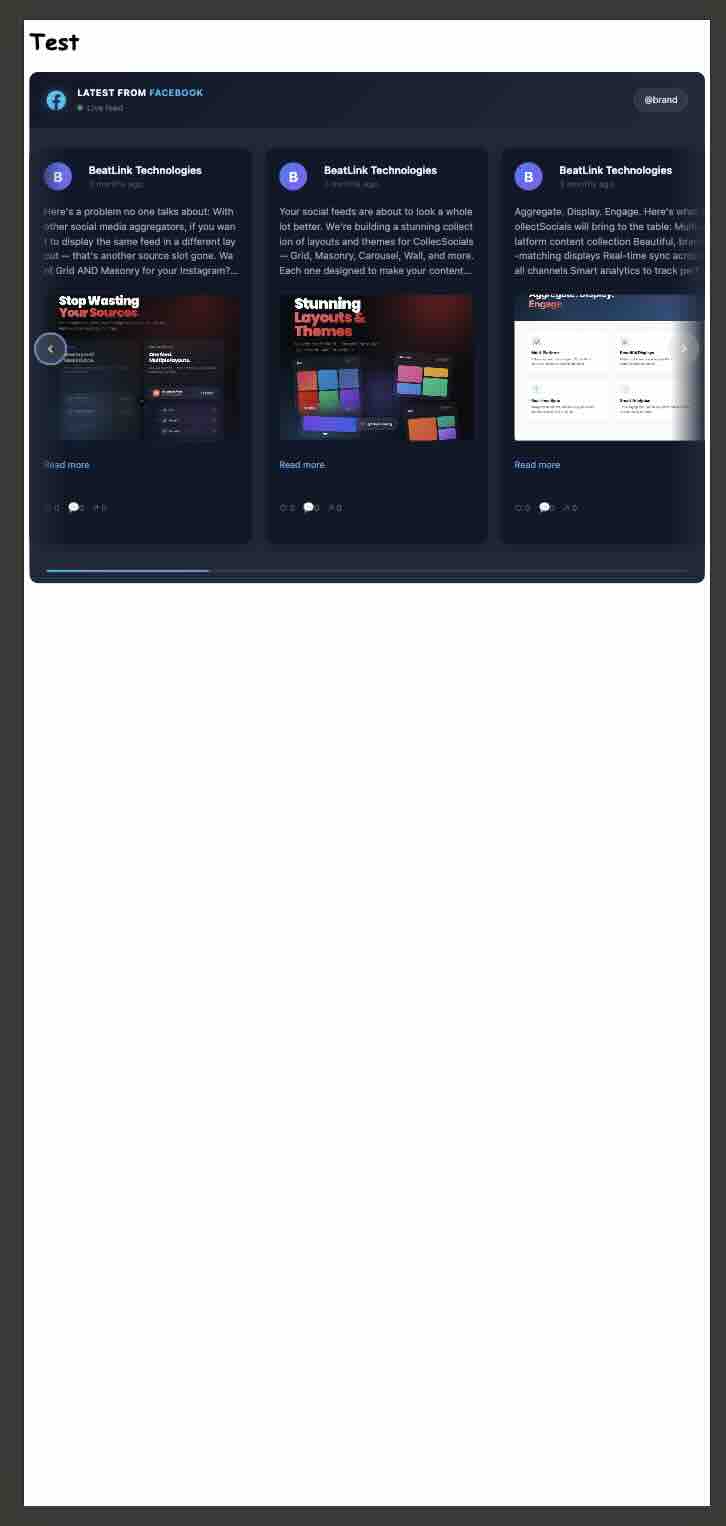
On iPhone 12 Pro emulation the plugin filled the phone width, which looks fine at a glance, but the Page name broke mid-word across three lines (National / Geograp / hic) and the bio truncated. The CollectSocials feed, on the same device, filled the viewport edge to edge with no text-wrapping issues in either a carousel or a list layout. Both shots sit on a blank test page, so the empty space below either widget is the test page rather than the embed, and there is more of it under ours: the wrapping is the difference here, not the vertical footprint.
How to Actually Add Your Facebook Page (CollectSocials)
After the Page Plugin boxed me into 500px and a cascade of Facebook scripts I did not ask for, I used CollectSocials to add my Facebook feed instead, and it rendered full-width and on-brand on the first try. No Facebook App ID, no SDK loader, no cookie banner triggered by the widget. Connect your Page, pick a layout, paste one snippet. Here's the complete process with screenshots from the same June 2026 test.
Step 1: Create a New Feed
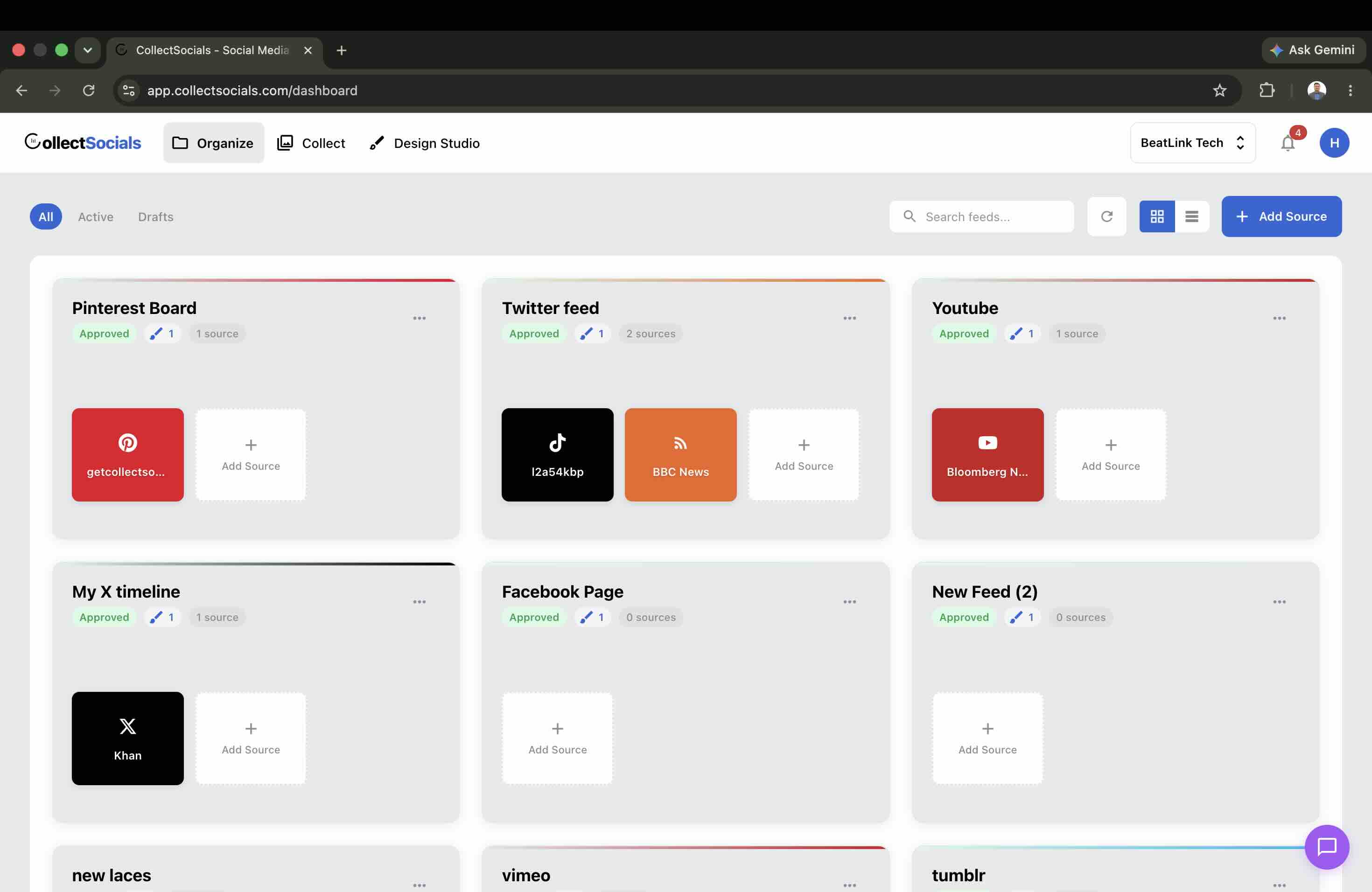
After signing up, you land on the dashboard. Create a new feed for your Facebook content. You can run multiple feeds: one for your main Page, another for a campaign or a specific page on your site.
Step 2: Select Facebook as Your Source
Click "Add Source" and pick Facebook from the platform chooser. Facebook is available on every CollectSocials plan, including the free plan (one connected source, three through the 7-day trial), and it's not locked behind a premium tier. CollectSocials also supports Instagram, YouTube, Google Reviews, TikTok, X/Twitter, Pinterest, Tumblr, RSS, and Vimeo, so you can combine them in one feed later.
Step 3: Connect Your Facebook Page
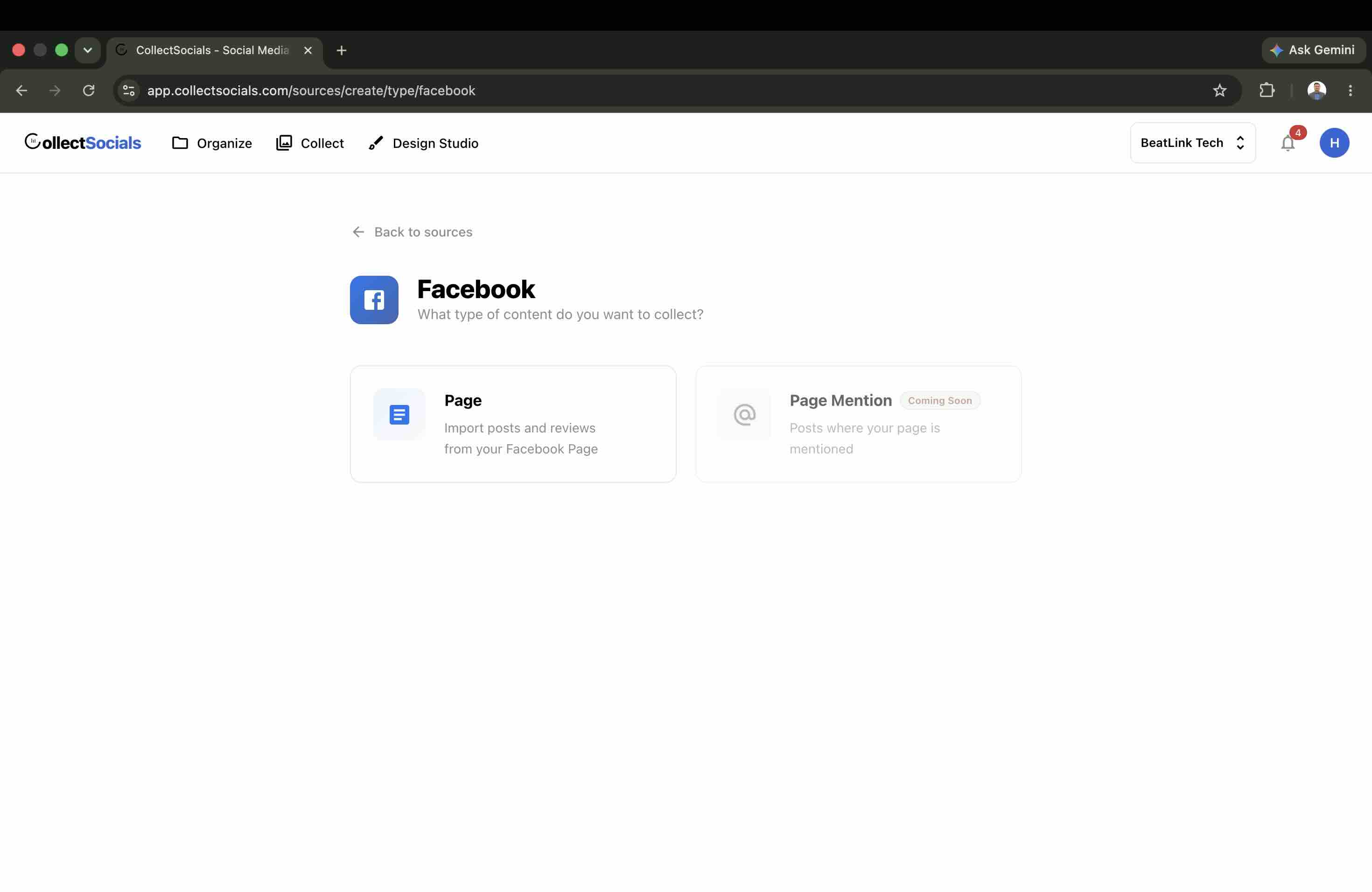
Click "Connect Facebook" to authenticate through Meta's OAuth flow (you'll need to be signed in to the Facebook account that manages the Page), then select the Page you want to display. CollectSocials never stores your password: it uses a secure token you can revoke anytime from your Facebook settings. Your Page's posts (text updates, photos, videos, and links) import automatically. Note that CollectSocials connects Pages you own or admin, a Meta Graph API rule, which for a business embedding its own Page is exactly what you want.
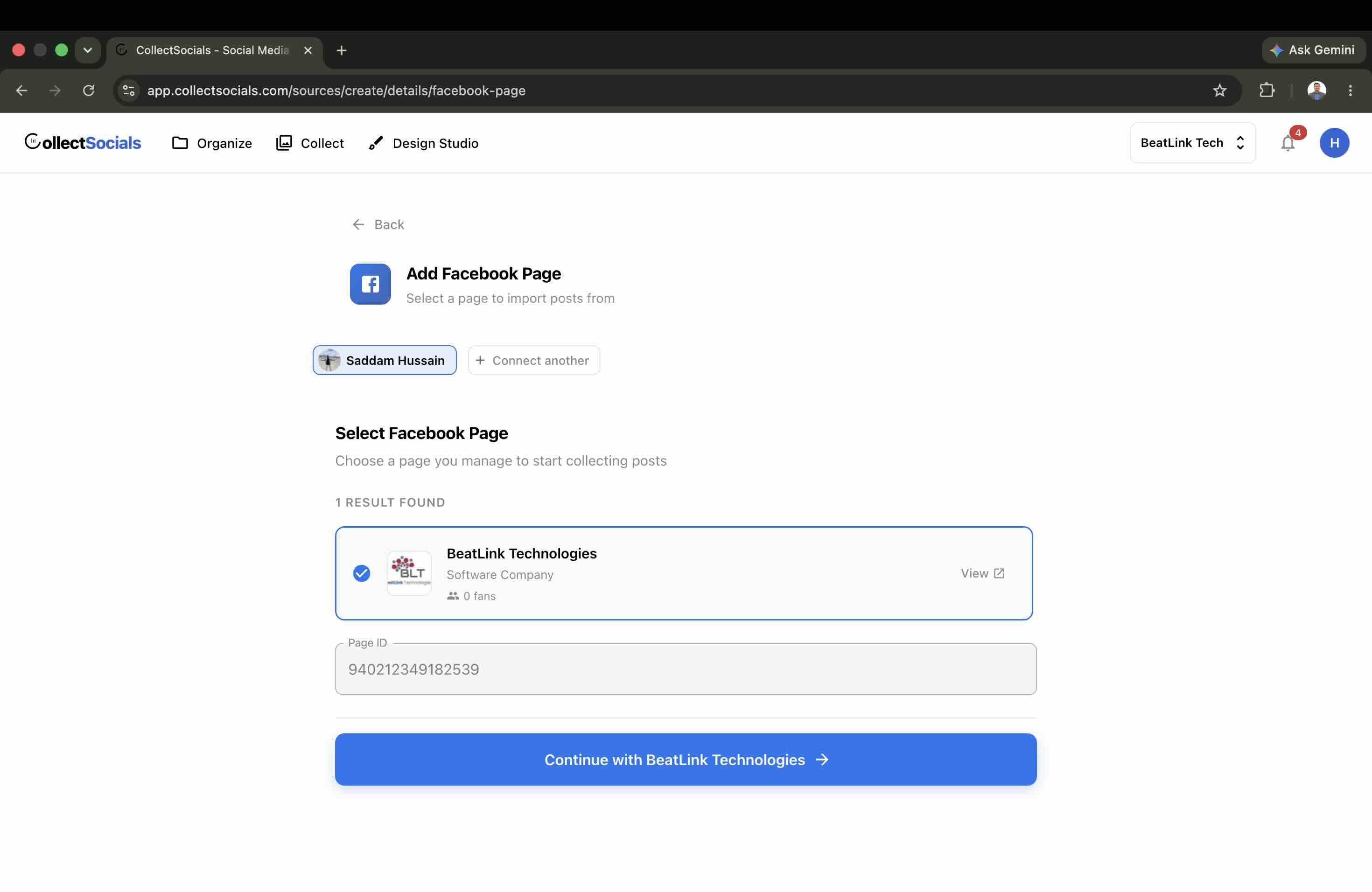
Step 4: Moderate and Curate Your Posts
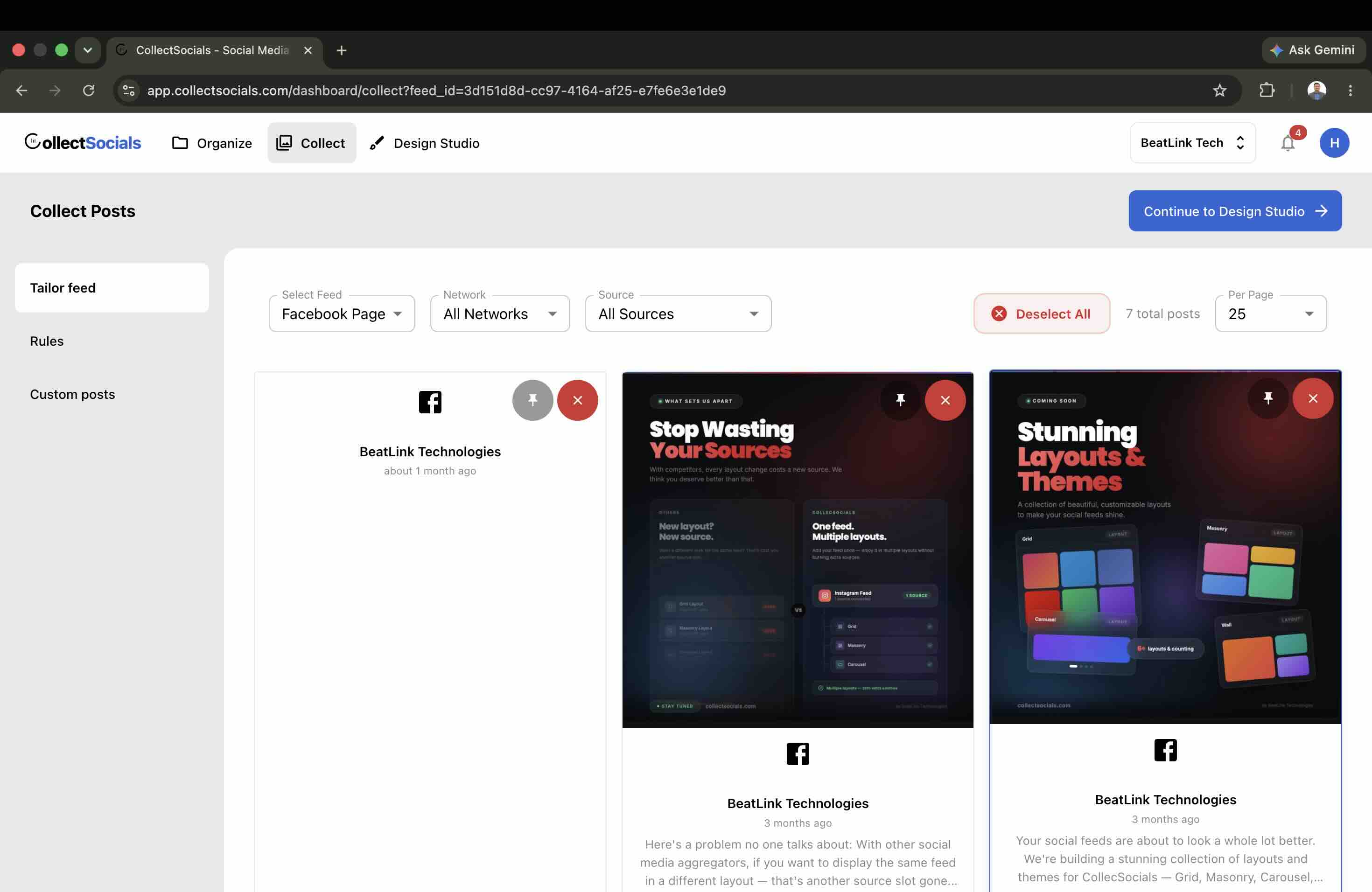
Once connected, your posts land on the Collect page. This is where CollectSocials solves the biggest gap in the native plugin: control. Pin the posts you want featured, hide the ones that don't belong on your site (expired event reminders, casual polls, off-brand chatter), filter by source, and edit post text inline to add context for a website audience.
There are two modes here and it is worth knowing which one you are in. By default the feed shows what your Page publishes and hides what you reject, which is what most business pages want: post to Facebook, and the website keeps up on its own. If you would rather nothing reached the site unseen, switch on Pre-approve posts in the feed's settings and the widget serves only what someone has explicitly approved, with new Facebook posts waiting in the queue until they do.
If more than one person manages your feeds, you can invite your team: unlimited team members on every plan, including Free, so the person who runs the Facebook Page and the person who owns the website do not have to share one login. The native Page Plugin has no concept of moderation, let alone team access.
Step 5: Design Your Widget in Design Studio
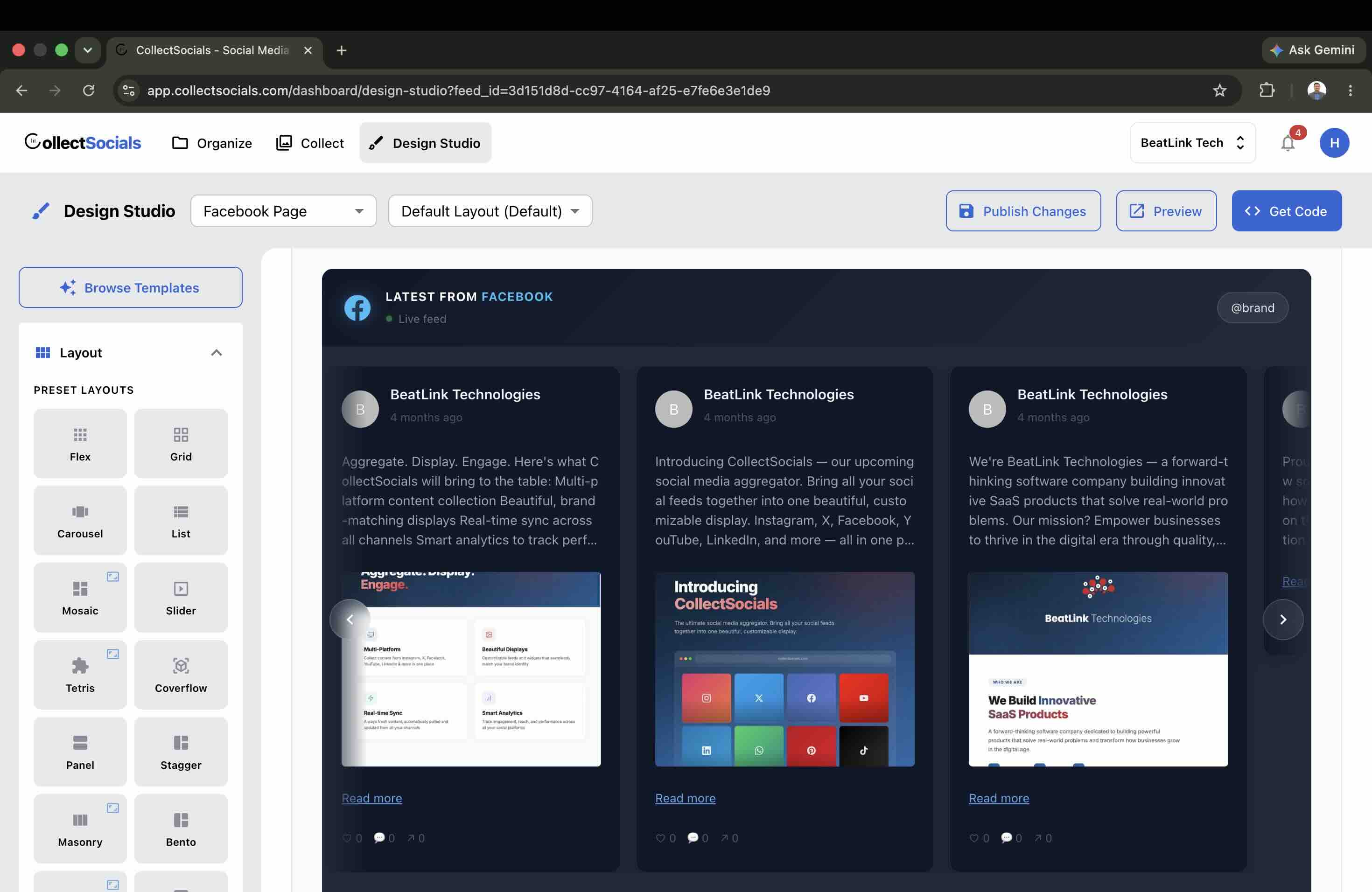
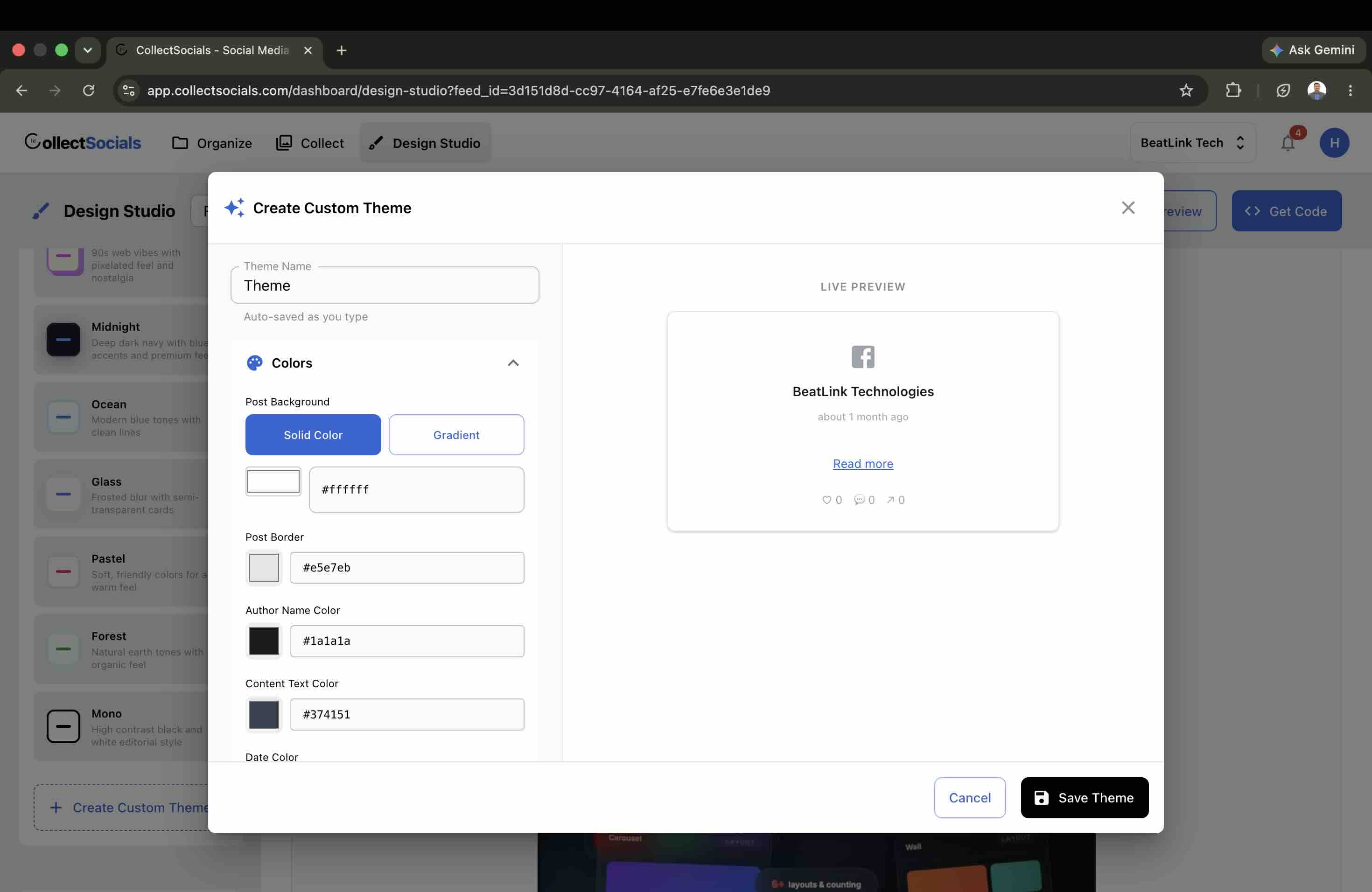
This is the part the native plugin can't touch. In the Design Studio you pick from a wide range of layouts (standouts include Marquee, Masonry, Carousel, and Coverflow) and then style them. The real differentiator is the styling: start from a ready-made template, or open the custom theme builder and build your own theme from scratch (colors, fonts, borders, shadows, spacing, and card styles). Because you can save your own themes, you get effectively unlimited looks, all matched to your brand instead of Facebook's.
Designing a Facebook feed that fits your brand
The animation cycles through layout and theme combinations applied to a Facebook feed. Unlike the native Page Plugin's fixed Facebook styling, this shows how the same set of posts can be restyled (colors, card shape, spacing, and layout) to match the look of your own site.
Step 6: Preview, Get Your Code, and Check Mobile
Click "Preview" to see exactly how the feed will look, toggling between desktop, tablet, and mobile. When it's right, click "Get Code" and set "Where are you installing your widget?" to your platform before you copy, because the snippet differs by host (the platform section below covers each one). On the script hosts the feed renders inside a Shadow DOM, so its styles are isolated from your site's CSS and nothing conflicts in either direction; on Wix and Squarespace the same isolation comes from a self-resizing frame instead. Either way it stays responsive at any width. I tested it on iPhone 12 Pro in both a carousel and a vertical list layout; both filled the viewport edge to edge.
Facebook Feed Pricing on CollectSocials
Unlike platforms with expensive APIs, a Facebook feed runs on every CollectSocials plan, including the free plan(one connected source, three through the 7-day trial), so the feed itself never expires behind a paywall. The difference is design: the free plan's Design Studio covers seven of the forty layouts, and all sixteen themes plus the theme builder, while the 7-day trial unlocks the full Design Studio, every layout plus the custom card builder, so you can design and preview your entire widget before deciding, no credit card required. Paid plans keep the full Design Studio and add more sources, higher view limits, and faster sync:
- Free ($0): Facebook feed on one connected source, seven layouts and all sixteen themes, syncing once a day.
- Pro ($29/mo): full Design Studio, hourly sync, and up to 30,000 page views per month.
- Business ($59/mo): more sources, sync every fifteen minutes, and unlimited page views per month.
Every plan, including Free, also includes unlimited team members for moderating and managing your feeds.
A note on "live": these are auto-updating feeds, not real-time streams. Your widget pulls new Facebook posts at regular intervals: you never re-embed or manually refresh.
Native Page Plugin vs CollectSocials: What I Measured
Everything in this table comes from my own June 2026 test: the same public Facebook Page, embedded on identical blank pages, measured in the same DevTools session.
| What I measured | Facebook Page Plugin | CollectSocials |
|---|---|---|
| Script files loaded | Facebook SDK + cascade | 1 |
| Images served | Unoptimized, whatever the Page serves | Properly sized |
| Facebook cookies before consent | 6 (datr, fr, ps_l, ps_n, sb, wd) | 0 |
| Lighthouse (mobile) | Failed: NO_FCP (unscorable) | Scored normally |
| Maximum width | Capped at 500px | Full-width, any container |
| Responsive resize | Frozen on page load | Fully responsive |
| Design control | None (locked iframe) | Layouts, templates, custom theme builder |
| Moderation | None | Pin, hide, filter, inline edit |
| Multi-platform | Facebook only | Facebook, Instagram, Google Reviews, YouTube, and more |
| Cost | Free | Free plan (1 source); paid from $29/month |
How to Embed a Facebook Feed on WordPress, Squarespace, Wix, Shopify, Webflow, and Google Sites
Before you paste anything, set "Where are you installing your widget?" in the Get Code dialog to your platform. This is not a convenience: the snippet itself changes. WordPress, Webflow and plain HTML get a script tag; Shopify gets that script inside a page-width container so a theme's flex rules cannot squeeze it; Wix and Squarespace get a self-resizing iframe, because both sandbox or strip custom scripts; and Google Sites gets a URL rather than any code at all. Pick the wrong one and the feed either renders narrow or never appears, with no error message either way. Here is where each payload goes.
WordPress (Gutenberg Editor)
WordPress is the one platform where there are two routes, because it is the one platform we ship our own installer for. Take the snippet if you want the feed live in a minute; take the plugin if the page is going to get traffic.
Route 1: the Custom HTML block.
- Open the page or post where you want the Facebook feed.
- Click the + block inserter and search for "Custom HTML."
- Add a Custom HTML block and paste your embed code into it.
- Click "Preview" in the block toolbar to verify it renders, then publish.
Route 2: the CollectSocials WordPress plugin, from the official WordPress.org directory. Install it, paste the feed key into the block or the [collectsocials] shortcode, and the plugin copies your Facebook posts and your published design into your own WordPress database. Your visitors then load the feed from your domain and never make a request to us at all, which has one consequence worth the extra two minutes: once a feed has synced, its page views stop counting against your plan, on any plan including free. A Facebook feed on a page taking real traffic is the exact case where that matters, and it is the one thing a hosted embed on any tool, ours included, cannot offer you. The WordPress social feed page covers the install.
The WordPress Custom HTML block, visualized
The animation shows the WordPress Gutenberg flow for a Facebook feed: you drop in a Custom HTML block, paste the single CollectSocials script tag, and the placeholder resolves into a live, styled Facebook feed, with no plugin installed and no theme CSS to fight.
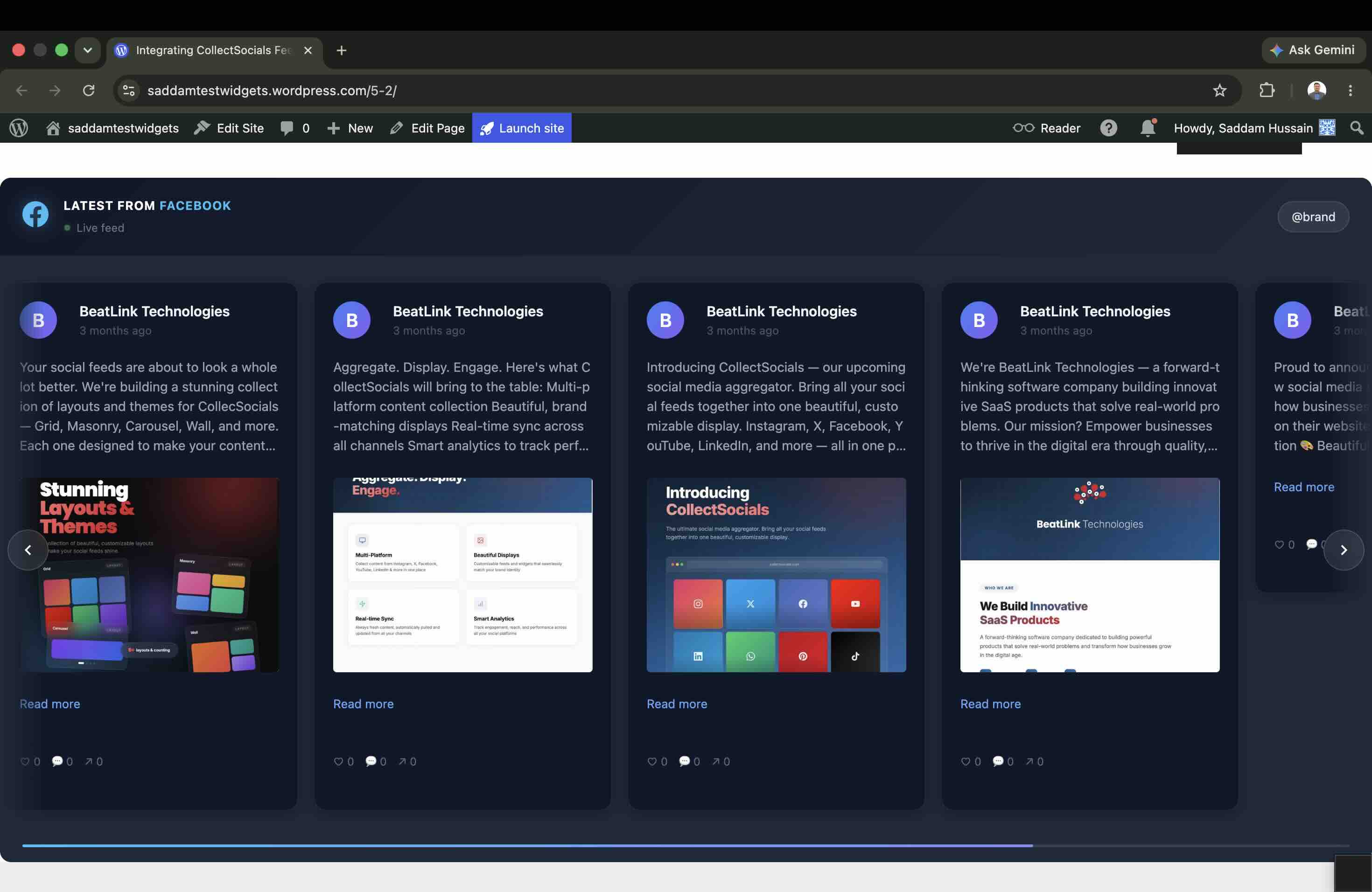
Because the widget renders inside a Shadow DOM, it's isolated from your theme's CSS, so it works out of the box on any WordPress setup: Gutenberg, Elementor, Divi, Beaver Builder, GeneratePress, Astra, or any theme and page-builder combination, with no plugin conflicts.
Page builders. If you use Elementor, drop in an HTML widget and paste the code. For Divi, use a Code module; Beaver Builder has an HTML module. The step is identical: paste the embed and save.
Sidebars and footers. To show the feed site-wide in a sidebar or footer, add a Custom HTML widget under Appearance > Widgets and paste the code there. Advanced users can place the snippet directly in a theme template file to render it on every page without adding it manually each time.
WooCommerce. On a WooCommerce store, a Facebook feed on product pages, showing real customer content and product-related posts, adds authentic social proof right at the point of purchase.
Shopify (Online Store 2.0)
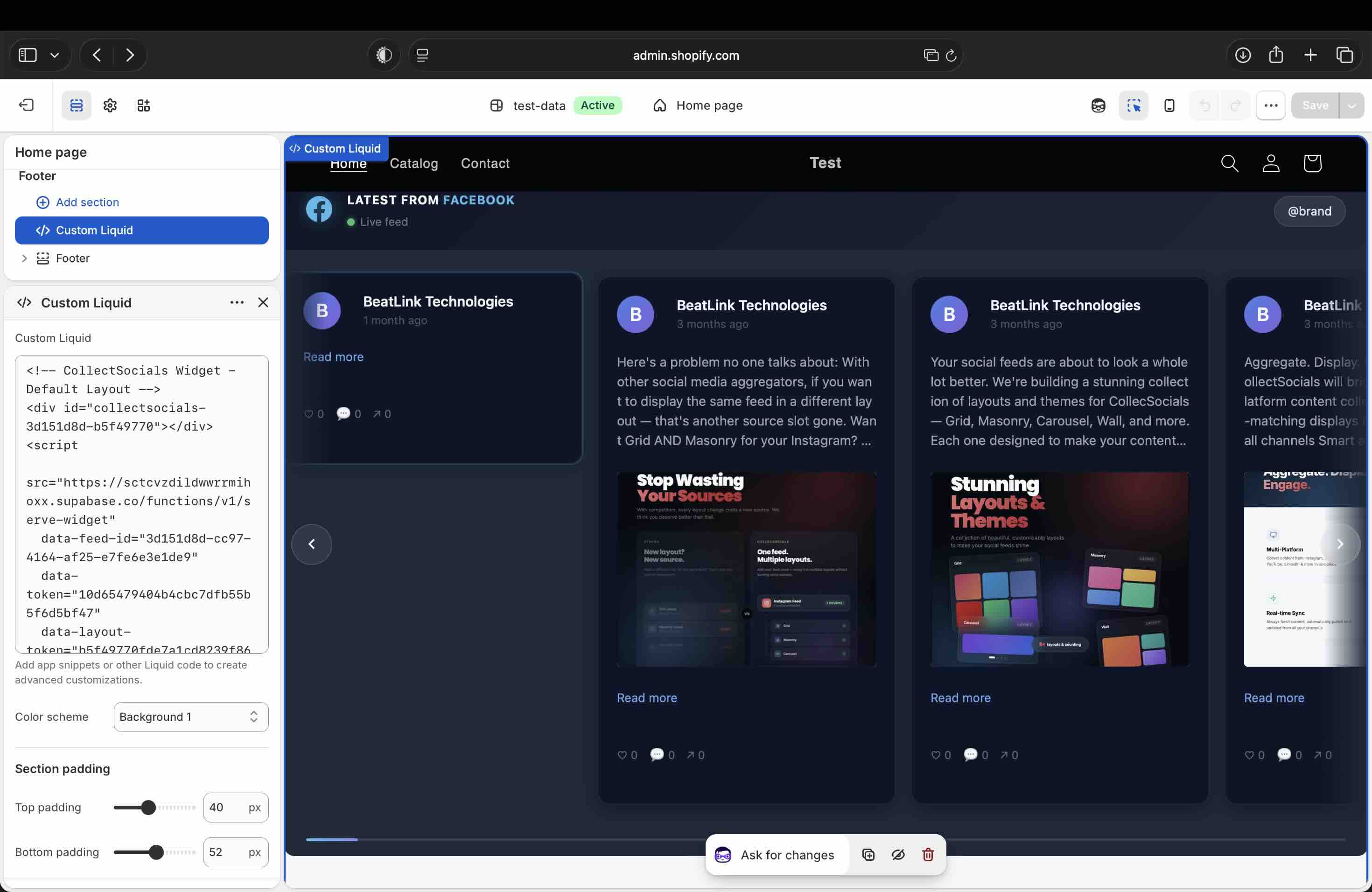
- Go to Online Store > Themes > Customize in your Shopify admin.
- Navigate to the page where you want the feed and click Add section.
- Select Custom Liquid and paste the Shopify snippet into the Liquid field.
- Position the section where you want it, then save.
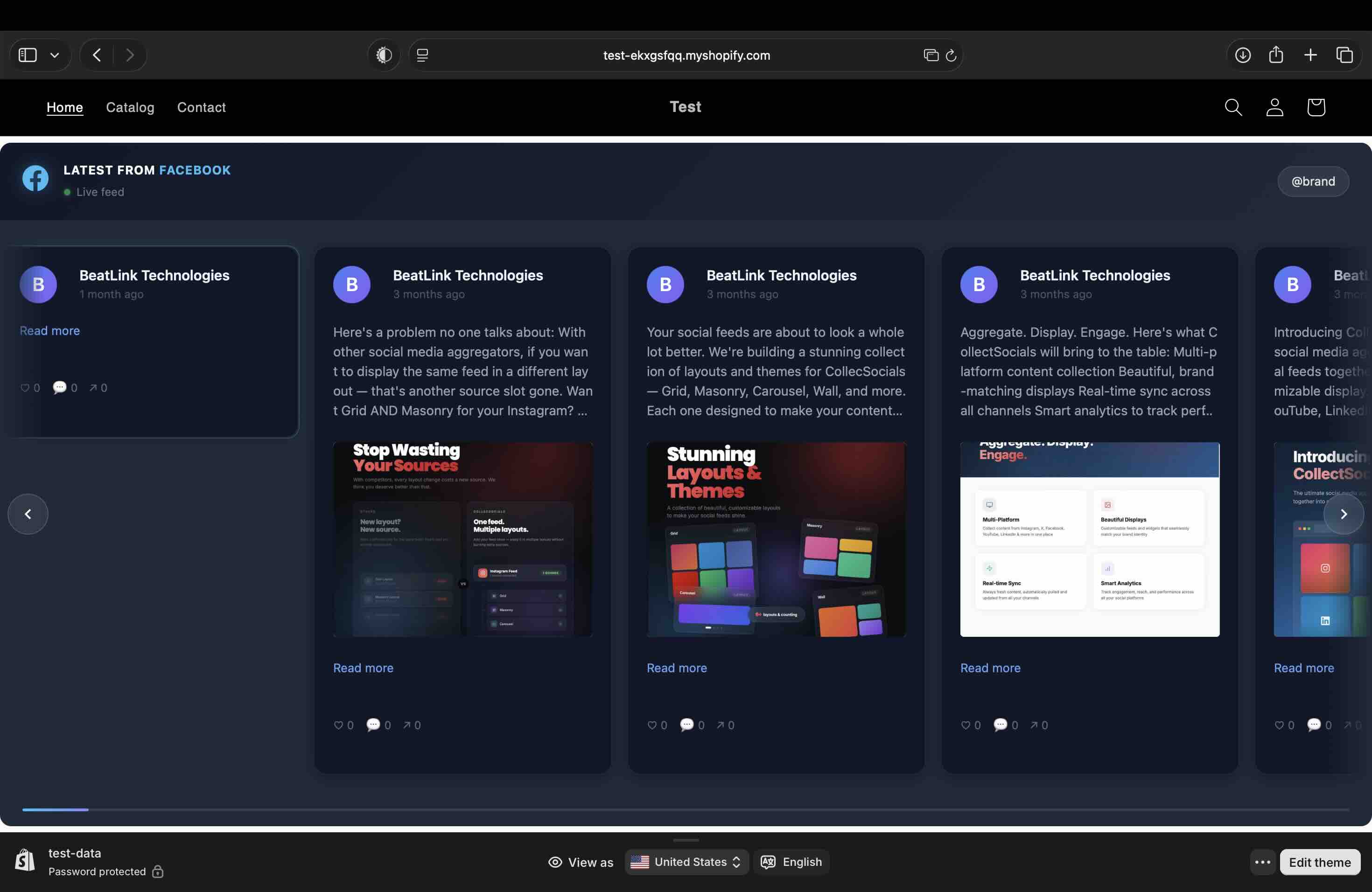
Set the picker to Shopify for this one. The Shopify snippet is the same script wrapped in a page-width container with safe margins, because a Dawn-style theme's flex rules will otherwise compress a bare container to one side of the section. It is the failure that generates no support ticket: the feed loads and syncs perfectly, it just sits narrower than you designed it, and it reads as the widget simply looking like that.
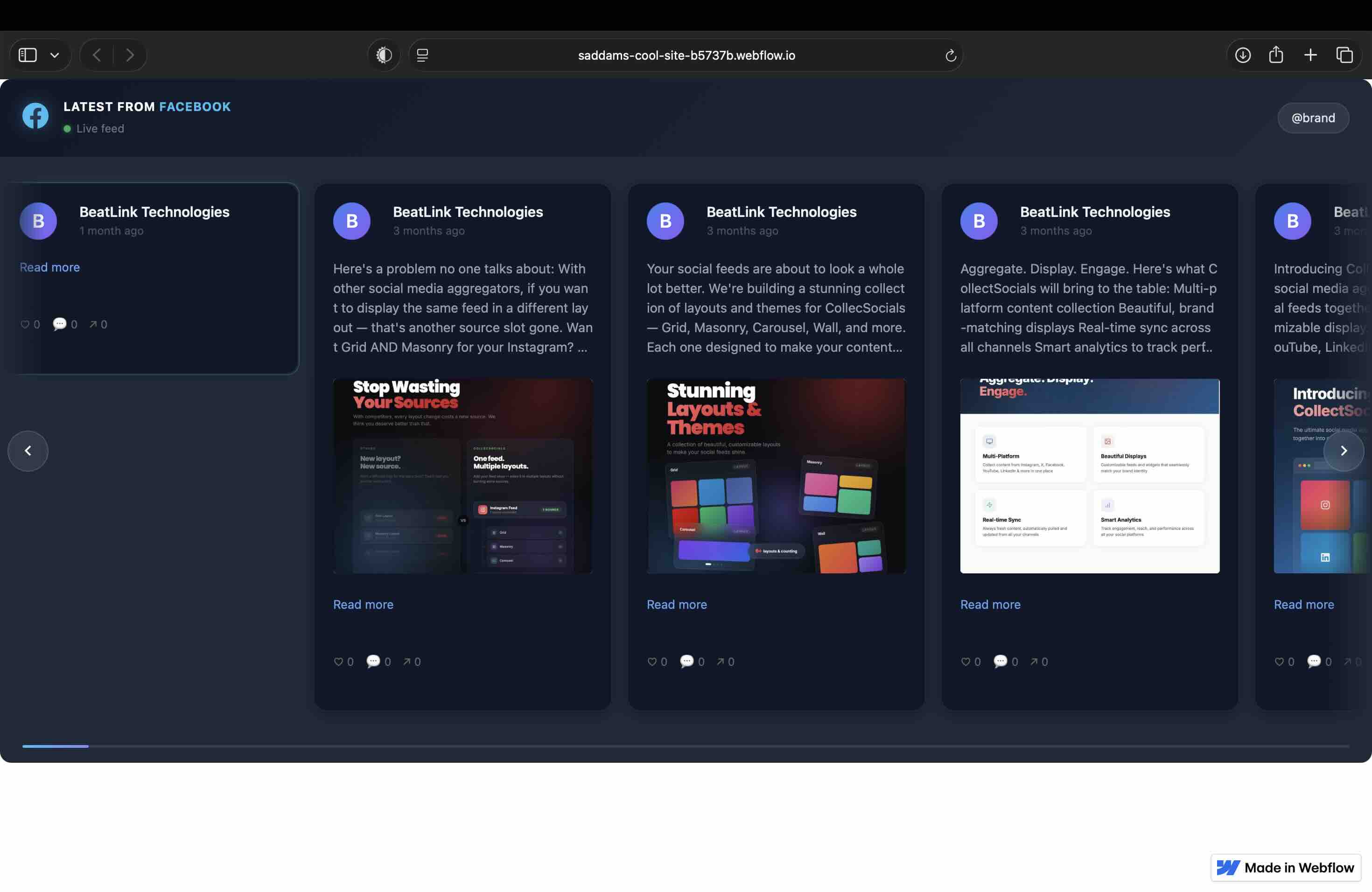
Webflow
- Open your Webflow project in the Designer.
- Drag an Embed element (under Components) onto your canvas where you want the feed.
- Paste your embed code into the code field and close the editor.
- Publish your site to see the live widget.
For the full Webflow walkthrough, Code Embed vs Code Block, responsive breakpoints, and CMS embeds, see our guide to embedding social feeds on Webflow.
Squarespace
- Set the picker to Squarespace and copy the iframe snippet it gives you.
- Edit the page and click an insert point to add a block.
- Choose the Code block and paste the snippet into it (leave the type set to HTML).
- Apply, then save the page.
Squarespace gets an iframe rather than the script tag, and the reason is specific: lower Squarespace plans strip <script> out of a Code block. Paste the default snippet and the feed will work on some Squarespace accounts and render nothing on others, with no error to tell you which you are on. The iframe works on every plan and measures the feed to set its own height.
Wix
- Set the picker to Wix and copy the iframe snippet.
- In the Wix Editor, click Add > Embed & Social > Custom Embeds > Embed a Widget (in Wix Studio, use the Embed element).
- Open the element's code editor, paste the snippet, and click Apply.
- Resize and position the element, then publish.
Wix sandboxes custom HTML inside its own frame, so a script tag pasted there is not running in your page's document. The Wix snippet embeds the feed as a self-resizing iframe instead, which is a stronger isolation than the Shadow DOM the script uses elsewhere, not a weaker one: nothing in your Wix template can reach the feed's styles and nothing in the feed can reach your template's.
Wix has a few quirks of its own: the HTML embed works even on free Wix sites, Wix ADI sites must switch to the standard Editor, and the mobile layout is configured separately. For the complete walkthrough with screenshots, see our dedicated guide to embedding a Facebook feed on Wix.
Google Sites
- Set the picker to Google Sites. It gives you a URL, not code, because Google Sites cannot run scripts.
- Open your site in the Google Sites editor and click Insert > Embed.
- Choose the By URL tab, paste the URL, and click Insert.
- Resize the embed on the canvas and publish.
This is the one host where the feed sits at a fixed height and scrolls inside its frame, since nothing on the page can measure it for us. The URL carries an h=600 you can change to suit the section. Notion works the same way.
Anywhere else that accepts custom HTML and JavaScript takes the plain HTML snippet as-is: a hand-built static site, a Jekyll or Hugo template, a Rails or Laravel view.
Embedding Facebook Videos Specifically
If your Page leans heavily on video, reels, live recordings, product clips, you can build a feed that showcases them rather than mixing them into a text timeline. (Remember, the Page Plugin can't even play video inline: clicking bounces you to Facebook.)
The native single-video embed. Facebook does offer a basic embed for one video at a time: open the video post, click the three-dot menu, choose Embed, and paste the generated snippet into your site. It works for a single featured clip, say, one testimonial on an About page, but you can only embed one video at a time, the styling is locked to Facebook's look, and swapping the video means editing the code by hand. There's no way to build a dynamic gallery of multiple videos.
A curated video feed instead. With CollectSocials you connect the Page once, then curate posts down to video only on the Collect page, so the embed reads as a designed video gallery, not a raw timeline. A Carousel or Slider layout suits video best: visitors swipe through clips without scrolling. It pulls in every kind of Facebook video from your Page:
- Native video posts: product launches, tutorials, announcements uploaded straight to your Page.
- Facebook Live recordings: once a stream ends the recording becomes a regular post, giving past live events a permanent home for visitors who missed them.
- Facebook Reels: short-form vertical video, surfaced to a new website audience.
- Videos with engagement: likes, comments, and shares travel with the post, adding social proof a plain YouTube or Vimeo player can't replicate.
Where to Place Your Facebook Feed
Placement decides how much value the feed delivers. A few spots that consistently work:
Choosing the right placement
This animation highlights three hotspots on a website mockup where an embedded social feed earns its place: a homepage section below the fold builds trust before the call to action, a product-page feed adds real-world proof where buying decisions happen, and an About-page feed humanizes the brand. The same placement logic applies directly to a Facebook feed.
Homepage (below the fold). A Facebook section near the bottom of a high-traffic homepage shows your brand is active without crowding your main message. This is exactly where the native plugin's 500px cap hurts: a CollectSocials feed fills the section edge to edge.
About page. Real posts add personality and authenticity that polished corporate copy can't: the human side of your business.
Contact or support page. A live Facebook feed reinforces that you're an active, responsive business and surfaces announcements visitors may have missed.
Product or service pages. Posts that highlight specific products or share customer stories work as social proof right where buying decisions happen.
Going Beyond Facebook: Combining Multiple Platforms
This is where CollectSocials separates from the native plugin entirely. You're not limited to Facebook: in a single feed you can combine Facebook with an Instagram feed, Google Reviews, YouTube, and more. A widget that shows your latest Facebook post next to a five-star review and a recent Instagram photo is far stronger social proof than any single network alone.
If you're building something bigger, an event display or a site-wide wall, see our guides to a social media wall on any website and social walls for events.
Should You Use the Facebook Page Plugin or a Widget?
Adding a Facebook Page to your website should be simple, and the native Page Plugin is simple, as long as you accept a 500px box in Facebook's styling that drags in a cascade of scripts and media, drops six tracking cookies before consent, can't be moderated, and won't even let Lighthouse score the page. For a tiny "Find us on Facebook" widget, that may be a fair trade.
For anything that needs to be full-width, on-brand, fast, responsive, and curated, or combined with Instagram, reviews, and other platforms, you need a tool that gives you real control. After running both through the same test, I use CollectSocials: it dropped no Facebook cookies, was measurable by Lighthouse where the plugin couldn't be scored at all, and renders a Facebook widget that looks like part of my site instead of a window into Facebook, and a Facebook feed runs even on the free plan, with the full custom design unlocked on the trial and paid plans. If you want the product side rather than the teardown, the Facebook feed widget page covers what it does, what it costs, and the limits Facebook imposes.
Facebook rarely stands alone on a website. The same aggregator carries an X/Twitter feed widget for real-time commentary and a TikTok feed for short-form video, and both drop into the same wall as your Page posts.
Start Using CollectSocials Today
One curated feed from 10+ platforms: on your website in a single line of code, or up on the big screen at your event.
Frequently Asked Questions
How do I add a Facebook Page to my website?
Two options. The native method uses Facebook's Page Plugin: enter your Page URL, copy the SDK loader plus the fb-page div, and paste both into your HTML. In my testing the configurator frequently failed to generate code at all, and the result is capped at 500px and locked to Facebook's styling. The more flexible method is a widget tool like CollectSocials: connect your Page, moderate your posts, style the feed, and paste one embed snippet that renders full-width and on-brand.
How do I embed a Facebook feed on my website?
Connect your Facebook Page to an aggregator like CollectSocials, choose which posts to display, pick a layout and theme in the Design Studio, then paste the generated embed code into any page that accepts custom HTML. Unlike the native Page Plugin, an aggregated feed can be full-width, responsive, moderated, and combined with other platforms.
How do I embed a Facebook feed in HTML?
For the native plugin, add the Facebook JavaScript SDK script once and then a <div class="fb-page"> element with your Page URL in the data-href attribute (the full HTML is in the code block above). For a third-party widget on a plain HTML page, you paste a single <script> snippet wherever you want the feed: no SDK, no fb-page markup, no 500px cap. On a hosted builder, take the snippet that platform's own entry in the Get Code picker gives you, since Wix and Squarespace receive a self-resizing iframe instead of a script and Google Sites receives a URL.
Does Facebook have a feed widget?
Yes: the native Page Plugin is Facebook's official feed widget, and it's free. But as my testing showed, it's capped at 500px, can't be styled or moderated, loads a cascade of scripts, and drops six tracking cookies. For a branded, fast, controllable feed widget, most people use a third-party tool instead.
Is the Facebook embed code generator free?
Yes, Facebook's Page Plugin configurator (the embed code generator) is free. In my June 2026 testing it was also unreliable: it repeatedly failed to generate code, with the Get Code button spinning indefinitely or silently doing nothing on personal profiles and permission-restricted Pages. When it does work, the generated code is free to use, with the performance and cookie trade-offs covered above.
How do I add a Facebook feed to Squarespace?
Set the Get Code picker to Squarespace first: it hands you a self-resizing iframe rather than a script tag, because lower Squarespace plans strip <script> out of a Code block. Add a Code block to your page, paste that snippet (keep the type set to HTML), and save. It renders inline, sets its own height and works on every Squarespace plan; the native Page Plugin will still be capped at 500px inside the same block.
Why is my Facebook Page Plugin not working or not responsive?
The most common reasons, all of which I reproduced: (1) the configurator itself often won't generate code: the Get Code button can spin forever or silently fail on personal profiles and permission-restricted Pages; (2) the plugin is hard-capped at 500px wide, so it can't fill a wider section; (3) it measures its width on page load and, per Meta's docs, "will not react to changes to the box model after page load," so it breaks on resize and mobile; or (4) the required Facebook SDK failed to load or is blocked by a consent/cookie tool. If you need a feed that reliably resizes and fills its container, a third-party widget avoids these limits entirely.
Is the Facebook Page Plugin free?
Yes, the Page Plugin is free to use. The trade-off is real: in my June 2026 test (incognito, no extensions) it dropped six Facebook tracking cookies before any interaction, and couldn't be scored by Lighthouse, on top of the 500px cap and fixed styling. For a branded, fast, moderated feed you'll want a dedicated widget tool.
Does the Facebook Page Plugin slow down my website?
It adds work your page did not have. A blank page carrying only the Page Plugin pulled in the Facebook SDK in two parts, then a cascade of obfuscated scripts and a logging request that returned 404, and the transfer total climbs further on Pages serving heavier images, which the plugin pulls in unoptimized. The measurable consequence is the one worth quoting: Lighthouse could not capture a First Contentful Paint at all. By comparison, a CollectSocials Facebook feed on the identical page was measurable.
Does the Facebook Page Plugin set cookies (is it GDPR-compliant)?
Yes, it sets cookies, and and that's the catch. Loading the plugin added a .facebook.com cookie store with six cookies (datr, fr, ps_l, ps_n, sb, wd) on page load, before any visitor interaction. Under GDPR, third-party advertising/tracking cookies like fr generally require prior consent, so the plugin can create a compliance obligation. The CollectSocials widget added no .facebook.com domain or cookies at all in the same test.
Can I embed a personal Facebook profile on my website?
Not as a feed. The native Page Plugin only works with Facebook Pages (it silently failed when I entered a personal profile URL), and third-party tools like CollectSocials connect Pages you own or admin, a Meta Graph API privacy restriction. If you want a feed on a business website, use a Page.
How do I add a Facebook feed on WordPress, Shopify, or Wix?
Pick your platform in the Get Code dialog first, because the snippet differs. On WordPress, paste it into a Custom HTML block, or install the CollectSocials WordPress plugin instead so the feed renders from your own database and its page views stop being metered once it has synced. On Shopify, take the Shopify snippet (page-width wrapped, so a theme cannot compress it) and add it as a Custom Liquid section under Online Store > Themes > Customize. On Wix, take the Wix snippet, a self-resizing iframe, and paste it into an Embed element. See the WordPress steps above, or our dedicated guide to embedding a Facebook feed on Wix.