
If you've tried publish.x.com and ended up with nothing but an anchor tag that says "Posts by [username]", or realized it can't embed hashtag feeds at all, you're not alone. Reddit threads are full of people saying the same thing: "Oh boy this thing is driving me nuts... all articles give information on how to make an iframe... and all of it fails."
This guide covers both methods with real screenshots: the native publish.x.com approach (and exactly where it breaks), and the third-party widget method using CollectSocials that actually delivers a working, customizable X feed on your website. If you want the specification rather than the walkthrough, our X (Twitter) feed widget page states how many X sources each plan carries and how often they refresh, up front, because X bills for every post read and any tool that hides that is hiding a cost it is still paying.
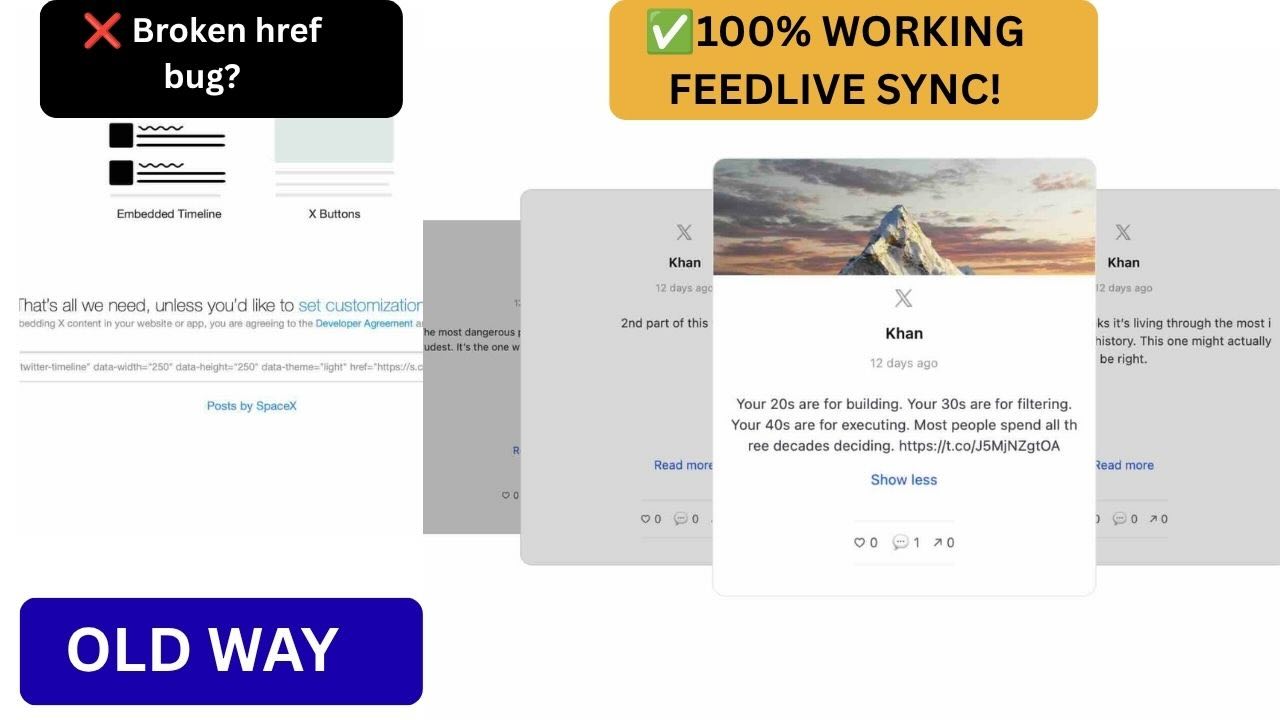
How to Embed an X (Twitter) Feed on Your Website
- Go to CollectSocials and create a new feed from the Organize dashboard.
- Click "Add Source" and select X/Twitter from the platform list.
- Choose "My Tweets" (your timeline) or "Hashtag." My Tweets connects your X account via OAuth 2.0; hashtag feeds need no account connection.
- Moderate your posts on the Collect page: pin, reject, or filter before anything goes live.
- Pick a layout in the Design Studio (40 options: Carousel, Masonry, Timeline, etc.) and customize colors, fonts, and card styles.
- Click "Get Code," paste the embed snippet into your site's HTML, and test on mobile.
That's it: no API keys, no developer account, no broken widget.js scripts. The full walkthrough with a screenshot of every step is immediately below. Further down, once the working method is out of the way, is my teardown of why the native publish.x.com route fails for everything except single-post embeds, plus paste-in instructions for WordPress, Shopify and Webflow.
How to Actually Embed an X Feed on Your Website (CollectSocials)
This is the method that worked on the first try, so it goes first. I used CollectSocials after publish.x.com let me down, and there were no API keys to generate, no developer account to create, and no widget.js scripts to debug. Connect your account, pick a layout, paste one embed snippet. Here is the complete process, screenshotted step by step. If you want the evidence for why the native tool is not an option first, the publish.x.com teardown is further down.
Step 1: Create a New Feed
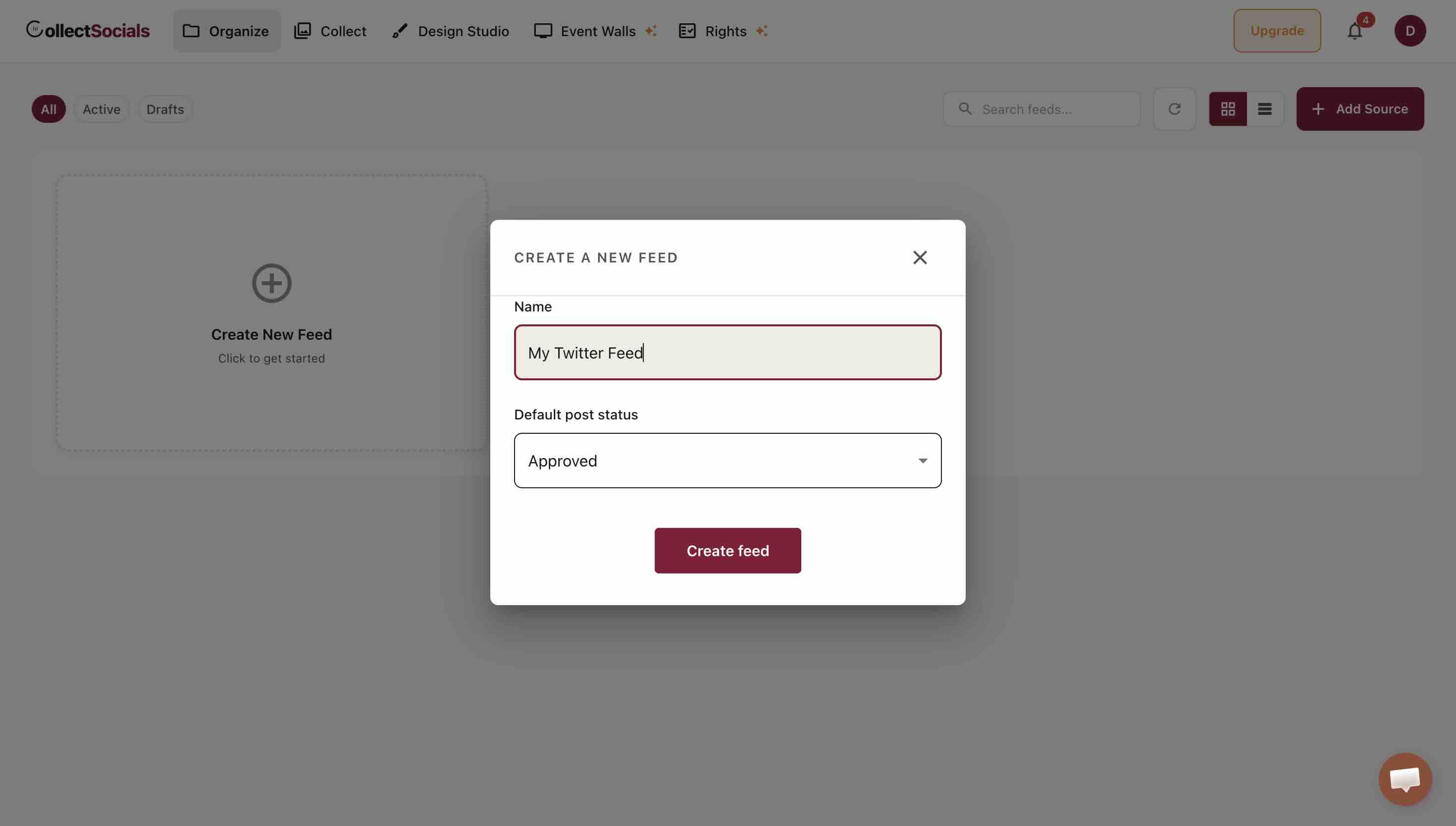
After signing up, you land on the Organize dashboard. Click "Create New Feed" and name it. You can have multiple feeds: one for your company timeline, another for a hashtag campaign.
The Default post status dropdown offers Approved, Pending and Draft. It labels the feed on your dashboard so you can tell a feed you are still building from a finished one; leave it on Approved. The setting that decides what actually reaches your live page is Pre-approve, in the feed's own settings, and it is the one to turn on before you point a hashtag source at a public page.
Step 2: Select X/Twitter as Your Source
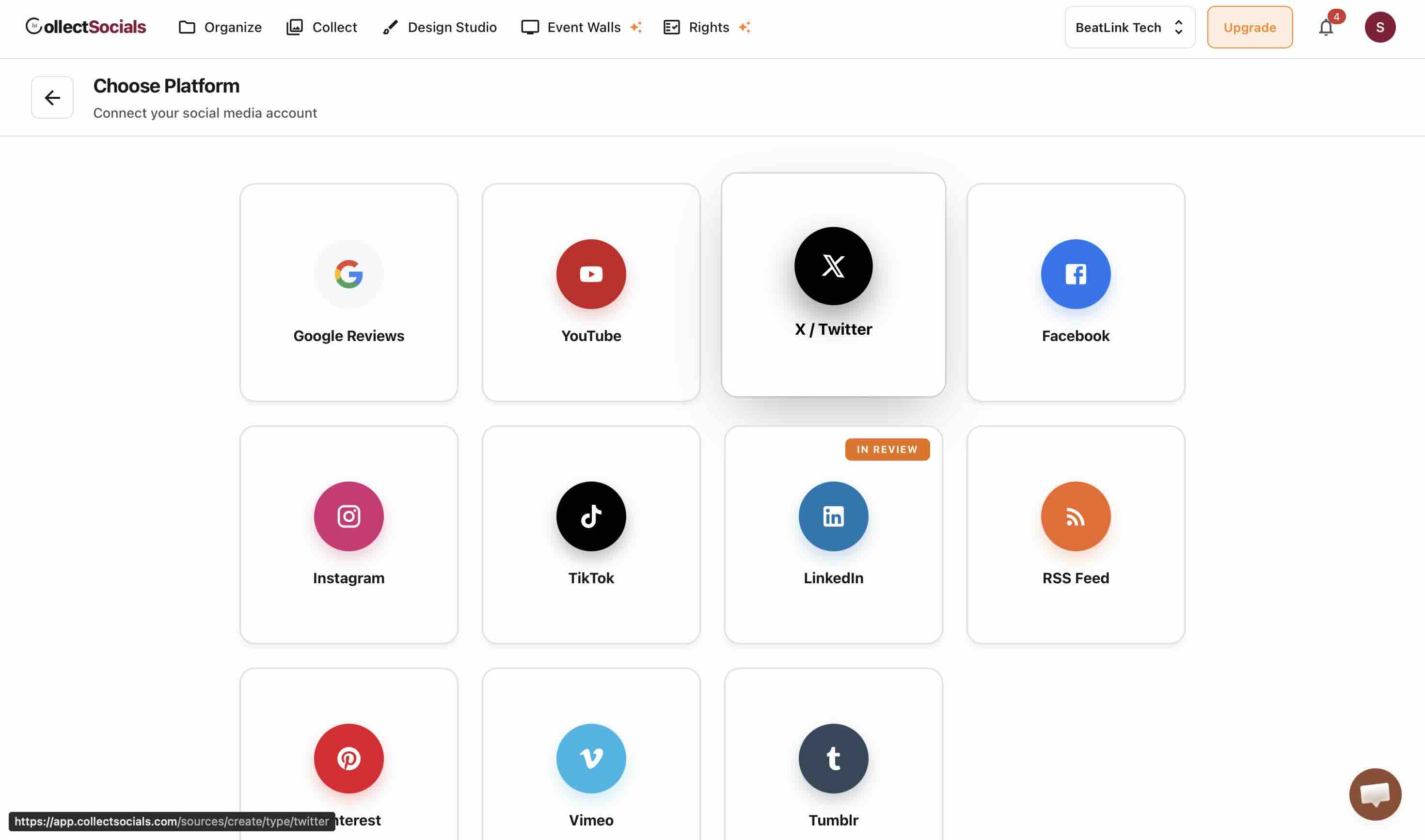
Click "Add Source" and you'll see the platform chooser. Select X/Twitter from the available platforms. CollectSocials also supports Instagram, YouTube, Google Reviews, TikTok, Facebook, Pinterest, Tumblr, RSS feeds, and Vimeo. That is ten live sources. LinkedIn is not live yet, and its card carries an In review badge rather than pretending otherwise.
Step 3: Connect Your X Account
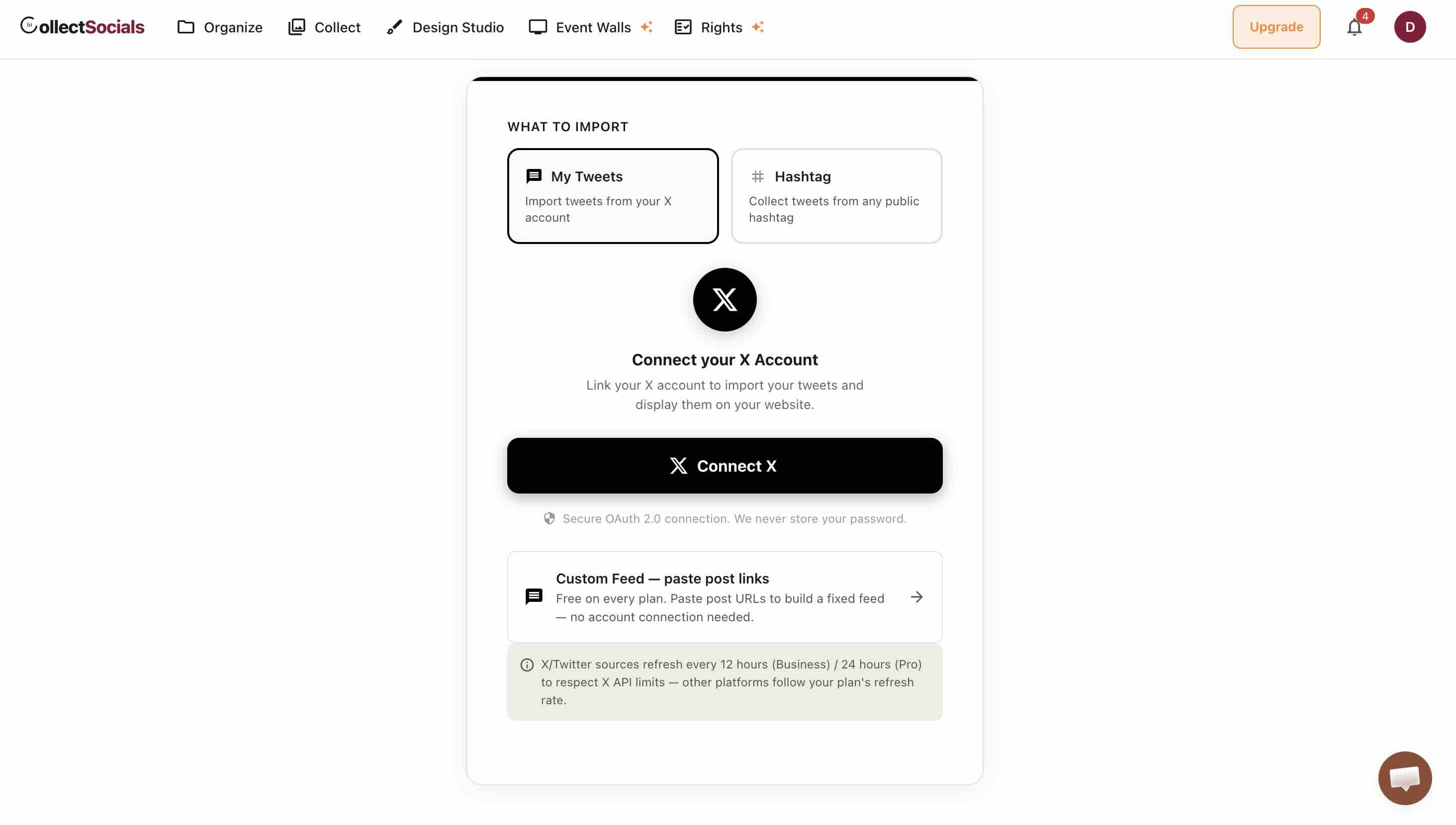
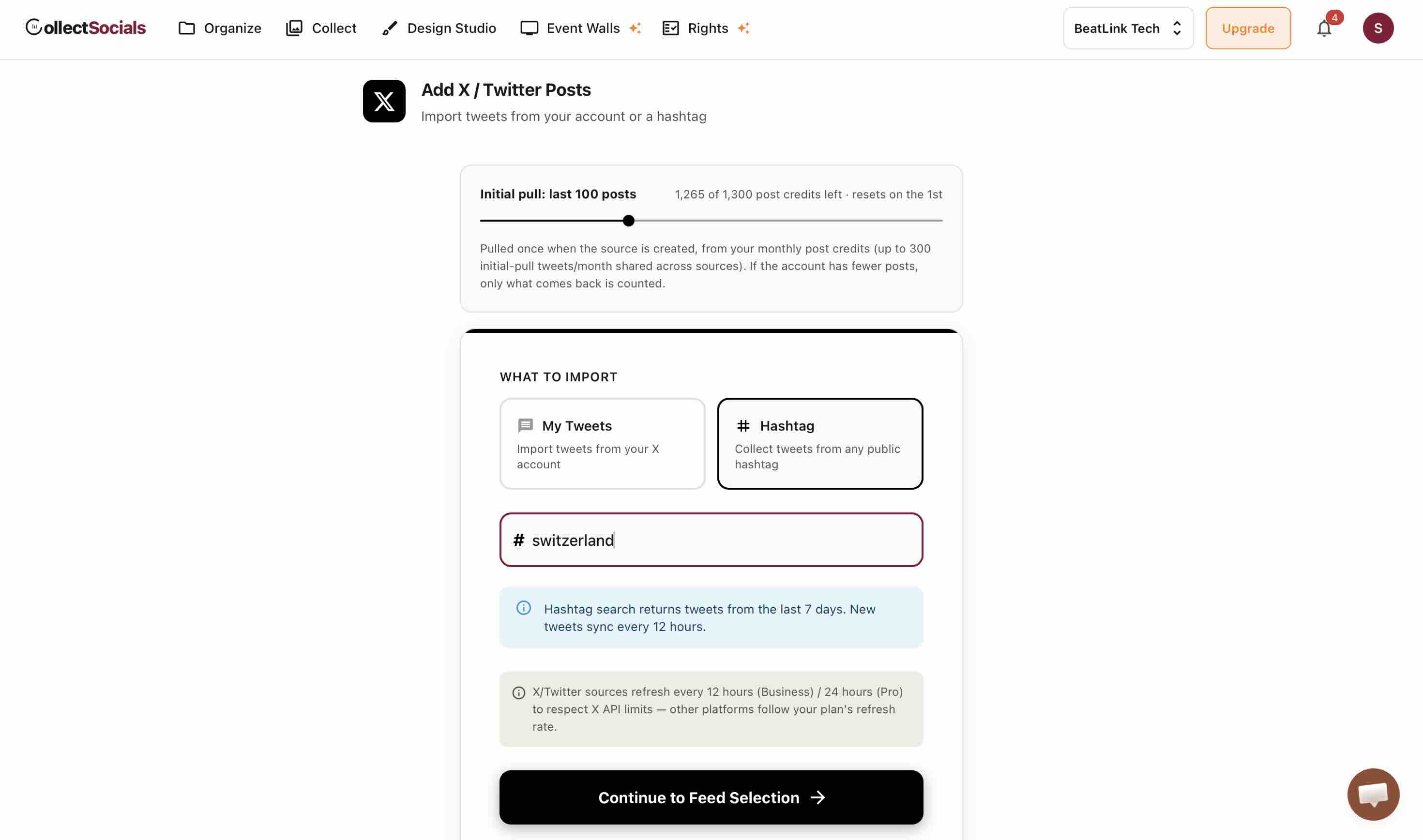
You get two import options: My Tweets (pull your own timeline) or Hashtag (collect tweets from any public hashtag, no account connection needed). This is a major advantage over publish.x.com, which can't do hashtag feeds at all.
For My Tweets, click "Connect X" to authenticate via OAuth 2.0. CollectSocials never stores your password: it uses a secure token that you can revoke anytime from your X settings.
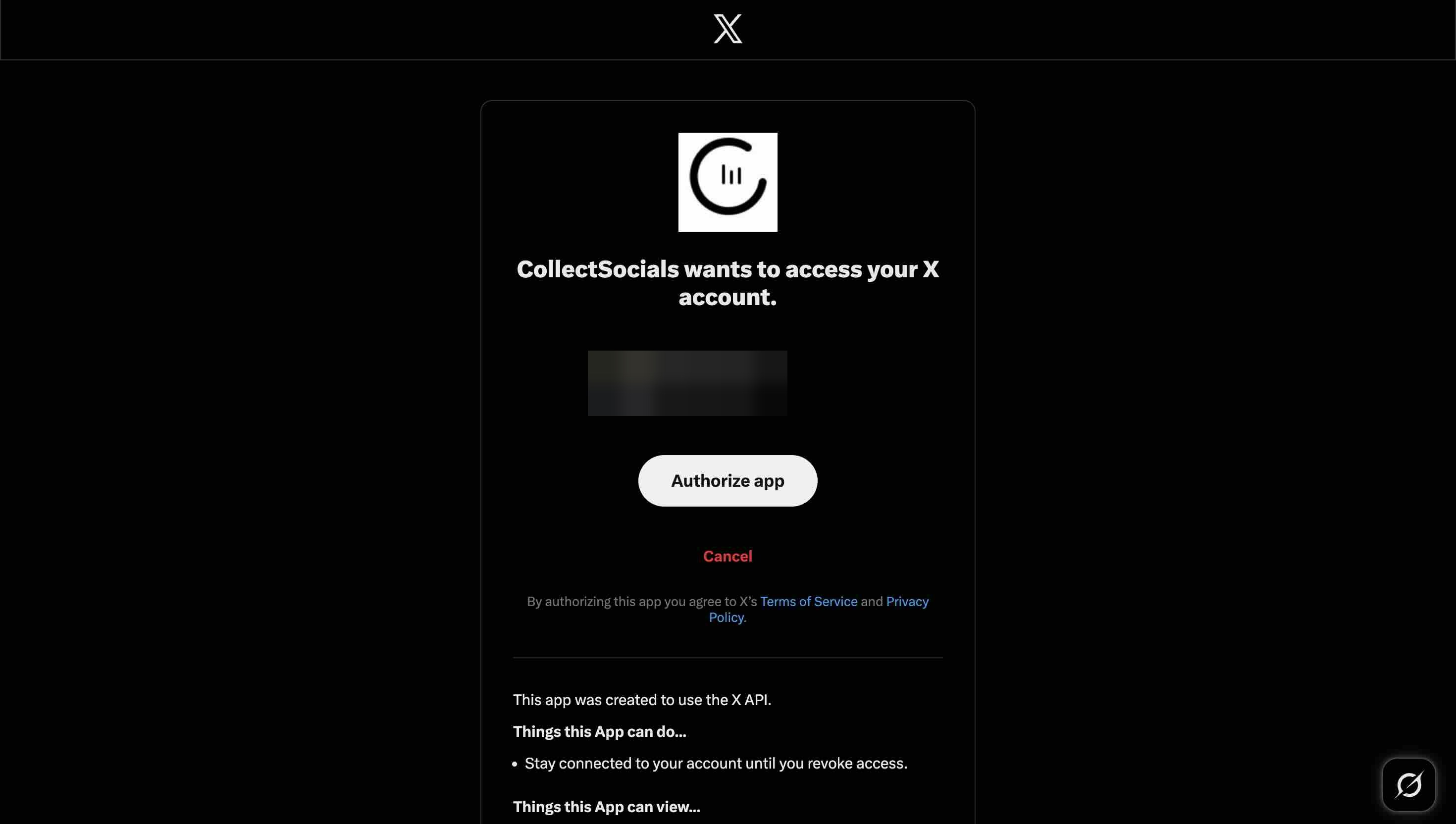
Clicking Connect X hands you to X's own authorisation screen. This is X asking you, not us, and it lists exactly what the app can see. Read it and click Authorize app. There is no API key to generate and no X developer account to apply for, which is the step most native-embed guides send you off to do.
Step 4: Moderate and Curate Your Posts
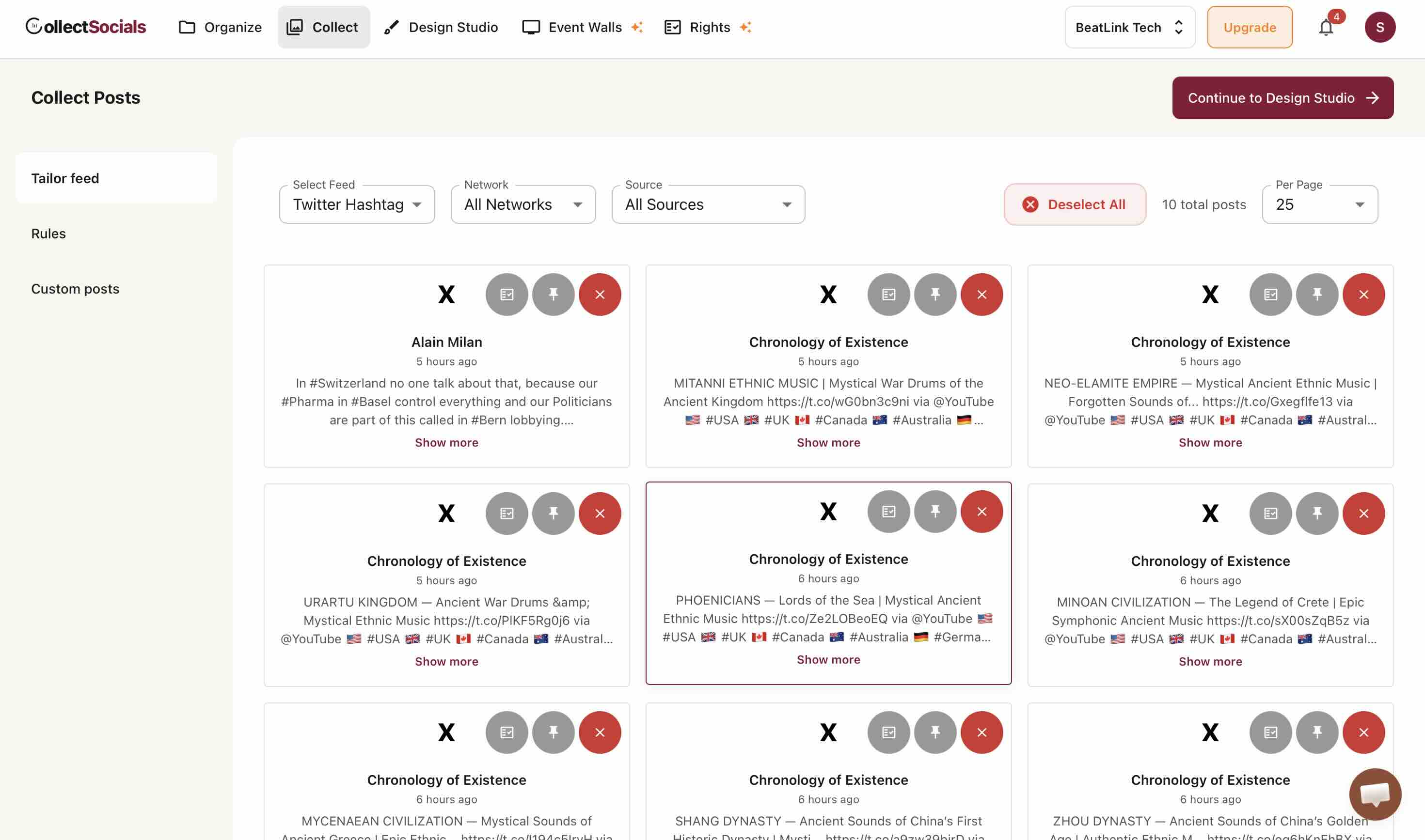
Once connected, your tweets are pulled into the Collect page. This is where CollectSocials solves one of the biggest problems with embedded feeds: moderation. You can pin posts you want featured, reject posts you don't want shown, and filter by source or network.
Step 5: Design Your Widget in Design Studio
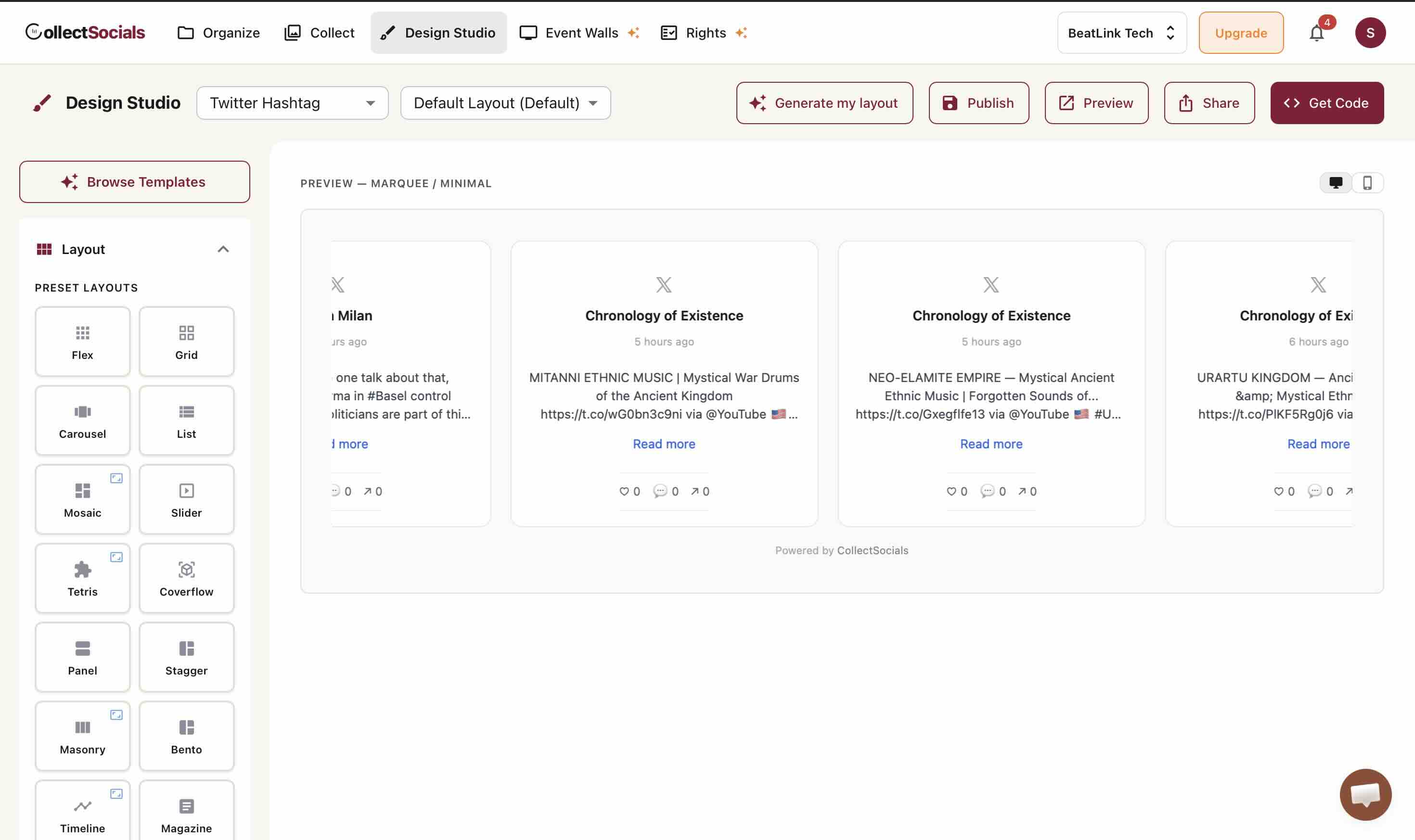
Move to the Design Studio and choose from 40 layout options, including Carousel, List, Mosaic, Slider, Tetris, Coverflow, Panel, Stagger, Masonry, Bento, Timeline, Magazine, Conveyor, and Marquee. Each layout has themes and template variants. You can also customize post card styles: whether the image appears above or below the text, spacing, borders, and more.
Designing for text-heavy content
The animation cycles through layout and theme combinations suited to X's text-focused format. Unlike image-driven Instagram feeds, X widgets need readable typography, proper line spacing, and layouts that make short-form text posts scannable at a glance.
Step 6: Preview and Get Your Embed Code
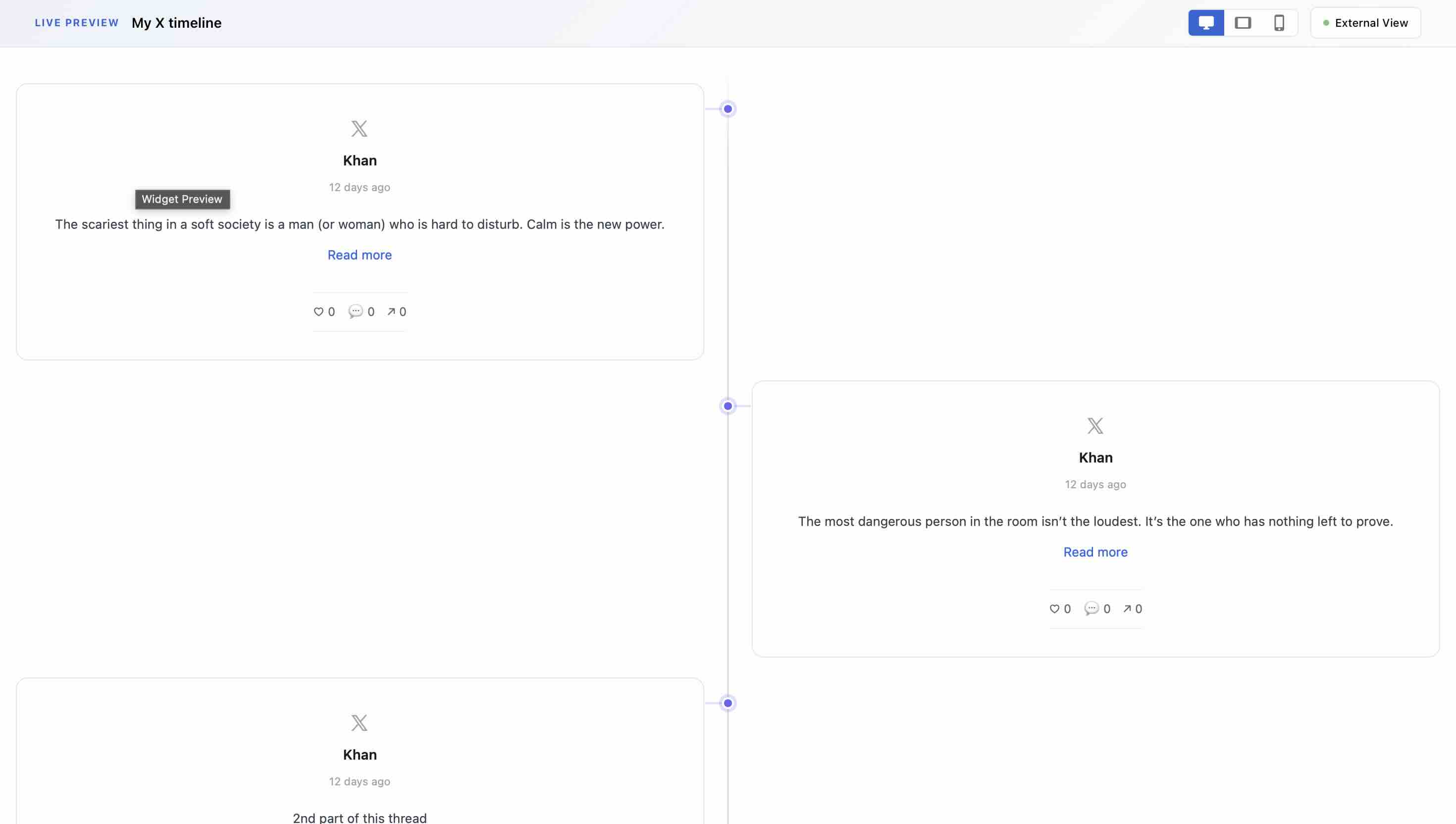
Click "Preview" to see exactly how your feed will look on your website. You can toggle between desktop, tablet, and mobile views, and even open an external preview link. When you're satisfied, click "Get Code" to grab the embed snippet.
Paste the embed code into your website's HTML. I cover the exact steps for WordPress, Shopify, and Webflow in the platform-specific section below.
The setup process
The animation walks the full widget setup end to end: define your goals, choose your feed type, connect your account, configure moderation, customize the layout, and embed the code on your site.
X/Twitter Pricing on CollectSocials
One thing worth mentioning: X changed their API policies and now charges for account connections and every single tweet fetched. This means most social media aggregation platforms charge premium prices for X feeds, many lock X access behind their highest-priced tiers, sometimes $50/month or more.
CollectSocials offers X/Twitter feeds from the Pro plan at $29/month, and you can try before subscribing: during the free 7-day trial, both timeline and hashtag sources are included on a capped quota that refreshes daily, so you can see the feed rendering on your own site first. One caveat: the trial quota accrues day by day, so if several X sources share it, the first hashtag fetch can slip to the following day. Your feed auto-syncs on a schedule, no manual updates needed. Here's what each plan includes:
- Pro ($29/mo): 1 X source, refreshed every 12 hours, up to 30,000 page views.
- Business ($59/mo): 2 X sources, refreshed every 12 hours, unlimited page views.
- Scale ($119/mo): 5 X sources, refreshed every 12 hours, unlimited page views.
X refreshes every 12 hours on every paid plan because X bills per post returned. That is deliberately slower than every other network we support, and it is why the number to plan against on X is the source count rather than anything you see on the page: a read is billed whether or not the post ends up in your feed. Paying yearly is two months free, so Pro is $290 a year, Business $590 and Scale $1,190.
A note on "live": These are auto-updating feeds, not real-time streams. Your widget pulls new posts at regular intervals, you never have to manually refresh or re-embed. For most business use cases (brand presence, thought leadership, ongoing campaigns), this is more than sufficient. For live event walls, turn on Pre-approve in the feed's settings and approve incoming posts from the Collect page during the event, approval controls when already-synced posts appear, but it can't shorten X's sync interval, so a tweet posted mid-event joins the wall after the next sync rather than instantly.
Watch the Full Tutorial
Why X (Twitter) Feeds Still Matter in 2026
Despite name changes and shifting API policies, X remains the real-time information network. An embedded X feed signals that your brand is active right now, not last quarter. It works for thought leadership (showcasing industry commentary), live event coverage (real-time event social walls), and even customer support transparency (showing public response times on help pages). No other platform delivers this kind of immediacy as an embed.
sync
What this shows
The animation shows how posts from your X (Twitter) timeline automatically sync to an embedded widget on your website. Your real-time commentary, industry takes, and company updates appear on your site without manual copying, keeping it current with zero extra publishing effort.
The Twitter-to-X Rebrand: What Changed for Embeds
When Twitter rebranded to X in 2023, URLs shifted from twitter.com to x.com, breaking cached embeds. The API migrated from v1.1 to v2, tightening authentication and introducing tiered rate limits (Free, Basic, Pro, Enterprise). Customization options like data-border-color and data-link-color were deprecated, and the grid-style collections layout was removed entirely. The practical impact: if your embed was built for the Twitter era, it's likely broken or degraded. Re-generate using x.com URLs and expect fewer native styling options.
What this before/after shows
The split-screen animation shows the same website section twice: bare on the left, and with a live social wall on the right, platform posts, review stars, and engagement indicators. That right-hand state is what a working embed delivers, and exactly what the broken rebrand-era official embeds leave blank.
X Feed Types You Can Actually Embed
Of the feed types X supports as a platform, two can be reliably embedded on a website using third-party tools. The others (List feeds, search-result feeds) require custom API builds and aren't supported by any mainstream widget tool.
User Timeline (Profile Feed)
Displays all public posts from a specific X account in chronological order. This is the most common implementation, your company's X timeline embedded on your website. Works well on homepages, about pages, and blog sidebars.
Hashtag Feed
Aggregates posts from anyone using a specific hashtag. Perfect for live event social walls, product launches, branded campaigns, and UGC aggregation.
Important: Native X embeds via publish.x.com cannot embed hashtag feeds (as I'll demonstrate below). You need a third-party tool for this.
I Tried Embedding an X Feed with publish.x.com: Here's What Happened
Let's start with the official method. When you go to publish.x.com, it asks "What would you like to embed?" and suggests you can enter:
- A post URL (e.g., https://x.com/SpaceX/status/1732824684683784516)
- A profile URL (e.g., https://x.com/SpaceX)
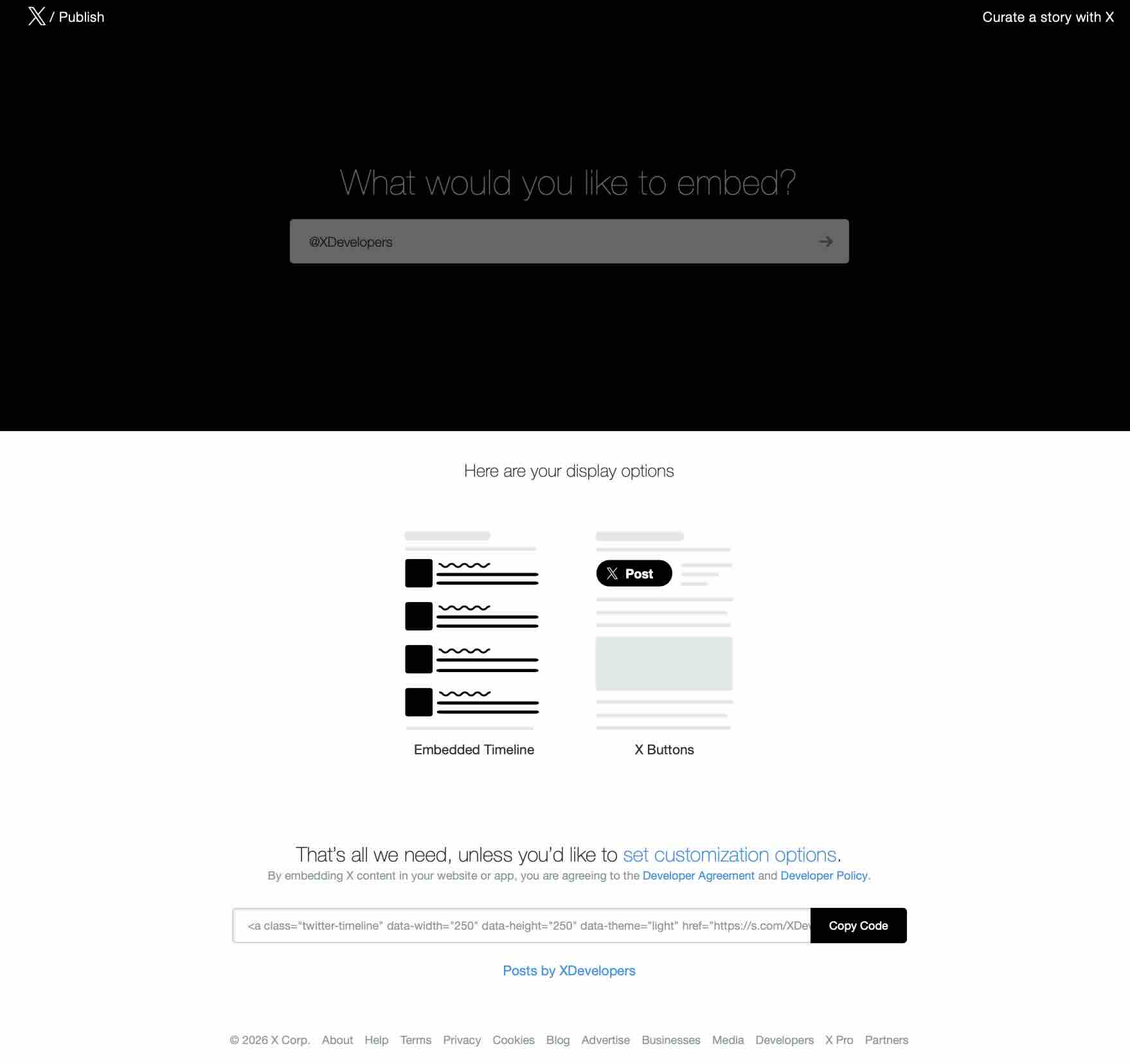
- A handle (e.g., @XDevelopers)
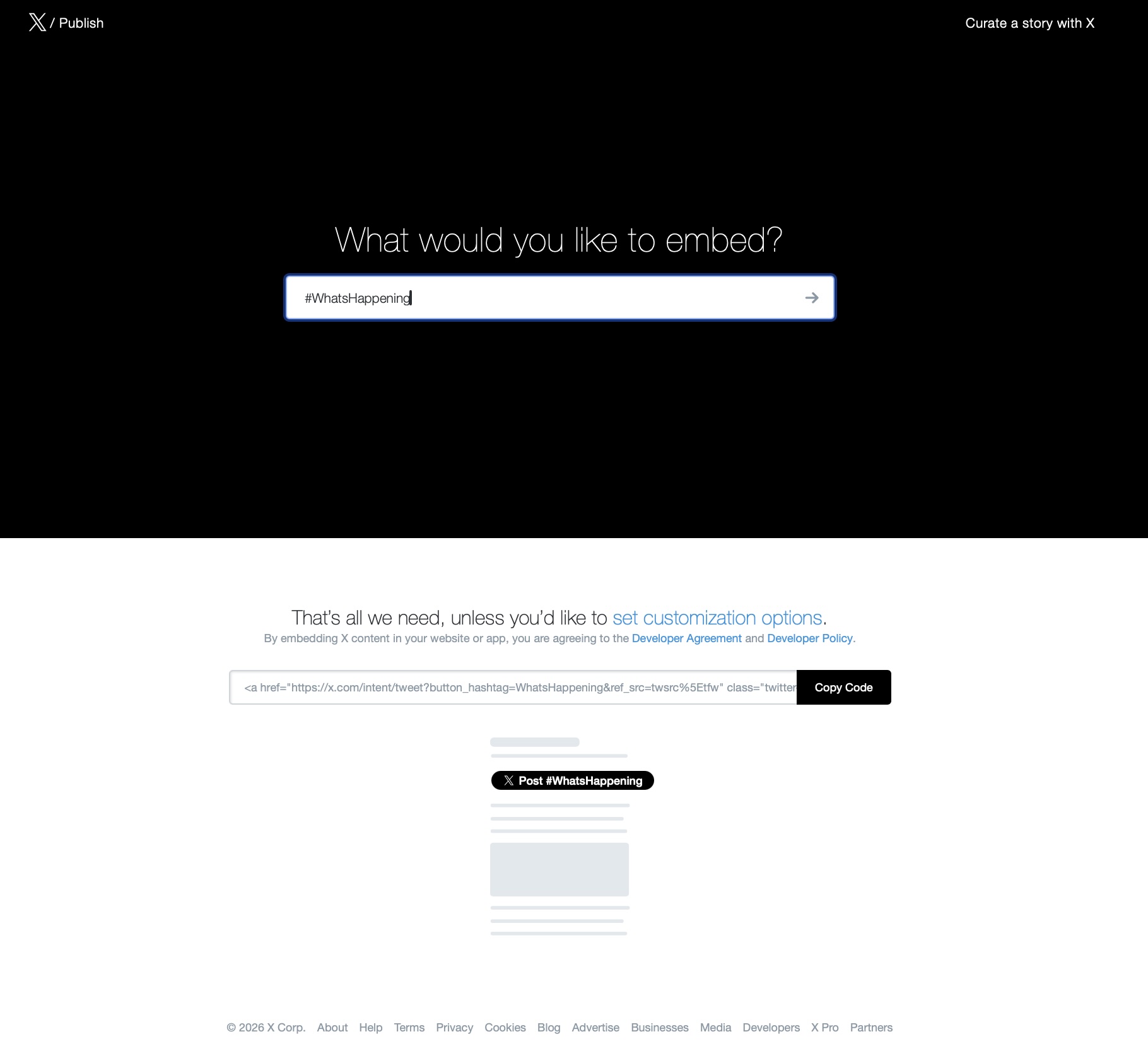
- A hashtag (e.g., #WhatsHappening)
Sounds great on paper. I tried all four options. Here's what actually happened.
Single Post Embed: This One Works
I entered a SpaceX post URL and it gave me two display options: Embedded Video and Embedded Post. The preview showed a clean, well-formatted tweet with the post text, image, engagement counts, and a "Read 2.5K replies" link. I copied the embed code, pasted it into my site, and it rendered correctly.
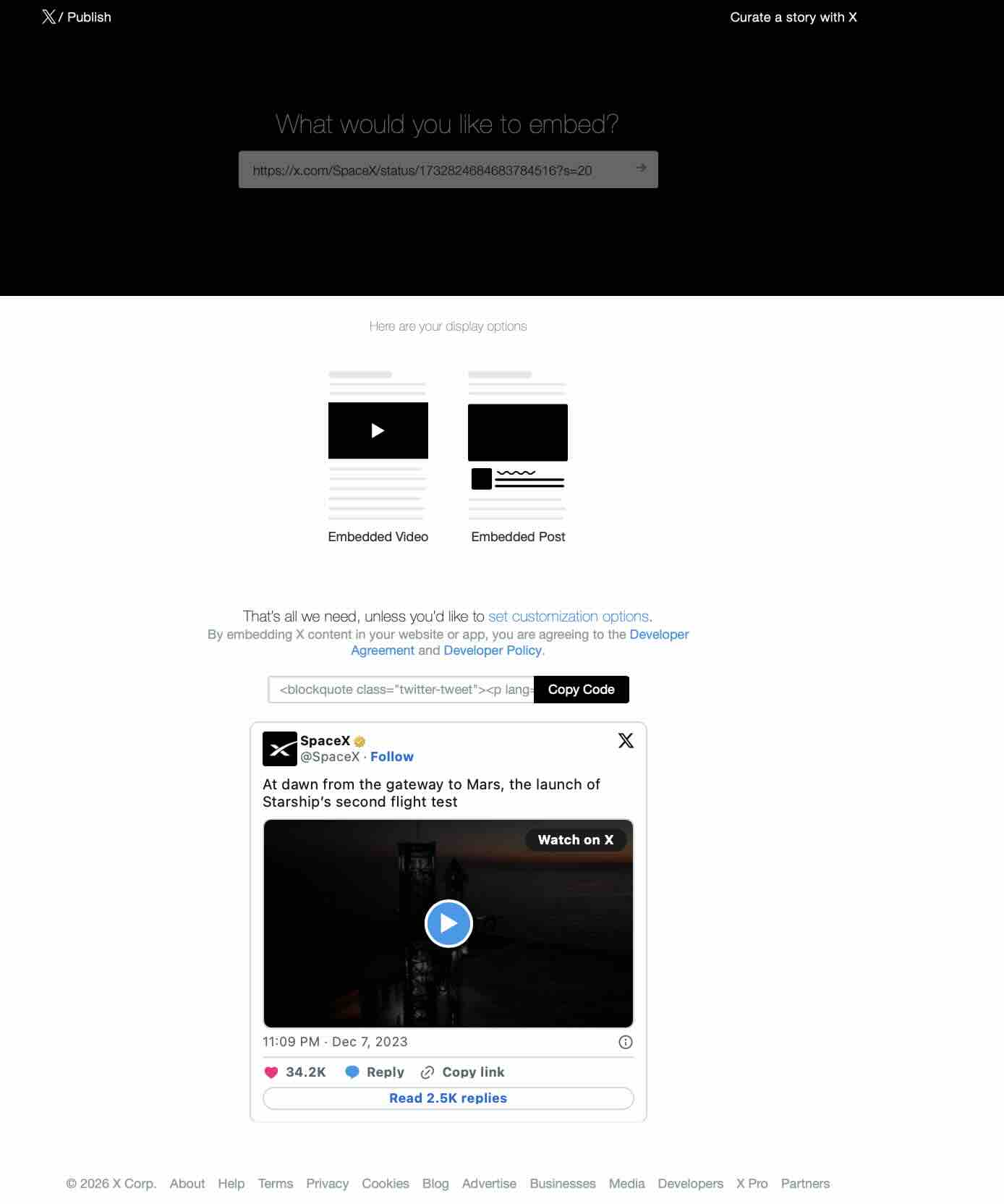
Verdict: Single post embeds work. If all you need is to embed one specific tweet on a page, publish.x.com handles it fine.
Profile URL Embed: Broken
I entered https://x.com/SpaceX and chose "Embedded Timeline" from the display options. Instead of showing an actual feed preview, it generated a simple anchor tag. The preview? Just the text "Posts by SpaceX", nothing more. And here's the real problem: clicking that link takes you to https://s.com/SpaceX, which is a broken URL. Not x.com, just s.com.
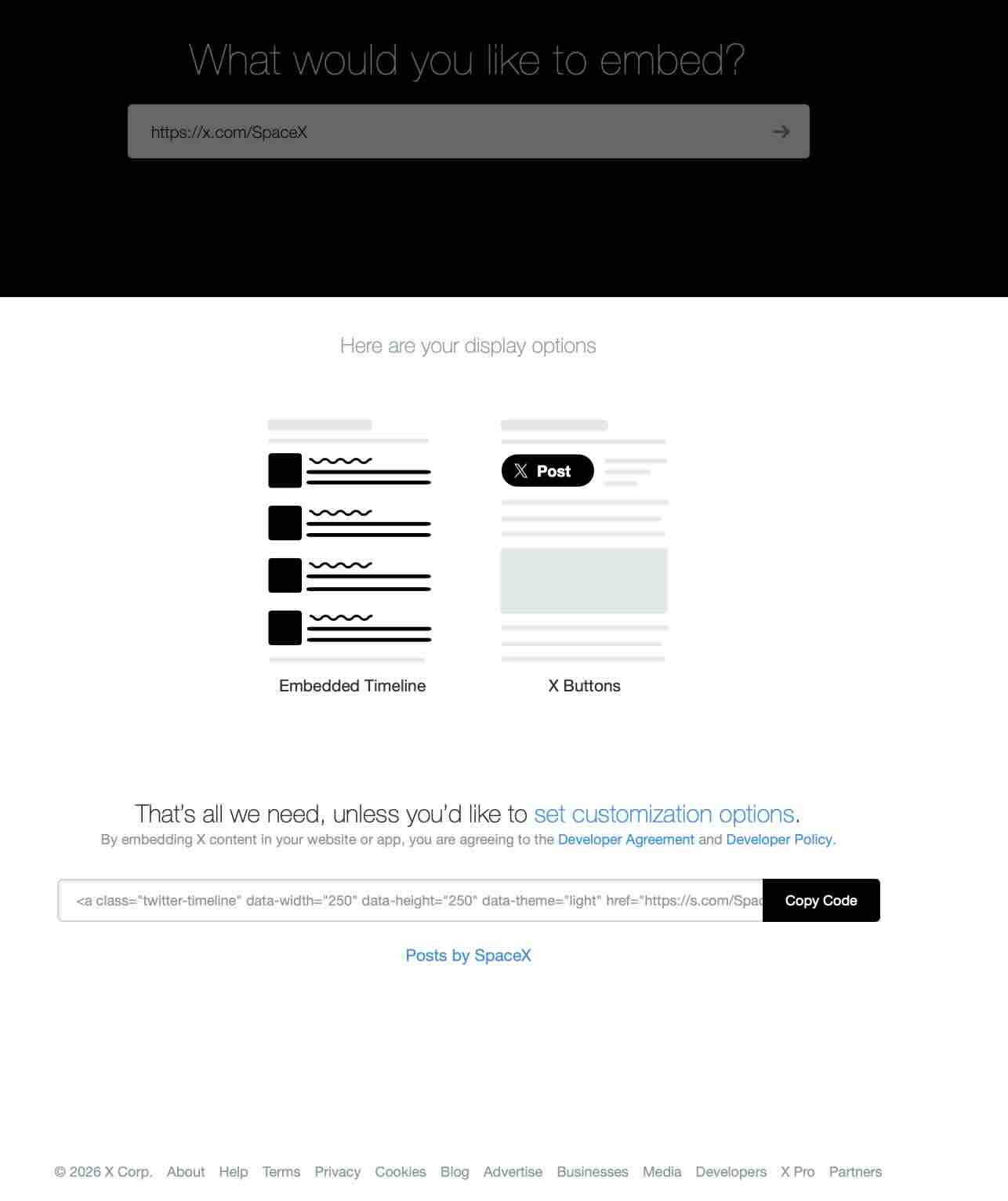
I copied the embed code anyway and pasted it into my site. The result was exactly what the preview showed, just text. No timeline, no feed, no tweets. Just "Posts by SpaceX" as a clickable link to a broken URL.
Handle Embed (@XDevelopers): Same Problem
I tried entering @XDevelopers (the handle X themselves suggest as an example) and chose "Embedded Timeline." Same result: the preview showed "Posts by XDevelopers" as plain text, and the generated link pointed to https://s.com/XDevelopers, broken again.
Hashtag Embed (#WhatsHappening): No Feed Option at All
Here's where it gets worse. I entered #WhatsHappening and publish.x.com didn't even offer an "Embedded Timeline" option. Instead, it generated a button that says "Post #WhatsHappening", which just prompts people to post with that hashtag. There is no way to embed a hashtag feed using native X tools.
Why Native X Embeds Fall Short
My testing confirmed what thousands of frustrated developers and site owners have been experiencing. Here's a summary of why the native approach fails:
No hashtag feed support. As I showed above, publish.x.com cannot embed hashtag feeds, period. This is a dealbreaker for events, campaigns, and user-generated content aggregation.
Timeline embeds render as broken text. Profile and handle embeds generate anchor tags with broken s.com URLs instead of actual live feeds. The widget.js script that's supposed to convert these into rendered timelines frequently fails to load.
Zero customization. No layout options (grid, carousel, masonry, nothing at all). Limited color control. The data-border-color and data-link-color parameters were deprecated. You get what X gives you.
No moderation. Whatever posts appear on your timeline, they appear on your site. No way to pin, hide, or filter posts. No keyword blacklists. No manual approval.
Framework conflicts. Native X embed scripts conflict with modern frontend frameworks and Shadow DOM encapsulation. Developers on GitHub have had to build custom wrappers just to get the basic embed rendering.
Caching and loading issues. The embedded timeline frequently fails to load, shows blank space, or displays stale cached content, especially on responsive mobile viewports.
Protected accounts break silently. If the account you're embedding switches to protected (private) posts, the native embed goes blank with no error message and no fallback. Your visitors see an empty space where content used to be, and you won't know unless you check manually.
Native X Embed vs CollectSocials: Quick Comparison
| Feature | Native X Embed (publish.x.com) | CollectSocials |
|---|---|---|
| Cost | Free | From $29/month (Pro), free trial included |
| Single post embed | Works | Works |
| Profile timeline embed | Broken (renders as text only) | Works with live auto-updating feed |
| Hashtag feed | Not supported | Full hashtag tracking and embedding |
| Layout options | 1 (basic timeline) | 40 layouts (Grid, Carousel, Masonry, Timeline, etc.) |
| Customization | Minimal (height, width, light/dark) | Full (colors, fonts, themes, card styles, spacing) |
| Moderation | None | Pin, reject, keyword filters, manual approval |
| Auto-refresh | Unreliable | Automatic: syncs new X posts every 12 hours on paid plans (no manual updates) |
| Mobile responsive | Inconsistent | Fully responsive with device preview |
| Multi-platform | X only | X, YouTube, Google Reviews, TikTok, Facebook, and more |
| Shadow DOM isolation | No (CSS conflicts possible) | Yes (prevents style leaks) |
How to Embed an X Feed on WordPress, Webflow, and Shopify
Once you have your embed code from CollectSocials (or any widget tool), the final step is pasting it into your platform. Here's exactly where the code goes on the three most popular website builders.
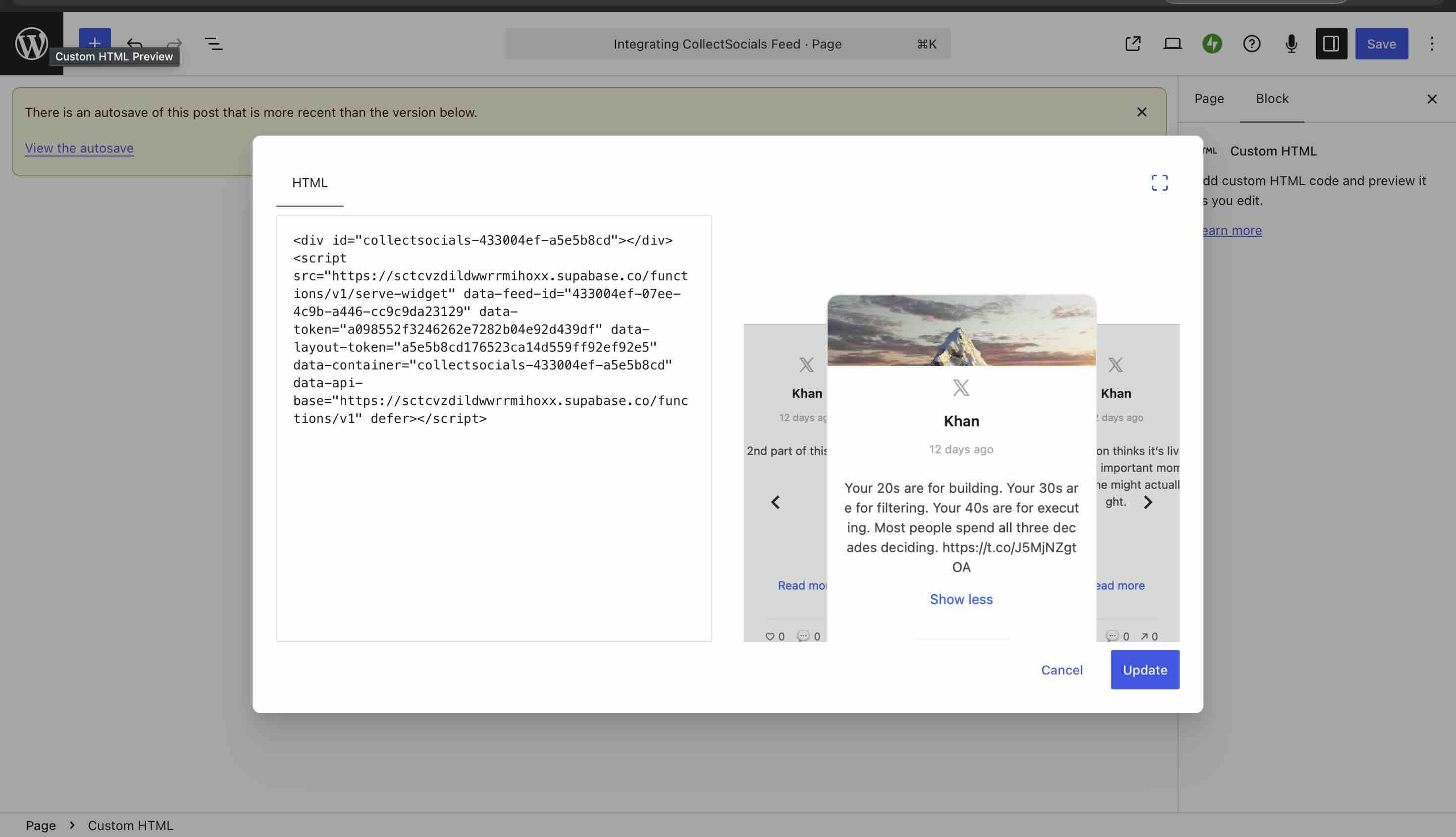
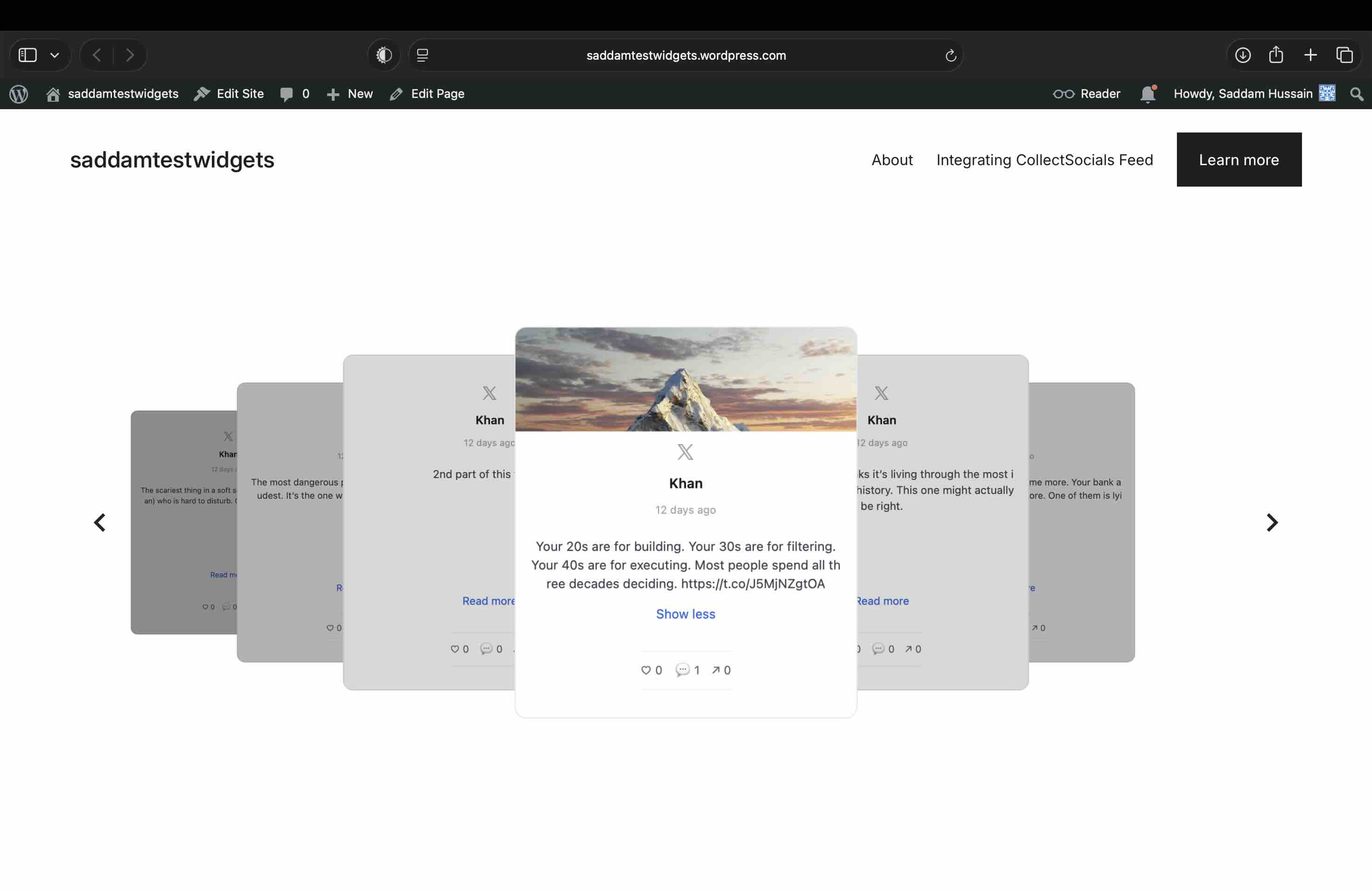
WordPress (Gutenberg Editor)
- Open the page or post where you want the X feed.
- Click the + block inserter and search for "Custom HTML."
- Add a Custom HTML block and paste your embed code into it.
- Click "Preview" in the block toolbar to verify it renders, then publish.
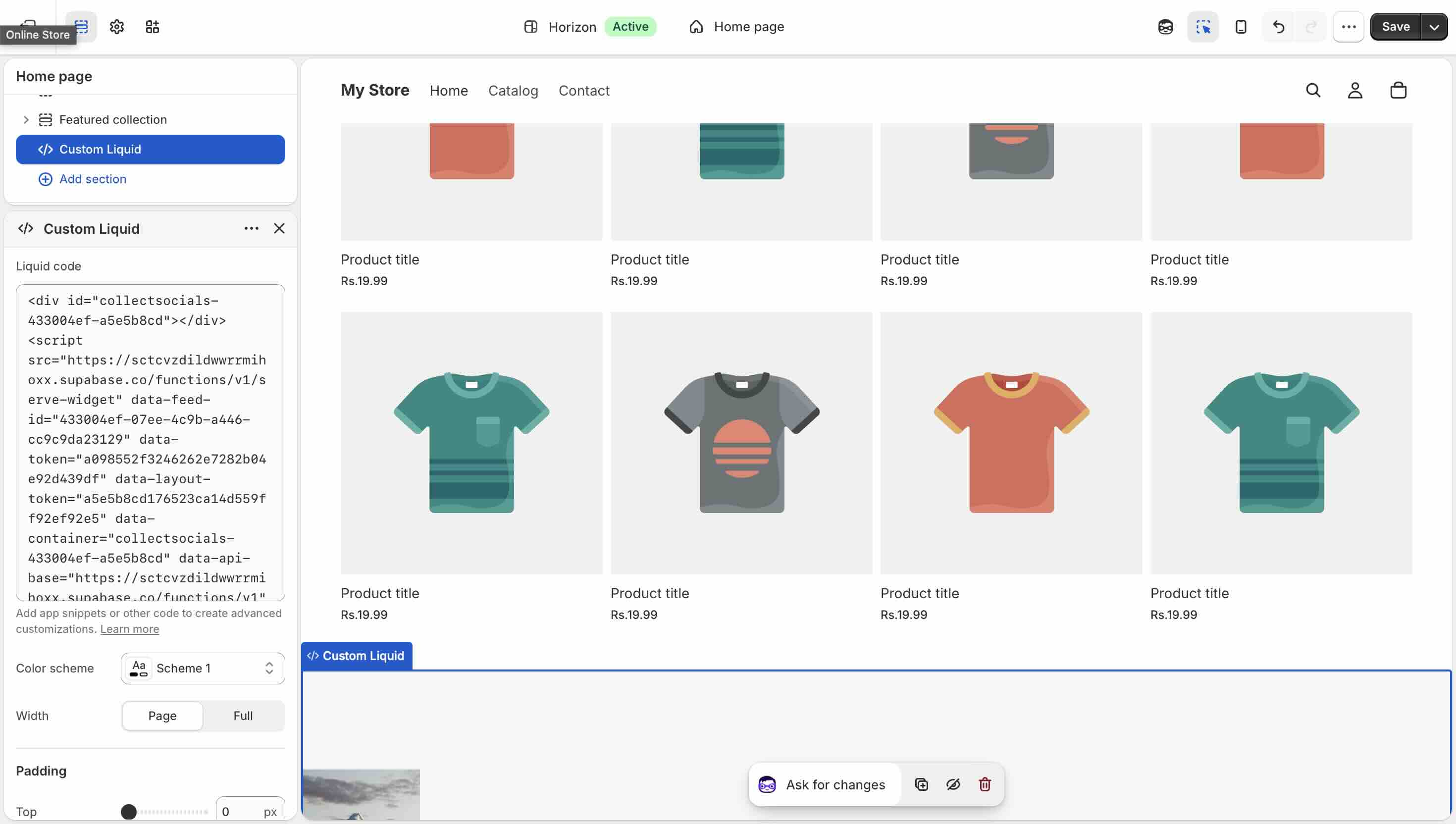
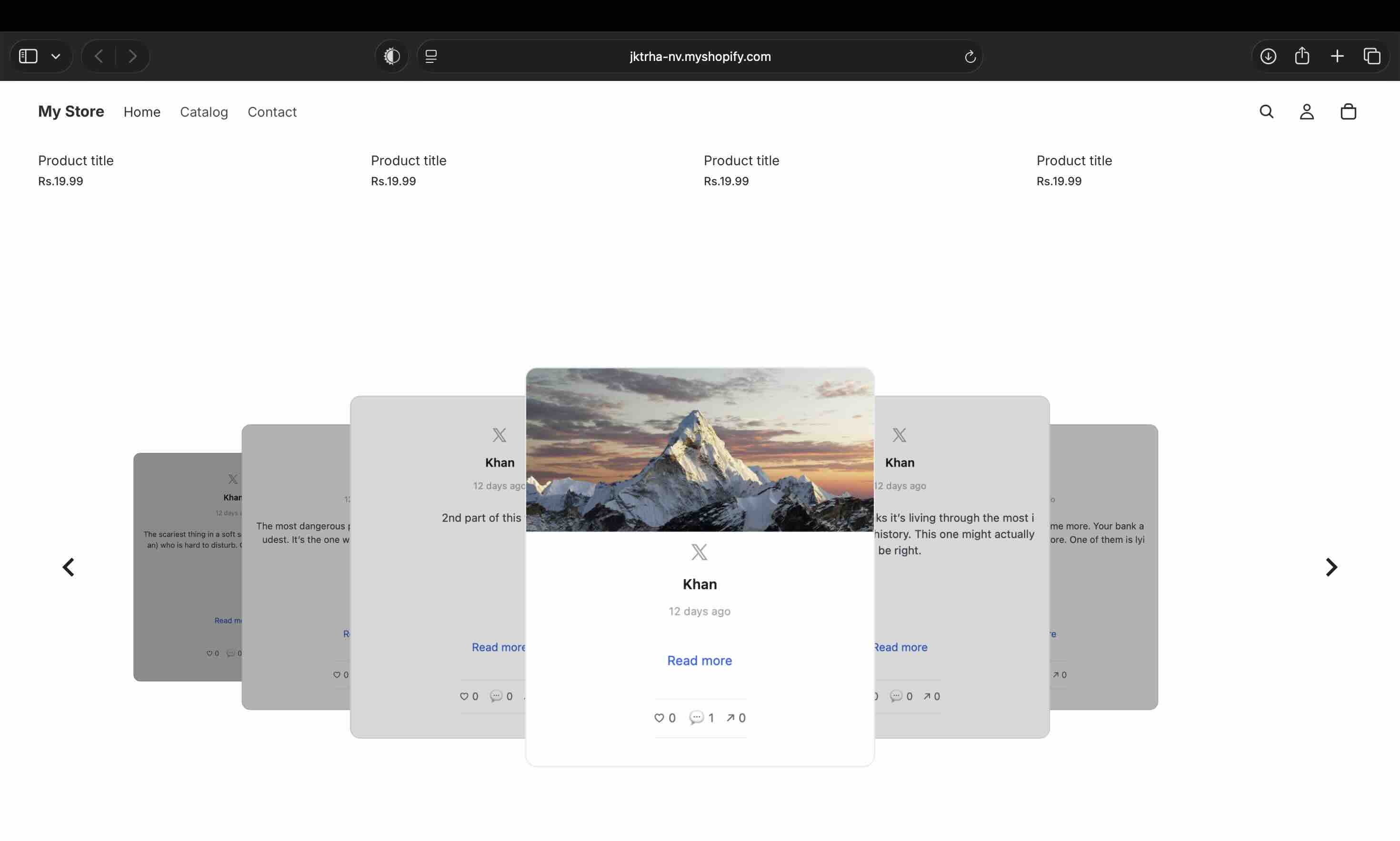
Shopify (Online Store 2.0)
- Go to Online Store > Themes > Customize in your Shopify admin.
- Navigate to the page where you want the feed and click Add section.
- Select Custom Liquid and paste your embed code into the Liquid field.
- Position the section where you want it, then save.
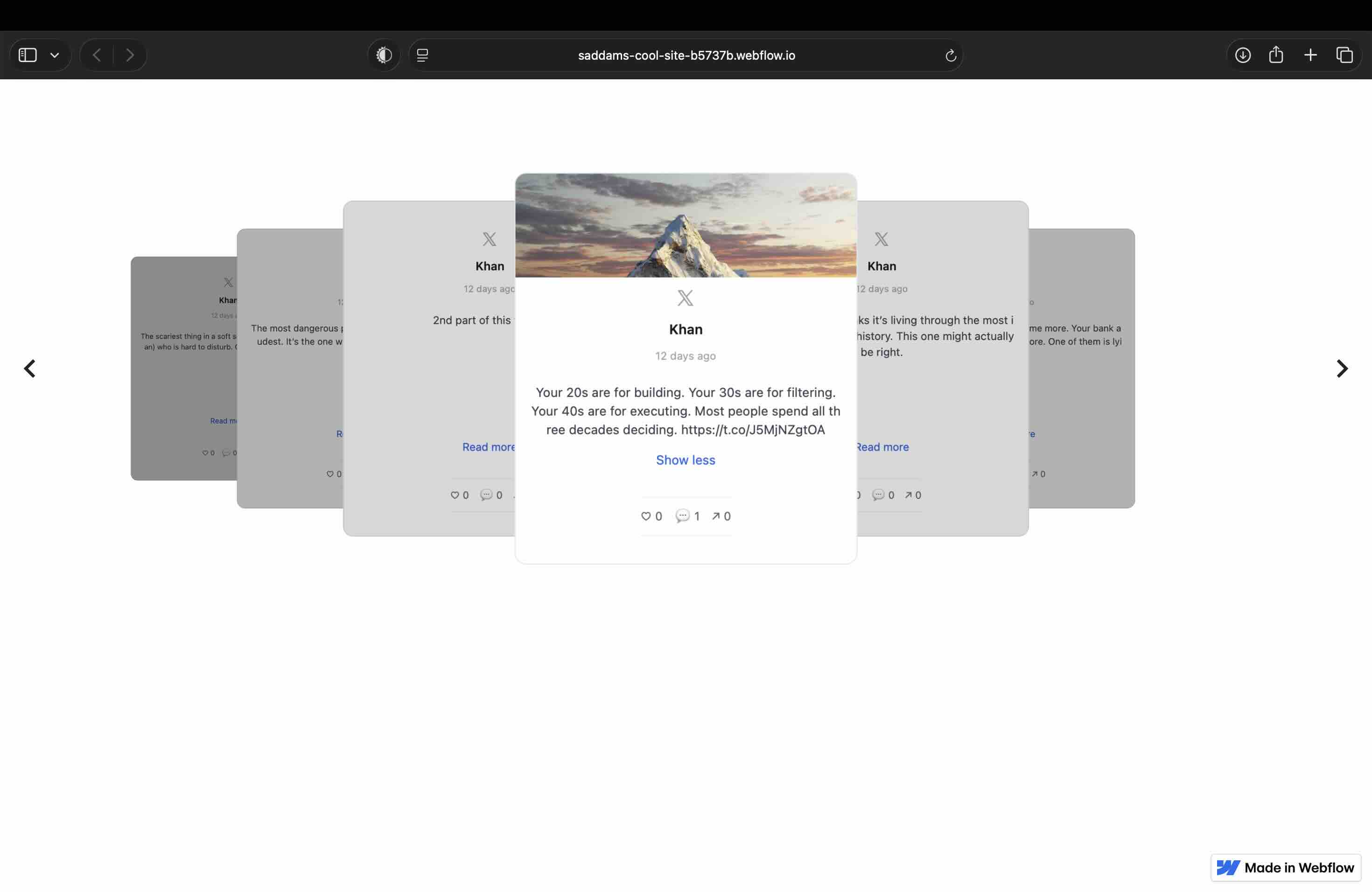
Webflow
- Open your Webflow project in the Designer.
- Drag an Embed element (under Components) onto your canvas where you want the feed.
- Paste your embed code into the code field and close the editor.
- Publish your site to see the live widget on your staging or production domain.
Other Platforms and Custom API
Pick your platform in the Get Code dialog rather than reusing the snippet from above, because it hands out four different payloads. Wix and Squarespace both get a self-resizing iframe, not the script tag: Wix sandboxes custom HTML, and lower Squarespace plans strip <script> out of a Code Block, so a pasted script works on some Squarespace accounts and silently renders nothing on others. Embedding an X feed on Wix covers the element to use and the four Wix behaviours that make a working feed look broken. Notion and Google Sites cannot run a script at all and get a plain iframe URL. Static HTML sites take the script as written. For full API control, you can build a custom feed using the X API v2, but expect developer resources, ongoing maintenance, and API costs.
How to Embed an X Hashtag Feed on Your Website
This is one of the most searched-for topics, and one where native X tools completely fail. As I demonstrated above, publish.x.com does not support hashtag feed embedding. It only generates a "Post" button. So how do you actually embed a live hashtag feed?
Why Hashtag Feeds Need a Third-Party Tool
Native X tools primarily support user profile timelines, not live, auto-updating hashtag feeds. The X API technically supports searching by hashtag, but building a custom solution requires developer resources and significant API costs. Third-party aggregation tools like CollectSocials handle the API complexity for you and provide a ready-to-embed widget.
Embedding a Hashtag Feed with CollectSocials
The process is almost identical to the timeline embed I walked through above. The only difference is in Step 3: instead of selecting "My Tweets," you select "Hashtag" and enter the hashtag you want to track (e.g., #YourBrand). CollectSocials will then pull in public posts using that hashtag.
You Do Not Connect an X Account for a Hashtag Feed
This is the part worth knowing before you start, because it changes what you set up first, and it is the thing most people assume wrongly. A hashtag feed on CollectSocials needs no X account connection at all. Not yours, not your client's, not a burner one made for the campaign.
The two source types genuinely work differently, and the difference is not a policy we chose. A profile feed reads your timeline, so X requires you to approve read access on its own sign-in screen; there is no way to read a specific account's posts without that. A hashtag feed reads X's public recent-search endpoint, which answers to application-level credentials rather than to any individual user, and those credentials are ours. So there is nothing for you to connect, nothing to reconnect when a token expires, and no account of yours involved in the request at all.
Three practical consequences follow, and they are the reason this is worth a section rather than a footnote:
- You can run a hashtag feed with no X account. A business that has never posted on X can still display what people are saying about it there.
- An agency can build one for a client without asking for a password or sitting through a screen-share to click an authorisation button.
- Nothing breaks when someone leaves. A connection tied to a staff member's personal X login dies with their account. A hashtag source has no such thread to cut.
This is worth checking before you commit to any tool, ours included, because it is not the universal behaviour and the setup flow tells you something about the architecture underneath. Some aggregators will not let you create an X hashtag source at all until you have connected an X account to them, which is a different arrangement to the one described above: the reads are then happening against an account rather than against the vendor's own credentials. If a tool asks for that before it will show you a hashtag feed, the question worth asking is whose API access the feed is spending, and what happens to the feed when the person who authorised it leaves.
What X's Search Endpoint Will and Will Not Give You
Three constraints come from X rather than from any tool, and all three are worth planning around rather than discovering.
The search endpoint has a floor of ten posts per call. It will not return fewer, which means a hashtag pull cannot be made cheap by asking for less. In practice a pull waits until at least ten posts of budget are available rather than making a call that would be billed for more than it could store. If you are running several hashtag sources on a small plan, they are competing for the same budget in blocks of ten.
The budget is spent on posts read, not posts displayed. Those are very different numbers. A post that is already in your feed stays there and costs nothing to keep showing, and a refresh that finds nothing new spends nothing at all. What that means for a hashtag feed specifically is that a busy hashtag is expensive and a quiet one is nearly free, regardless of how many posts end up on your page. Budgets reset on the 1st.
Retweets and replies never arrive. A hashtag source filters them out at the request, the same way a profile source asks for original posts only. This is usually what you want on a public page, but it does mean a hashtag's apparent volume on X will be higher than what reaches your feed, and that gap is not something going wrong.
Hashtag sources are available on any paid plan and inside the 7-day trial, so you can see what your own hashtag actually returns before committing. That matters more than it sounds: a branded hashtag that looks busy on X can turn out to be mostly retweets, and the honest way to find out is to point a feed at it for a few days.
Moderation Is Not Optional on a Hashtag Feed
Moderation is non-negotiable for hashtag feeds. Public hashtags attract spam, off-topic content, and occasionally inappropriate posts. Always enable the moderation workflow on the Collect page and review each post before it goes live on your website. Use keyword filters and manual approval for maximum control.
The distinction that matters is between the two kinds of filtering, because they act at different points. Keyword rules run on arrival and flag a matching post as blocked: it is hidden from your published widget, but it still appears in your Collect queue marked as caught, so you can see the rule working and override it on a post it caught wrongly. That is the right tool for a term you already know you never want on your site. Manual approval works the other way round, holding everything back from the widget until you release it; that is the right tool for a campaign hashtag during the week it is live. Running both is normal, and on a hashtag feed it is the default we would recommend rather than an advanced setup.
The reason to be stricter here than on a profile feed is simple ownership. Your own timeline is content you already chose to publish. A hashtag feed publishes other people's posts on your domain, next to your branding, where a visitor will reasonably read them as something you endorsed. Treat the approval queue as a publishing decision, because that is what it is.
Strategic Placement: Where X Feeds Work Best
X feeds serve different purposes than Instagram or YouTube embeds. The content is text-heavy, often time-sensitive, and focused on conversation. This affects placement.
Choosing the right placement
This animation maps out where X feeds work on different page types. A homepage sidebar suits brand presence, blog pages benefit from real-time commentary, event pages need prominent hashtag walls, and support pages can show public response times, each placement serves a distinct visitor intent.
Homepage (below the fold, sidebar): An X feed showing recent company posts works well near the bottom of a homepage or in a sidebar. Keep it compact: 3 to 5 recent posts maximum.
Blog and resources section (sidebar): A sidebar X feed on blog pages keeps content feeling current and can surface related real-time commentary.
About page (featured): Employee X feeds or company culture posts humanize your brand. A curated timeline showing posts from team members gives visitors a sense of who you are beyond corporate copy.
Events and conferences (prominent display): Live event hashtag feeds belong front and center on event pages or physical displays. See our social media wall for events guide.
Support pages (transparency): Embed your customer support X timeline on help pages to showcase response times and public accountability.
Landing pages (almost never): X feeds distract from singular conversion goals. If your landing page drives one specific action, adding an X feed gives visitors somewhere else to look and hurts conversion rate.
X Feed Moderation: What You Can't Ignore
Unlike Instagram where most embedded content is visual and relatively safe, X content is text-based, conversational, and sometimes controversial. Moderation isn't optional.
Why Moderation Matters More for X
Reply culture: X posts often include replies that can be negative or inappropriate. Embedding a timeline means potentially displaying those replies unless you filter them.
Hashtag hijacking: Hashtag feeds are especially vulnerable. Public hashtags get used by spammers, trolls, and unrelated conversations. An unmoderated hashtag feed on a business website will eventually display something you don't want.
Political and controversial content: Even if your brand stays neutral, a search feed or hashtag feed can surface politically charged content unless you actively filter it.
Moderation Strategies
Keyword blacklists: Automatically hide posts containing specific words. Build a comprehensive list of profanity, competitor names, and off-brand terms.
Manual approval: For hashtag or search feeds, enable manual approval so every post requires review before appearing on your website. Labor-intensive but provides maximum control.
AI content filtering: Turn on the AI Content Filter rule and incoming posts are screened for harmful content automatically, with anything it flags hidden from the widget. That leaves your keyword list to catch only the terms specific to your own brand.
Combining X with Other Platforms
For B2B companies and thought leaders, X works best as part of a multi-platform presence: X shows real-time commentary, while a unified social media wall combining several networks demonstrates different dimensions of expertise. LinkedIn is not live yet on CollectSocials. Our LinkedIn feed guide covers what that pairing will look like.
CollectSocials supports combining X with Instagram, YouTube, Google Reviews, TikTok, Facebook, Pinterest, Tumblr, RSS, and Vimeo feeds in a single widget, so you can create a comprehensive social proof wall from multiple platforms.
Performance Considerations
X feeds are text-heavy rather than media-heavy, which means they're generally lighter than Instagram or YouTube embeds. But real-time updates and frequent refreshes can still impact performance.
Serving between syncs: X posts are not re-fetched on every page load. Because X charges for API access, a widget syncs on an interval measured in hours (12 to 24 here) and serves the already stored set in between, so a visitor never waits on X for the widget to paint.
Lazy loading: Load the widget only when it's about to enter the viewport. Good widget tools handle this automatically via Intersection Observer.
Limiting post count: Show 10-20 recent posts with a "Load More" option. Loading 100+ posts at once slows rendering.
#shadow-root.Common Mistakes and How to Avoid Them
Mistake 1: No moderation on hashtag feeds. Public hashtags attract spam. Always set up keyword filters and manual approval for hashtag-based feeds.
Mistake 2: Using old twitter.com URLs. After the rebrand, embeds with cached twitter.com URLs can break. Use current x.com URLs when generating embed codes.
Mistake 3: Relying on native embeds for anything beyond single posts. As I demonstrated, publish.x.com timeline embeds produce broken output. Use a third-party tool for profile feeds and hashtag feeds.
Mistake 4: Ignoring dark mode. If your website offers dark mode, your X feed widget should too. Mismatched light/dark modes look unprofessional.
Mistake 5: Set it and forget it. X content cycles fast. Review your feed monthly to ensure it still represents your current brand and messaging.
What Is the Best Way to Embed an X Feed?
Embedding an X feed on your website should be straightforward, but X's native tools make it harder than it needs to be. publish.x.com works for single post embeds. That's it. For timeline feeds, hashtag feeds, or anything that requires customization and moderation, you need a third-party solution.
I use CollectSocials because it handles the X API complexity, gives me full control over which posts appear, offers 40 different layout options, and works reliably across all devices, all starting at $29/month on the Pro plan.
Done correctly, an embedded X feed becomes a genuine asset: fresh content that updates automatically, social proof that builds confidence, and a live connection between your website and your social presence.
If short-form video is part of the same strategy, embedding a TikTok feed follows the same pattern, and for a builder-specific walkthrough, embedding social media feeds on Webflow covers every network on that platform.
Start Using CollectSocials Today
One curated feed from 10+ platforms: on your website in a single line of code, or up on the big screen at your event.
Frequently Asked Questions
How do I embed a Twitter feed on my website?
You have two options. The native method uses publish.x.com, enter your profile URL, copy the embed code, and paste it into your HTML. However, this method often produces broken output (just a text link instead of a live feed). The more reliable method is using a third-party widget tool like CollectSocials: connect your X account, choose your feed type, customize the design, and paste the generated embed code on your site.
Can you embed a Twitter hashtag feed on a website?
Not with native X tools. publish.x.com does not support hashtag feed embedding, it only generates a "Post" button when you enter a hashtag. To embed a live hashtag feed, you need a third-party aggregation tool that uses the X API to track and display posts from a specific hashtag with moderation controls.
Why is my Twitter embed not working?
The most common reasons: (1) You're using an old twitter.com URL instead of x.com, (2) The widget.js script failed to load and convert the embed code into a rendered feed, (3) Your CMS or framework is blocking the external script, or (4) X's embed service is experiencing issues, which happens frequently. If your embed just shows text like "Posts by [username]," the native embed failed to render and you should consider a third-party widget instead.
What is the best Twitter feed widget for a website?
It depends on your needs. For a free single-post embed, publish.x.com works fine. For a live, customizable feed with moderation, layout options, and hashtag support, you need a third-party widget tool. CollectSocials offers X feeds from $29/month with 40 layouts and full moderation. Most alternatives lock X access behind significantly higher-priced tiers due to API costs.
Is publish.x.com free to use?
Yes, publish.x.com is free. However, its functionality is extremely limited, single post embeds work, but profile timeline embeds often produce broken output, and hashtag feed embedding isn't supported at all. For a working feed widget with customization and moderation, you'll need a paid third-party tool.
How do I embed a Twitter feed on WordPress?
In the WordPress Gutenberg editor, add a Custom HTML block to any page or post, then paste your widget embed code. For the Classic Editor, switch to the "Text" tab and paste the code directly. No plugin is required for that route, but CollectSocials does publish a WordPress plugin, and on a page that takes real traffic it is the better one: it copies the posts and the published design into your own WordPress database and serves them from your domain, so once a feed has synced its page views stop being metered on any plan, free included.
How do I embed a Twitter feed on Webflow?
Drag an Embed element (under Components) onto your Webflow canvas, paste your widget embed code into the code field, and publish. The widget renders on your staging and production domains without any custom code or Webflow integrations. CollectSocials embeds work inside Webflow's responsive layout system automatically.
How do I embed a Twitter feed on Shopify?
In your Shopify admin, go to Online Store > Themes > Customize. Add a Custom Liquid section to any page template, paste your widget embed code into the Liquid field, and save. The widget renders inline with your store theme. No Shopify app installation needed.