
This guide walks through every method for adding an Instagram feed to WordPress — from native options to dedicated tools — and covers the decisions that will determine whether your widget becomes a genuine asset or just visual clutter.
Why Add Instagram to Your WordPress Site?
Before getting into the how, it's worth understanding what a well-placed Instagram feed actually does for your site — because "it looks nice" undersells it considerably.
It keeps your pages alive. Static WordPress sites struggle with content freshness. Every post you publish on Instagram automatically updates your website when you're using a live feed widget. That freshness matters for both visitors and search engines.
It builds trust at scale. Visitors who see an active, curated Instagram presence on your site get social proof that your brand is real, engaged, and popular. This is especially valuable on landing pages, product pages, and homepages — anywhere a visitor is making a decision about whether to trust you.
It extends the life of your social content. Instagram's algorithm gives most posts a lifespan measured in hours. Your website has no such limit. Embedding your best Instagram content gives it an indefinite second home, visible to anyone who finds you through search, referral, or direct traffic.
It grows your following. Web visitors who find your Instagram feed on your site and like what they see will often click through to follow you. It creates a virtuous loop between your website audience and your social audience.
What You Need Before You Start
Regardless of which method you use, there's one important requirement: you need an Instagram Business or Creator account. Personal Instagram accounts no longer support third-party API access. If your account is still set to Personal, you can switch it for free in the Instagram app under Settings → Account → Switch to Professional Account — and it won't affect your followers, posts, or content.
Your Business or Creator account must also be connected to a Facebook Page. Meta's API requires this linkage for any third-party integration. If you haven't done this yet, you can connect them through your Instagram settings or directly in Facebook's Page settings.
Your Options for Adding Instagram to WordPress
There are three realistic paths: WordPress plugins, native block editor options, and dedicated social media aggregator tools. Each has its place depending on what you need.
Option 1: WordPress Plugins
The WordPress plugin ecosystem has dozens of Instagram feed plugins. They range from lightweight free options to full-featured paid tools. The trade-off is almost always the same: simpler plugins offer fewer layout options and customization controls, while full-featured plugins can become bloated and expensive.
Most WordPress Instagram plugins work by connecting your Instagram Business account via OAuth, pulling your posts into the plugin's local database, and rendering a widget via shortcode or a Gutenberg block. They're fine for basic use cases but tend to hit walls when you need multi-platform support — combining Instagram with Google Reviews or YouTube in a single feed, for instance — or when you want design flexibility beyond a standard grid.
Another practical concern: WordPress plugins add weight to your site. Each plugin is another set of CSS and JavaScript files loading on every page, which can meaningfully affect page speed scores — something that matters for SEO.
Our own WordPress social feed plugin is built around both of those limits: a single feed can mix Instagram with YouTube, TikTok or Google Reviews, and the posts, styling and renderer are all synced into your own site, so a visitor loading the page makes no third-party request at all.
Installing it, screenshot by screenshot
We walked the real install path on the same test site, because "install the plugin" hides a step people get stuck on: this is a .zip upload, not a search-and-click from the WordPress directory.
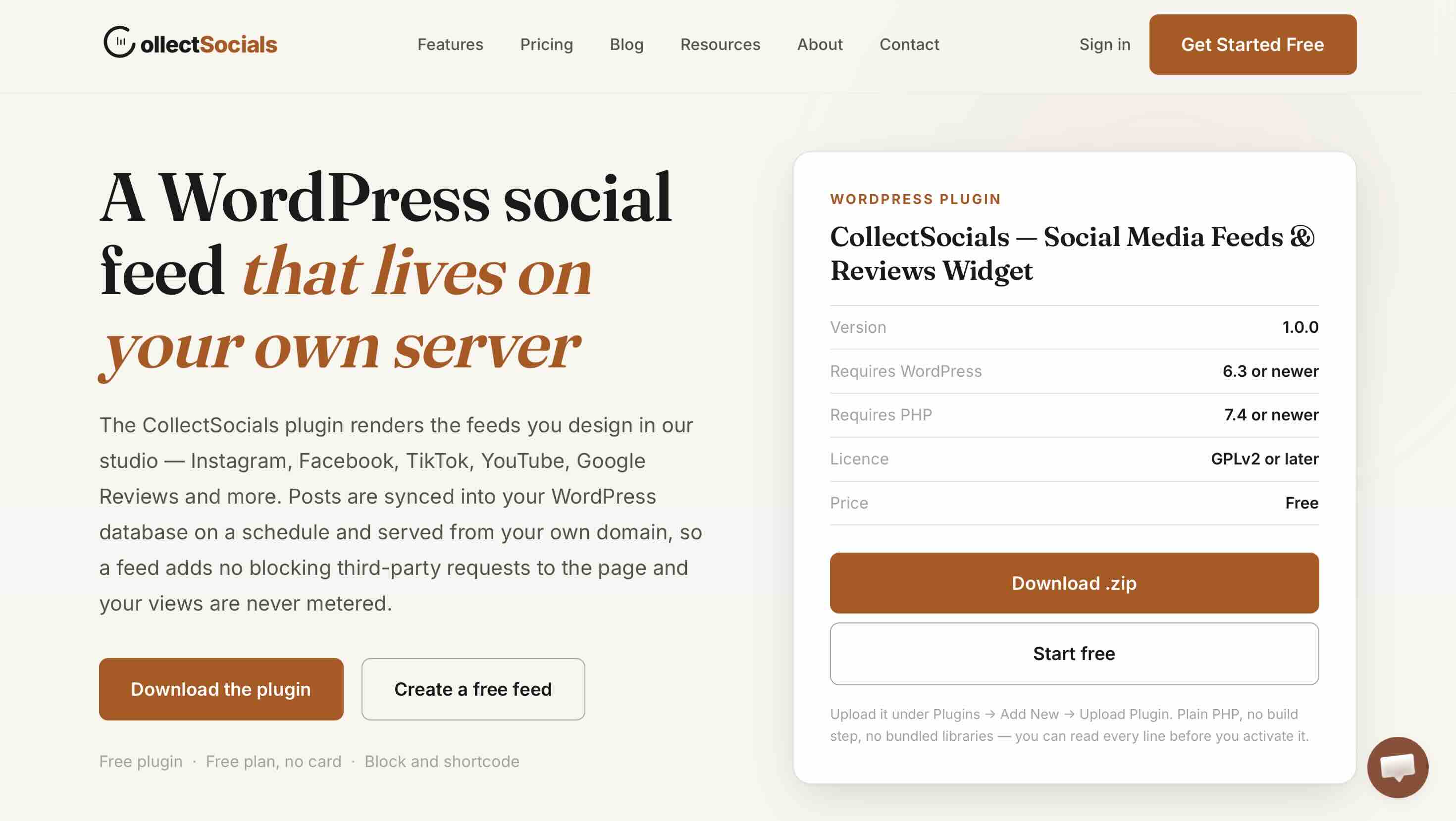
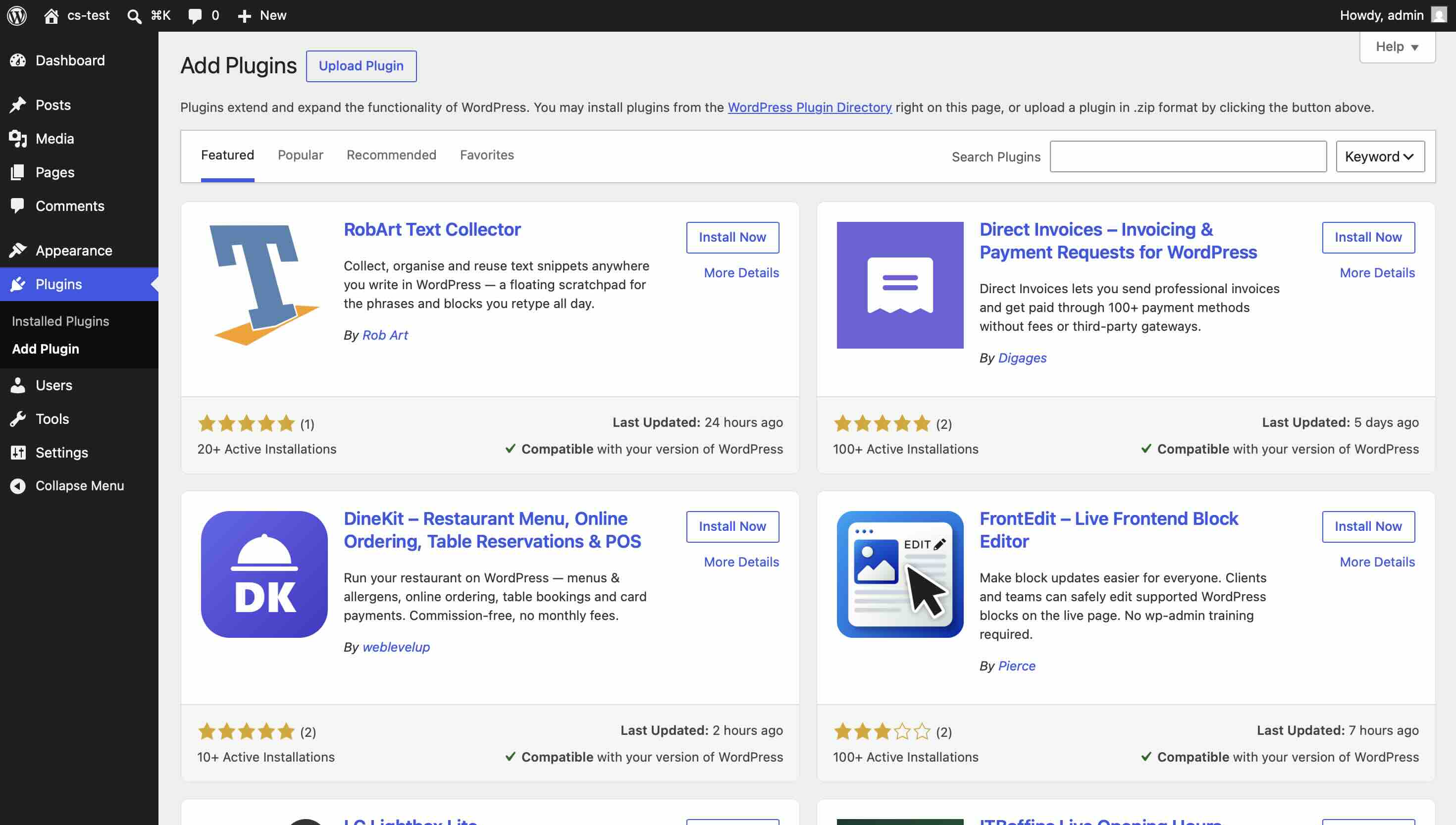

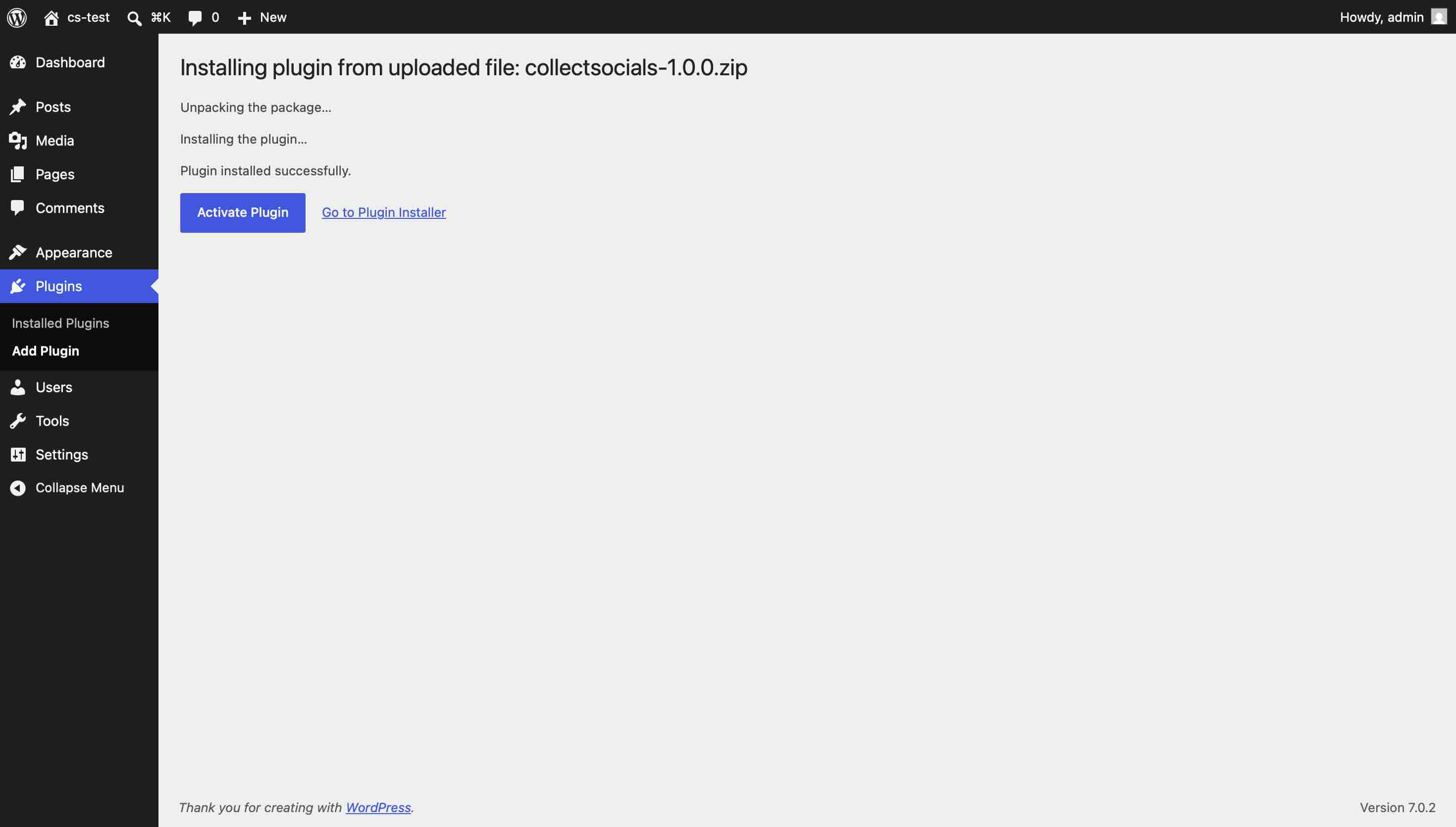
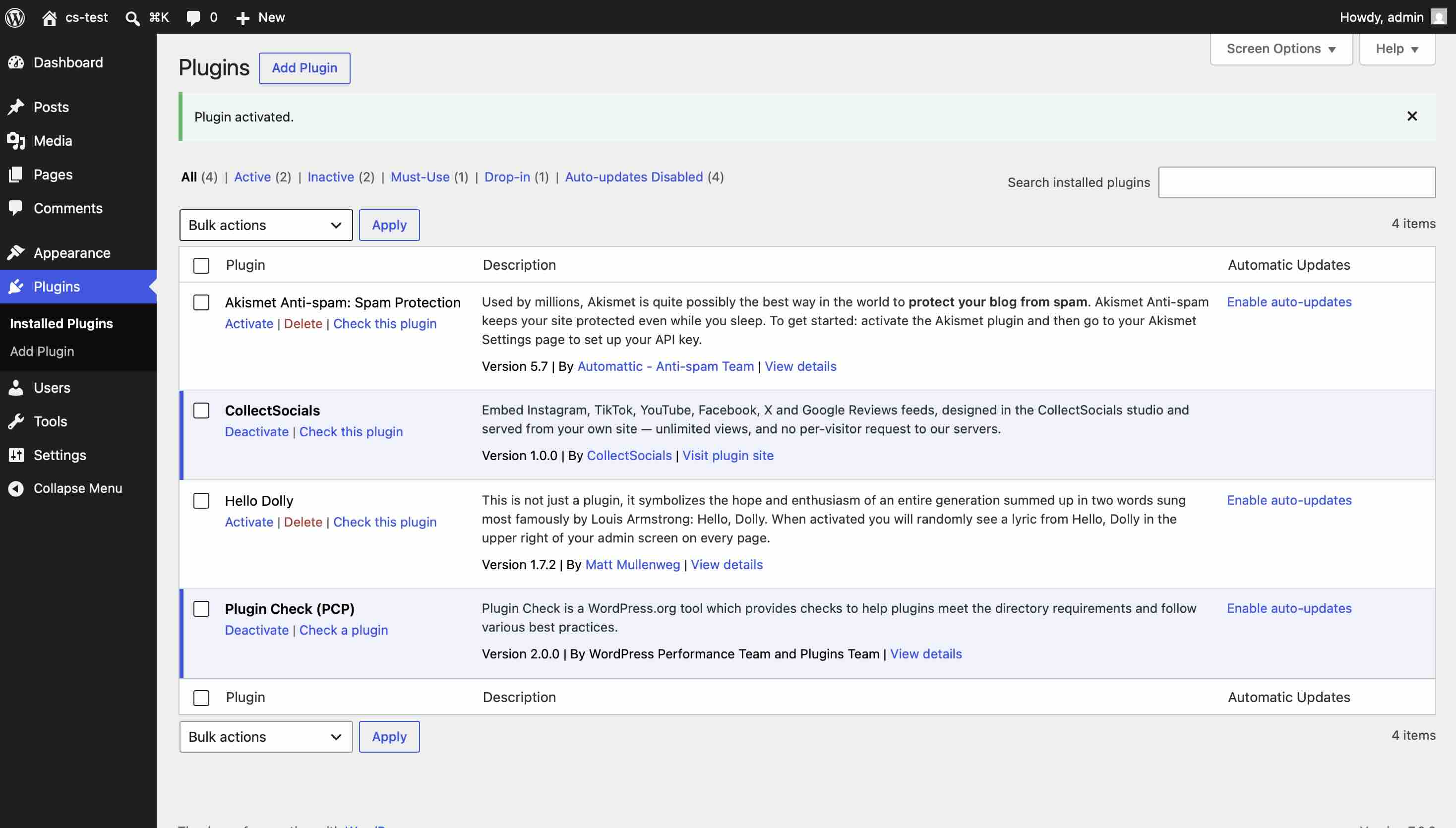
After activation the feed is a native block, so there is no shortcode to remember and no HTML to paste.
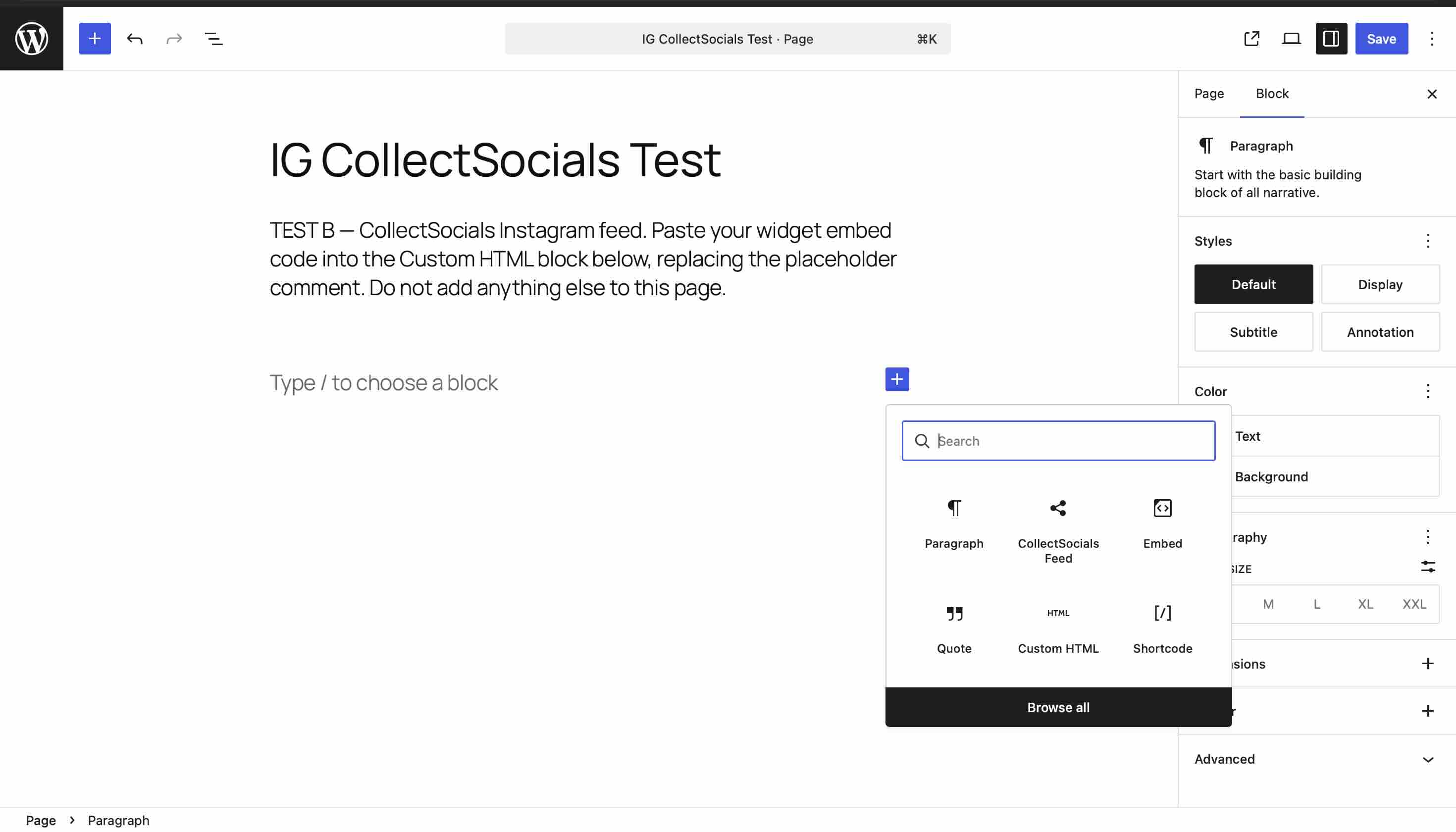
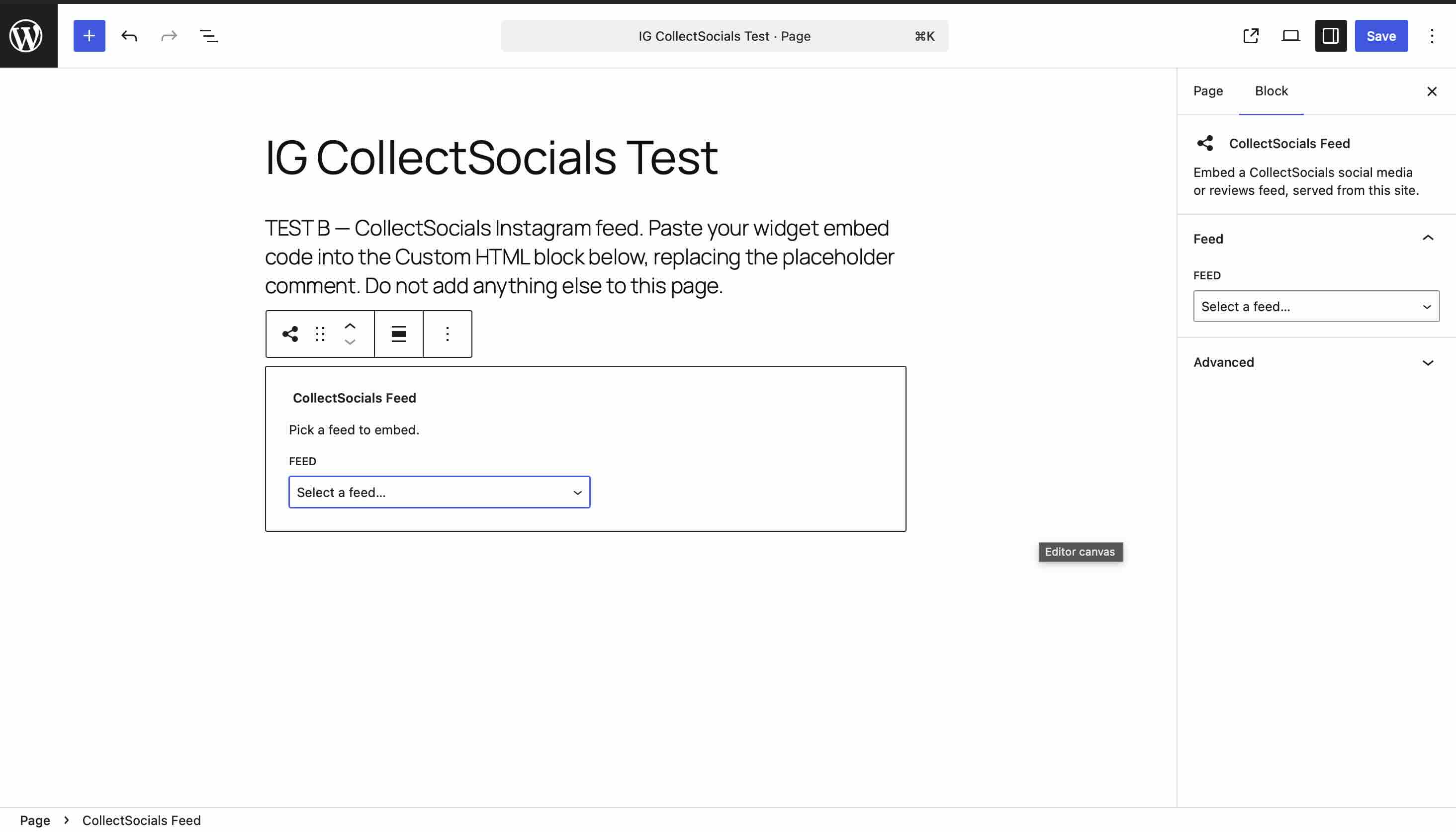
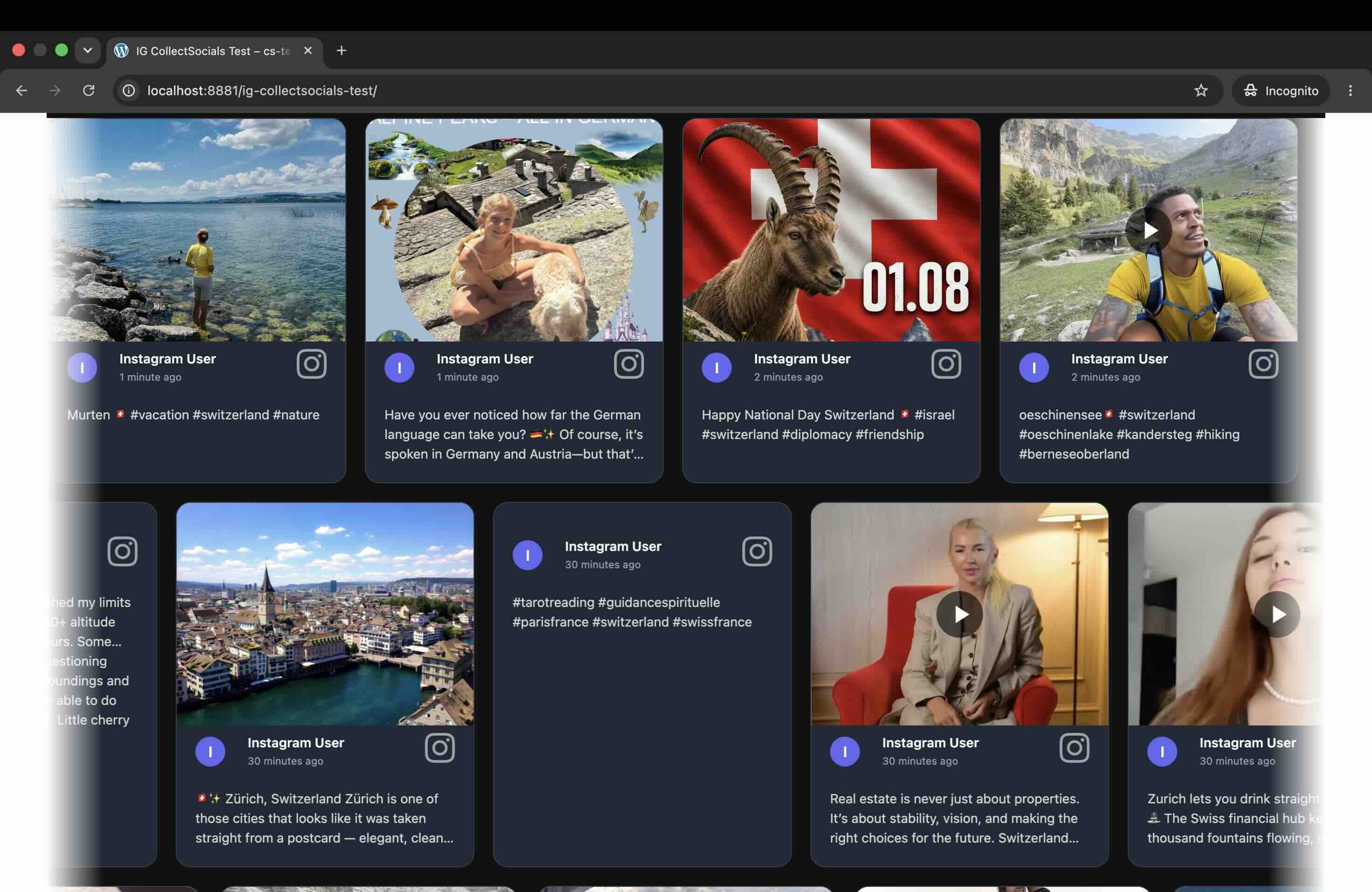
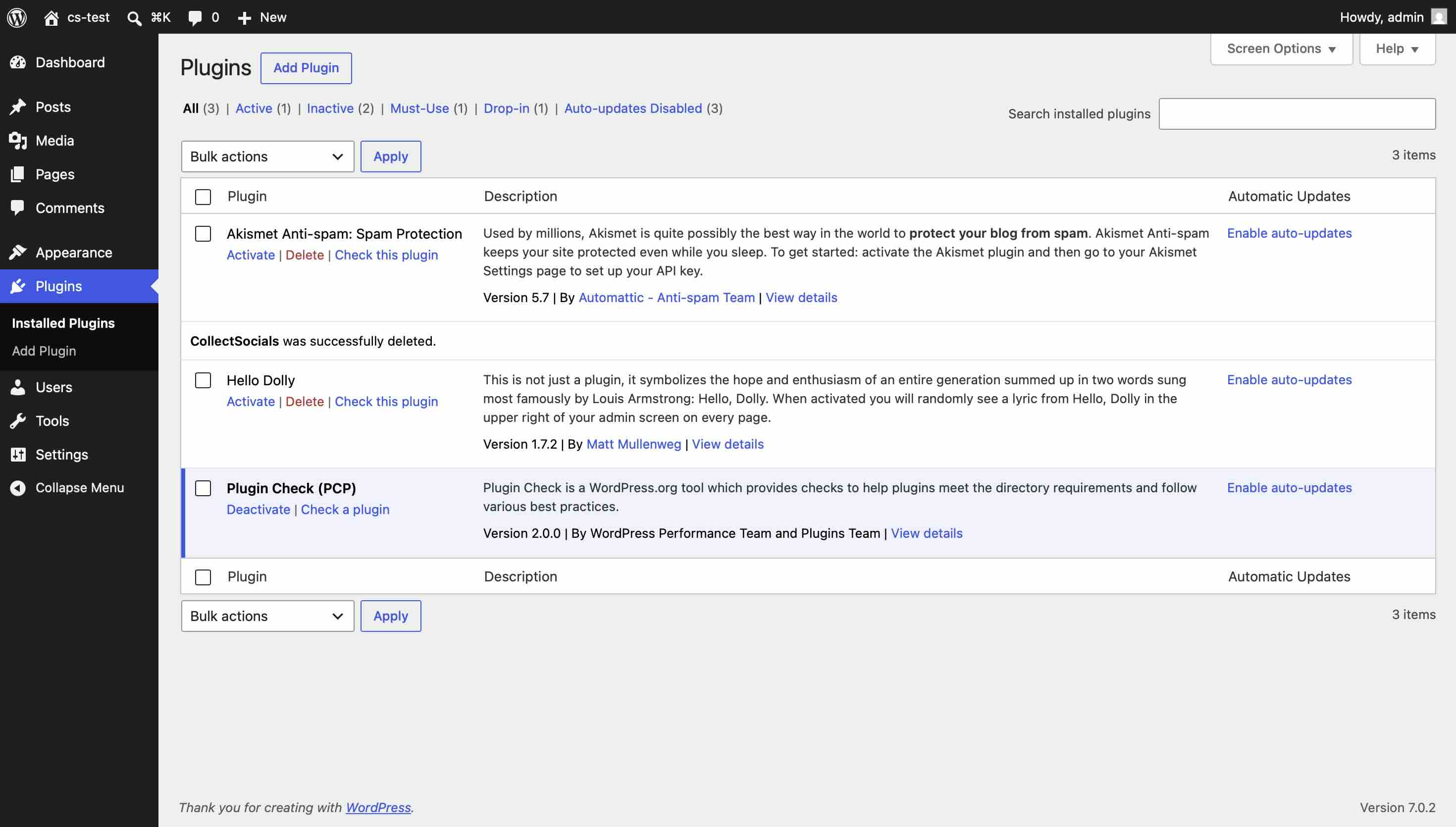
Option 2: The Gutenberg Block Editor (we tested this — it fails)
WordPress used to ship a dedicated Instagram embed block built on Instagram's old oEmbed endpoint. It is gone. We checked on a clean WordPress 7.0.2 install running PHP 8.4 in July 2026: searching the block inserter for "Instagram" returns no Instagram embed block.
The auto-embed path fails too. Pasting a bare Instagram URL on its own line — the trick that works for YouTube and X — produces an error rather than a feed.
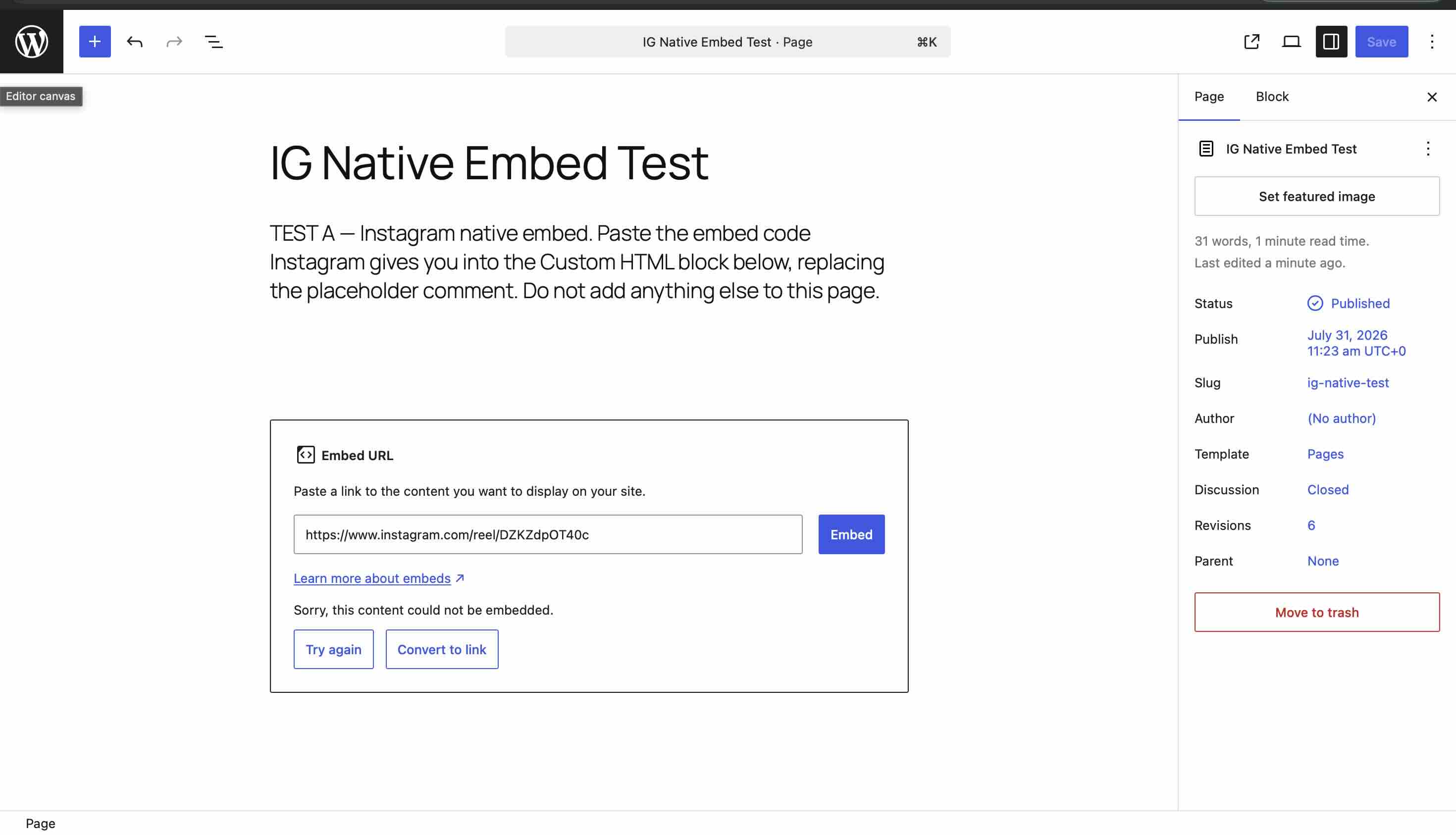
If your Instagram feed is not showing on WordPress and you were relying on either of those, this is the whole explanation — nothing is misconfigured on your side.
You can still paste Instagram's own per-post embed code into a Custom HTML block, but that embeds a single post, not a feed, and we found it renders as two plain text links whenever Instagram's script is blocked. That test is written up in full in our guide to embedding an Instagram feed on your website.
Option 3: A Social Media Aggregator with Script Embed
This is the approach we'd recommend for most WordPress sites, and it's the one we'll walk through in detail below. Tools like CollectSocials generate a single <script> tag that you paste into any WordPress page, post, or template. The widget renders client-side and is isolated in a Shadow DOM — meaning it won't conflict with your WordPress theme's stylesheets, regardless of which theme you're using.
The advantages over a plugin are significant. There's no plugin to update or maintain. The widget is served from CollectSocials' infrastructure, not yours, so it doesn't affect your hosting resources. And you get multi-platform support, professional layout options, and content curation tools that go far beyond what typical WordPress plugins offer.
How to Add an Instagram Feed to WordPress with CollectSocials
Here's a complete walkthrough of the process, from account setup to a live, embedded feed on your WordPress site.
Step 1: Create Your CollectSocials Account
Sign up at CollectSocials. You get a 7-day free trial of the full design studio — no credit card required. Once inside, you'll land on your dashboard, which is where all your feeds and sources live.
Step 2: Create a New Feed
Click "Create Feed" and give it a name that reflects where it'll live — for example, "WordPress Homepage Feed" or "Portfolio Instagram Widget." A feed is the container that holds your content sources and maps to a single embeddable widget. You can create multiple feeds for different pages of your site if needed.
Step 3: Connect Your Instagram Account
Inside your feed, add Instagram as a source. You'll be taken through Meta's official OAuth login flow — log in with your Facebook account, grant the necessary permissions, and select the Instagram Business account you want to import from. CollectSocials will begin pulling in your posts, reels, and carousels immediately.
If you also want to include content from other platforms — Facebook posts, YouTube videos, or Google Reviews — you can add those as additional sources to the same feed. Everything merges into one unified widget.
Step 4: Curate Your Content
Head to the Collect page. You'll see every post pulled from your connected sources. This is where you decide what your website visitors will actually see. Select the posts that best represent your brand — and deselect anything you'd rather not display. Promotional posts, off-brand content, test posts, or anything that's aged poorly can all be hidden without deleting them from Instagram. You can also edit post captions inline if you want to refine the text for a web context.
Step 5: Design Your Widget in the Design Studio
The Design Studio is where your feed gets its visual identity. Start by choosing a layout. For WordPress sites, the most commonly used layouts are:
Grid — rows and columns of equal-size posts. Clean and predictable. Works well for professional service sites, agencies, and portfolios where consistency matters.
Masonry — posts of varying heights arranged in columns. More visual energy, great for lifestyle brands, food and beverage, fashion, and creative businesses.
Carousel — a single horizontal row of posts you can scroll through. Compact and space-efficient, ideal for embedding above the fold or in a sidebar.
Mosaic — a mixed-size tile layout that creates a magazine-like feel. High visual impact, works best as a standalone section with plenty of room to breathe.
Marquee — continuously scrolling posts, like a ticker tape. Excellent for social proof walls and homepage sections where you want motion to catch the eye.
After choosing a layout, pick a theme. Minimal and Mono work well for business and professional sites. Elegant suits creative portfolios and premium brands. Bold, Sunset, and Neon bring energy to entertainment and lifestyle sites. You can also toggle display elements — avatars, post dates, platform badges, star ratings — on or off depending on what makes sense for your context.
Step 6: Make the Feed Public and Copy the Embed Code
When you're happy with your design, toggle the feed to Public. CollectSocials will generate a single <script> tag — something like:
<script src="https://app.collectsocials.com/api/widget" data-feed-id="..." data-token="..." data-container="..." defer></script>Copy what the dialog gives you, whole. The real snippet also carries a container <div> and a preload hint above the script tag, and the values are specific to your feed, so there is nothing to retype.
Step 7: Embed on Your WordPress Site
Now paste that script into WordPress. You have several options depending on your site setup:
Using the Gutenberg block editor: Add a Custom HTML block to any page or post. Paste the script tag inside it. Publish or update the page. The widget will render for visitors immediately.
Using a Classic Editor or page builder (Elementor, Divi, Beaver Builder): Add an HTML widget or code module to your layout. Paste the script tag inside it. Most page builders have a dedicated HTML element for exactly this purpose.
Adding to your theme globally (header, footer, or template): If you want the feed to appear on every page or in your theme template, use a plugin like Insert Headers and Footers to add the script to your site-wide footer. Or paste it directly into your theme's footer.php file if you're comfortable editing theme files.
Using a shortcode approach: Some WordPress configurations work better with shortcodes. You can wrap the script tag in a custom shortcode using a small snippet in your functions.php file and then drop that shortcode anywhere on your site.
Once placed, the widget loads asynchronously — it won't block your page from rendering. The Shadow DOM isolation means zero CSS conflicts with your WordPress theme, regardless of how complex your theme's stylesheets are.
sync
Where to Place Your Instagram Feed on WordPress
Placement matters as much as setup. An Instagram feed in the wrong location on your site will be ignored. In the right location, it can meaningfully increase engagement and conversions.
Homepage — above the fold or as a mid-page section. Your homepage is your highest-traffic page. Adding an Instagram feed as a "Follow us" or "See our work" section — typically in the lower third of the page — gives visitors an immediate sense of your brand's visual identity and activity level. For service businesses and agencies, this is often the single best placement.
About page. The about page is one of the most-visited pages on most websites, and it's where visitors are forming opinions about whether to trust you. An Instagram feed here humanizes your brand and adds a layer of social proof at exactly the right moment in the decision journey.
WooCommerce product pages. If you run a WooCommerce store, embedding Instagram content on product pages — especially posts showing your products in real use — is one of the highest-impact placements available. It's social proof at the exact point where buying decisions are made.
Blog sidebar. A carousel or list-layout Instagram widget in your blog sidebar is unobtrusive and effective. Readers engaged enough to be reading your content are exactly the audience most likely to follow you on Instagram.
Contact or landing pages. Adding social proof to pages where you're asking for action — filling in a form, making an inquiry, booking a call — can improve conversion rates. An active Instagram feed tells visitors you're a legitimate, engaged business.
Performance Considerations for WordPress
Page speed is a real SEO factor, and WordPress sites often struggle with it. Here's how to make sure your Instagram widget doesn't slow things down.
The CollectSocials widget loads asynchronously using the async attribute on the script tag, which means it won't block your page's initial render. The widget is served from a CDN rather than your WordPress hosting, so it doesn't compete for your server resources. Images within the widget are lazy-loaded, meaning they only download as a visitor scrolls toward them.
If you're using a caching plugin like WP Rocket or W3 Total Cache, you don't need to exclude the feed script from caching — it's loaded externally and the caching plugin won't interfere with it. However, make sure your caching settings aren't preventing the Custom HTML block from rendering on cached page versions. Testing with a fresh browser session or private/incognito mode is the easiest way to confirm the widget is visible on cached pages.
Keeping Your Feed Fresh Over Time
One of the main benefits of a live Instagram widget is that it updates itself. But "auto-sync" requires some active management on your end — specifically, making sure your curation settings stay current.
When you post new content to Instagram, it will be pulled into your CollectSocials feed automatically based on your sync interval (which varies by plan — from every 5 minutes on higher tiers to every 24 hours on the free plan). New posts will appear in your Collect page as "unselected" by default, meaning they won't show on your website until you review and select them. This is by design — it prevents something off-brand or promotional going live without your review.
Build a habit of checking your Collect page once a week and curating new posts into your active feed. It takes a few minutes and keeps your WordPress Instagram widget current and intentional rather than just a firehose of everything you've posted.
Going Beyond Instagram: Multi-Platform Feeds on WordPress
Once you have your Instagram feed running on WordPress, it's worth thinking about what else you could add to it. CollectSocials supports Facebook Posts, Facebook Reviews, Google Reviews, and YouTube Videos alongside Instagram — all in a single unified feed.
For local businesses and service providers, combining Instagram posts with Google Reviews creates a powerful social proof section. Visitors see your visual brand identity and your customer feedback in one place. For content creators and media companies, mixing Instagram posts with YouTube videos gives your website a richer, more varied content experience.
You can also use CollectSocials' Custom Posts feature (available on Business plans and above) to inject promotional cards into your feed at configurable intervals — a great way to highlight a sale, a new product launch, or a seasonal offer within the feed's visual flow.
Troubleshooting Common WordPress Instagram Feed Issues
The widget isn't showing on the page. First, check that the script tag is properly placed inside an HTML block rather than a text block — text blocks in Gutenberg strip script tags for security reasons. If you're using a page builder, make sure you're using that builder's dedicated HTML or code element, not a plain text field.
The widget shows but posts aren't loading. Make sure your feed is set to Public in CollectSocials. A feed in draft or private mode won't render for website visitors.
Instagram posts stopped syncing. This usually means your Meta OAuth token has expired. Meta access tokens need to be refreshed periodically. CollectSocials will notify you when this happens — just reconnect your Instagram account through the Sources page to refresh the token.
The widget looks different from the preview. Your WordPress theme might have some aggressive global CSS that's overriding widget styles. The Shadow DOM should prevent most conflicts, but if you're seeing visual issues, check if your theme applies any resets or globals that might be affecting Shadow DOM host elements.
What Makes a WordPress Instagram Feed Actually Work?
Adding an Instagram feed to WordPress isn't complicated — but doing it well takes more thought than just pasting a code snippet. The sites that get real value from Instagram widgets are the ones that curate their content carefully, place the widget where it supports a specific goal, and treat it as a living part of their site rather than a one-time setup.
If you're already active on Instagram, embedding that content on your WordPress site is one of the highest-leverage moves you can make for your site's credibility and visual appeal. The content already exists — you just need to give it a home on your website.
For more on getting the most from an embedded Instagram feed, see our complete guide on making your Instagram feed work for your website, or see the Instagram feed widget overview for the layouts, themes and source types it supports beyond WordPress.
If you're having trouble getting your feed to display properly, our troubleshooting guide covers the most common issues and their solutions. For WordPress users also interested in other platforms, learn how to embed a Facebook feed on WordPress.
Building the same feed elsewhere? The embed differs by platform: the Instagram feed on Wix and the Instagram widget for Squarespace both take an iframe because those builders sandbox scripts, while embedding an Instagram feed on Webflow and connecting Instagram to Shopify use the script. The method comparison across all of them is in our guide to embedding an Instagram feed on your website.
Once it is live, the two decisions that matter most are where to place an Instagram feed and how to curate an Instagram feed. If you are still choosing a tool, we tested 8 Instagram feed widgets.
Start Using CollectSocials Today
One curated feed from 10+ platforms: on your website in a single line of code, or up on the big screen at your event.