
Most Instagram feed failures fall into one of five root causes: an expired or invalid access token, an account type problem (personal instead of Business), a feed configuration issue, an embedding problem on the website side, or a page caching conflict. We'll work through all of them.
Problem 0: You're Using Instagram's Own Embed (It Can't Do This)
Before troubleshooting anything, check what you actually pasted into your page. A large share of "my Instagram feed isn't showing" turns out not to be a fault at all — it is a method that cannot produce a feed in the first place. We tested every official route on a clean WordPress 7.0.2 install in July 2026. Three of them fail in ways that look exactly like a broken widget.
The WordPress Instagram block no longer exists
WordPress once had an Instagram embed block backed by Instagram's old oEmbed endpoint. It has been removed. Pasting a bare Instagram URL on its own line, which still works for YouTube and X, now returns an error.
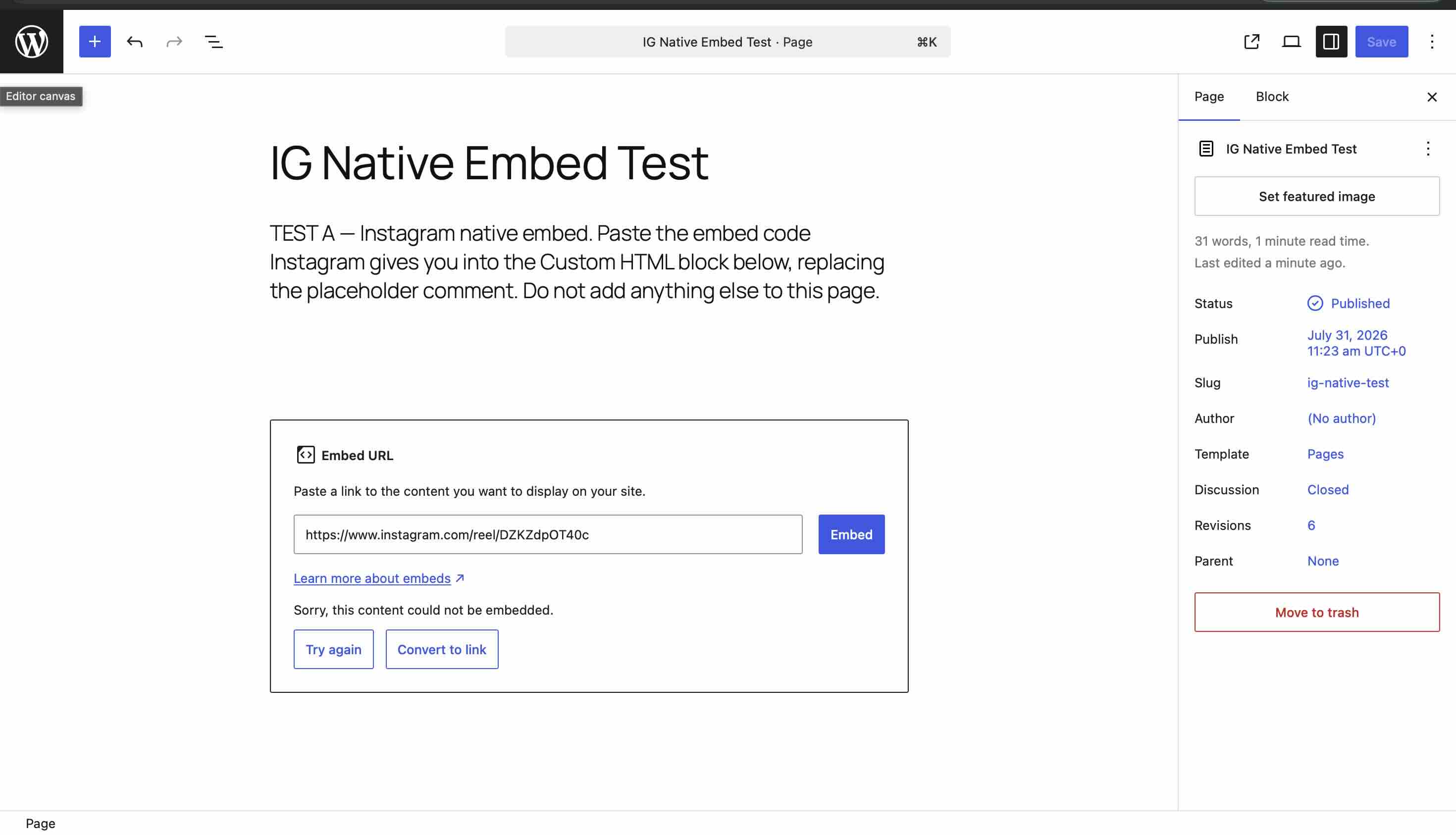
Fix: there is nothing to repair here. A feed on WordPress needs either a plugin or an embed from a tool using Instagram's Graph API — the routes are compared in adding an Instagram feed to WordPress.
The native post embed shows only two text links when its script is blocked
This is the one that wastes the most time, because it works in your browser and fails in your visitors'. Instagram's embed code is a <blockquote> that a script from instagram.com upgrades into the real post. When that script does not run, the visitor sees the un-upgraded fallback: two plain links, no image, no caption.
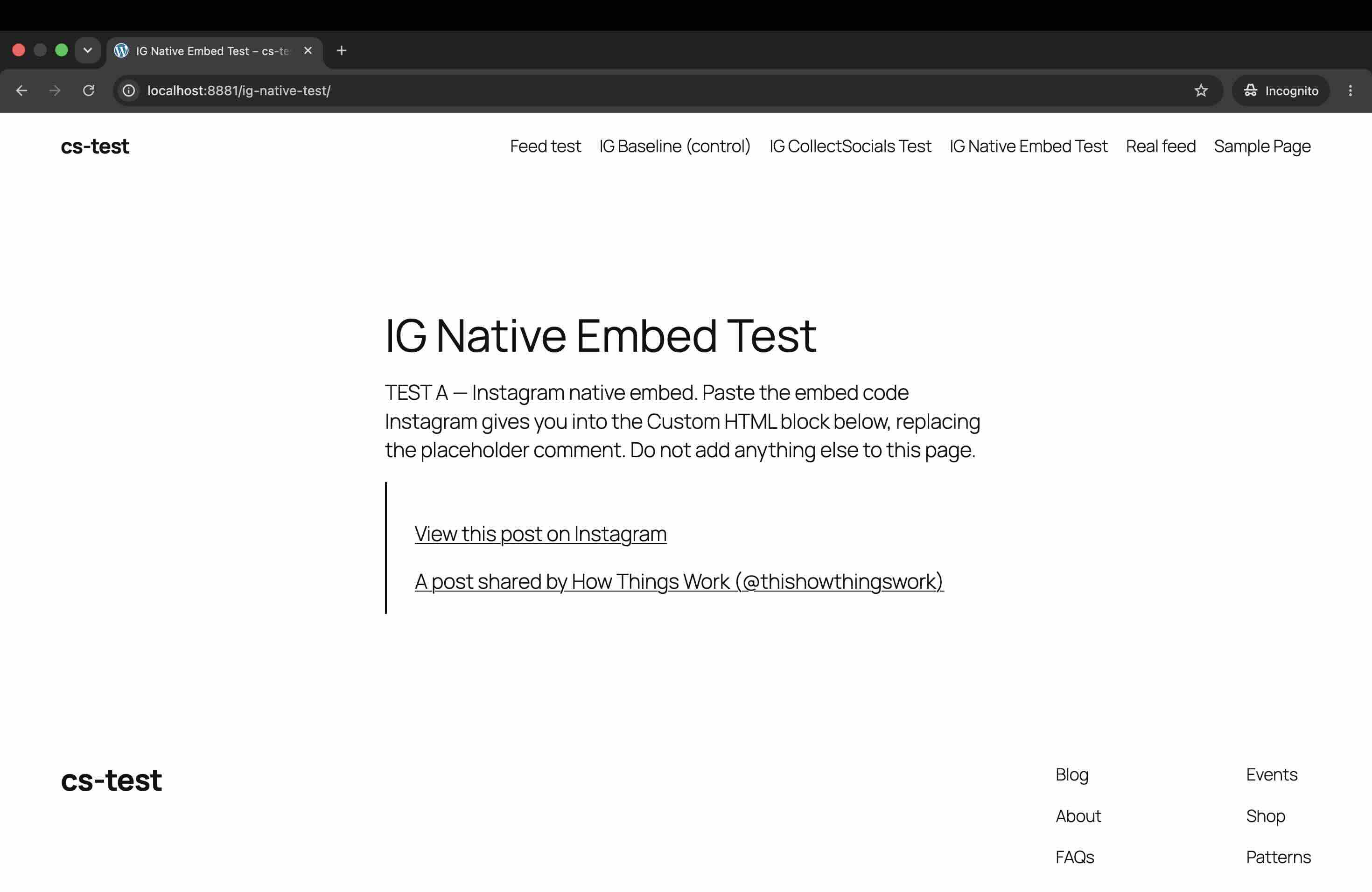
Ad blockers, tracker blockers, strict privacy modes and consent banners that withhold third-party scripts all trigger this. If your feed "disappears for some people" but looks fine to you, test in incognito with an ad blocker enabled before assuming a token problem.
Fix: the native embed cannot be made reliable from your side — the script is Instagram's. A widget that renders from your own markup instead of a third-party blockquote does not have this failure mode.
Stories cannot be embedded at all
If you are trying to show Stories and nothing appears, this is why: the Story overflow menu has no Embed option. It offers Report as inappropriate, About this account, and Cancel.
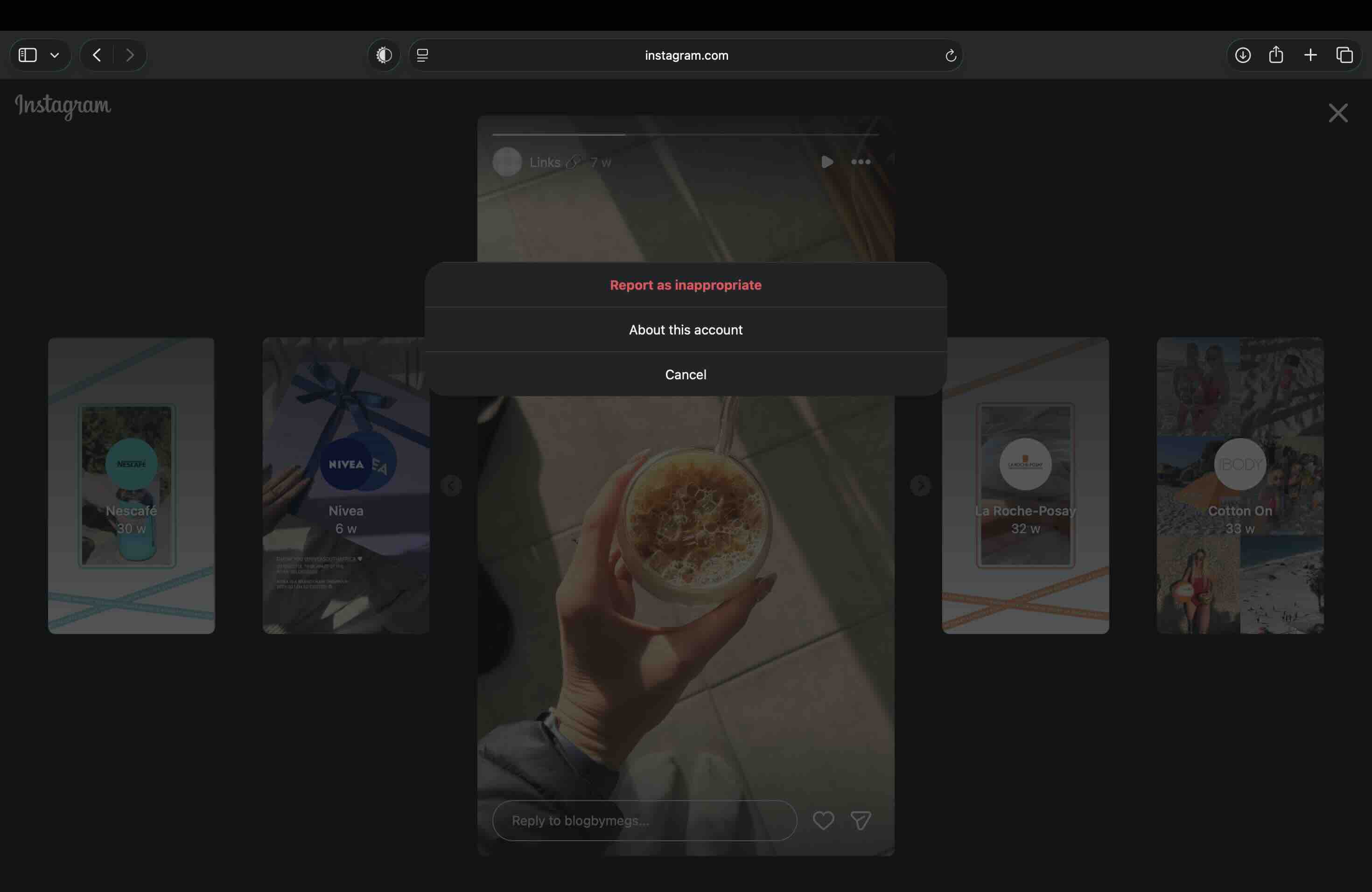
Fix: Stories on a website come through the Graph API with your permission, not through an embed. The full setup for that route is in our guide to displaying Instagram Stories on your website, and detail on all four embedding methods is in our guide to embedding an Instagram feed on your website.
Problem 1: Expired or Invalid OAuth Access Token
How to recognize it: The feed was working fine and then stopped. Posts stopped updating, or the feed stopped showing entirely. Your aggregator tool may show an error message containing "Error 190," "OAuthException," "Invalid OAuth access token," or "Access token has expired."
What causes it: Meta (Facebook/Instagram) issues time-limited OAuth access tokens to third-party applications. These tokens typically last 60 days, though the exact duration can vary. When a token expires, the application can no longer fetch posts from your Instagram account — so the feed either freezes on the last successfully fetched content or disappears entirely depending on how the tool handles expired tokens.
Tokens can also be invalidated before their natural expiry if you change your Instagram or Facebook account password, revoke app permissions from your Instagram security settings, change the admin users on your connected Facebook Page, or if Meta detects suspicious activity and invalidates sessions as a security measure.
How to fix it: Reconnect your Instagram account through your aggregator tool's source or account settings. This is almost always a one-click process that takes you through Meta's OAuth flow again — you log in with Facebook, grant permissions, and a fresh token is issued. In CollectSocials, go to your feed's Sources settings and click to reconnect the Instagram source.
After reconnecting, confirm the feed is pulling new posts by checking whether your most recent Instagram content appears in your aggregator's dashboard. If posts aren't appearing even after reconnecting, move to Problem 2.
How to prevent it recurring: The best tools notify you proactively when a token is approaching expiry so you can reconnect before the feed breaks. If your current tool doesn't do this, build a monthly reminder to check your source connection status — it takes 30 seconds to verify and prevents the frustrating experience of discovering a broken feed weeks after it stopped working.
Problem 2: Your Instagram Account Is Personal, Not Business or Creator
How to recognize it: You're setting up the feed for the first time and can't connect your account, or the connection fails with an error about permissions or account type. You may see messages like "No Business Instagram accounts found" or "We couldn't find any Business accounts connected to your Facebook account."
What causes it: Meta's Instagram Graph API — the API that all third-party Instagram feed tools rely on — only works with Instagram Business and Creator accounts. Personal accounts are explicitly excluded from API access. This has been the case since 2018 when Meta deprecated the old Instagram API and launched the Graph API with stricter access controls.
This catches a significant number of users by surprise, particularly smaller businesses and creators who have been using Instagram for years on a personal account and never needed to switch.
How to fix it: Switch your Instagram account to a Business or Creator account. Open the Instagram app, go to Settings → Account → Switch to Professional Account. You'll be asked to choose between Business and Creator — both work for feed embedding purposes. The switch is free, instant, and reversible. Importantly, it does not affect your existing posts, followers, or content in any way.
After switching to a Business or Creator account, you also need to connect it to a Facebook Page. This is a second Meta requirement for API access. Go to your Instagram settings under Linked Accounts, or do it from your Facebook Page settings. Once linked, return to your aggregator tool and try the connection again.
One specific error case: You have a Business account but the tool says it can't find it. This usually means the Instagram account is connected to a Facebook Business Portfolio (a Business Manager account) but not to a personal Facebook profile that you're logging in with during OAuth. Try logging into the OAuth flow with the Facebook account that has admin access to the Business Portfolio rather than your personal Facebook account.
Problem 3: The Feed Is Connected But Not Showing on the Website
How to recognize it: In your aggregator's dashboard, posts are importing correctly and everything looks healthy — but when you visit the page on your website, the feed doesn't appear. The space may be blank, the script may appear to not load, or the widget may show as an empty container.
There are several distinct causes for this pattern. Work through them in order.
The feed is not set to Public
This is the single most common cause of a feed that works in the dashboard but not on the website. In CollectSocials (and most aggregator tools), a feed must be explicitly set to Public before it renders for website visitors. A feed in draft or private mode will authenticate correctly and show posts in your dashboard but will not render on the live website. Check your feed's visibility setting and toggle it to Public.
No posts are selected for display
If you've imported posts but haven't selected any for display in your curation step, the widget will render an empty container on the website. Go to your aggregator tool's curation or Collect page and verify that posts are actively selected for display — not just imported.
The script tag is in the wrong block type
This is a platform-specific issue that affects WordPress users most frequently. In the WordPress Gutenberg editor, if you paste a <script> tag into a paragraph block or a plain Text block, WordPress will strip the script tag for security reasons. The block will appear to contain the code but it won't execute. You must use a Custom HTML block specifically — found in the Gutenberg block library under Formatting. Paste the script tag there and it will render correctly.
Similarly, in Squarespace, the code must be in a Code Block, not a Markdown or Text block. In page builders like Elementor and Divi, use the dedicated HTML widget or code module — not a text widget.
The script tag is malformed or incomplete
Copy the embed script again from your aggregator tool's dashboard. Make sure the entire script tag was copied — some interfaces require you to click a "Copy" button rather than manually selecting text, and partial copies miss the closing</script> tag or the data-feed-id attribute. Paste the freshly copied tag into a plain text editor (not Word or Google Docs, which can introduce smart quotes and invisible formatting characters) to verify it looks complete and clean.
Problem 4: The Feed Shows in Preview But Not on the Live Published Page
How to recognize it: In your website builder's editor or preview mode, the feed renders correctly. When you visit the published live URL, it doesn't appear.
What causes it: Page caching is almost always the culprit. Many website hosts and CDNs aggressively cache page HTML to serve it faster. When a page is cached, visitors receive a stored version of the HTML rather than the live version — and if that cached version was generated before the script tag was added, or before the feed was set to public, the feed won't appear in the cached version.
How to fix it: Clear your site's cache. The exact process depends on your setup:
On WordPress with a caching plugin (WP Rocket, W3 Total Cache, LiteSpeed Cache), go to the plugin's settings and clear all caches. Most caching plugins have a one-click purge option in the WordPress admin bar.
On Shopify, Shopify manages caching automatically and caches clear within minutes of publishing changes. If the feed isn't showing immediately after publishing, wait five minutes and try a hard refresh (Ctrl + Shift + R on Windows, Cmd + Shift + R on Mac) before concluding there's a problem.
On Wix and Squarespace, clearing the cache is handled by those platforms and happens when you publish new changes. If the issue persists after republishing, try accessing the live URL in a private/incognito browser window — this bypasses any browser- side cache and will confirm whether the issue is server-side or browser-side.
On sites with a CDN like Cloudflare, log into your Cloudflare dashboard, go to Caching → Configuration, and click "Purge Everything." Or purge just the specific page URL if you want to avoid a full cache clear.
After clearing the cache, always test the live page in an incognito/private browser window rather than a regular window — regular browser sessions may still be serving a cached version from your browser's own local cache.
Problem 5: CSS Conflicts Making the Widget Invisible or Broken-Looking
How to recognize it: The feed loads (you can see network requests in browser developer tools) but doesn't display correctly — it's invisible, has zero height, is hidden behind another element, or has its layout broken. The widget script is executing but the visual output is wrong.
What causes it: Your website theme's global CSS is overriding or interfering with the widget's styles. This is a common problem with tools that inject their widget styles directly into the page's global stylesheet context — any aggressive global CSS reset, a wildcard * { box-sizing: border-box }rule, or an overflow: hidden on a parent element can cause widget layouts to break in ways that are difficult to debug.
How to fix it: The definitive fix is to use a widget tool that renders inside a Shadow DOM — a browser feature that fully isolates the widget's CSS from the rest of the page. CollectSocials uses Shadow DOM by default, which means CSS conflicts are not possible between the widget and your site's theme. If you're using a tool that doesn't use Shadow DOM (most don't), you'll need to debug the specific conflict.
To diagnose a CSS conflict without Shadow DOM: open browser developer tools (F12), inspect the widget's outermost container element, and look for CSS properties being applied from your site's stylesheet that could cause issues. Common culprits aredisplay: none, visibility: hidden, height: 0,overflow: hidden on a parent container, or z-index issues causing the widget to render behind another element.
If you can't resolve the conflict through CSS inspection, consider wrapping the script tag in a plain <div> container and explicitly setting display: block; min-height: 200px; on that container. This forces the parent element to have dimensions, which resolves a common class of height-collapse conflicts.
Problem 6: Posts Showing But Feed Not Updating with New Content
How to recognize it: The feed displays existing posts correctly but new posts you've published to Instagram aren't appearing on the website, even after waiting longer than your stated sync interval.
What causes it: Several possibilities, in order of likelihood.
New posts haven't been selected for display. In most aggregator tools, including CollectSocials, new posts are imported but not automatically displayed on the website — they require manual selection in the curation interface first. This is intentional design, giving you editorial control before anything goes live. Check your Collect page for new unselected posts and select the ones you want to show.
The sync interval hasn't elapsed yet. Different plan tiers sync at different frequencies — from every 5 minutes on premium plans to every 24 hours on free tiers. If you just published a new Instagram post and the feed hasn't updated, you may simply need to wait for the next sync cycle.
The access token has partially degraded. A token that is technically still valid may have degraded permissions — it can authenticate but can no longer fetch new posts. This sometimes happens after Meta's API changes or after account security settings are updated. Reconnecting the source (as in Problem 1) typically resolves this.
Instagram API rate limits. Instagram's API has request rate limits. High-traffic sites or accounts posting very frequently can occasionally hit these limits, causing temporary syncing delays. These resolve on their own within a few hours.
Problem 7: The Widget Appears on Desktop But Not on Mobile
How to recognize it: On a desktop browser the feed renders correctly. On a mobile device — or in a mobile viewport emulation in developer tools — the feed is missing or shows as an empty space.
What causes it: This is almost always a platform-specific layout issue rather than a widget problem.
On Wix, the mobile editor is separate from the desktop editor. Wix allows you to hide elements on mobile, and the HTML Embed element that contains your widget may have been hidden in the mobile layout. Open the Wix Editor, switch to mobile view, select the HTML element containing your widget, and confirm it's set to visible and positioned correctly in the mobile layout.
On Squarespace and WordPress, themes sometimes apply CSS that hides certain block types on mobile. Open browser developer tools on your mobile device (or use Chrome's mobile emulation) and check whether a CSS rule is applying display: none to the widget's container at mobile breakpoints.
On any platform, if the widget's container element has a fixed width wider than the mobile viewport, it may render off-screen. Check that the containing element uses width: 100% rather than a fixed pixel width.
Problem 8: Connection Error During Initial Setup
How to recognize it: When trying to connect Instagram for the first time, the OAuth flow fails, shows an error, or returns you to the setup screen without completing the connection. Error messages may include "Session Invalid," "400 error," or "No accounts found."
What causes it and how to fix it — in order of what to try:
Try incognito/private mode. Browser cookies and cached session data from previous OAuth attempts (or from other Instagram sessions) can interfere with the authentication flow. Open a fresh private browser window and try connecting from there. This resolves the issue for a significant proportion of users experiencing OAuth errors.
Remove existing app permissions from Instagram. If your Instagram account was previously connected to the same tool (or a different one) and that connection was removed improperly, residual permissions can cause conflicts. Go to Instagram Settings → Security → Apps and Websites, find the relevant app under Active or Expired, remove it, then retry the connection from scratch.
Verify Facebook Page connection. If the OAuth flow is finding zero Business accounts even though you have a Business Instagram account, the most likely cause is that your Instagram account isn't properly linked to a Facebook Page. Go to Instagram Settings → Linked Accounts and verify the Facebook Page connection is active. If it shows as connected but the tool still can't find it, disconnect and reconnect the Facebook Page link.
Log in with the correct Facebook account. If you have multiple Facebook accounts or manage Instagram through a Facebook Business Manager, make sure you're logging into the OAuth flow with the Facebook account that has admin access to the Facebook Page connected to your Instagram Business account. Using a personal Facebook account that isn't the Page admin will result in "no accounts found" errors.
Wait and try again. Meta's OAuth infrastructure does experience intermittent outages and glitches — less common but real. If none of the above steps resolve the issue and you can confirm your account setup is correct, wait an hour and try again. Meta's own developer status page can confirm whether there are known API issues.
Quick Diagnostic Checklist
If you're reading this and want to work through issues systematically, here is a condensed checklist covering the most common causes:
Account setup: Is your Instagram account set to Business or Creator (not Personal)? Is it connected to a Facebook Page? Do you have admin access to that Facebook Page?
Feed configuration: Is the feed set to Public in your aggregator tool? Are posts actually selected for display (not just imported)? Is the embed script the current, complete version from your dashboard?
Embedding: Is the script placed inside a proper HTML/Code block (not a text or Markdown block)? Did you publish the page after adding the script?
Caching: Have you cleared your site's cache since adding the widget? Have you tested on the live URL in an incognito window?
Token status: Is there an error notification in your aggregator dashboard about token expiry or connection failure? When did you last reconnect the Instagram source?
If all of those check out and the feed is still not showing, the issue is likely a CSS conflict or a platform-specific rendering problem. Browser developer tools will tell you exactly what's happening if you inspect the widget's container element in the Elements panel and look at what styles are being applied.
When None of This Is Working: Consider the Tool Itself
Persistent, unexplained feed failures — particularly broken token connections that keep expiring, feeds that work and then stop and then work again, or CSS conflicts that can't be resolved without overriding your entire theme — are sometimes symptoms of a tool architecture problem rather than a configuration problem.
Tools that don't use Shadow DOM isolation will always be vulnerable to CSS conflicts. Tools that use iFrames instead of direct script embeds have their own class of sizing and rendering issues. Tools that don't proactively manage token refresh will repeatedly require manual reconnection.
If you're spending more time maintaining your Instagram feed than it would take to set up a better tool, that's a meaningful signal. CollectSocials uses Shadow DOM isolation to eliminate CSS conflicts, sends proactive notifications before tokens expire, and provides a 7-day free trial with no credit card required, which means you can test it properly against your own website and Instagram content before committing. See the Instagram feed widget overview for a complete walkthrough of the setup process. For platform-specific instructions, check out our guides for WordPress and Wix.
Platform-specific causes are covered in each platform's own guide: the Instagram widget for Squarespace (whose editor deliberately disables embedded scripts and looks broken when it is not), embedding an Instagram feed on Webflow (which never renders in the Designer) and connecting Instagram to Shopify. For the underlying method comparison see embedding an Instagram feed on your website, and if the feed renders but shows the wrong posts, how to curate an Instagram feed is the more likely fix.
Start Using CollectSocials Today
One curated feed from 10+ platforms: on your website in a single line of code, or up on the big screen at your event.