
When done correctly, an embedded YouTube feed keeps your website fresh with automatically updating content, provides material that visitors actually want to consume, gives you pages worth marking up with video schema, and establishes your brand as an authoritative source in your industry. But before any of that, it is worth knowing exactly what a YouTube embed does to your visitors, because I could not find anyone who had published the numbers. If you already know you want the feed and not the measurements, our YouTube feed widget page is the short route: channel, playlist or hand-picked list, and no player on the page until someone presses play.
I Tested What a YouTube Embed Stores Before Anyone Clicks Play
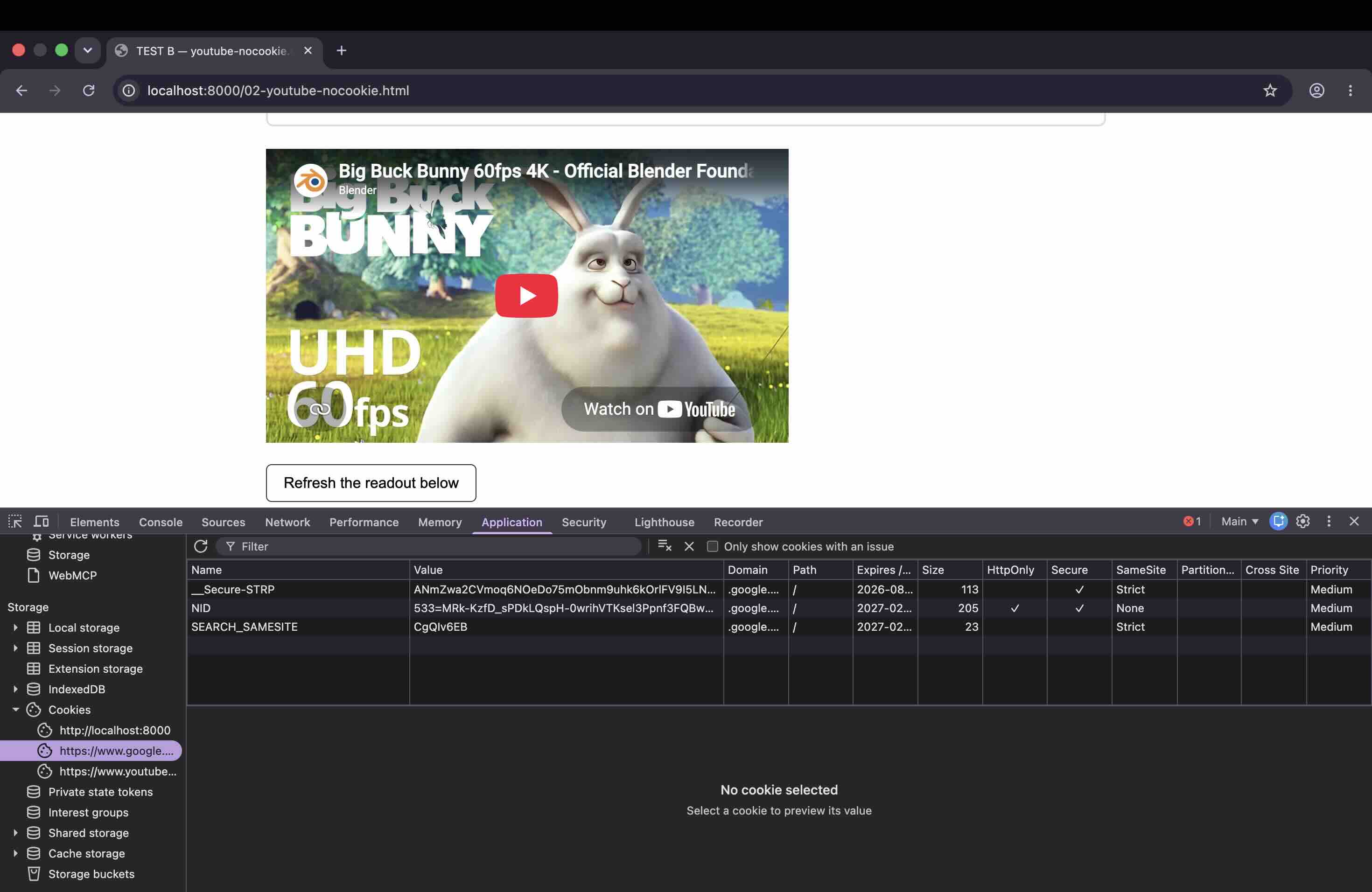
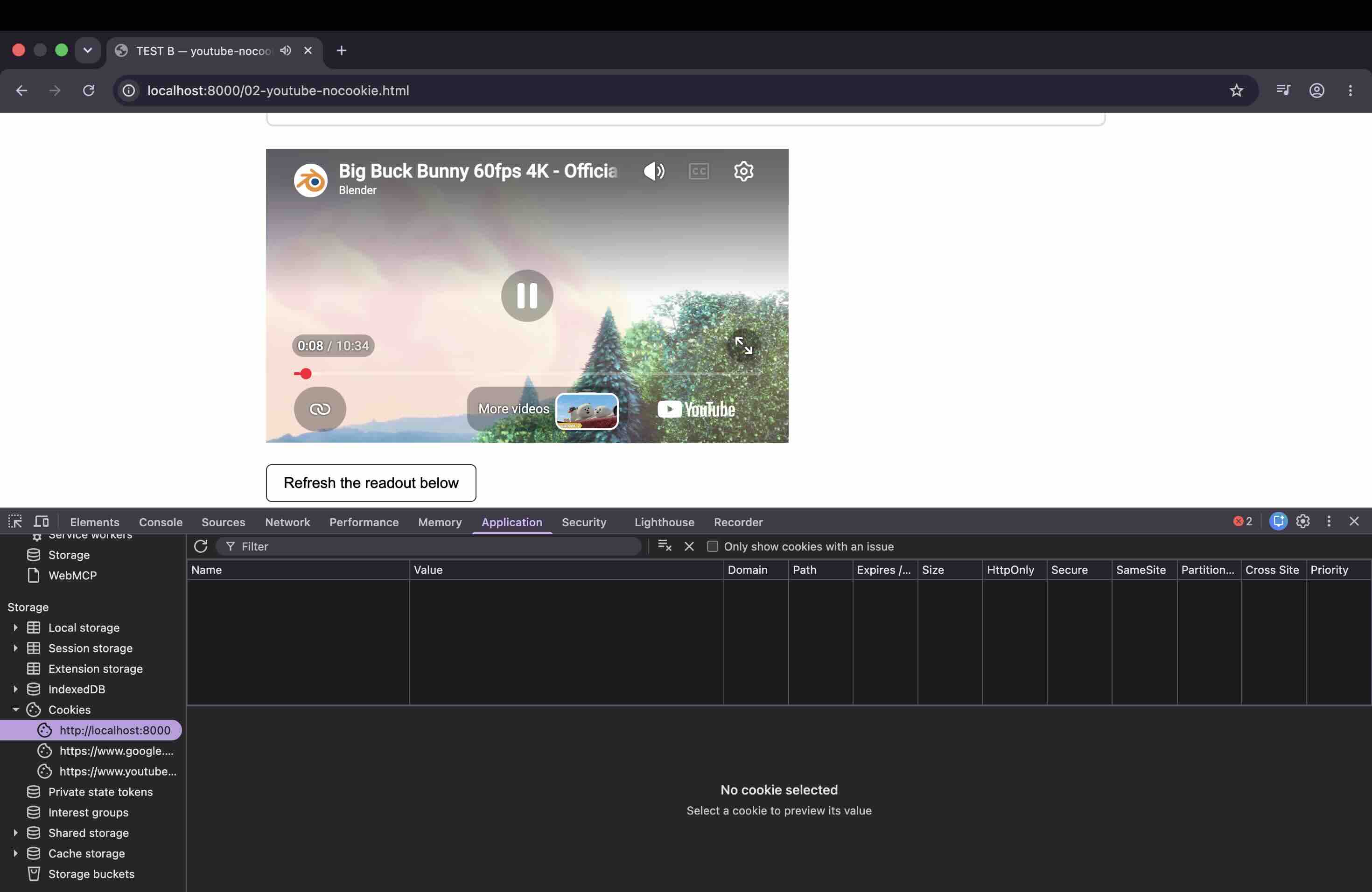
I built two identical pages, one with a standard youtube.com embed and one with youtube-nocookie.com, opened each in its own brand new Chrome profile with no extensions, and counted what appeared in the DevTools Application panel before touching the video.
Test conditions: Chrome 150.0.7871.187 (arm64), macOS 26.4.1, 6 August 2026. A separate fresh profile per test, zero extensions, pages served over localhost, page never reloaded. Not Incognito, because Incognito changes third party cookie behaviour and would give the wrong answer.
The result
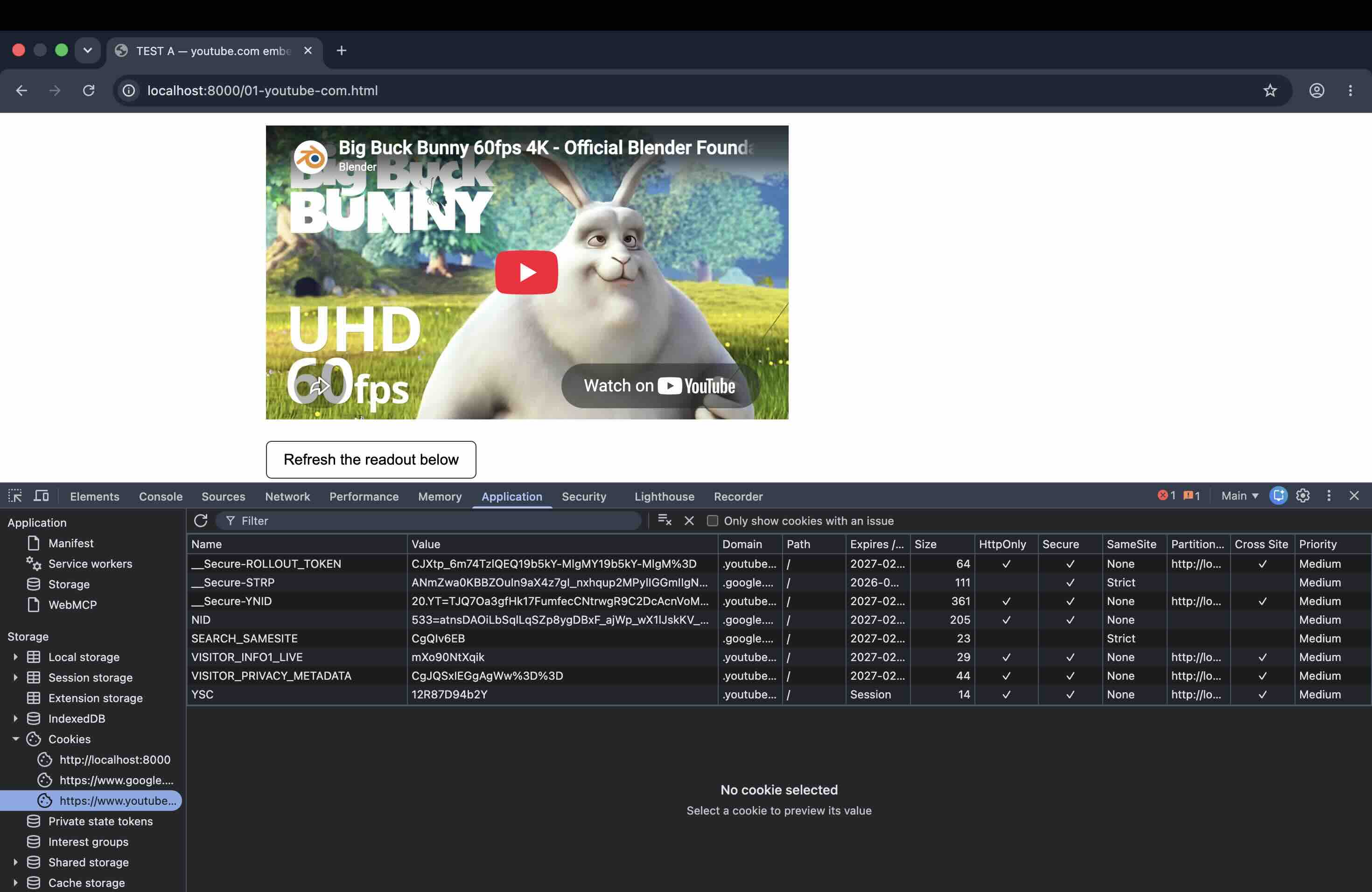
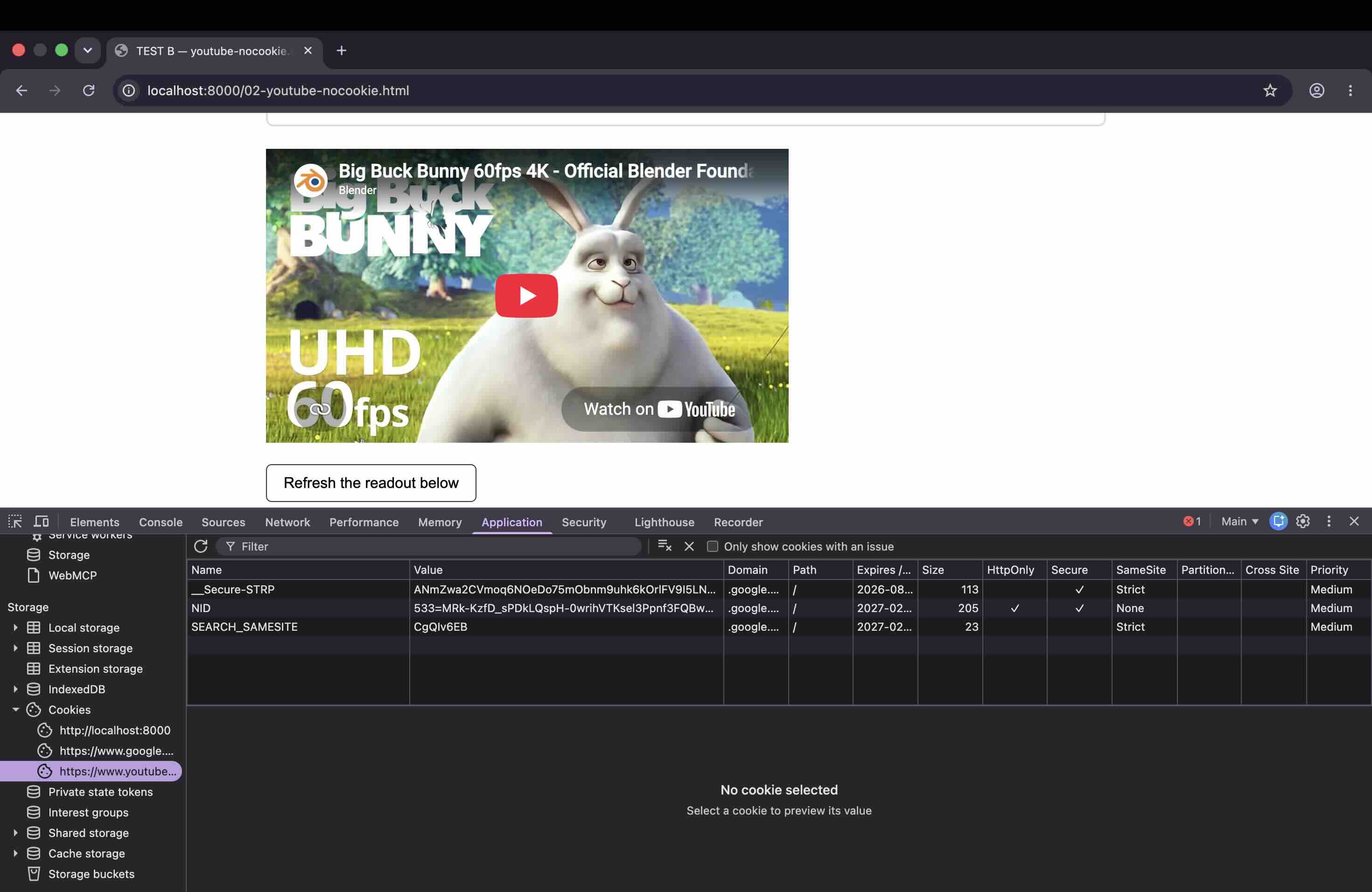
Cookies present on first load, video untouched:
| Cookie domain | youtube.com embed | youtube-nocookie.com embed |
|---|---|---|
| .youtube.com | 5 cookies | 0 cookies |
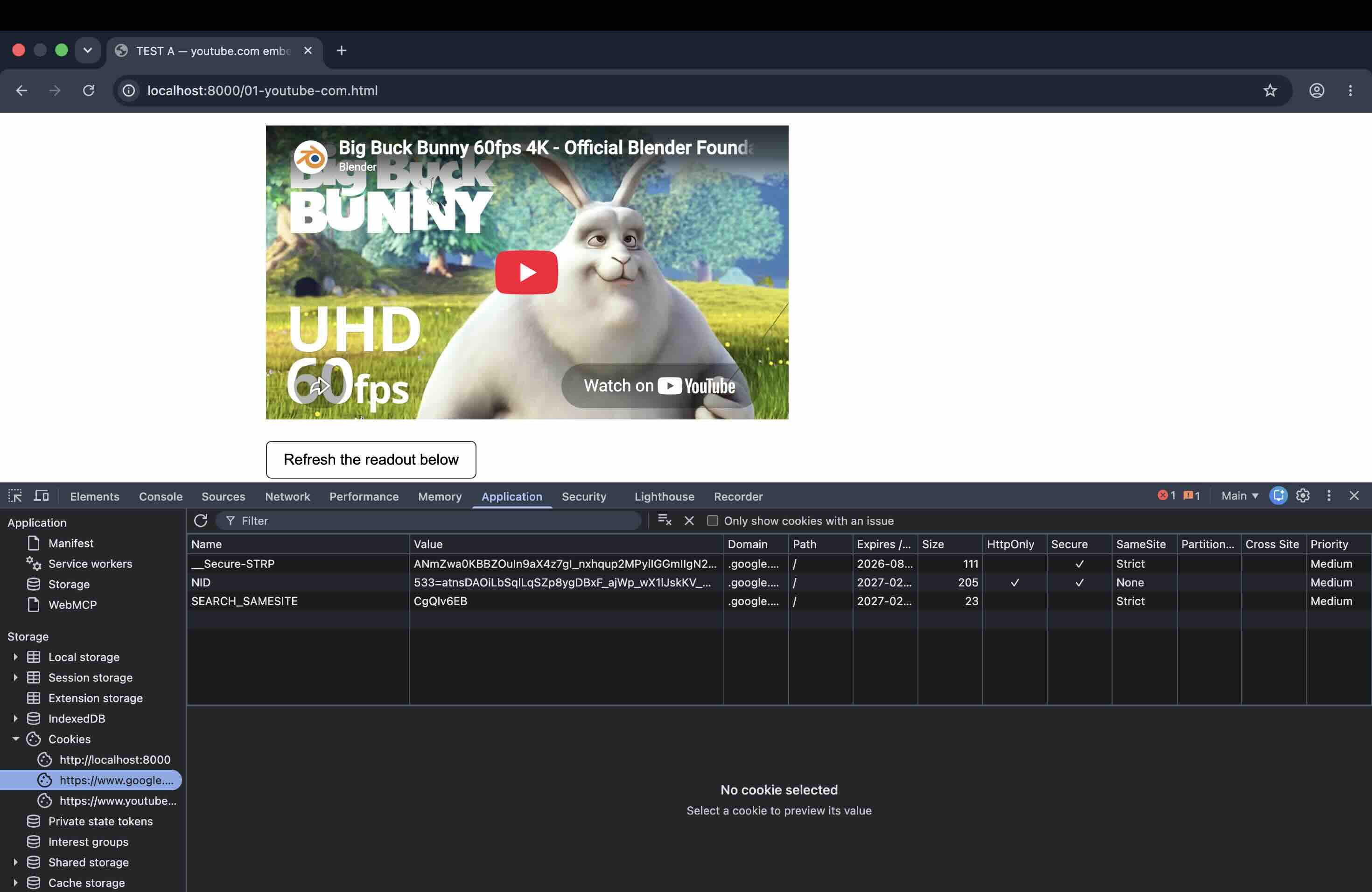
| .google.com | 3 cookies | 3 cookies |
The privacy enhanced embed is not cookie free. It writes three Google cookies before the visitor does anything at all: the same three, with the same names, that the standard embed writes. What it removes is the YouTube layer. Every .youtube.com identifier is simply absent.
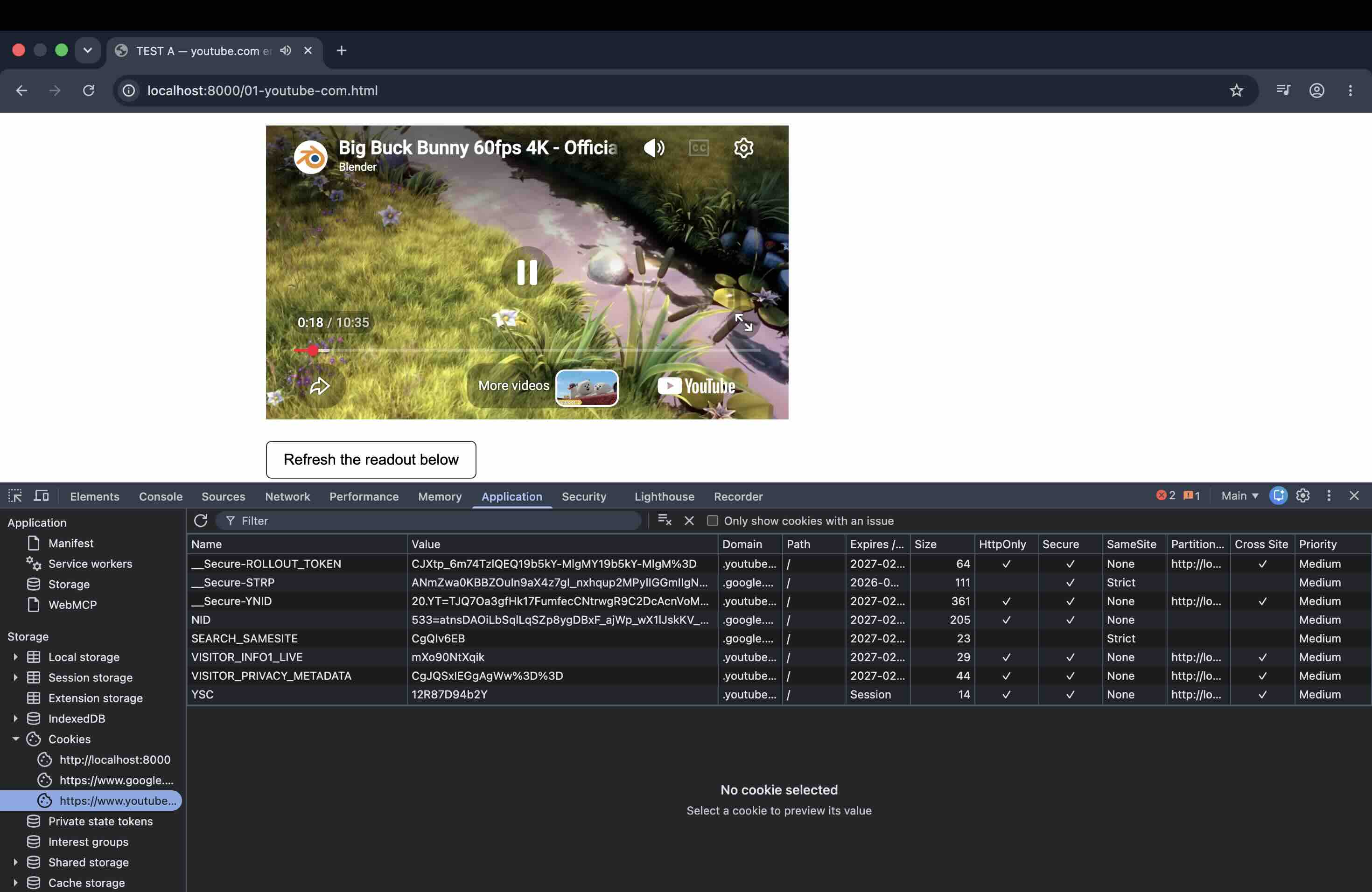
Playing the video changed nothing on either embed. I let each video run and refreshed the panel: every value was identical after playback, down to the session ID. Whatever each embed writes, it writes on load.
The five that disappear
Set by the standard embed before any interaction, and never present on the nocookie embed:
__Secure-ROLLOUT_TOKEN__Secure-YNIDVISITOR_INFO1_LIVEVISITOR_PRIVACY_METADATAYSC
All but YSC carry expiry dates into 2027. YSC is session scoped.
The three that remain
Both embeds set these, on .google.com:
__Secure-STRPNIDSEARCH_SAMESITE
On each fresh profile, NID arrived with a newly issued value. These are not leftovers from an earlier visit.
A note on counting
Chrome's Application panel groups cookies by frame, and the same cookie can appear under more than one node. Across two runs of the standard embed test the frame total varied between seven and eight rows depending on where Chrome filed __Secure-STRP, while the per domain counts stayed identical: five on .youtube.com, three on .google.com, every time. The domain breakdown is the reproducible measurement, so that is what this article reports.
What I am not claiming
Chrome shows a partition key on the .youtube.com cookies in the standard embed, meaning it scopes them to the embedding site rather than letting them follow a visitor across the web. So this is not "YouTube tracks you across the internet before you press play." I checked, and I am not going to overstate it.
I also cannot prove from a cookie table alone that the three Google cookies originate from the embed rather than some other browser level Google interaction. What I can say is that the host page set nothing of its own, the profile was new, and the embed was the only third party content on the page.
What this means for your site
If your page shows a consent banner, the standard embed has already written eight cookies by the time a visitor reads it. Switching to nocookie removes the five YouTube identifiers and leaves the three Google ones. That is a real reduction, not an elimination.
Use https://www.youtube-nocookie.com/embed/VIDEO_ID in place of https://www.youtube.com/embed/VIDEO_ID. Everything else about the embed code stays the same. If you need nothing at all written before consent, neither embed will do it, and you need a click to load facade instead. That option is covered in the performance section below.
One methodology note if you want to reproduce this: every measurement is first load, never reloaded, in a profile that had never visited the other test page. A refreshed page reads cookies already on disk and does not reproduce what a first time visitor triggers.
Why YouTube Belongs on Your Website
People search YouTube the way they search Google, which is the reason a video library is worth surfacing on your own site rather than leaving on a channel nobody visits twice. Video also carries things text struggles with: it demonstrates a product in use, it shows a process in sequence, and it puts a face to a claim. I have deliberately not attached an engagement percentage to that, because every figure I could find for it traces back to another blog post rather than to anyone who measured it.
Dual SEO benefit. When you embed YouTube videos on your website, you get two ranking opportunities: your videos can rank in YouTube search, and your web pages can rank in Google search. Pages with valid video schema markup are also eligible for video rich results, covered in detail in the schema section below. Your embedded YouTube content becomes a discovery mechanism that works across two separate search ecosystems.
Depth and trust. A three-minute product demo video on a product page answers questions that paragraphs of text never will. A customer testimonial video creates trust in ways that written quotes cannot replicate. Tutorial content positions your brand as helpful and educational rather than purely transactional.
Evergreen value. Unlike time-sensitive platforms like Twitter or TikTok, YouTube content ages well. A well-produced tutorial, product demonstration, or educational video can drive value for years. When you embed YouTube playlists on your website, that long-term value compounds: the content continues working for you without additional effort.
Synergy with Google ecosystem. If you're already embedding Google Reviews on your site, adding YouTube creates a cohesive Google-ecosystem presence. Both leverage Google's infrastructure, both contribute to local SEO (for local businesses), and both build different types of trust signals.
sync
What this shows
The animation illustrates how your YouTube playlists and channel uploads automatically flow into a branded video gallery on your website. Instead of visitors having to find your YouTube channel separately, your video library becomes embedded content that lives where your audience already is.
YouTube Playlists vs Individual Video Embeds
YouTube gives you two primary embedding options: individual videos and entire playlists. The right choice depends on your content strategy and business goals.
Individual Video Embeds
Embedding specific videos makes sense when you want precise control over what visitors see and when video content serves a specific page purpose. A product page with a single product demo video. A landing page with one testimonial video. A blog post with a supplementary explainer video.
The advantage is simplicity and focus: visitors get exactly the content you want them to see with no distractions. The disadvantage is manual maintenance, since you need to update the embed code every time you want to change the video.
Playlist Embeds
Embedding YouTube playlists makes sense when you want to showcase a collection of related videos that update automatically as you add new content. A "Customer Testimonials" playlist on your about page. A "Product Tutorials" playlist on your support section. A "Webinar Recordings" playlist on your resources page.
The advantage is automation: add a video to the playlist, and it appears on your website immediately without touching your site code. The disadvantage is less control, because the entire playlist displays, and you can't easily cherry-pick specific videos without maintaining multiple playlists.
Playlists can also rank independently in YouTube search results, providing additional discovery paths for your content.
Channel Feed Embeds
The third option, embedding your entire YouTube channel as a dynamic feed, works best when you publish video content regularly and want your website to automatically showcase your latest uploads. This requires a third-party aggregation tool rather than YouTube's native embed options, but provides the most automated, hands-off solution.
How I Embed a YouTube Feed with CollectSocials (Step by Step)
This is the method I use and the one I can show working, screenshot by screenshot, in the current dashboard. It took under five minutes from empty dashboard to a published widget pulling 50 videos. The other two methods, YouTube's own iframe and a responsive CSS wrapper around it, follow after this one.
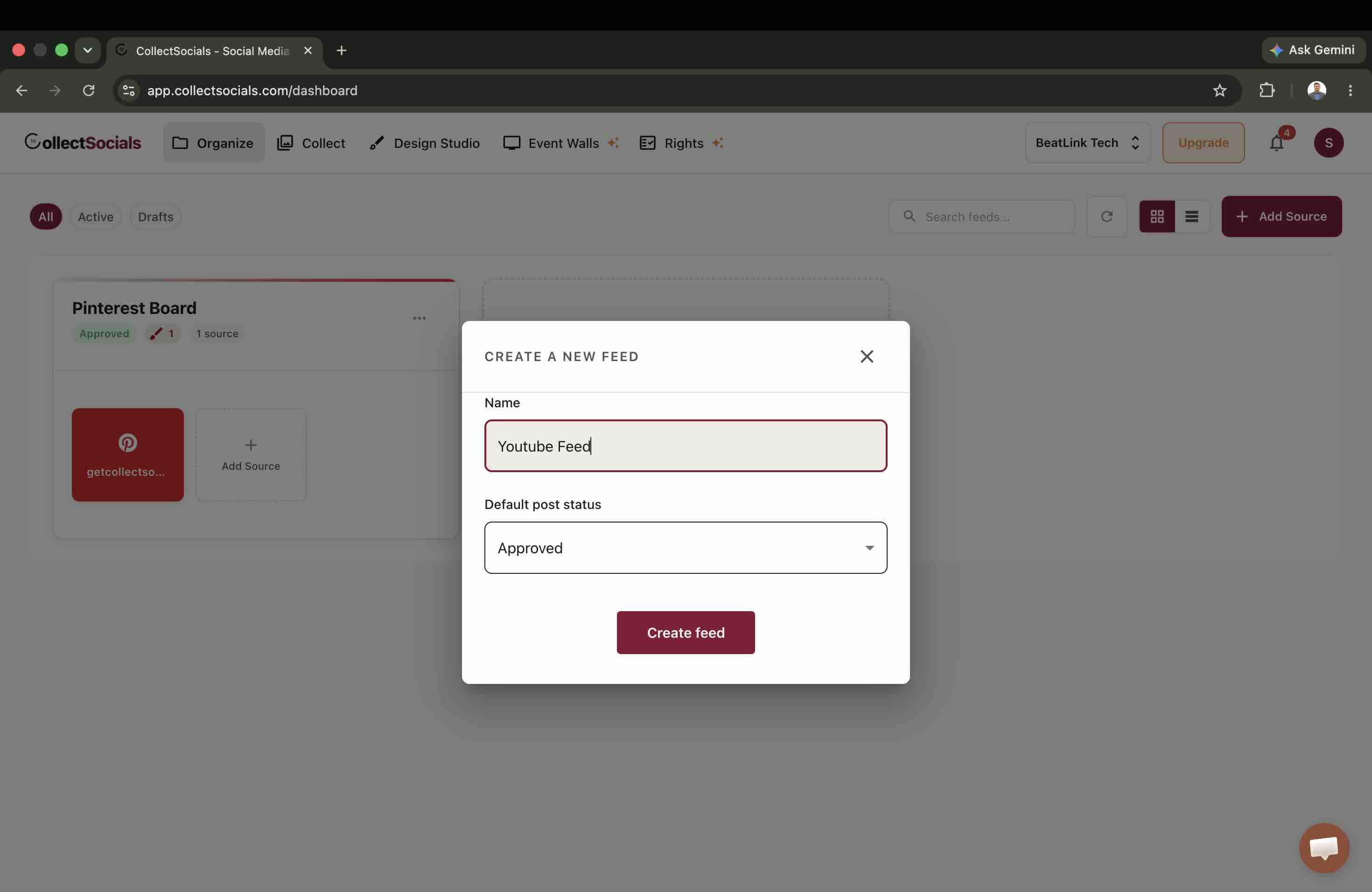
Step 1: Create a feed
From the dashboard, create a new feed and give it a name. The "Default post status" dropdown matters more than it looks: on "Approved", every new video goes live in your widget the moment it is collected, while "Pending" holds each one for review first. For a channel you own, Approved is usually right. For anything you do not control, start with Pending.
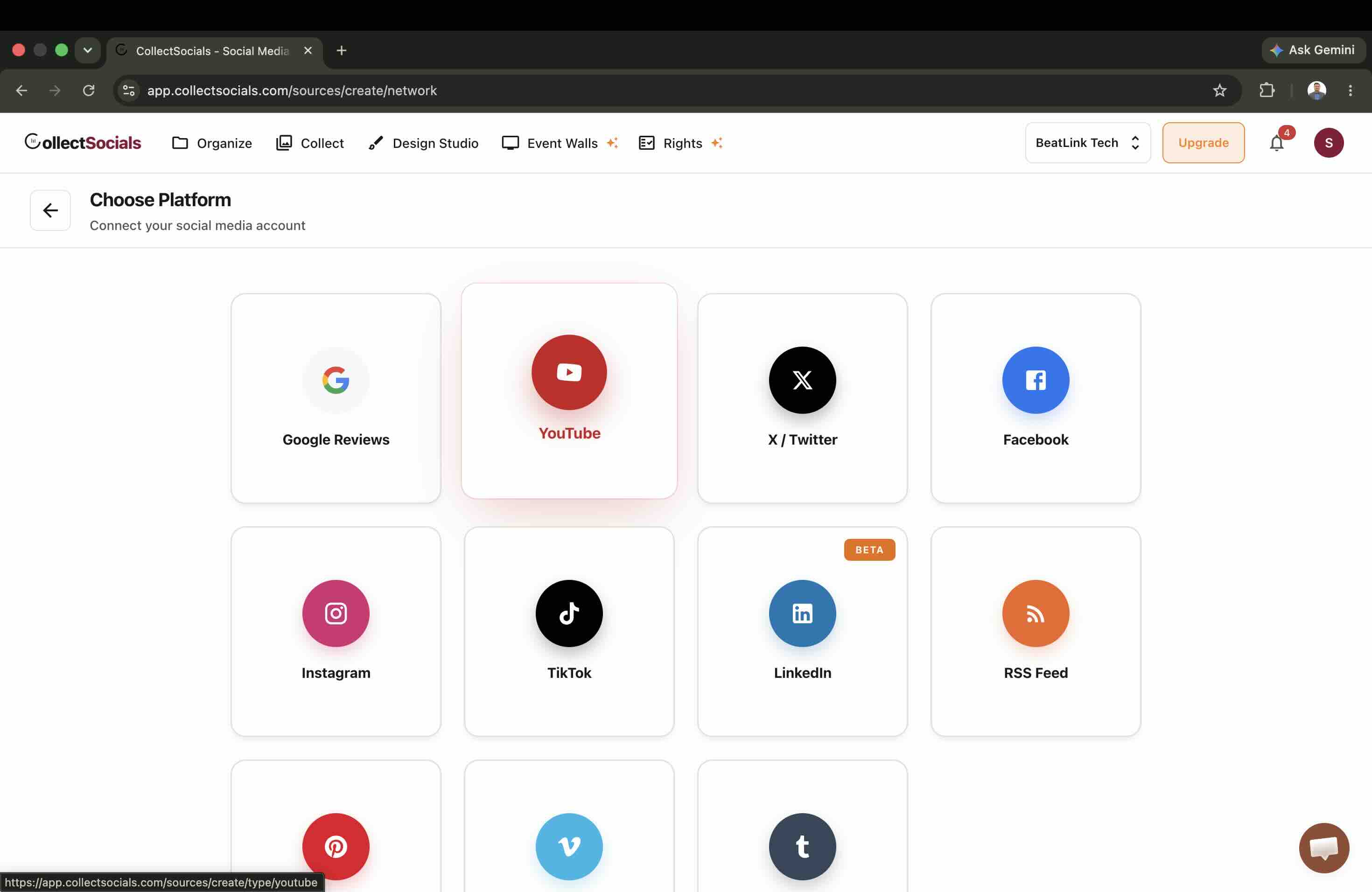
Step 2: Pick YouTube as the source
Add a source and choose YouTube from the platform grid. No OAuth login is needed for public YouTube content, so there is no account connection step here, unlike Instagram or Facebook sources.
Step 3: Choose the content type
YouTube offers two source types. "Channel / Playlist" is an auto updating feed: new uploads appear in your widget without touching your site. "Custom Feed" is a fixed list of specific video URLs you paste in, useful for a hand picked showcase that never changes on its own. The walkthrough below follows the channel path, because it is the one most people want first. The custom feed is worth a section of its own, and gets one after step 7.
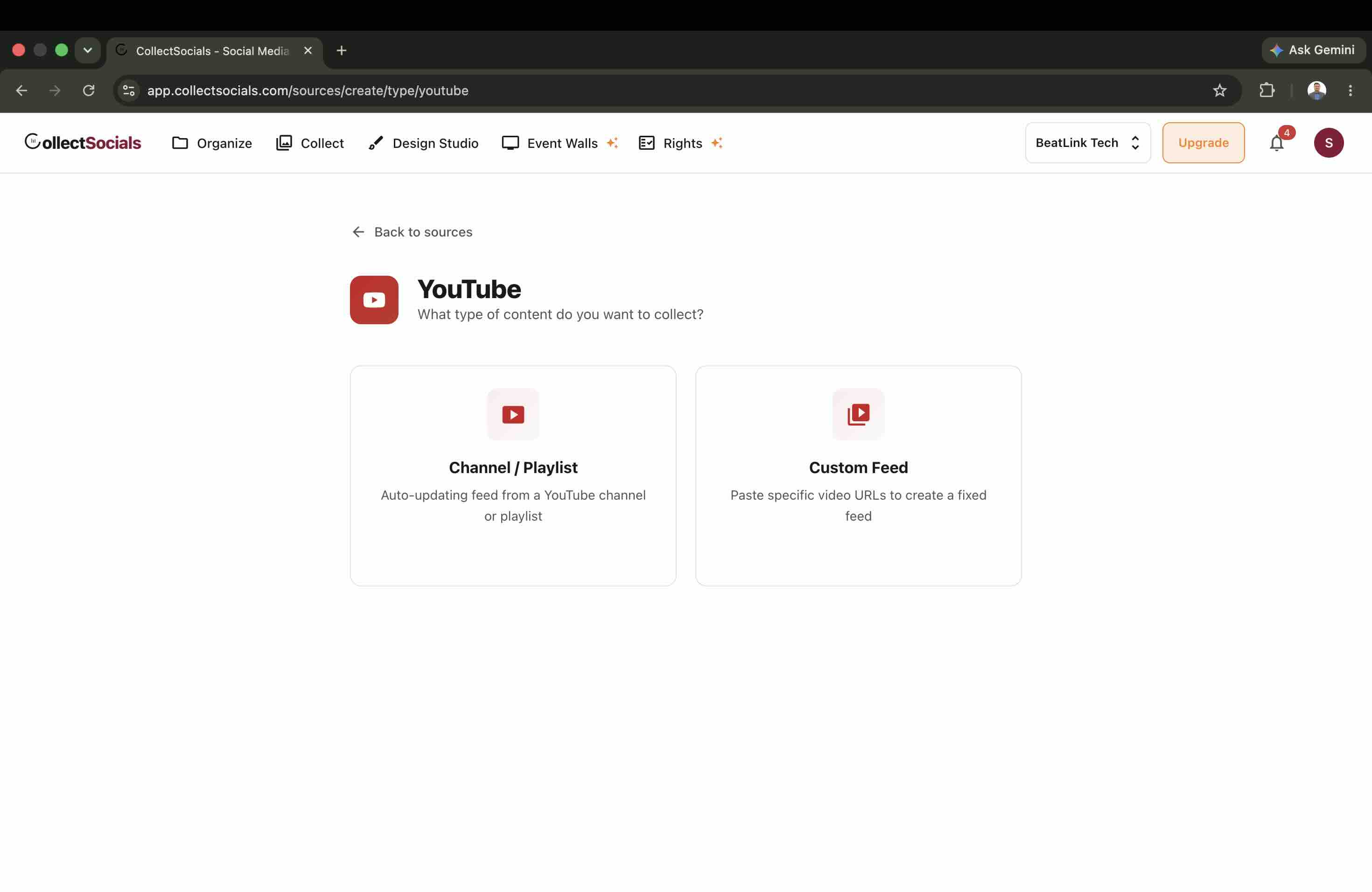
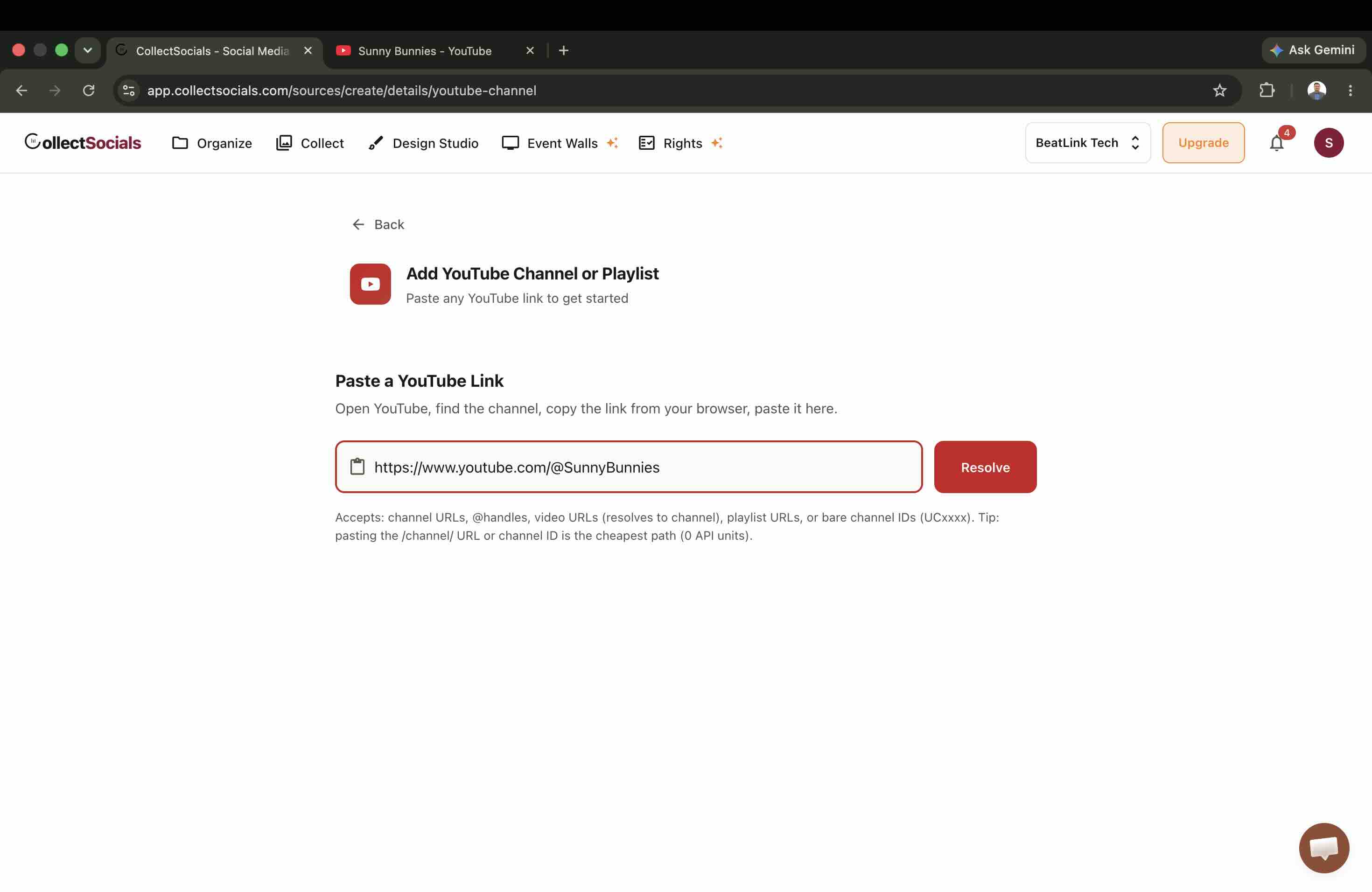
Step 4: Paste any YouTube link
The resolver accepts channel URLs, @handles, video URLs (it resolves them to the channel), playlist URLs, or bare channel IDs. A detail I appreciated as someone who watches API quotas: pasting the /channel/ URL or the channel ID directly is the cheapest path, because the ID is read straight out of the URL. It costs one quota unit for the confirmation lookup, against the two an @handle or a video URL needs.
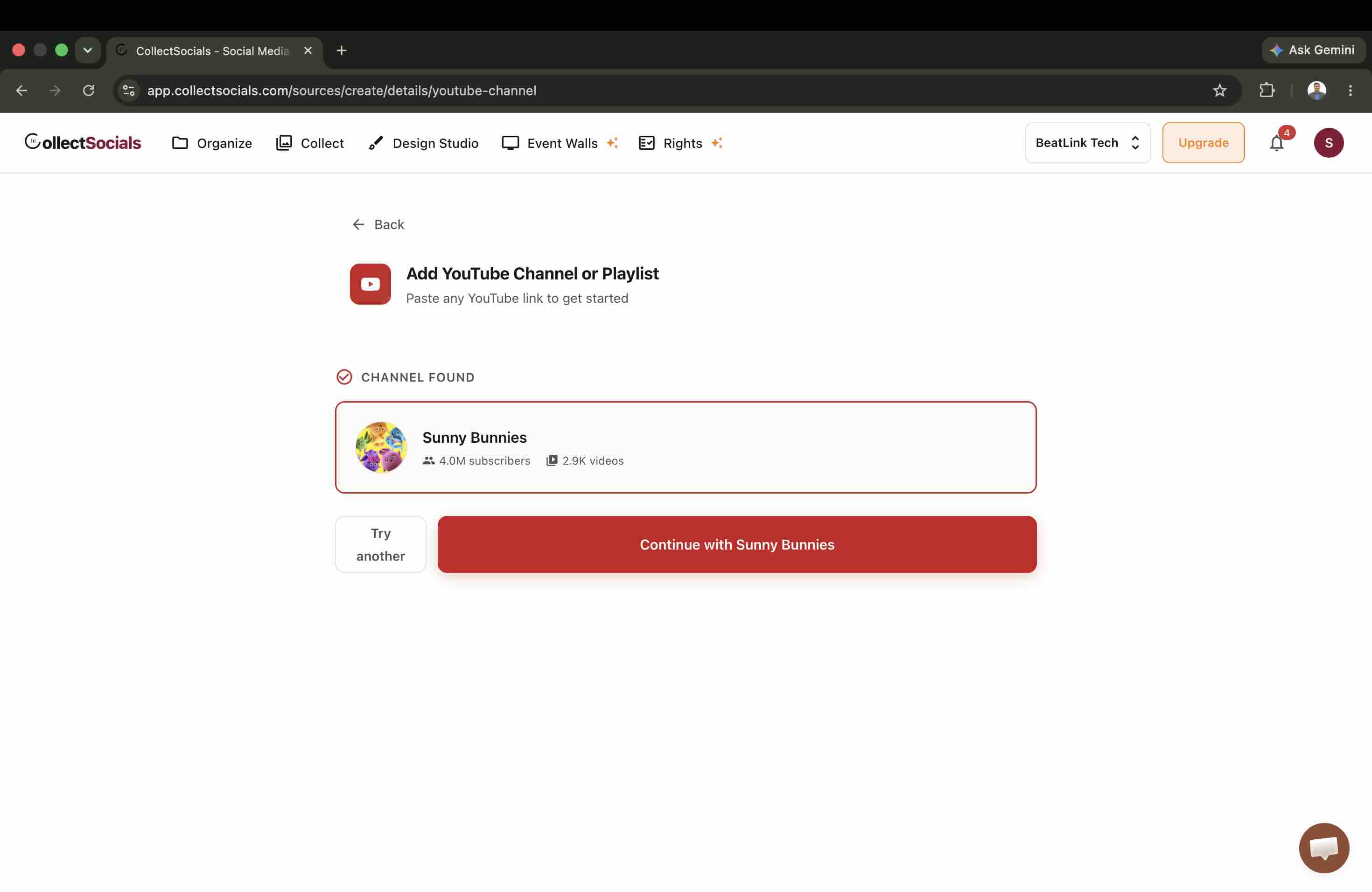
Resolve looks the channel up and shows what it found before anything is saved, with subscriber and video counts so you can confirm it is the right channel and not a fan account with a similar name.
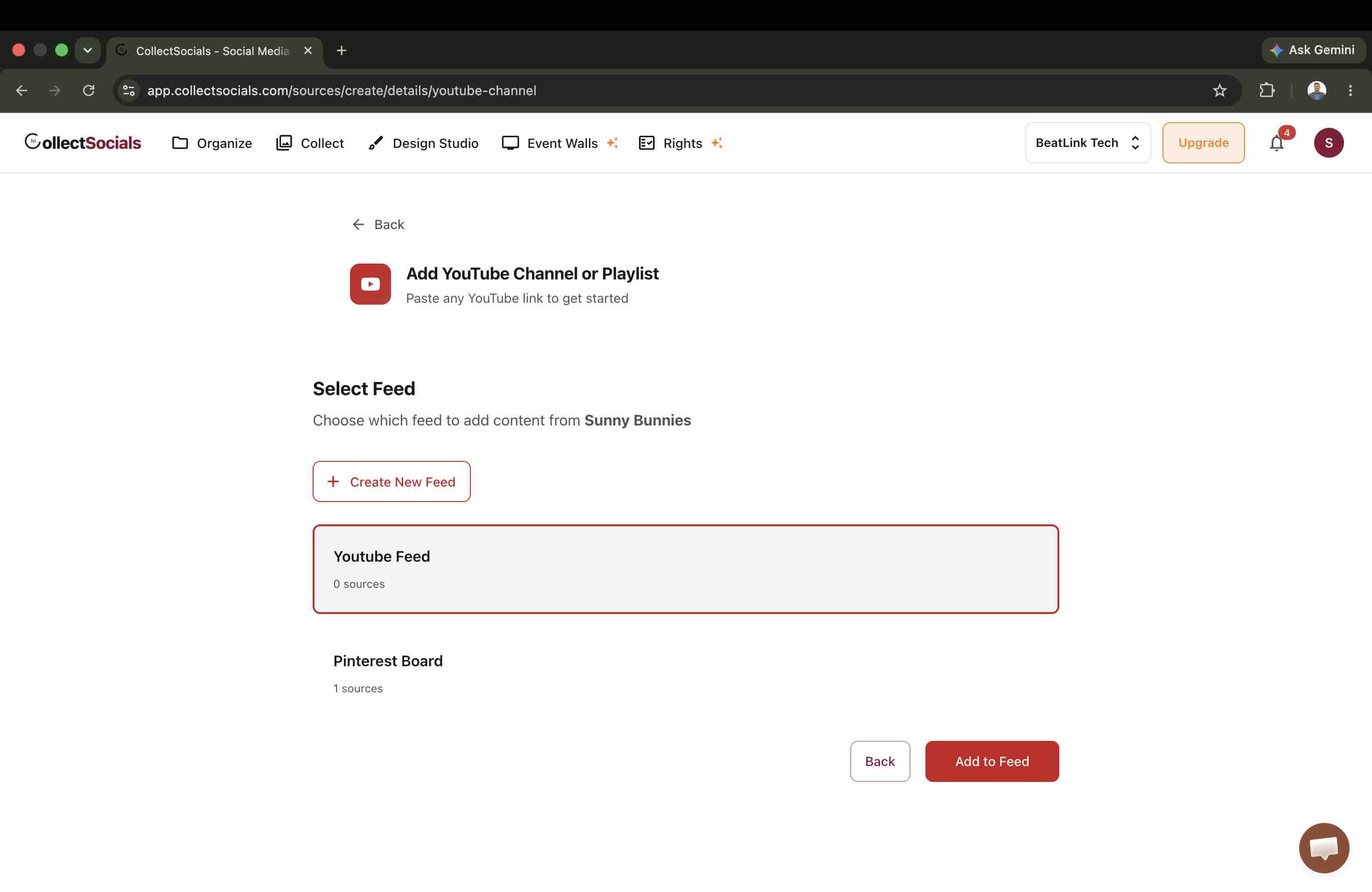
Step 5: Attach it to your feed
Pick which feed receives the channel's videos. Sources and feeds are separate objects, so one feed can hold several channels, or a channel plus a Pinterest board, and the widget renders them together.
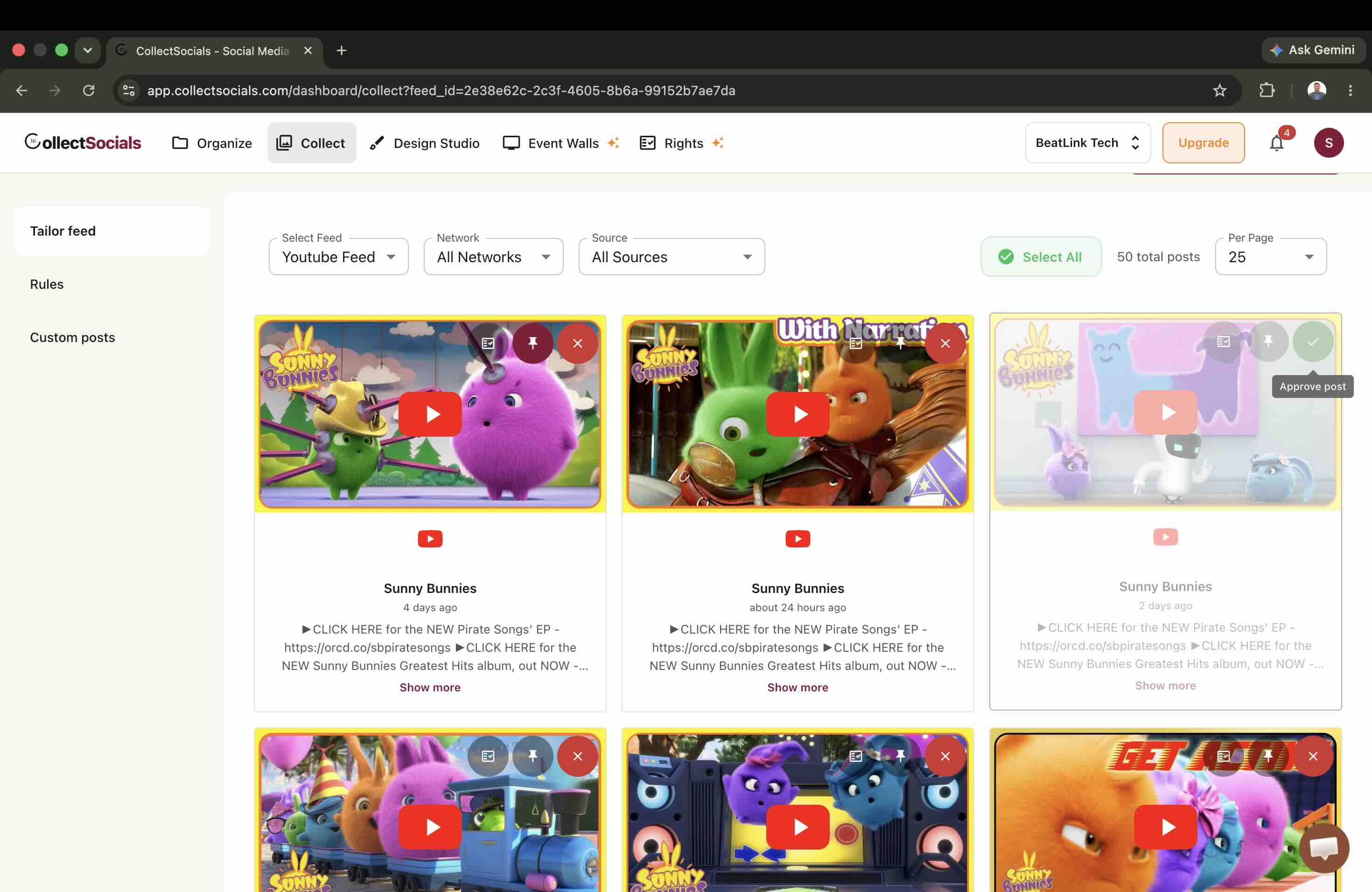
Step 6: Moderate on the Collect page
Within a minute the Collect page filled with the channel's recent videos, 50 in my run. Each card carries its own approve, pin and reject controls, so curation is per video: approve the ones you want live, pin the ones that should always lead, reject anything off topic. The Rules tab automates this for future videos, and Custom posts lets you insert your own cards into the stream.
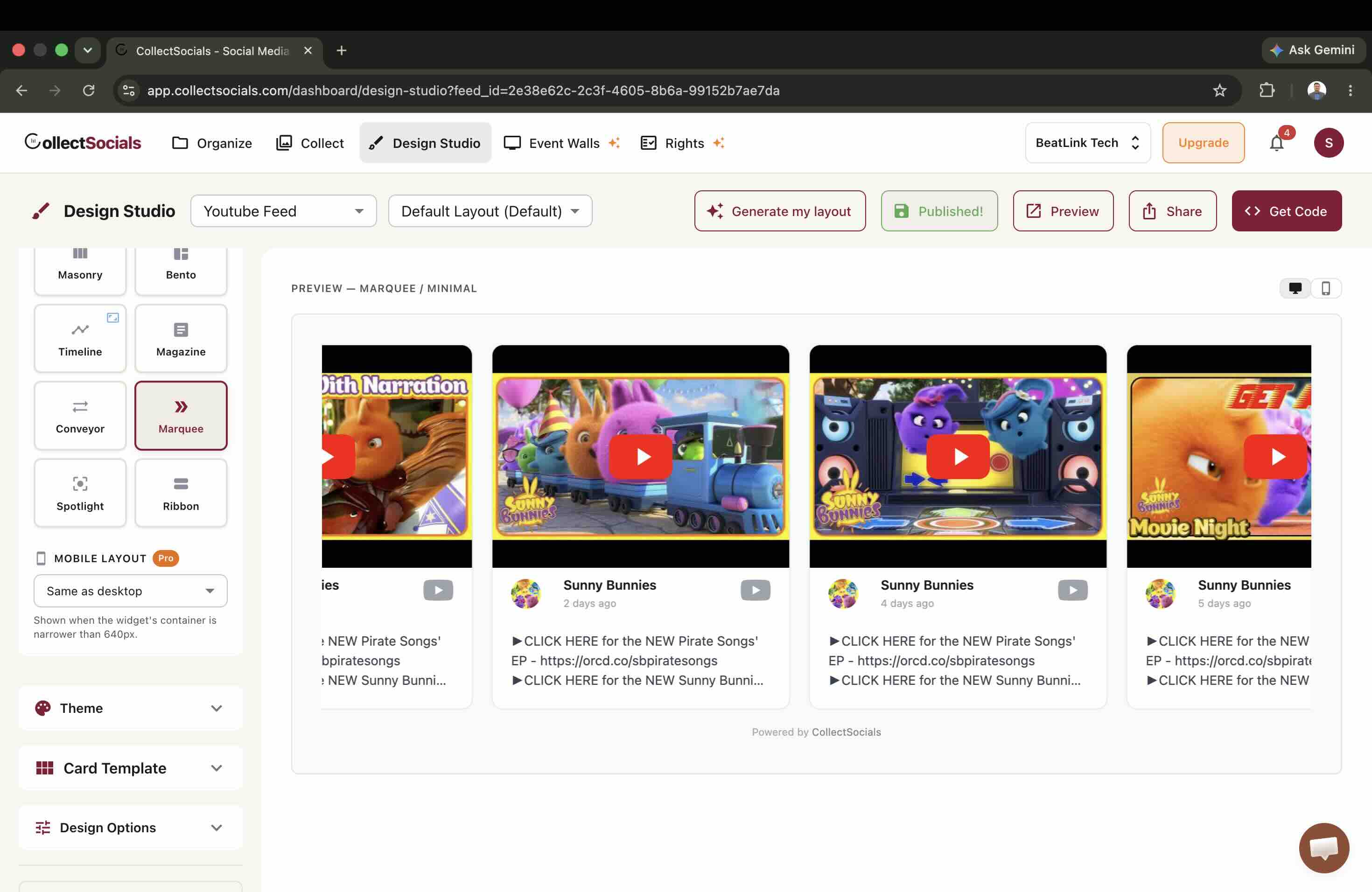
Step 7: Design, share for sign off, publish
Design Studio renders the real widget against your real feed while you pick the layout (Grid, Masonry, Carousel, Marquee and others), theme, and card template, with a separate mobile layout option for narrow screens. Three buttons in the toolbar matter at this point. Preview opens the widget as visitors will see it. Share produces a link you can send to a teammate or client so they can review the design and sign it off before anything goes live, which is worth using on client work: approval first, publish second. Get Code hands you the embed snippet for your site.
Get Code asks one question before it hands you anything: where are you installing this? Answer it honestly, because the answer changes the payload. Plain HTML, WordPress, Webflow and React get a script tag, and that is the version people mean when they say "one snippet". Shopify gets the same script inside a page-width wrapper, so a theme's flex rules cannot squash the feed into a column. Wix and Squarespace get a self-resizing iframe instead, on every plan, because Wix sandboxes custom HTML and Squarespace strips <script> out of a Code Block on its lower tiers. Notion and Google Sites cannot run a script at all, so they get a bare URL to embed rather than any markup.
The widget lazy loads its media and handles responsive sizing on all of them. Style isolation is the one thing that differs: on the script platforms the feed renders inside a Shadow DOM, so your site's CSS and the widget's CSS cannot leak into each other, and on the iframe platforms the frame boundary does the same job more strictly still.
Building a custom feed from videos you pick yourself
The second source type is the one I reach for when the goal is a specific set of videos rather than a channel's output. Choose "Custom Feed" at step 3 and you get a single text box. Paste video links into it, one per line, comma separated or space separated, and a counter under the box reads back how many valid videos it found as you type. Confirming lists the first five IDs back before the source is created, so a bad paste is visible while it is still cheap to fix.
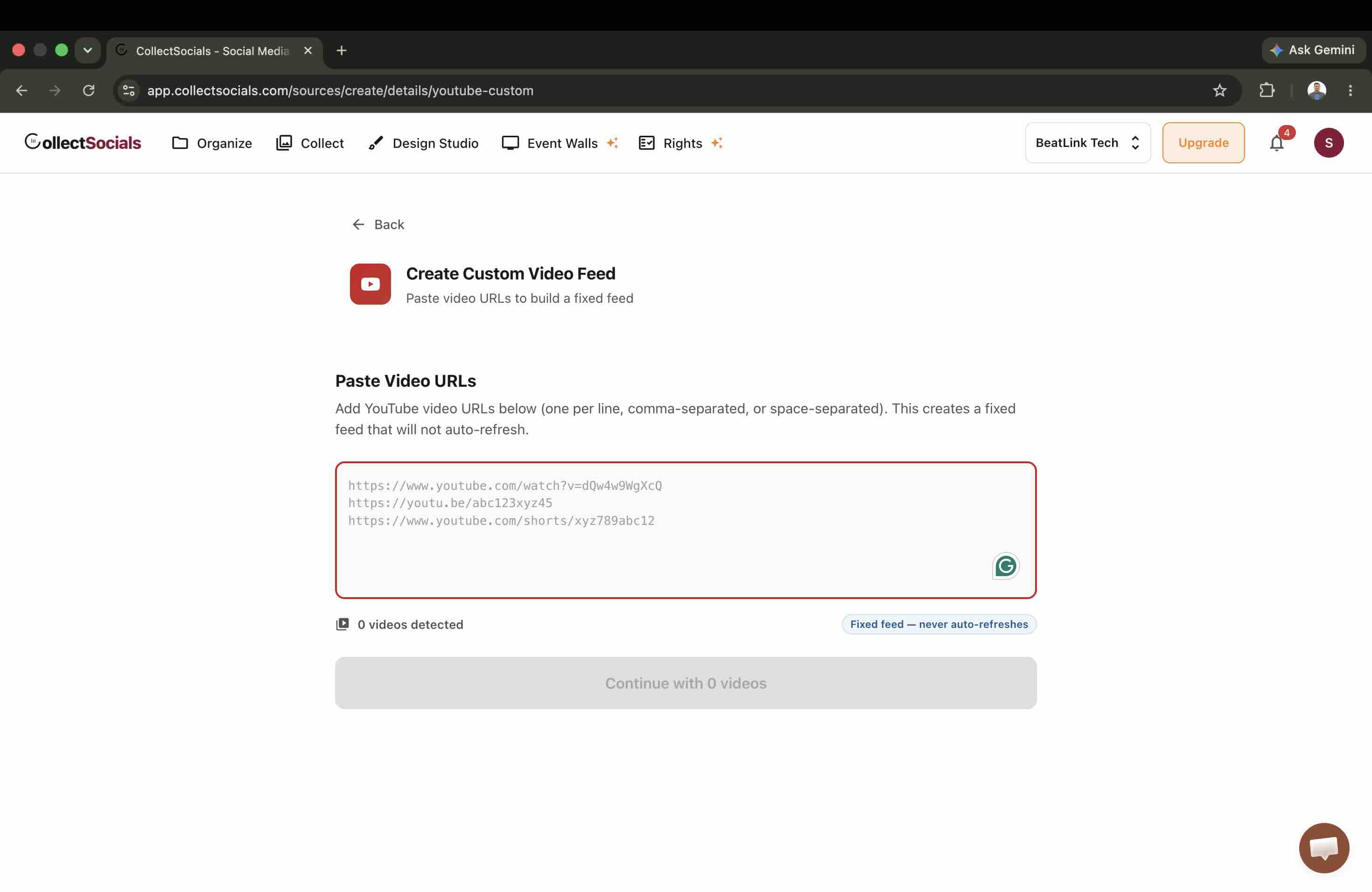
It is deliberately forgiving about what you paste, and the placeholder text above is not the whole list. Standard watch?v= links, youtu.be short links, /embed/ URLs, Shorts links and bare eleven character video IDs all parse, mixed together in the same box, and duplicates are collapsed rather than added twice. That matters more than it sounds: it means you can gather links however you normally gather them, paste the lot, and let the parser sort it out.
The important part is what it does not require. The videos do not have to be yours, they do not have to share a channel, and there is no YouTube account or playlist involved anywhere. A conference organiser can build one feed from twelve different speakers' channels. A shop can collect the review videos customers posted about its product across a dozen unrelated accounts. Nothing needs to be published on a YouTube channel to make that list exist.
The honest comparison: YouTube will let you do a version of this natively, by adding other people's public videos to a playlist on your own channel and embedding that playlist. The differences are that the playlist is a public object on your channel, it renders in YouTube's player rather than your design, and it cannot share a feed with anything that is not a YouTube video. A custom feed here is private to your site, renders in whatever layout and theme you picked, and can sit in the same feed as your Instagram posts or Google reviews, with the same per video approve, pin and reject controls from step 6.
Two things to know before you build one. It is static by design: the list is excluded from the automatic refresh that channel sources get, so it holds exactly the videos you chose until you edit it, which is the entire point of choosing it over a channel. And it is quota cheap, because pulling the IDs out of your pasted text is pure string parsing and costs no API units at all. Only the fetch that hydrates titles, thumbnails and durations touches the API, at one unit per fifty videos.
Designing your video gallery
The animation cycles through layout options optimized for video content: grid thumbnails for browsing large libraries, carousels for featured playlists, and list views for educational series. Each layout adapts responsively across desktop, tablet, and mobile screens.
The Native Alternatives: Embedding Without a Widget
If you only need one playlist in one place and design control does not matter, YouTube's own embed works and costs nothing. Two ways to do it properly.
Method 2: Native YouTube Playlist Embed (Simplest)
YouTube provides a basic embed code for playlists directly through the platform. Navigate to your playlist, click "Share," then "Embed," and copy the provided iframe code. This gives you a functional playlist player that works immediately.
The code looks like this:
<iframe
  width="560"
  height="315"
  src="https://www.youtube.com/embed/videoseries?list=PLAYLIST_ID"
  frameborder="0"
  allow="accelerometer; autoplay; clipboard-write; encrypted-media; gyroscope; picture-in-picture"
  allowfullscreen>
</iframe>
Replace PLAYLIST_ID with your actual playlist ID (found in the YouTube URL after list=). Based on the cookie test at the top of this article, I would swap the src domain for youtube-nocookie.com: same player, five fewer identifiers written before consent.
Pros: Free, instant, no third-party dependencies, officially supported by YouTube.
Cons: Limited customization (YouTube's default player styling), performance impact (no built-in lazy loading), manual width/height configuration for responsive design. And there is no native channel feed embed at all: a channel that should update your site automatically needs an aggregation tool.
Method 3: Responsive CSS Wrapper (Better)
To make YouTube's native embed responsive (automatically adjusting to different screen sizes), wrap the iframe in a CSS container with a 16:9 aspect ratio lock.
<div class="video-container">
  <iframe
    src="https://www.youtube-nocookie.com/embed/videoseries?list=PLAYLIST_ID"
    frameborder="0"
    loading="lazy"
    allow="accelerometer; autoplay; clipboard-write; encrypted-media; gyroscope; picture-in-picture"
    allowfullscreen>
  </iframe>
</div>

<style>
.video-container {
  position: relative;
  padding-bottom: 56.25%; /* 16:9 aspect ratio */
  height: 0;
  overflow: hidden;
}
.video-container iframe {
  position: absolute;
  top: 0;
  left: 0;
  width: 100%;
  height: 100%;
}
</style>
This approach ensures your playlist embed looks good on mobile, tablet, and desktop without manual resizing. Add loading="lazy" to the iframe for better performance.
Aggregation tools connect to YouTube through the YouTube Data API v3 rather than the iframe player, which is what makes channel feeds, moderation and custom design possible. If you build against that API yourself, mind the quota note above.
Performance: The YouTube Embed Problem You Can't Ignore
Here's the uncomfortable truth: a standard YouTube embed is terrible for page performance. A single embedded video pulls in the full player stack of JavaScript, CSS, fonts and tracking scripts across requests to multiple Google domains, and as my cookie test at the top of this article showed, all of it happens on load, before the visitor even clicks play.
For a website trying to maintain good Core Web Vitals scores, which Google counts as a ranking signal, this is a problem. Embedding several videos on one page without optimization is among the quickest ways to push Largest Contentful Paint into the "poor" band, because the player stack competes with your own content for bandwidth and main-thread time before a visitor has asked for any of it. For the full playbook, see our guides on keeping your website fast while running live social feeds and social feed page-speed optimization.
The performance cost of YouTube embeds
The card shows the three Core Web Vitals (LCP, INP and CLS) with a toggle between a before and an after state. The ring values are illustrative rather than measured; what matters is the direction. A standard YouTube iframe pulls a heavy stack of resources before the visitor clicks play, and lazy loading or a facade defers that work until it is actually needed.
Solution 1: Lazy Loading with Native HTML Attributes
The simplest performance optimization is adding loading="lazy" to your YouTube iframe. This tells the browser to only load the video when it's about to enter the viewport, not immediately on page load.
<iframe
  src="https://www.youtube-nocookie.com/embed/VIDEO_ID"
  loading="lazy"
  frameborder="0"
  allow="accelerometer; autoplay; clipboard-write; encrypted-media; gyroscope; picture-in-picture"
  allowfullscreen>
</iframe>
Chrome, Edge, and other modern browsers support this natively. It costs one attribute and defers the entire player stack for any embed that sits below the fold, which on a typical page is most of them. One honest caveat from my own testing: lazy loading changes when the embed loads, not what it loads. Once the iframe enters the viewport, the full player and its cookies arrive exactly as measured above.
Solution 2: Facade Pattern (Click-to-Load)
A more aggressive optimization strategy is the facade pattern: instead of embedding the actual YouTube iframe on page load, you show a lightweight placeholder, typically a thumbnail image and a play button. When the visitor clicks the play button, the actual YouTube embed loads.
This approach cuts the initial cost of the embed to a single thumbnail image, because nothing from YouTube loads until the click. It is also the only pattern that passes the consent test from my cookie experiment: with a facade, zero cookies are written before the visitor chooses to play, which neither youtube.com nor youtube-nocookie.com embeds can offer. The tradeoff is no autoplay, and one extra click before the video starts.
For most business websites, this tradeoff is worth it. The technique is credible enough that Google's own engineers describe using facade style deferral to speed up YouTube's web app in their Building a Better Web series.
Solution 3: A Widget That Defers the Player by Default
The facade above is a pattern you build. A feed widget is the same pattern already built, applied to a whole library rather than one video. In CollectSocials a card is a still thumbnail and a play button until someone clicks it, so a visitor who scrolls past your video gallery without playing anything never loads a YouTube frame, and never collects the cookies measured at the top of this article. The full setup is the step by step walkthrough above.
Two architectural details are worth knowing because you can check both in DevTools in under a minute, which is more than can be said for most performance claims. The embed is one script file that injects nothing further, so there is no cascade to wait on. And the widget itself sets no cookies and no client-side storage of any kind, which keeps the feed out of consent-banner scope entirely even though the videos inside it come from YouTube.
Responsive sizing, aspect ratios and lazy loading are handled for you. On any paid plan the feed's own views, clicks and top-performing posts come back in the reports dashboard, so the engagement question in the tracking section below is partly answered without a separate analytics build; the free plan gets the basic dashboard.
One pasted video versus an auto-updating gallery
The animation puts YouTube's native embed beside a CollectSocials gallery. On the left sits a single static video labelled "1 video"; on the right, six thumbnails (Demo, Review, Tutorial, Launch, BTS and Live) with a view counter ticking up and an auto-updating badge. That is the gap this section describes: one video you paste by hand, against a gallery that fills itself as you publish.
SEO Benefits: Video Schema Markup Done Right
Embedding YouTube videos unlocks significant SEO opportunities beyond just adding video content to your pages. When implemented with proper schema markup, videos can generate rich results in Google search: video thumbnails, duration information, and upload dates directly in search results. This is part of the broader SEO case for aggregating social content on your own domain.
VideoObject Schema Implementation
To get rich video snippets in search results, you need to add VideoObject structured data to pages containing YouTube embeds. This tells Google exactly what the video is about, how long it runs, when it was published, and where to find the thumbnail.
<script type="application/ld+json">
{
  "@context": "https://schema.org",
  "@type": "VideoObject",
  "name": "Your Video Title",
  "description": "Your video description",
  "thumbnailUrl": "https://img.youtube.com/vi/VIDEO_ID/maxresdefault.jpg",
  "uploadDate": "2026-05-06T08:00:00+08:00",
  "duration": "PT2M30S",
  "contentUrl": "https://www.youtube.com/watch?v=VIDEO_ID",
  "embedUrl": "https://www.youtube-nocookie.com/embed/VIDEO_ID"
}
</script>
embedUrl should be the player URL the page actually loads, so if you took the swap from the cookie test above, it is the nocookie one here too. contentUrl is the watch page and stays on youtube.com.
Google indexes this markup and can display your page with enhanced video snippets in search results. Pages carrying valid VideoObject markup are eligible for video rich results and the Videos tab, which pages without it are not. That is an eligibility difference, not a guaranteed traffic gain.
Playlists and SEO
YouTube playlists themselves can rank in YouTube search results independently of individual videos. When you create well-organized, thematically consistent playlists and embed them on relevant pages of your website, you create two ranking opportunities: the playlist can rank in YouTube search, and the webpage can rank in Google search.
Best practice: name your playlists descriptively and keyword-consciously. "Product Demos for [Your Product Name]" is better than "Videos." "Complete Guide to [Topic]" is better than "Tutorial Series." The playlist title and description become ranking factors.
Layout Options: Grid vs Carousel vs Sidebar Playlist
How you display YouTube content affects both user experience and conversion rates. Different layouts serve different purposes.
Grid Layout
A grid of video thumbnails (typically 3-4 columns on desktop, 1-2 on mobile) works well when you want to show many videos at once and let visitors browse visually. This layout maximizes content density and works well for educational content libraries or extensive tutorial collections.
Best for: resource pages, video libraries, tutorial sections, blog sidebars.
Carousel/Slider Layout
A horizontal carousel that lets visitors scroll through videos one at a time (or in small groups) works well when you want to feature specific content without overwhelming the page. It's more visually clean than a grid and directs focus to individual videos.
Best for: homepage features, product page testimonials, about page highlights.
Sidebar Playlist
A vertical sidebar showing a playlist (often with small thumbnails and titles) mimics YouTube's native interface. This layout works when visitors are watching one primary video and you want to suggest related content without leaving the page.
Best for: detailed product pages, blog posts with supplementary videos, dedicated video pages.
List Layout
A simple vertical list of videos (thumbnail, title, description) emphasizes text information over visual browsing. This layout works well for professional or B2B contexts where video titles and descriptions matter as much as thumbnails.
Best for: educational institutions, B2B companies, professional services, technical documentation.
Strategic Placement: Where YouTube Works Best
Embedding YouTube content on every page of your website serves no purpose. Strategic placement means matching video content to visitor intent and page goals, the same placement thinking we cover in depth for where to place a social feed on your website.
Where to place a feed on a page
The animation drops three feed placements onto a wireframe of a site and labels the intent behind each: a feed below the homepage fold to build trust before the call to action, a customer-content feed on a product page, and a behind-the-scenes feed on an about page. It uses Instagram cards to show the shape, and the placement logic is the same one this section applies to video: put the feed where a visitor has already asked the question it answers.
Product pages: Product demonstration videos, unboxing videos, and how-to-use tutorials belong on product pages. Place them below the main product description but above reviews or related products. Visitors who have scrolled this far are interested; video content answers detailed questions and builds confidence.
Support and help pages: Tutorial playlists, troubleshooting videos, and FAQ explanations work exceptionally well on support pages. Video often explains complex processes more effectively than text. Embed a playlist of your most-watched support videos and let visitors self-serve.
About and culture pages: Behind-the-scenes videos, team introductions, and company culture content humanizes your brand on About pages. This is one of the few contexts where above-the-fold video placement makes sense, because visitors on your About page explicitly want to learn about you.
Blog and resource pages: Embed relevant YouTube videos inline within blog posts or as a sidebar widget on resource pages. If you're writing about a topic you've also covered in video form, embedding that video enriches the content and keeps visitors engaged longer.
Homepage (use cautiously): Homepage video embeds should reinforce your core message, not distract from it. A single featured video showcasing your product or value proposition can work, but an entire playlist feed often competes with conversion elements. Test before committing.
Landing pages (almost never): High-converting landing pages have singular focus. Adding video content can help (a testimonial video, a 60-second explainer), but a full playlist feed typically hurts conversion by creating distractions. The exception: video landing pages where the video itself is the conversion mechanism.
YouTube + Google Reviews: The Google Ecosystem Advantage
If you're already embedding Google Reviews on your website, adding YouTube creates a powerful one-two punch of social proof: written testimonials (reviews) and visual testimonials (video content).
This combination works especially well for local businesses, service providers, and e-commerce brands. Google Reviews build trust through customer feedback. YouTube videos demonstrate your product, service, or expertise in action. Together, they address different psychological triggers: credibility (reviews) and understanding (video).
From a technical perspective, both leverage Google infrastructure, both contribute to local SEO rankings (for local businesses), and both can be managed through the same aggregation platform if you choose a multi-platform tool.
Tracking Performance: Metrics That Actually Matter
Embedded YouTube videos generate multiple layers of analytics data, but not all of it matters for business decision-making. Focus on metrics that connect to your goals.
Two of the four below you do not have to build. If the videos are running in a CollectSocials feed on a paid plan, the reports dashboard already gives you that feed's views, its clicks and its top-performing posts, which answers "is anyone seeing this, and which videos pull" without a single GA4 event. What it does not answer is what happens after the click and whether it turned into anything, so the watch-time and conversion work below is still yours. The free plan gets the basic reports dashboard.
Watch time per page: How long do visitors watch your embedded videos? YouTube Analytics provides this data for your channel overall, but you need site analytics to understand video engagement per webpage. If visitors watch an average of 30 seconds of a 5-minute video, either the content doesn't match visitor intent or the placement is wrong.
Click-through rate to YouTube: What percentage of visitors who see your embedded videos click through to your YouTube channel? This tells you if the video content is compelling enough to drive further engagement. For brand awareness goals, high CTR to YouTube is positive. For conversion-focused pages, high CTR might indicate visitors leaving your site prematurely.
Impact on time on page: Do visitors who engage with embedded video content spend more time on your website overall? Segment users who interacted with video embeds versus those who didn't in Google Analytics. If video engagement correlates with longer sessions, the content is working as intended.
Conversion correlation: The ultimate metric: do visitors who watch your embedded videos convert at higher rates? For e-commerce, compare purchase rates. For SaaS, compare sign-up rates. For lead-gen, compare form completions. Track this by setting up custom events in GA4 for video interactions.
For a deeper dive into social feed analytics, see our guide on measuring what actually matters.
Common Mistakes and How to Avoid Them
Five failure patterns account for most of the badly embedded YouTube content I come across, and every one of them is avoidable in the embed code itself.
Mistake 1: No lazy loading. Embedding YouTube videos without lazy loading destroys page performance. Add loading="lazy" to all iframes, or use a widget tool that handles this automatically. Non-negotiable for maintaining good Core Web Vitals.
Mistake 2: Autoplay with sound. Autoplaying videos with sound on frustrates visitors and creates accessibility issues. If you must autoplay, default to muted and provide a clear unmute control. Better yet, skip autoplay entirely and let visitors choose when to watch.
Mistake 3: Embedding too many videos at once. Showing 50+ YouTube videos on a page creates decision paralysis and tanks performance. Limit initial display to 12-20 videos maximum, with a "Load More" option if visitors want to see additional content.
Mistake 4: Ignoring mobile experience. Most visitors will meet your video on a phone, on a connection slower than the one you built the page on. If your embedded playlist doesn't work well there (awkward sizing, slow loading, broken layouts), that is the majority of your viewers, not an edge case. Test on actual mobile devices before considering the implementation complete.
Mistake 5: No schema markup. Embedding YouTube videos without VideoObject schema means missing out on rich search results and enhanced visibility. Add proper structured data to every page with embedded video content.
YouTube vs TikTok vs Instagram: Choosing the Right Platform
Most businesses eventually embed multiple video platforms on their websites. Understanding when to use YouTube versus TikTok versus Instagram comes down to content type, production value, and audience intent.
Choose YouTube when: Your content is educational, in-depth, or requires time to consume. Product tutorials, webinars, customer testimonials, behind-the-scenes documentaries, technical explanations: these formats work best on YouTube. Best for reaching audiences in research mode who want detailed information.
Choose TikTok when: Your content is short, authentic, and trend-driven. Quick tips, product highlights, brand personality showcases, UGC campaigns: these formats thrive on TikTok. Best for reaching Gen Z and younger Millennials with energetic, casual content. See our complete TikTok embedding guide.
Choose Instagram when: Your content is visually polished and lifestyle-focused. Professional photography, curated brand aesthetics, aspirational imagery: these work best on Instagram. Best for reaching Millennials and older Gen Z with design-conscious content. See our Instagram feed guide.
Use all three together: A unified social media wall combining YouTube (long-form depth), TikTok (short-form energy), and Instagram (visual polish) creates the most comprehensive picture of your brand's content ecosystem.
Is Embedding a YouTube Playlist Worth It?
Embedding YouTube playlists on your website isn't about checking a box or following a trend. It is about making your valuable video content work harder by meeting audiences where they already are: on your website, ready to engage, with purchase or conversion intent.
Done correctly, embedded YouTube content becomes a strategic asset: it educates visitors, builds trust through demonstration rather than claims, improves SEO through video schema markup and dual ranking opportunities, and keeps your website feeling current without constant manual updates.
Done poorly, without performance optimization, without strategic placement, without proper schema markup, it becomes page bloat that hurts more than it helps.
The difference comes down to intention. Embed YouTube content that serves a purpose, optimize for performance from the start, design it to match your brand, place it where it answers visitor questions, and measure whether it actually contributes to business outcomes.
Start Using CollectSocials Today
One curated feed from 10+ platforms: on your website in a single line of code, or up on the big screen at your event.