
Google Reviews occupy a unique position in the customer decision journey. Unlike Instagram posts or Facebook content, reviews are not primarily visual or entertaining. They are transactional. When someone reads a Google Review, they are not passively browsing, they are actively evaluating whether to spend money with your business. For local businesses especially, restaurants, law firms, healthcare providers, service companies, retail stores, reviews are often the deciding factor between you and a competitor. That is the same mechanism behind why a unified social feed builds trust, applied to the one content type visitors already go looking for.
A note on where I stand before we get into it. My day job is paid search: I run Google Ads accounts that together spend more than a million dollars a month, and the reason I wanted this guide written from a test rather than from theory is a failure I keep meeting in audits. A business pays real money to bring a visitor to the page, then hands the closing argument to whatever a widget happened to fetch. Nobody would launch an ad without reading the copy first. The reviews you embed deserve the same thirty seconds.
Which is exactly why the advice in most guides on this topic is dangerous. "Embed your Google reviews to build trust" assumes the reviews you get are the reviews you have. They are not.
We Embedded a Real Business and Got Five One-Star Reviews
The test was deliberately boring. We picked a well-known pizza restaurant in the G-11 sector of Islamabad, a franchise with a long trading history and plenty of reviews, and connected it the same way any customer would: search for the business, select it, publish the widget.
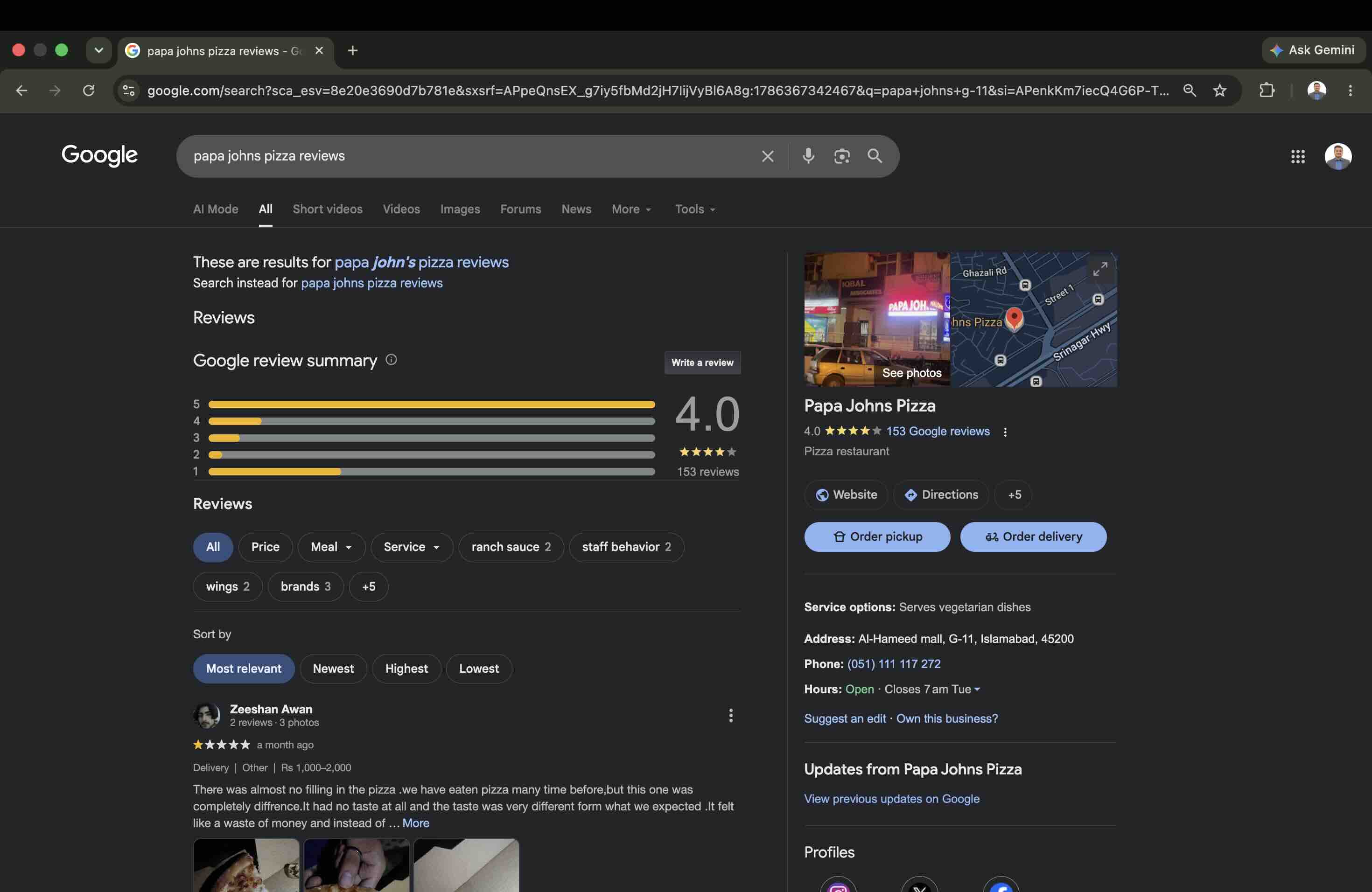
Here is that against what the API actually returned:
| Metric | What Google displays | What the API returned |
|---|---|---|
| Average rating | 4.0 stars | 1.0 stars across the returned set |
| Review count | 153 reviews | 5 reviews |
| Rating spread | Dominated by five-star ratings | Five one-star reviews, nothing else |
| Oldest item shown | Reviews from this week | A complaint from nine months ago |
Not one four-star or five-star review came back. The widget rendered a clean, well-designed wall of five customers explaining that the pizza was cold, the sauce was missing and they would not be returning. For a business whose actual public rating is 4.0.
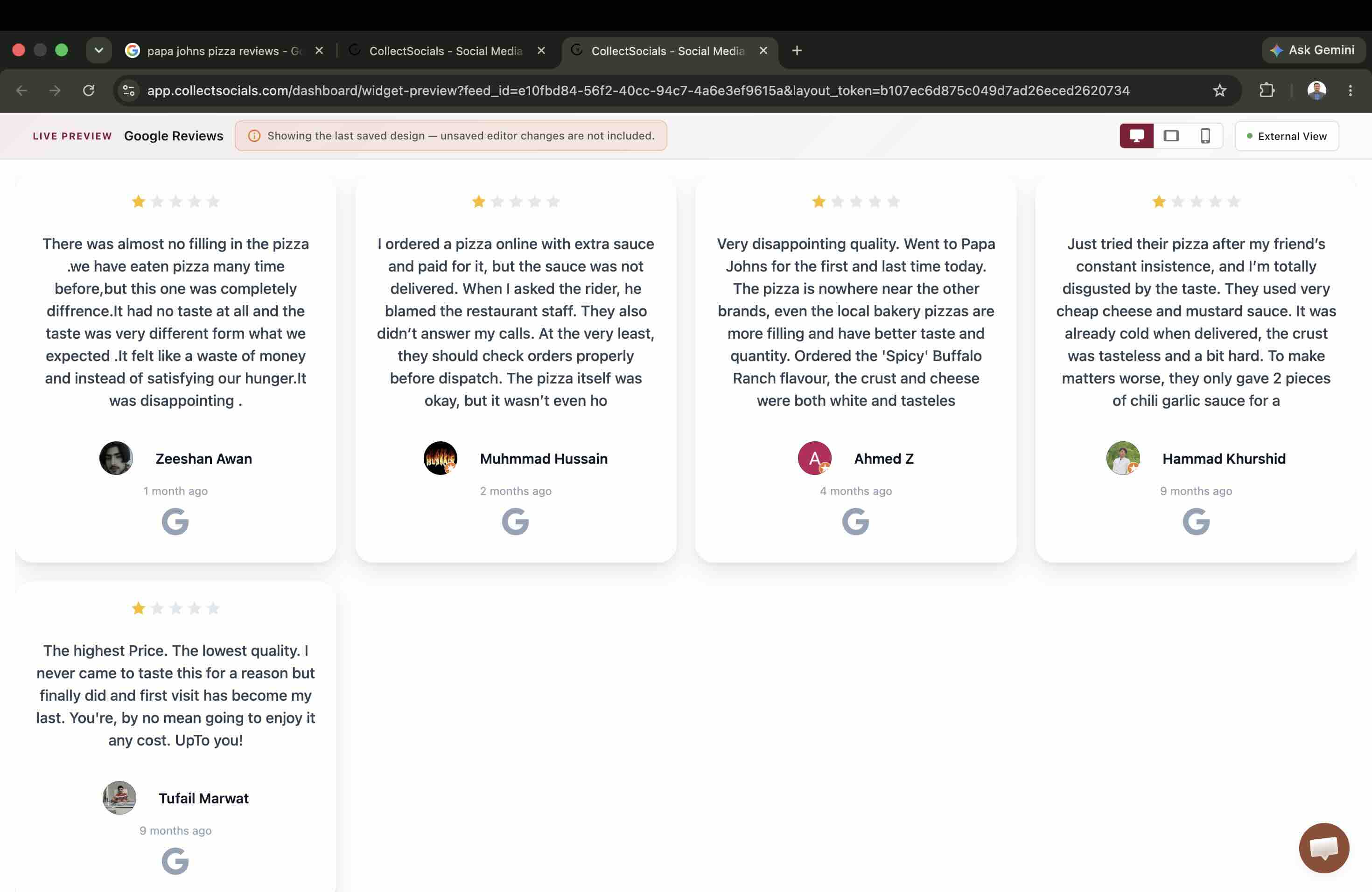
If that business had pasted the embed code onto its homepage and moved on, as every guide on this subject tells you to, it would have published its five worst reviews as its social proof.
Why This Happens
The public Google Places API sorts reviews by relevance. Not by rating, and not by date. Relevance rewards length, detail, photos and engagement signals. A frustrated customer writes four sentences about a specific failure. A happy customer writes "Great pizza!" and closes the app.
So detailed complaints systematically win the relevance ranking, and a five-slot window sorted by relevance can return an all-negative sample from a majority-positive business. This is not a bug in anyone's widget. It is what the endpoint is designed to do, and every tool built on the public Places API inherits it.
Two things worth saying plainly, because this is easy to read as scarier than it is. First, this is not a flaw in any particular widget, including ours. It is the behaviour of the endpoint, so every tool built on the public Places API returns the same five reviews for the same business. Choosing a different vendor does not change the sample.
Second, most businesses will never see what we saw. A restaurant with a long tail of detailed complaints is close to the worst case. Run the same test on a business whose unhappy customers are rare and you will usually get a representative five. The point is not that review widgets are dangerous, it is that the sample is chosen for you, so you should look at it before your visitors do.
The Five-Review Ceiling
The second constraint in that table is the one almost nobody writes about. Five was not a coincidence, and it was not a setting.
Google's Places API reference states it plainly in the definition of the reviews field: "List of reviews about this place, sorted by relevance. A maximum of 5 reviews can be returned."
Five. Not five per page, not five per request with pagination behind it. Five, total, for any business, no matter whether it has 20 reviews or 20,000. There is no parameter that raises it and no plan on any widget platform that buys more, because no widget platform can sell you data Google will not hand over.
This quietly invalidates a lot of standard advice:
- "Display 12 to 20 reviews on your About page" is not possible on the public API.
- "Set a minimum rating of 4 stars" can leave you with an empty widget, as our test would have.
- "Filter to reviews from the last 3 months" can also empty it, because three of the five we received were older than three months, the oldest two at nine months.
- A masonry or grid layout built for volume will look broken with five cards in it.
Design for five. A carousel, a compact grid, or a single spotlight card looks intentional at that count. A wall does not.
The Two Google Doors, and How to Tell Which One a Widget Uses
Everything above describes one of the two ways software can reach Google reviews. They are completely different products with different limits, and the difference is invisible in marketing copy but obvious once you know the test.
| Public Places API | Business Profile API | |
|---|---|---|
| How it authenticates | An API key held by the widget vendor | You sign in to Google and grant access |
| Whose listing you can pull | Anyone's, including businesses you do not own | Only listings you own or manage |
| How many reviews | 5, hard ceiling | All of them |
| Which reviews | Google picks, by relevance | You get the full set and choose |
| Setup friction | None, search and click | Google must approve the vendor first |
The test takes five seconds. When you add Google Reviews to a widget tool, did it ask you to sign in to Google? If it only asked you to search for your business name, you are on the public Places API and you are getting five relevance-ranked reviews, whatever the pricing page implies. If it sent you through a Google sign-in and permission screen, you are on the Business Profile API.
Neither is dishonest. The public API is genuinely the faster path, and it is the only way to display a listing you do not own. But it is worth knowing which one you bought, because it determines whether a bad sample is something you can fix.
sync
The path a review takes to your page
The animation is a schematic of that path rather than a recording of the API: four cards leave a locked platform panel, cross a sync bridge one at a time, and land in a widget on a site. The four cards are generic content examples (Product launch, Team milestone, Thought leadership, Client win) rather than reviews, so read it for the shape of the flow only. Two details in it do not hold for Google. The collection step is where the five-review ceiling and the relevance sort described above apply, before anything reaches your page. And the bridge is labelled AUTO SYNC while the animation closes on a banner saying the feed auto-updates with every new post: that is true of the other platforms, not of Google sources, which are collected when you add the source and refreshed only when you re-add it.
The Service-Area Business Blind Spot
A separate limit caught us through a customer rather than a test. A close-up magician in Paris signed up, searched for his own business by its exact full name, and got zero results. His listing was verified, operational, and carried a 5.0 rating across 25 ratings.
The cause is a single flag. Google excludes what it calls pure service-area businesses from autocomplete unless you explicitly ask for them with includePureServiceAreaBusinesses. A service-area business is any business that travels to the customer instead of receiving them at a storefront: magicians, plumbers, photographers, mobile caterers, cleaners, mobile mechanics, wedding suppliers.
Without that flag they are invisible to the search box, no matter how established they are. We tried region hints, language codes, an establishment type filter and a 50 km location bias around Paris. None of it mattered. The flag is the only switch, and it is now set on our search.
Rating Without Reviews
The same listing exposed a second trap. Place Details returned the rating and the review count correctly, and returned an empty reviews array. We confirmed it with our own field mask, with a full reviews mask, and with the language code set to French.
This matters because it is a silent failure mode. A widget can display "5.0 from 25 reviews" in perfect confidence while having zero review text to show, because the count and the content come from different parts of the response. If you are evaluating tools, add a source and check that actual review text appears, rather than trusting a rating badge.
What the FTC Lets You Do About a Bad Sample
The obvious response to five one-star reviews is to filter them out. This is where the law becomes relevant, and it is stricter than most people assume.
The FTC's Consumer Reviews and Testimonials Rule, finalized in August 2024, carries civil penalties for knowing violations, at an amount the FTC adjusts annually for inflation.
What You Cannot Do
You cannot suppress reviews to misrepresent what your customers actually said. The rule's review-suppression provisions target businesses that misrepresent the reviews on their own site as representing all or most of the feedback they received. Read the rule rather than our summary of it, and if the decision is a close one, take advice: this article is a builder's account of an API, not legal guidance.
You cannot incentivize positive reviews or penalize negative ones. You may ask customers to leave reviews, but you cannot condition a reward on the sentiment of what they write.
You cannot display reviews from people who did not actually use your product or service, including fake reviews, purchased reviews, or reviews from employees and relatives without clear disclosure.
What You Must Do
Disclose insider reviews clearly and conspicuously if you display feedback from employees, managers, officers or their immediate relatives.
Keeping your display current is not a stated requirement of the rule, but it is worth doing anyway. A widget whose newest review is eighteen months old invites the reader to wonder what happened since.
The Line That Actually Matters Here
Neutral, uniformly applied criteria are permissible. Sentiment-based cherry-picking is not. A minimum rating threshold or a date window applied to every review alike is a rule. Reaching into the returned set and removing the three complaints you dislike is curation of sentiment.
Moderation for content appropriateness, profanity, spam, off-topic or mistaken reviews, sits comfortably on the permitted side.
Which leads to the uncomfortable but honest conclusion of our test: if the reviews Google returns for your business are genuinely bad, the compliant answer is usually not to embed them at all. Fix the underlying experience, earn newer and better reviews, and embed once the sample reflects a business you want represented. A review widget is a mirror, not a filter.
How to Embed Google Reviews: Step by Step
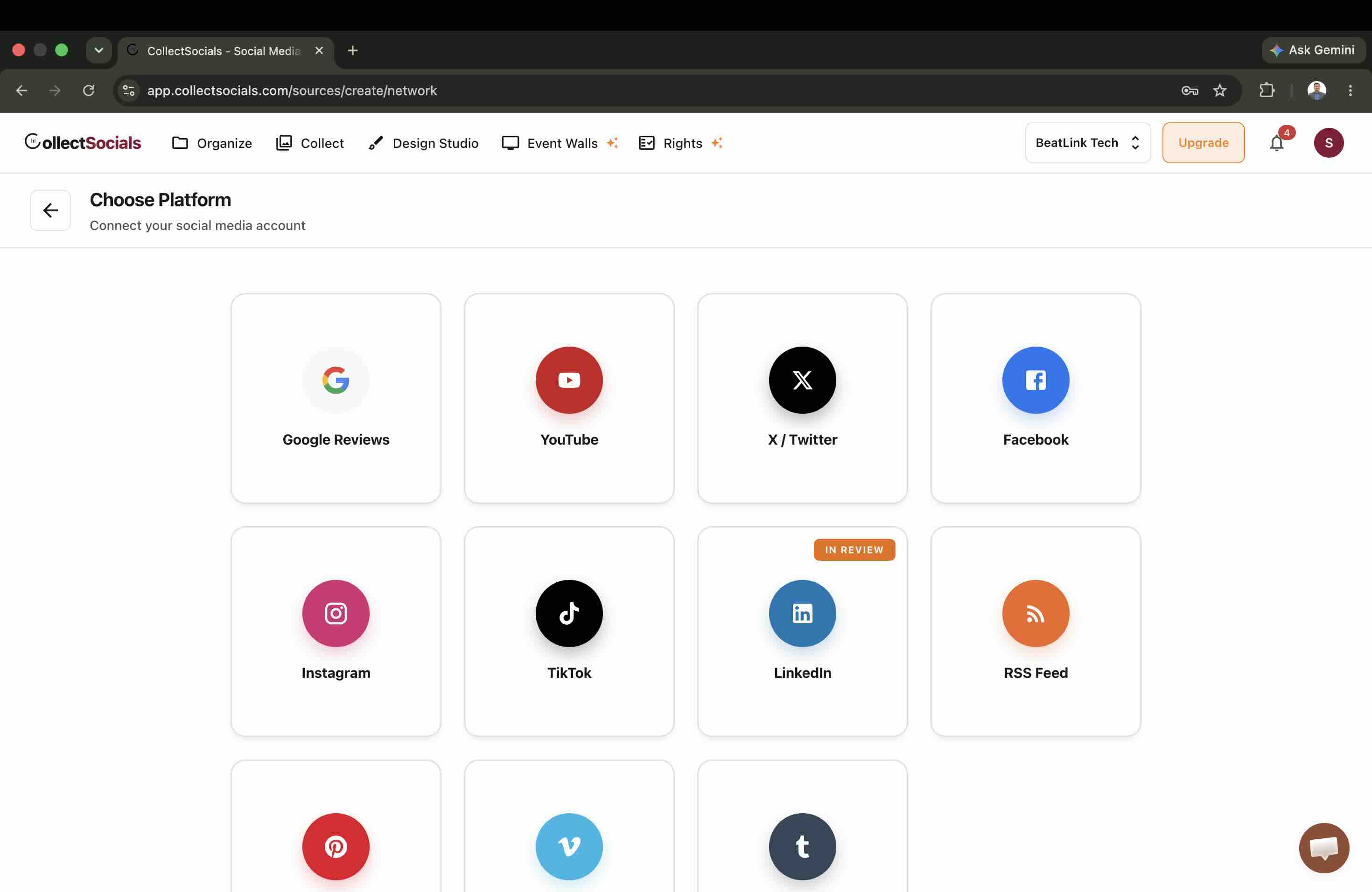
Step 1: Add Google Reviews as a Source
From the dashboard, choose Add Source and pick Google Reviews from the platform list. On a public Places API tool there is no Google sign-in here, and no requirement to own or manage the listing. You are searching Google's public place index.
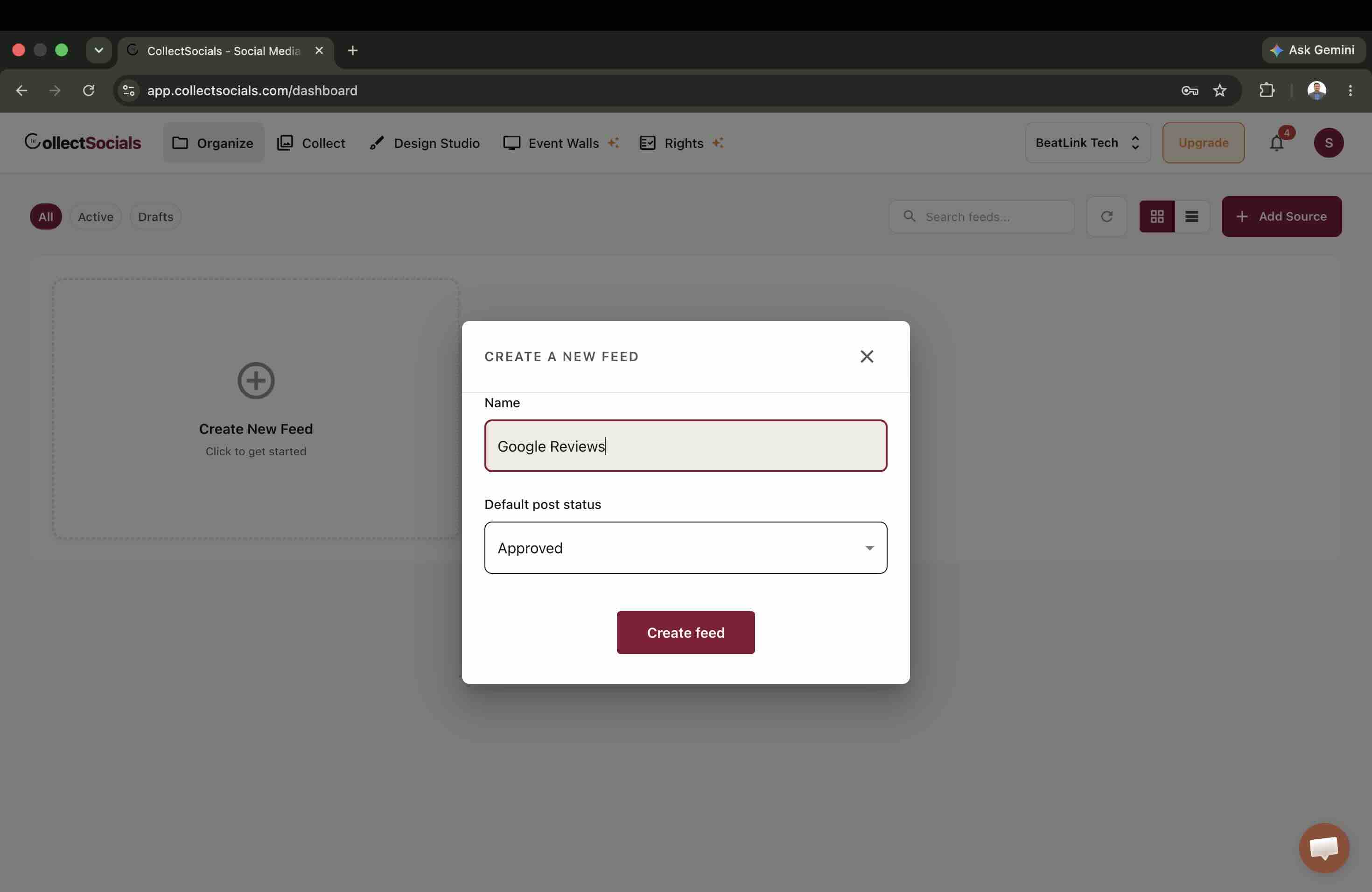
Step 2: Create the Feed That Will Hold Them
A feed is the container the reviews land in, and the unit you later design and embed. Nothing you create here is visible to anyone yet: a feed stays private until you explicitly publish it in Step 7, which is what gives you a safe place to inspect the reviews before your visitors can see them.
Step 3: Find the Business
Search by business name, and add the locality if the brand has more than one location. Franchises are the awkward case: a search will often return several listings with near-identical names in different cities, and picking the wrong one means displaying another branch's reviews. Check the address line under each result rather than the name.
If nothing comes back for a business you know exists, re-read the service-area section above.
Step 4: Look at What You Actually Received
This is the step every other guide skips, and the one this article exists to add. Before designing anything, read the reviews that arrived. You are checking three things: how many came back, what the rating spread looks like, and how old the oldest one is. You can right now, before you create anything.
If the sample misrepresents your business in either direction, stop here. Designing a beautiful widget around an unrepresentative sample is how you end up publishing five one-star reviews in a Grid layout.
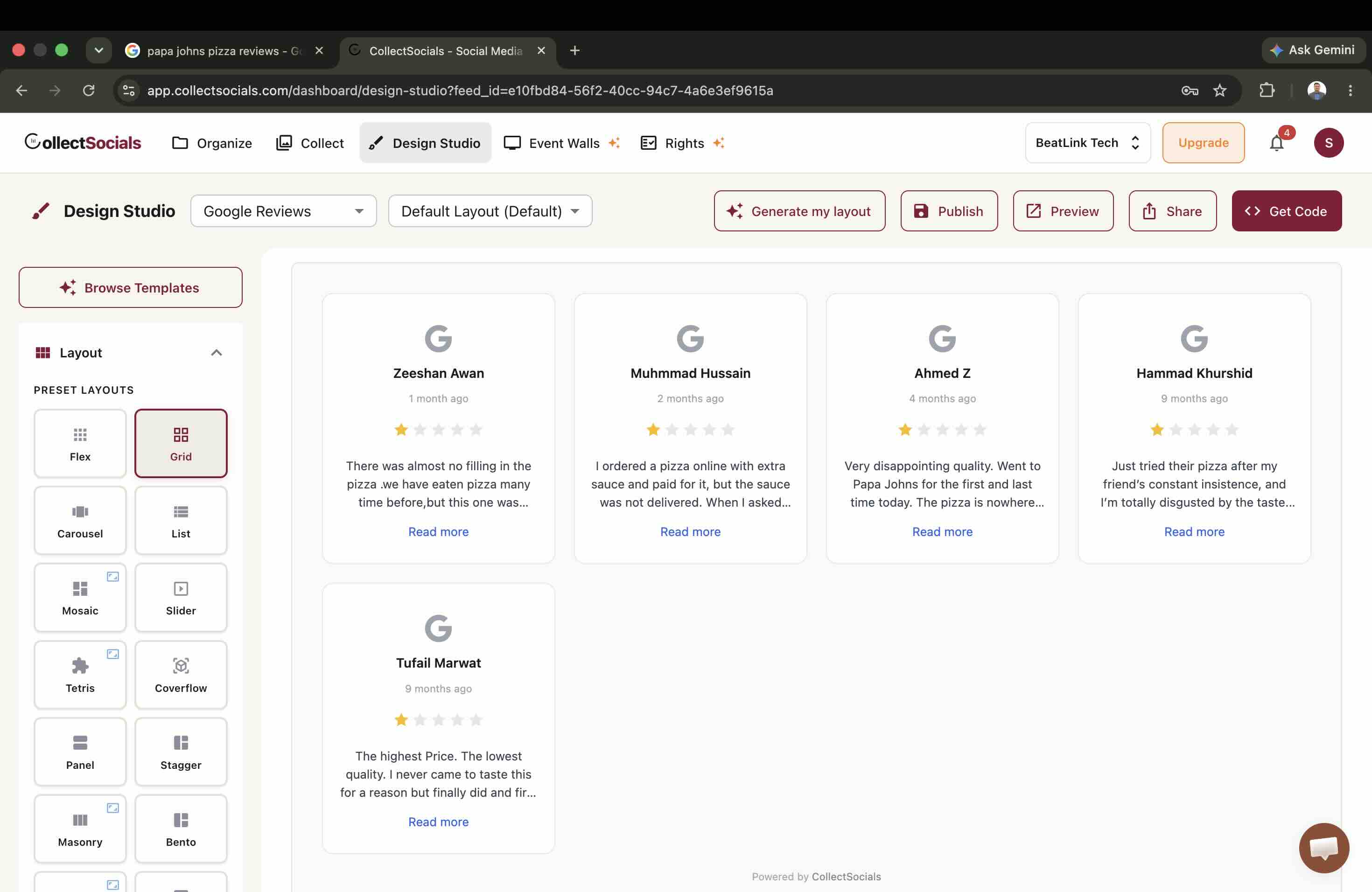
This is the moment to act on a bad sample. In the Collect view you can reject individual reviews, and a rejected review is excluded from the published widget. Rejecting is the mechanism, so read the FTC section above before you reach for it: neutral housekeeping is fine, quietly deleting the criticism is not.
Step 5: Design for Five
Pick a template built for a small set. A review carousel, a spotlight that shows one review at a time, or a compact grid all read as deliberate. Star ratings on, reviewer names on, dates on. Dates especially: hiding them reads as evasive, and a visitor who cannot tell whether a review is from last month or three years ago discounts it.
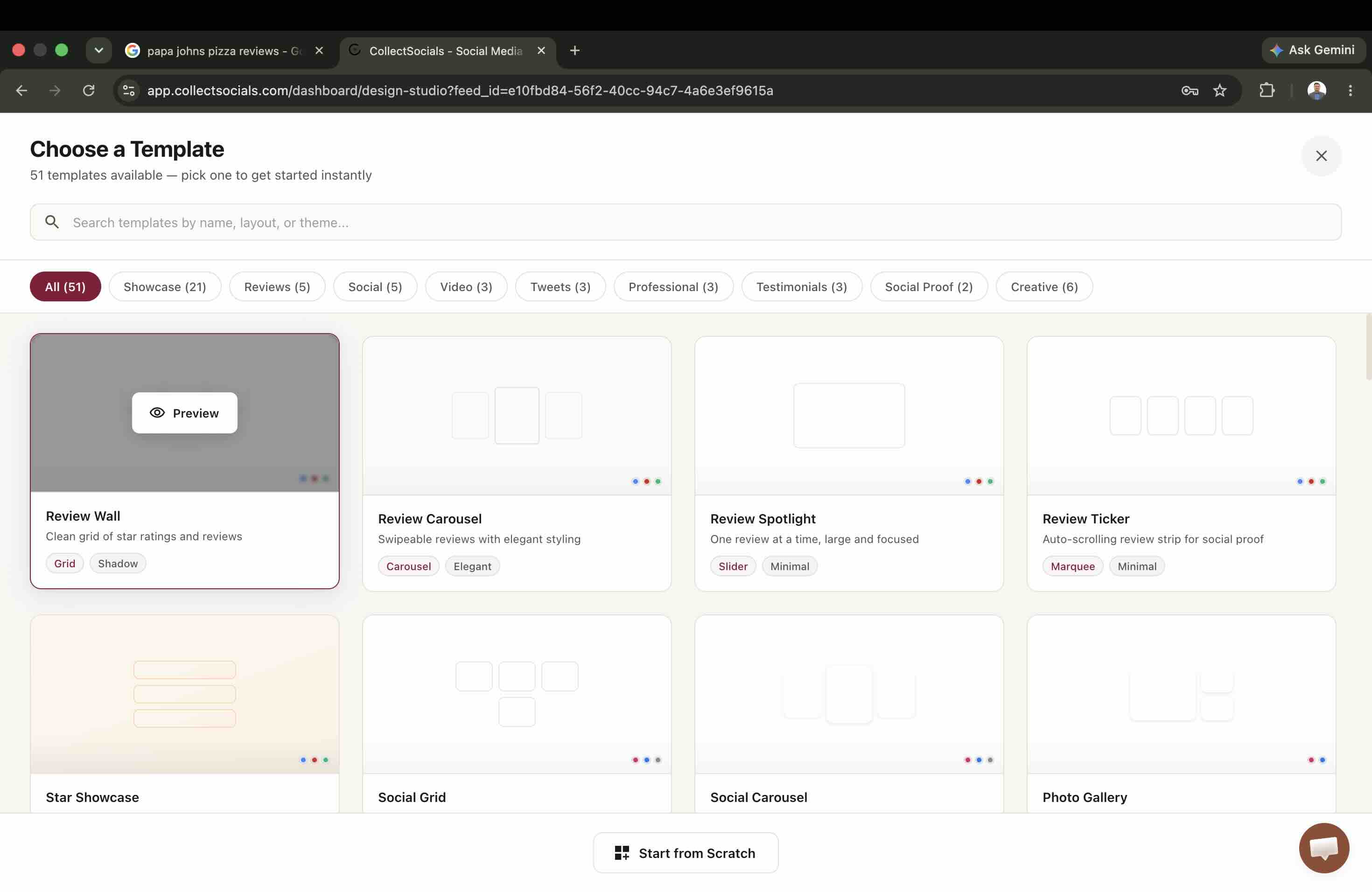
Matching the layout to five reviews
The animation shows layout and theme changes applying to a review widget in real time. For Google Reviews the choice is narrower than it looks: with a hard ceiling of five cards, the layouts that hold up are the ones that fill their space at low volume, which is why a carousel or a single-review spotlight reads better here than a masonry wall.
Step 6: Add Schema Markup
Schema markup is structured data that helps search engines understand your reviews. Google's guidelines allow Review and AggregateRating markup for specific products and services. Note that self-serving LocalBusiness review markup does not trigger star ratings in general search results, so treat this as a clarity signal rather than a ranking trick. This step is yours, not the widget's: our embed renders the reviews and emits no structured data of its own, so if you want markup on the page you add it yourself. Any tool that claims to emit it for you is worth checking in View Source before you believe it. Our guide to the SEO benefits of content aggregation covers what aggregated content can and cannot do for rankings.
Step 7: Embed
Set the widget to Public and open Get Code. Pick your platform in that dialog rather than copying the default snippet, because it does not hand every platform the same thing and the wrong one fails quietly.
WordPress: a Custom HTML block, a code snippet plugin, or our WordPress plugin, which skips the snippet entirely. The plugin is the better route if the page takes real traffic: it copies the reviews and the published design into your own WordPress database and renders from your domain, so once a feed has synced its page views are not metered on any plan, free included. The WordPress embedding guide covers block-editor placement in detail. Shopify: a Custom Liquid section, and the dialog wraps the script in a page-width container so a theme's flex rules cannot squash it; walked through in our Shopify guide. Webflow: an Embed element takes the plain script, see the Webflow guide.
Squarespace and Wix are the two that catch people out. Both get a self-resizing iframe rather than a script tag: Wix sandboxes custom HTML, and lower Squarespace plans strip <script> out of a Code Block, so a pasted script tag works on some accounts and renders nothing on others with no error. Pick them in the dialog and you get the iframe. Notion and Google Sites cannot run a script at all and get a plain iframe URL instead. Our Squarespace guide and Wix guide cover the element to use on each.
Where the platform takes the script, the widget loads asynchronously and renders in a Shadow DOM, so it will not conflict with your site's CSS or block page rendering. On the iframe hosts the isolation is stronger still, because nothing of the widget touches your page at all. The layouts built for a set this small, and the five-review cap stated up front, are on the Google Reviews widget page.
How Often Do Embedded Reviews Update?
Worth being precise about, because it is easy to assume a widget behaves like a social feed. On CollectSocials today, Google Reviews are collected when you add the source. They are not currently on the background refresh schedule that Instagram, Facebook, TikTok, Pinterest, Vimeo, Tumblr, X and RSS sources run on.
That was a deliberate decision rather than an oversight: with a hard ceiling of five relevance-ranked reviews that can be a year old, polling the same endpoint every hour mostly re-fetches the same five items. It is also a real limitation, and we would rather write it down than let you infer otherwise from a features table. To refresh a Google source today, re-add it.
This is the clearest practical argument for the Business Profile API path. Owner access is what makes genuinely live review syncing worth doing, because there is a full review set behind it that actually changes.
Where to Place Reviews on Your Site
Homepage, mid-page. After the hero and your primary value proposition. Visitors who scroll past your headline are engaged enough to evaluate, and reviews at that moment keep them moving.
Service and product pages, near the call to action. A visitor who has read your service description and is deciding whether to act needs a final push. Most of the traffic I buy lands on pages exactly like these, and in my experience the pages that convert are the ones that answer hesitation right where it happens, next to the button. For e-commerce specifics see our e-commerce social proof guide.
About or Contact pages. Highly engaged visitors, actively deciding whether to reach out. Traditional advice says give these pages a large review showcase. With five reviews available, a spotlight or carousel is the honest version of that idea.
Footer. A compact review carousel works as a passive, site-wide trust signal. It is not your primary conversion driver, but it reinforces credibility on every page.
Google Reviews Alongside Social Feeds
Reviews and social content do different jobs, and the five-review ceiling is a strong argument for combining them. Five review cards alone is a thin section. Five review cards interleaved with a live social feed is a full one.
Restaurants: reviews carry the rational signal (good food, fair price, reliable service) while Instagram carries the emotional one (plating, atmosphere, wanting to be there). See our restaurant Instagram guide.
B2B services: reviews for client satisfaction, LinkedIn for thought leadership and team expertise. See our LinkedIn feed embedding guide.
Retail: reviews for business credibility, Instagram and Facebook for product visuals and customer posts. Our social media wall guide covers multi-platform assembly.
What to Look For in a Review Widget
Which door it uses. The sign-in test above. This is the single most consequential difference between two tools that look identical on a pricing page.
Whether it finds service-area businesses. Search your own name in the picker before you pay.
Whether review text actually renders, not just a rating badge. Add a source and confirm.
Moderation. The ability to review what arrived before it publishes, and content moderation for spam and profanity. Given what relevance ranking can hand you, this is essential rather than a premium extra.
Performance. The widget should load asynchronously and reserve its own space so it does not shift your layout. Our page speed guide goes deeper on the Core Web Vitals side.
Common Mistakes
Embedding without looking. The mistake this whole article is about. Publishing a widget you have not read the contents of is how a 4.0-star business ships five one-star reviews.
Assuming the widget keeps itself current. Check how, and how often, your tool refreshes. Ours does not refresh Google sources automatically, and we would rather tell you that than let you assume.
Designing for volume you cannot get. A masonry wall built for 20 reviews looks broken holding five.
Filtering by sentiment. Neutral rules are fine, removing individual complaints is not. See the FTC section above.
Ignoring mobile. Most traffic is mobile. Test there before going live.
Not responding to reviews on Google. If you display reviews that include criticism, a thoughtful public response turns a negative into evidence that you care.
Are Embedded Google Reviews Worth It?
For a business with a healthy, current review profile, yes. Reviews are the strongest trust signal most local businesses have, and putting them in the path of a high-intent visitor rather than making them go to Google to find them is straightforwardly worth doing. From the paid side the math is even simpler: if you buy clicks and the landing page carries no review proof, you are paying full price for a page doing half the persuasion.
The one change we would make to the standard advice is the order of operations. Every other guide treats embedding as a single action: connect, design, paste. On the public API it is two, because the five reviews you receive are chosen by Google, sorted by relevance rather than rating or recency, and may be nothing like your average.
So collect first and look at what arrived, then publish. That is a thirty-second check, it is the entire difference between the good outcome and the one we tested into, and any tool worth using should let you do it before anything reaches your site.
We will update this article once our Business Profile API access is approved, with the same business measured through both doors. If you want the multi-platform version of this, our social media wall guide covers assembling reviews and social content into one feed.
Start Using CollectSocials Today
One curated feed from 10+ platforms: on your website in a single line of code, or up on the big screen at your event.