
Whether you're running a Wix store, a restaurant website, a creative portfolio, or a local service business, a well-designed Instagram feed can significantly improve your site's social proof and visual appeal. If you want the platform-agnostic version first, our guide to embedding an Instagram feed on your website covers every method including Instagram's own; this page is the Wix walkthrough.
<script> tag, and any guide telling you to is describing a different platform.The Problem with Wix's Native Instagram Integration
Wix does offer some built-in social features, including an Instagram widget you can add through the Wix Editor. But if you've tried it, you've probably noticed the limitations pretty quickly.
The native widget gives you a basic grid layout and not much else. You can't curate which posts appear — it's all or nothing. Design customization is minimal. There's no support for combining Instagram with other platforms like Google Reviews or YouTube. And the widget is entirely dependent on whatever design constraints Wix imposes, which means it often clashes visually with custom-built Wix templates.
For sites where the Instagram feed is a decorative afterthought, this might be sufficient. For sites where the feed needs to do real work — building trust, showcasing products, displaying customer content — you need a better approach. Our Instagram feed widget is built for that second case: curation before anything publishes, the layout and theme chosen rather than inherited, and the same feed able to carry Google Reviews or YouTube alongside the photos. The rest of this guide is the Wix-specific way to install it.
What You Need Before You Start
Regardless of which method you use, you'll need an Instagram Business or Creator account. Personal Instagram accounts no longer support third-party API access — a restriction Meta introduced several years ago that still catches people off guard. Switching to a Business account is free and takes about two minutes in the Instagram app: go to Settings → Account → Switch to Professional Account. Your followers, posts, and content are unaffected.
Your Instagram Business account also needs to be connected to a Facebook Page. Meta's API requires this for any third-party integration. If your accounts aren't already linked, you can connect them in your Instagram settings under Linked Accounts, or from within your Facebook Page settings.
Two Methods for Embedding Instagram on Wix
Method 1: Wix's Native Social Widget
If your requirements are simple — a basic grid of your recent posts, no curation, no custom design — Wix's native Instagram widget is the path of least resistance. To add it, open the Wix Editor, click the "+" button to add an element, navigate to Social under the elements menu, and look for the Instagram Feed widget. Connect your Instagram account and position the widget on your page.
As noted, this approach has significant limitations. But it requires zero third-party tools and takes about five minutes, which makes it worth mentioning for simpler use cases.
Method 2: A Dedicated Social Aggregator with HTML Embed
For anything beyond the basics, you'll want an external tool that generates an embed code. Wix supports custom HTML through the HTML code element — but with one constraint that determines everything about how the embed has to be built.
<script> tag pasted there executes in that sandbox, not on your page — so a script embed cannot mount a widget into your Wix layout the way it does on WordPress or Webflow. This is not a bug or a limitation to work around; it is how Wix isolates third-party code, and it is the same reason Squarespace behaves the way it does further down this guide.The practical consequence: on Wix, a well-built widget hands you an iframe, not a script. CollectSocials detects this — the embed dialog has a "where are you installing this?" selector, and choosing Wix swaps the snippet for an iframe pointed at the live feed, plus a few lines that resize the frame as content loads. You never have to know that rule; you just have to pick the right platform in the dropdown.
This is the approach we walk through below, using CollectSocials as the aggregator. It gives you the layout options, content curation and multi-platform support the native widget lacks, and the design studio lets you build a feed that matches your Wix template rather than fighting it.
How to Add an Instagram Feed to Wix with CollectSocials
Step 1: Create Your Account
Sign up at CollectSocials. The 7-day free trial opens the full design studio with no credit card required. Once inside, you'll land in your dashboard where you manage all your feeds.
Step 2: Create a New Feed
Click "Create Feed" and give it a name that reflects its purpose — something like "Wix Homepage Feed" or "Instagram Gallery." A feed is a container for your sources and maps to a single embeddable widget. You can create separate feeds for different pages if your site needs different Instagram content in different places.
Step 3: Connect Your Instagram Account
Add Instagram as a source inside your feed. You'll go through Meta's official OAuth login — connect with your Facebook credentials, grant permissions, and select your Instagram Business account. CollectSocials will immediately begin importing your posts, reels, and carousels. Depending on how long you've been posting, you may see dozens or hundreds of posts appear in your feed.
If you want to add other platforms — Facebook, Google Reviews, YouTube — you can add those as additional sources to the same feed. All content merges into one unified widget.
Step 4: Curate Your Content on the Collect Page
The Collect page is where you decide what your Wix visitors will actually see. Every imported post is displayed here. Select the ones you want to show on your site — deselect anything off-brand, outdated, or irrelevant. You can also edit post captions inline if you want to tailor the text for a web audience.
This curation step is what separates a professional Instagram feed from a raw, unfiltered dump of your recent posts. Take fifteen minutes to be intentional here — it will dramatically affect the quality of the experience your visitors have.
Step 5: Design Your Widget
In the Design Studio, choose a layout that fits your Wix site's structure and the page where the widget will live.
Grid works well for portfolios, product showcases, and sites where a clean, structured look is important. Equal-size posts in uniform rows create visual order.
Masonry is the go-to for lifestyle brands, food and beverage businesses, and creatives. The varying post heights create visual rhythm and make the feed feel more like a curated editorial piece than a social media wall.
Carousel is ideal for space-constrained placements — a section that shouldn't dominate the page but should still feel premium. Users scroll horizontally through posts.
Marquee is a continuously scrolling layout that works beautifully on Wix sites that already have motion design elements. It creates energy and draws the eye without requiring a large block of screen real estate.
Once you've chosen a layout, pick a theme. For Wix sites, which often have bold, visual templates, themes like Bold, Neon, and Elegant tend to integrate cleanly. If your Wix site uses a minimal or professional template, Minimal, Elegant, or Mono are strong choices. Toggle display elements — dates, avatars, platform badges — based on what fits your site's design language.
Step 6: Get Your Embed Code — Choose Wix in the Dropdown
Open the embed dialog and set "Where are you installing your widget?" to Wix. This is the step people skip, and skipping it is the single most common reason a feed never appears on a Wix page: the default snippet is the Plain HTML one, which is a <script> tag, and a script tag is exactly what Wix's sandbox will not run for you.
With Wix selected you get an <iframe> pointing at your live feed, followed by a short listener that resizes the frame as posts load — so the embed grows to fit its content instead of sitting in a fixed-height box with a scrollbar.
Step 7: Add an HTML Code Element in Wix
In the Wix editor, open the Add panel and scroll to the From the web group. The element you want is HTML code.
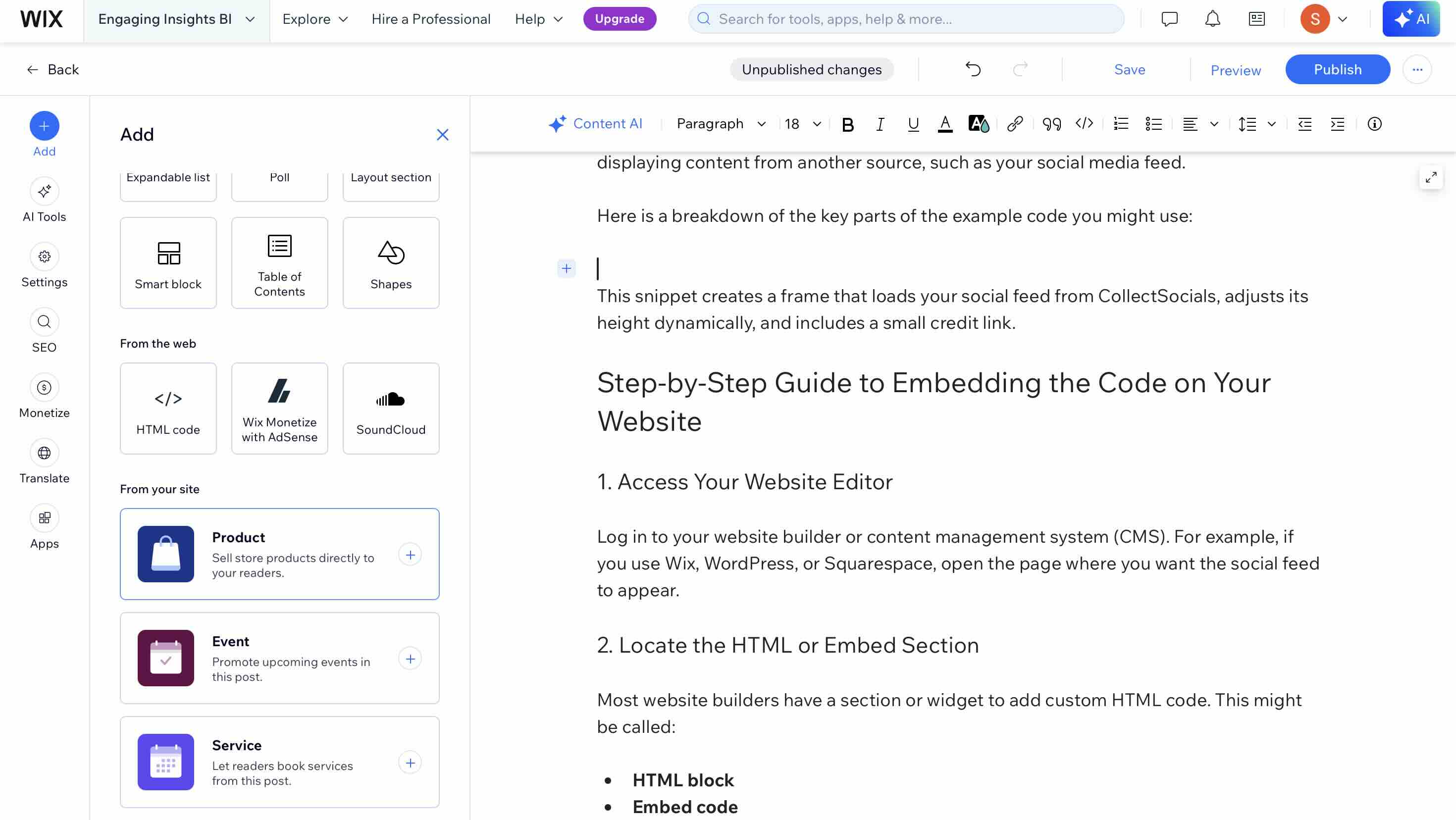
Drop the element onto the page, then open its settings and choose the HTML tab rather than Link. Paste the snippet you copied and click Save.
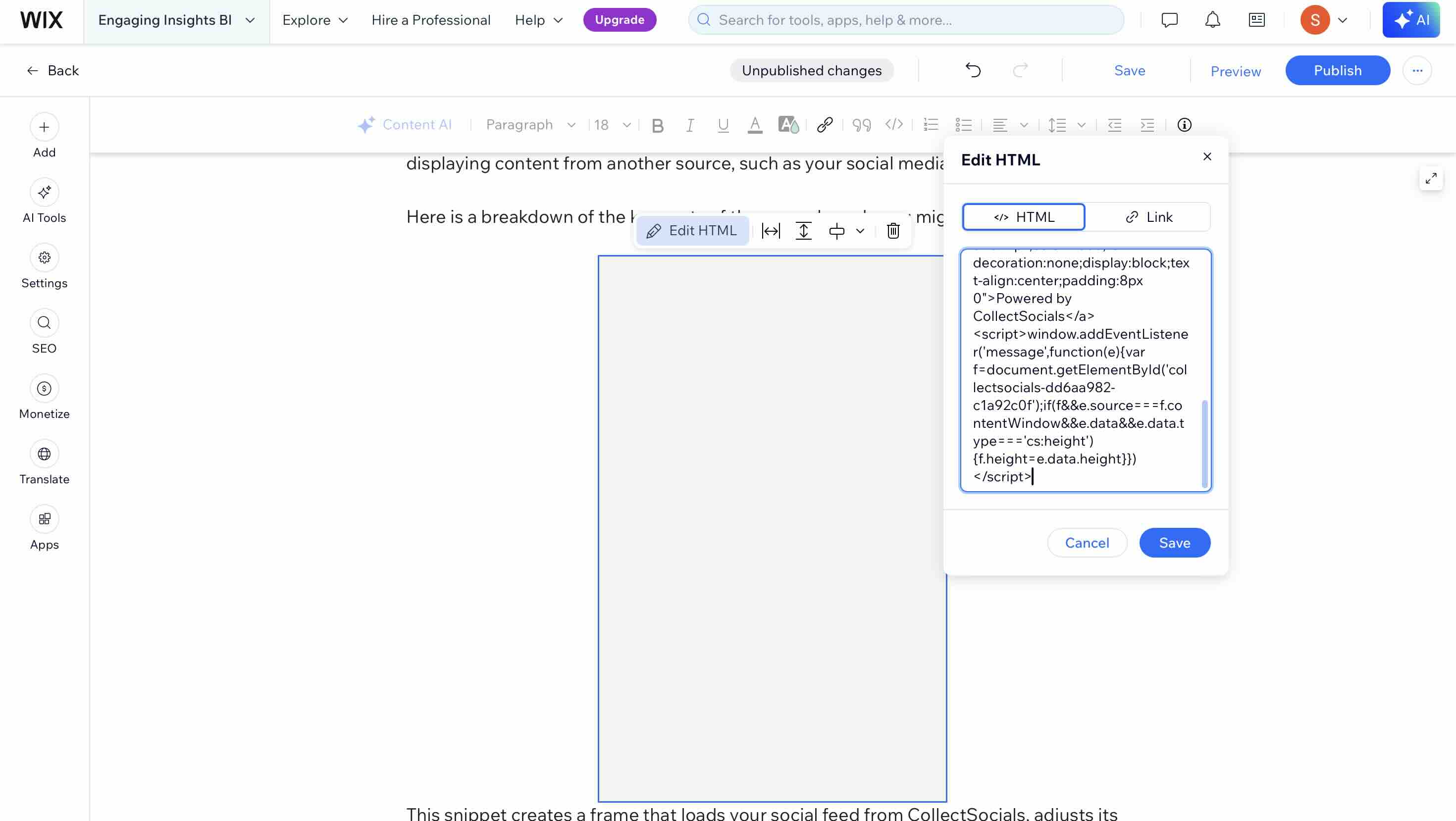
The element will look empty in the editor — Wix does not render the sandboxed iframe on the canvas while you are editing. That is expected and is not a sign anything is wrong. Click Publish, then open the live URL.
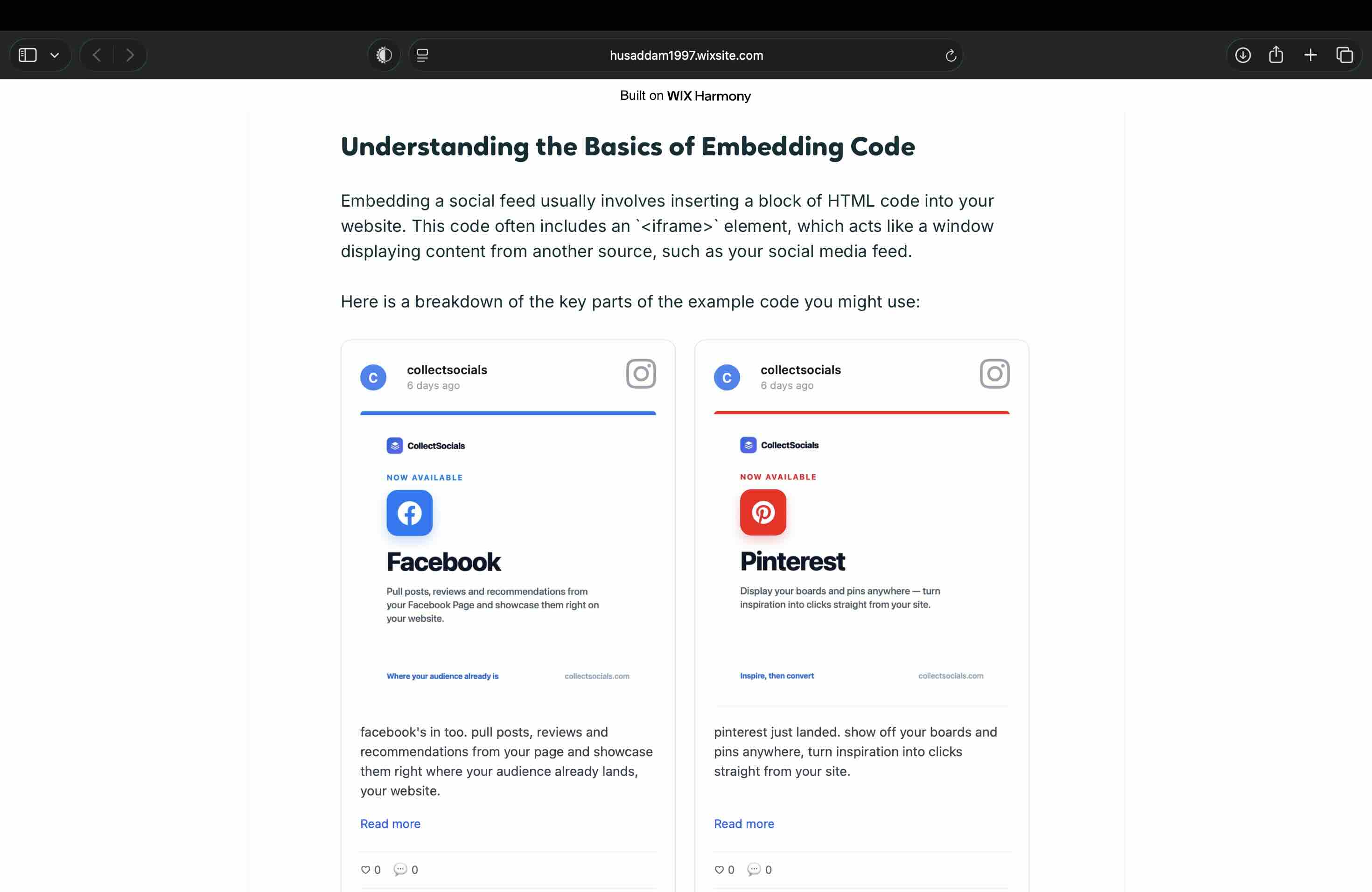
Two things worth checking once you are live: view the page on a phone as well as desktop, and give the frame a moment on first load — the resize happens after the first batch of posts arrives, so a very slow connection will briefly show the frame at its starting height.
Best Placement Strategies for Your Wix Site
Placement determines whether your Instagram feed becomes a genuine trust-building asset or something visitors scroll past without noticing.
Homepage social proof section. Most Wix templates have a defined section structure. Add your Instagram feed as a dedicated section in the lower half of your homepage — a "Follow Our Journey" or "See What We're Up To" section. This works particularly well for restaurants, photographers, fitness studios, retail stores, and any business where the visual identity is a selling point.
Wix Stores product pages. If you use Wix Stores for e-commerce, embedding Instagram content on product pages is a high-leverage move. Showing your products in real-world, lifestyle contexts — rather than just studio shots — builds the kind of confidence that converts browsers into buyers.
About page. The about page on a Wix site is often highly visited but underleveraged from a social proof perspective. Adding a curated Instagram feed here humanizes your brand and shows visitors the real, active side of your business.
Contact page. Pages where you're asking visitors to take action — fill in a form, book an appointment, send a message — benefit from nearby social proof. A compact carousel or marquee layout near your contact form can reinforce trust at exactly the right moment.
Wix-Specific Considerations
Mobile editor. Wix's mobile editor is separate from the desktop editor. After embedding your feed on desktop, switch to the mobile view in the Wix Editor and check that the HTML element is visible and appropriately sized. You may need to adjust its position or dimensions in the mobile layout.
The editor shows an empty box. That is normal. Because the embed is a sandboxed iframe, Wix does not paint it on the editing canvas. Judge the result from the published page or a preview, never from the editor — otherwise you will spend an afternoon re-pasting a snippet that was correct the first time.
Give the element room. The auto-height listener will grow the frame to fit the feed, but the element still has to be wide enough for the layout you picked. A grid squeezed into a narrow column will reflow to fewer columns rather than overflow — worth a look on mobile, where Wix maintains a separate layout from desktop.
Page speed. Custom HTML embeds sit outside Wix's own optimization pipeline, so the feed loads on its own terms. It loads asynchronously and will not block your page from rendering. The one placement rule that matters is covered in where to place an Instagram feed: whichever image is largest on the first screen becomes your page's Largest Contentful Paint, so keeping your own hero above the feed generally keeps that measurement yours.
Keeping Your Feed Updated
Auto-sync is one of the main value propositions of a live Instagram widget. CollectSocials pulls new posts from your Instagram account at regular intervals — from every 5 minutes on higher-tier plans to every 24 hours on the free plan. New posts appear in your Collect page ready for curation.
Why the Wix embed never needs re-pasting
The animation follows a new Instagram post from your account into the sync queue and out to the feed your Wix page is already pointing at. Because the iframe you pasted references the feed rather than the posts, nothing on the Wix side changes when your content does — you never republish the site to show a new post.
The key habit to build: check your Collect page once a week and approve new posts into your active feed. New content won't appear on your Wix site until you've selected it, which gives you editorial control without requiring you to touch any code.
sync
From a post with a 48-hour life to a permanent page
Here the same post is shown leaving Instagram's feed, where its reach collapses within about two days, and landing on the Wix page where it stays visible to every visitor who arrives from search or a direct link months later.
If your Instagram OAuth token expires (Meta tokens have a limited lifespan), you'll be notified in your CollectSocials dashboard. Refreshing is a one-click process — reconnect your Instagram account in your Sources settings and syncing resumes immediately.
Is the Wix Instagram Feed Good Enough?
Wix makes beautiful websites accessible, but its native Instagram tools are a weak point. For businesses where visual social proof genuinely matters — which is most of them — using a dedicated tool to generate a fully designed, curated feed is worth the extra steps.
The combination of Wix's flexibility as a page builder and CollectSocials' design and curation tools gives you the best of both: a professionally designed website and a professional-grade social media widget that works together seamlessly.
Once your Instagram feed is live on Wix, consider expanding it. Adding Google Reviews alongside your Instagram posts creates a multi-signal trust section that covers both visual appeal and verified customer feedback — all in one embed, no extra work. If you want to filter what reaches the page first, see how to curate an Instagram feed, and if you are pulling in customer photos rather than your own posts, display Instagram UGC on your website covers the consent side. If most of what you post goes to Stories rather than to the grid, displaying Instagram Stories on your website walks through that route, which connects straight to Instagram and shows only what is live. The same Wix HTML element also carries a Facebook feed on Wix, an X (Twitter) feed on Wix and a LinkedIn feed on Wix if you want more than one network on the page.
Building on a different platform? The same feed embeds on WordPress, where you can add an Instagram feed with a real plugin, Squarespace, using an Instagram widget that has its own editor quirk worth knowing about, and Webflow, where you embed an Instagram feed with a plain script rather than an iframe. If the feed does not appear after publishing, Instagram feed not showing starts with the causes specific to sandboxed embeds. And if you are still choosing a tool, we tested 8 Instagram feed widgets against each other.
Start Using CollectSocials Today
One curated feed from 10+ platforms: on your website in a single line of code, or up on the big screen at your event.