
This is the complete guide to embedding a live, auto-updating Instagram feed on Webflow: which Webflow plans actually allow it, a free way to preview the feed on your site before you pay Webflow anything, the three code injection points and when to use each one, step-by-step setup with CollectSocials, and the Webflow-specific gotchas that almost no guide explains.
The Paid-Plan Wall Nobody Mentions
Most Instagram-on-Webflow guides bury this in a footnote or skip it entirely, so here it is first: a fully free Webflow setup cannot run an embedded feed at all. On a free Workspace with a free .webflow.io staging site, Webflow gives you no way to run third-party embed code.
This is not a bug and it is not specific to any widget provider. Webflow's own documentation is explicit: adding custom code, whether through the Embed element, Page Settings, or Site Settings, requires either an active paid Site plan on that site, or a paid Workspace plan (Core, Growth, Freelancer, or Agency). A free Workspace plus a free staging site satisfies neither, so every injection point stays locked.
Knowing this changes how you should read every "free Instagram feed for Webflow" pitch on the internet, ours included. When a widget vendor says free, they are talking about the widget's own price. Nobody selling widgets can waive Webflow's side of the equation. The honest statement of cost for a live Instagram feed on Webflow is: your widget plan (CollectSocials has a genuinely free tier) plus a paid Webflow Site or Workspace plan, which you probably already have if your site is on a custom domain. Our Instagram feed widget page states our half of that cost plainly; Webflow's half is the part no vendor controls.
If you are still deciding whether Webflow hosting is worth paying for, the next section is for you: there is a way to see the feed on your own design without paying first.
Preview the Feed on Your Webflow Site Before You Pay
No other Webflow guide we have seen documents this, and it solves the exact dilemma the plan gate creates. You cannot persist an embed on a free plan, but you can render one temporarily, in your own browser, on your real published design. That is enough to answer the question that actually matters before upgrading: what will the feed look like inside my layout?
- Create your feed in CollectSocials (steps below) and copy the embed code from the Get Code dialog.
- Publish your Webflow site to its free
.webflow.iostaging URL and open that URL in a normal browser tab. - Open the browser's developer console (right-click, Inspect, then the Console tab) and run the snippet below, pasting your embed code between the backticks.
const snippet = `PASTE YOUR FULL EMBED CODE HERE`;
document.body.appendChild(
  document.createRange().createContextualFragment(snippet)
);
The feed renders at the end of the page. To position it inside a specific section instead, replace document.body with a document.querySelector(...) call targeting that section. The screenshot below was produced with exactly this method on a .webflow.io staging site.
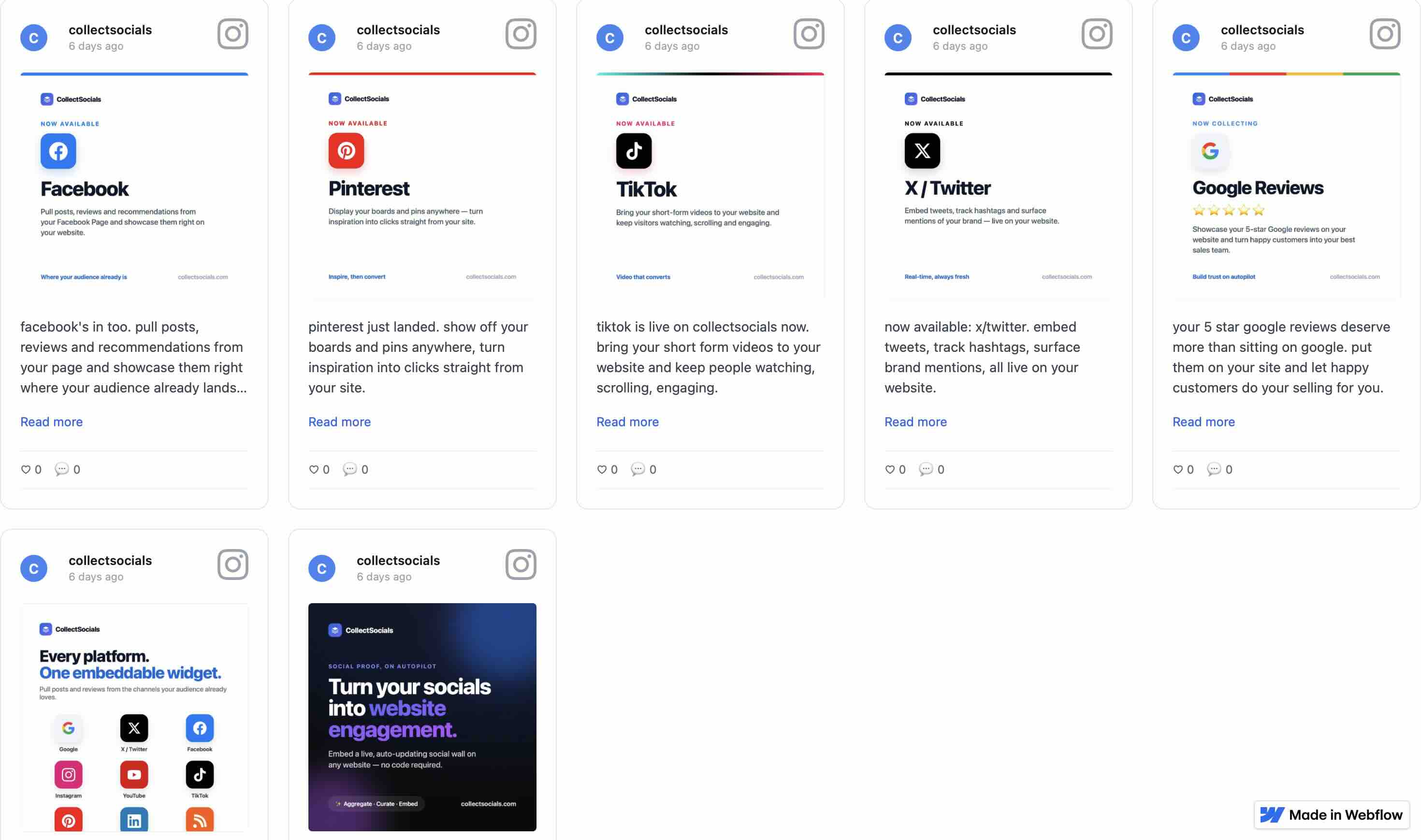
Be clear about what this is: a preview that only you can see, gone on the next page reload. It proves the widget renders correctly inside your Webflow markup and shows you how it sits in your design. It is not an embed, and visitors will never see it. When you are ready to go live, the paid-plan methods below are the only real path.
What You Need Before You Start
A Paid Webflow Site Plan (or Paid Workspace)
Covered above, but it belongs on the checklist: the Embed element and both custom-code settings panels are available only with an active paid Site plan (Basic, CMS, Business, or Enterprise) or a paid Workspace plan. If your site already runs on a custom domain, you have this.
Custom Code Does Not Preview in Webflow Designer
This trips up nearly everyone the first time. When you paste an Instagram widget script into an Embed element in Webflow's Designer, you will see a grey placeholder box, not your actual Instagram feed. This is not a bug and it does not mean your embed is broken.
Webflow's Designer is a design environment, not a browser. It cannot execute external JavaScript. Your Instagram feed will only render on your published site or on a staging URL. Every time you change your widget setup and want to verify the result, publish first, then check the live URL. Build in the Designer, publish to staging, verify there.
An Instagram Business or Creator Account
Personal Instagram accounts have been locked out of third-party API access since Meta tightened its platform restrictions. Switching is free and takes two minutes: open the Instagram app, go to Settings, then Account, then Switch to Professional Account, and choose Business. Your posts, followers, and content stay exactly as they are. If you use Instagram primarily as a personal account, the cleanest approach is to create a separate Instagram Business account for your brand and use that as your feed source.
Your Instagram Business account also needs to be connected to a Facebook Page. Meta's API requires this link for any third-party integration. If the accounts are not already linked, connect them in Instagram Settings under Linked Accounts.
Three Ways to Add Custom Code in Webflow
Webflow gives you three distinct injection points for code, and all three sit behind the same paid-plan gate. Which one you use for your Instagram feed still matters: choosing the wrong one causes the widget to break, show in the wrong place, or load on pages where it is not needed.
<!-- Custom HTML block (or install the plugin) -->
<div id="collectsocials-a1b2c3d4-e5f6"></div>
<script src="app.collectsocials.com/api/widget"
  data-feed-id="…" data-token="…"
  data-container="collectsocials-a1b2c3d4-e5f6" defer>
</script>
Which custom-code slot to use in Webflow
The animation steps through Webflow's three custom-code locations, the Embed element on the canvas, page-level custom code and site-wide custom code, and shows where the markup ends up in each case. For an Instagram feed the Embed element is almost always right, because it puts the widget inside your layout rather than before or after it.
Method 1: The Embed Element (Recommended for Most Use Cases)
The Embed element is a draggable component that you place directly inside your page layout, just like a text block or a container. It is the most precise injection method: you control exactly where on the page the Instagram feed appears, and the feed renders inside the normal page flow.
To add it: open the Add Elements panel (+) in the top-left, scroll to Components, and drag the Embed element to the exact position you want your Instagram feed to appear. A code editor window opens automatically. Paste your CollectSocials script tag, click Save & Close. Publish to see it live.
The Embed element accepts up to 50,000 characters, which is far more than any Instagram widget embed needs.
Best for: Homepage Instagram sections, product page social proof feeds, about-page social walls, and any placement where you want precise control over where in the layout the feed lives.
Method 2: Page-Level Custom Code
Every Webflow page has a Custom Code tab in its Page Settings (open the Pages panel and click the gear icon on the page name). Here you can inject code into the <head> or before the closing </body> tag of that specific page only. The same paid-plan requirement applies.
For an Instagram feed, paste the widget script tag in the Before </body> field. You will then need an empty <div> with a specific ID on the page for the widget to target, which requires adding a custom attribute to a Webflow element. This is slightly more technical than the Embed element method.
Best for: Keeping the script out of the canvas entirely, for example when a developer manages the code and a designer manages the layout, or when you want the script at a specific point in the document rather than inline.
Method 3: Site-Wide Custom Code (All Pages)
Site Settings, then Custom Code, adds scripts to every page on your entire site. This is appropriate for analytics scripts and chat widgets, not for Instagram feeds, which should only appear on specific pages. Avoid this method for Instagram embeds unless you have a specific reason to display the feed on every page of your site.
How to Embed an Instagram Feed on Webflow with CollectSocials
Here is the full setup walkthrough.
The whole Webflow setup, end to end
This runs the full sequence in order: connect the Instagram account, approve the posts you want, design the widget, then paste one script into a Webflow Embed element and publish. The Designer will show a grey box throughout; the feed only becomes visible on the published site.
Step 1: Create Your CollectSocials Account
Go to collectsocials.com and sign up. The free plan gives you one connected source, unlimited feeds, and 2,000 monthly page views with no expiry, and the 7-day trial opens three sources: you can use it indefinitely and upgrade only when you outgrow the page view limit. No credit card required.
Once you are in the dashboard, you will see your feed management area. This is where you create and manage all the Instagram feeds you will embed on your Webflow site.
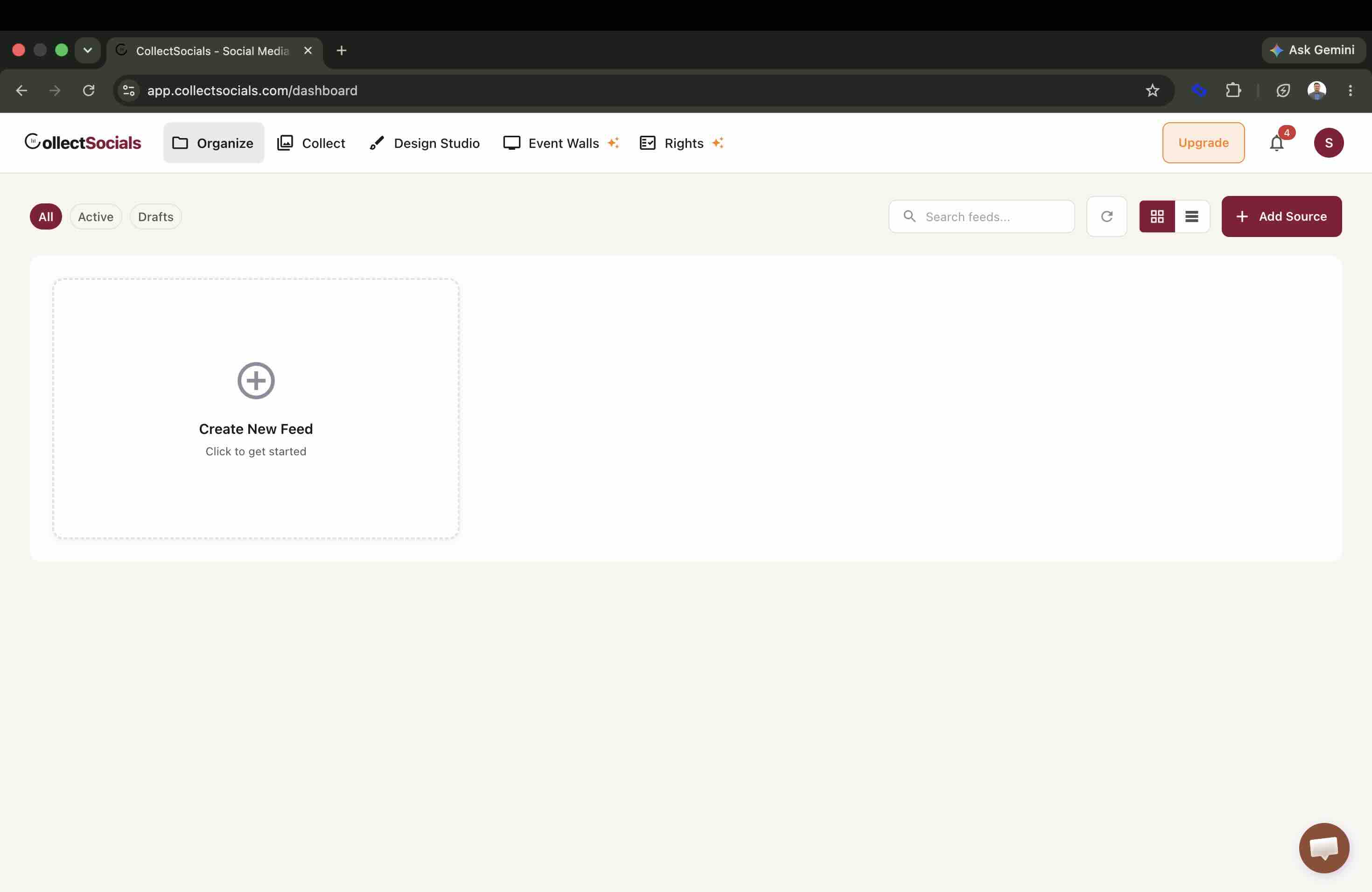
Step 2: Create a New Feed
Click "Create Feed" and name it to reflect where it will live. "Webflow Homepage Feed," "About Page Instagram," or "Product Gallery" are all helpful naming conventions, especially if you are managing feeds for a client site or multiple pages.
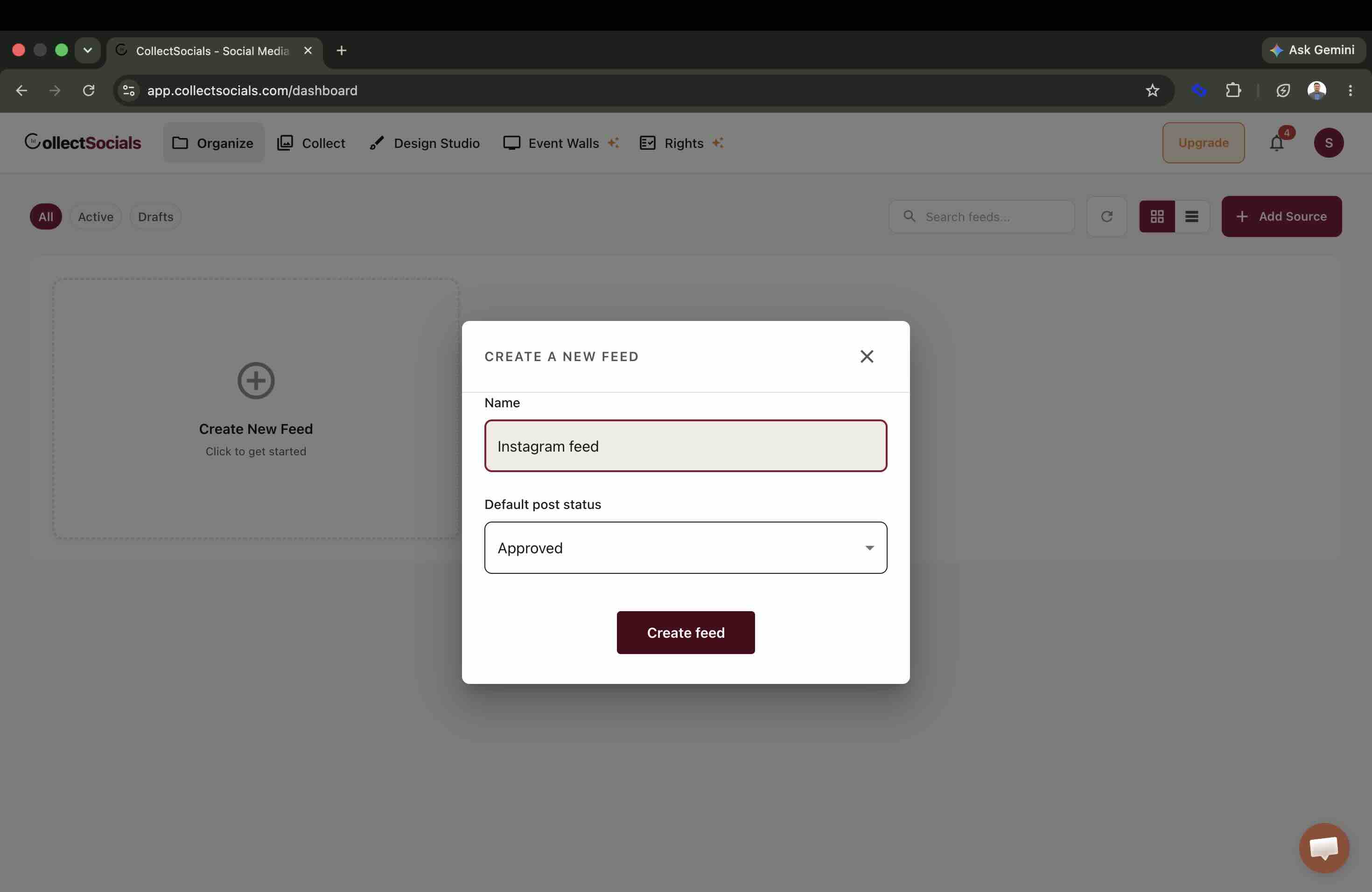
A feed is a container that holds your source connections. You can create multiple feeds if different pages on your Webflow site need different Instagram content, for example a Reels-heavy feed for a media company's homepage and a product-focused grid for their shop page.
Step 3: Connect Your Instagram Account
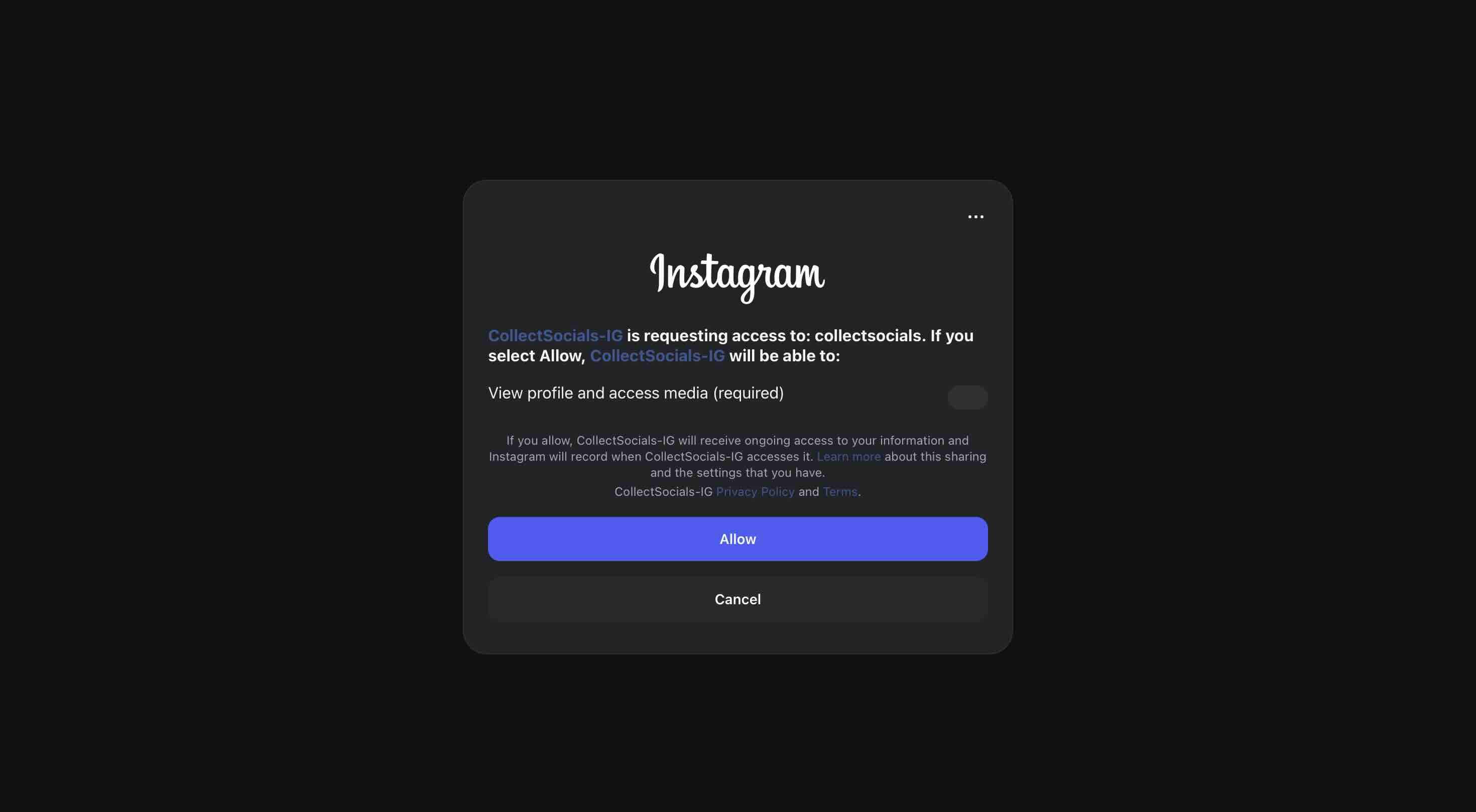
Inside your feed, click "Add Source" and select Instagram. You will be taken through Meta's official OAuth flow: log in with your Facebook credentials, grant the required permissions, and select your Instagram Business account. Business and Creator accounts can also connect directly with an Instagram login instead. Either way, CollectSocials will immediately begin pulling your posts, Reels, and carousels.
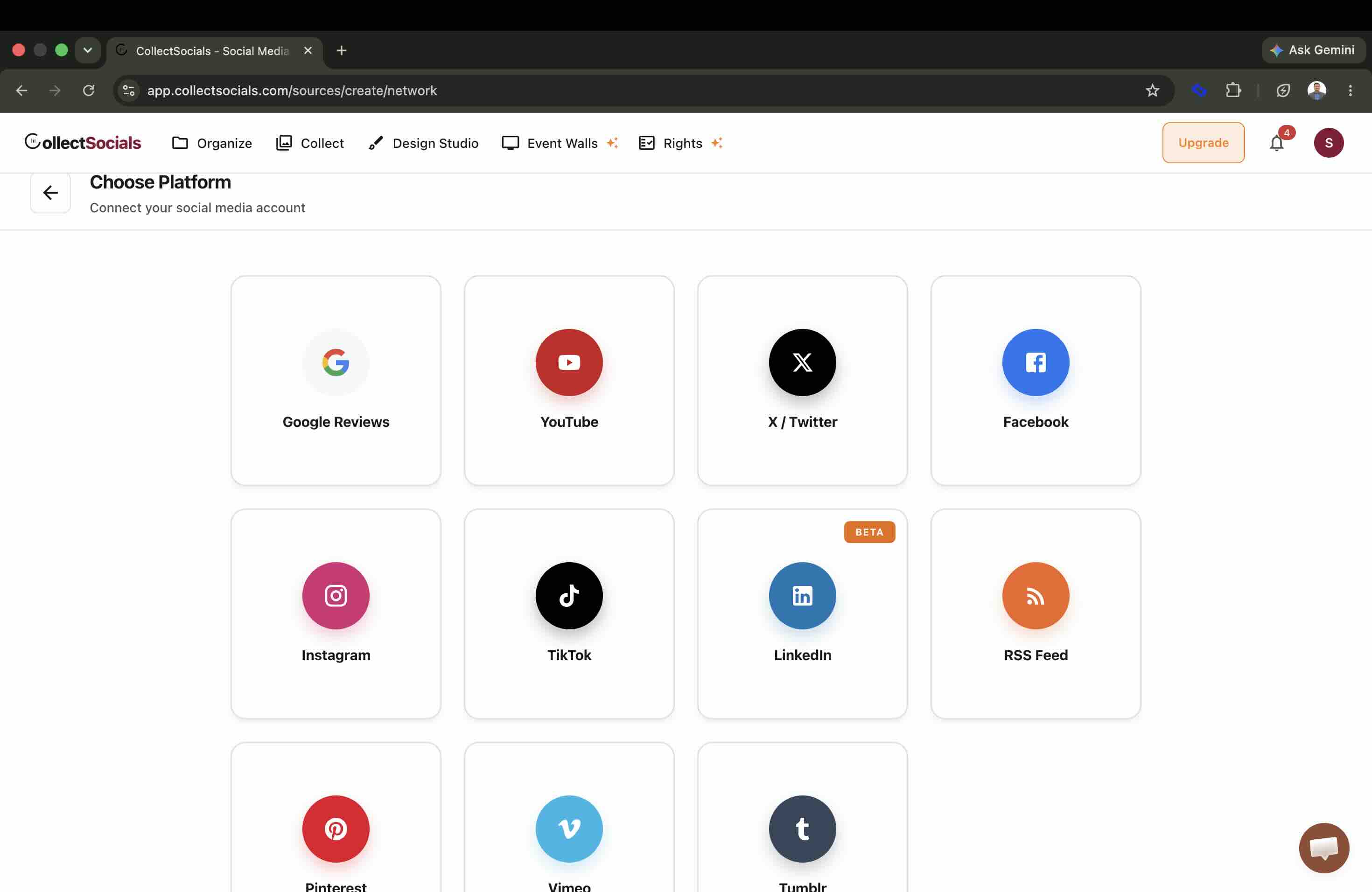
If you also want to include content from other platforms, such as YouTube videos, Google Reviews, or Facebook posts, you can add those as additional sources to the same feed. All content aggregates into a single widget, which is useful for Webflow portfolio pages that want to show a cross-platform social presence in one section.
Step 4: Curate Your Content
Navigate to the Collect tab. Every post imported from your Instagram account appears here. Go through and select the posts you want to display on your Webflow site. Hide anything off-brand, outdated, or not relevant for the audience on that specific page.
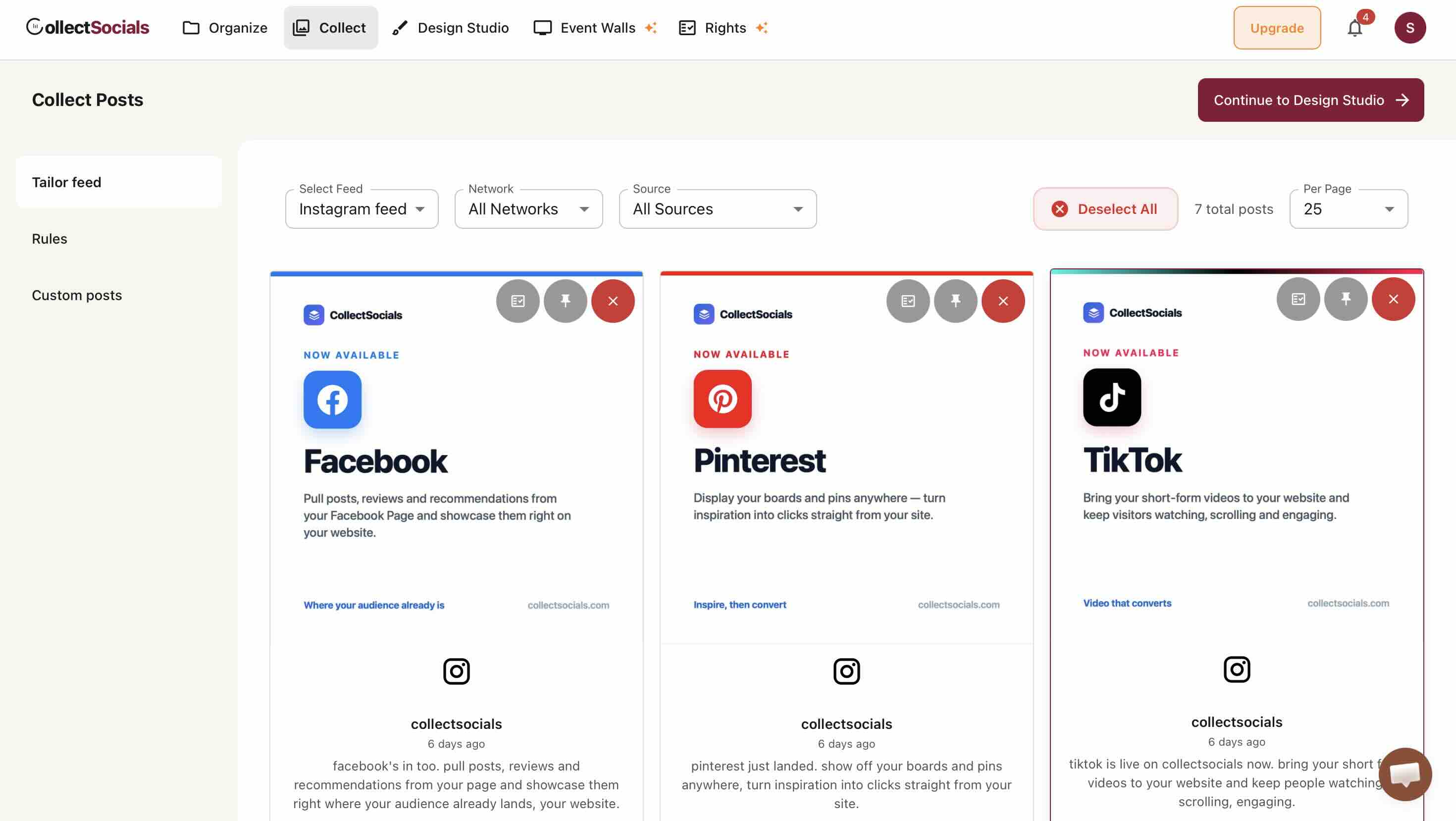
This curation step is where a CollectSocials feed pulls away from simpler Instagram embeds. Native Instagram embeds show your most recent posts in chronological order with no editorial control. With CollectSocials, you can surface your best-performing Reels on the homepage and your most visually polished product photos on the shop page: different editorial choices for different pages, all without duplicating your source connection.
Step 5: Design the Widget
Open the Design Studio and configure the layout and theme for your Webflow page.
Designing to match a Webflow style system
The animation cycles the same Instagram feed through layouts and themes. On Webflow this matters more than on most builders: because the widget renders as a script inside your own markup, it sits within your container and breakpoints, so the layout you pick here is what reflows with the rest of your Webflow design.
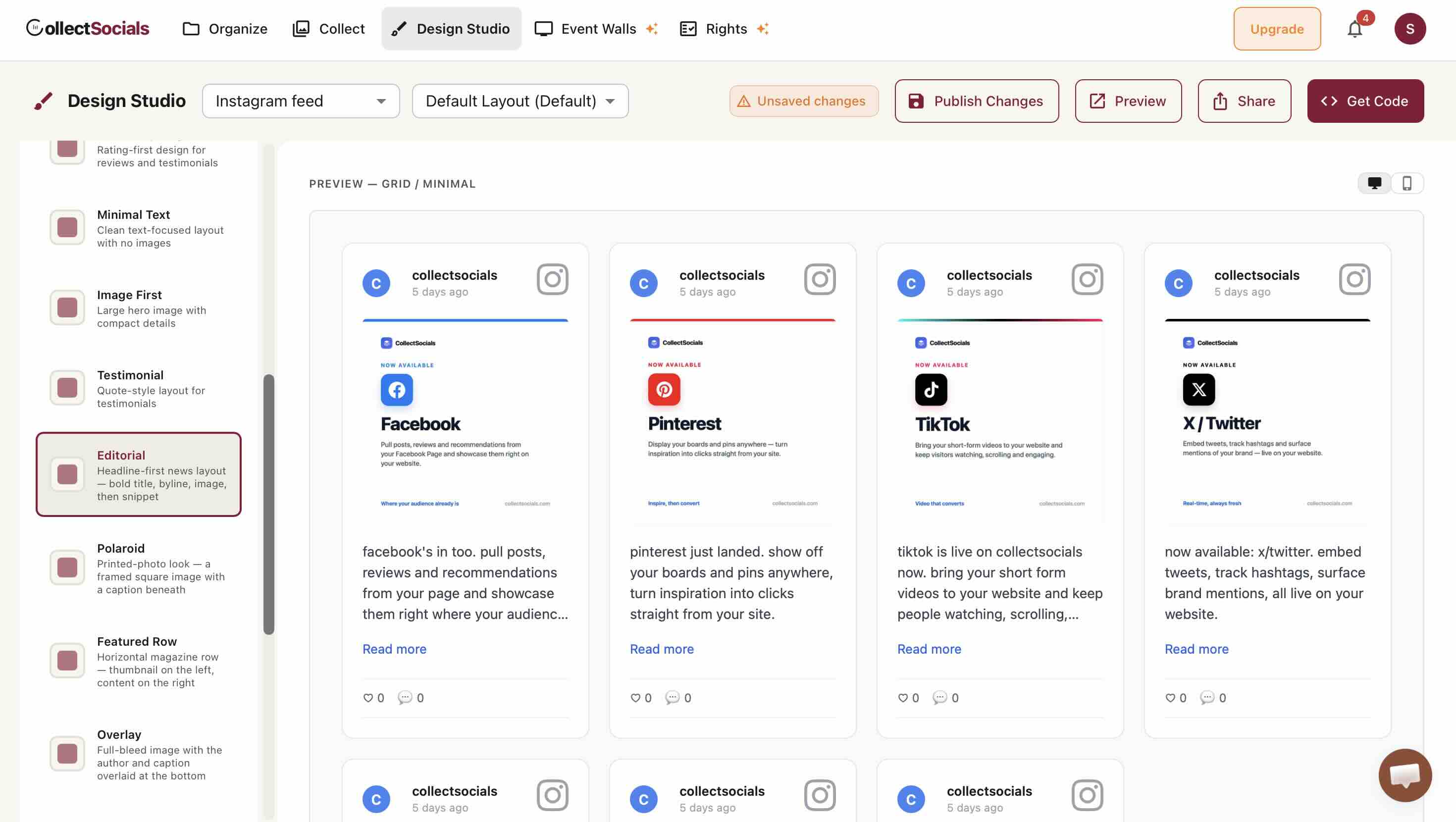
Webflow sites tend to fall into one of three visual profiles, and layout choice should match:
Agency or portfolio sites (bold, high-contrast, custom typography): Masonry with the Bold or Neon theme creates a gallery feel that complements strong brand design. If the site uses a dark background, the Glass theme renders beautifully. Carousel with the Neon theme is a standout choice for creative studios.
SaaS or B2B product sites (clean, structured, white space): Grid with the Minimal or Mono theme integrates without visual noise. The feed reads as part of the page architecture, not a bolted-on social widget. A two or three-column grid with dates and platform badges hidden keeps things polished.
E-commerce or lifestyle brands (visual, lifestyle photography): Mosaic or Masonry with the Elegant or Pastel theme showcases product photography naturally. Enable the avatar and platform badge display elements so visitors can clearly see these are real Instagram posts; the social-proof signal is stronger when the source is visible.
For layout sizing, let Webflow do the constraining: the widget fills the full width of whatever container you place the Embed element in, so size the Webflow section or div rather than fighting the widget. This is how Webflow expects embedded elements to behave inside sections and divs, and it is what makes the feed reflow with your breakpoints.
Step 6: Copy the Embed Code
Once your design is configured, click "Get Code" and set "Where are you installing your widget?" to Webflow. CollectSocials generates a short snippet: the container element the feed mounts into plus a <script> tag. Copy it to your clipboard.
Webflow is one of the platforms that gets the plain script embed, the same one Plain HTML and WordPress use. That matters: platforms that sandbox custom scripts, like Wix and Squarespace, have to take the feed as an iframe instead, while on Webflow the script renders the feed directly inside your own markup.
Step 7: Add the Embed Element to Webflow
Open your Webflow project in the Designer. Navigate to the page where you want the Instagram feed to appear. In the Add Elements panel (the + icon in the top-left), scroll to Components and find the Embed element. Drag it to the exact position on the canvas where you want the feed: inside a section, inside a container div, inside a two-column layout, wherever fits your design.
The Embed element opens a code editor automatically when you drop it. Paste your CollectSocials script tag into the code editor. Click Save & Close.
You will see a grey placeholder box in the Designer. This is correct and expected. The feed is not broken. It will not render in the Designer under any circumstances.
Step 8: Publish and Verify
Click Publish in the top-right corner of the Webflow Designer. Open your published site URL (or your staging URL) in a new browser tab. Navigate to the page where you placed the embed. Your Instagram feed should be live.
If it is not displaying, check the three most common causes: your Webflow site has no active paid plan (the embed cannot run without one), your Instagram account is personal rather than Business (switch to Professional Account), or a browser extension such as an ad blocker is preventing the widget from loading (test in an incognito window without extensions).
Making Your Feed Reusable Across Multiple Webflow Pages
This is a Webflow-specific technique that almost no Instagram embed guide covers, and it is invaluable for agencies and developers building multi-page client sites.
If the same Instagram feed needs to appear on multiple pages of your Webflow site, say the homepage, the about page, and the contact page, do not add a separate Embed element to each page individually. That creates a maintenance problem: when you update your widget design, you need to update the embed code in three places.
Instead, use Webflow's Component system. Once you have your Embed element in place and working correctly on one page:
- Right-click the Embed element (or its parent container) in the Navigator
- Select "Create Component"
- Name it something like "Instagram Feed Widget"
- Now drag this component from the Components panel onto any other page
When you update the widget code inside the component on any page, the change propagates to every instance across the site. This is the correct way to handle any reusable third-party widget in Webflow, and it dramatically reduces the maintenance overhead for agencies managing client sites.
Responsive Behaviour: What Webflow Designers Need to Know
Webflow's visual breakpoint system is one of its strongest features, but it introduces a nuance for embedded widgets. Webflow applies responsive styles to the Embed element's wrapper div, not to the widget's internal elements. This means if your grid layout looks perfect on desktop but crowded on mobile, the fix happens in Webflow, not in CollectSocials.
The most reliable approach: place your Embed element inside a Webflow container or section div, and use Webflow's breakpoint controls to set the container's width, padding, and margin at each breakpoint. The Instagram widget will fill its container's width naturally and reflow its own internal layout at narrower widths.
For grids, a 3-column grid on desktop will typically reflow to 2 columns on tablet and 1 column on mobile automatically. For Carousels and Marquees, the horizontal scrolling behaviour is inherently mobile-friendly and requires no additional breakpoint work.
If you need to hide the Instagram feed entirely on mobile, which some Webflow designers prefer for load-time reasons, wrap the Embed element in a Webflow div block, then set that div's display to none at the mobile breakpoint.
Where to Place Your Instagram Feed on a Webflow Site
The placement decision is strategic, not decorative. Different page positions create different audience expectations and serve different conversion goals.
Homepage: below the fold, after your value proposition. The hero section of your Webflow homepage is where you make a value-first argument to a visitor who does not know you yet. Your Instagram feed should come after. Once they have understood what you do, social content from real accounts serves as validation. A full-width Masonry or Mosaic grid between the second and third sections of a homepage is an effective position: it breaks the information density of above-the-fold copy and invites dwell time.
About or Team pages: mid-page, integrated into the brand narrative. On an about page, an Instagram feed functions as a live window into the culture behind the brand. Position it after the founding story or team section, not at the very bottom. A Carousel layout works particularly well here: it takes less vertical space and feels more editorial than a full grid.
Portfolio pages: as the hero element or as a section of its own. For creative agencies and freelancers building in Webflow, Instagram content often is the portfolio. A full-width Mosaic or Masonry layout near the top of a portfolio page, before the individual case studies, gives visitors an instant visual impression of your body of work.
Product or services pages: adjacent to or below the main CTA. Social proof at the point of conversion is one of the most reliable CRO techniques. Embedding an Instagram feed of customer posts, product-in-use shots, or UGC content directly above or below your pricing table or main CTA button reduces friction at the decision moment. Use a tight, compact Grid layout in this position, three or four posts rather than a full wall, so it supports the CTA rather than competing with it.
For a broader discussion of placement strategy, see the guide on where to place Instagram feeds on your website.
Common Issues and How to Fix Them
The feed shows as a grey box in Webflow Designer. Expected behaviour. This is Webflow's preview placeholder for all custom code. You cannot preview third-party scripts in the Designer. Publish your site and check the live URL.
The embed is not appearing on the published site. Check your Webflow plan first. Custom code only runs with an active paid Site plan or a paid Workspace plan; on a free setup the embed will not run at all (this is the paid-plan wall covered at the top of this guide). Verify under Project Settings, then Plans & Billing. If you only need to see how the feed looks before upgrading, use the console preview method at the top of this guide.
The Instagram feed is displaying but looks broken or unstyled. The most common cause is a CSS conflict between your Webflow theme and the widget's own styles. CollectSocials uses Shadow DOM isolation to prevent this, but if you are using a different widget service without Shadow DOM, this is the likely culprit. Switch to CollectSocials or wrap the Embed element in a Webflow div and apply isolation: isolate as a custom CSS property to that div.
The feed shows some posts but not all. Instagram's API returns posts in reverse chronological order but limits the initial batch. If you have a large archive, older posts may not have imported yet. Give it 24 hours for a full import. Also check your Collect tab in CollectSocials: if posts are deselected there, they will not appear in the widget even if they have been imported.
The feed stopped updating. Instagram's API tokens expire if the connected account changes password or if Meta revokes access after 90 days of inactivity. Go to CollectSocials, open Sources, and reconnect your Instagram account. The OAuth flow takes under a minute.
Browser extensions are blocking the feed. Ad blockers, script blockers, and privacy extensions sometimes block social media widgets from loading on websites. If the feed works in normal browsing but not in tests, try an incognito window with all extensions disabled. This does not affect regular site visitors who do not use extensions.
Instagram Feed Webflow: Quick Setup Checklist
Before you publish, run through this list:
- ☐ Webflow site has an active paid Site plan, or the Workspace plan is paid (custom code will not run otherwise)
- ☐ Instagram account is set to Business or Creator (not Personal)
- ☐ Instagram account is connected to a Facebook Page
- ☐ CollectSocials feed has been created and sources connected
- ☐ Posts have been curated in the Collect tab
- ☐ Widget layout and theme match the Webflow site's design language
- ☐ Embed element is placed inside a properly sized container div in Webflow
- ☐ Site has been published (not just previewed in Designer)
- ☐ Feed verified on live or staging URL
- ☐ Responsive behaviour verified at tablet and mobile breakpoints
- ☐ If used on multiple pages: consider wrapping in a Webflow Component for reusability
Instagram Feed on Webflow: FAQ
Can I embed an Instagram feed on Webflow for free?
Not on a fully free Webflow setup. Without a paid Site plan or paid Workspace plan, Webflow locks every custom-code path (the Embed element, Page Settings, and Site Settings alike), so no third-party feed can run, from any provider. The widget side can be free (CollectSocials' free plan covers one connected source and 2,000 views a month), but Webflow's side requires a paid plan. To see the feed on your design before paying, use the console preview trick at the top of this guide.
Why does my Instagram feed show as a grey box in the Designer?
Because the Designer never executes third-party JavaScript, for any widget. The grey box is Webflow's placeholder for all custom code. Publish the site and open the live or staging URL; that is the first place the feed can actually render.
Do I need an Instagram Business account?
Yes, Business or Creator. Meta closed third-party API access for personal accounts, so every legitimate feed tool requires a professional account connected to a Facebook Page. Switching is free and takes about two minutes in the Instagram app.
Can I embed a single Instagram post instead of a feed?
Yes. Instagram's native embed code for individual posts works in a Webflow Embed element, and it needs the same paid plan as any other custom code. The trade-off is that a single-post embed is frozen: it never updates, shows no grid, and each new post means editing your site again. A feed widget exists to remove exactly that maintenance loop.
Does an Instagram feed slow down my Webflow site?
The CollectSocials script loads deferred, so it does not block your page from rendering, and post images load lazily as they approach the viewport. Like anything on a page, the feed is not free, so place it where it earns its keep rather than in your hero section. The details are in our guide to social feeds and page speed.
The Result: A Live, Curated Instagram Feed That Works With Webflow's Design System
Done correctly, an Instagram feed on Webflow does not look like an external widget bolted onto your site. It looks like a designed section of the page: same spacing rhythm, same visual language, same level of craft as the rest of your Webflow build.
The key decisions that get you there: knowing the paid-plan requirement up front instead of discovering it mid-setup, choosing CollectSocials' Design Studio to match the layout and theme to your Webflow site's visual profile, placing the Embed element inside a properly-constrained Webflow container and letting the widget fill it naturally, curating your posts deliberately rather than showing the raw chronological feed, and turning the embed into a Webflow Component if it needs to appear on multiple pages.
The CollectSocials free tier includes one connected source, unlimited feeds, and 2,000 monthly page views: enough to build your feed, run the console preview against your design, and go live the moment your Webflow plan allows custom code. Sign up at collectsocials.com, connect your Instagram account, and the widget side of the setup takes about fifteen minutes.
For other platform guides in this series, see how to embed a LinkedIn feed on Webflow, the Instagram feed on Wix, the Instagram widget for Squarespace, adding an Instagram feed to WordPress and connecting Instagram to Shopify. The method comparison across all of them is in our guide to embedding an Instagram feed on your website. Stories are the exception to everything on this page, since no embed code for them exists at all; displaying Instagram Stories on your website covers the route that does work. And to run every network on Webflow, not just Instagram, see how to embed a social media feed on Webflow.
If the feed does not appear on the published site, Instagram feed not showing works through the causes in order. For deciding what actually reaches the page, see how to curate an Instagram feed and where to place an Instagram feed. And if you are still comparing tools, we tested 8 Instagram feed widgets.
Start Using CollectSocials Today
One curated feed from 10+ platforms: on your website in a single line of code, or up on the big screen at your event.