
Whether you're on Squarespace 7.0, 7.1, or the newer Squarespace versions, we cover exactly how to embed a live, professionally designed Instagram feed — and how to make it work harder for your site than a basic social block ever could. For the platform-agnostic version, start with our guide to embedding an Instagram feed on your website.
Squarespace and Instagram: What's Built In
Squarespace does have a native Instagram integration. In the Page Editor, you can add an Instagram block that connects to your account and displays recent posts. For some use cases, this is entirely adequate — it's fast to set up, it lives within the Squarespace design system, and it looks reasonably clean out of the box.
But the limitations are real, and they matter for exactly the types of sites Squarespace attracts. There's no content curation — you can't pick which posts appear. Layout options are limited. There's no support for combining Instagram with other platforms. And for Squarespace users who have spent time crafting a precise visual identity, the native block's styling constraints can be frustrating.
If you need more control — over which posts show, how the layout looks, and whether you can blend Instagram with other content types — you need a third-party approach.
Prerequisites: What You Need Before Starting
Both the native Squarespace integration and any third-party tool require the same baseline: an Instagram Business or Creator account linked to a Facebook Page. Personal Instagram accounts don't support API access, which is what any feed widget relies on.
If you're still on a personal account, switch it to Professional in the Instagram app: Settings → Account → Switch to Professional Account. Choose Business or Creator based on your situation — both work for feed embedding purposes. Then link it to your Facebook Page through Instagram's Linked Accounts setting.
You'll also need Squarespace plan access that supports Code Blocks (the Custom Code injection method). This is available on Business plans and above. Personal plans in Squarespace do not support custom code injection, which limits your options to the native Instagram block only.
Method 1: Squarespace's Native Instagram Block
To use the native block, open your Squarespace page in edit mode. Click the "+" button to add a block, search for Instagram in the block library, and add it to your page. You'll be prompted to connect your Instagram account — follow the OAuth flow to authenticate. Once connected, the block will display your recent posts in a basic grid.
You can adjust the number of columns and the spacing, and you can control whether the block links out to Instagram or opens a lightbox on click. That's roughly the extent of customization available.
For sites where Instagram is more decorative than strategic — a simple "find us on Instagram" section at the footer — this is a reasonable choice. For sites where the Instagram feed is a meaningful part of the conversion or trust-building journey, it falls short.
Method 2: Custom Embed with a Social Aggregator
Squarespace supports custom HTML through its Code and Embed blocks — but how you should use them depends on a detail most guides get wrong.
<script> injection is gated behind Squarespace's higher plans, which is why so many walkthroughs open with "you need Business or above." That is true of a script embed. It is not true of an iframe embed, which is ordinary HTML and works on every Squarespace plan. CollectSocials hands Squarespace users the iframe for exactly this reason — so the plan tier stops being part of the decision.This unlocks a different level of control: professional layout options, full content curation, multi-platform support, and a design studio that lets you match the widget's aesthetic to your Squarespace template. For a platform that attracts design-conscious users, this is typically the right approach.
How to Embed an Instagram Feed on Squarespace with CollectSocials
Step 1: Sign Up for CollectSocials
Create a free account at CollectSocials. The 7-day trial includes the full design studio — no credit card required. After signing up, you'll be in your dashboard, ready to create your first feed.
Step 2: Create a Feed
Click "Create Feed." Name it something descriptive — "Squarespace Portfolio Feed" or "Homepage Instagram Widget." Feeds are the containers that hold your content sources, and each feed maps to one embeddable widget. If your Squarespace site needs different Instagram content on different pages, create separate feeds for each.
Step 3: Connect Instagram as a Source
Inside your feed, add Instagram as a source. CollectSocials uses Meta's official OAuth to authenticate — you'll log in with your Facebook account, grant the necessary permissions, and select your Instagram Business account. Your posts, reels, and carousels will import immediately.
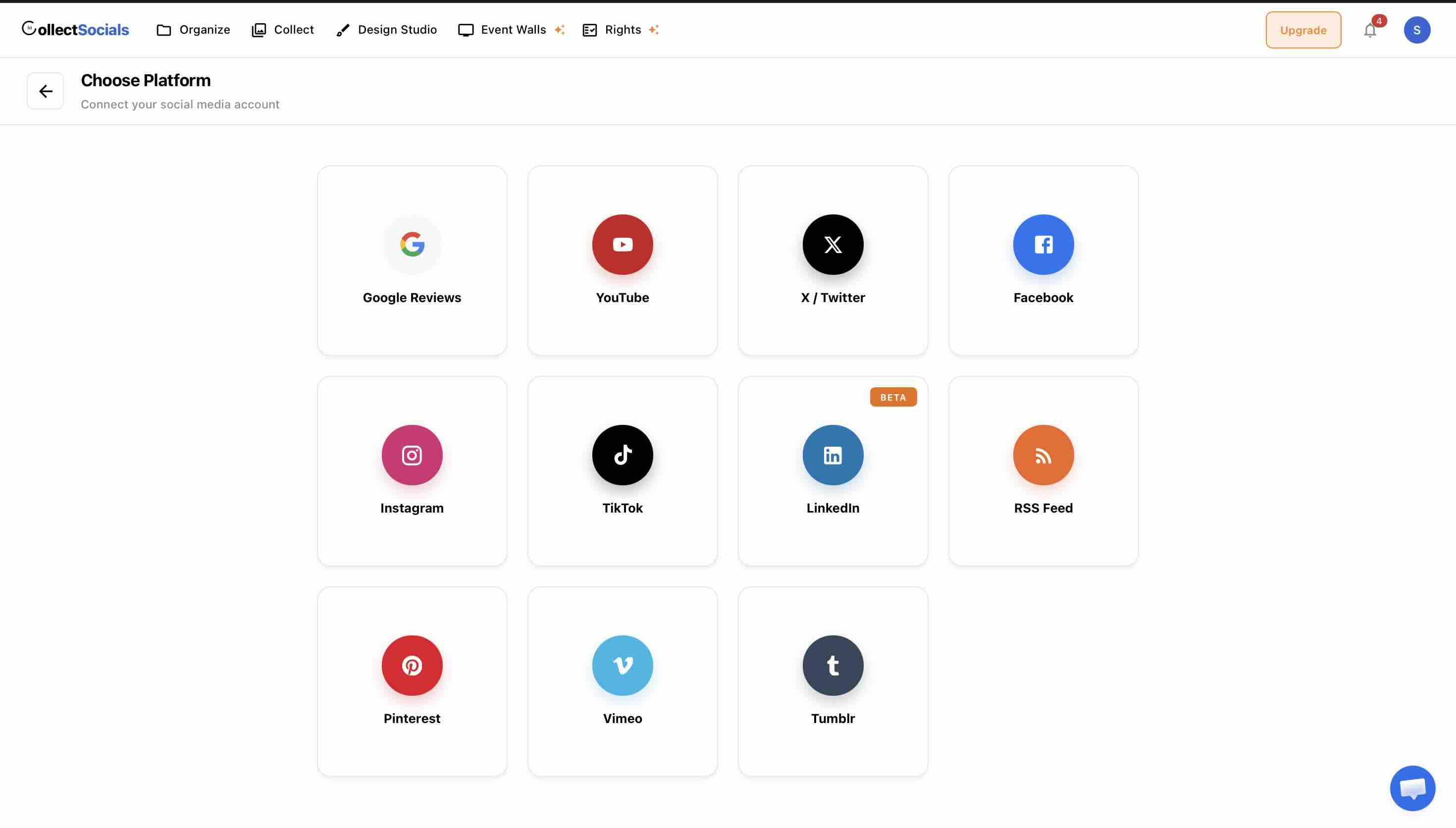
If you want to create a richer feed by combining Instagram with other platforms — Google Reviews for credibility, YouTube videos for content depth — add those as additional sources. Everything flows into one unified feed that renders as one clean widget on your Squarespace page.
Step 4: Curate Your Posts
The Collect page shows every imported post. Select which ones you want displayed on your Squarespace site — and leave everything else deselected. For Squarespace users who have spent time building a visual brand, this curation step is especially important. Your widget should only show the posts that reflect the quality and aesthetic of your site.
You can also edit post captions inline. If a post's original Instagram caption includes hashtags and emoji that feel out of place on a professional Squarespace site, clean it up here before it goes live on your page.
Step 5: Design Your Widget in the Design Studio
Squarespace users typically care a lot about design, so this step deserves real attention. Start with layout:
Matching the widget to a Squarespace template
The animation cycles a single Instagram feed through different layouts and themes in the design studio. For Squarespace sites in particular this is the step that decides whether the feed reads as part of the template or as something bolted on — the same posts can look editorial, gallery-like or utilitarian depending only on these settings.
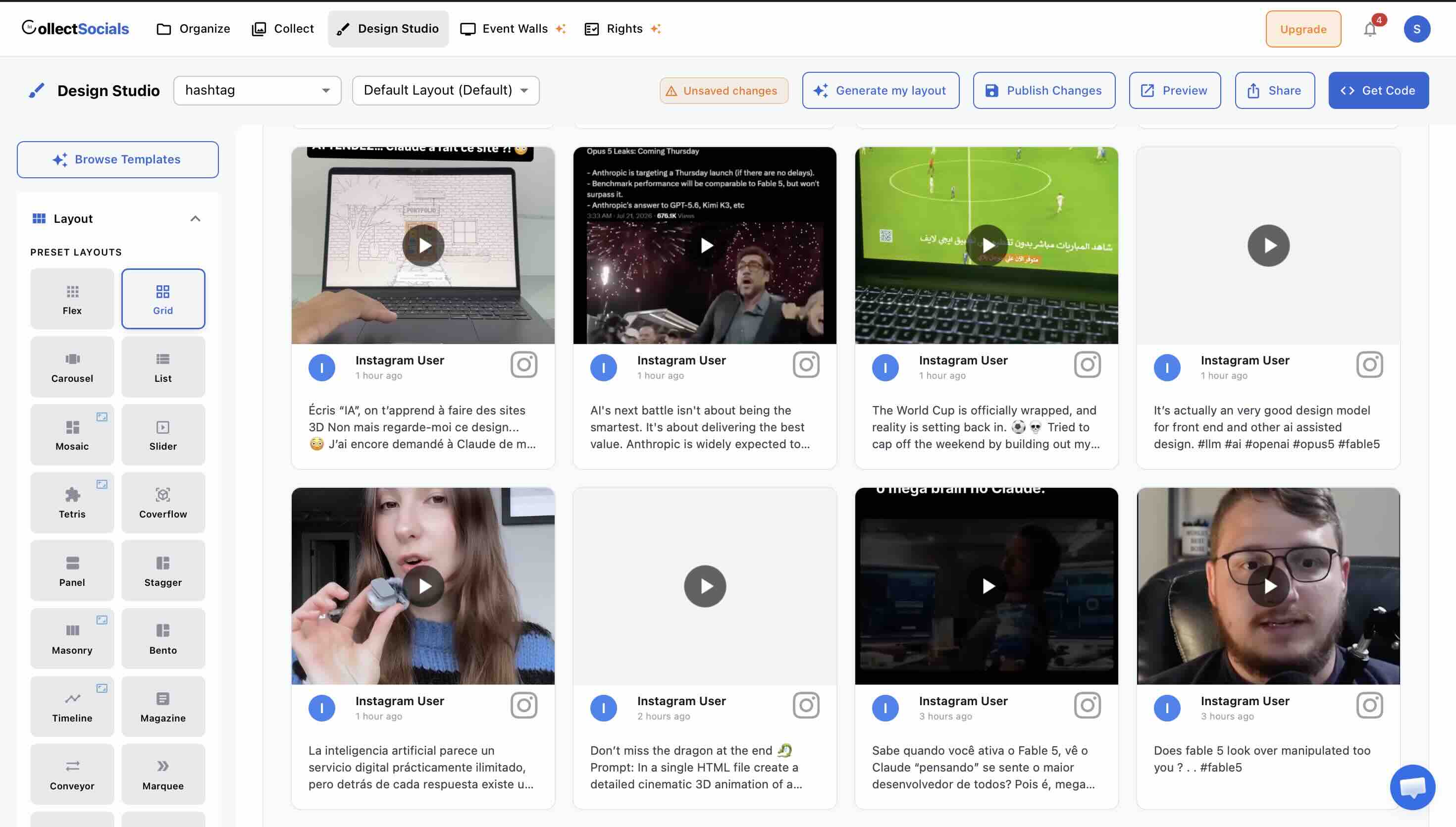
Masonry is the most popular choice for creative professionals on Squarespace. The varied-height layout feels editorial and sophisticated — it mirrors the visual language of design-forward publications and fits naturally alongside Squarespace templates that prioritize beautiful imagery.
Grid creates a clean, structured aesthetic. For architecture firms, interior designers, product brands, and other businesses where visual order is part of the brand identity, grid layout signals professionalism and care.
Mosaic works well when you want the feed to feel like an art installation — varied tile sizes creating an asymmetric, gallery-like layout. High impact, best used with high-quality photography.
Carousel is the right choice when the feed needs to occupy a compact horizontal space without dominating the page — inside a two-column section, for example, or just below a hero image.
For themes: Squarespace templates tend toward the minimal and elegant, so the Minimal, Elegant, and Mono themes in CollectSocials integrate most naturally. If your template is bolder or more expressive, Bold or Neon can complement that energy. Toggle display options — dates, avatars, platform badges — based on how much metadata feels right for your design context. For portfolios and lifestyle brands, hiding dates and platform badges often creates a cleaner look.
Step 6: Get Your Embed Code — Choose Squarespace in the Dropdown
In the embed dialog, set "Where are you installing your widget?" to Squarespace. That swaps the default script snippet for the iframe version described above — the one that does not care which plan you are on.
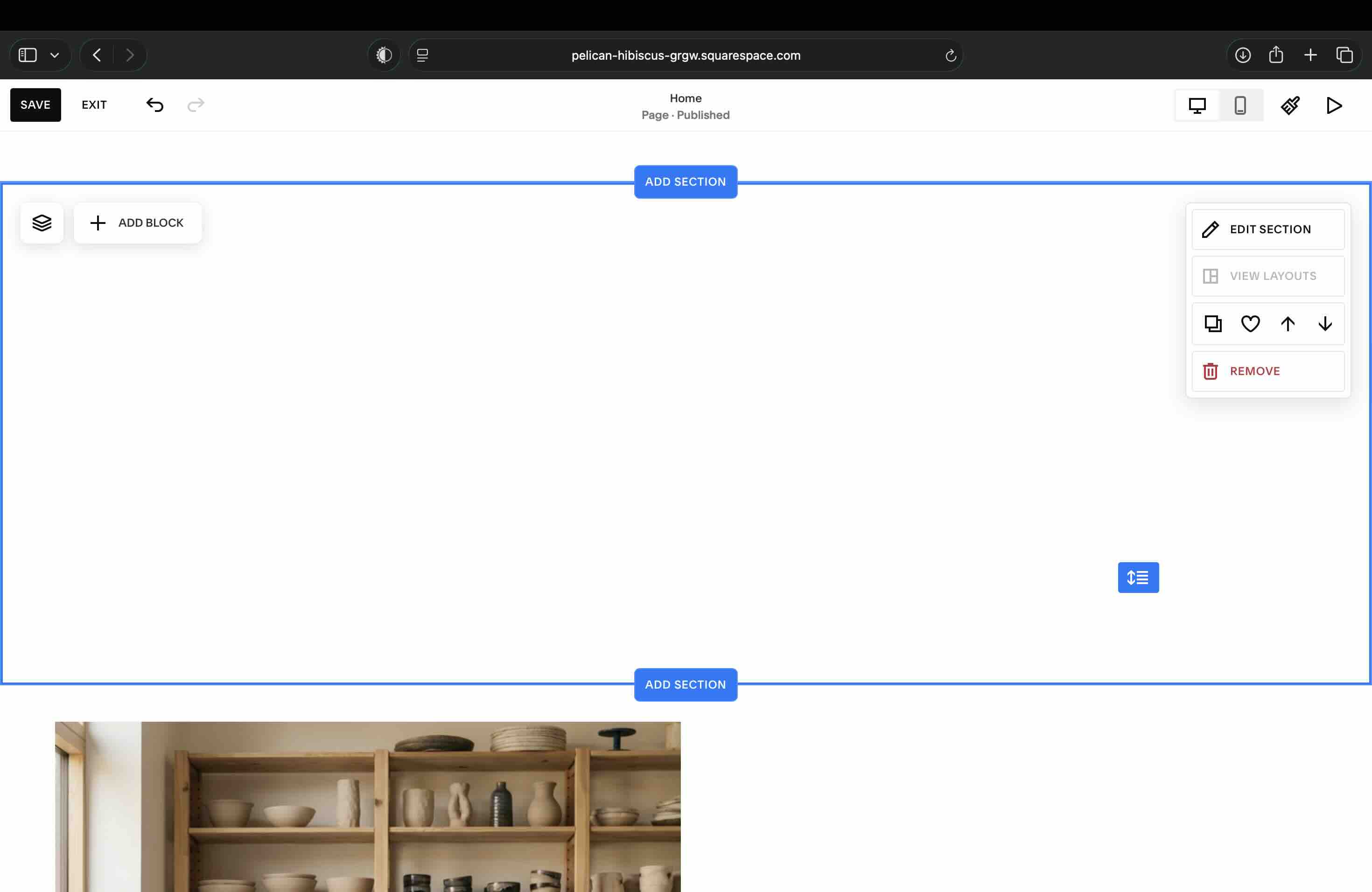
Step 7: Add an Embed Block to Your Squarespace Page
Open the page in the Squarespace editor and add a block where you want the feed to sit.
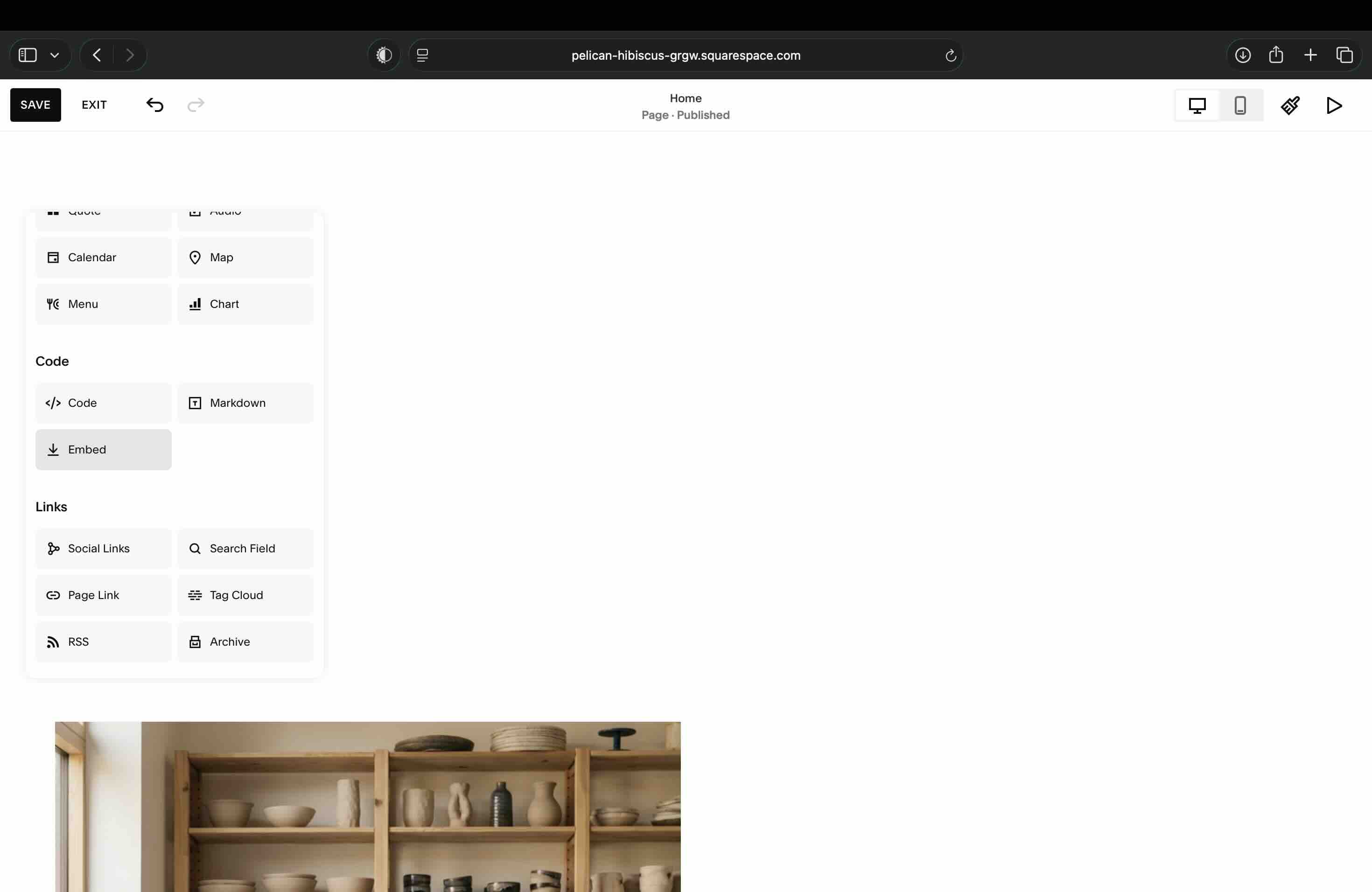
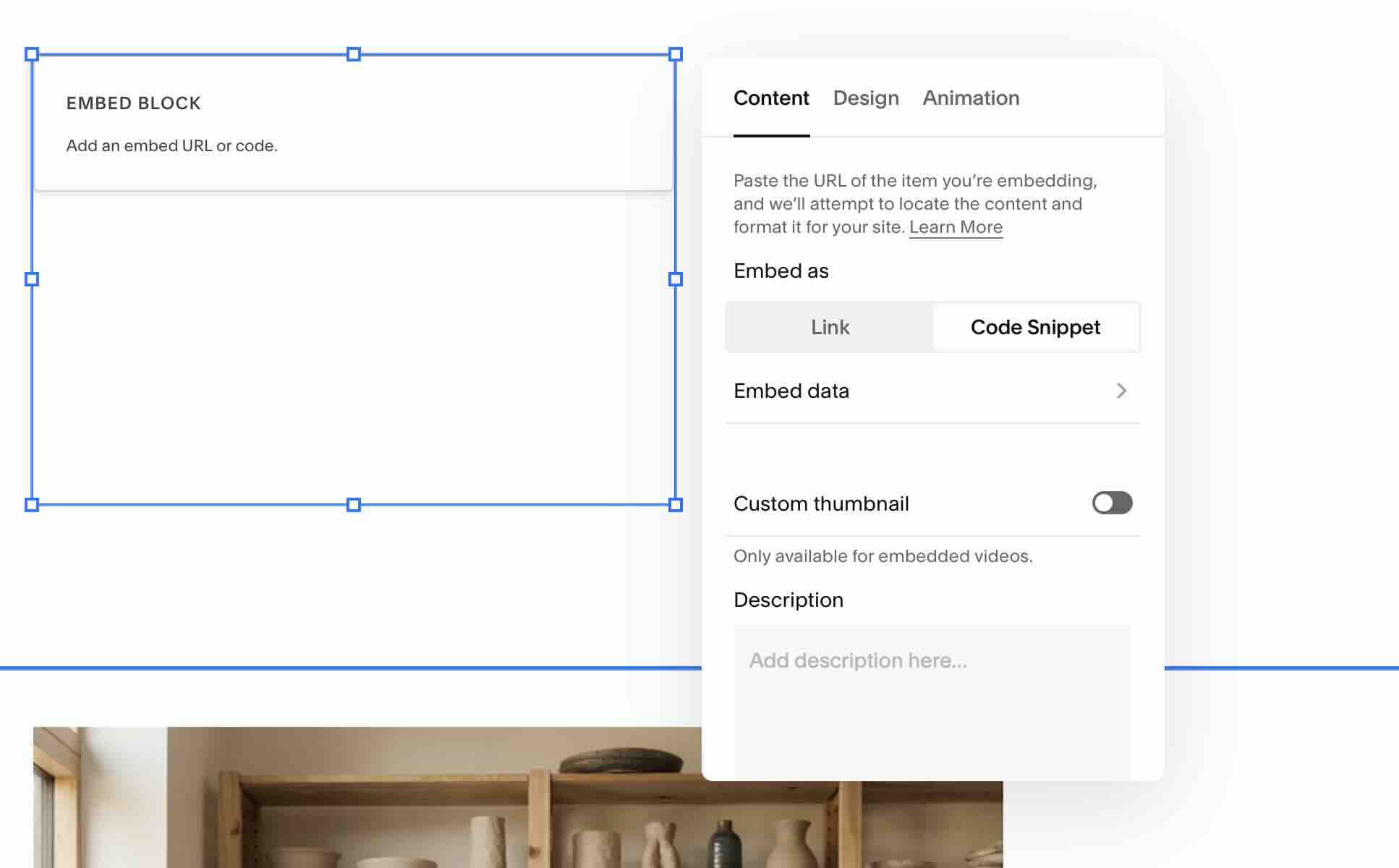
Scroll the block menu to the Code group. You will see Code, Markdown and Embed. Choose Embed.
In the block's Content panel, switch Embed as from Link to Code Snippet, then paste the snippet. Leaving it on Link is the other common failure — Squarespace will try to resolve your snippet as a URL and quietly render nothing.
The Squarespace Quirk: "Script Disabled" in the Editor
Here is the part that sends people back to support, and it is worth knowing before it happens to you. Save the block and Squarespace will show you something that looks like a broken embed: a grey notice reading "This block contains embedded scripts. Embedded scripts are disabled while you're logged in and editing your site," a Preview in Safe Mode button, and underneath it a clipped, overlapping render of your feed stamped Script Disabled.
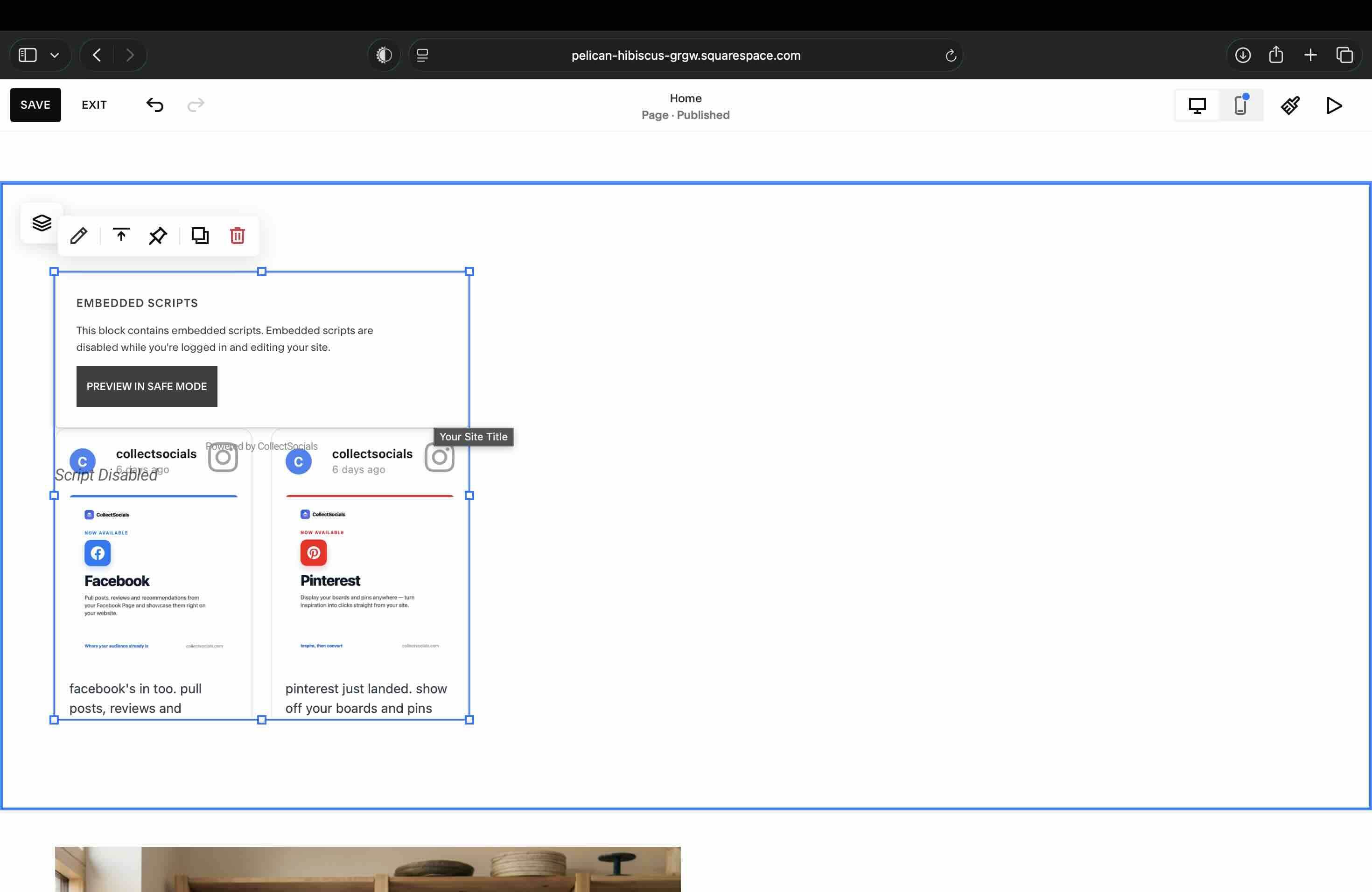
Nothing is broken. Read what Squarespace is actually telling you: it disables embedded scripts while you are logged in and editing. The iframe still loads — you can see the post cards rendering behind the notice. What is disabled is the small listener that resizes the frame as content arrives. Without it the frame stays at its starting height and the content below the fold gets clipped, which is precisely the overlapping mess in the screenshot.
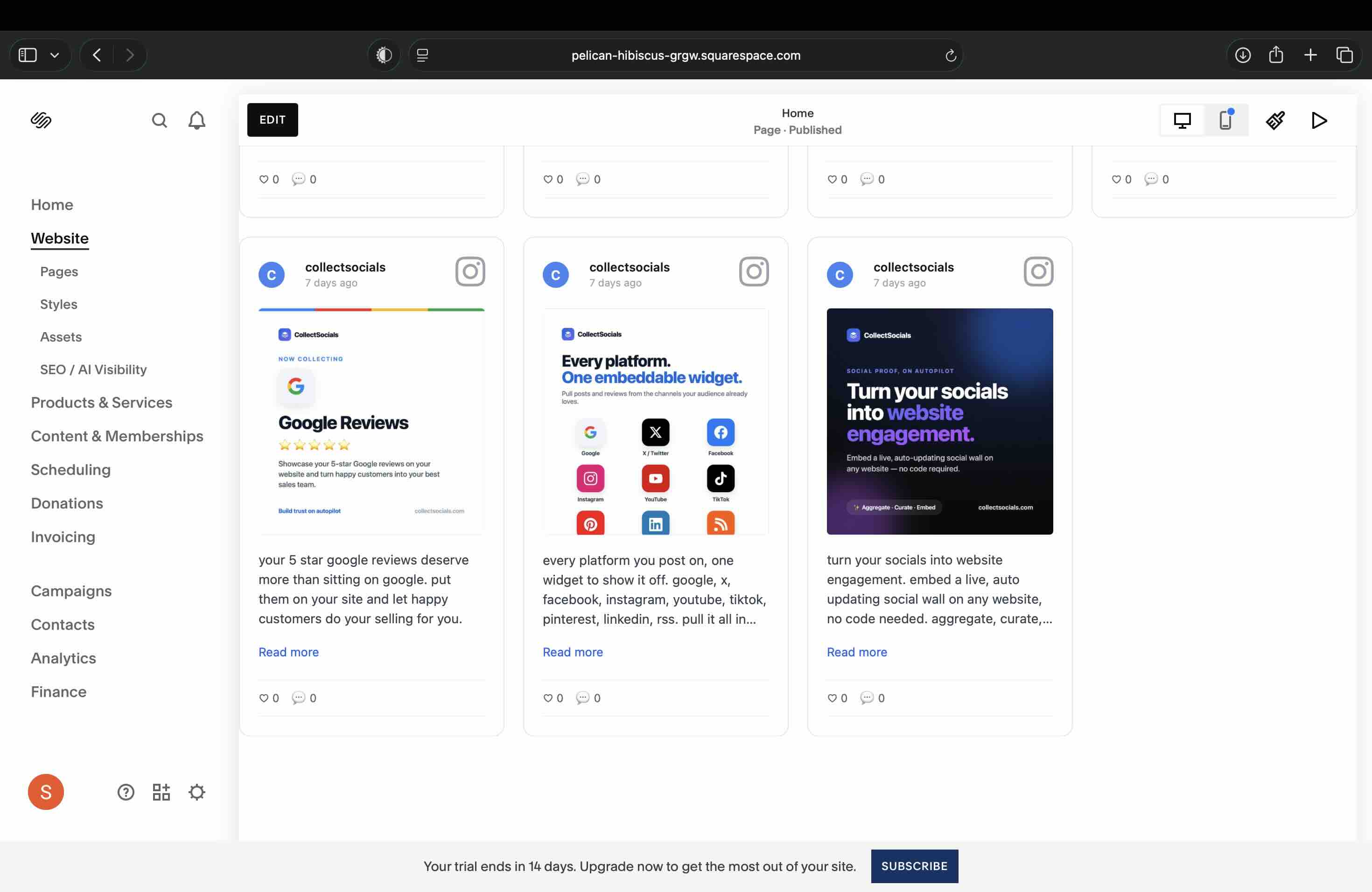
This is a Squarespace behaviour, not a widget behaviour, and it applies to any embed that ships a script alongside an iframe. Worth contrasting with Shopify, which runs the same embed inside its own theme editor without complaint — we cover that in connect Instagram to Shopify.
sync
Why the block keeps working after you close the editor
This traces a post from your Instagram account to the Embed block on your Squarespace page. The block holds a reference to the feed rather than a copy of the posts, which is why new content appears without you reopening the editor — and why the "Script Disabled" notice above only ever affects what you see while editing.
Preview the live page to confirm the widget is rendering. The CollectSocials widget renders in a Shadow DOM, which isolates its CSS from Squarespace's stylesheets — so you shouldn't see any visual conflicts with your template, regardless of which Squarespace theme you're using.
On mobile, check the live preview in a phone browser or using browser developer tools to confirm the widget is displaying responsively. The widget adapts to its container width, so as long as the Code Block is set to full width, it should render cleanly across screen sizes.
Where to Place the Feed on Your Squarespace Site
Squarespace's section-based layout system gives you clear placement options. Here's where feeds tend to perform best on the types of sites Squarespace attracts:
Photography and portfolio sites. Add the Instagram feed as its own full- width section near the bottom of your homepage, after your featured work but before the footer. Frame it as "Behind the Work" or "Follow Along" — a window into your process and ongoing projects. This adds a layer of personality that a static portfolio alone can't provide.
Restaurants and hospitality. Embed the feed on your homepage in a dedicated "From Our Kitchen" or "Recent Moments" section. High-quality food photography displayed in a masonry layout is one of the most effective trust-building tools a restaurant website can use. See our dedicated guide on Instagram feeds for restaurants for a deeper look at this.
Service businesses and consultants. Place the feed on your About page or a dedicated "Our Culture" or "Our Team" page. Instagram content that shows the human side of your business — the team, the office, work in progress — builds the kind of rapport that formal business copy rarely achieves.
Squarespace Commerce stores. Embed the feed on product pages to show products in real-world use. This is especially effective for fashion, accessories, home goods, and any product where lifestyle context matters to the buying decision.
Squarespace-Specific Tips
Section padding and spacing. Squarespace's section padding settings control how much white space surrounds your content blocks. Give the Instagram feed section generous padding — it tends to breathe better with more space around it and looks more intentional than a feed crammed against adjacent content.
Background color matching. The Code Block will inherit whatever background color you assign to its section in Squarespace. Choosing a background that complements your CollectSocials theme creates a more cohesive look. A white background with the Minimal theme, or a dark background with the Midnight or Mono theme, tends to look most polished.
Code Block version. Make sure you're adding a proper Code Block, not a Markdown block. Markdown blocks in Squarespace strip script tags for security reasons. Code Blocks render HTML as written.
Maintaining Your Squarespace Instagram Feed
Once set up, the feed maintains itself automatically. New Instagram posts are pulled in at your sync interval and appear in your Collect page for curation. Spend a few minutes each week reviewing new content and selecting the best posts to display.
If your Meta OAuth connection expires, you'll receive a notification in CollectSocials. Reconnecting is a quick process — back in your CollectSocials Sources settings, click to reconnect your Instagram account and sync resumes. This typically needs to happen every few months with Meta's standard token expiry cycles.
Native Squarespace Block or a Dedicated Instagram Widget?
Squarespace sets a high visual bar, and the social proof section of your site should meet that same bar. The native Instagram block is a compromise — it works, but it doesn't feel intentional. A properly designed widget from a dedicated tool feels like it belongs on your Squarespace site because you control every aspect of its look and content.
For design-forward Squarespace users especially, investing the extra setup time in a custom embed approach is consistently worth it. Your Instagram content is good — give it a presentation worthy of the platform you've built your site on.
For more on how to think about Instagram feed strategy and placement beyond the platform-specific setup, see our guide on where to place an Instagram feed on your website. For other platform-specific guides, check adding an Instagram feed to WordPress, the Instagram feed on Wix (which shares Squarespace's sandbox constraint), and embedding an Instagram feed on Webflow (which does not). And for curation strategies that ensure only your best content shows on your site, our curation guide covers the editorial discipline that makes the difference.
If the block still shows nothing on the published page — as opposed to in the editor — Instagram feed not showing works through the causes in order. And if you are still deciding which tool to use, we tested 8 Instagram feed widgets head to head, including how each one behaves inside a page builder.
Start Using CollectSocials Today
One curated feed from 10+ platforms: on your website in a single line of code, or up on the big screen at your event.