
If you're looking for platform-specific single guides, we have those too: Instagram on Webflow, LinkedIn on Webflow. This guide covers all platforms comprehensively in one place and focuses on Webflow-specific implementation details that apply across platforms.
Understanding Webflow's Code Embed vs Code Block
This is critical to understand before you start. Webflow has two different elements that look similar but serve completely different purposes.
Code Block: Display Only
According to Webflow's documentation, Code Blocks display formatted code snippets for documentation or tutorials. They do not execute code. If you paste widget embed code into a Code Block, it will display the code as text on your page, not render the actual widget.
Custom Code Embed: Executes Code (What You Need)
The Custom Code Embed element executes HTML, CSS, and JavaScript. This is what you use for embedding social media widgets. The Custom Code Embed element is available on paid Webflow site plans (not free plans).
When you add a Custom Code Embed element to your page and paste widget code, Webflow renders the code and displays the actual widget, not the code text. This is the only way to embed functional third-party widgets in Webflow.
Step-by-Step: Embedding Social Feeds on Webflow
The Webflow half of this is identical for every platform, because Webflow only ever receives one embed. What differs is what you connect on the other side, and one platform is not connectable yet. Here is the complete workflow:
Step 1: Create Your Social Feed Widget
Create a feed in the CollectSocials dashboard, then add sources to it. A feed is the container and a source is one account, channel, hashtag or listing pouring into it, which is why a single Webflow embed can show more than one platform at once. What each source asks for differs:
For Instagram: Connect an Instagram Business or Creator account. Five source types are available, all of them on the free plan: your account's posts, Stories, a hashtag, posts you are tagged in, and mentions. For detailed Instagram setup, see our complete Instagram guide.
For LinkedIn: the card is in the source picker with an In review badge, and LinkedIn is not live yet. LinkedIn's Community Management API is still development-tier for us, so the connection completes and returns nothing for anyone LinkedIn has not authorised. Read our LinkedIn guide for what the flow will look like, but do not plan a client launch around it. When it does open, a company page is the only source type LinkedIn exposes, one per account on every tier.
For Facebook: Connect a Facebook Page. A Page is the only thing Facebook's Graph API will hand over, so there is no personal-profile option here on any tool. See our Facebook guide for details.
For TikTok: Connect a TikTok account, or build a custom feed by pasting the video links you want. TikTok's vertical video format requires special layout consideration, covered below.
For YouTube: Paste a channel URL, an @handle or a playlist link and it resolves, with no Google sign-in step at all because the content is public. The alternative source type is a custom feed built from pasted video links, which do not have to be your videos or even share a channel. See our YouTube embedding guide for video-specific optimization, including what a YouTube iframe writes into a visitor's browser before they press play.
For Google Reviews: Search for your business and connect the listing. One limit is worth knowing before you promise a client a review wall: Google's Places API returns a maximum of five reviews per business, chosen by Google, and there is no filter that makes it return more or return only the good ones. See our Google Reviews guide, which leads with that cap and what to do about it.
sync
Why the source lives outside Webflow
The animation shows posts leaving a platform silo and landing in a site's own layout. On Webflow that split is the whole point of the architecture: the Custom Code Embed you place in the Designer never changes, while the accounts feeding it, the posts you approve and the design you publish all live in a dashboard your client can reach without Designer access.
Step 2: Design Your Feed
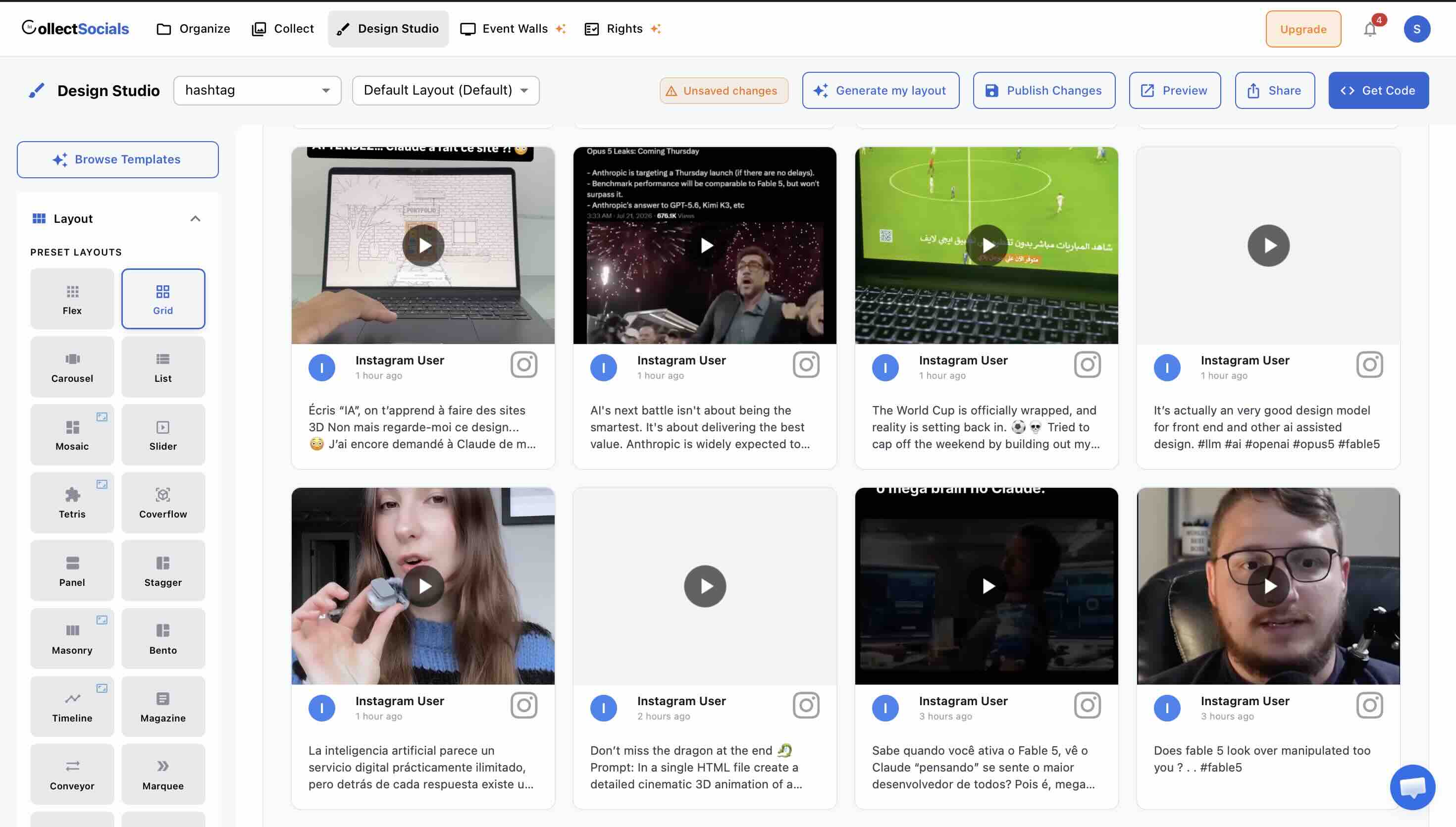
Most widget platforms provide a design studio where you can customize layout, theme, colors, and display options. Here's how to design for Webflow specifically:
Matching a feed to a Webflow style guide
The animation cycles the Design Studio through layouts and themes with a live preview of the feed alongside. For a Webflow build the useful part is that there are forty layouts and sixteen themes to match a style guide against, plus custom colours and fonts on every plan including free, so the feed can be brought to the site's palette rather than the site being built around a widget's defaults.
Match Webflow's color palette: If your Webflow site uses specific brand colors, configure your widget theme to match. Most widgets allow custom color selection for backgrounds, text, and accents. Extract color codes from your Webflow Style Guide and apply them to your widget.
Choose layouts that work with Webflow's grid system: Webflow uses a 12-column grid by default. Full-width layouts (Masonry, Grid) work beautifully in Webflow containers. Carousel and Marquee layouts work well in narrower sections or sidebars.
Consider Webflow's Fluid Engine: If you're using Webflow's Fluid Engine layout system (available in newer projects), you have pixel-perfect control over element positioning. Social widgets work as standard embedded elements and can be positioned anywhere in your Fluid Engine layout.
Step 3: Get Your Embed Code, and Tell It You Are on Webflow
Once the feed is designed, publish it and open Get Code. The dialog opens with one question above the code box: "Where are you installing your widget?" Set it to Webflow.
That dropdown is not cosmetic, and it is the step most guides skip. Different hosts receive genuinely different payloads, because they handle pasted code differently. Webflow is one of the hosts that gets the plain script version, so the answer here happens to match the default, but knowing why matters the moment you or a client moves the same feed somewhere else:
- Webflow, plain HTML, WordPress and React get the script snippet: a preload hint, an empty container div, and one
<script>tag carrying the feed id and token as data attributes. - Shopify gets the same script wrapped in a page-width container, so a Dawn-style theme's flex rules cannot compress the feed into a strip.
- Wix and Squarespace get a self-resizing
<iframe>instead, on every plan. Wix sandboxes custom HTML and Squarespace strips<script>out of a Code Block on its lower tiers, so the script version fails there, sometimes silently. - Notion and Google Sites cannot run a script at all and get a bare URL to embed rather than any markup.
Copy what the dialog hands you, without editing it. The feed id, the token and the container id in that snippet are matched to each other and to the design you just published; retyping any of them is the fastest way to an empty container.
Step 4: Add Custom Code Embed Element in Webflow
Open your Webflow project in the Designer. Navigate to the page where you want to display your social feed. Follow these steps:
1. Drag a Custom Code Embed element from the Add Panel (under Components) onto your page. Place it where you want your social feed to appear: header, mid-page section, footer, sidebar, wherever makes sense for your design.
2. Click the gear icon on the Custom Code Embed element to open the code editor.
3. Paste your widget embed code into the editor. Do not modify the code. Paste it exactly as the Get Code dialog gave it to you.
4. Click Save & Close. You'll see a placeholder in the Designer that says "Custom Code." This is normal. Custom code doesn't render in the Webflow Designer; it only renders on the published site.
5. Publish your site and view it in a browser. Your social feed should now be visible and fully functional.
Step 5: Style Your Container (Optional)
You can style the container around your Custom Code Embed element using Webflow's visual styling tools. For example:
Add padding: Give your social feed breathing room by adding padding to the container. This prevents your feed from appearing cramped against other elements.
Set background color: If your widget has a transparent background, you might want to set a background color on the container so it integrates visually with your site sections.
Control width: Wrap your Custom Code Embed in a Webflow container or section with max-width constraints to control how wide your feed expands on large screens.
Most modern widgets are fully responsive and adapt automatically to their container width, so Webflow's responsive settings apply naturally.
Platform-Specific Considerations for Webflow
While the implementation process is identical across platforms, different social media types work better in different contexts on Webflow sites. Here's strategic guidance by platform:
Instagram on Webflow: Visual Brands
Instagram is the most popular platform for Webflow sites, particularly for creative agencies, photographers, fashion brands, restaurants, and lifestyle businesses. Webflow's design-forward audience overlaps heavily with Instagram's visual content strengths.
Best practices for Instagram on Webflow: Use Masonry layouts to create editorial, Pinterest-style galleries that match Webflow's aesthetic sensibilities. Place Instagram feeds on portfolio pages, About pages (showing team culture), or homepage sections that need dynamic, current content. For the full walkthrough, see how to embed an Instagram feed on Webflow.
LinkedIn on Webflow: Professional Services
Before you start: LinkedIn is not live yet on CollectSocials. LinkedIn is reviewing our access to their Community Management API, and until that clears, company pages connect only for accounts LinkedIn has authorised on our app. The steps below are the flow every source follows, and they work today for Instagram, Facebook, Google Reviews, YouTube, TikTok and the rest. On a Webflow B2B build that means planning the section, not the source: design the slot, fill it with something that works today, and swap the source when LinkedIn opens up. The embed code does not change when a feed's sources do, so that swap is a dashboard action rather than a Webflow republish.
The demand is real: consulting firms, SaaS companies, agencies and professional services all want it, and Webflow is popular in exactly those industries. When it opens, a company page is the only source type LinkedIn exposes, and the cap is one LinkedIn source per account on every tier including Enterprise, so a "company page plus the founder's profile" layout is not buildable regardless of what you pay.
Best practices for the slot itself: Use Grid layouts with Glass or Minimal themes to maintain professional aesthetics. Place the feed on About pages (team expertise), the homepage (thought leadership), or dedicated insights sections. For B2B strategies, see our LinkedIn Webflow guide.
Facebook on Webflow: Community-Focused Brands
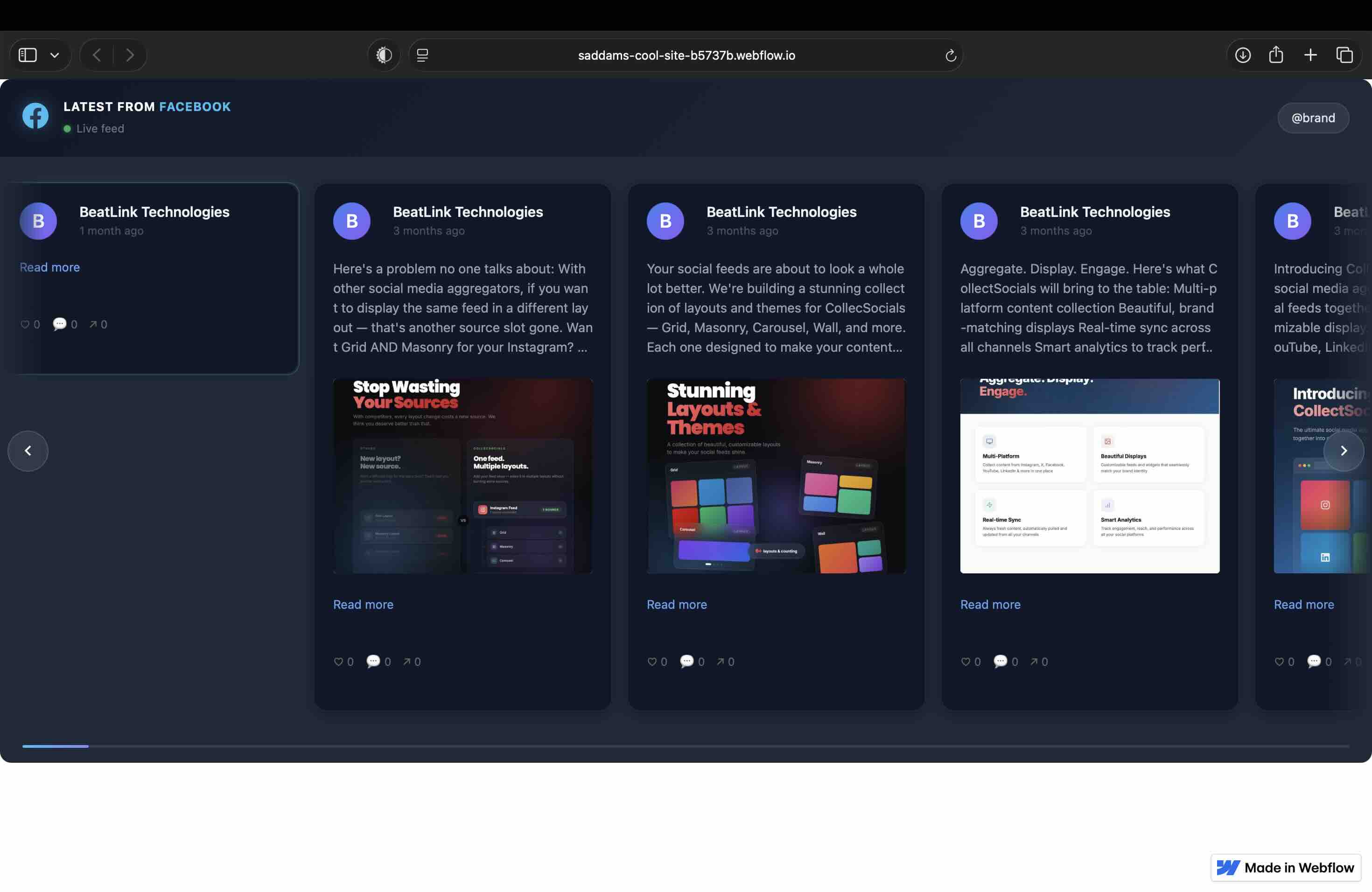
Facebook works well for community-driven Webflow sites: local businesses, nonprofits, events, and brands with active Facebook communities. While Facebook is less visually focused than Instagram, it excels at showing community engagement and events.
Best practices for Facebook on Webflow: Combine Facebook posts with Instagram for multi-platform social proof. Place Facebook feeds on community pages, event pages, or as part of unified social walls. For implementation details, see our Facebook guide.
TikTok on Webflow: Gen Z and Video-First Brands
TikTok integration is newer for Webflow sites but growing rapidly, especially for fashion, beauty, entertainment, and consumer brands targeting younger audiences.
Best practices for TikTok on Webflow: TikTok's vertical video format (9:16 aspect ratio) requires special layout consideration. Grid layouts work better than Masonry for TikTok because uniform card heights accommodate vertical videos cleanly. Carousel layouts work exceptionally well for TikTok feeds, emphasizing the video-scrolling experience users expect from TikTok.
YouTube on Webflow: Video-Rich Content
YouTube works well for Webflow sites that produce significant video content: educators, product demo sites, tutorial platforms, and content creators.
Best practices for YouTube on Webflow: Embed playlist feeds rather than channel feeds to curate specific video collections. Use Grid layouts for organized video libraries. Place YouTube feeds on Resources pages, Product pages (demo videos), or dedicated video gallery sections.
Google Reviews on Webflow: Trust-Building
Google Reviews work universally well on Webflow sites, especially for local businesses, service providers, and e-commerce brands that need trust signals.
Best practices for Google Reviews on Webflow: Place reviews on homepages (above or mid-page for credibility), About pages (legitimacy), or Contact pages (conversion reinforcement). Combine Google Reviews with Instagram or Facebook for comprehensive social proof. For review strategies, see our Google Reviews guide.
Webflow Responsive Breakpoints and Social Feeds
Webflow uses four primary responsive breakpoints: Desktop (Base), Tablet, Mobile Landscape, and Mobile Portrait. Quality social feed widgets respond automatically to these breakpoints, but you should test and potentially adjust container styling at each breakpoint.
Desktop (Base Styles)
On desktop, most social feeds work best in full-width or 2/3-width containers. Grid and Masonry layouts with 3-4 columns look balanced and professional. Carousel layouts work well in sidebar or narrow sections.
Tablet (991px and below)
Tablets typically display 2-3 columns for Grid layouts. Test your feed on actual tablets or use Webflow's tablet preview mode. Some widgets automatically reduce column count at this breakpoint; others require manual adjustment if you've set fixed widths.
Mobile Landscape (767px and below)
Mobile landscape often works well with 2 columns for Grid layouts or single-column for Masonry. Carousel layouts become more prominent on mobile landscape as horizontal scrolling feels natural on smaller devices.
Mobile Portrait (479px and below)
Mobile portrait should almost always display single-column layouts for readability and touch target size. Test here first rather than last: check your own analytics before assuming desktop is the primary view, because for most of the sites we see it is not, and a feed that only works on a laptop is a feed most visitors never see working.
Advanced Webflow Integration: CMS and Dynamic Embeds
For agencies and advanced Webflow users, integrating social feeds with Webflow's CMS opens powerful possibilities for dynamic, scalable implementations.
Use Case: Portfolio with Project-Specific Social Feeds
If you run an agency with a Webflow portfolio site, you might want different social feeds for different projects. For example, Project A shows Instagram content related to that specific client; Project B shows different Instagram content.
Implementation approach: Create multiple feeds in your widget dashboard, each with different source accounts or hashtags. Generate embed codes for each feed. In your Webflow CMS, add a Custom Code field to your Project collection. Paste the appropriate embed code for each project. On your dynamic Project template page, use the CMS field to output the embed code.
This allows you to maintain one template but display different social feeds dynamically based on which project page visitors are viewing.
Use Case: Multi-Location Business
If you're building a Webflow site for a franchise or multi-location business, you might want location-specific Google Reviews or social feeds on each location page.
Implementation approach: Create feeds for each location's Google Business Profile or social account. Add a Custom Code CMS field to your Location collection. Populate each location's embed code. Use the CMS field on your Location template to display location-specific reviews or social content.
This scales elegantly: you can manage hundreds of locations without duplicating template pages, just by populating CMS fields.
Important: Custom Code CMS Field Limitations
According to Webflow's CMS documentation, Custom Code fields in CMS have the same 50,000-character limit as Custom Code Embed elements. Well-optimized widget embed codes are typically 200-500 characters, so this limit is rarely an issue. If you hit the limit, your embed code is likely including unnecessary inline content, which is worth checking before you work around the limit.
Webflow Interactions and Social Feeds
Webflow's Interactions system allows you to create animations triggered by scroll, click, or page load. Social feed widgets can be animated using Webflow Interactions, but there are some limitations to understand.
What Works: Container-Level Animations
You can apply Webflow Interactions to the container around your Custom Code Embed element. For example:
Fade-in on scroll: Wrap your embed in a div, apply a scroll-triggered interaction that fades the container from opacity 0 to 1 as it enters the viewport. This creates a subtle reveal effect for your social feed.
Slide-up animation: Start with the container translated down 50px with opacity 0, then animate to normal position with opacity 1 on scroll. This is a popular effect for social proof sections.
What Doesn't Work: Inside-Widget Animations
Our feed renders inside a Shadow DOM, and a shadow root is a boundary Webflow's Interactions system cannot select through. So you cannot animate individual posts inside the feed from Webflow. The same is true of any embed that isolates itself, whether by shadow root or by iframe: the widget is a black box to Interactions by design, and that isolation is also why your Webflow styles cannot accidentally restyle the feed.
Configure post-level motion in the widget instead. Fade-in on load and hover behaviour are design options in the dashboard, and changing them does not require touching the Webflow embed or republishing the site.
Client Handoff: Agency Considerations
If you're a Webflow agency building sites for clients, you need to consider how clients will maintain social feeds after handoff. Here's what works:
Scenario 1: Client Has Webflow Editor Access Only
Most clients receive Webflow Editor access, which allows them to edit content, images, and CMS items but not design or custom code. In this scenario, clients cannot modify Custom Code Embed elements themselves.
Best approach: put everything the client will ever want to change on the far side of the embed code. Sources, curation, layout, theme and colours all live in the dashboard, and none of them require the embed to be re-pasted, so an Editor-only client can run the feed indefinitely without a Designer seat.
Set the curation model deliberately, because the default is not what clients assume. Out of the box a feed is a denylist: posts appear on the site and you remove the ones you do not want. The opposite mode exists and is one switch, Pre-approve posts in the feed's settings, after which nothing reaches the live page until somebody approves it. Both are defensible; what is not defensible is telling a client "nothing goes live without your approval" while the feed is in the default mode. Decide which one the retainer covers and turn it on before the source starts pulling.
Teammates are unlimited on every plan including free, so the cleanest handoff is usually to invite the client into the workspace rather than share a login. During handoff, document the specifics: which feed powers which page, whether Pre-approve is on, and where the approve and remove controls are.
Scenario 2: Client Has Designer Access
Some clients receive full Designer access and can modify custom code. In this case, document where the Custom Code Embed elements are located, what code they contain, and when/how clients might need to update them (e.g., if they connect a new social account and get a new embed code).
Scenario 3: Agency Retains Design Control
Many agencies keep Designer access and provide only Editor access to clients, maintaining ongoing design/development relationships. In this model, clients request changes through the agency, and the agency updates custom code as needed.
Billing consideration: If you're using a paid widget platform, decide whether you bill clients separately for the widget subscription or include it in your monthly retainer. Many agencies mark up widget subscriptions as part of their service offering.
Performance Optimization for Webflow
Webflow generates clean, optimized code by default and hosts on a fast CDN. Social widget performance on Webflow primarily depends on the widget quality, not Webflow limitations. Here's how to ensure optimal performance:
Page-Specific vs Site-Wide Code Injection
Webflow allows custom code injection at two levels: site-wide (in Site Settings) or page-specific (in Page Settings). For social widgets, always use page-specific injection.
Why page-specific matters: If you inject widget code site-wide, it loads on every page of your site, including pages that don't display the widget. This wastes bandwidth and hurts performance. By injecting code only on pages that actually display the widget, you eliminate unnecessary script loading.
Use the Custom Code Embed element (in-page) rather than Page Settings code injection when possible. This gives you pixel-perfect control over widget placement within your design rather than relying on code running in the header or footer.
Webflow Hosting and CDN Benefits
Webflow serves your pages from a global CDN, so the HTML arrives quickly regardless of where the visitor is. The widget is loaded with defer, so it does not block that render: your Webflow content paints, then the feed fills in.
Two architectural details do the work here, and both are checkable in DevTools rather than taken on trust. The embed is one script file that injects nothing further, so there is no cascade of secondary requests to wait through. And the snippet carries a rel="preload" hint for the feed data itself, so the browser's preload scanner starts fetching the posts while it is still downloading the widget bundle instead of afterwards. The widget script is served from our own edge network and the images come from the platforms' CDNs, so nothing in the chain waits on a single origin.
Core Web Vitals Testing
Test your Webflow site's performance before and after adding social widgets using Google's PageSpeed Insights or Lighthouse (built into Chrome DevTools). Focus on Core Web Vitals: LCP, INP, and CLS.
For detailed performance optimization strategies, see our performance optimization guide.
Common Webflow Implementation Issues and Solutions
Issue: Widget doesn't appear after publishing
Solution: Verify you're using a Custom Code Embed element, not a Code Block. Check that you pasted the complete embed code including opening and closing script tags. Ensure you published your site (not just saved) and cleared browser cache before testing.
Issue: Widget appears on desktop but not mobile
Solution: Check your Webflow display settings at mobile breakpoints. You might have accidentally hidden the container or set its height to 0 at smaller breakpoints. Verify the widget itself is responsive: test the embed code in a plain HTML file to isolate whether the issue is Webflow or the widget.
Issue: Widget causes layout shift or pushes content around
Solution: Set a min-height on your Custom Code Embed container to reserve space before the widget loads. This prevents layout shift (CLS). Calculate approximate height based on how many posts you're displaying and set min-height accordingly.
Issue: Widget shows outdated content
Solution: This is not a Webflow issue, it is a sync schedule. Sources refresh on a cadence set by your plan: every 24 hours on Free, 60 minutes on Pro, 15 on Business, 10 on Scale and 5 on Enterprise. X is the exception on every tier and runs slower than the rest, because X bills per post read. Posts already collected keep serving in between, so a feed waiting for its next sync is not a broken feed. Republishing the Webflow site changes nothing here, because the embed is fetching current data either way.
Issue: Multiple widgets on one page conflict
Solution: First, check whether you need two feeds at all. One CollectSocials feed can hold sources from several platforms at once, so Instagram plus Google Reviews is usually one embed rather than two. If you genuinely want them as separate sections, use a separate Custom Code Embed element for each and do not combine two snippets in one element: each snippet targets its own container id, and pasting them together is the usual cause of one feed rendering and the other not.
Webflow Template Compatibility
Social widgets work with all Webflow templates, but some template characteristics make integration smoother:
Templates with Section-Based Layouts
Templates that use clearly defined sections (hero, features, testimonials, footer) make it easy to add social feeds as distinct sections. You drop a Custom Code Embed into an existing section or create a new section for your feed.
Templates with Sidebar or Multi-Column Layouts
If your template has sidebars or 2-3 column layouts, social feeds work well in narrower columns. Use Carousel or compact Grid layouts for sidebar placement to keep feeds visible without overwhelming limited space.
Templates with Fixed or Sticky Elements
Be cautious with templates that use fixed positioning or sticky headers/ sidebars. Social widgets that open modals or expand content might overlap with fixed elements. Test thoroughly and adjust z-index if needed (though most widgets handle this automatically).
Multi-Platform Strategy: Combining Feeds on Webflow
One of the most powerful strategies for Webflow sites is combining multiple social platforms in a single unified feed. This works exceptionally well for:
Agencies: Combine LinkedIn (thought leadership) + Instagram (culture/projects) + Google Reviews (client testimonials) in one social proof section.
Restaurants: Combine Instagram (food photos) + Google Reviews (ratings) + Facebook (events/community) for comprehensive social proof. See our restaurant guide for this strategy.
E-commerce: Combine Instagram (product photos) + TikTok (video content) + Google Reviews (trust signals) on product pages.
B2B Services: Combine LinkedIn (expertise) + Google Reviews (client satisfaction) + YouTube (educational content) for authority building.
For comprehensive multi-platform strategies, see our social media wall guide.
SEO Considerations for Social Feeds on Webflow
Webflow is excellent for SEO out of the box, and adding social feeds doesn't harm SEO if implemented correctly. Here's what matters:
Schema Markup, and Who Actually Writes It
Be careful with this one, because a lot of widget marketing is vague about it. Our widget emits no structured data of any kind, and as far as we can tell neither does anyone else's: a feed rendered inside a shadow root or an iframe is not part of your page's markup, which is the same reason its post text does not get indexed. If schema is what you want, Webflow lets you put custom code in a page's head, and that is where it goes, written by you.
Two things are worth saying plainly rather than leaving as an aspiration. Review markup is the one to be most careful with: Google's own guidance is that a business should not mark up reviews it collected about itself for its own rich results, so a "star ratings in search results from your review widget" promise is one to distrust wherever you read it. Video is the case where the markup genuinely pays, and our YouTube guide carries a VideoObject block you can copy into a Webflow page head.
Page Speed and Core Web Vitals
Google uses Core Web Vitals as a ranking factor. Social widgets that load asynchronously and don't degrade performance won't hurt SEO. Widgets that cause poor LCP, INP, or CLS scores can indirectly impact rankings by degrading user experience metrics.
Test your Webflow pages with PageSpeed Insights before and after adding widgets. Aim to maintain "Good" scores (green) on all three Core Web Vitals metrics.
Content Indexing
Content within social widgets is typically not indexed by search engines (it loads dynamically via JavaScript). This is fine. The SEO value of social feeds comes from engagement signals (time on site, interaction rate) and trust building (reviews with schema markup), not from indexing the social post text itself.
Which Social Feed Setup Is Right for Your Webflow Site?
Webflow's combination of visual design flexibility and clean code output makes it an excellent platform for integrating social media feeds. The Custom Code Embed element provides the technical foundation; the strategic decisions, which platforms to display, where to place feeds and how to design them, determine whether your implementation actually drives engagement and conversions.
Start with clear goals: What do you want visitors to do when they see your social feed? Are you building trust (Google Reviews), showcasing visual content (Instagram), demonstrating expertise (LinkedIn), or building community (Facebook)? Match platform selection and placement to those goals.
For agencies, consider client handoff implications early. Choose widget platforms with intuitive dashboards that clients can manage without needing Webflow Designer access. Document everything clearly for post-handoff maintenance.
For related guides, see our platform-specific articles on Instagram on Webflow, LinkedIn on Webflow, and comprehensive strategies in our social media wall guide.
Start Using CollectSocials Today
One curated feed from 10+ platforms: on your website in a single line of code, or up on the big screen at your event.