
If your business is actively maintaining a Facebook Page, that content should be working harder. Embedding a live Facebook feed on your Wix website takes content you have already created and puts it in front of visitors who might never visit your Facebook Page: building social proof, demonstrating that your business is active and engaged, and creating a live content stream that keeps your Wix pages from going stale.
This is the complete guide to doing it properly, covering what Wix actually supports natively, the faster and more design-flexible approach using an aggregator, the Wix-specific technical requirements that catch people off guard, and how to get the most value from a Facebook feed once it is live on your site.
What Wix Offers Natively (And Why It Falls Short)
Wix does include a native Facebook integration. You can embed a basic Facebook Page plugin, showing your page name, like count, and recent posts, through the Wix social embed options in the editor. It requires no third-party tools and takes about three minutes.
The problem is the same one that affects most native social embeds: zero design control, one fixed layout, no content curation, and the result looks visually inconsistent with any custom Wix template. The native Facebook plugin renders inside a fixed-size iframe using Facebook's own styling, which means it will not match your Wix site's fonts, colour scheme, or spacing system. It also updates passively without giving you any control over which posts appear.
For a basic portfolio site or a simple information page where the social feed is a minor element, this may be sufficient. For any Wix site where brand consistency and design quality matter, which is most of the Wix sites people actually care about, the native option is not the right approach.
Before You Start: What You Need
You Do Not Need a Premium Plan for the Embed
Most guides to embedding on Wix, including an earlier version of this one, claim that custom HTML embeds require a paid premium plan. That is not what we found: Wix's HTML embed element works on free Wix sites. We confirmed it in August 2026 with a CollectSocials feed running live on a free wixsite.com site. If you are on the free plan, you can build and publish your Facebook feed today.
The myth comes from a neighbouring feature. Wix's site-wide custom code option (Settings, then Custom Code) really is gated behind premium plans with a connected domain, and guides conflate the two. You do not need that feature for a feed; the HTML embed element covers everything in this walkthrough. What a premium plan actually buys you is a custom domain instead of the wixsite.com subdomain and the removal of Wix's own ads from your pages, which is worth it for a business site, but it is not a precondition for the embed.
A Facebook Page (Not a Personal Profile)
Facebook's API only allows third-party tools to access Facebook Pages, not personal profiles. If your business is currently being run from a personal Facebook account rather than a Page, you will need to create a Facebook Page before you can embed a feed. Creating a Page is free and takes five minutes, and it comes with the added benefit of access to Facebook Business tools, advertising, and analytics that personal profiles do not have.
You also need to be an admin or editor of the Facebook Page. Facebook's API requires admin-level access to authenticate the connection between your Page and a third-party aggregator. If you manage social media for a client and need to embed their Facebook feed, they will need to grant you admin access to their Page (or connect the integration themselves) before setup is possible.
No Approval for a Facebook App Required
One question that comes up frequently: do you need to submit a Facebook app for review to embed your Page feed? The answer is no, for your own Page content. Connecting your own Facebook Page to a social aggregator uses standard OAuth authentication: you log in with your Facebook credentials, grant permissions, and the aggregator accesses your Page's posts. No app review process is required. App review only becomes relevant for hashtag collection or pulling content from accounts you do not own.
Two Methods for Embedding a Facebook Feed on Wix
Method 1: Wix's Native Facebook Page Plugin
Go to the Wix Editor, click the + button to add an element, navigate to Social under the add menu, and look for the Facebook integration options. You can add a basic Page embed that shows your cover photo, page name, and a "Like" button.
As noted above, this is appropriate only for minimal use cases. Move to Method 2 for any site where design quality matters.
Method 2: A Social Aggregator with Wix HTML Embed (Recommended)
This is the approach that gives you full design control, content curation, multi-platform support, and a widget that actually matches your Wix site's visual identity. You use a social aggregator to build and customise a Facebook feed, then paste the generated embed code into Wix's HTML Widget element.
We will walk through the full setup using CollectSocials below.
The three steps, and the snippet that goes in step two
The animation runs the Wix flow end to end: pick Embed HTML from the element panel, paste the snippet, publish. Note what is being typed into the code box, because it is the detail this whole guide turns on: an iframe, not a script tag, which is what the Get Code dialog hands you once you set the platform to Wix.
Step-by-Step: How to Embed a Facebook Feed on Wix with CollectSocials
What the setup actually asks of you
The animation ticks off the six steps this walkthrough covers, from deciding what the feed is for to testing it on a phone. For a Facebook Page on Wix, the two that carry the most weight are connecting through Meta's OAuth (you never paste a Page URL or an API key) and checking the published site on mobile, since Wix keeps a separate mobile layout.
Step 1: Create Your CollectSocials Account
Go to collectsocials.com and sign up. The free plan includes one connected source and unlimited feed placements with no trial expiration, so you can test the full setup on the free tier before deciding whether to upgrade. The 7-day trial opens three sources. No credit card required.
Step 2: Create a New Feed
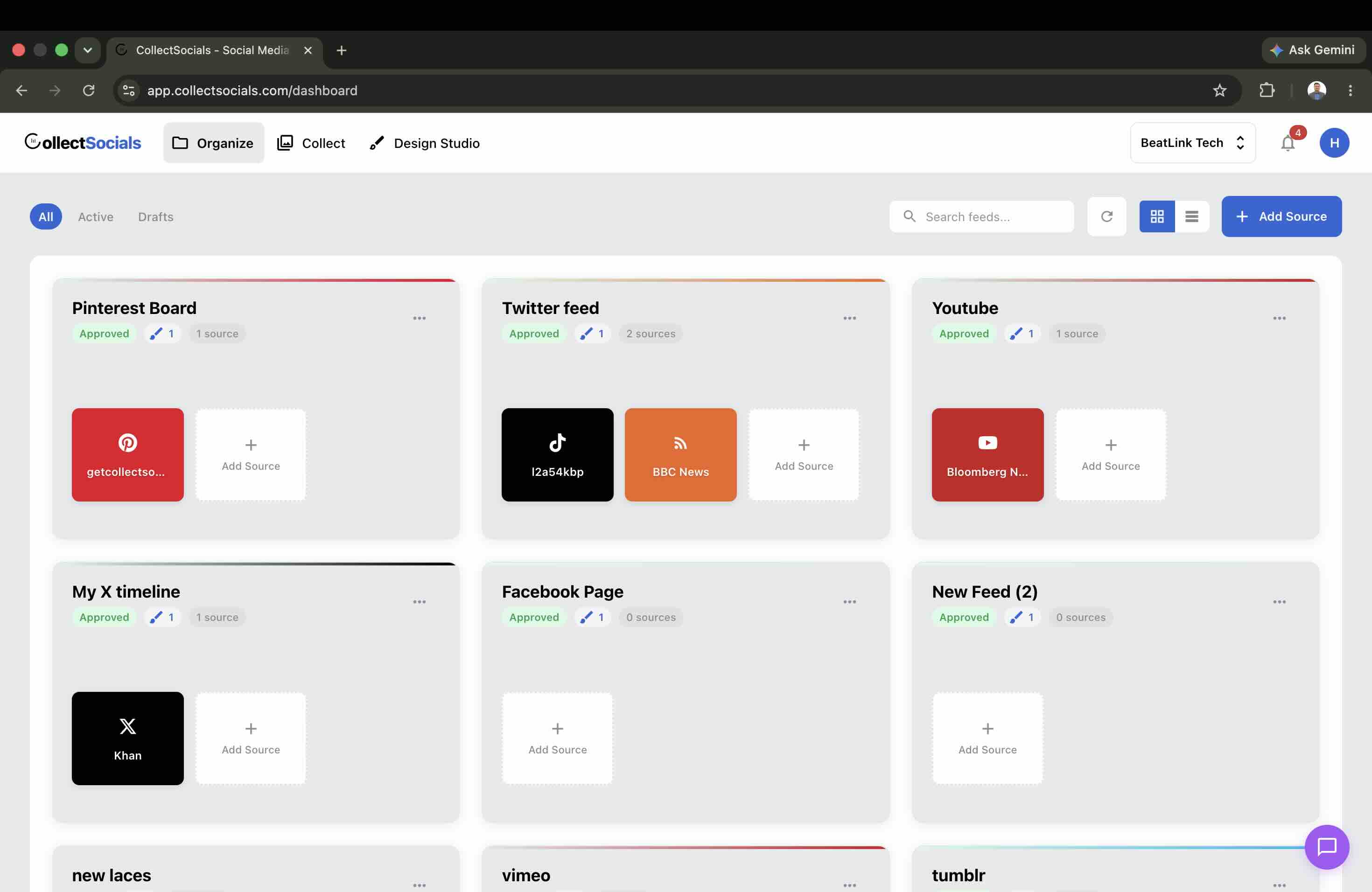
From the dashboard, click "Create Feed." Name it something descriptive that reflects where it will live and what it will contain: "Wix Facebook Feed," "Homepage Social Proof," and "Community Posts" all work.
A feed is a container for your source connections. One feed can hold multiple sources, for example your Facebook Page alongside your Google Reviews and Instagram account, and all content aggregates into a single unified widget. You can also create multiple feeds if different pages of your Wix site need different content: your homepage might show a combined Facebook and Instagram feed while your testimonials page shows Google Reviews only.
Step 3: Connect Your Facebook Page
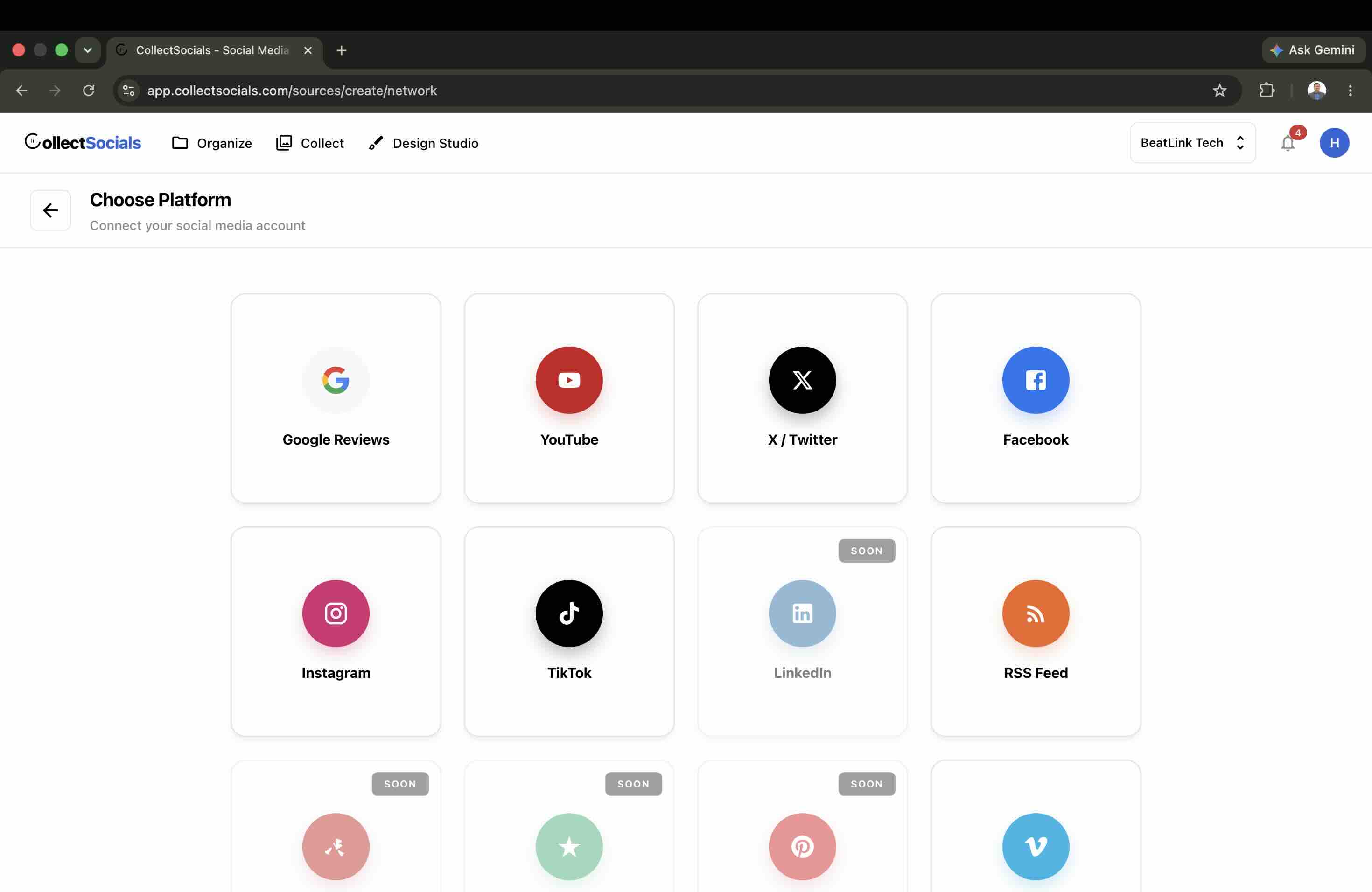
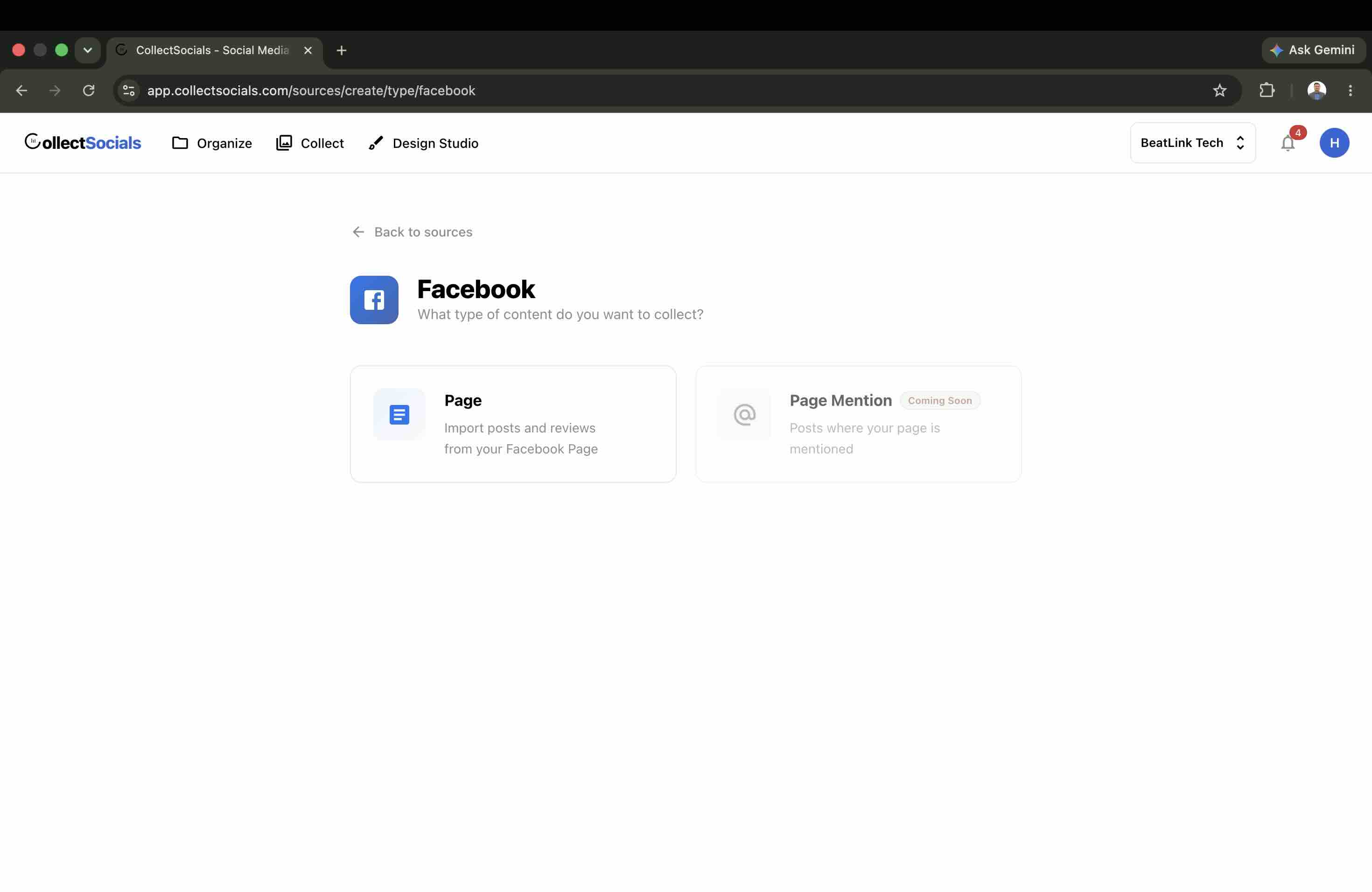
Inside your feed, click "Add Source" and select Facebook. You will go through Facebook's standard OAuth authentication flow: log in with your Facebook credentials (the account that has admin access to your Page), grant the permissions CollectSocials requests, and select the Facebook Page you want to display. CollectSocials will begin importing your posts immediately.
Depending on how long your Page has been active and how frequently you post, the initial import may bring in dozens or hundreds of posts. They will all appear in your Collect page for curation.
Step 4: Add Additional Sources (Optional)
If you want your Wix feed to show content from multiple platforms (Facebook posts alongside Instagram photos, YouTube videos, or Google Reviews), add those sources now. CollectSocials aggregates everything into a single widget, so visitors see a unified social wall rather than a single-platform feed.
For local businesses, combining Facebook posts and Google Reviews in one widget is particularly effective: it surfaces both social activity and customer ratings in one display. For e-commerce brands, combining Facebook and Instagram gives you the reach of both platforms in one section of your Wix product page.
Step 5: Curate Your Content
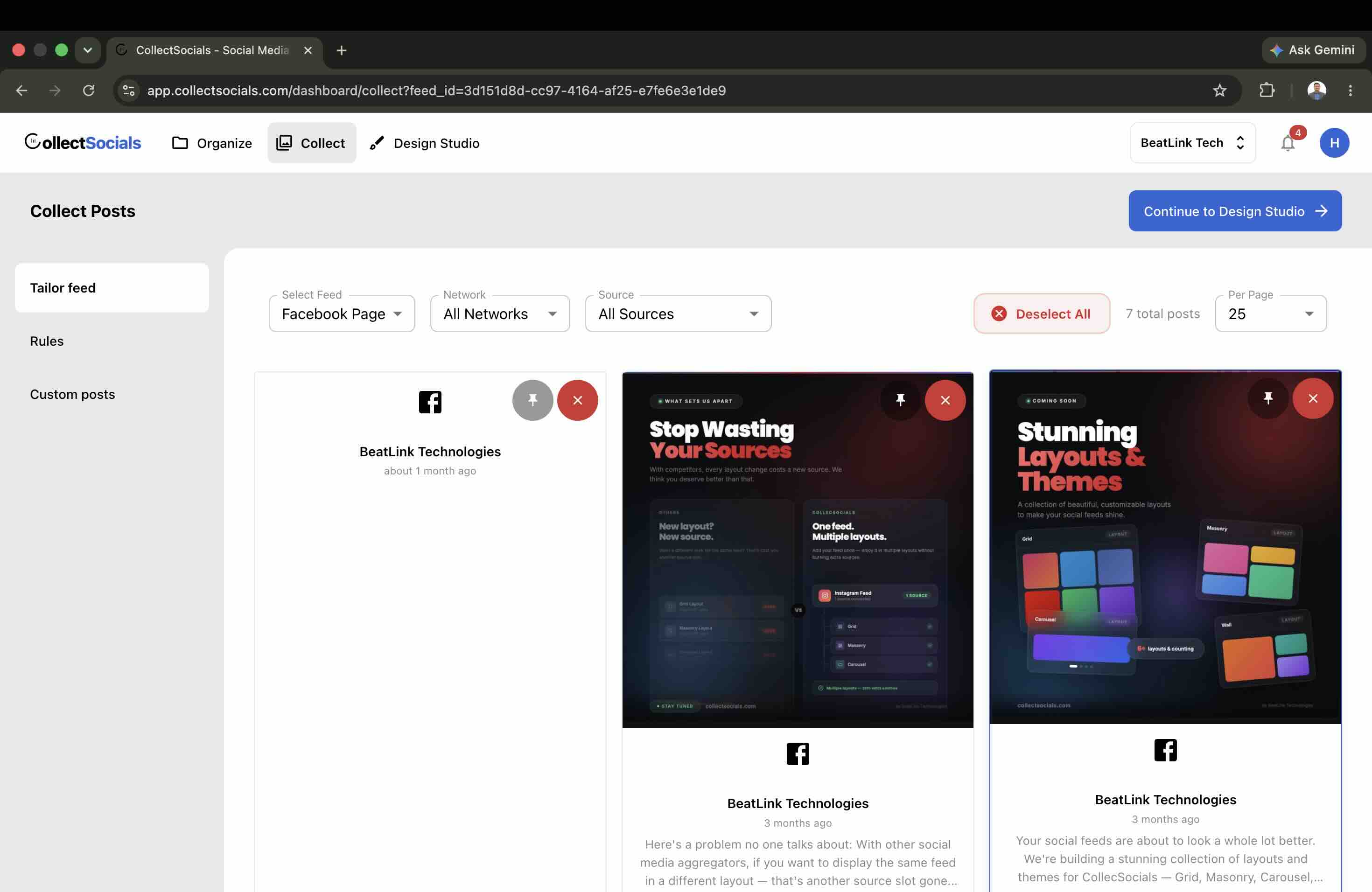
Navigate to the Collect tab. Every post from your Facebook Page (and any other connected sources) appears here, selected. Go through and toggle off anything outdated, off-brand, or not relevant for your web audience: what you leave alone is what your Wix visitors see.
What curation removes from a Page timeline
The animation shows a raw column of posts on the left and the curated feed that survives on the right. On a Facebook Page the things that usually fall out are the ones a timeline tolerates and a website does not: an expired promotion, an administrative notice, a post aimed at people who already follow you.
This curation step is what separates a professional Facebook feed from an unfiltered dump of your recent activity. A service business might hide promotional posts and keep only before/after project photos and genuine customer interactions. A restaurant might keep food photography and event announcements and hide administrative updates. A nonprofit might keep mission-driven content and hide internal operational posts.
Take the time to be intentional here. The quality of the curation directly determines the quality of the social proof your Wix visitors experience.
Step 6: Design the Widget
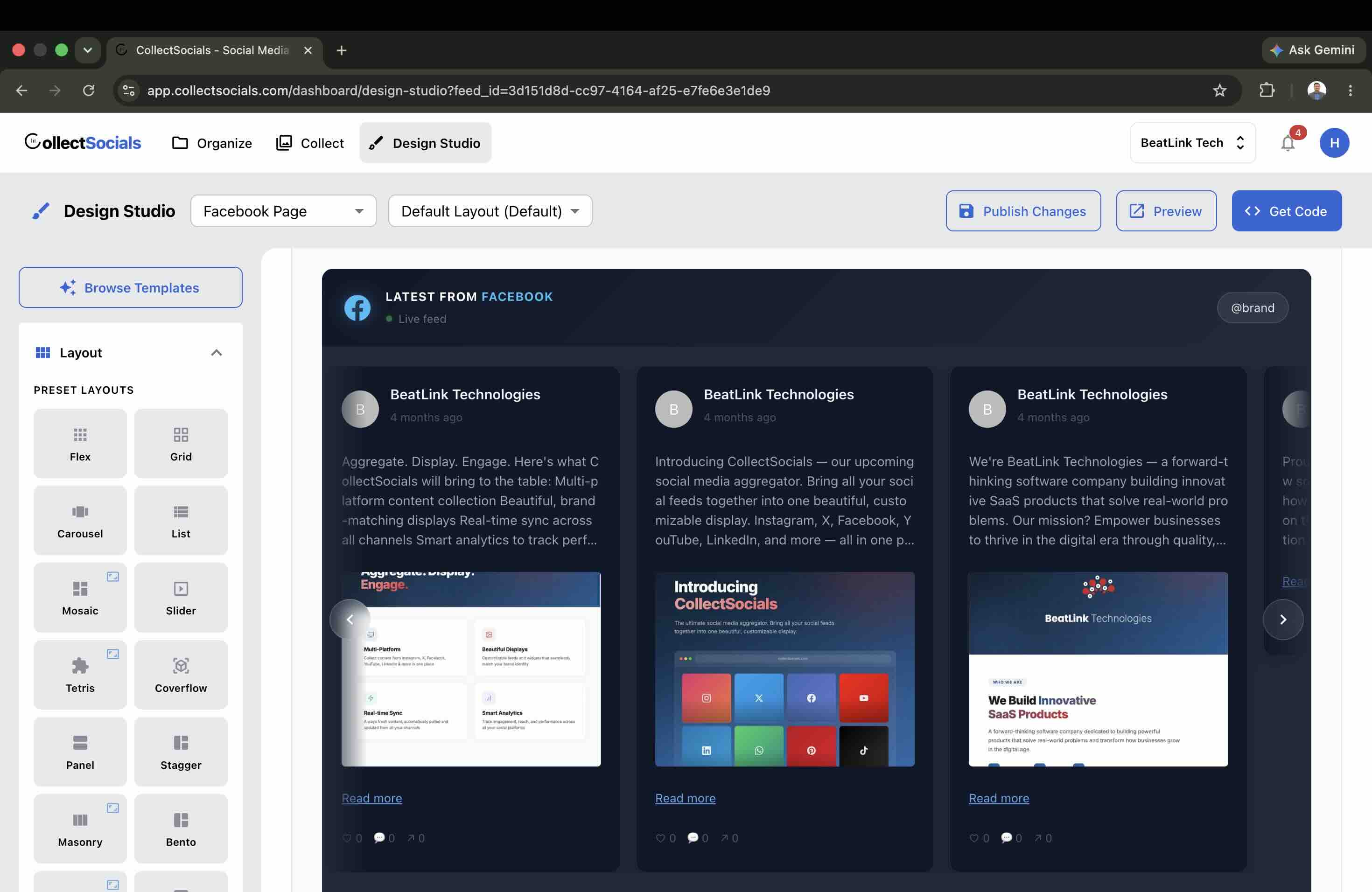
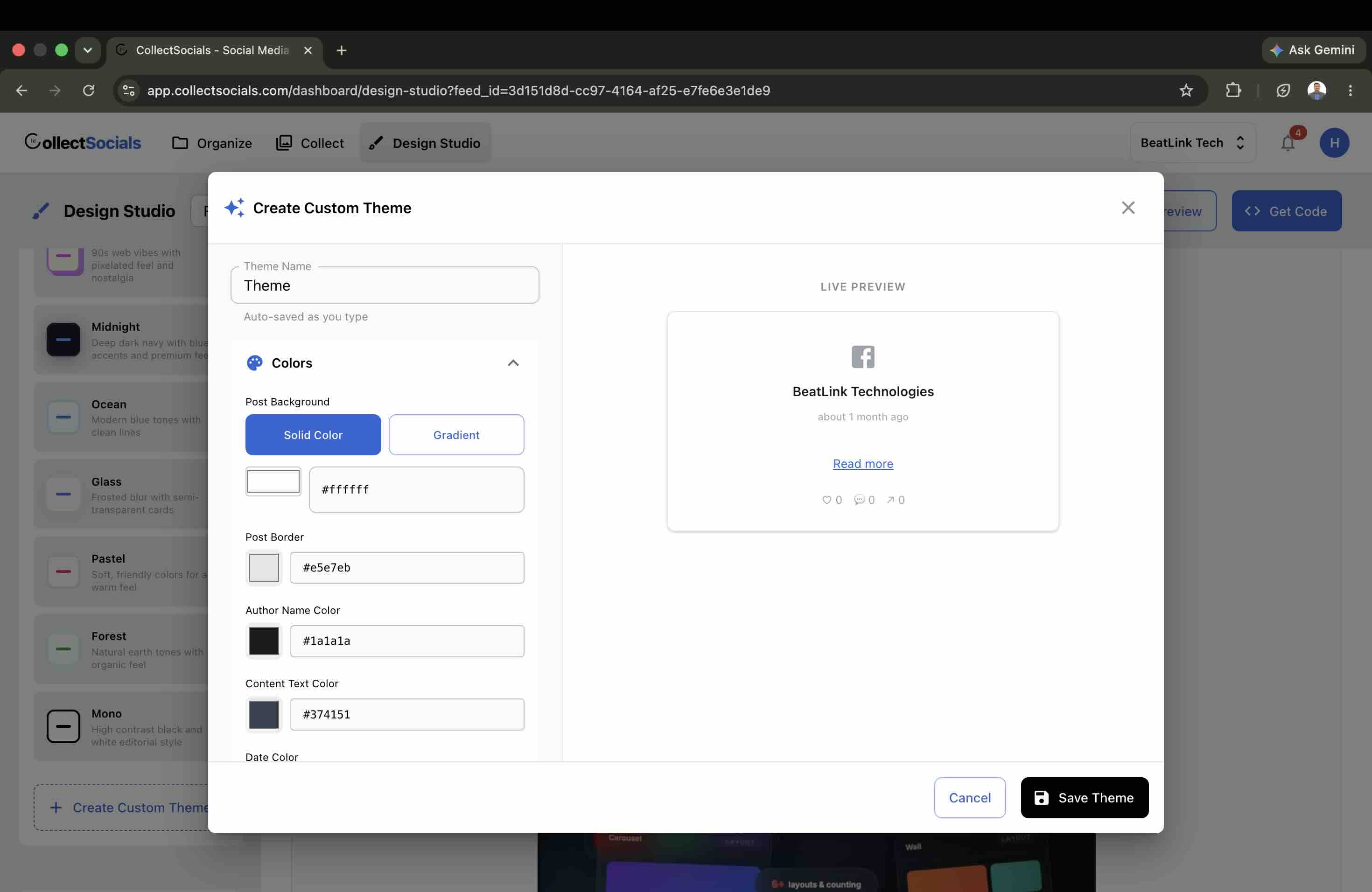
Open the Design Studio and configure the layout and theme for your Wix page.
Matching the widget to your Wix template's design language is the difference between a feed that looks designed and one that looks bolted on. Wix's template library skews toward bold, visually rich designs, and the social widget should complement that aesthetic rather than break it.
For local service businesses and restaurants on Wix's warm, community-oriented templates: Grid or Masonry with the Minimal or Pastel theme integrates cleanly without competing with your imagery. Enable the Facebook platform badge and post dates so visitors can see the content is current and genuinely from your Facebook Page.
For e-commerce brands and lifestyle companies on Wix Store templates: Mosaic with the Elegant or Bold theme creates a visual richness that complements product photography. If your Facebook content includes a mix of text posts and photo content, Masonry handles the varying content heights more gracefully than a fixed grid.
For professionals, agencies, and service firms on Wix's minimal business templates: Grid with the Mono or Minimal theme keeps the feed clean and structured. A two or three-column grid at modest height integrates into a professional page layout without overwhelming the main content.
For community organisations and nonprofits: Carousel or Marquee layouts take less vertical space while still surfacing active social content. The Sunset or Neon theme gives the content an approachable, human quality that matches community-oriented brand voices.
Let Wix do the constraining: the widget fills the full width of whatever Wix element you place it in, so size the Wix container rather than fighting the widget. That is the expected behaviour for embedded elements on Wix.
Step 7: Get the Embed Code
Toggle your feed to Public in CollectSocials and click "Get Code," then set "Where are you installing your widget?" to Wix. Because Wix runs custom code inside a sandboxed frame, the dialog hands Wix users an iframe snippet rather than the plain script tag other platforms get, and the frame measures the feed and sets its own height automatically. Copy the snippet.
Step 8: Add the HTML Widget to Your Wix Page
Open the Wix Editor for the page where you want the Facebook feed to appear. Click the + button in the left toolbar to add an element. Navigate to Embed & Social → Custom Embeds → Embed a Widget (the exact path varies slightly between the classic Wix Editor and Wix Studio; in Wix Studio, look for the Embed element in the Add panel).
This adds an HTML iframe container to your Wix canvas. Click the element to open its code editor. Paste your CollectSocials snippet into the code field. Click "Apply" or "Update."
The widget will appear in the editor preview. Position the HTML element on the Wix canvas to fit your page layout; the snippet's frame measures the feed and sizes its own height, so you do not need to manage a fixed height yourself.
Step 9: Publish and Verify
Click Publish in the Wix Editor. Open your published site URL in a new browser tab and navigate to the page where you embedded the feed. Your Facebook feed should be live.
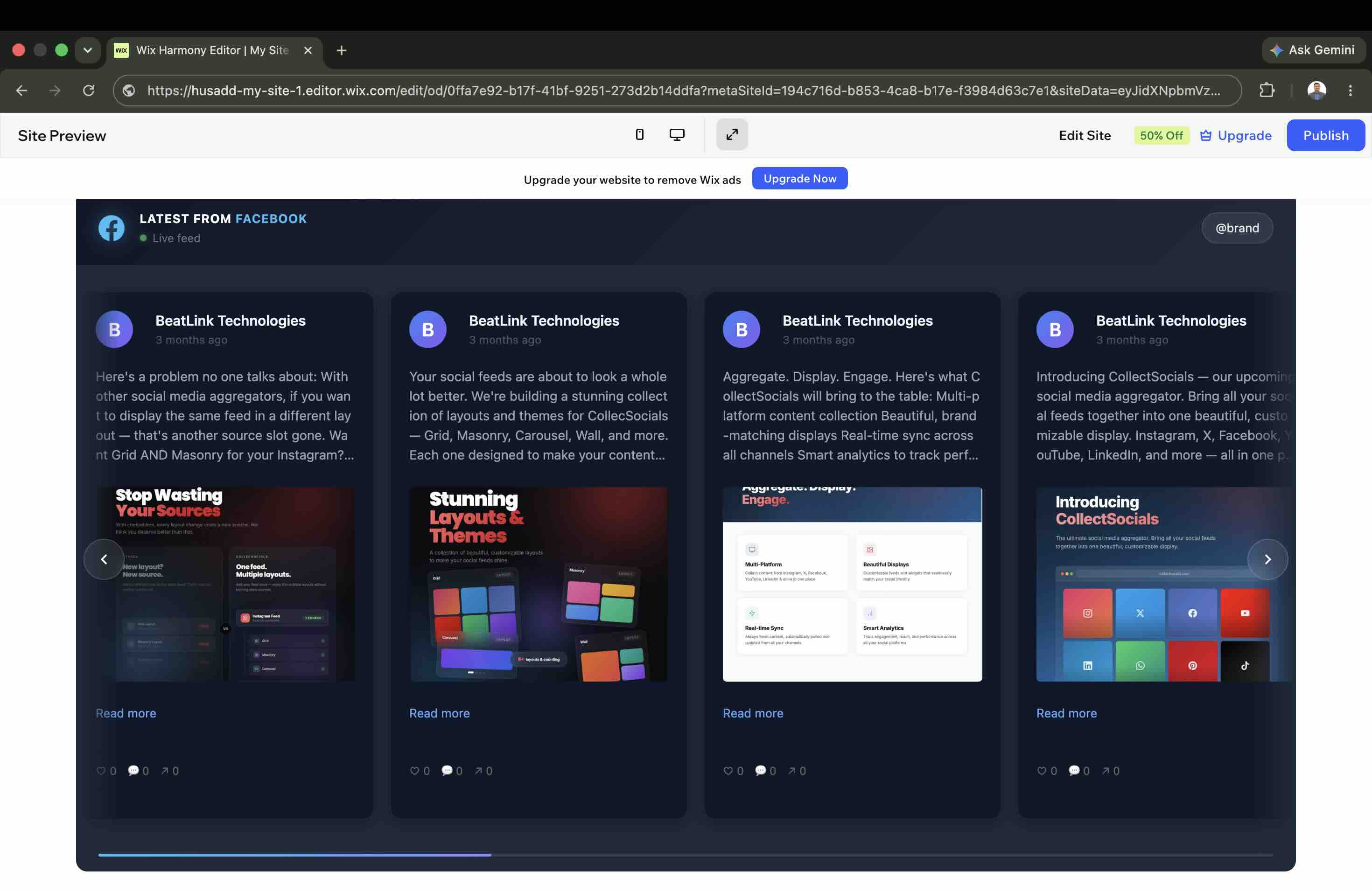
If it is not appearing, work through this checklist: verify your Facebook Page connection in CollectSocials, ensure the feed is set to Public (not Draft) in your CollectSocials dashboard, and test in an incognito browser window to rule out ad-blocker interference.
Wix-Specific Technical Notes
The HTML Widget is sandboxed. Wix renders custom embeds inside a sandboxed iframe, meaning the widget's code is isolated from the rest of your Wix page. CollectSocials uses Shadow DOM isolation internally, which means the widget's CSS is clean and will not conflict with your Wix theme's styles. This is the correct behaviour and expected.
Mobile editor is separate. After embedding and publishing on desktop, switch to Wix's mobile editor view and verify the HTML widget is visible and appropriately sized on mobile. You may need to adjust the widget's height and position in the mobile layout independently from the desktop layout.
Wix ADI users. If you built your site with Wix ADI (Artificial Design Intelligence), you need to switch to the standard Wix Editor to use HTML embeds. Wix ADI does not support the HTML Widget element. You can switch to the standard editor without losing your site content.
Do not use site-wide code injection for a Facebook feed. Wix's Settings → Custom Code option injects code into every page of your site. Use this for analytics scripts and tracking pixels, not for your Facebook feed widget, which should only appear on specific pages where you have intentionally placed it.
There is no token to renew on a schedule. The Page access token CollectSocials stores is issued from a long-lived Meta connection, and a Page token issued that way does not expire on a clock, so there is no periodic reconnection to remember. What does end a connection is an event on your side: changing your Facebook password, removing the app in Facebook's Business Integrations settings, or losing admin on the Page. If the feed stops updating, that is the list to check first.
Where to Place Your Facebook Feed on a Wix Site
Where the feed earns its place on a Wix page
The animation lights up the sections of a page where a social feed does measurable work: below the hero, on product pages, on a landing page and in the footer. The four below are the Wix-specific versions of that, and the one people underuse is the contact page, where a recent Facebook post is the last piece of reassurance before someone fills in the form.
Homepage social proof section. A Facebook feed in the lower section of your homepage, below the hero and value proposition, works as a live trust signal for first-time visitors. It shows that your business is active, that real people engage with your content, and that there is a community around your brand. For local businesses especially, seeing your most recent Facebook posts (community events, seasonal promotions, project photos) adds immediate authenticity.
About page, mid-page. The about page is where visitors are actively trying to understand who you are. A live Facebook feed embedded after your team story or founding narrative shows the ongoing reality of your business, not just a static snapshot.
Contact page, above the form. Visitors on a contact page are already considering reaching out; they just need one more nudge. A compact Carousel or Grid of recent, positive Facebook content adjacent to the contact form provides social proof at the highest-intent moment in your visitor's journey.
Wix Stores product pages, below the fold. For e-commerce businesses using Wix Stores, embedding Facebook posts that show products in real-life use (customer photos, lifestyle contexts, unboxing videos) below the product description and above the recommendations section gives undecided shoppers concrete social evidence that real people buy and enjoy your products.
For a broader discussion of placement strategy that applies across platforms, see the guide on where to place your Instagram feed on a website. The same principles apply to Facebook feeds.
What Kind of Facebook Content Performs Best on Wix
Not all Facebook content translates equally well to a website embed. Understanding what works helps you curate more effectively.
Photos and visual posts outperform text-only updates. A wall of text status updates does not create the same visual impact as a grid of photographs. Prioritise photo posts, event coverage images, before-and-after project documentation, and any visual content that communicates your brand's work or culture.
Customer testimonials and community posts build trust fastest. Your own branded content demonstrates that you are active. Customer posts, positive comments, and community interactions demonstrate that people genuinely engage with and trust your business. If your Facebook Page has customer reviews enabled, combining your Page feed with Google Reviews in the same CollectSocials widget amplifies this social proof effect significantly.
Event and activity posts are more compelling than evergreen content. A post from last week's community event or a recently completed project is more trust-building than an evergreen promotional post that has been pinned for six months. Use the curation step to keep the feed feeling current and specific, showing that your business is alive and active right now, not just that it once was.
Avoid pinned promotional posts in the feed. Pinned posts (offers, advertisements, promotions) often feel out of place in a website social feed and can reduce the authenticity signal. If your Facebook Page's most recent content is a string of promotional posts, curate generously and surface the genuine activity underneath.
Keeping the Feed Updated
Auto-sync pulls new Facebook posts into your CollectSocials feed at regular intervals: once a day on the free plan, hourly on Pro, every fifteen minutes on Business, faster above that. What happens next depends on one switch. By default new posts go straight to your Wix site and your job is to hide the ones that should not be there, which is what most Facebook Pages want: post to Facebook, and the website keeps up on its own. Turn on Pre-approve posts in the feed's settings and it inverts: new posts wait in the Collect tab and the widget shows only what someone has approved.
Check and curate once a week if you post frequently on Facebook, or less often if your posting cadence is lower. The goal is a feed that always feels recent without requiring daily manual work.
Quick Setup Checklist
Before publishing your Facebook feed on Wix, confirm:
- Facebook Page is connected (not a personal profile)
- You have admin or editor access to the Facebook Page
- CollectSocials feed is created and Facebook source is connected
- Posts curated in the Collect tab, off-brand or outdated content hidden
- Widget layout and theme configured to match your Wix template
- Feed set to Public in CollectSocials
- HTML Widget added to Wix Editor with embed code pasted
- Site published and feed verified on live URL
- Mobile layout checked in Wix mobile editor
- Feed tested in incognito window (rules out ad blocker interference)
The Result: A Facebook Feed That Looks Like Part of Your Wix Site
Done properly, a Facebook feed embedded on Wix does not feel like a third-party widget. It feels like a designed section of the page: consistent with your template's visual language, current, and curated to show your business at its best.
The combination that works: CollectSocials' Design Studio to match layout and theme to your Wix template, the HTML Widget placed inside a properly-sized Wix container, thoughtful curation that keeps the feed showing your most valuable content, and auto-sync that keeps it fresh without daily manual work.
If you are on Wix and want to embed feeds from other platforms alongside Facebook, see how to embed Instagram on Wix, embed an X (Twitter) feed on Wix, add a LinkedIn feed to Wix, or embed a social media wall combining multiple platforms. For the full picture beyond Wix, see our main guide on how to embed your Facebook Page feed on your site, or the Facebook feed widget page for what the widget itself does on any platform.
CollectSocials' free plan includes one connected source, unlimited feeds, and 2,000 monthly page views, enough to set up and test your Facebook feed on Wix before committing to a paid plan. Sign up at collectsocials.com, connect your Facebook Page, and you should be live on your Wix site within fifteen minutes.
Start Using CollectSocials Today
One curated feed from 10+ platforms: on your website in a single line of code, or up on the big screen at your event.