
Fair warning about tone: I build this product, so treat every claim below as something to verify rather than something to believe. That's why almost every section ends with how you'd check it yourself: the wall previews in test mode on a free account for as long as you like, and your first event runs free on a one-time 24-hour go-live window, before you put a purchase order behind it. Where we genuinely lack a capability, I say so in plain words instead of rewording the gap until it sounds like a feature.
A venue screen is not a website embed in a bigger box
Most social wall tools ship one renderer. It's the website widget: a responsive card grid, tuned for a browser column, injected into your page inside a Shadow DOM so your CSS doesn't fight it. When you ask that tool for an event wall, you get the same widget with the browser chrome hidden. On a laptop demo that looks fine. On a 16:9 LED wall at the back of a ballroom it reads as a website somebody forgot to close: text sized for reading distance of 50cm, hover states nobody can trigger, and a layout that reflows into something odd the moment the venue's screen turns out to be 1360×768 instead of the 1920×1080 everyone assumed.
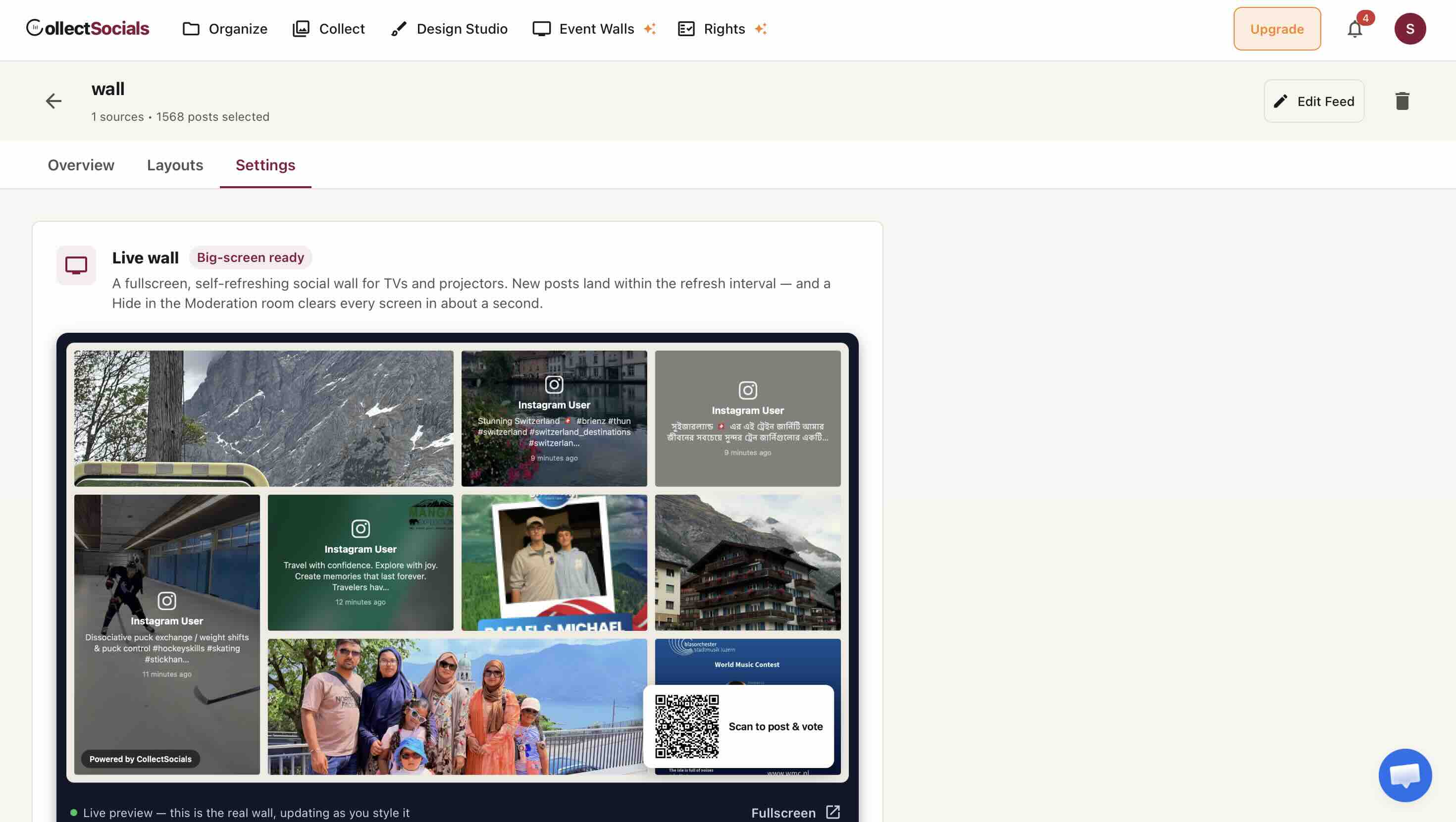
We took the other route, and it's the single most important thing on this page: the venue screen gets its own renderer, and the website widget bundle never loads on it. The wall is served from a dedicated /wall route as a plain HTML shell, no React, no MUI, no chat widget, no tag manager riding along on a TV browser that may be a five-year-old Chromecast or a smart-TV browser with a rendering engine you'd rather not think about. Sizing is expressed in vh units throughout, so the wall composes itself relative to the screen it's on rather than to a pixel width somebody guessed in advance. Resolution stops being a question you have to ask the venue.
Nobody should be typing a URL with a TV remote
Here is the least glamorous, most frequently-lived pain in event social walls. The wall URL contains a feed ID and a token. It looks something like /wall?feed=8f3c…&token=…. Now hand that to an AV tech at 8:40am, in front of a smart-TV on-screen keyboard, with a directional remote, one character per four button presses. That's the moment event walls actually fail, not in the software.
So we made pairing work the way a games console does. On the TV or projector browser you open one short address: collectsocials.com/tv. That's it, three words and a slash, typeable with a remote in about fifteen seconds. The screen shows a large pairing code and a QR code. You scan it with your phone, you're already logged in, you pick which feed should play, and the screen redirects itself to the live wall. The AV tech never touches the token.
The mechanics, in case you want to poke at them:
- The screen mints a pairing code and polls every three seconds waiting for a phone to claim it. Nothing about the screen is authenticated: it holds a device secret, not your session.
- Codes expire after 15 minutes and the screen mints a fresh one automatically. You can set the wall up at 7am, walk away, and the screen won't be sitting on a stale code when you come back.
- What the phone sends back is validated server-side against that logged-in user's own feeds, and it's a relative path, re-checked again on the screen. A paired TV can't be sent off-origin, which matters when the thing is going to sit unattended in a public room all day.
- The bare marketing domain redirects to the app domain, because people will absolutely type the short one. That redirect exists precisely because we watched people type the short one.
One venue-specific tip that isn't in most documentation: keep the TV browser at 100% zoom. Browser zoom makes any moving wall shimmer, because it fights sub-pixel positioning. If posts look too small from the back row, use the wall's own Scale option (50–300%) instead of the browser's. The wall shell knows about its own scale; the browser's zoom is invisible to it.
Eleven wall modes, because "a grid" isn't a design system
A wall behind a DJ booth and a wall in a hospital reception are not the same visual object, and neither of them is a masonry grid. We ship eleven native modes, each one a separate renderer module inside the wall shell rather than a theme skin over one layout:
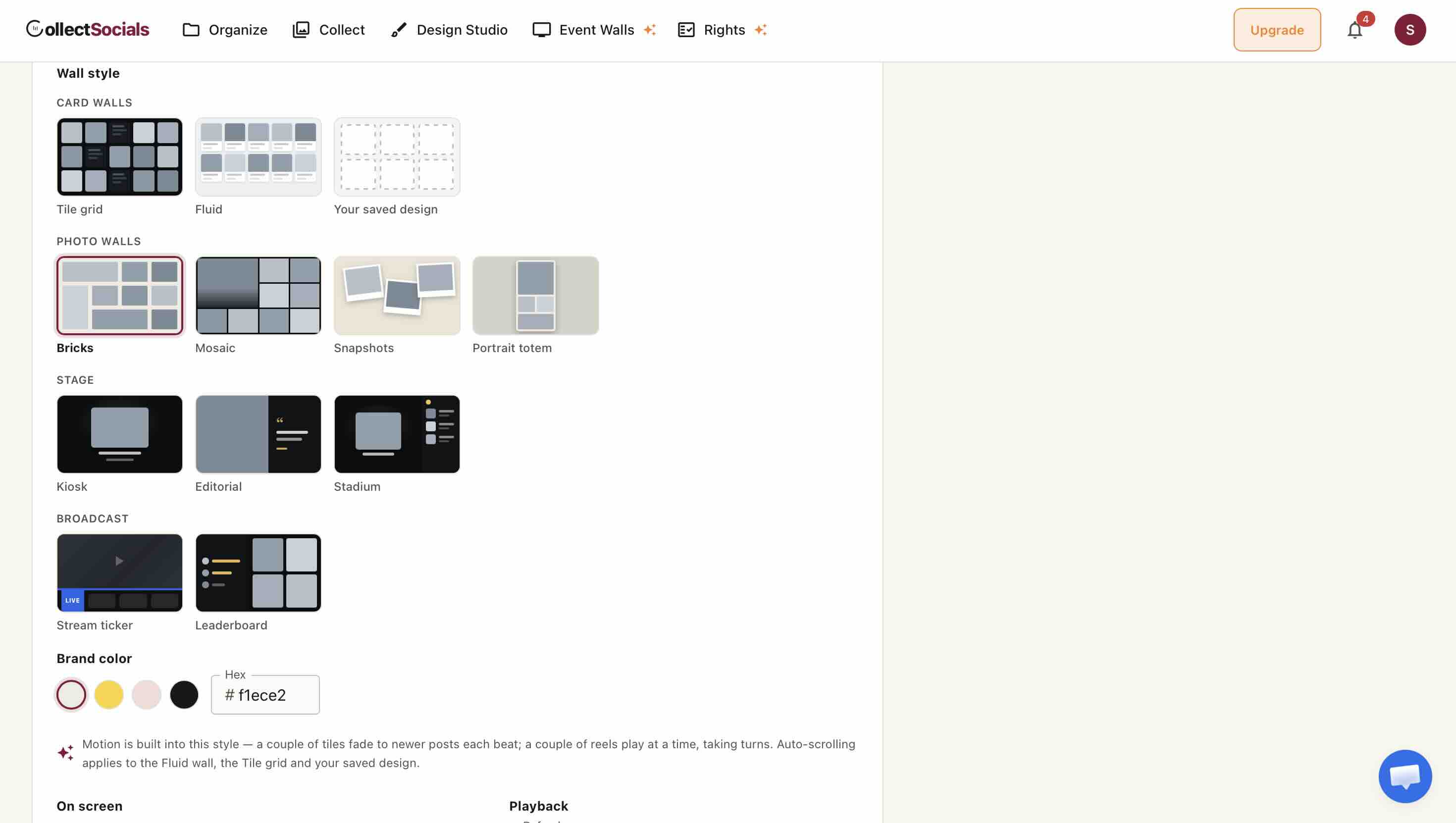
| Mode | Shape | Where it earns its keep |
|---|---|---|
| Fluid | Scrolling card wall | The classic conference wall; the safe default |
| Tile grid | Even grid, 3–8 per row | High-volume feeds where calm motion beats drama |
| Bricks | Edge-to-edge photo tiles in your brand colour | Loud, festive, photo-heavy hashtag campaigns |
| Mosaic | Seamless dark photo grid with one featured post | Foyer screens people walk past, not sit at |
| Snapshots | Instant-photo prints dropping onto a board | Weddings, parties, photo-booth-led events |
| Portrait totem | Vertical photo wall | Expo totems and 9:16 signage pillars |
| Kiosk | Single-post spotlight | Small screens where a grid would be unreadable |
| Editorial | Spotlight with typography | Quote-led, text-forward programmes |
| Stadium | Large-format spotlight | LED walls seen from 30m away |
| Stream ticker | Lower third, transparent by default | OBS and livestream overlays |
| Leaderboard | Top contributors | Competitions and hashtag challenges |
Two of those deserve a note. Stream ticker defaults to a transparent background, because its real job is being a lower-third in a stream mix, you pass a flag to get a solid stage if it's going on a standalone TV. And Leaderboard is the mode that turns a hashtag campaign into a competition, which is a different room energy entirely.
Motion is built into each mode rather than bolted on. Repaints are double-buffered: the new wall builds invisibly on top of the old one, fades in over roughly 700ms, and the old one is dropped. No blank flash between refreshes, no mid-build layout jump while three hundred people watch. There's also an opt-in drip mode where new posts enter one card at a time instead of the whole wall reshuffling, on a big screen, a wall that rearranges itself is the visual equivalent of someone shouting.
What the screen actually does between refreshes
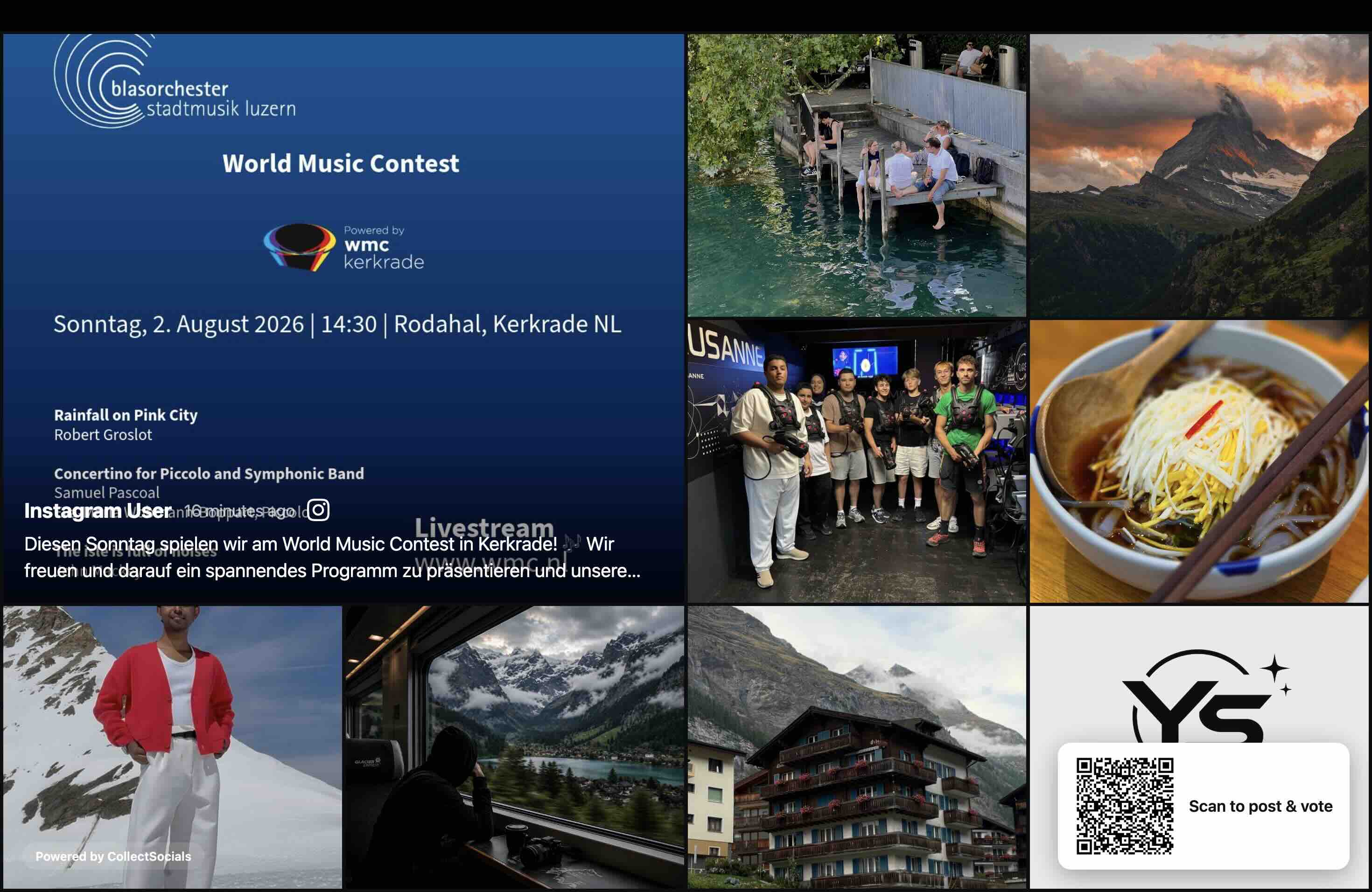
The animation shows posts arriving on a wall one card at a time rather than the whole grid repainting at once, which is exactly the behaviour a venue screen needs, because a wall that reshuffles itself in front of a seated audience reads as a glitch. Each badge marks the source the post came from, so you can see a single screen carrying Instagram, TikTok, YouTube, X, Facebook and Google reviews at the same time.
The half of your room that can't post to your hashtag
Every hashtag-only wall quietly excludes a large slice of the audience. People with private accounts, whose posts your wall will never see, by design, because the platform APIs won't surface them. People who deleted Instagram in January. People who'll happily hold up a sign for a photo but will not post to their own timeline from a work conference. If your only inbound channel is "post publicly with #OurEvent," you've built a wall for the extroverted third of the room.
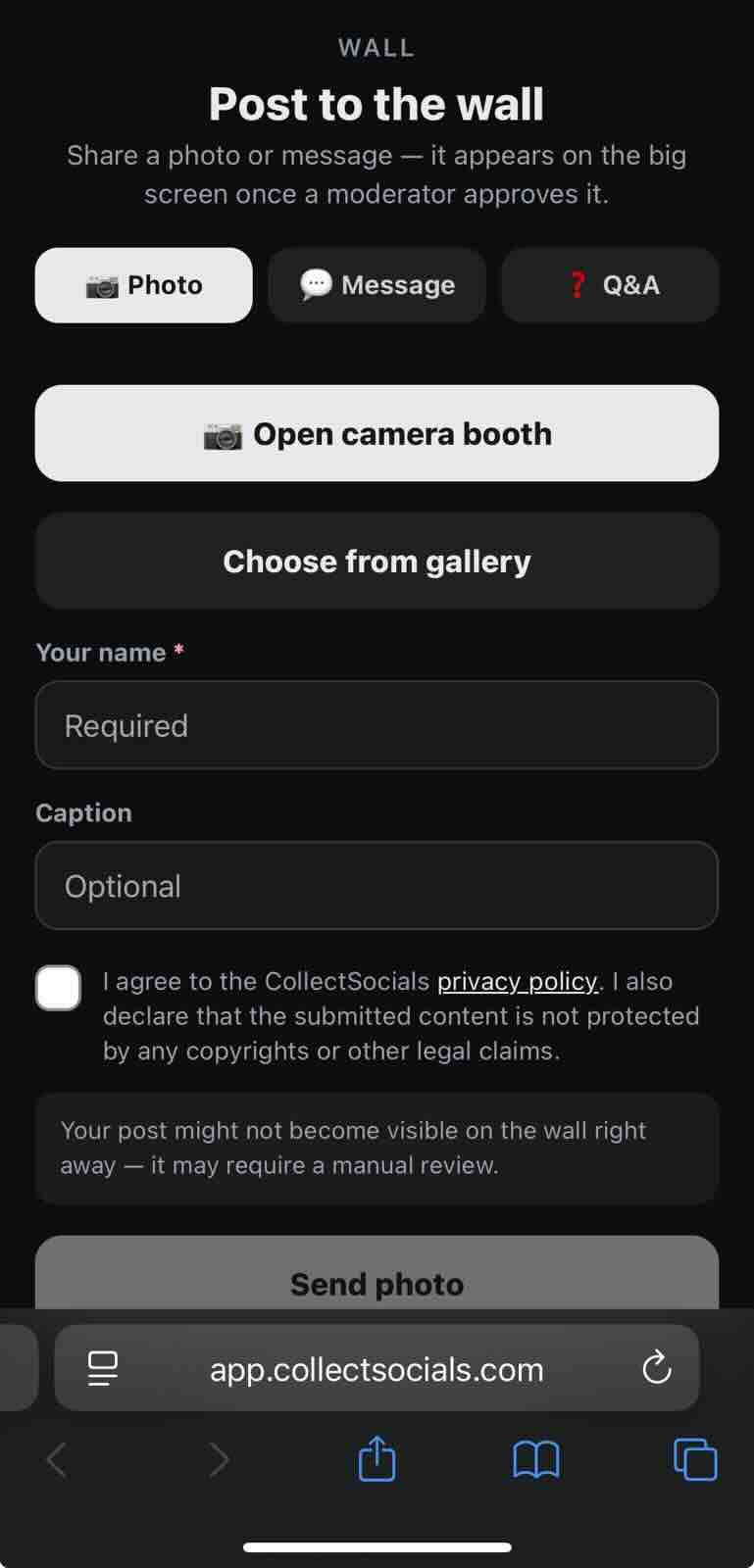
The wall's own QR overlay solves this. Guests scan the code on the screen and land on an attendee hub with three things on it: a photo booth (camera or gallery), a message, and a Q&A question for the speakers. No account. No app install. No OAuth screen. It's a plain HTML page, deliberately tiny, because it is about to open on several hundred random phones on venue Wi-Fi at the same moment and a React bundle would be an act of hostility.
Three details that matter more than they sound:
- Name and consent are mandatory and server-enforced. The send button stays disabled until a guest types a name and ticks a box covering the privacy policy and a declaration that the content isn't someone else's copyrighted work. The tick clears after each send, so every submission carries its own fresh declaration, not one blanket agreement at the start of the day.
- Review-first is the default. Submissions land as pending and the page tells the guest so. You can turn that off per feed if you're running a small, known crowd, but nobody gets an open pipe to a projector by accident.
- Photos are downscaled on the phone before upload (max 1600px, JPEG), which is the difference between a booth that works on saturated venue Wi-Fi and one that spins.
On the QR itself: it's rendered server-side, first-party, from the qrcode package, as an SVG. Not a call to a third-party QR service. That's a deliberate choice about a screen that will sit unattended in a public room for eight hours, a venue TV should not be making requests to somebody else's domain, and a QR code that depends on an external service is a QR code that can break while you're on stage.
Keeping a stranger's photo off a twelve-foot screen
This is the part that actually decides whether you can run an open wall. The failure mode isn't abstract: it's a photo on a projector, in a room with press in it, that a screenshot outlives by years.
keyword rules · AI content filter
Goes live
Needs context
Harmful / false
Where a guest submission actually goes
The flowchart traces a post from the moment it is collected to the moment it's allowed on the venue screen: automated filters first, then a human review queue, then one of three outcomes, approved onto the wall, held for a second opinion, or removed. The automated stage covers posts pulled from connected social accounts. Anything a guest sends from the QR hub skips it and goes straight to the queue, which is why that middle step is the whole product on an event wall.
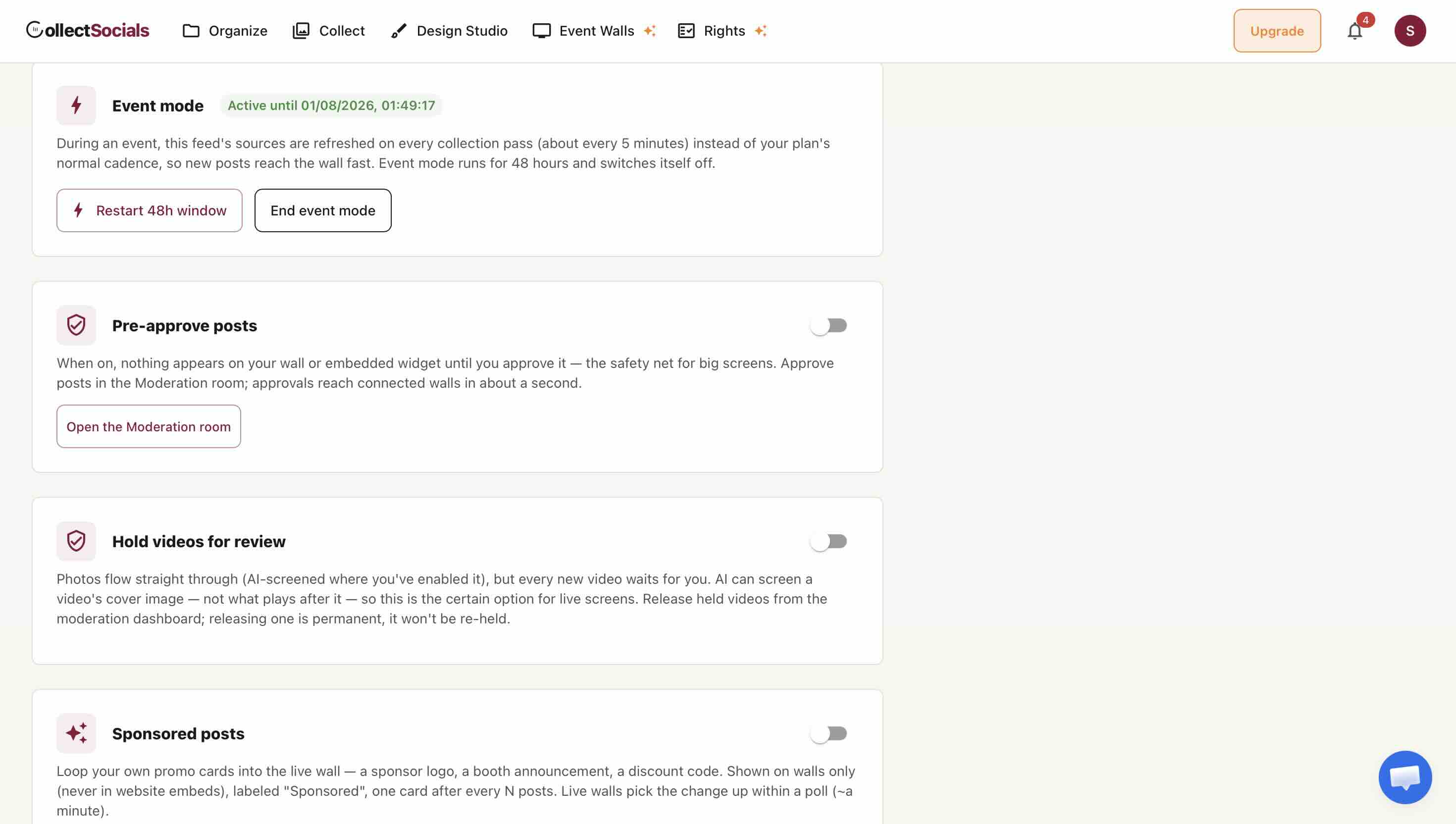
That first card is worth a sentence of its own. Event mode refreshes the feed's sources on every collection pass, roughly every five minutes, instead of your plan's normal cadence, so a post made in the room reaches the wall while the person who made it is still in the room. It runs for 48 hours and switches itself off, which is the behaviour you want from something that costs more to run. To be clear about what it is and isn't: it is a faster refresh window on a feed you already have, not a one-off event licence. We don't sell one of those. See below.
Two streams reach the screen, and they are guarded differently. Conflating them is the most common way a vendor in this category oversells its moderation, so here is ours in plain terms.
Stream one: posts pulled from connected social accounts. Three controls sit in front of this stream, two of them automatic.
- Keyword and content rules catch the obvious cases first. These are on every plan, including free.
- AI vision moderation scores the image itself, not just the caption. Worth asking any vendor you compare, because a caption tells you nothing about the picture attached to it. On our side it is a Business-plan feature and it is metered per scored post. We charge for it because scoring an image costs us money per image, and I would rather say that than bury it.
- Videos can be held for review. That is a switch you turn on, not a default. An image model can only ever see a video's cover frame, so a clean thumbnail on a video that turns at second nine is exactly the case AI cannot catch. For an open wall, turn it on.
Stream two: the photos, messages and questions guests send from the QR hub. These pass through none of the three layers above. There is no keyword rule and no image scoring on attendee submissions, on any plan, and I am not going to dress that up. The human queue is the entire control, which is why review-first is the default, why the hub warns the guest that a moderator may need to approve their post, and why I would not run an open wall with review-first switched off. If a vendor tells you their AI screens what the room sends, ask them which of the two streams they mean.
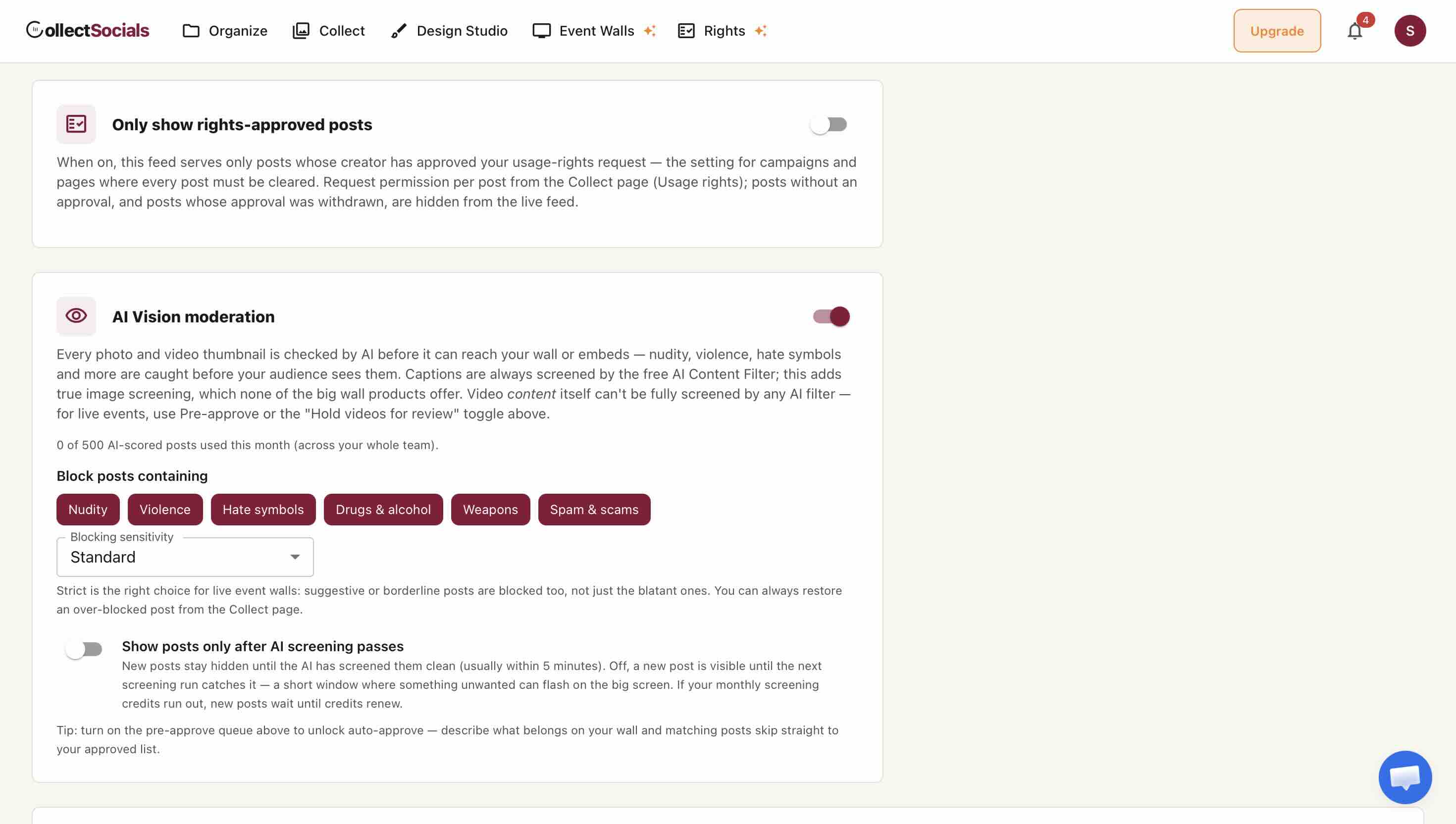
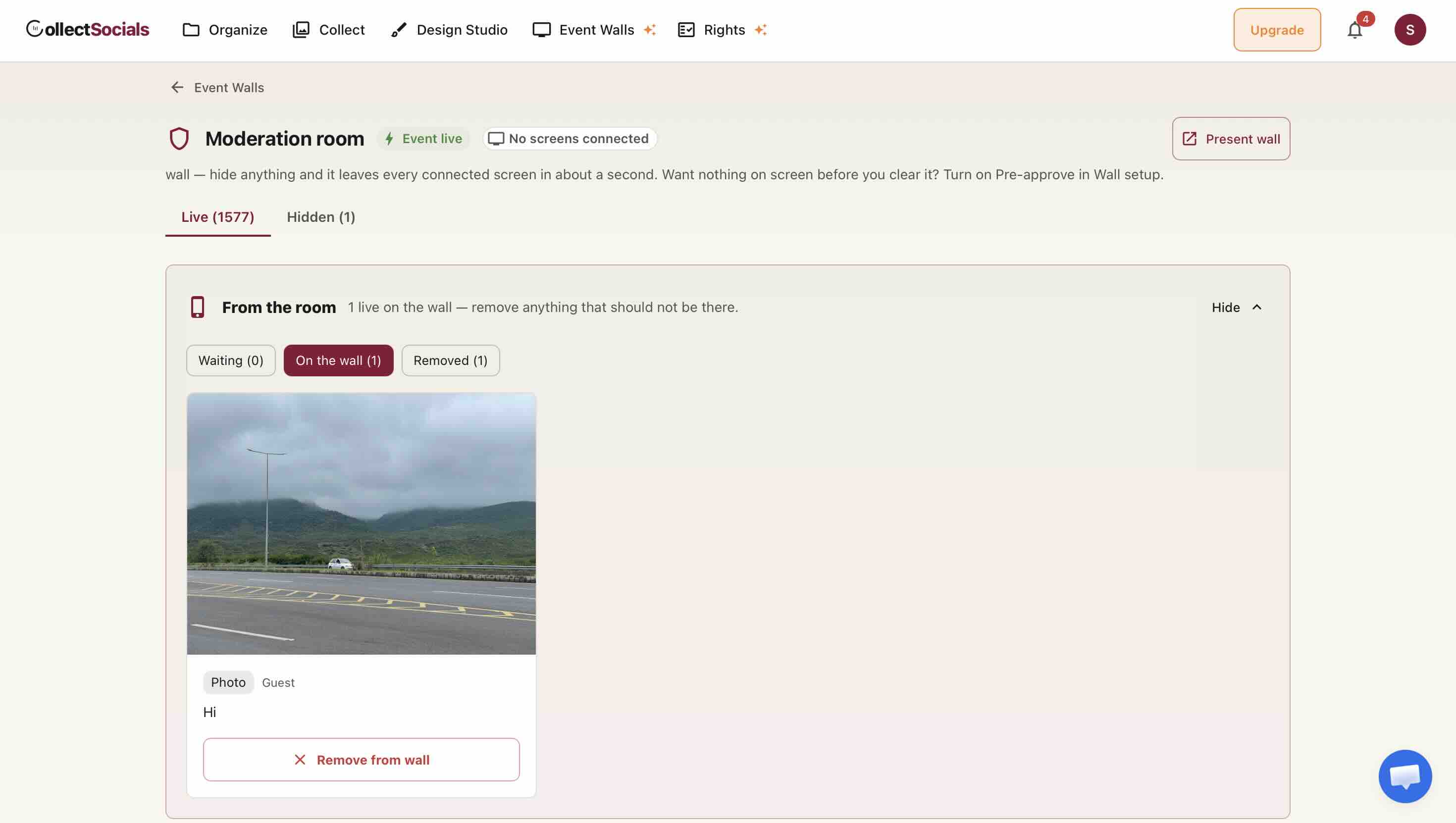
And the recovery path, which is the one you'll actually use. The two streams differ here too, so both numbers matter. For a post from a connected social account, Hide in the moderation room pushes down a websocket to every open screen and the card is gone in about a second. For a guest submission, Remove from wall marks it rejected and the screens drop it on their next poll, so up to your refresh cadence: 60 seconds by default, 15 if you set it that way for the event. Test both before you trust either. Put a wall on a second monitor, approve something, pull it, and count. The wall previews in test mode on any account, so that test costs nothing.
Live polls and the venue-Wi-Fi vote problem
Polls run from the same attendee hub: a question goes up, phones vote, results move. The interesting engineering isn't the poll, it's the dedupe.
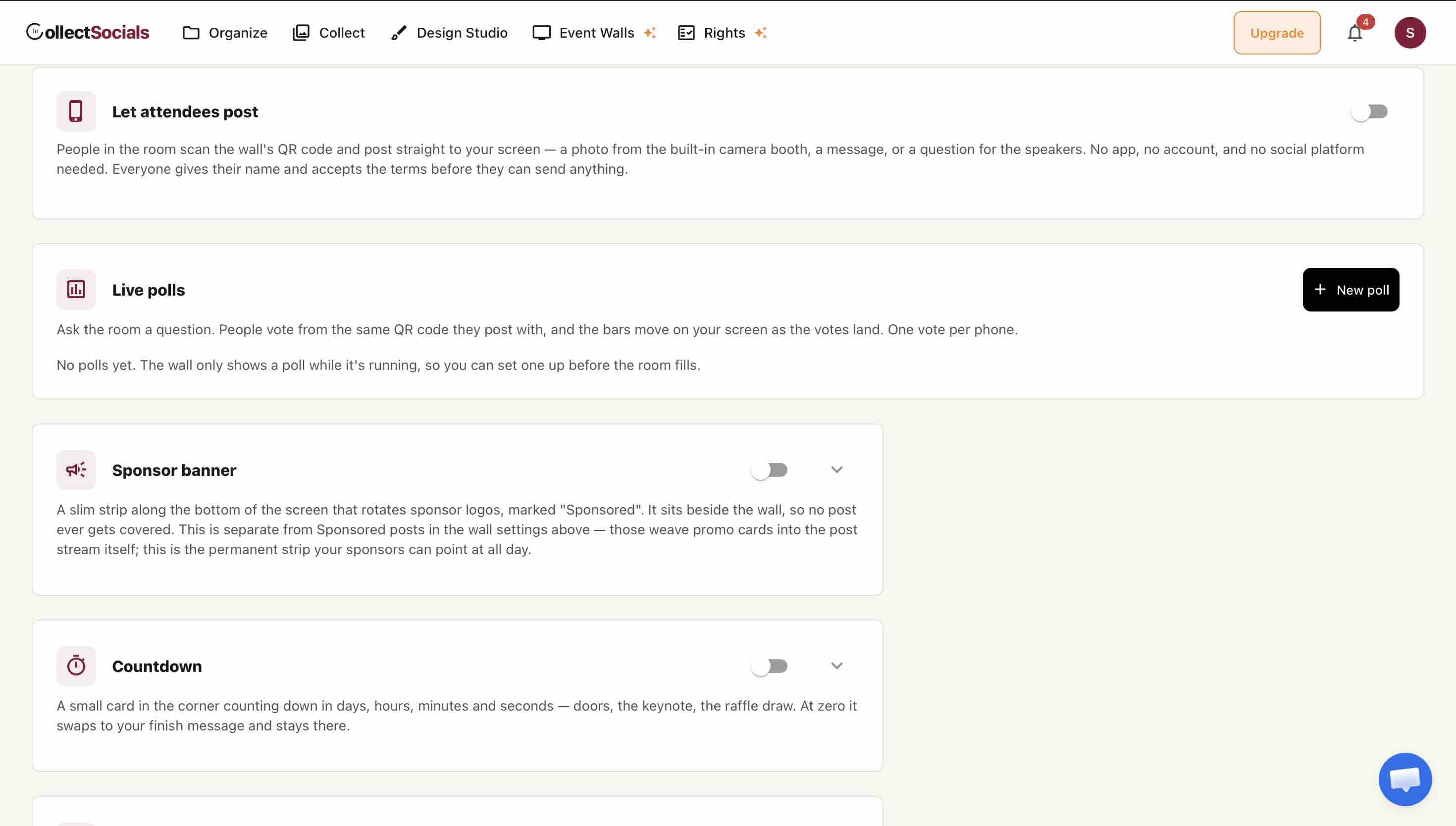
The naive way to stop one person voting fifty times is to dedupe by IP address. In a conference centre that is catastrophically wrong: the entire venue sits behind one NAT, so the whole room shares a handful of public IPs. Dedupe by IP and the first person to vote silences the other four hundred. So votes key off a per-device identifier the phone generates and stores locally, not the network address. Is that beatable by someone determined with a private browsing window? Yes, and I'm not going to pretend otherwise. It's the accepted trade in this category, the same posture any tool that has to survive one shared NAT ends up taking, because the alternative breaks the venue case entirely. Paired with the leaderboard mode, it's enough to run a contest; it is not enough to run an election.
Sponsors, countdown and agenda on the same screen
A wall that only shows posts is a wall that isn't paying for itself. Three overlays sit on top of whatever mode is running, they're shell-level chrome, so they behave identically across all eleven modes:
- A sponsor banner strip that rotates logos with a cross-fade. If a sponsor's image URL dies mid-event, the image is dropped rather than rendered, a venue TV must never display a broken-image glyph next to a paying sponsor's name. That guard is about eight lines of code and it's the difference between a renewal and an awkward email.
- An event countdown that ticks client-side every second, so it stays smooth between feed refreshes instead of jumping a minute at a time.
- An announcements / agenda ticker for "Keynote starts in Hall B" and "Lunch is on level 2."
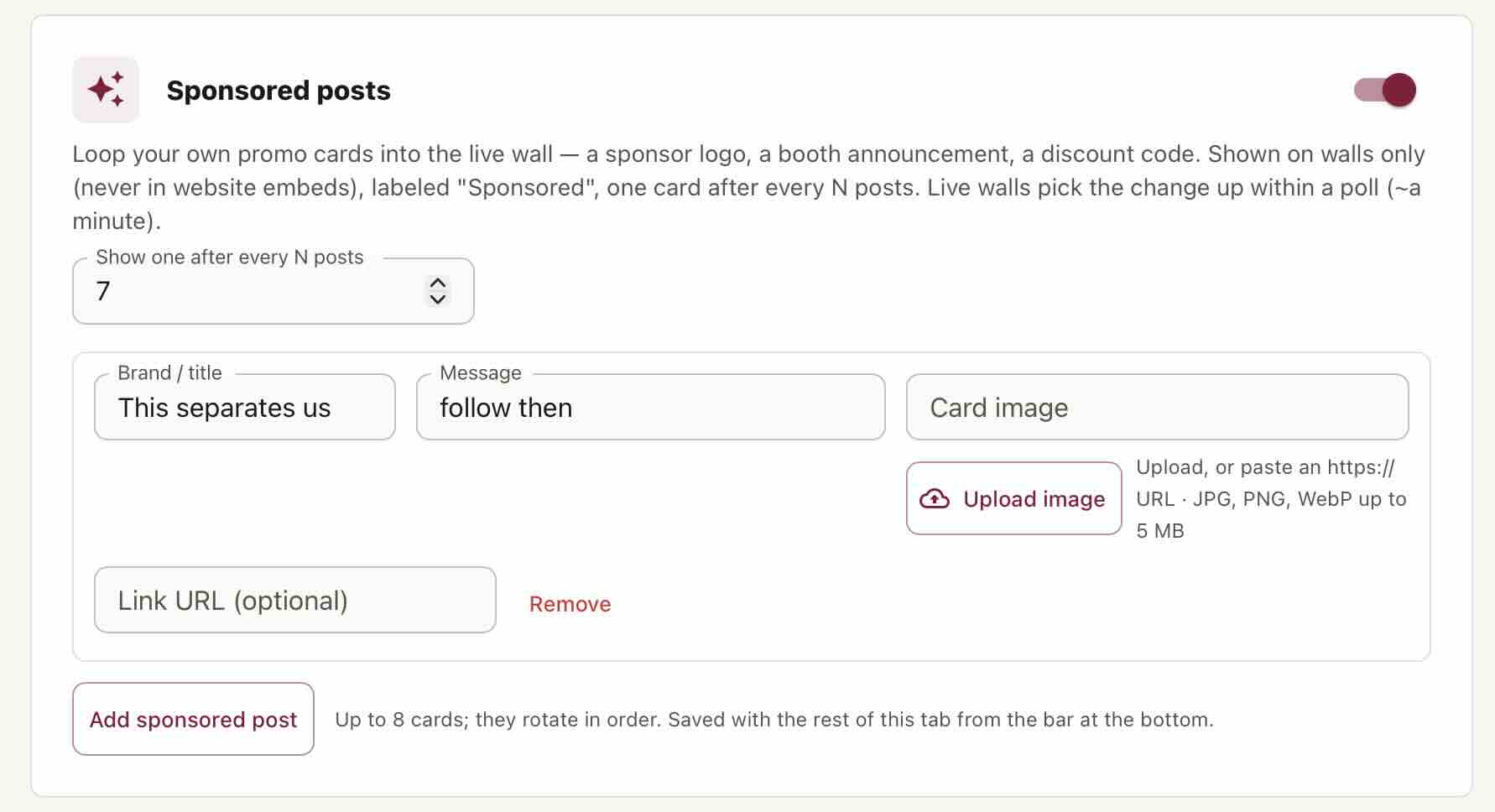
There's a second, separate way to run sponsors, and it's worth knowing the difference because they solve different contract problems. The banner above is a permanent strip that sits beside the wall, so it never covers a post. Sponsored posts instead weave your own promo cards into the post stream, a logo, a booth announcement, a discount code, labelled "Sponsored", one card after every N posts, up to eight cards rotating in order. They appear on walls only and never in a website embed, which matters if your sponsor deal covers the room but not your homepage.
The overlays reserve their own band at the bottom of the screen, and the rest of the shell's furniture, the QR card, the branding pill, the connection status pill, lifts to sit above it. That sounds trivial until you've seen a QR code rendered on top of a sponsor logo. Changes you make in the dashboard reach a paired TV on its next refresh, without anyone walking back to the AV booth.
What happens when the venue Wi-Fi wobbles
Honest answer, in two parts, because the honest answer has two parts.
A blip is fine. The wall that's already rendered keeps playing, the content is in the page, not streamed frame by frame. It polls for new posts on a cadence you set (default 60 seconds, tunable from 15 to 600). If two consecutive polls fail, a small "reconnecting" pill appears in the corner and polling backs off, then resumes when the network returns. Nobody in the audience notices a dropped poll.
A sustained outage is not fine, and I'm not going to claim it is. We do not preload a playlist for offline playback. If the venue's internet dies for twenty minutes, the wall keeps showing what it has and stops receiving anything new; if the browser gets reloaded in that window, you're stuck until connectivity returns. If your event genuinely cannot tolerate that, the answer is a hardwired connection or a 4G/5G backup on the display machine, which is what you should be doing for a paid AV setup anyway, regardless of vendor.
What we don't have
Every vendor page in this category is a list of wins. Here's the other list, because you'll find these out anyway and I'd rather you find them out now than at 4pm on setup day.
| Gap | The actual situation |
|---|---|
| No one-off event pass | Pricing is recurring plans only: Pro $29, Business $59, Scale $119 per month, two months free if you pay yearly, and contact sales above that. Some competitors sell a 30-day or per-day event SKU. We don't. What we do instead is run every team's first event free: a one-time 24-hour go-live window, no card, so a single event can run end to end before anyone pays. After that the wall is part of the $59 Business plan. If you want a pass rather than a subscription, that is a real reason to buy elsewhere and I'm not going to argue you out of it. |
| The wall is a Business feature, not a free one | Free and Pro teams get one free go-live window: 24 clean hours for a first event, scheduled in advance from the wall settings. Beyond that, running a wall and pairing a TV both need Business ($59/mo) or above; test mode stays open to everyone. The free event wall also still carries our link on screen. Worth knowing before you plan a season of events on it. |
| No branded frames or stickers on a guest's own photo | The camera booth takes the photo and sends it. It does not composite your logo, a frame or a sticker onto the picture itself. Snapshots mode frames the photo on screen, which is not the same thing and not what a sponsor is asking for. No GIF capture and no attendee video either: JPEG, PNG and WebP only. |
| No emoji reactions | There is no tap-to-react layer. Polls and the leaderboard are the participation surfaces we ship. If you want hearts floating over the feed, we don't have them. |
| No native digital-signage player apps | There is no listed ScreenCloud, Yodeck, Enplug or Fugo integration. Any player that can display a URL can display a wall, and in practice that covers most of them, but "point your player at a URL" is not the same as an installable app, and I won't call it one. |
| No offline playlist caching | Covered above. We survive a blip; we do not guarantee a screen through a sustained outage. |
| LinkedIn isn't a live source | LinkedIn's Community Management API is developer-tier only, so LinkedIn is not live yet. Don't plan a wall around it. |
| Nothing measures the wall | There is an event recap report on Business, but it counts website embed activity. Wall views, scans and sponsor impressions are not counted anywhere in the product today, so there is no impressions number to hand a sponsor afterwards. If post-event reporting is a hard requirement in your brief, ask for a live demo of that specific screen from every vendor you're considering, this one included. |
For where we do and don't line up against the incumbent in this category, the long version is in my tested comparison of Walls.io alternatives, and the broader tool-selection checklist for events lives in the social media aggregator for events guide.
A setup-day run-through you can actually follow
This is the sequence I'd run on site, in order, and it should take about twenty minutes once the feed exists.
- The day before, build the feed and moderate it dry. Sources connected, keyword rules on, pre-approval on, a few posts approved so the wall isn't empty when the doors open. An empty wall at minute zero is the worst first impression an event wall can make.
- Pick the mode against the physical screen, not the laptop. Portrait pillar → totem. Huge LED, far viewers → stadium. Streaming overlay → stream ticker. Ballroom 16:9 → fluid or tile grid.
- On the venue machine, open the browser and type the short address. Nothing else gets typed on that machine all day.
- Scan, pick the feed, watch it redirect. Then go fullscreen and confirm the cursor hides itself after a few idle seconds.
- Walk to the back of the room. This is the step everyone skips. If you can't read a caption from the furthest seat, raise the scale, not the browser zoom.
- Submit a test post from your own phone via the QR, approve it, watch it land, then remove it and time how long it takes to leave the screen. A guest post leaves on the next poll, so set the cadence you'll actually run before you time it. Now you know your real moderation latency instead of a number off a marketing page.
- Turn on the overlays last, sponsors, countdown, ticker, and re-check that nothing sits on top of the QR card.
How to check any of this, including ours
Three questions cut through most of the marketing in this category, and they work on every vendor:
- "Is the venue wall the same renderer as your website widget?" If yes, you're buying a stretched web page. Ask them to load the wall with the network tab open and show you what's in the bundle.
- "Does your AI read the image, or only the caption?" Then hand them a photo with an innocent caption and watch what happens.
- "How does the screen get its URL?" If the answer involves typing a token on a TV keyboard, you've found your setup-day bottleneck.
All of it is testable today: the wall previews in test mode on a free account with no card, and your first event runs free on a 24-hour go-live window. Open a wall on a second monitor and try to break it. Start free at app.collectsocials.com and give yourself an afternoon with it; the failure modes you find at your desk are the ones you won't find in front of an audience.
For the modes themselves, and which of them suits a stage against a lobby TV or a portrait totem, our social wall for events page lays out all of them side by side, with the pairing flow and the limits written down.
Running screens in a school or campus setting? Social media for schools covers the safety and moderation side of public displays, and our social wall for universities page covers the higher-ed version: a feed per department, an atrium screen nobody has to sign into, and open-day posting with no account.
Start Using CollectSocials Today
One curated feed from 10+ platforms: on your website in a single line of code, or up on the big screen at your event.