
But "connecting Instagram to Shopify" can mean different things depending on what you're trying to accomplish. You might want to enable Instagram Shopping so customers can purchase directly from your posts. Or you might want to embed your Instagram feed on your Shopify store to add social proof and visual appeal. Both are valuable, and they serve different purposes.
This guide covers both approaches so you can decide what works best for your business.
Two Ways to Connect Instagram and Shopify
Before diving in, it helps to understand the distinction between these two integration paths.
Instagram Shopping lets you tag products in your Instagram posts and stories. When someone taps a tag, they can view the product details and continue to checkout on your Shopify store. This is a sales channel integration managed through Meta's commerce tools.
Embedding an Instagram feed means displaying your Instagram content directly on your Shopify store pages. Visitors see your latest posts, reels, or stories in a beautifully designed widget while browsing your store. This is a social proof and engagement play: it builds trust, increases time on site, and shows customers that your brand is active and real. See the Instagram feed widget overview for what the widget can show and how it is styled.
Most successful Shopify stores use both. Let's walk through each. If you want to embed content from multiple social platforms on Shopify, we also have a guide for adding LinkedIn feeds to Shopify.
Two different jobs, one pair of accounts
The animation splits the Instagram-to-Shopify relationship into its two directions: product tags sending shoppers from Instagram into your store, and your Instagram content travelling the other way to sit on your store pages as social proof. They are separate integrations with separate setups, which is why this guide treats them as two parts.
Part 1: Setting Up Instagram Shopping with Shopify
To enable product tagging on Instagram, you need to connect your Shopify store to Meta's commerce ecosystem. Here's what you'll need before getting started.
Prerequisites. You'll need an Instagram Business account (personal accounts won't work, and Meta's eligibility rules for Creator accounts are narrower and shift over time). That Instagram account must be connected to a Facebook Business Page, which Meta requires for product catalog management. You'll also need a Shopify store with products already listed, and your business must comply with Meta's commerce policies.
Connect your Facebook Page to Instagram. If your Instagram Business account isn't already linked to a Facebook Page, do this first. Go to your Instagram settings, navigate to the Account section, and link your Facebook Page. Make sure both accounts represent the same business entity with consistent branding and contact information.
Add the Facebook & Instagram sales channel in Shopify. In your Shopify admin, go to Settings and then Sales Channels. Search for "Facebook & Instagram" and add it. This channel manages the connection between your Shopify product catalog and Meta's platforms.
Connect your accounts. Follow the prompts to connect your Facebook account, select your Facebook Page, and link your Instagram Business account. Shopify will guide you through granting the necessary permissions.
Sync your product catalog. Once connected, your Shopify products automatically sync to Meta's Commerce Manager. That catalog is what Meta's commerce surfaces read from. Products, prices, inventory levels, and descriptions stay in sync: update them in Shopify, and they update across platforms.
Submit for review. Instagram requires an account review before you can tag products in posts. Review times vary; expect days rather than minutes. Once approved, you'll see the option to tag products when creating Instagram posts and stories.
Start tagging. Create an Instagram post, tap "Tag Products," and select items from your synced catalog. Customers can now tap those tags to view product details and shop directly from your content.
Part 2: Embedding Your Instagram Feed on Your Shopify Store
Instagram Shopping handles the sales channel side of things. But there's an equally powerful (and often overlooked) play: displaying your Instagram content directly on your Shopify store.
When a potential customer lands on your product page and sees real Instagram posts featuring your products (lifestyle shots, customer photos, unboxing videos), it creates a layer of social proof that product descriptions and studio photography alone can't match.
Why Embed Instagram Content on Shopify?
Social proof at the point of purchase. Shoppers trust real-world content from other customers more than branded marketing. An Instagram feed on your product page or homepage shows your products in authentic settings.
Increased time on site. Engaging visual content keeps visitors browsing longer. Longer sessions correlate with higher conversion rates and lower bounce rates.
Fresh content without extra effort. Post on Instagram and your Shopify store picks it up automatically on your plan's refresh schedule. No manual uploads, no copy-pasting, no extra workload.
Brand cohesion. Your Instagram aesthetic becomes part of your store's visual identity, creating a consistent brand experience across touchpoints.
How to Embed Instagram on Shopify with CollectSocials
Shopify doesn't offer a built-in Instagram feed widget. You'll need a third-party tool, and this is where a social media aggregator like CollectSocials comes in.
Step 1: Sign up for CollectSocials. Create your free account. The 7-day trial opens the full design studio with no credit card needed.
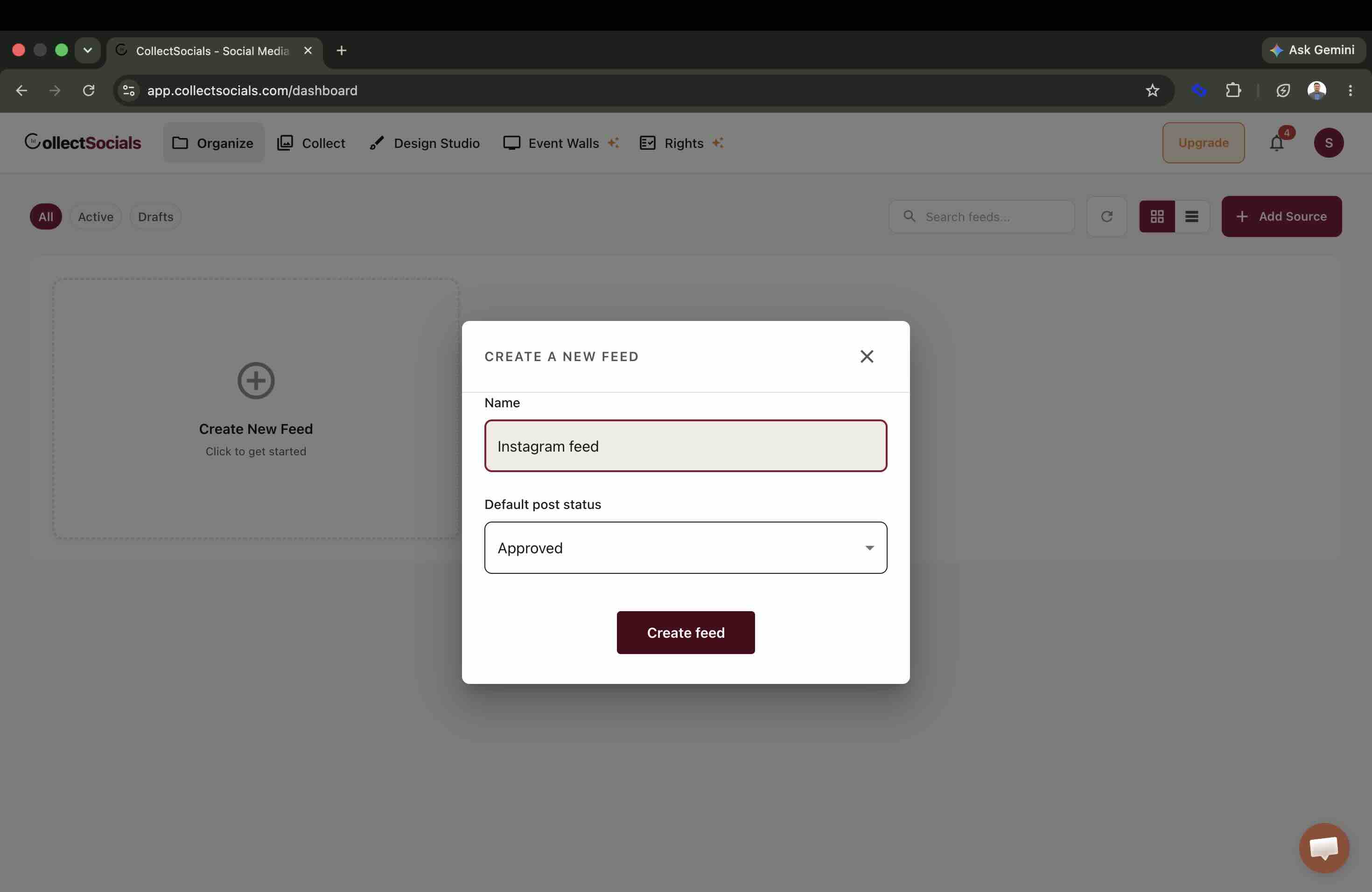
Step 2: Create a new feed. In your dashboard, create a feed for your Shopify store. This will be the container for your Instagram content. The default post status is set here too: Approved lets posts appear automatically, or you can hold everything for review first.
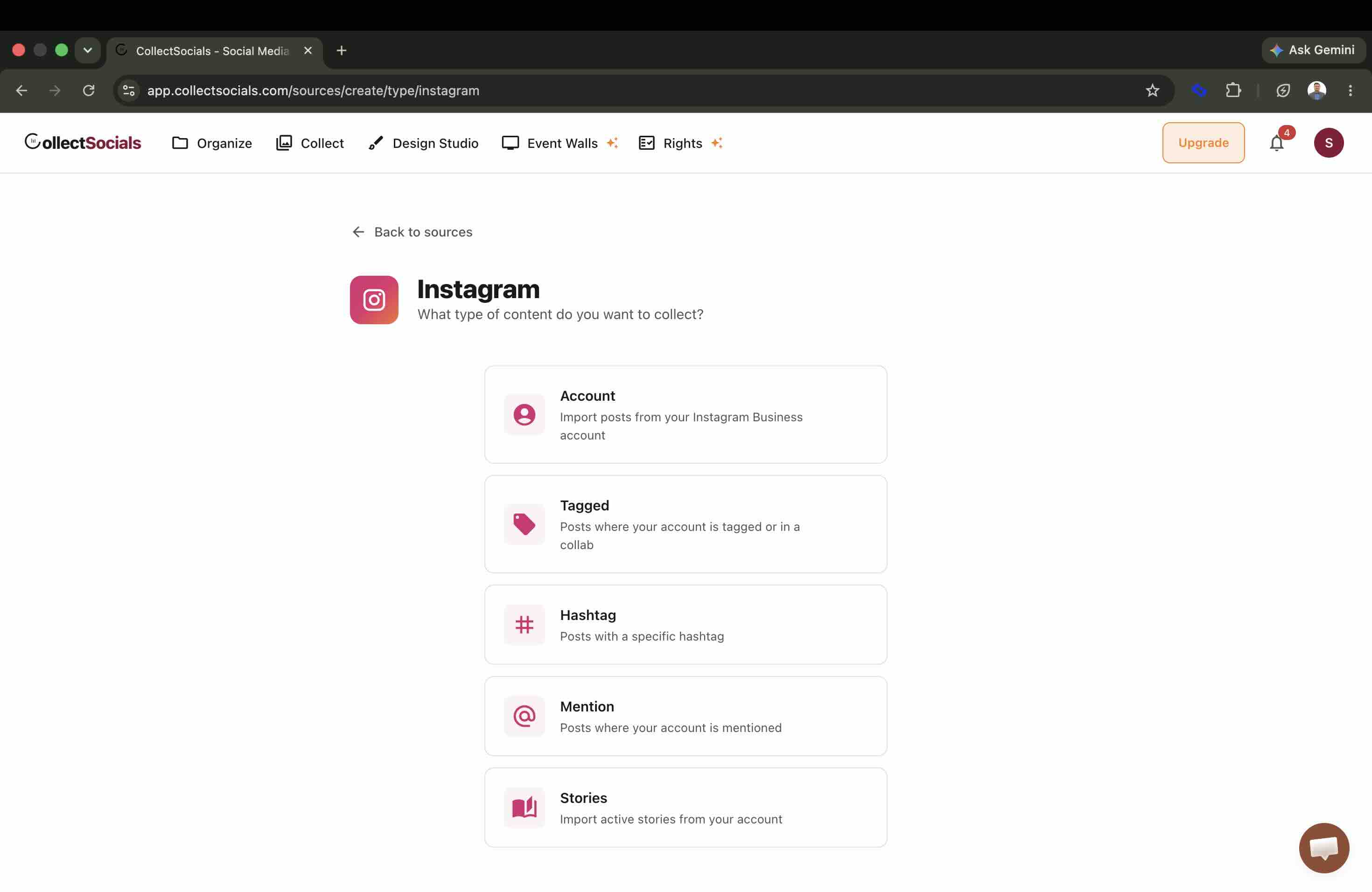
Step 3: Connect your Instagram account. Add Instagram as a source. CollectSocials connects via Meta's official OAuth flow: you'll log in with your Facebook credentials and select the Instagram Business account you want to import posts from. Your recent posts and reels are pulled in automatically; Stories are their own source type, as the screenshot below shows, and they follow a different route with a 24-hour life of their own, covered in displaying Instagram Stories on your website. For a store, the Account type (your own posts, in order) is the usual starting point; Tagged and Hashtag are how stores collect customer photos.
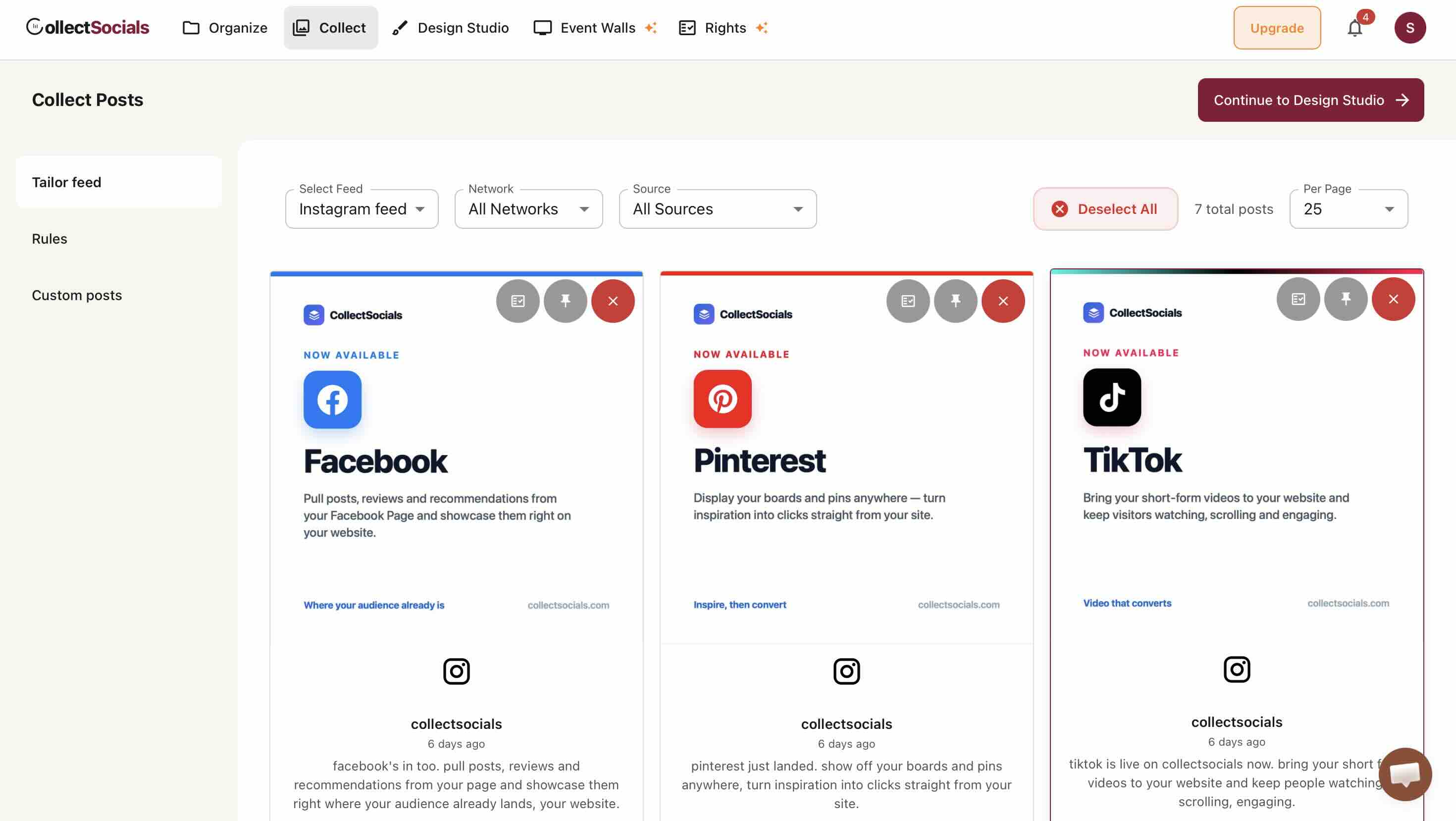
Step 4: Curate what appears on your store. On the Collect page, review all imported posts. Select the ones that best represent your brand and products. Remove anything off-brand or irrelevant. You can even edit post text inline if needed.
Step 5: Design your widget. Head to the Design Studio and choose a layout that fits your store. For e-commerce, popular options include Grid (clean and organized), Masonry (Pinterest-style visual appeal), Carousel (compact and interactive), or Mosaic (eye-catching varied sizes). Match a theme to your brand: Minimal, Mono, and Elegant work well for professional stores, while Bold, Sunset, or Neon suit more expressive brands.
Toggle display options like star ratings, dates, avatars, and platform badges based on what makes sense for your store context.
Picking a layout that suits a storefront
The animation runs one Instagram feed through the available layouts and themes. For a Shopify store the choice is usually driven by where the feed sits: a grid holds its own as a homepage section, while a carousel takes far less vertical space on a product page where the buy button should stay close to the top.
Step 6: Embed on your Shopify store. In the embed dialog, set "Where are you installing your widget?" to Shopify. You still get the ordinary script embed, because Shopify, unlike Wix and Squarespace, runs third-party scripts in your own page. The difference is that the Shopify snippet arrives wrapped in a page-width container with safe margins.
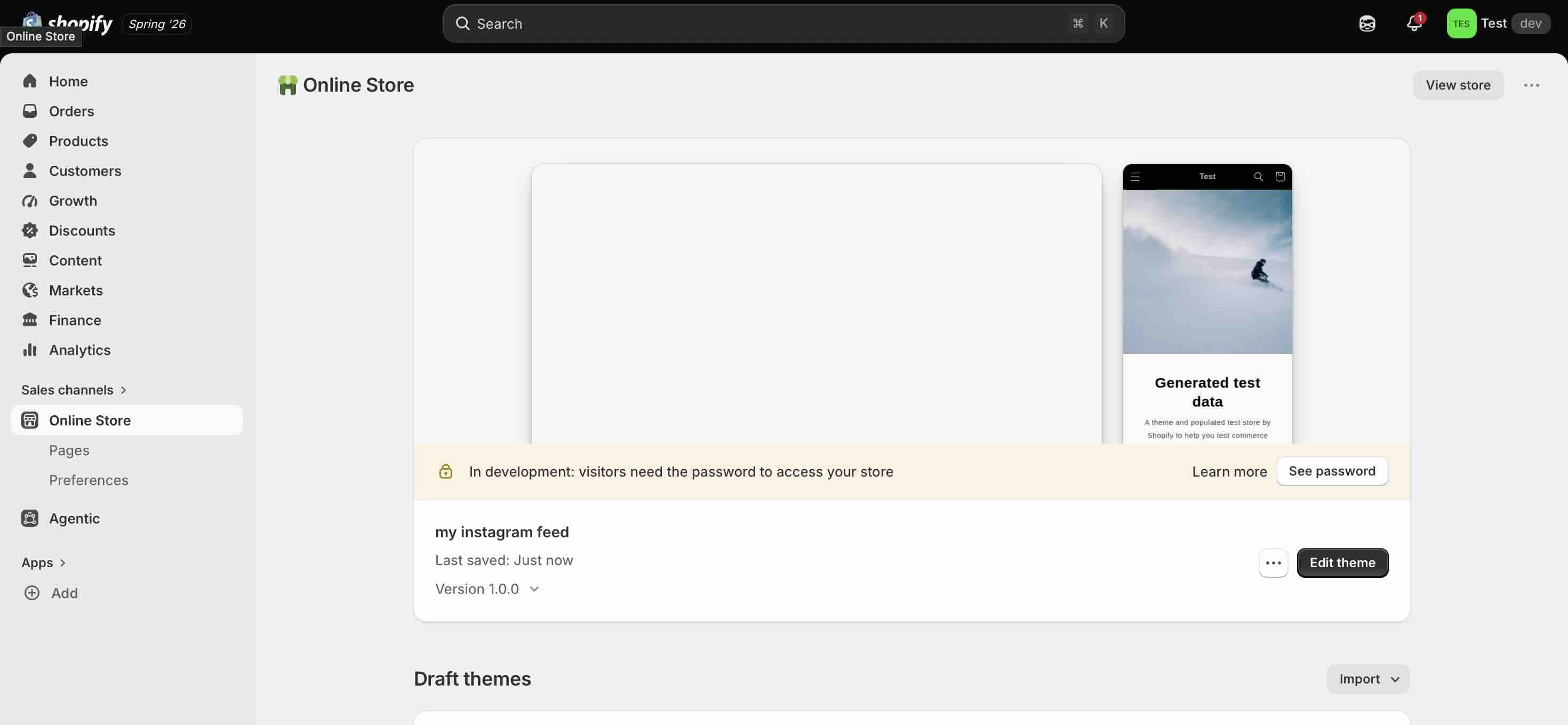
Now install it. From your Shopify admin, open Online Store under Sales channels.
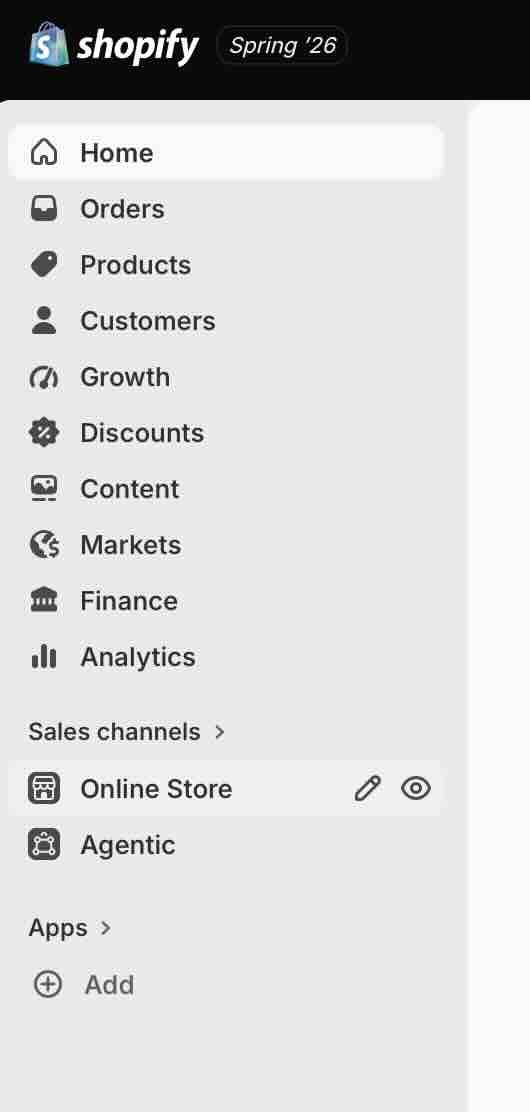
On the Themes screen, click Edit theme on your live theme, or on a duplicate first if you would rather stage the change.
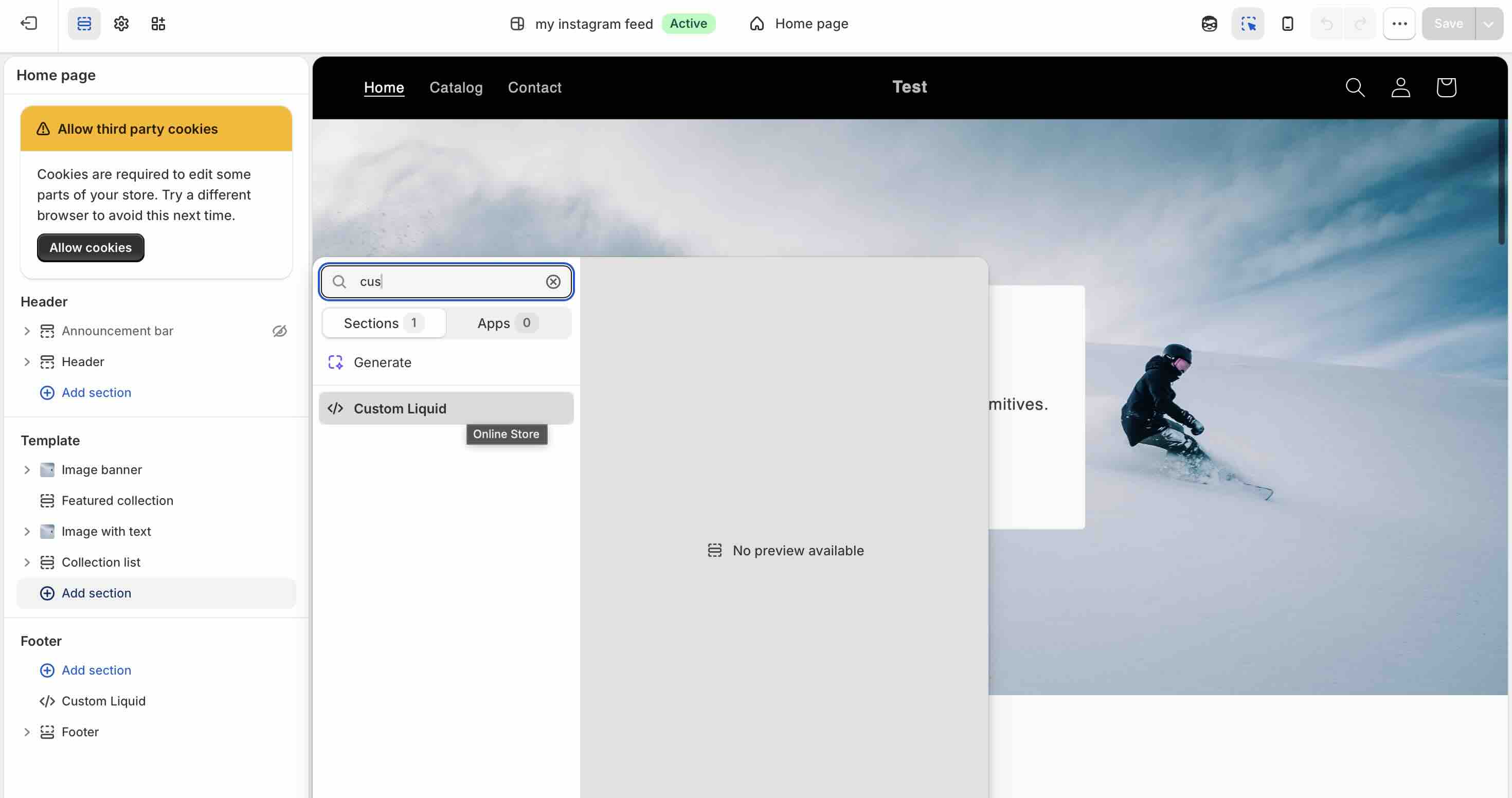
In the theme editor, click Add section and search for Custom Liquid. Paste the snippet into the section's code field and save.
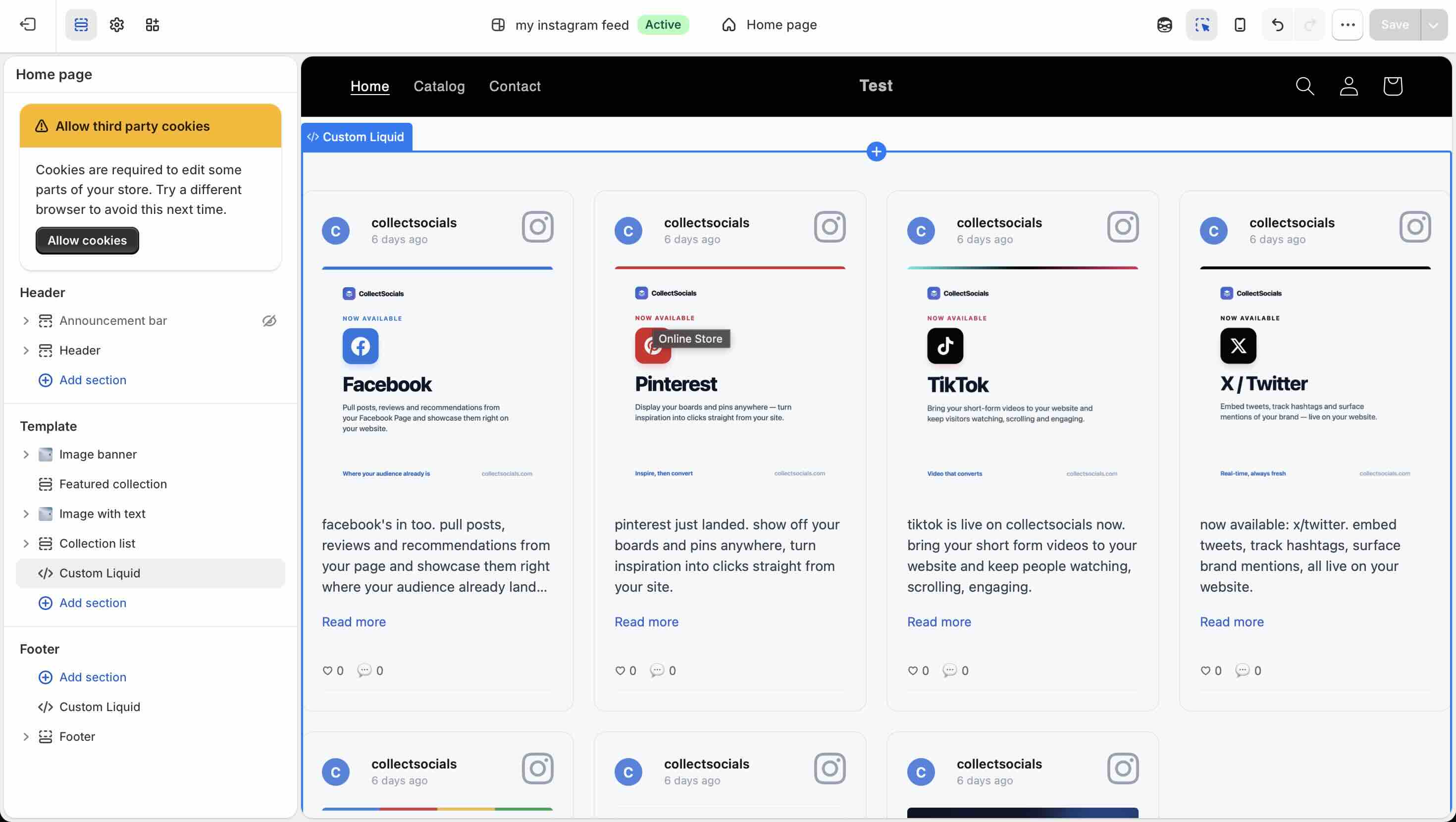
The feed renders immediately in the theme editor preview. That is worth pausing on: some site builders deliberately disable embedded scripts while you are editing, so a correct embed looks broken until the page is published. Shopify runs the script right in the editor, so what you see at edit time is what ships.
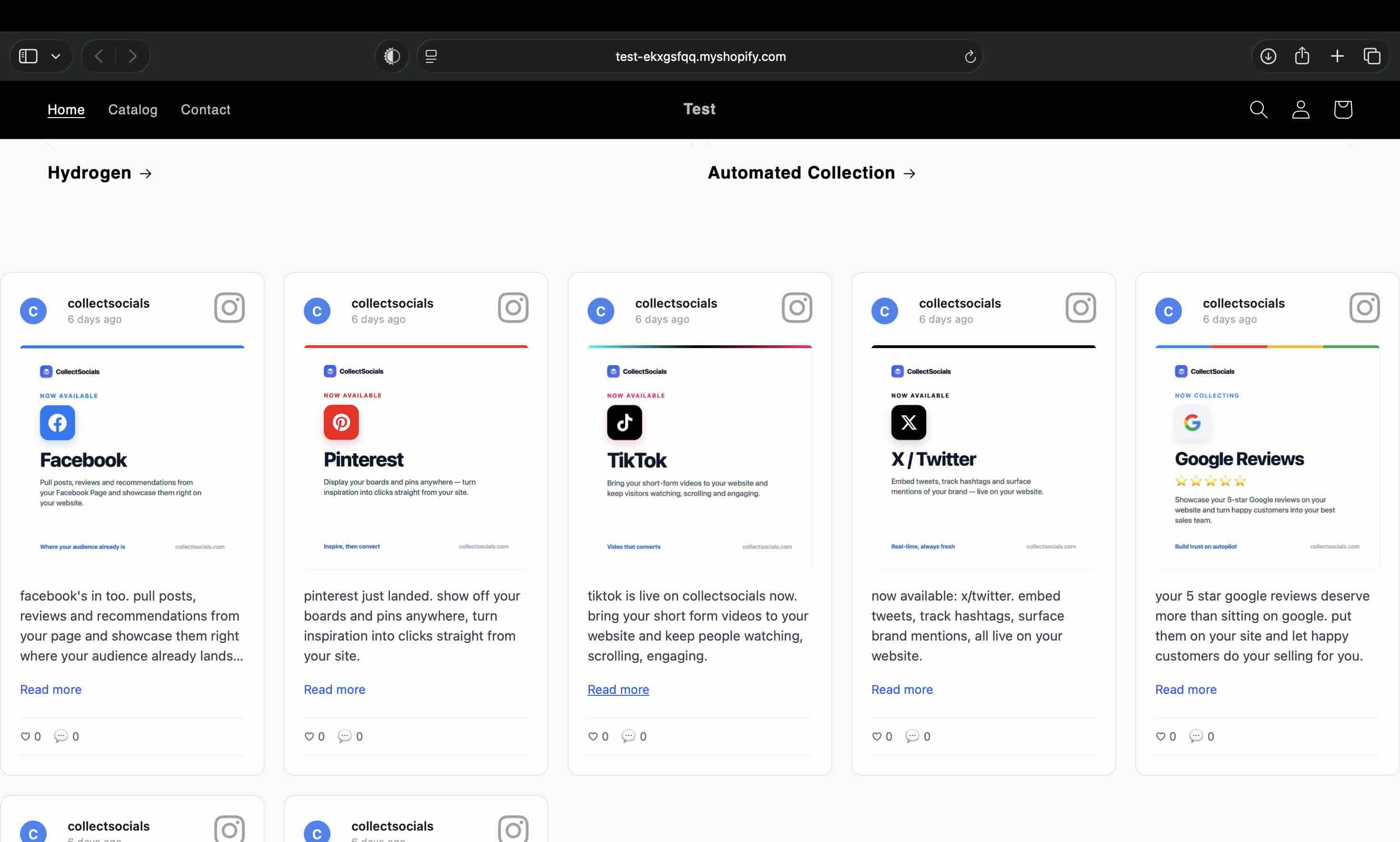
Save, then view the storefront to confirm.
The widget is fully responsive from desktop down to mobile, and because it renders in a Shadow DOM it will not conflict with your theme's CSS in either direction.
Best Placement Spots on Your Shopify Store
Homepage. Add the feed near the bottom of your homepage as a "Follow Us on Instagram" or "See Our Community" section. This is high-traffic real estate that benefits from visual, dynamic content.
Product pages. Embedding Instagram content on product pages shows real customers using or wearing your products. It's social proof right where buying decisions are made. The theme editor makes this a two-minute job: the template dropdown at the top of the editor reads Home page by default. Click it, choose Products, then Default product, and add the same Custom Liquid section there.
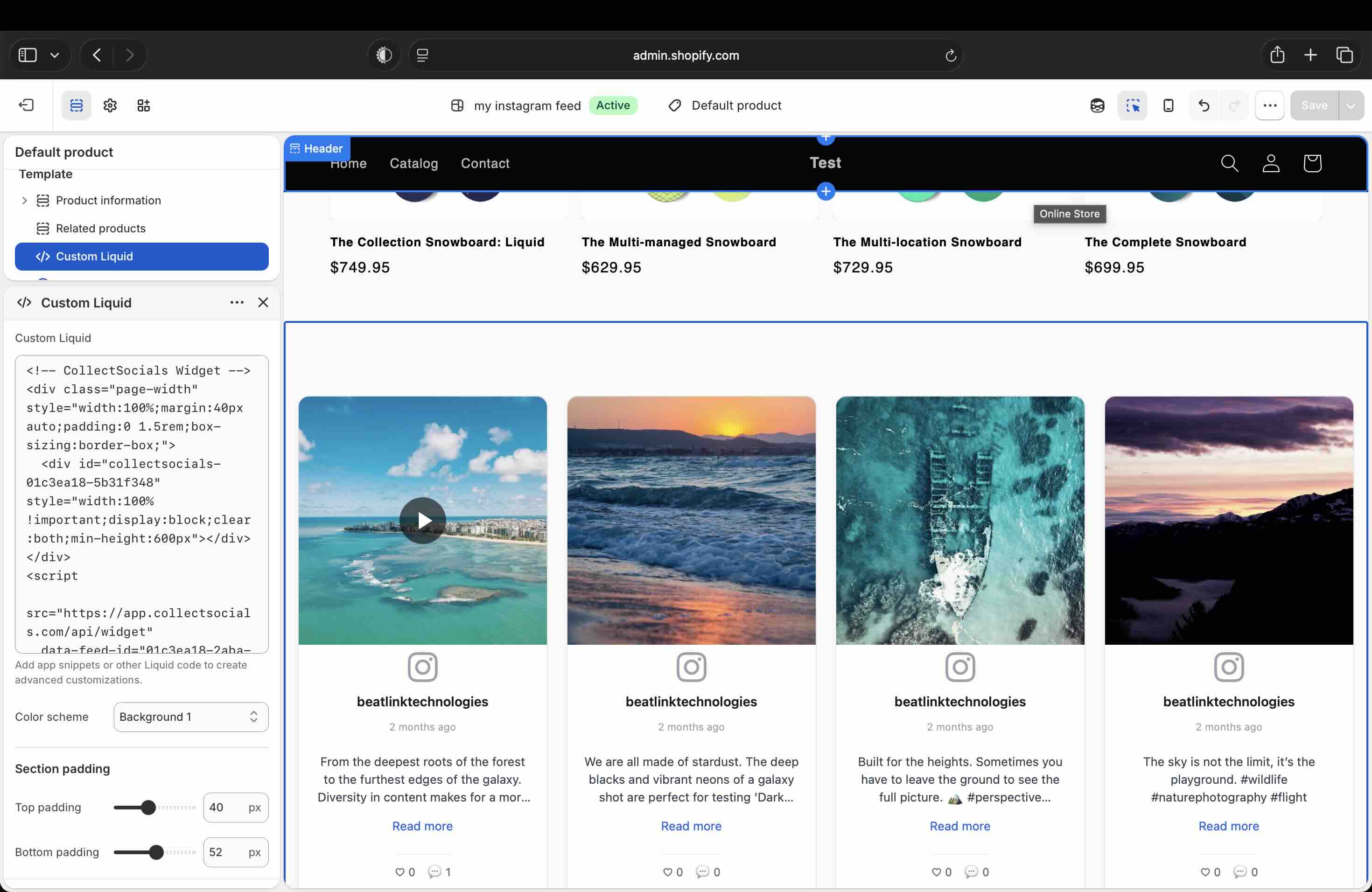
One caveat worth knowing before you commit: a section added to the Default product template appears on every product using that template. If you want the feed on a single hero product only, Shopify supports alternate product templates: create one in the theme editor and add the section to it, then assign that template from the product's own page in your Shopify admin. The assignment step lives in the admin, not the theme editor, and it is the one step in this walkthrough we did not screenshot.
Collection pages. If you have an Instagram hashtag campaign for specific product lines, display those posts on the relevant collection page. The same template dropdown covers collections too.
A dedicated "Community" or "Gallery" page. Some brands create an entire page dedicated to customer content and social media highlights.
We Tried to Break the Embed: Bare Snippet vs the Shopify Wrapper
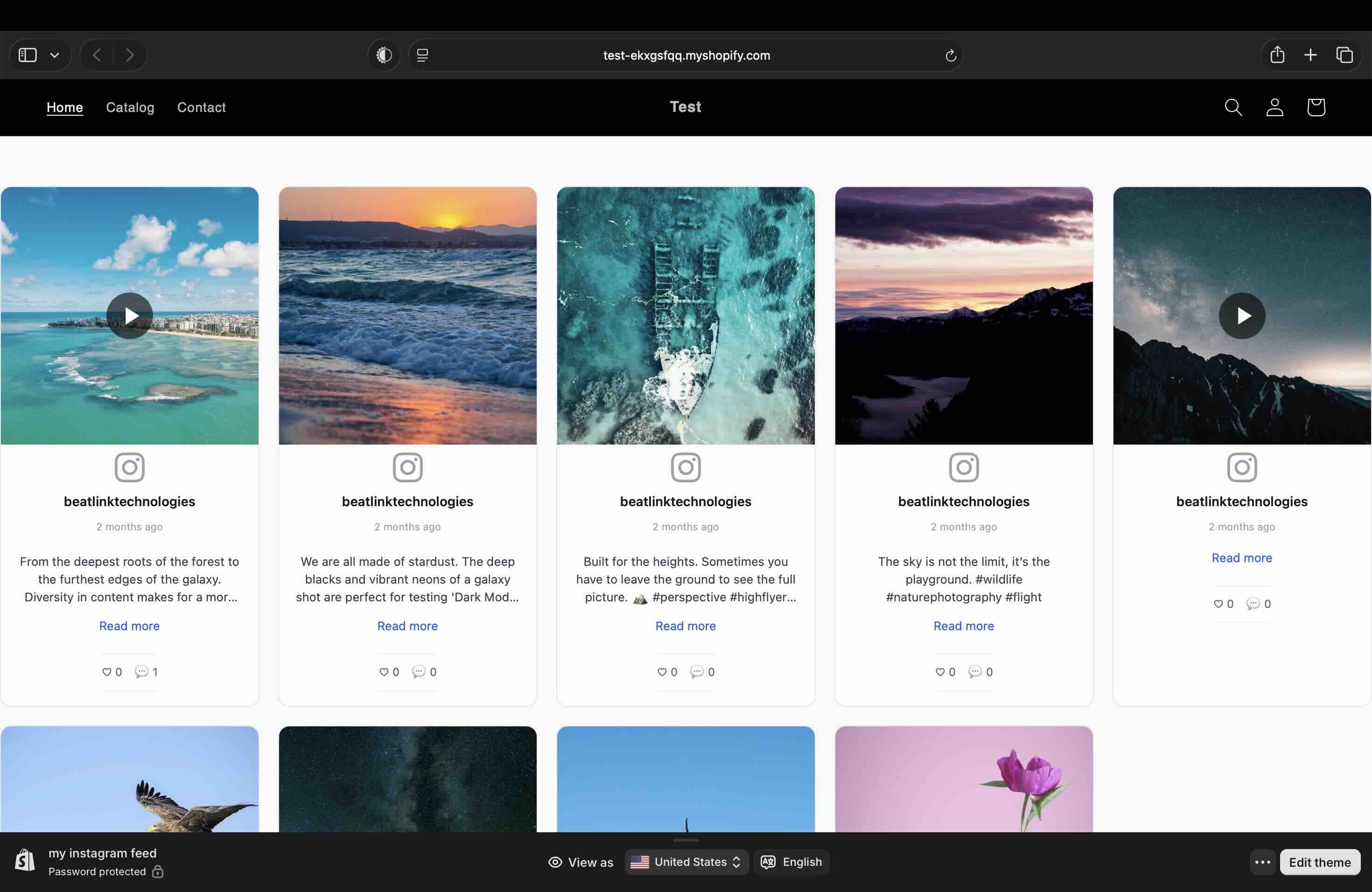
The embed dialog hands Shopify users a wrapped version of the snippet, and the honest question is whether that wrapper actually earns its place. So in August 2026 we ran the test on a fresh Shopify development store with its stock default theme: same page, same Custom Liquid section, first with the Plain HTML snippet (the bare container, no wrapper), then with the Shopify snippet. If the theme's flex rules were going to crush the bare container into a sliver or push it into horizontal overflow, this is where it would show.
It did not show. Here is the bare snippet on the published storefront:
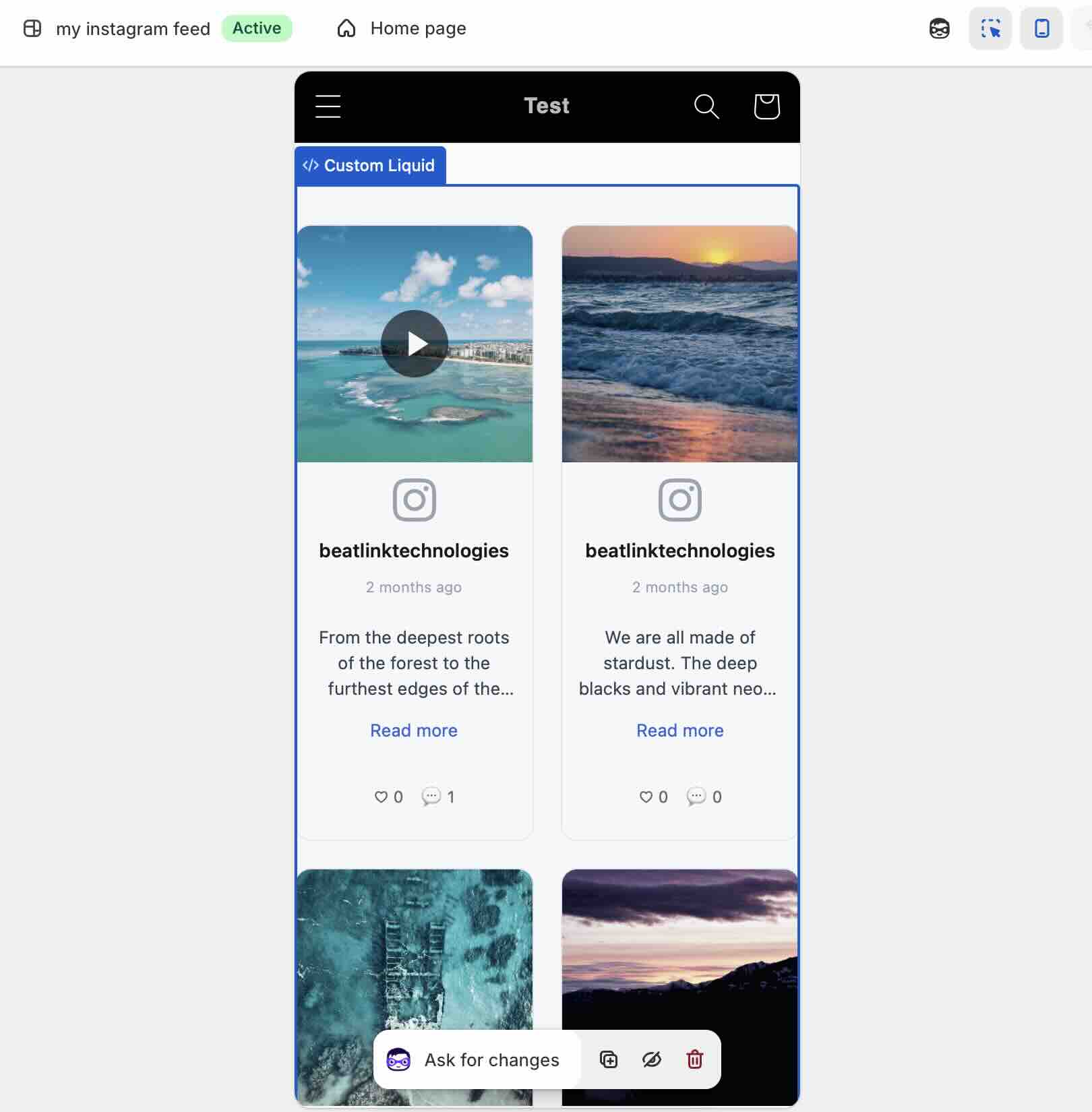
And the same bare snippet in the theme editor's mobile preview:
Then we swapped the Shopify-wrapped snippet back in and shot the same storefront page. Apart from the wrapper's own side margins, the two are the same: same five-column grid, no compression, no overflow.
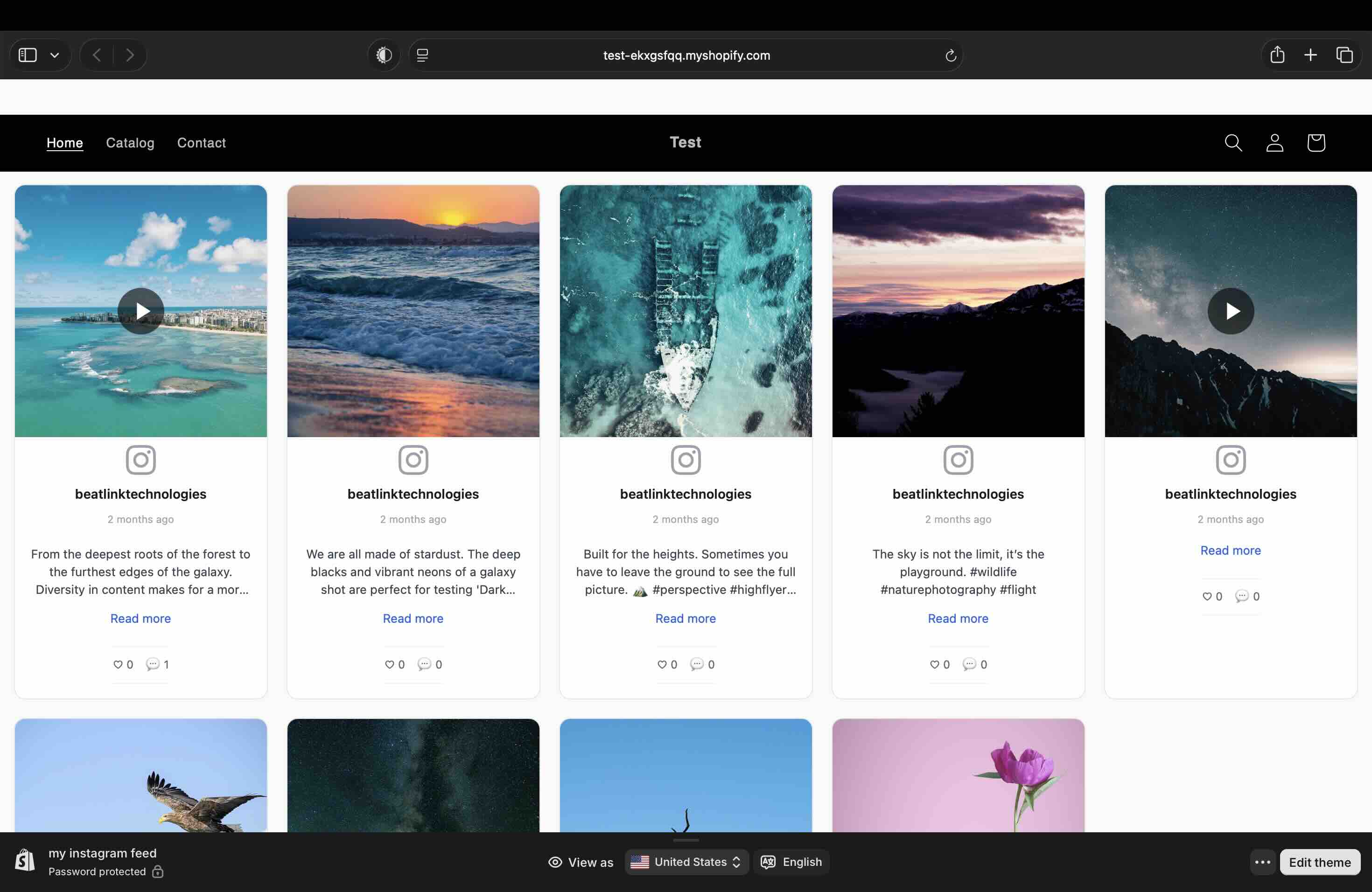
Be precise about what this proves. It proves the failure the wrapper guards against did not occur on this store's default theme in August 2026. It does not prove the failure never occurs: Shopify has a large theme ecosystem, themes differ in how their section layouts treat a bare block-level child, and the wrapper exists because we saw the raw embed render crushed to one side on a Shopify theme during development. Our recommendation stays the same, and now you know exactly why: use the Shopify option in the embed dialog. It changes nothing visually when the theme behaves, and it is insurance for the themes that do not. But if you pasted the plain snippet and your feed looks fine, nothing is wrong with your install.
Verify It Yourself: No App Installed, No CSS Leaks
Two claims in this article are the kind vendors assert and rarely prove, so we shot the proof. Both checks take under a minute on your own store.
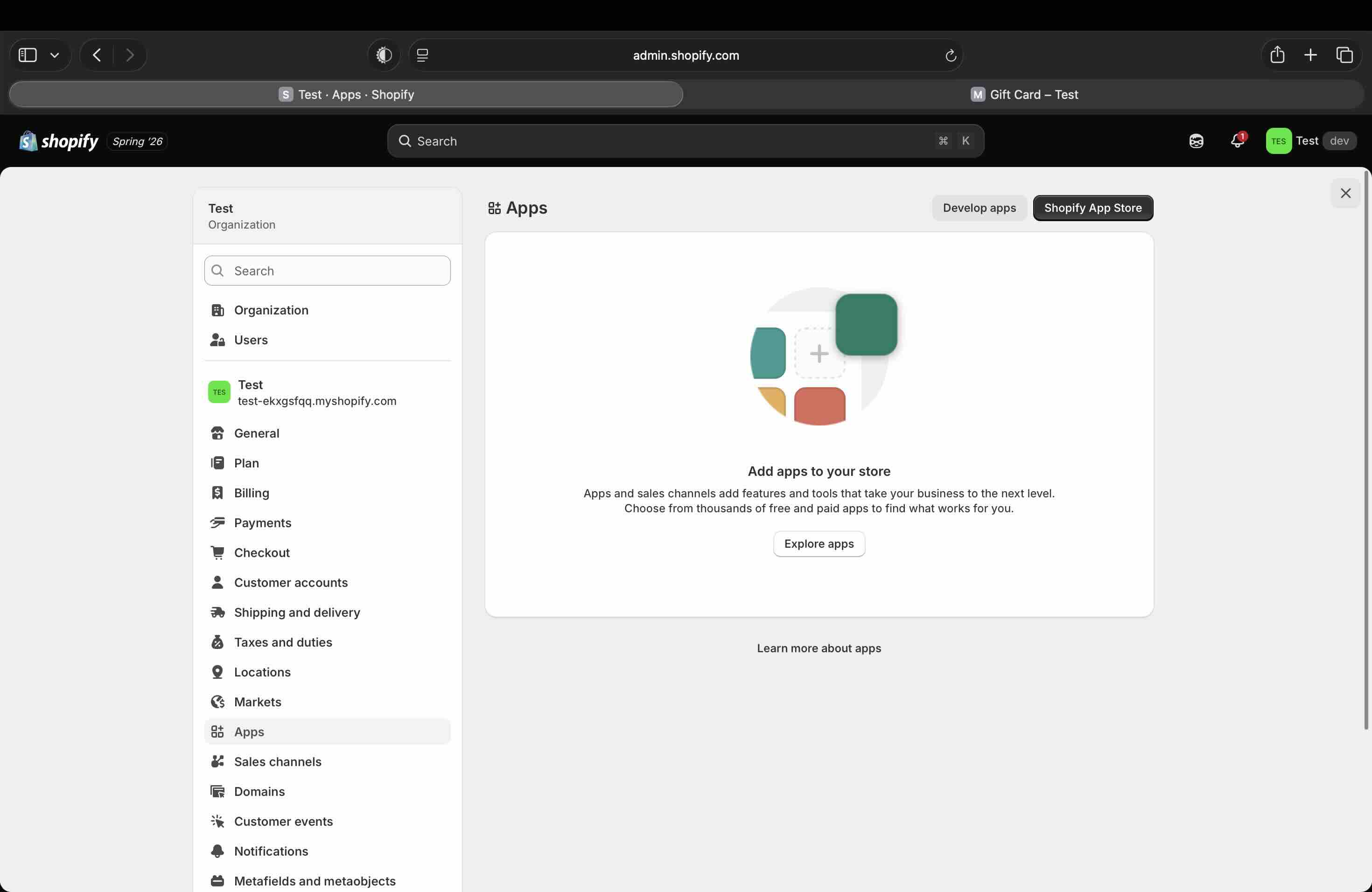
The app list stays empty. With the feed live on the storefront, open Settings and then Apps and sales channels. On our test store the list shows nothing at all: no app entry, no permissions granted, no subscription attached. To be fair about the test conditions, this is a clean development store with no other apps installed, so what the screenshot proves is that the feed itself added nothing.
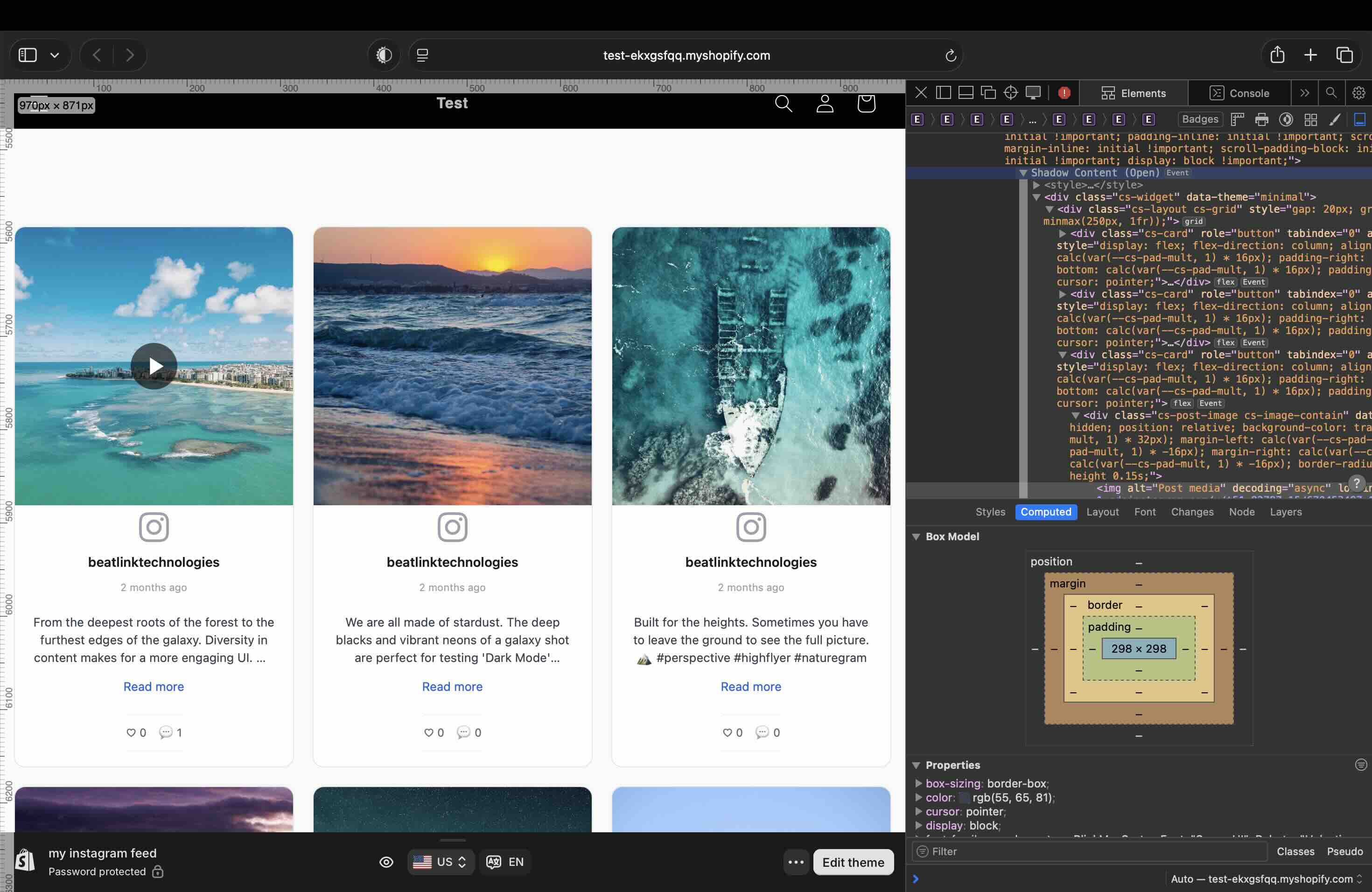
The Shadow DOM is real. Right-click any card in the feed on your storefront and choose Inspect. A few nodes up from the highlighted element you will find the shadow boundary: Safari's Web Inspector labels it Shadow Content (Open), and Chrome DevTools shows the same thing as #shadow-root (open). Everything the widget renders lives below that line, which is why your theme's CSS cannot restyle the feed and the feed's CSS cannot restyle your theme.
Combining Both Approaches
The smartest Shopify stores don't choose between Instagram Shopping and an embedded Instagram feed: they use both. Instagram Shopping converts social browsers into buyers. An embedded Instagram feed on Shopify converts store visitors into trusting customers by surrounding them with authentic social content.
With CollectSocials, you can go even further by combining Instagram content with posts from Facebook, Google Reviews, YouTube, and more into a single unified widget. Imagine a product page that shows your latest Instagram post, a five-star Google Review, and a YouTube unboxing video, all in one cohesive, beautifully designed feed.
Shopify Instagram Feed FAQ
Does an Instagram feed slow down my Shopify store?
The widget script is deferred and served from a CDN, so it does not block your page from rendering, and post images beyond the first ones load lazily as they approach the viewport. Like anything on a page, the feed is not free, so place it where it earns its keep rather than above your buy button.
Do I need to install a Shopify app?
No. The feed goes in as a Custom Liquid section in your theme. Nothing appears in your app list (screenshotted above), nothing gets access to orders or customer data, and removal is deleting the section.
Does this work on my Shopify plan and theme?
Custom Liquid is a standard section in Shopify's Online Store 2.0 themes. The reliable test takes five seconds: if Add section offers Custom Liquid, you are set, and no plan upgrade is involved. Much older vintage themes may only support sections on the home page.
Can I show the feed on just one product page?
Sections added to the Default product template appear on every product using that template. For a single product, create an alternate product template in the theme editor, add the section there, then assign that template from the product's own page in your Shopify admin.
Why does my feed not show while I'm editing the theme?
First check the storefront itself, because Shopify's theme editor normally renders the feed live at edit time. If the editor shows an "Allow third party cookies" banner, that is Shopify's own requirement for its editor and has nothing to do with the widget. And paste each snippet once per page: two different feeds on one page work fine, but the same snippet twice does not, because it carries a container with a fixed id and only the first copy renders. The second copy just leaves an empty block where it sits.
For the wider strategy behind feeds on a store, which pages earn from them and which do not, see Instagram feeds for ecommerce, and where to place an Instagram feed for the placement decision on its own. If the posts you want to show are your customers' rather than your own, display Instagram UGC on your website covers rights and consent, and how to curate an Instagram feed covers keeping the wrong ones off your product pages.
On another platform? The same feed installs on WordPress, where you can add an Instagram feed with a plugin, and on Squarespace, using an Instagram widget or the Instagram feed on Wix. Both of those platforms sandbox scripts, so they take an iframe where Shopify takes the script. The full method comparison lives in our guide to embedding an Instagram feed on your website.
Start Using CollectSocials Today
One curated feed from 10+ platforms: on your website in a single line of code, or up on the big screen at your event.