
This article picks up exactly where our test of every way to embed an Instagram feed stopped. That piece established what Instagram natively offers for posts and reels. Stories were the one case where the answer was a flat no, and that finding needed its own follow-up.
Can You Embed Instagram Stories on a Website?
No. There is no embed option, no embed code, and no official route that produces one.
This is not a limitation of any particular tool. It is the platform. Open somebody's Story on instagram.com, click the overflow menu, and count what you are offered: Report as inappropriate, About this account, Cancel. Three entries, and none of them is Embed.
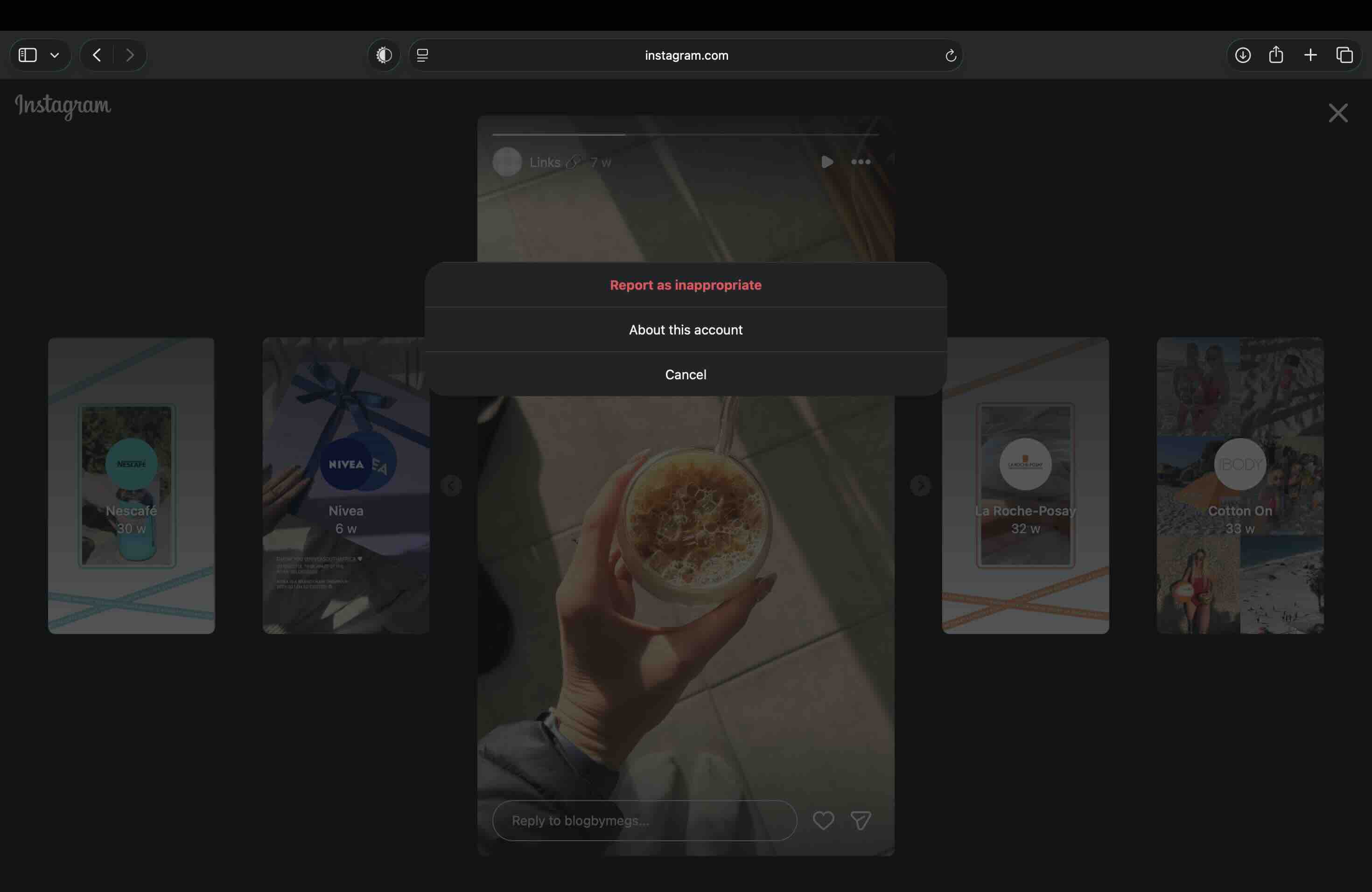
Open the overflow menu on a regular post or a reel instead and Embed is right there, handing you a blockquote and a script tag. The gap is specific to Stories, which rules out the obvious explanations. It is not that Instagram stopped supporting embeds, and it is not something you have configured wrongly on your account.
So if you have spent an afternoon hunting for the Story equivalent of that button, you can stop. The rest of this article is about the mechanism that is actually available.
Why No Instagram Story Embed Code Can Exist
An embed code is a promise about a permanent public address. Paste one, and the platform serves that content to anyone who loads your page, for as long as the post exists. Every piece of that promise breaks on a Story.
A Story has no permanent public URL. It exists for 24 hours and then it is gone from the surface that served it. An embed code pointing at it would be a link to a guaranteed dead end, on a schedule, every single time.
Stories are not addressable the way posts are. A post has a shareable permalink that anybody can paste anywhere. A Story does not, and the only route to one is authenticated: an app asks the account owner for permission, and the account owner grants it.
That second point is the important one, because it is also the way out. Stories are readable. They are just not readable anonymously, which is precisely what an embed code requires.
How Instagram Stories Actually Reach a Website
Here is the distinction that the whole subject turns on, and it is worth being precise about because the two mechanisms get spoken about as if they were the same thing.
Embedding is Instagram serving its own content into your page from a snippet you paste. You do not need permission because the content is public and the platform does the rendering. This is what posts and reels support, and what Stories do not.
Reading through the API is different in every respect. You connect your own Instagram account, you grant an app permission to read it, and that app asks Instagram's API for the Stories currently live on your account. What it gets back is data, which then renders on your site as your own markup.
So when you see Instagram Stories running on somebody's website, no embed is involved. An account owner authorised an application, and the application is reading their Stories on their behalf. That is the only mechanism there is, and it is the one described for the rest of this article. Our own product does not embed Stories, because nothing can.
What the Story pipeline is doing
The animation runs the publish, sync and live-on-site pipeline that a Story travels, with the sync interval named in the header. Because a Story only lives for 24 hours, that interval matters far more here than it does for the permanent posts shown cycling through it: the same pipeline carrying an ordinary post can afford to be slow, and this one cannot.
Do You Need a Facebook Page to Show Instagram Stories?
No. You can connect your Instagram Business or Creator account directly, signing in with Instagram, with no Facebook Page anywhere in the process.
That is worth stating plainly because the requirement used to be real and a great deal of published advice still assumes it. We ran the direct route through the live product in August 2026, and every screenshot in the walkthrough below comes from that session. You will not see a Facebook Page, a Page picker or a Facebook login in any of them.
Connecting through Facebook remains fully supported, and it is the right choice if your accounts are already linked that way. It is an alternative, not a fallback.
One honest boundary while we are on the subject: hashtag, tagged and mention sources still require the Facebook Page route, and always will. Those are separate Graph API surfaces that exist nowhere else, which is a Meta architecture fact rather than a product decision. Stories, your own account posts and reels are the ones that run on direct Instagram login. If customer content is what you are after, the hashtag feed guide covers that route and the Meta limits that come with it.
How to Display Instagram Stories on Your Website, Step by Step
This is the full setup, in order, with nothing skipped. It took a few minutes end to end.
Step 1: Create a feed to hold the Stories
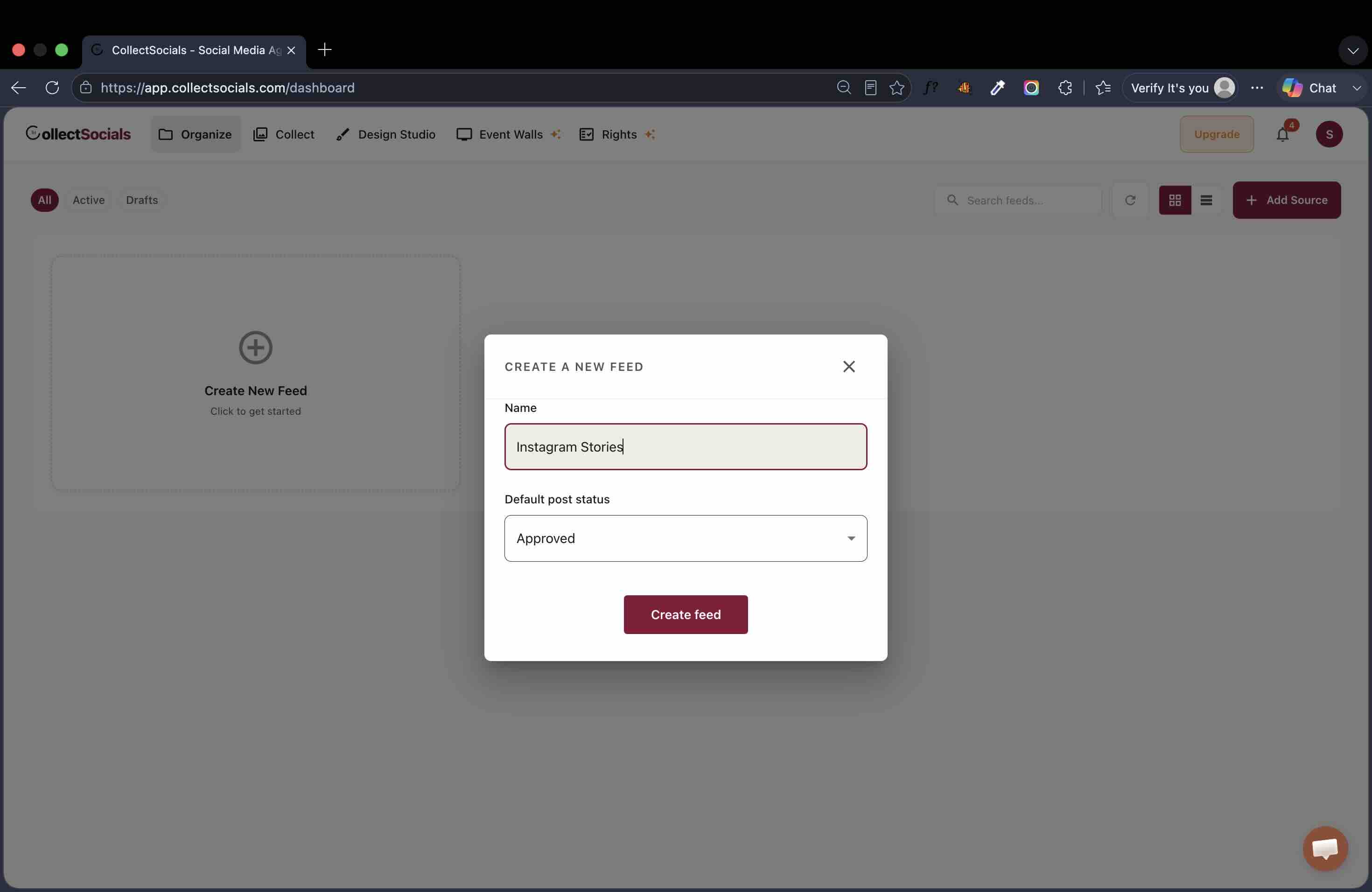
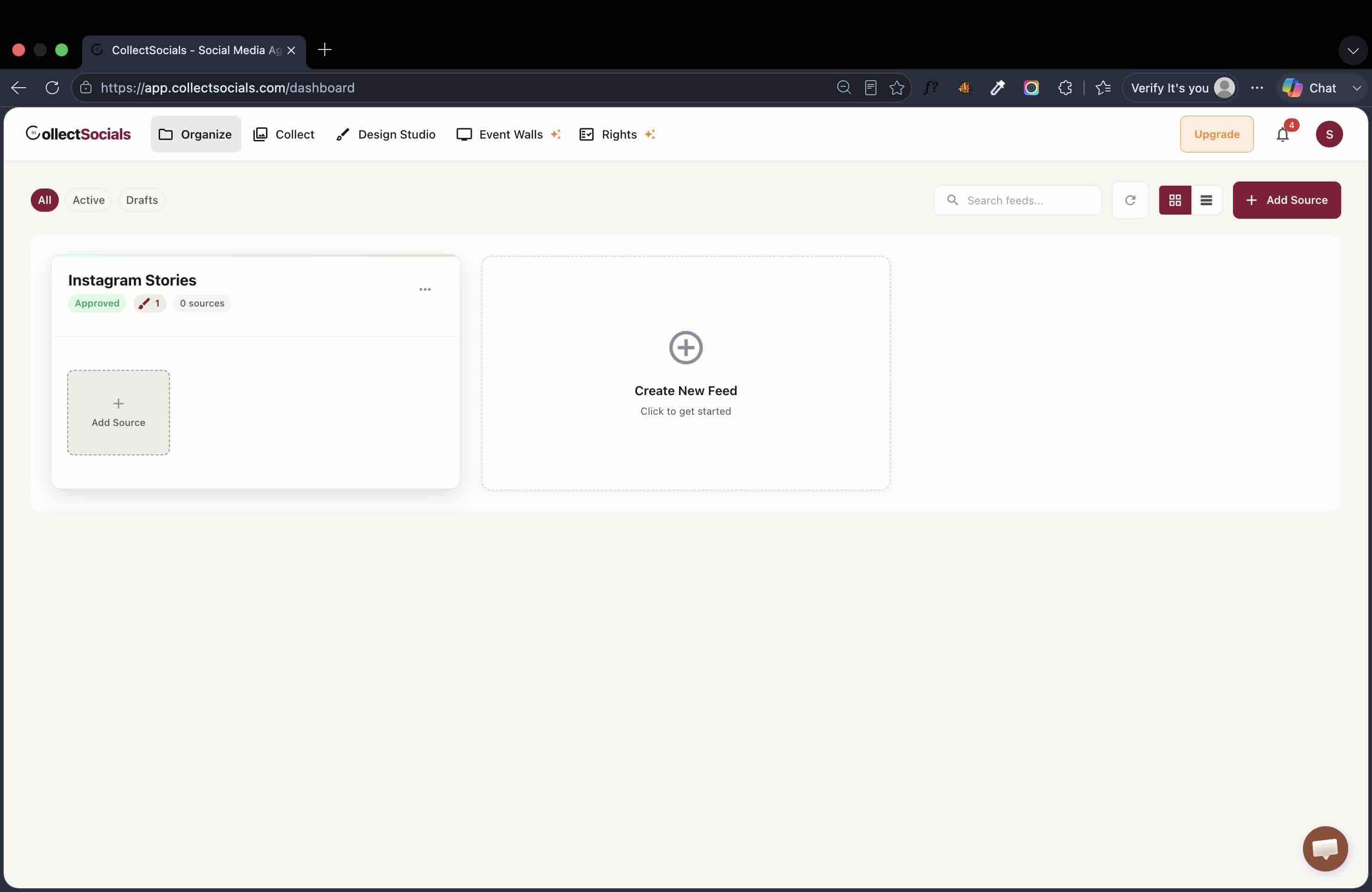
A feed is the container that a website widget renders. Name it something you will recognise later, and choose whether posts arrive approved or wait for review. For a Stories feed there is a real argument for approving automatically: a Story is live for 24 hours, so a manual approval queue can easily outlive the content it is holding up. If you would rather review everything before it appears, the tradeoffs are in our guide to curating an Instagram feed.
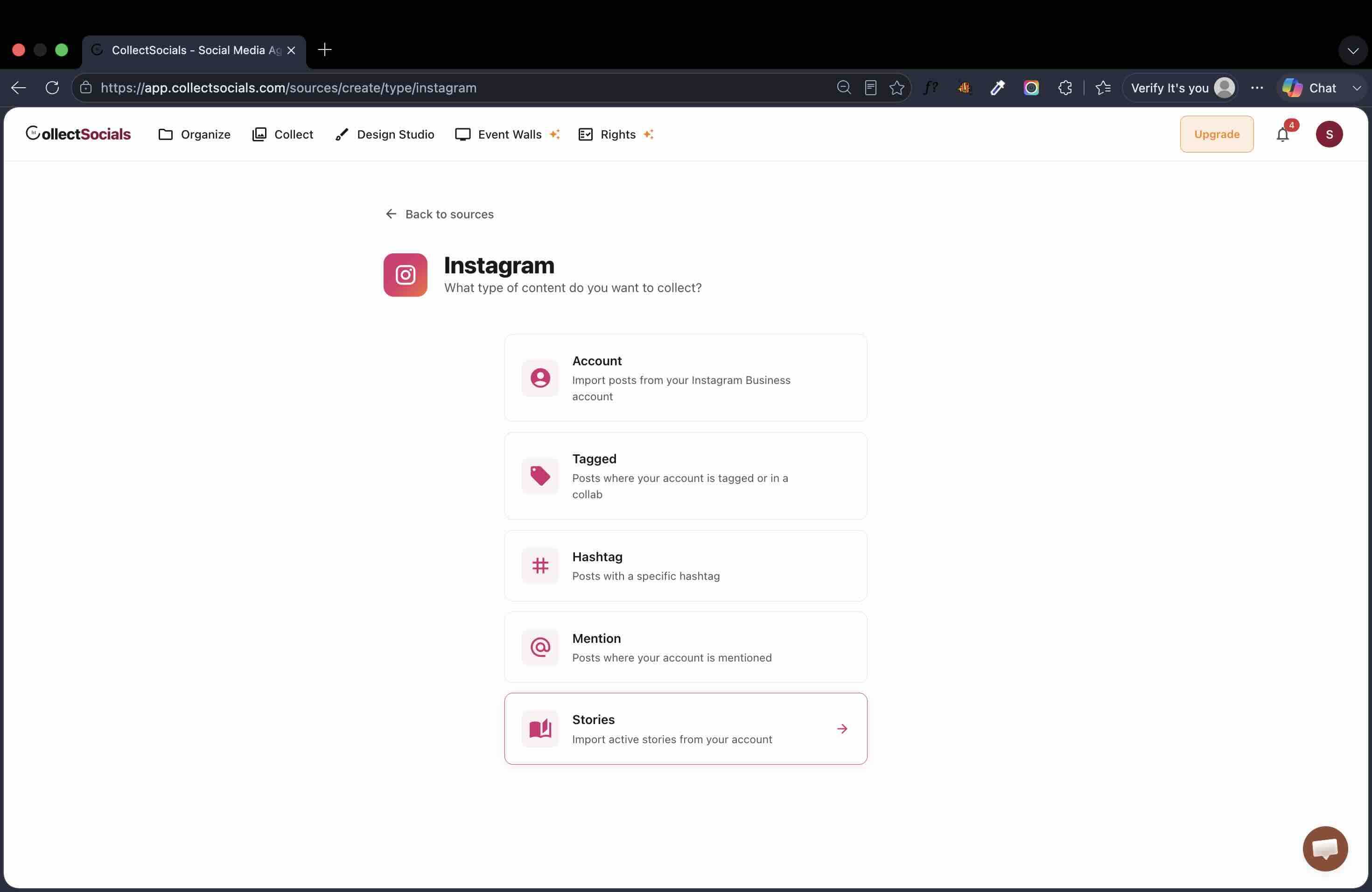
Step 2: Choose Instagram, then choose Stories
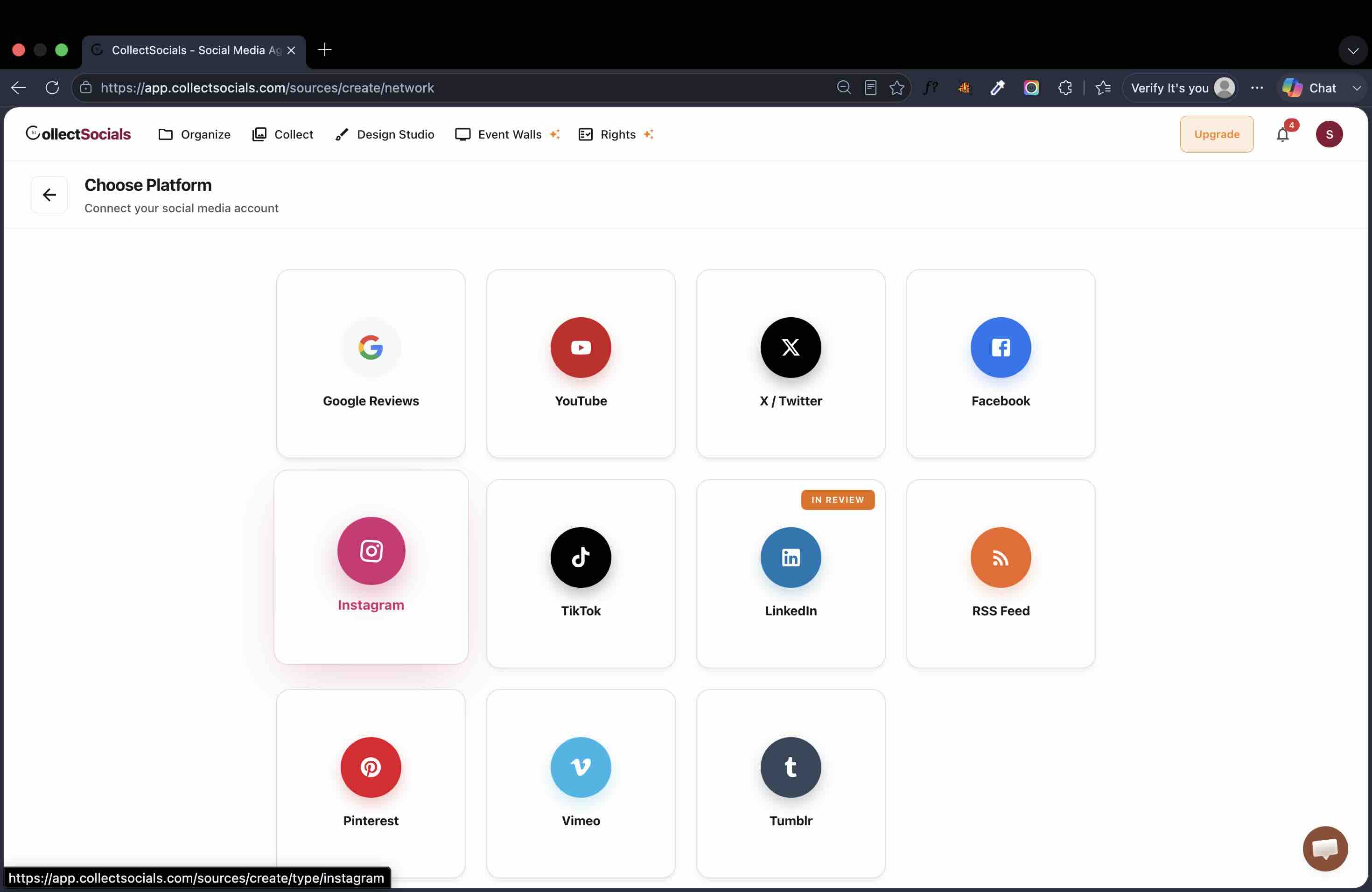
Stories are their own source type rather than a setting on an account source. That separation is deliberate and it matters: an account source collects your permanent posts, while a Stories source collects only what is live right now. Keeping them apart means one going quiet never affects the other.
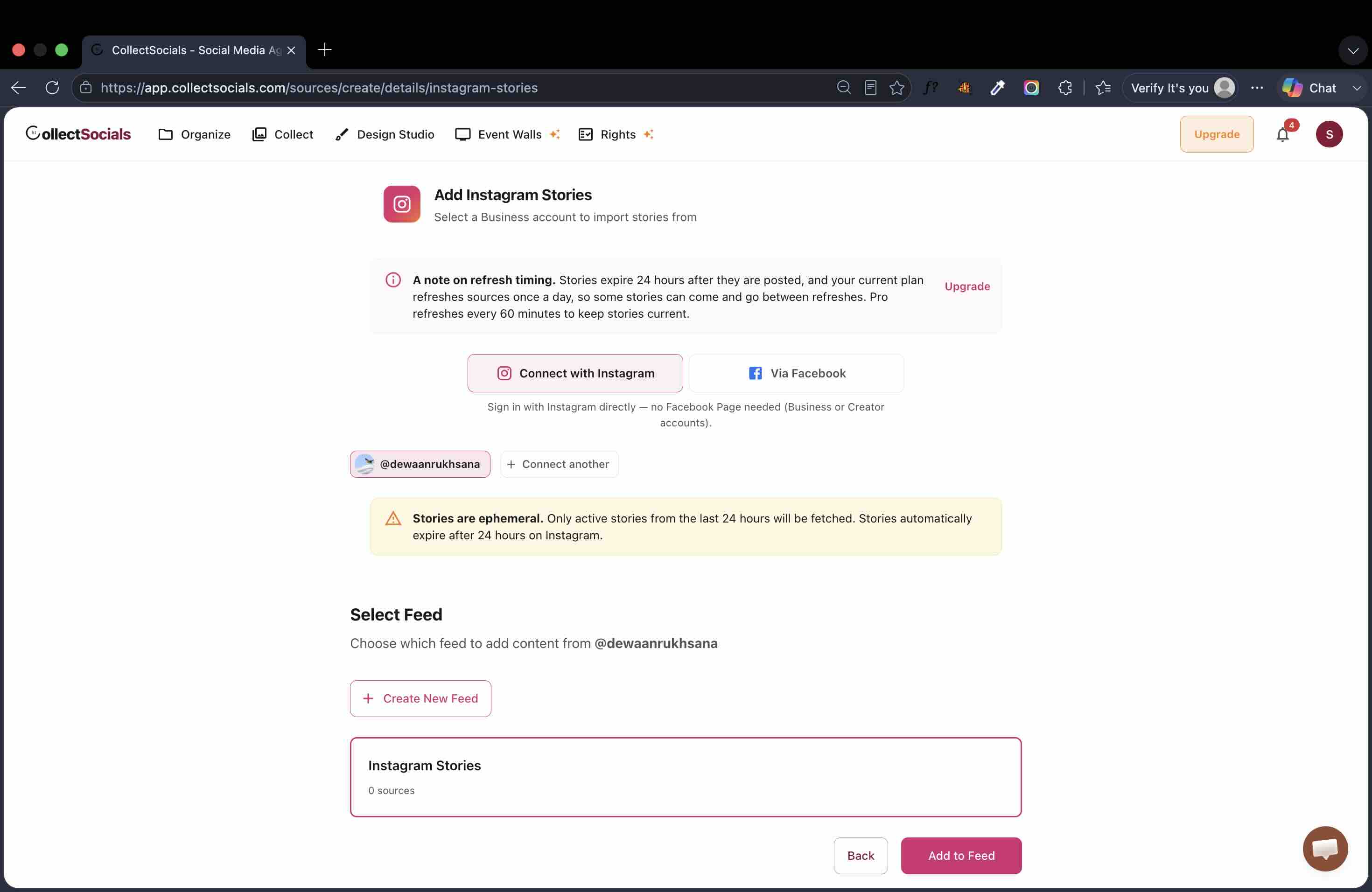
Step 3: Connect your Instagram account directly
This is the step people expect to need a Facebook Page for. The connection method defaults to Instagram, and the screen states the account requirement up front: Business or Creator accounts work, personal accounts are not supported by Instagram's API. If your account is personal, switching it to a Business or Creator account inside the Instagram app is free and takes a minute, and it is the only way any tool can read your Stories.
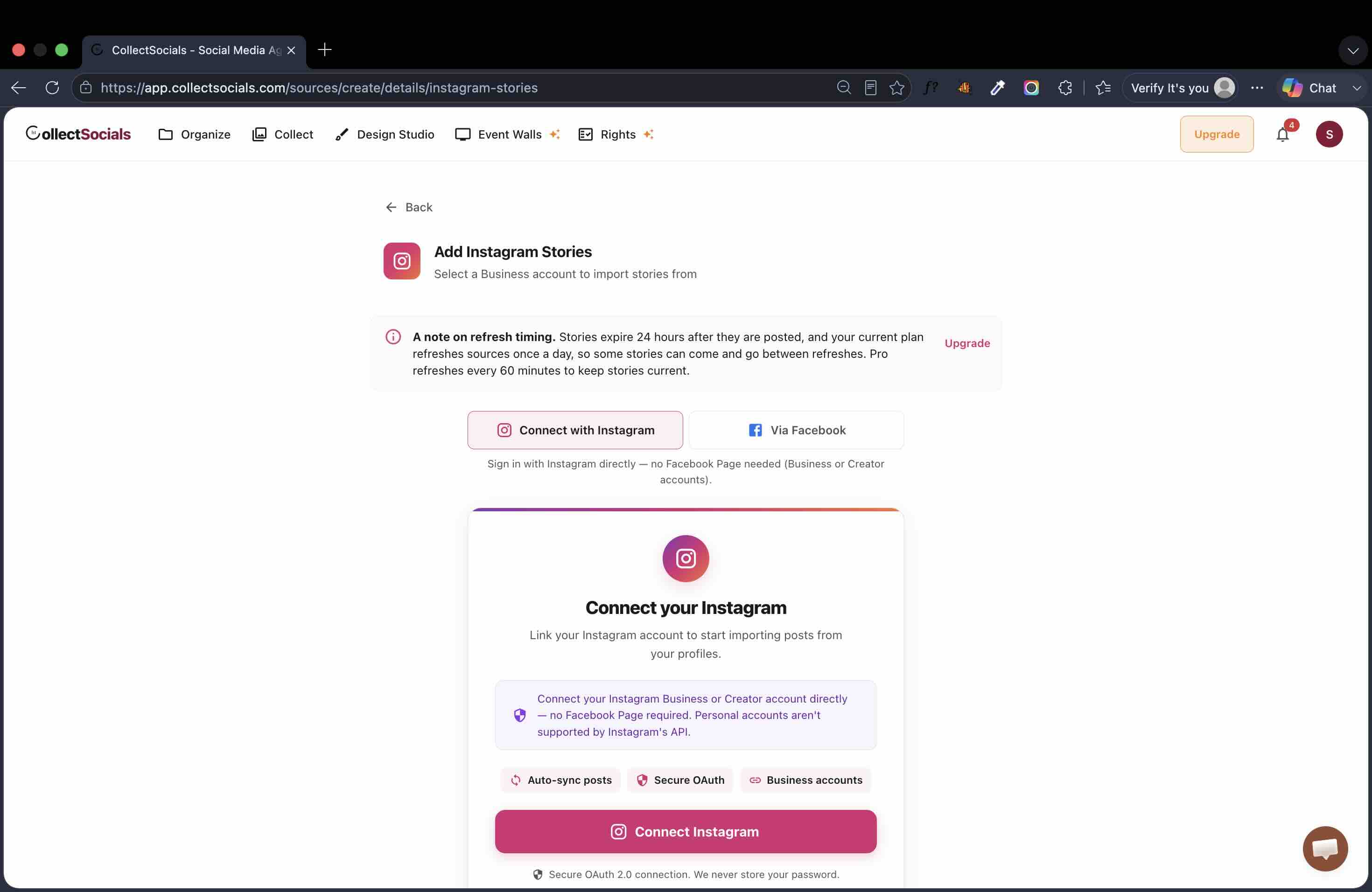
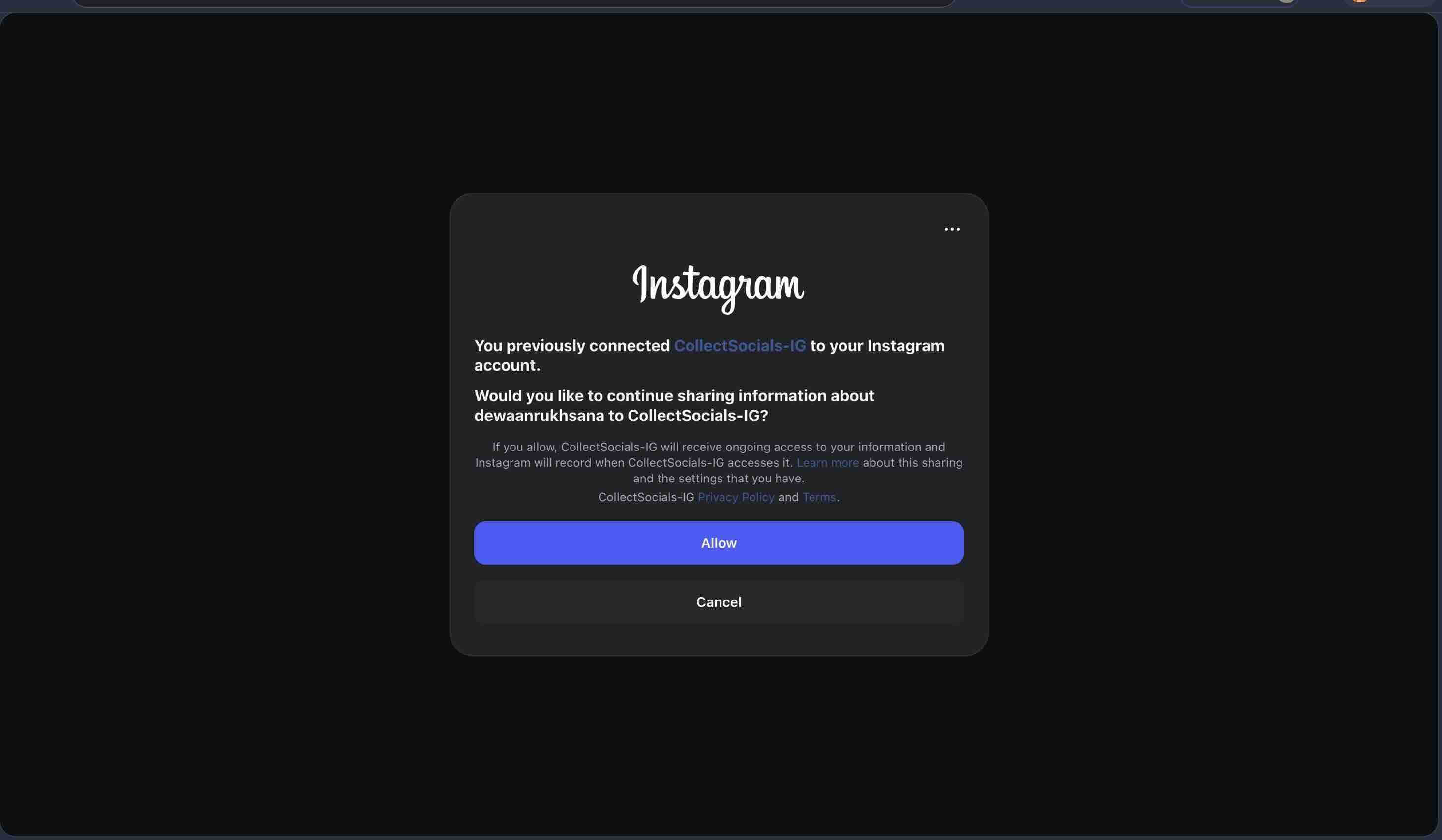
Choosing Connect with Instagram hands you to Instagram's own authorisation screen. Nothing about your credentials passes through the tool. You approve the connection with Instagram, and Instagram tells the application it may read the account.
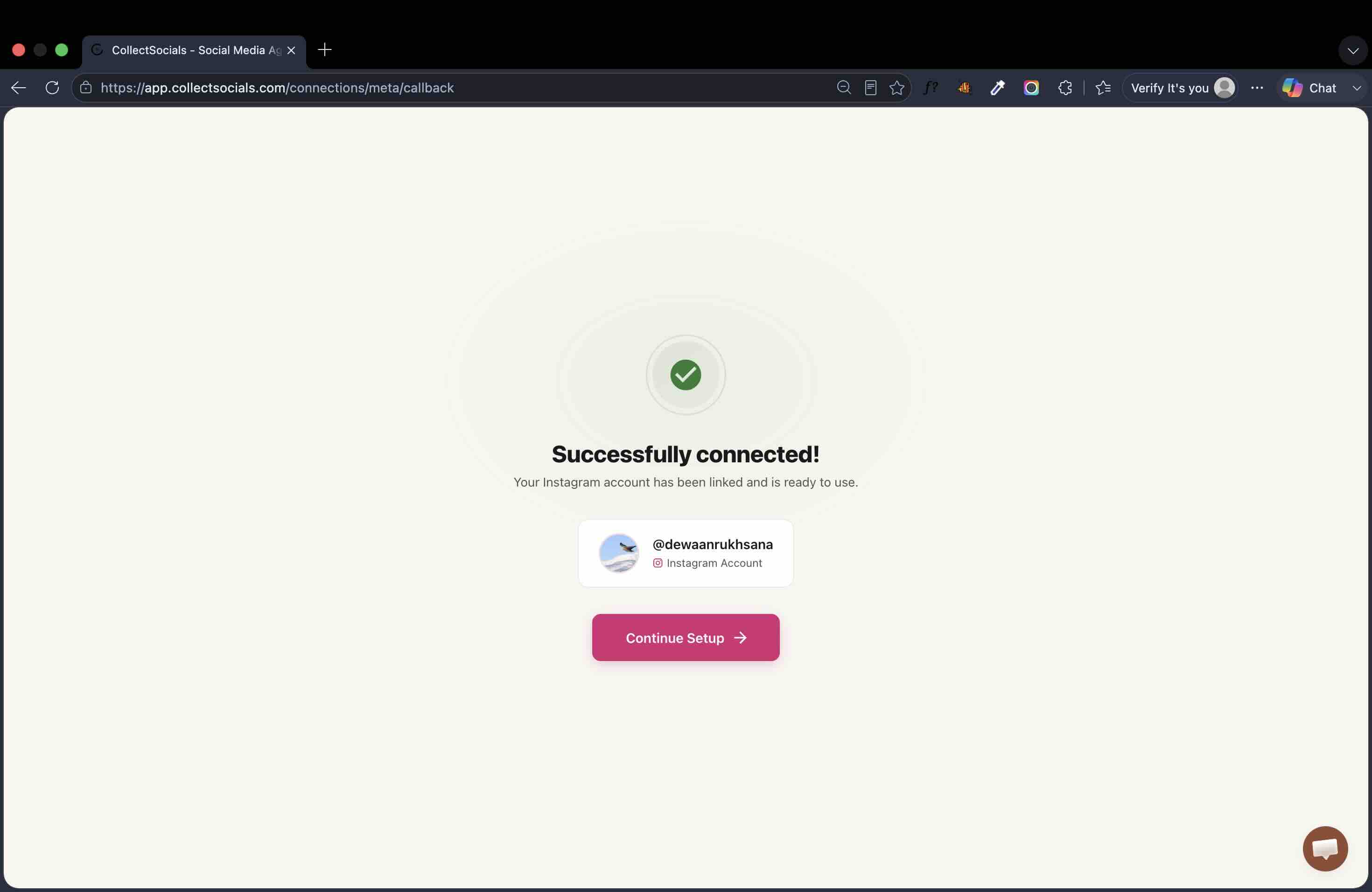
Step 4: Point the source at your feed
Back in the setup screen, the connected account now appears and the last step is choosing which feed receives its content. Note the warning: only active Stories from the last 24 hours will be fetched. There is no backfill and there cannot be one, because expired Stories are no longer available to read.
Step 5: Check what actually arrived
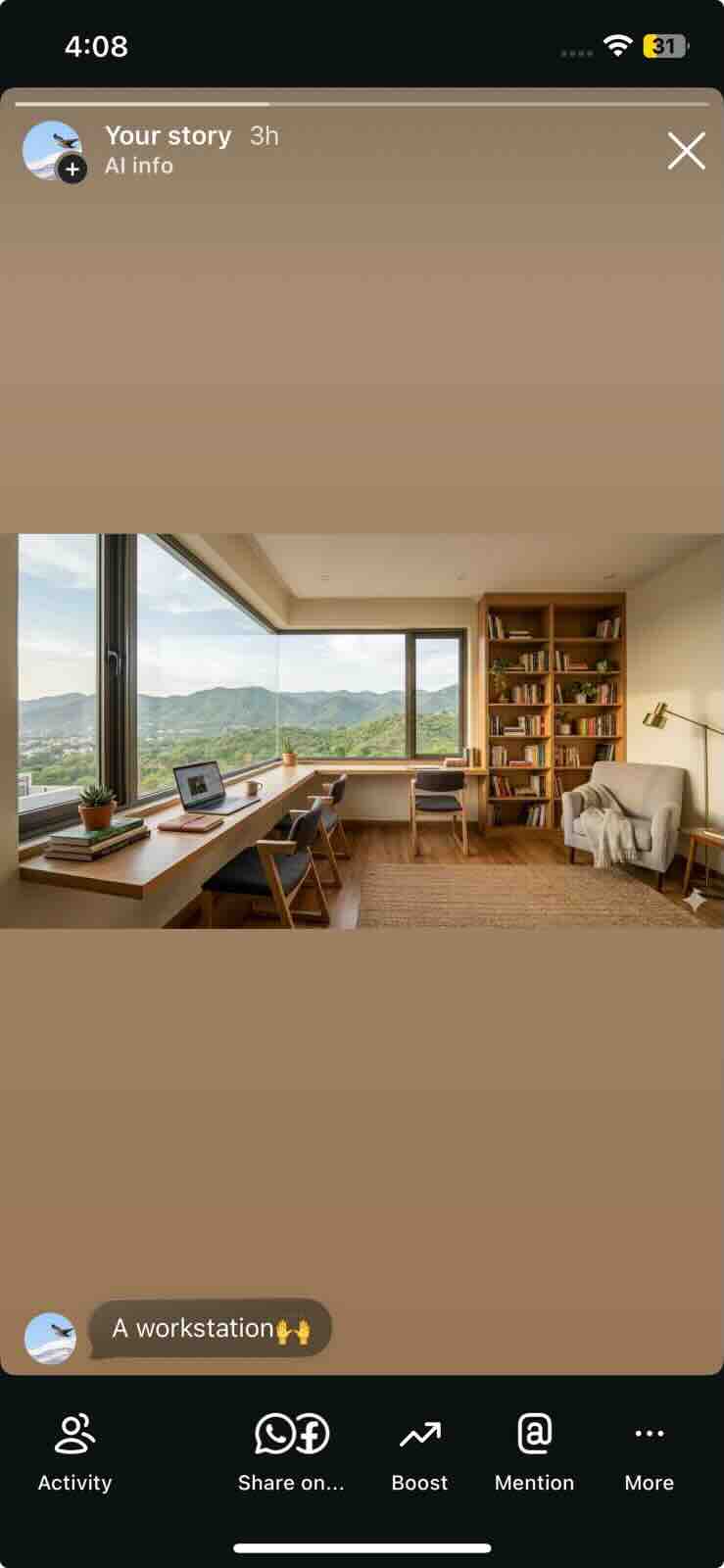
This is the part I care about most in any field test, because it is where claims meet evidence. At the time of this run there was one Story live on the account, posted about three hours earlier. Here is that Story on the phone.
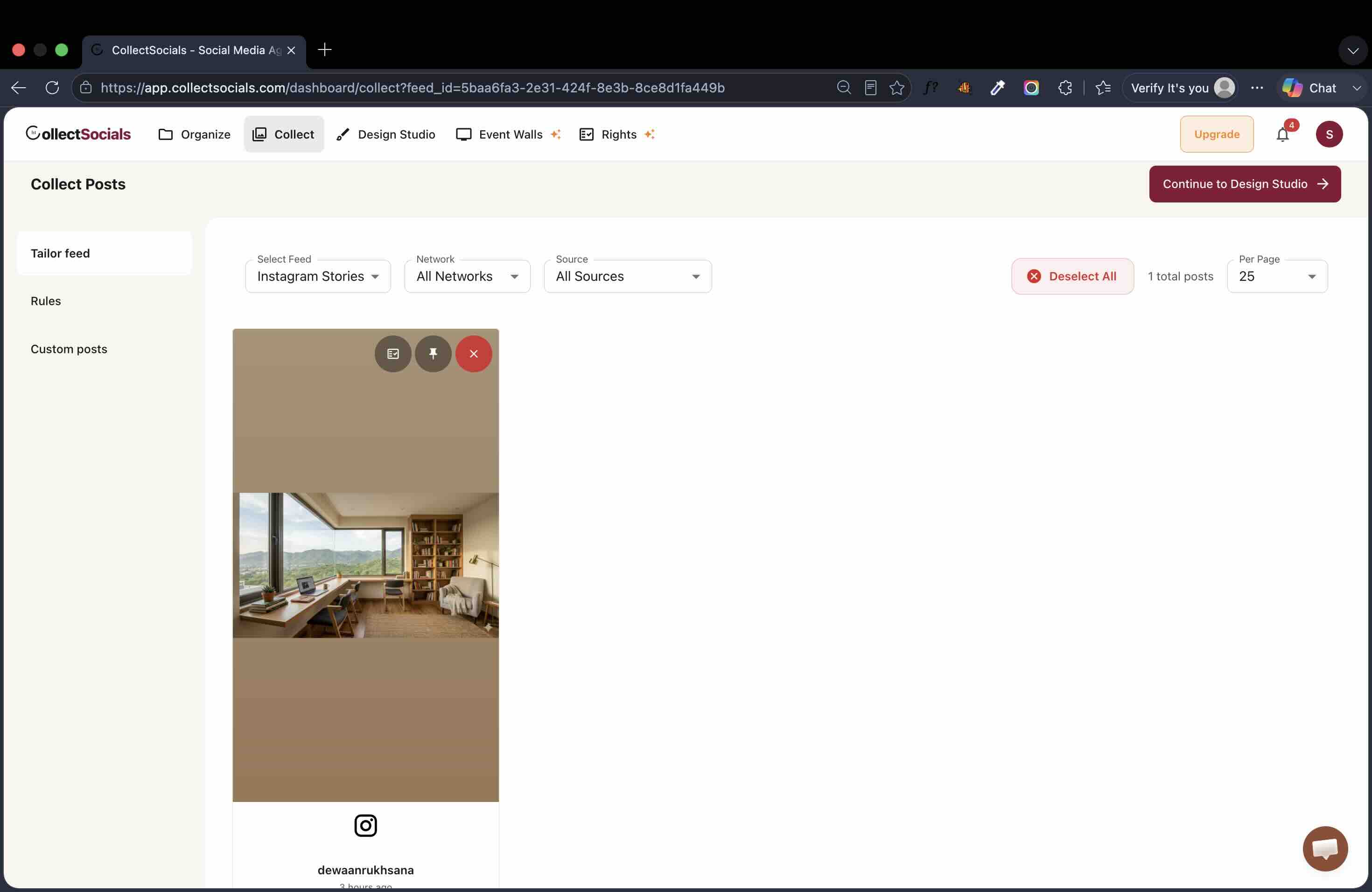
And here is the same Story inside the feed a moment later, dated three hours ago, with the moderation controls attached to it. One live Story on Instagram, one post in the feed.
Step 6: Design how the Story looks on your site
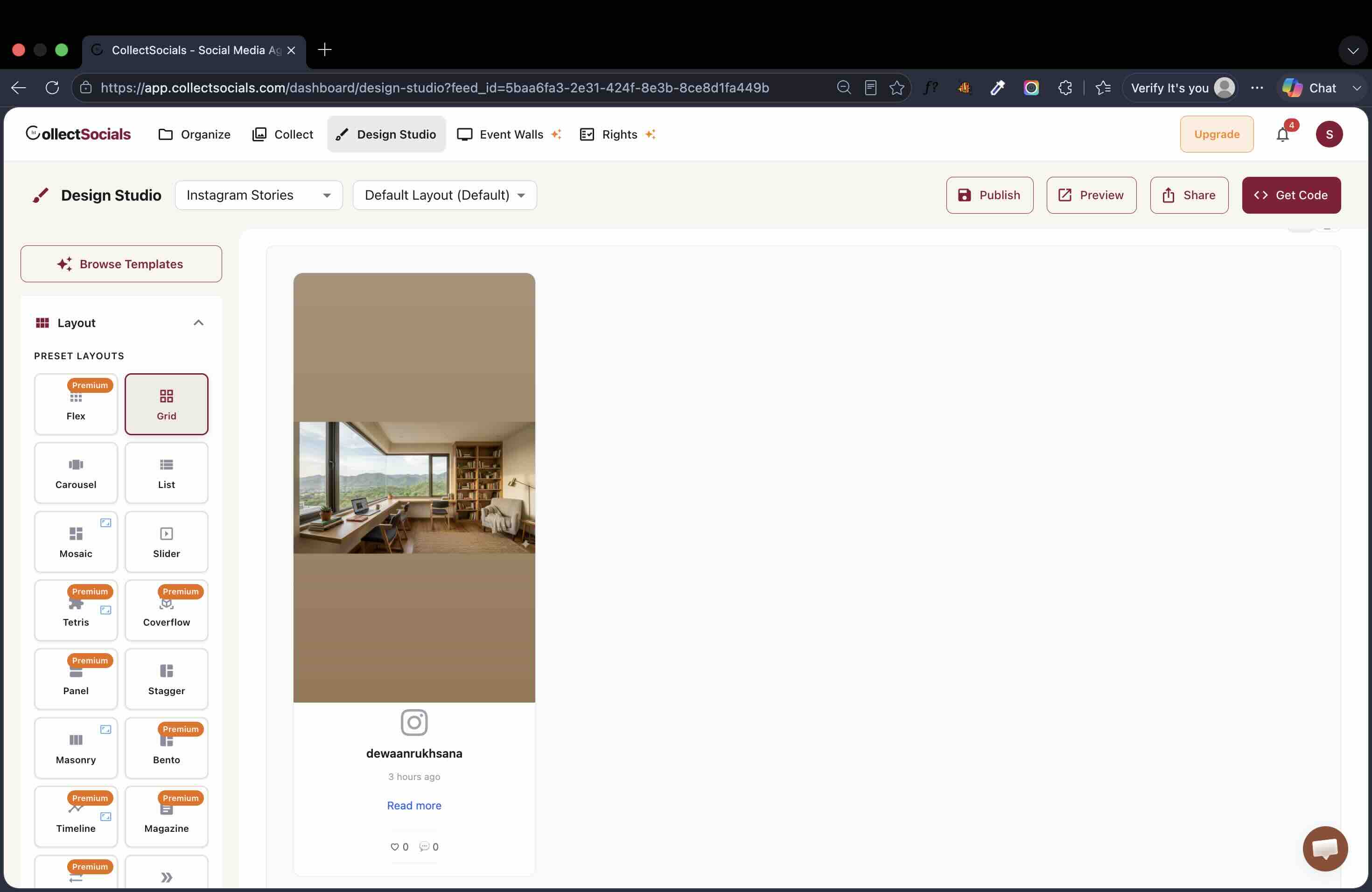
Stories are vertical, and a feed of them looks different from a feed of square posts. Layout choice is doing more work here than usual, because a Stories feed is often holding a single tall item rather than a grid of twelve.
Designing around a tall, short-lived card
The animation cycles through layout options applied to the same content. For Stories the practical question is narrower than for a normal feed: the cards are vertical and there may only be one or two of them at any moment, so layouts that expect a dense grid can leave more empty space than the ones built around a single prominent card.
Step 7: Put it on the site
The finished feed renders through the same install snippet as any other feed we publish: one script tag, one container element and a preload hint, with free plans also carrying the visible CollectSocials link. The preview below is the widget rendering the Story exactly as a visitor would see it.
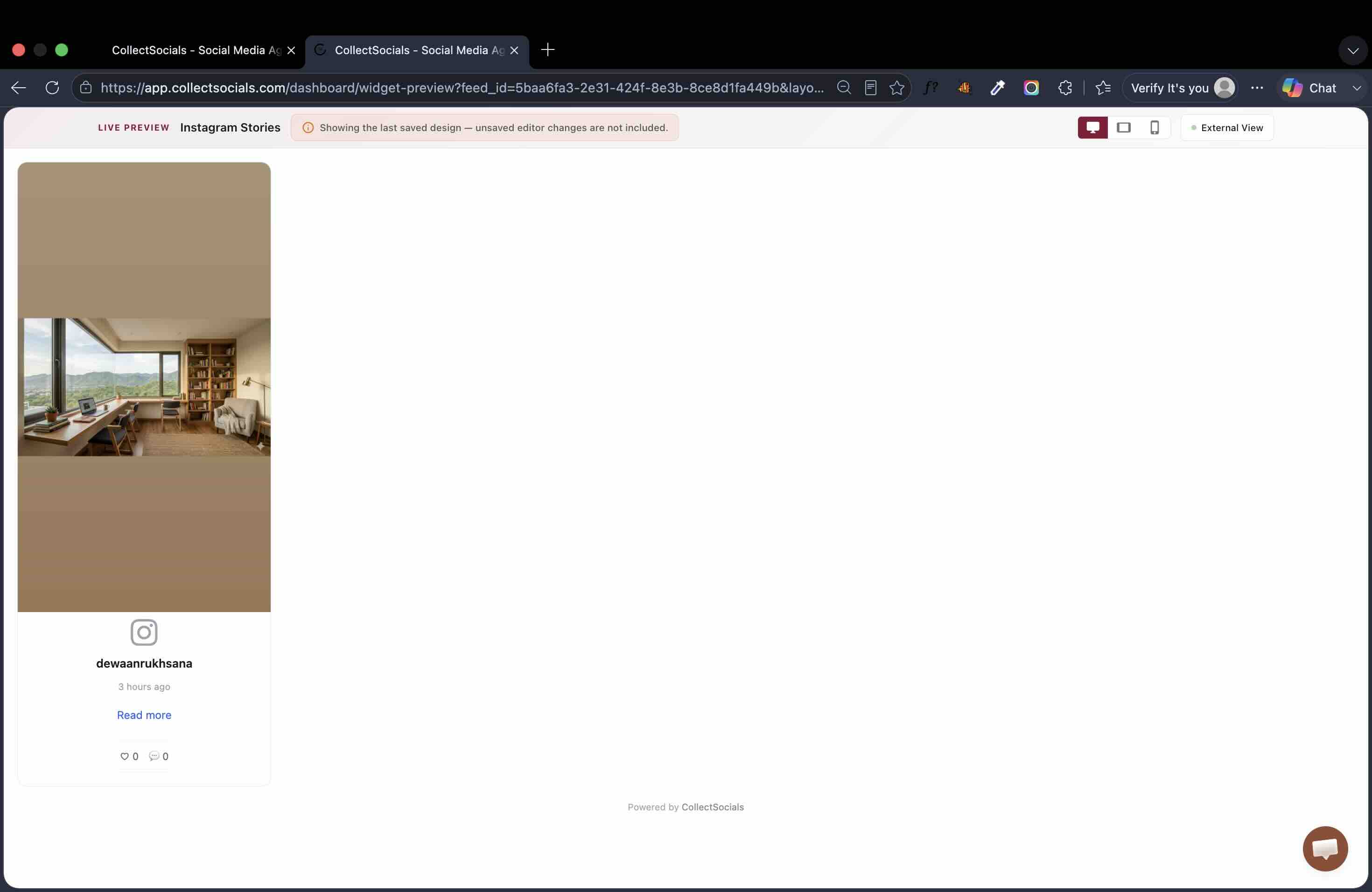
Platform-specific installation, including the cases where the snippet differs, is covered on the Instagram feed widget page. The step-by-step versions live in the guides for WordPress, Wix, Squarespace and Shopify, where the snippet genuinely differs between platforms.
What Happens to a Story on Your Website After 24 Hours?
It disappears from your site, the same way it disappears from Instagram. That is deliberate, and it is worth understanding why, because the alternative is worse than it sounds.
When a Story expires, the image or video behind it stops being served. Any system that kept the Story on your page past that point would not be keeping the Story. It would be keeping a reference to media that no longer loads, which arrives on your website as a broken tile that nothing reports as broken.
So expired Stories are removed automatically. Each time the account is refreshed successfully, Stories that are no longer live are deleted, and as a second line of defence the feed will not serve a Story older than 24 hours even if its removal has not run yet. The result is the one thing you actually want: the feed stops serving a Story the moment it expires, so no dead tiles.
If you want something on your website permanently, post it to your Instagram feed rather than to Stories. Feed posts stay available, so a feed of your posts keeps working for as long as the connection stays live. That is the honest answer to the permanence question, and it is a content decision rather than a settings one.
Plan for the empty slot too. A Stories feed shows what is live, so on a day when you have not posted a Story there is nothing to show. If the space on your page cannot be empty, run a feed of your account posts in that position and treat Stories as an addition rather than the whole display. Which position that should be is its own question, covered in where to place an Instagram feed on your website.
Which Instagram Accounts Can Show Stories?
Business and Creator accounts. Personal accounts are not supported, because Instagram's API does not expose them, so no tool can offer this for a personal account regardless of what it advertises.
Switching is free and reversible inside the Instagram app, under account settings. It is the same requirement that applies to reading your ordinary posts, so if you already run an Instagram feed on your site, your account already qualifies.
Can You Show Instagram Story Highlights on a Website?
No. Highlights and archived Stories are not available through Instagram's API at all, so there is no supported way to display them, and this is not something a different tool solves.
If a Highlight is your best content and you want it on your website, the route that works is to post that content to your Instagram feed as well. It then arrives through an ordinary account feed and stays.
What Does It Cost to Display Instagram Stories?
Instagram Stories work on every CollectSocials plan, including the free one. No upgrade is required to run one.
What does differ by plan is how often we check Instagram for new Stories, and with 24-hour content that difference is real rather than cosmetic. The free plan refreshes sources once a day. Against content that lives for 24 hours, that means a Story can be posted and expire between two refreshes, so a free feed will show Stories late and can miss some of them entirely. Pro refreshes every 60 minutes, and the higher plans are shorter still.
We would rather write that down than let you find it out. If Stories are a serious part of your website, the refresh interval is the thing to buy; if you are trying the idea out, free genuinely runs it.
What to Expect Once Your Stories Feed Is Running
Three things behave differently from a normal feed, and none of them are faults.
The feed is small. It holds the Stories you have live, which is often one or two. A design that expects twelve cards will look underfilled, so choose the layout against the content you actually post.
It empties and refills. Content arriving, expiring and vanishing is the correct behaviour here, not a sync problem. If a feed of your permanent posts goes empty, something is wrong; if a Stories feed goes empty, you have not posted a Story today.
Timing is the whole game. Everything about a Stories feed comes back to the gap between posting and refreshing. It is the one variable worth paying attention to, and it is why the free-plan caveat above is stated as plainly as it is.
If a feed of yours is not showing what you expect, our guide to fixing an Instagram feed that is not showing covers the usual causes, including the ones specific to Stories.
The Short Version
Instagram Stories cannot be embedded, and no tool can change that, because the embed option does not exist to be used. What is available is the API route: connect your Business or Creator account directly with Instagram, no Facebook Page required, and your live Stories render on your site while they are live, then remove themselves cleanly instead of rotting into broken tiles. It runs on every plan, and the refresh interval decides how much of those 24 hours you actually get.
Start Using CollectSocials Today
One curated feed from 10+ platforms: on your website in a single line of code, or up on the big screen at your event.